
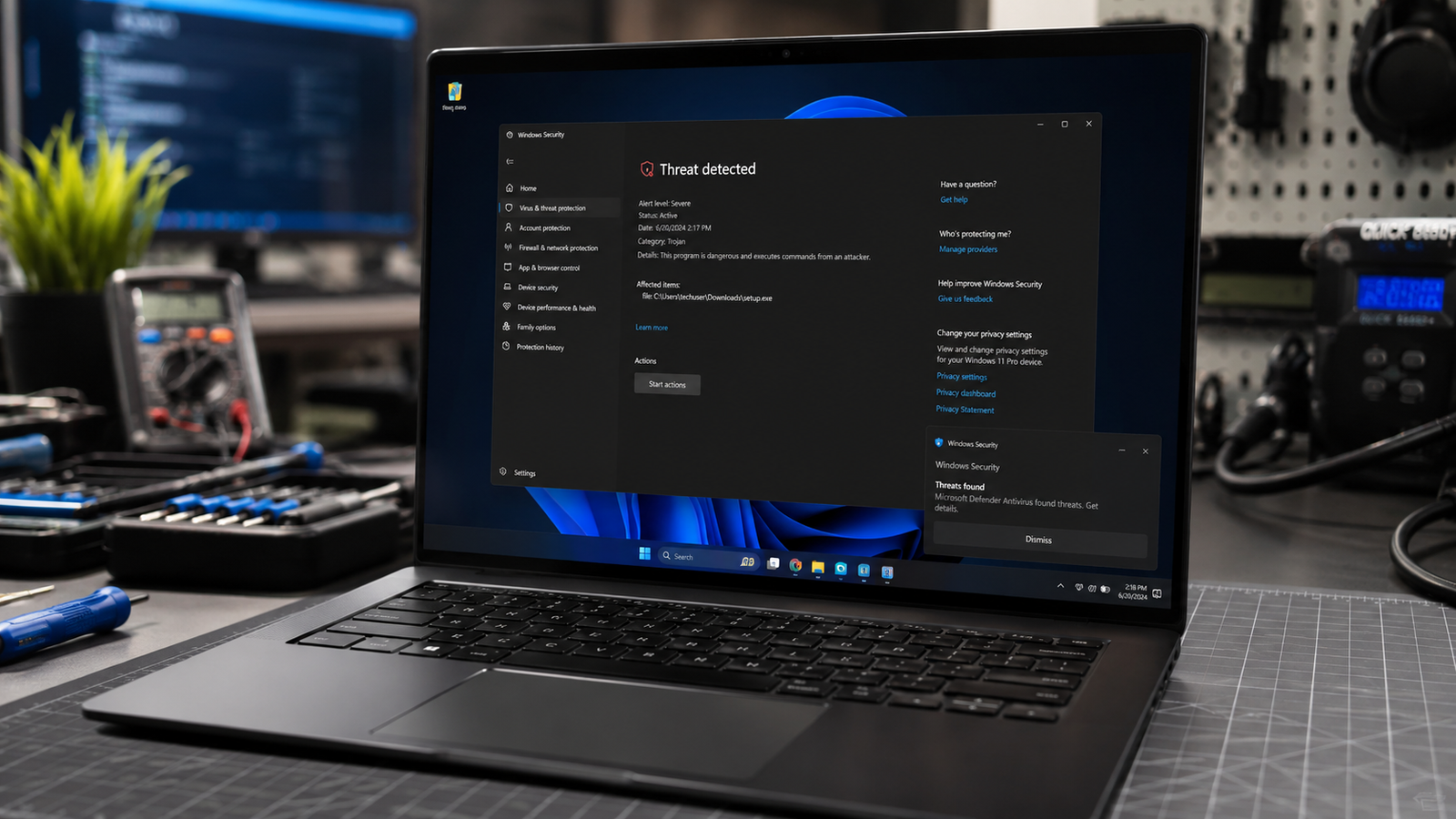
Quick Answer
The fastest way to remove a virus from a Windows 11 laptop is to disconnect from the internet, run a Microsoft Defender Full Scan, then perform a Microsoft Defender Offline Scan. This removes most active malware, spyware, trojans, and browser hijackers that hide during normal Windows operation. Microsoft specifically recommends Defender Offline for persistent malware because it scans outside the normal Windows environment.
Introduction
Your laptop suddenly becomes slow, opens strange ads, installs unknown software, or displays fake security warnings.
In many cases, malware has already infected the system and is consuming resources in the background.
This guide explains how technicians remove viruses from Windows 11 laptops, how to identify the infection source, and when a complete Windows reinstall becomes necessary.
Symptoms of the Problem

Common virus symptoms include:
- Laptop becomes unusually slow
- Programs crash frequently
- High CPU usage when idle
- Excessive disk activity
- Browser redirects to unknown websites
- Random popups and advertisements
- Unknown applications installed
- Antivirus disabled automatically
- Windows Security won’t open
- Suspicious startup applications
- Unexpected network activity
- Battery drains faster than normal
- Fake update notifications
- Files become encrypted or inaccessible
- Frequent system freezes
Microsoft notes that malware often causes slow performance, increased battery drain, and unusual network activity.
Tools Needed
Built-In Tools
- Windows Security
- Microsoft Defender Antivirus
- Microsoft Defender Offline Scan
- Task Manager
- Safe Mode
- Startup Apps Manager
Software Tools
- Microsoft Safety Scanner
- Malwarebytes Free
- AdwCleaner
- Autoruns
Hardware Tools
- USB flash drive
- External backup drive
- Ethernet cable (optional)
Troubleshooting Matrix
| Symptom | Likely Cause | Fast Fix |
| Laptop extremely slow | Malware running in background | Full Defender Scan |
| Browser redirects | Browser hijacker | Remove extensions |
| Defender disabled | Malware tampering | Offline Scan |
| Pop-up ads | Adware infection | AdwCleaner |
| Unknown programs | Trojan installer | Uninstall + Scan |
| Startup delays | Malware persistence | Startup cleanup |
| Files encrypted | Ransomware | Restore backups |
| High CPU usage | Crypto miner malware | Offline Scan |
What Causes Virus Infections on Windows 11

Malicious Downloads
Most infections start when users download software from unofficial websites.
Fake software installers often contain hidden trojans that install silently.
Confirmation Sign: Infection started immediately after downloading software.
Fake Windows Updates
Cybercriminals increasingly create fake Windows update pages that appear legitimate.
Users believe they are installing security updates but actually download malware. Recent security reports show fake Windows update campaigns targeting Windows 11 users.
Confirmation Sign: Update came from a website instead of Windows Update.
Infected Browser Extensions
Browser extensions can monitor activity, inject advertisements, and redirect searches.
Many users accidentally grant dangerous permissions.
Confirmation Sign: Problem appears only while browsing.
Email Attachments
Malicious attachments often disguise themselves as invoices, documents, or delivery notifications.
Opening them can install malware immediately.
Confirmation Sign: Symptoms started after opening an attachment.
Pirated Software
Cracked software remains one of the most common malware sources.
Many crack tools contain hidden trojans and spyware.
Confirmation Sign: Infection appeared after using activation tools.
USB Device Infections
Removable drives can spread malware between computers.
Auto-run attacks are less common today but still occur.
Confirmation Sign: Infection started after connecting a USB device.
How to Diagnose the Problem

Step 1: Check Windows Security
Open:
Settings → Privacy & Security → Windows Security
Expected Result
Windows Security opens normally.
If Failed
Malware may be interfering.
Next Action
Boot into Safe Mode.
Step 2: Review Recent Threat History
Open:
Windows Security → Protection History
Expected Result
Threats are listed with removal status.
If Failed
Proceed with manual scans.
Next Action
Run Full Scan.
Step 3: Check Startup Programs
Open Task Manager.
Select Startup Apps.
Expected Result
Only trusted software appears.
If Failed
Disable unknown entries.
Next Action
Continue malware scans.
Step 4: Monitor Resource Usage
Open Task Manager.
Check CPU, RAM, Disk, and Network usage.
Expected Result
No unknown process consuming excessive resources.
If Failed
Research suspicious process names.
Next Action
Run Offline Scan.
Step 5: Run Microsoft Defender Full Scan
Microsoft recommends using built-in antivirus protection for malware detection and removal.
Expected Result
Threats detected and quarantined.
If Failed
Use Offline Scan.
Next Action
Proceed to Fix #3.
Step-by-Step Fixes

Fix 1: Disconnect from the Internet
Cost: Free
Time: 2 minutes
Difficulty: Easy
Steps
- Disconnect Wi-Fi.
- Remove Ethernet cable.
- Disable Bluetooth.
- Stop syncing services.
Expected Result
Malware communication is interrupted.
If Failed
Continue with scanning procedures.
Next Action
Run Quick Scan.
Technician Tip
Always isolate infected systems first.
Fix 2: Run Microsoft Defender Quick Scan
Cost: Free
Time: 5–15 minutes
Difficulty: Easy
Steps
- Open Windows Security.
- Select Virus & Threat Protection.
- Click Quick Scan.
Expected Result
Common malware detected.
If Failed
Run Full Scan.
Next Action
Fix #3.
Technician Tip
Quick scans only check common infection locations.
Fix 3: Run Microsoft Defender Full Scan
Cost: Free
Time: 30–120 minutes
Difficulty: Easy
Steps
- Open Windows Security.
- Click Scan Options.
- Choose Full Scan.
- Start scan.
Expected Result
Entire drive checked for malware.
If Failed
Run Offline Scan.
Next Action
Fix #4.
Technician Tip
Full scans catch threats missed by quick scans.
Fix 4: Run Microsoft Defender Offline Scan
Cost: Free
Time: 15–30 minutes
Difficulty: Medium
Steps
- Open Windows Security.
- Select Virus & Threat Protection.
- Click Scan Options.
- Choose Microsoft Defender Offline Scan.
- Restart when prompted.
Microsoft Defender Offline runs outside normal Windows and is designed to detect deeply embedded malware.
Expected Result
Persistent malware removed.
If Failed
Boot into Safe Mode.
Next Action
Fix #5.
Technician Tip
This is often the most effective free malware removal method.
Fix 5: Scan in Safe Mode
Cost: Free
Time: 30–60 minutes
Difficulty: Medium
Steps
- Hold Shift while clicking Restart.
- Open Advanced Startup.
- Choose Safe Mode with Networking.
- Run antivirus scans.
Expected Result
Malware processes remain inactive.
If Failed
Use Microsoft Safety Scanner.
Next Action
Fix #6.
Fix 6: Use Microsoft Safety Scanner
Cost: Free
Time: 30–90 minutes
Difficulty: Medium
Steps
- Download Microsoft Safety Scanner.
- Run a Full Scan.
- Remove detected threats.
Microsoft provides Safety Scanner as an additional malware removal tool.
Expected Result
Secondary scan identifies missed infections.
If Failed
Proceed to advanced cleanup.
Next Action
Fix #7.
Fix 7: Remove Suspicious Startup Entries
Cost: Free
Time: 10 minutes
Difficulty: Medium
Steps
- Open Task Manager.
- Select Startup Apps.
- Disable unknown entries.
Expected Result
Malware persistence removed.
If Failed
Use Autoruns.
Next Action
Fix #8.
Expert Warning
Do not disable Microsoft or hardware-related startup entries.
Fix 8: Remove Browser Hijackers
Cost: Free
Time: 15 minutes
Difficulty: Easy
Steps
- Remove unknown extensions.
- Reset browser settings.
- Clear browsing data.
- Change default search engine.
Expected Result
Redirects stop immediately.
If Failed
Use AdwCleaner.
Next Action
Reset browser completely.
Fix 9: Reset Windows 11
Cost: Free
Time: 1–3 hours
Difficulty: Advanced
Steps
- Backup important files.
- Open Recovery Settings.
- Choose Reset This PC.
- Reinstall Windows.
Expected Result
System restored to clean state.
If Failed
Perform clean installation.
Next Action
Complete Windows reinstall.
Technician Tip
A clean installation is the fastest solution for severe infections.
Repair Shop Diagnosis

When a virus-infected laptop arrives at a repair shop, technicians typically check:
- Active malware processes
- Startup entries
- Browser modifications
- Scheduled tasks
- Registry persistence
- Defender status
- Network activity
Common tools include:
- Microsoft Defender Offline
- Malwarebytes
- Autoruns
- Process Explorer
- Microsoft Safety Scanner
Typical repair charges:
| Service | Typical Cost |
| Malware Scan | $20–50 |
| Malware Removal | $40–100 |
| OS Cleanup | $50–120 |
| Windows Reinstall | $70–150 |
Professional repair is justified when malware blocks Windows Security, encrypts files, or survives multiple scans.
When Hardware Replacement Is Necessary
Viruses rarely damage hardware directly.
However, infections can expose existing failures.
SSD Failure
Replace if:
- SMART errors appear
- Frequent bad sectors exist
- Windows reinstall fails
RAM Failure
Replace if:
- Memory diagnostics fail
- Random crashes continue after malware removal
Display Failure
Replace if:
- Screen artifacts persist after clean Windows installation
Fan Failure
Replace if:
- Overheating remains after cleanup
Battery Failure
Replace if:
- Battery health remains poor after malware removal
Motherboard Failure
Replace if:
- Security tools fail due to hardware instability
Prevention Tips

- Enable real-time protection in Windows Security.
- Run monthly full scans.
- Keep Windows updated through official Windows Update only.
- Avoid cracked software.
- Download software only from trusted sources.
- Remove unused browser extensions.
- Enable SmartScreen protection.
- Create regular system backups.
Microsoft recommends using Windows Security and SmartScreen protections to help prevent malware infections.
Frequently Asked Questions

Can Windows 11 remove viruses without extra software?
Yes. Microsoft Defender can detect, quarantine, and remove most malware without additional software.
Is Microsoft Defender Offline Scan safe?
Yes. It restarts the PC and scans outside normal Windows operation to remove persistent threats.
Why is my laptop still slow after virus removal?
Malware may have damaged system files, installed unwanted software, or left startup entries behind.
Should I reinstall Windows after a virus?
If multiple scans fail or ransomware was involved, a clean installation is often the safest option.
Can malware disable Windows Security?
Yes. Some advanced threats attempt to disable antivirus protection to avoid detection.
Will removing malware delete my files?
Normally no. Antivirus software removes infected files while preserving personal data whenever possible.
Conclusion
Most Windows 11 virus infections can be removed using Microsoft Defender Full Scan followed by Microsoft Defender Offline Scan. Persistent infections usually involve browser hijackers, startup malware, or advanced trojans that require Safe Mode or secondary scanning tools. If malware survives repeated scans, backing up data and performing a clean Windows installation is often the most reliable solution. Hardware replacement is rarely required unless the infection reveals an existing component failure.