
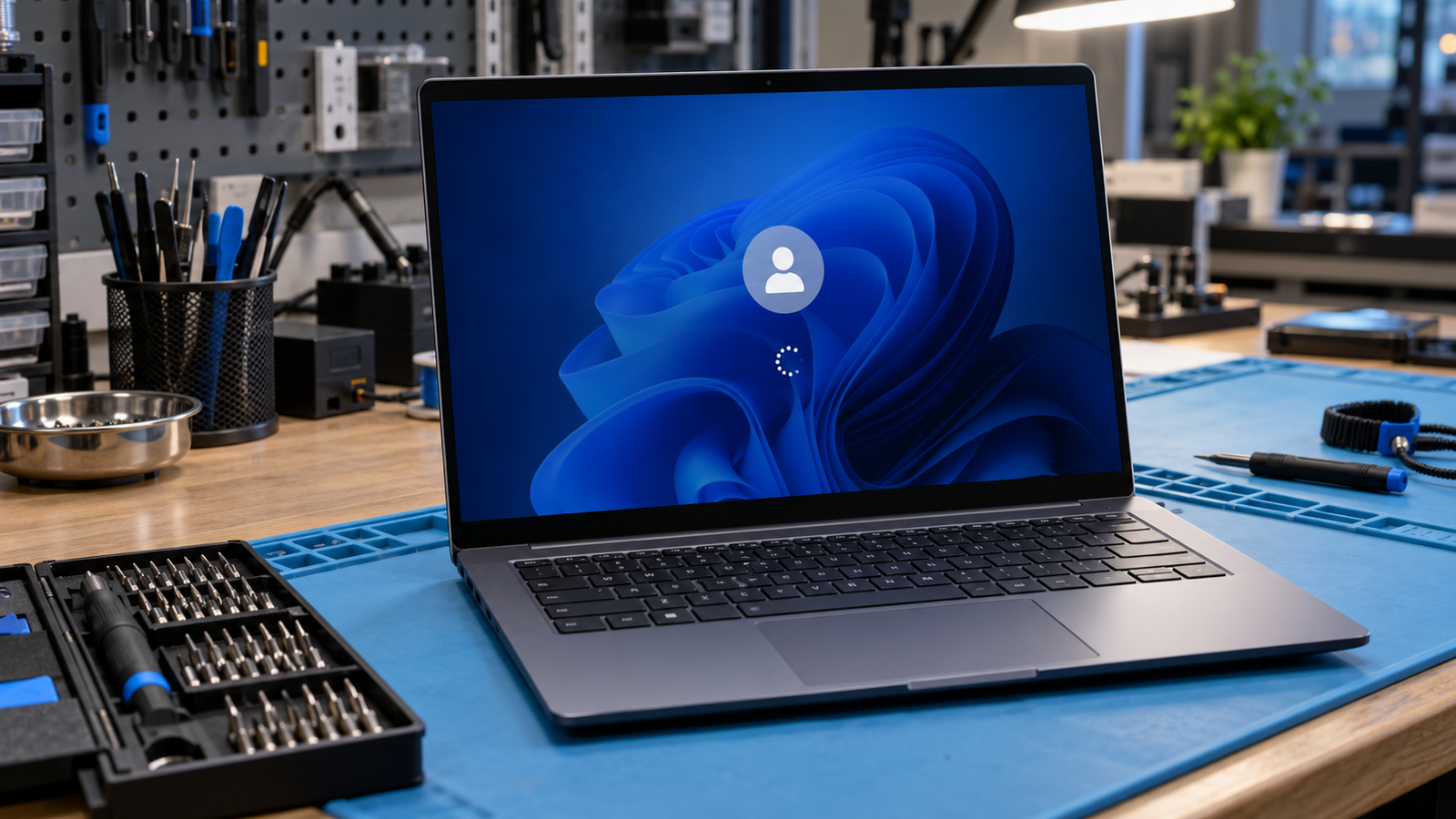
The most likely cause is a faulty Windows update or a startup process that hangs after sign-in. The fastest fix is to force a shutdown three times, open Safe Mode, and uninstall the latest update. After a normal restart, the login screen should accept your password and load the desktop.
Introduction
You type your password or PIN, and Windows 11 answers with a spinning circle, a “Please wait” message, or a lock screen that never lets you in. Waiting does not help, and restarting often lands you in the same spot. This guide covers the three common versions of the problem and gives you seven fixes in order, from free and easy to hardware level.
Symptoms

- A spinning circle or “Please wait” message that never ends after you enter your password or PIN
- A lock screen image with no password box
- A mouse cursor that moves while clicks and the Enter key do nothing
- A black screen with only a cursor after you sign in
- Ctrl+Alt+Delete showing only the network, Ease of access, and power icons
- The PC dropping back to the login screen on its own
- Normal mode freezing while Safe Mode works fine
- Windows restarting into Automatic Repair after you force a shutdown
What Causes a Stuck Windows 11 Login Screen
- A bad update or damaged system files.
- Why: An update that did not finish cleanly, or a corrupted Windows file, leaves sign-in waiting on a task that never completes.
- Identify: The freeze started right after a restart that installed updates.
- Confirmation sign: Running sfc /scannow in Safe Mode reports that it found and repaired corrupted files.
- A startup program, driver, or network sign-in that hangs.
- Why: Third-party services, a graphics driver, leftover Fast Startup data, or a Microsoft account check that cannot reach the internet can stall the desktop from loading.
- Identify: The freeze began after you installed software or a driver, or it only happens when the laptop is online.
- Confirmation sign: Sign-in works in Safe Mode or with Wi-Fi and Ethernet disconnected.
- A hardware or firmware fault.
- Why: A failing drive, a loose or faulty RAM module, or corrupted BIOS settings stop Windows from reading what it needs at sign-in.
- Identify: Safe Mode and Startup Repair also fail or crawl, and the freeze is not tied to any update.
- Confirmation sign: The BIOS does not list the drive, or the built-in hardware diagnostics report a memory or storage error.
How to Fix a Stuck Windows 11 Login Screen

Fix 1: Disconnect everything and refresh the screen
- Cost: Free
- Time: 5 minutes
- Difficulty: Easy
- Steps:
- Unplug USB drives, printers, docks, and external monitors.
- Disconnect Ethernet and turn Wi-Fi off with the keyboard Fn key.
- Press Ctrl+Alt+Delete to redraw the sign-in screen, then sign in.
- If you see a black screen with a cursor, press Ctrl+Shift+Esc, choose Run new task, type explorer.exe, and press Enter.
- Expected Result: The password box appears or the desktop loads.
- If Failed: Go to Fix 2.
Fix 2: Drain the power and cold boot
- Cost: Free
- Time: 5 minutes
- Difficulty: Easy
- Steps:
- Hold the power button for 10 seconds to shut down.
- Unplug the charger, and remove the battery if your laptop has a removable one.
- Hold the power button for 30 seconds, then reconnect the charger.
- Boot normally and wait for the login screen.
- Expected Result: Temporary hardware and memory glitches clear, and sign-in completes.
- If Failed: Go to Fix 3.
Fix 3: Open Safe Mode and uninstall the latest update
- Cost: Free
- Time: 20 minutes
- Difficulty: Moderate
- Steps:
- Power on the laptop. When the Windows logo or spinning dots appear, hold the power button until it shuts off.
- Repeat until the Automatic Repair screen appears, which usually takes two to three cycles.
- Select Advanced options, then Troubleshoot, Advanced options, Startup Settings, and Restart.
- Press 4 or F4 for Safe Mode. Press 5 or F5 if you need Safe Mode with Networking.
- In Safe Mode, open Settings, then Windows Update, Update history, and Uninstall updates. Remove the newest quality update.
- Restart normally.
- Expected Result: The login screen accepts your password and loads the desktop.
- If Failed: Go to Fix 4. If Safe Mode itself will not load, skip to Fix 5.
Fix 4: Turn off Fast Startup, trim startup apps, and roll back the display driver
- Cost: Free
- Time: 15 minutes
- Difficulty: Moderate
- Steps:
- In Safe Mode, open Control Panel, then Power Options, then Choose what the power buttons do.
- Select Change settings that are currently unavailable, untick Turn on fast startup, and save.
- Press Ctrl+Shift+Esc, open Startup apps, and disable every non-Microsoft item.
- Open Device Manager, expand Display adapters, right-click the adapter, and choose Properties, then Roll Back Driver. If that option is grey, choose Uninstall device.
- Restart normally.
- Expected Result: Nothing hangs the sign-in process, and the desktop loads.
- If Failed: Go to Fix 5.
Fix 5: Run Startup Repair, SFC, and DISM
- Cost: Free
- Time: 30 minutes
- Difficulty: Moderate
- Steps:
- From the recovery screen, choose Troubleshoot, Advanced options, Startup Repair. Pick your account and enter your password.
- If the freeze remains, boot to Safe Mode with Networking and open Command Prompt as administrator.
- Run sfc /scannow and let it finish.
- Run DISM /Online /Cleanup-Image /RestoreHealth. This needs the internet connection.
- Run chkdsk C: /f, accept the restart prompt, and let the scan finish.
- Expected Result: Damaged system files are repaired and the login completes.
- If Failed: Go to Fix 6.
Fix 6: Use System Restore, then Reset This PC
- Cost: Free
- Time: 30 to 90 minutes
- Difficulty: Moderate
- Steps:
- From recovery, choose Troubleshoot, Advanced options, System Restore.
- Select a restore point dated before the problem began and finish the wizard.
- If no restore point exists or it fails, go back to Troubleshoot and choose Reset this PC, then Keep my files.
- If you can reach Safe Mode first, copy Documents, Desktop, and Downloads to an external drive before resetting.
- Expected Result: Windows signs in normally. After a reset, you will need to reinstall your apps.
- If Failed: Go to Fix 7.
Fix 7: Reset BIOS defaults, reseat RAM, and test the drive
- Cost: Free for BIOS and RAM steps. A replacement drive costs money if the test fails.
- Time: 30 to 60 minutes
- Difficulty: Hard
- Steps:
- Restart and open the BIOS with the key for your brand (commonly F2, F10, or Delete).
- Load setup defaults (F9 on many HP models), then save and exit.
- If it still fails, power off, unplug the charger, and reseat the RAM modules if your laptop has an accessible panel.
- Confirm the drive is listed in the BIOS, then run your maker’s pre-boot diagnostics such as HP PC Hardware Diagnostics UEFI or Dell SupportAssist.
- Expected Result: Windows reaches the login screen if corrupted firmware settings or a loose module caused the freeze.
- If Failed: Stop and see the professional help section below.
Mistakes to Avoid
Choosing Remove everything in Reset This PC. This wipes your files, and recovery tools rarely bring them back. Pick Keep my files, and copy your data out first if Safe Mode opens.
Forcing a shutdown on the “Working on updates” screen. A percentage counter means Windows is writing files. Cutting power then can corrupt the install and turn a login problem into a boot failure. Only force a shutdown when the spinner sits at the sign-in stage with no progress at all.
Running repeated disk scans on a failing drive. If the drive clicks, grinds, or drops out of the BIOS, every chkdsk pass puts more stress on it. Copy your data off first.
Flashing the BIOS as a guess. An interrupted flash, especially on low battery, can leave the laptop unable to boot at all. Load defaults instead, and update firmware only from your manufacturer’s support page with the charger connected.
When to Stop and Get Professional Help
Stop and take the laptop to a repair shop if the battery is swollen, the case bulges, you smell burning, or the chassis runs hot while powered off. The same applies if the drive clicks or vanishes from the BIOS, or if diagnostics report a memory or storage failure. Do not keep forcing restarts on a failing drive. If the data matters, power off and have the drive imaged before any reset.
Prevention Tips

- Use Restart instead of Shut down once a week so Windows does a full boot and clears Fast Startup leftovers.
- Build a Windows 11 recovery USB drive on a working PC now, before you need it.
- Confirm System Protection is on for drive C, and create a restore point before big driver or feature updates.
- Install BIOS and chipset updates one at a time from your manufacturer’s support page, with the charger plugged in.
- Keep real free space on drive C so updates can finish without half-writing system files.
Frequently Asked Questions
Why is Windows 11 stuck on the Please wait screen after I enter my password? Windows is waiting on a startup task, a driver, or a network check that never finishes. Disconnecting the network and booting into Safe Mode usually exposes which one.
Can I fix a stuck login screen without resetting my PC? Yes, in most cases. Uninstalling the latest update, turning off Fast Startup, and running SFC and DISM fix the majority of freezes without touching your files.
Will Safe Mode delete my files? No. Safe Mode only loads Windows with minimum drivers, and your files stay untouched.
How long should I wait before forcing a restart? If the spinner has not changed after about 10 minutes and the drive light is idle, force a shutdown. Do not interrupt a screen that shows an update percentage.
Conclusion
A stuck Windows 11 login screen usually comes from a bad update, a hanging startup item, or damaged system files. Safe Mode with the latest update removed is the best first real fix, and Startup Repair, SFC, and DISM cover most of the rest. If the BIOS cannot see the drive or diagnostics report errors, stop and get the laptop to a professional before anything gets worse.