
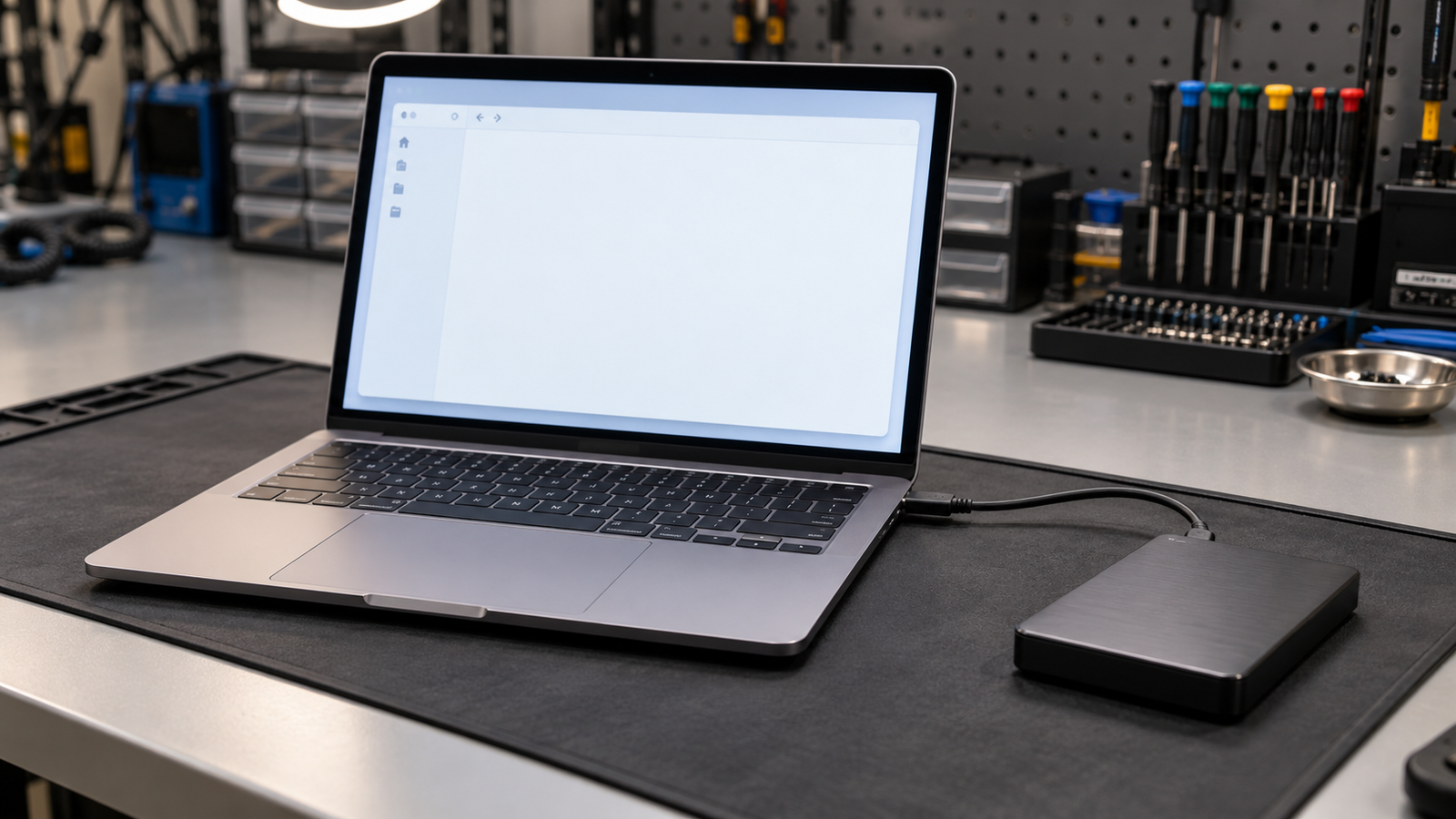
The most common cause is a drive that Windows detects but never gives a drive letter, so File Explorer hides it. Open Disk Management, find the drive, and add a letter. If it is missing there too, use a direct USB port, the original cable, and the drive’s own power supply. Most drives return within 15 minutes.
Introduction
You plug in your external hard drive, the light blinks, and Windows 11 acts as if nothing happened. This guide follows the order a repair bench uses: confirm the drive is detected, fix the drive letter or disk state, then move to drivers, USB power settings, and hardware. You will know within a few minutes whether your drive is hidden, underpowered, or failing. If the missing drive is the one inside your laptop, read our guide on a hard drive not detected instead.
Symptoms

- Visual: the drive light blinks or stays on, but nothing appears under This PC in File Explorer.
- Visual: Disk Management lists the drive with no letter, or marked Offline, Not Initialized, Unallocated, or RAW.
- Visual: Device Manager shows an Unknown USB Device with a yellow warning icon.
- Performance: the drive spins up, drops out, and reconnects in a loop.
- Performance: the drive shows for a few seconds, then vanishes after the laptop idles or wakes from sleep.
- Performance: it works in one USB port but not in another.
- Warning sign: no connection chime plays when you plug the drive in.
- Warning sign: Windows asks you to format the disk before you can use it.
- Warning sign: the drive clicks, grinds, or beeps.
- Warning sign: the enclosure runs hot or smells burnt.
What Causes an External Hard Drive Not Showing Up on Windows 11
- Missing letter, offline disk, or damaged volume
- Why: File Explorer lists only volumes that have a drive letter, the same gap that hides an SD card not detected on a laptop.
- Identify: open Disk Management and look for a disk that matches your drive’s size.
- Confirmation sign: the volume has no letter, or the disk reads Offline, Not Initialized, or RAW.
- Power, port, or cable fault
- Why: bus-powered drives pull more current than a hub, a worn port, or a laptop in battery saver may deliver.
- Identify: the drive spins up and drops out, or the LED flickers.
- Confirmation sign: the drive works on a different direct port or with its own power adapter.
- Driver or USB power management
- Why: a Windows update can swap the USB or storage driver, and USB selective suspend can cut power to an idle port.
- Identify: the drive worked before a recent update or sleep cycle, and Device Manager shows a warning icon.
- Confirmation sign: the drive returns after you uninstall the device and restart, or after you disable selective suspend.
How to Fix External Hard Drive Not Showing Up on Windows 11

Fix 1: Use a direct port, the original cable, and full power
- Cost: Free
- Time: 5 minutes
- Difficulty: Easy
- Steps:
- Plug the laptop into its charger.
- Connect the drive to a USB port on the laptop body, not a hub or dock, using the cable that shipped with it.
- If the drive has its own power adapter, plug it in and switch it on.
- Try a second port, then try the drive on another computer.
- Expected Result: a connection chime, a steady light, and the drive listed under This PC.
- If Failed: go to Fix 2.
Fix 2: Add a drive letter or bring the disk online
- Cost: Free
- Time: 5 minutes
- Difficulty: Easy
- Steps:
- Right-click Start and open Disk Management.
- Scroll the lower pane to the disk that matches your drive’s size.
- If the disk says Offline, right-click its gray label and choose Online.
- If the volume has no letter, right-click it, choose Change Drive Letter and Paths, click Add, pick a letter, and press OK.
- Expected Result: the drive appears in File Explorer at once.
- If Failed: if the disk reads Not Initialized, Unallocated, or RAW, go to Fix 3. If it is missing from Disk Management, go to Fix 4.
Fix 3: Handle Not Initialized, Unallocated, RAW, or an unsupported file system
- Cost: Free, but formatting erases the drive
- Time: 10 minutes
- Difficulty: Medium
- Steps:
- Continue only if the drive is new or holds nothing you need.
- Right-click the disk label in Disk Management, choose Initialize Disk, select GPT, and press OK.
- Right-click the Unallocated space, choose New Simple Volume, and finish the wizard with exFAT or NTFS.
- If Change Drive Letter and Paths is greyed out, the drive may carry a Mac or Linux file system that Windows cannot read. If the files matter, stop and read the professional help section.
- Expected Result: an empty, usable drive with its own letter.
- If Failed: go to Fix 4.
Fix 4: Reinstall the drive in Device Manager
- Cost: Free
- Time: 10 minutes
- Difficulty: Easy
- Steps:
- Press Win + X and open Device Manager.
- Expand Disk drives and Universal Serial Bus controllers.
- Right-click your drive, or any Unknown USB Device with a warning icon, and choose Enable device or Uninstall device.
- Unplug the drive, restart the laptop, then reconnect it so Windows reinstalls the driver.
- Expected Result: the drive reinstalls cleanly and shows up in File Explorer.
- If Failed: go to Fix 5.
Fix 5: Turn off USB selective suspend
- Cost: Free
- Time: 5 minutes
- Difficulty: Easy
- Steps:
- Open Control Panel, then Power Options.
- Click Change plan settings beside your active plan, then Change advanced power settings.
- Expand USB settings, then USB selective suspend setting.
- Set both On battery and Plugged in to Disabled, press Apply, and reconnect the drive.
- Expected Result: the drive stays connected through idle time and sleep.
- If Failed: go to Fix 6.
Fix 6: Install chipset and USB drivers from your laptop maker
- Cost: Free
- Time: 15 minutes
- Difficulty: Medium
- Steps:
- Open the support page for your laptop brand (Dell, HP, Lenovo, ASUS, Acer, or MSI) and enter your model or service tag.
- Download the latest chipset and USB drivers.
- Install them, restart, and reconnect the drive.
- Expected Result: the USB controller responds and the drive is detected.
- If Failed: go to Fix 7.
Fix 7: Add power with a powered hub or Y cable
- Cost: Low (a powered USB hub or a dual-plug Y cable)
- Time: 5 minutes
- Difficulty: Easy
- Steps:
- Connect the drive through a powered USB hub with its adapter plugged in.
- For a 2.5 inch bus-powered drive, use a Y cable and plug both ends into the laptop.
- Expected Result: steady spin-up and stable detection.
- If Failed: go to Fix 8.
Fix 8: Isolate the failed part
- Cost: Free to low (a spare enclosure if needed)
- Time: 20 minutes
- Difficulty: Medium
- Steps:
- Plug a flash drive or mouse into the same laptop port to test the port.
- Test the drive on a second computer with a different cable.
- If the drive sits in a removable enclosure, test the bare drive in another enclosure.
- Expected Result: you know whether the port, cable, enclosure, or drive has failed.
- If Failed: follow the professional help section below.
Mistakes to Avoid
Formatting a RAW or Unallocated drive you still need. Windows offers to format because it cannot read the file system, not because the files are gone. A format writes a fresh file system and makes recovery harder.
Running a chkdsk repair on a clicking drive. A repair scan forces constant reads and writes on a failing mechanism. Image the drive first or send it to a recovery lab.
Tapping, shaking, or opening the drive. A knock against a spinning platter can scratch the surface, and opening a sealed drive outside a cleanroom ruins the platters.
Pulling the cable or power mid-write. Cutting power during a write can corrupt the file system and turn a healthy volume into a RAW one. Eject from the taskbar first.
When to Stop and Get Professional Help
Stop if the drive clicks, grinds, or beeps, or if it was dropped or exposed to liquid. Stop if the connector wobbles, the enclosure runs hot, or you smell burning, because a short can damage the laptop’s USB port. If Disk Management shows RAW or Unallocated and the files matter, stop before you format anything. A data recovery lab or the drive maker’s warranty support handles these cases.
Prevention Tips

- Eject the drive from the taskbar before unplugging, because pulling it mid-write is the fastest route to a RAW volume.
- Give the drive a high permanent letter such as Z: in Disk Management so it never collides with a mapped network drive.
- Plug bus-powered drives straight into the laptop with the cable they shipped with, never into a passive hub.
- After every major Windows 11 update, install chipset and USB drivers from your laptop maker’s support page and recheck that USB selective suspend is still off.
- Copy irreplaceable files to a second location the day your drive disconnects once, since a drive that vanishes once often does it again.
Frequently Asked Questions
Why is my external hard drive not showing up in Windows 11? Windows usually detects the drive but hides it because it has no drive letter, is marked Offline, or lacks power from the port. Open Disk Management first, then test a direct port with the original cable.
Why does my external hard drive appear in Disk Management but not in File Explorer? File Explorer only lists volumes that have a drive letter, so a drive without one stays hidden. Right-click the volume in Disk Management, choose Change Drive Letter and Paths, and add one.
Why did my external hard drive stop showing up after a Windows 11 update? Updates can replace USB or storage drivers and reset power settings such as USB selective suspend. Uninstall the device in Device Manager, restart, and install chipset and USB drivers from your laptop maker.
Can I recover data from an external hard drive that does not show up? Often yes, if the drive is detected but shows RAW or Unallocated, as long as you do not format it. A drive that clicks or appears nowhere needs a professional recovery lab.
Conclusion
Most external drives that vanish in Windows 11 are detected but hidden by a missing letter, an offline state, or a power problem. Start with Disk Management and a direct port, then work through drivers and USB power settings. If the drive clicks, shows RAW with files you need, or fails on every computer, stop and call a recovery lab.