
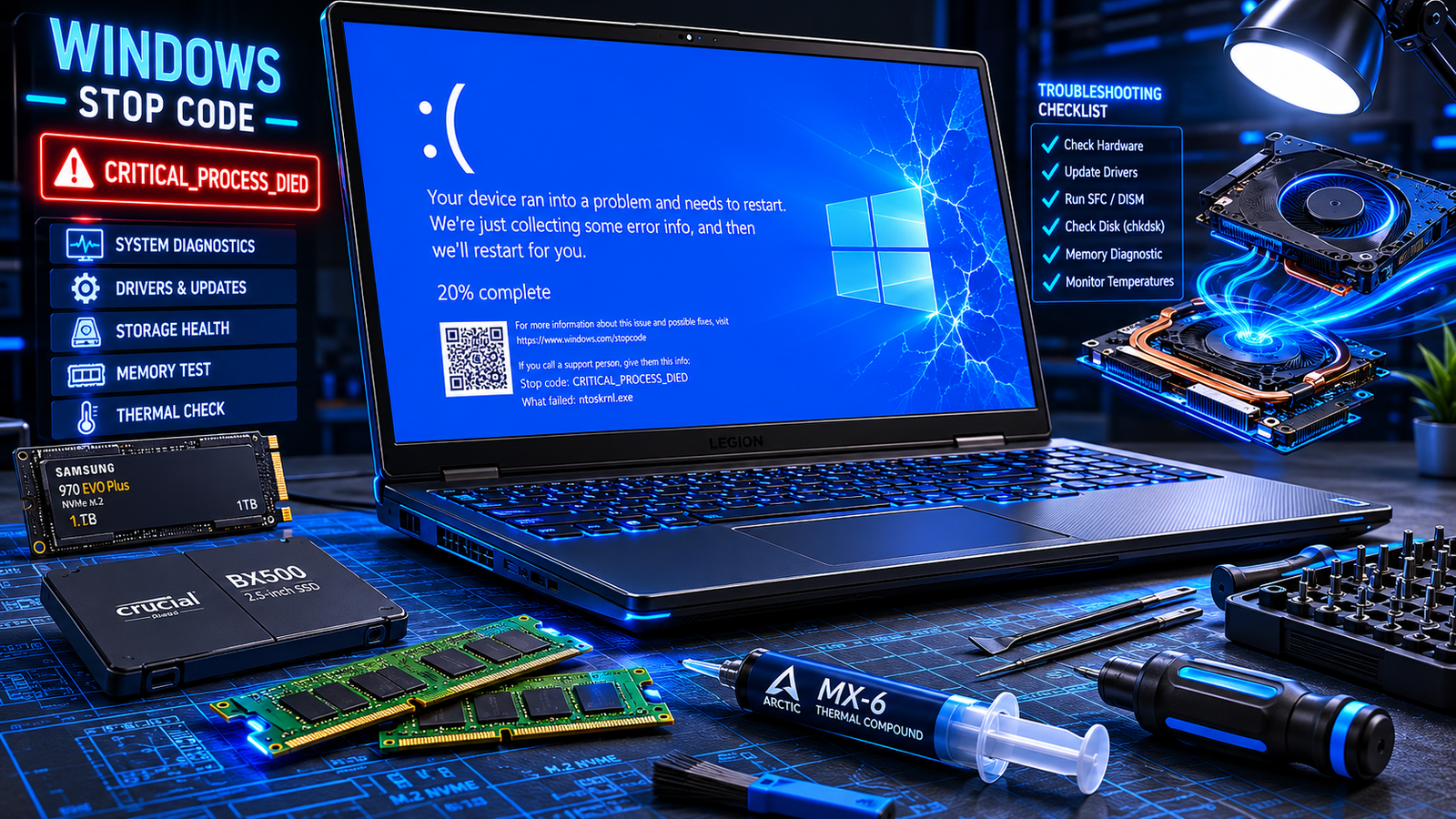
A blue screen error laptop crash usually happens because of corrupted drivers, failing RAM, overheating, damaged system files, or SSD problems. The fastest fixes are removing recent drivers or updates, running Windows diagnostics, checking temperatures, and repairing corrupted files before hardware damage worsens.
• Most BSOD crashes are linked to driver or memory failures
• Repeated blue screens during startup often indicate SSD or RAM faults
• Overheating laptops commonly trigger random blue screen restart loops
Laptop blue screen crashes usually happen at the worst possible time: during gaming, work calls, Windows updates, or boot startup. One minute the system works normally, and seconds later your screen turns blue with a stop code before the laptop restarts itself.
Most users panic because the crash appears random, but BSOD errors nearly always leave clues. Driver corruption, failing memory, overheating GPUs, damaged SSD sectors, BIOS instability, and Windows update conflicts are the most common causes. The fixes below walk through the exact repair process technicians use to stop recurring blue screen errors permanently.
Symptoms of the Problem

A blue screen error laptop issue rarely appears without warning signs beforehand. Watch for these common symptoms:
- Sudden blue screen with a stop code like CRITICAL_PROCESS_DIED
- Laptop restarting repeatedly after startup
- Freezing before the BSOD appears
- Loud fan noise followed by crash
- Random crashes while gaming or video editing
- Windows update failing before reboot loops
- Black screen immediately after the blue screen restart
- Error messages such as:
- MEMORY_MANAGEMENT
- IRQL_NOT_LESS_OR_EQUAL
- PAGE_FAULT_IN_NONPAGED_AREA
- DPC_WATCHDOG_VIOLATION
- Laptop becoming extremely hot underneath
- SSD usage stuck at 100% before crashing
- Crashes triggered when plugging in USB devices
- Screen flickering before system failure
System Requirements & Tools Needed

Before starting repairs, prepare these tools and utilities:
- Windows Safe Mode
- Device Manager
- Windows Memory Diagnostic
- Command Prompt (Admin)
- BIOS/UEFI access
- External USB drive
- Compressed air can
- Small screwdriver kit
- Thermal paste (advanced thermal repair)
- SSD health utility
- GPU monitoring software
- Stable internet connection for driver downloads
⚠️ EXPERT WARNING: Back up important files before performing advanced repair steps or BIOS adjustments.
Troubleshooting Matrix (Quick Comparison Table)

| Observed Symptom | Potential Root Cause | Recommended Fast Fix |
| Blue screen during gaming | GPU overheating | Clean vents and monitor temperatures |
| BSOD after Windows update | Corrupted update files | Remove recent updates |
| Laptop crashes randomly | Faulty RAM | Run memory diagnostics |
| Startup blue screen loop | SSD corruption | Repair boot files |
| BSOD while charging | Power driver conflict | Reinstall battery drivers |
| Blue screen after installing software | Driver incompatibility | Roll back drivers |
| Frequent freezing before crash | Overheating CPU | Clean cooling system |
| DPC_WATCHDOG_VIOLATION | SSD or driver issue | Update storage drivers |
| MEMORY_MANAGEMENT stop code | Defective RAM | Reseat or replace memory |
| PAGE_FAULT_IN_NONPAGED_AREA | Corrupted drivers | System file repair |
Step-by-Step Fixes (From Easiest to Advanced)

Restart the Laptop Properly
A full power reset clears temporary driver conflicts and unstable memory states.
- Shut down the laptop completely.
- Disconnect the charger and all USB devices.
- Hold the power button for 20 seconds.
- Reconnect power only.
- Start the laptop normally.
Many BSOD crashes triggered by temporary power instability disappear after a full reset.
💡 TIP: Remove gaming peripherals and external SSDs during testing to rule out hardware conflicts.
Boot Into Safe Mode
Safe Mode loads Windows with minimal drivers and isolates unstable software.
- Turn the laptop on and interrupt startup three times.
- Windows Recovery Environment should appear.
- Select:
- Troubleshoot
- Advanced Options
- Startup Settings
- Restart
- Press 4 for Safe Mode.
If the laptop stops crashing in Safe Mode, the issue is almost always linked to drivers or startup applications.
Remove Recent Drivers or Updates
Faulty Windows updates commonly trigger blue screen loops.
- Open Device Manager.
- Expand recently updated hardware categories:
- Display adapters
- Storage controllers
- Network adapters
- Right-click the latest driver.
- Select Roll Back Driver.
To uninstall updates:
- Open Settings.
- Go to Windows Update.
- Select Update History.
- Click Uninstall Updates.
- Remove the latest installed update.
Restart and test system stability afterward.
⚠️ EXPERT WARNING: Never install unofficial driver packs from random websites. Corrupted drivers trigger repeated BSOD failures.
Run System File Repair Commands
Corrupted Windows system files directly cause blue screen crashes.
- Open Command Prompt as Administrator.
- Run this command:
sfc /scannowsfc\ /scannowsfc /scannow
- Wait for the scan to finish.
- Then run:
DISM /Online /Cleanup-Image /RestoreHealthDISM\ /Online\ /Cleanup\text{-}Image\ /RestoreHealthDISM /Online /Cleanup-Image /RestoreHealth
- Restart the laptop.
These repairs restore damaged system components and repair update corruption.
Check RAM for Memory Errors
Faulty memory modules are one of the most common blue screen causes.
- Press Windows + R.
- Type:
mdsched.exemdsched.exemdsched.exe
- Press Enter.
- Choose Restart now and check for problems.
Windows will scan RAM during reboot.
If errors appear:
- Power off the laptop.
- Open the rear panel.
- Remove RAM sticks carefully.
- Clean contacts gently.
- Reinsert memory firmly.
If crashes continue, replace defective RAM.
Monitor Laptop Temperatures
Overheating causes GPU and CPU instability that triggers BSOD shutdowns.
Normal temperature ranges:
| Component | Safe Temperature |
| CPU Idle | 40°C–60°C |
| CPU Load | 70°C–90°C |
| GPU Load | 65°C–85°C |
If temperatures exceed safe limits:
- Clean cooling vents.
- Remove dust buildup.
- Raise the rear of the laptop slightly.
- Replace dried thermal paste if temperatures remain extreme.
💡 TIP: Gaming on blankets or soft surfaces blocks airflow and causes rapid overheating.
Disconnect Problematic External Devices
Faulty USB devices can crash Windows drivers instantly.
- Disconnect:
- USB hubs
- Printers
- External drives
- Controllers
- Docking stations
- Restart the laptop.
- Reconnect devices one at a time.
If the BSOD returns after reconnecting a device, update or replace that hardware.
Update SSD and Storage Drivers
Storage driver failures commonly trigger DPC_WATCHDOG_VIOLATION.
- Open Device Manager.
- Expand Disk Drives.
- Right-click your SSD.
- Select Update Driver.
Then check SSD health using the manufacturer utility.
Watch for:
- Bad sectors
- Critical warnings
- Low health percentages
- Firmware issues
⚠️ EXPERT WARNING: Repeated startup blue screens combined with clicking noises usually indicate imminent drive failure.
Disable Fast Startup
Fast Startup sometimes corrupts driver loading sequences.
- Open Control Panel.
- Go to Power Options.
- Select Choose what the power buttons do.
- Click Change settings that are currently unavailable.
- Uncheck:
- Turn on fast startup
- Save changes.
- Restart the laptop.
This resolves many recurring startup BSOD loops.
Scan for Malware
Rootkits and system-level malware can corrupt Windows kernel files.
- Open Windows Security.
- Select Virus & Threat Protection.
- Choose Scan Options.
- Run a Full Scan.
For severe infections:
- Boot into Safe Mode.
- Run Microsoft Defender Offline Scan.
Remove all detected threats before continuing repairs.
Update BIOS Carefully
An outdated BIOS causes memory instability and hardware communication failures.
- Identify your laptop model.
- Visit the official manufacturer website.
- Download the latest BIOS update.
- Plug the charger in before updating.
- Follow manufacturer instructions exactly.
⚠️ EXPERT WARNING: Never interrupt a BIOS update. Power loss during flashing can permanently damage the motherboard.
Repair Windows Startup Files
Corrupted boot files often trap laptops in BSOD restart loops.
- Enter Windows Recovery Environment.
- Open Command Prompt.
- Run these commands one by one:
bootrec /fixmbrbootrec\ /fixmbrbootrec /fixmbr
bootrec /fixbootbootrec\ /fixbootbootrec /fixboot
bootrec /rebuildbcdbootrec\ /rebuildbcdbootrec /rebuildbcd
- Restart the laptop.
These commands rebuild damaged Windows boot records.
Reset Windows Completely
A full reset removes deep software corruption that normal repairs cannot fix.
- Open Settings.
- Go to System.
- Select Recovery.
- Choose Reset this PC.
Options:
- Keep personal files
- Remove everything
If BSOD errors continue after a clean reset, the issue is almost certainly hardware-related.
Replace Failing Hardware
Persistent blue screen errors after software repair usually point to physical component failure.
Common failing parts include:
- SSD
- RAM
- GPU
- Motherboard
- Cooling system
- Battery circuitry
Technicians typically test RAM and SSDs first because they fail most frequently.
When to Replace Hardware & Prevention Tips

Software fixes stop working once physical damage develops inside the laptop. Replace hardware immediately if you notice:
- Blue screens appearing multiple times daily
- SSD health below 20%
- Burnt smell from vents
- Laptop overheating even after cleaning
- Visible motherboard corrosion
- Memory diagnostic failures
- Fan rattling noises
- Graphical artifacts before crashing
Prevent future blue screen errors with these habits:
- Keep drivers updated only from official sources
- Clean laptop vents every 3–6 months
- Avoid blocking airflow during gaming
- Monitor SSD health monthly
- Use surge protection
- Install Windows updates gradually instead of all at once
- Avoid aggressive overclocking
- Replace thermal paste every few years for gaming laptops
💡 TIP: Most long-term BSOD problems start with overheating that slowly damages SSDs and memory modules.
Frequently Asked Questions (FAQs)

Why does my laptop keep getting blue screen errors randomly?
Random BSOD crashes usually happen because of overheating, defective RAM, corrupted drivers, or failing SSD storage.
Can a virus cause a blue screen error laptop crash?
Yes. Malware can corrupt Windows kernel files and critical drivers, causing repeated blue screen failures.
Why does my laptop blue screen while gaming?
Gaming pushes the CPU and GPU to maximum load. Overheating, unstable graphics drivers, or weak power delivery commonly trigger crashes.
Does resetting Windows fix blue screen errors?
A clean Windows reset resolves software corruption, but hardware-related BSOD problems continue until the defective part is replaced.
Conclusion
Blue screen crashes almost always trace back to drivers, overheating, memory instability, or failing storage hardware. Start with Safe Mode, driver removal, and system repair scans before moving into hardware diagnostics. If BSOD errors continue after a clean Windows reset, focus on RAM and SSD testing immediately. Leave your exact stop code in the comments to identify the fastest repair path.