
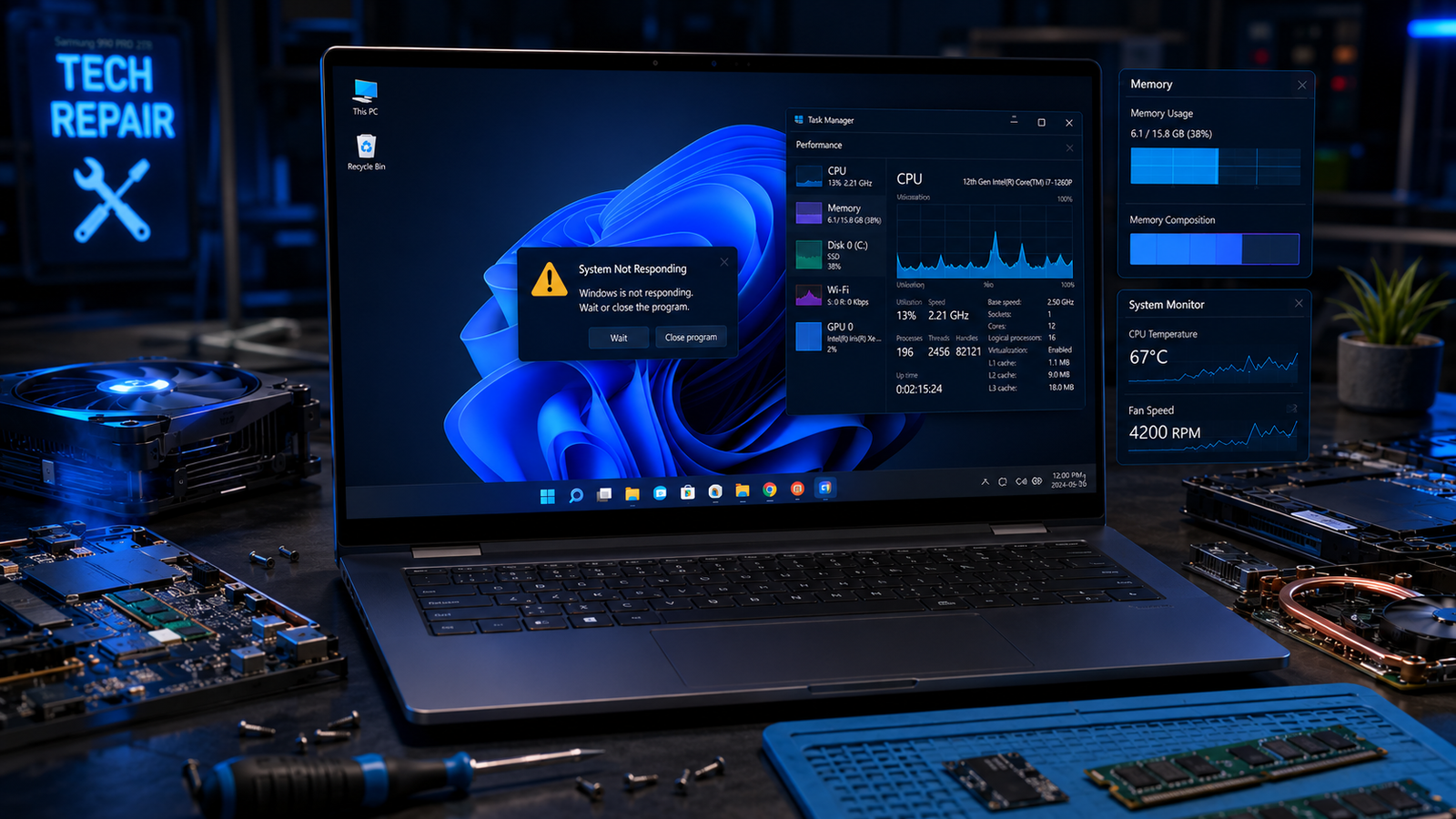
A laptop freezing on Windows 11 is usually caused by overheating, damaged system files, faulty RAM, outdated drivers, SSD errors, or overloaded startup apps. The fastest fixes include updating drivers, checking temperatures, disabling startup programs, repairing Windows files, and testing memory or storage health before hardware failure spreads.
• Force-close frozen apps using Task Manager before restarting
• Run Windows Memory Diagnostic and SSD health checks immediately
• Update graphics, chipset, and BIOS firmware to stop recurring freezes
Your laptop suddenly locks up while browsing, gaming, editing documents, or installing updates. The cursor stops moving, audio glitches, the screen hangs for several seconds, or the entire system becomes completely unresponsive. Windows 11 freezing problems are now one of the most reported laptop complaints across gaming systems, work ultrabooks, and budget notebooks alike.
Most freezing issues trace back to overheating, corrupted drivers, failing SSDs, unstable RAM, aggressive Windows updates, or background software conflicts. The good news is that you can isolate the exact cause methodically instead of guessing. The fixes below move from quick software repairs to advanced hardware diagnostics that resolve nearly every Windows 11 freezing problem.
Symptoms of the Problem

Laptop freezing issues appear in several different ways depending on the failing component or software conflict.
Common symptoms include:
- Mouse cursor freezing randomly for several seconds
- Laptop completely locking up requiring forced shutdown
- Audio stuttering before the screen freezes
- Black screen freezes while fans continue spinning
- Keyboard becoming unresponsive intermittently
- Freezing during startup or login screen
- Windows 11 freezing after updates
- Browser tabs hanging while RAM usage spikes
- Laptop freezing while gaming or rendering videos
- Blue Screen of Death appearing after freezes
- Screen flickering before the system locks
- SSD usage stuck at 100% in Task Manager
- Laptop overheating during normal tasks
- Apps becoming “Not Responding” repeatedly
- Random system restarts after freezing
System Requirements & Tools Needed

You’ll need a few built-in Windows tools and basic diagnostic utilities to troubleshoot safely.
Required software and tools:
- Windows 11 Settings app
- Task Manager
- Device Manager
- Windows Memory Diagnostic
- Command Prompt (Administrator)
- Event Viewer
- BIOS/UEFI access
- SSD health monitoring tool
- USB flash drive (optional for recovery)
- Cooling pad or compressed air
- Small screwdriver set (for RAM or SSD inspection)
Recommended third-party tools:
- CrystalDiskInfo for SSD health
- HWMonitor for temperatures
- MemTest86 for advanced RAM testing
Troubleshooting Matrix (Quick Comparison Table)

| Observed Symptom | Potential Root Cause | Recommended Fast Fix |
| Freezes during gaming | GPU overheating | Clean vents and update GPU drivers |
| Freezes after startup | Startup app conflict | Disable startup programs |
| Random full system hangs | Faulty RAM | Run memory diagnostics |
| SSD stuck at 100% usage | SSD degradation | Check SSD health and firmware |
| Freezing after Windows update | Corrupted update files | Run SFC and DISM repair |
| Screen freezes but sound continues | Graphics driver issue | Reinstall GPU drivers |
| Laptop freezes when moving | Loose RAM or SSD | Reseat hardware components |
| Freeze followed by reboot | Power or thermal issue | Inspect cooling system |
| Browser freezing constantly | RAM exhaustion | Reduce tabs and background apps |
| Freezes while idle | Driver conflict | Update chipset and BIOS |
Step-by-Step Fixes (From Easiest to Advanced)

Restart the Laptop Properly
A full restart clears locked processes, memory corruption, and temporary driver failures causing Windows 11 freezes.
- Hold the power button for 10 seconds if the system is completely frozen.
- Wait at least 30 seconds before powering back on.
- Disconnect external devices like USB drives and docking stations.
- Restart normally and monitor system behavior.
Many laptops remain unstable because users repeatedly force shutdowns without allowing Windows to initialize drivers properly afterward.
⚠️ EXPERT WARNING: Frequent forced shutdowns can damage open files and accelerate SSD corruption.
Close Frozen Applications Using Task Manager
Frozen applications often trigger system-wide lag and eventual full lockups.
- Press Ctrl + Shift + Esc.
- Open Task Manager.
- Locate apps showing “Not Responding.”
- Right-click the application.
- Select “End Task.”
Pay close attention to apps consuming excessive CPU, RAM, or disk usage.
Common offenders include:
- Chrome with many tabs
- Antivirus scans
- RGB control software
- Outdated game launchers
- Video editing suites
If one specific app consistently freezes the system, uninstall and reinstall it completely.
Disable Startup Programs
Too many startup applications overload Windows 11 during boot and frequently cause freezing.
- Open Task Manager.
- Click the “Startup Apps” tab.
- Disable unnecessary entries.
- Restart the laptop.
Focus especially on:
- Discord overlays
- Adobe background services
- RGB software
- VPN clients
- Auto-sync cloud applications
Reducing startup load dramatically improves stability on laptops with limited RAM.
💡 TIP: Keep startup apps below 8 essential programs for smoother Windows 11 performance.
Update Windows 11 Completely
Outdated system patches often create freezing bugs, driver conflicts, and kernel instability.
- Open Settings.
- Go to Windows Update.
- Click “Check for updates.”
- Install all pending updates.
- Restart the system.
If freezing started immediately after a Windows update, install optional driver updates as well.
Windows 11 stability updates frequently include:
- SSD fixes
- GPU scheduling patches
- Memory management improvements
- Bluetooth and Wi-Fi stability corrections
Update Graphics Drivers
Corrupted or outdated GPU drivers are among the biggest causes of laptop freezing.
- Right-click the Start button.
- Open Device Manager.
- Expand “Display adapters.”
- Right-click your GPU.
- Select “Update driver.”
For best results:
- Download drivers directly from GPU manufacturers
- Perform a clean installation
- Remove old driver remnants
Graphics freezing symptoms usually include:
- Black screens
- Flickering
- Frozen games
- Screen stutters
- Audio continuing while visuals stop
Integrated graphics drivers from Intel also commonly cause freezing on ultrabooks.
Run System File Checker (SFC)
Corrupted Windows files frequently trigger random freezing and crashing.
- Search for Command Prompt.
- Right-click and choose “Run as administrator.”
- Enter:
sfc /scannow
- Wait for the scan to complete.
- Restart the laptop.
If corruption is found, Windows automatically repairs damaged system files.
Repair Windows Image with DISM
DISM repairs deeper Windows corruption that SFC cannot fix.
- Open Command Prompt as administrator.
- Run these commands one at a time:
DISM /Online /Cleanup-Image /CheckHealth
DISM /Online /Cleanup-Image /RestoreHealth
- Restart the laptop after completion.
This resolves freezing linked to broken Windows updates and damaged system images.
Check RAM for Errors
Faulty RAM causes random freezes, app crashes, blue screens, and boot instability.
- Press Windows + R.
- Type:
mdsched.exe
- Press Enter.
- Select “Restart now and check for problems.”
Windows Memory Diagnostic scans for memory faults during reboot.
Signs of failing RAM include:
- Freezing under heavy load
- Sudden application crashes
- Random reboots
- Corrupted files
If errors appear, replace the RAM module immediately.
⚠️ EXPERT WARNING: Continuing to use damaged RAM can corrupt Windows installations and SSD data.
Monitor CPU and GPU Temperatures
Overheating laptops freeze intentionally to prevent permanent hardware damage.
Typical safe temperature ranges:
| Component | Normal Temp | Dangerous Temp |
| CPU | 40–85°C | 95°C+ |
| GPU | 45–85°C | 90°C+ |
| SSD | 30–70°C | 80°C+ |
Use monitoring software like HWMonitor to inspect temperatures.
If temperatures are high:
- Clean laptop vents.
- Remove dust buildup.
- Elevate the rear of the laptop.
- Replace dried thermal paste if necessary.
- Reduce heavy multitasking temporarily.
Gaming laptops especially accumulate dust rapidly.
Check SSD Health
Failing SSDs are one of the top reasons Windows 11 laptops freeze randomly.
Install CrystalDiskInfo and inspect:
- Health percentage
- Read/write errors
- Temperature
- Bad sectors
Warning signs include:
- 100% disk usage
- Slow file opening
- Long boot times
- Freezes during file transfers
If SSD health drops below critical thresholds, replace the drive immediately.
💡 TIP: Always clone your SSD before total failure makes data recovery expensive.
Free Up System Storage
Nearly full SSDs create severe Windows freezing and paging slowdowns.
- Open Settings.
- Go to System > Storage.
- Remove temporary files.
- Empty the Recycle Bin.
- Delete large unused programs.
Keep at least:
- 20% free SSD space
- 15GB minimum free system storage
Windows 11 performs poorly when virtual memory cannot expand properly.
Disable Hardware Acceleration
Hardware acceleration conflicts frequently freeze browsers and creative apps.
Disable it inside:
- Google Chrome
- Discord
- Spotify
- Adobe apps
For Chrome:
- Open Settings.
- Search “Hardware Acceleration.”
- Disable it.
- Restart the browser.
This resolves many GPU-related freezing problems.
Scan for Malware
Cryptominers and malicious software heavily overload CPUs and SSDs.
- Open Windows Security.
- Go to Virus & Threat Protection.
- Run a Full Scan.
Also inspect Task Manager for:
- Unknown high CPU processes
- Excessive background activity
- Suspicious startup apps
Malware-triggered freezing often worsens progressively over time.
Update BIOS and Chipset Drivers
Outdated BIOS firmware creates deep compatibility problems with Windows 11.
- Visit your laptop manufacturer’s support page.
- Download:
- BIOS updates
- Chipset drivers
- Power management drivers
- Install updates carefully.
Manufacturers frequently release BIOS fixes for:
- Sleep freezing
- RAM compatibility
- SSD instability
- CPU thermal management
⚠️ EXPERT WARNING: Never interrupt a BIOS update. Power loss during flashing can brick the motherboard.
Boot into Safe Mode
Safe Mode isolates driver conflicts and problematic background services.
- Hold Shift while clicking Restart.
- Go to:
- Troubleshoot
- Advanced Options
- Startup Settings
- Choose Safe Mode.
If freezing disappears in Safe Mode, the issue is usually:
- Drivers
- Third-party software
- Startup conflicts
Gradually re-enable services to identify the exact cause.
Perform a Clean Boot
A clean boot disables non-essential services interfering with Windows stability.
- Press Windows + R.
- Type:
msconfig
- Open the Services tab.
- Hide Microsoft services.
- Disable remaining third-party services.
- Restart the laptop.
This method isolates freezing caused by software conflicts.
Reset Windows 11
Resetting Windows removes corruption that ordinary repairs cannot fix.
- Open Settings.
- Go to System > Recovery.
- Select “Reset this PC.”
- Choose:
- Keep my files
- Remove everything
A clean Windows installation often restores severe freezing issues instantly.
Back up critical files before proceeding.
When to Replace Hardware & Prevention Tips

Some freezing problems cannot be solved through software repairs alone.
Replace hardware if:
- SSD health reports critical warnings
- RAM diagnostics fail repeatedly
- Laptop overheats after cleaning
- Fans stop spinning properly
- Freezing persists after clean Windows installation
- GPU artifacts appear before freezing
- System randomly powers off under light usage
Prevent future freezing problems with these habits:
- Clean vents every 3–6 months
- Keep GPU and chipset drivers updated
- Avoid filling SSDs completely
- Use cooling pads during gaming
- Install Windows updates consistently
- Replace thermal paste every 2–3 years
- Limit unnecessary startup apps
- Monitor temperatures monthly
Laptops running hot for long periods degrade faster and become increasingly unstable.
Frequently Asked Questions (FAQs)

Why does my Windows 11 laptop freeze randomly but work again later?
Temporary freezes usually indicate overheating, overloaded RAM, SSD slowdowns, or driver conflicts that briefly recover before locking again.
Can bad RAM cause laptop freezing without blue screens?
Yes. Faulty RAM commonly causes silent freezes, app crashes, and corrupted files before blue screens appear.
Why does my laptop freeze only while gaming?
Gaming freezes usually come from overheating GPUs, unstable graphics drivers, insufficient RAM, or failing power delivery systems.
Does Windows 11 use more RAM than Windows 10?
Yes. Windows 11 consumes more background memory, which can worsen freezing on laptops with only 4GB or 8GB RAM.
Conclusion
Windows 11 laptop freezing problems almost always trace back to overheating, driver instability, failing storage, or memory faults. Start with software repairs and temperature checks before assuming major hardware failure. If freezes continue after clean Windows repairs and hardware diagnostics, replace the failing component immediately to avoid data loss. Begin with the startup and driver fixes above since they resolve the majority of freezing complaints fastest.