
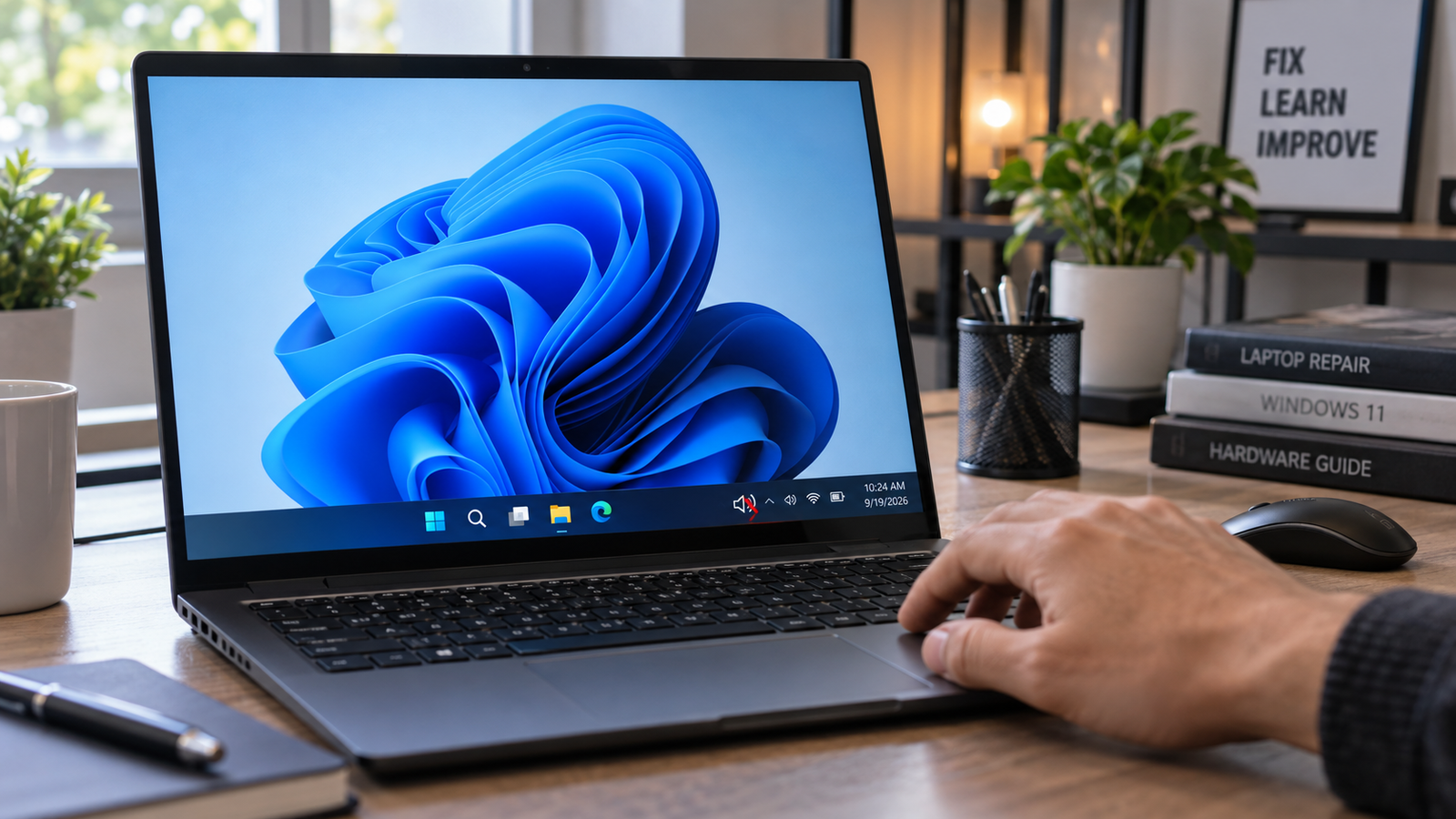
The most common cause is a wrong or inactive output device selected in Sound Settings, or audio services that have crashed in the background. Right-click the speaker icon, open Sound Settings, confirm your speakers are set as the output device, then restart the Windows Audio and Windows Audio Endpoint Builder services via services.msc. Most users are back to normal within two minutes.
Introduction
You press the volume key or drag the taskbar slider and nothing happens. Maybe the slider moves but the audio level stays the same. Maybe one app is completely silent while everything else plays fine. Volume issues on Windows 11 are more common than they should be, largely because the OS manages audio through multiple independent layers that can lose sync after an update, a sleep cycle, or a driver conflict. This guide walks through every layer in order, starting with the fastest checks and ending with driver-level repairs.
Symptoms

- Volume slider moves but audio level does not change
- Volume slider is frozen or greyed out and cannot be moved
- Keyboard volume keys do nothing
- Speaker icon shows normal levels but no sound comes out
- Only one specific app is silent while others work fine
- Volume jumps back to a fixed number after you change it
- Sound works through headphones but not through laptop speakers
- Audio dropped suddenly after a Windows update
What Causes Laptop Volume to Stop Working on Windows 11
1. Audio services crashed or stopped running Windows routes all audio through two core services: Windows Audio and Windows Audio Endpoint Builder. If either service crashes or stops after sleep, a driver change, or an update, volume controls lose their connection to the hardware. Confirmation sign: the speaker icon is present but the slider has no effect when dragged.
2. Wrong output device selected Windows 11 automatically switches the default audio device when you plug in headphones, connect to an HDMI monitor, or pair Bluetooth. When you disconnect that device, Windows sometimes stays routed to the now-absent output rather than falling back to your speakers. Confirmation sign: the slider works fine but no sound comes from the laptop speakers even at full volume.
3. Corrupted or mismatched audio driver Windows Update frequently replaces manufacturer audio drivers (Realtek, Conexant, Cirrus Logic) with generic Microsoft High Definition Audio drivers. The generic driver lacks the mapping that ties volume slider steps to the actual hardware output level. Confirmation sign: the issue began immediately after a Windows update and Device Manager shows “High Definition Audio Device” instead of your brand-name driver.
How to Fix Laptop Volume Not Working on Windows 11

Fix 1: Restart the Windows Audio Services
Cost: Free Time: 1 minute Difficulty: Easy
- Press Win + R, type services.msc, and press Enter.
- Scroll down to Windows Audio, right-click it, and select Restart.
- Scroll to Windows Audio Endpoint Builder, right-click, and select Restart.
- Close the Services window and test the volume slider.
Expected Result: Volume controls respond normally within seconds. If Failed: Move to Fix 2.
Fix 2: Verify the Correct Output Device
Cost: Free Time: 1 minute Difficulty: Easy
- Right-click the speaker icon in the bottom-right taskbar and select Sound settings.
- Under Output, click the arrow next to the volume slider to open the device list.
- Select Speakers or your built-in audio device from the list.
- Play audio and test.
Expected Result: Sound comes through the correct device. If Failed: Move to Fix 3.
Fix 3: Check the Volume Mixer
Cost: Free Time: 1 minute Difficulty: Easy
- Right-click the speaker icon and select Open Volume Mixer.
- Check that the master slider is not at zero or muted.
- Scroll down to see per-app volume sliders. Check if the specific silent app has its slider at zero.
- Raise any silenced app slider to 100.
Expected Result: The affected app now plays audio. If Failed: Move to Fix 4.
Note: If one app is silent while others work, this is almost always the fix. A Windows update or the app itself can reset its volume mixer entry to zero without warning.
Fix 4: Disable Audio Enhancements and Exclusive Mode
Cost: Free Time: 3 minutes Difficulty: Easy
- Right-click the speaker icon and open Sound settings.
- Under Output, click your speaker device, then click Properties.
- Find Audio enhancements and set it to Off.
- Go back to Sound settings and click More sound settings.
- In the Playback tab, double-click your active speakers.
- Open the Advanced tab.
- Uncheck Allow applications to take exclusive control of this device.
- Click Apply, then OK, and test audio.
Expected Result: Volume responds correctly and slider stops freezing. If Failed: Move to Fix 5.
Note: Exclusive mode lets games and audio software take over the device completely. When they crash or close badly, they can leave the audio stack locked. Unchecking this prevents that from happening.
Fix 5: Turn Off Audio Ducking
Cost: Free Time: 2 minutes Difficulty: Easy
- Right-click the speaker icon and select Sounds.
- Click the Communications tab at the top.
- Select Do nothing.
- Click Apply, then OK.
Expected Result: Volume no longer drops automatically when system sounds play or when calls are detected. If Failed: Move to Fix 6.
Note: Windows 11 lowers the volume of all other audio when it detects a communication activity. Many users never notice this setting but it causes mysterious volume drops during gaming or media playback.
Fix 6: Reset the Volume Mixer to Default
Cost: Free Time: 1 minute Difficulty: Easy
- Press Win + I to open Settings.
- Go to System, then Sound.
- Scroll down and click Volume mixer.
- At the bottom of the page, click Reset next to “Reset sound devices and volumes for all apps to the recommended defaults.”
- Restart the laptop and test.
Expected Result: Per-app volume settings are cleared and the slider works from a clean state. If Failed: Move to Fix 7.
Fix 7: Restart Windows Explorer
Cost: Free Time: 1 minute Difficulty: Easy
- Press Ctrl + Shift + Esc to open Task Manager.
- Scroll down in the Processes list to find Windows Explorer.
- Right-click it and select Restart.
- Wait about 5 seconds for the taskbar to reload, then test the volume slider.
Expected Result: The taskbar volume flyout becomes responsive again. If Failed: Move to Fix 8.
Note: The taskbar slider is part of the Windows Explorer shell. If Explorer crashes or hangs, the volume UI stops responding even though audio itself is still working.
Fix 8: Update or Reinstall the Audio Driver
Cost: Free Time: 10 to 15 minutes Difficulty: Moderate
- Press Win + X and select Device Manager.
- Expand Sound, video and game controllers.
- Right-click your audio device (Realtek, Conexant, Intel Smart Sound, or similar) and select Update driver, then choose Search automatically for drivers.
- If no update is found, right-click the device again and select Uninstall device. Check the box to delete the driver software if prompted.
- Restart the laptop. Windows will attempt to reinstall the driver automatically.
- If the generic driver reinstalls instead of your manufacturer’s driver, go to your laptop maker’s support site, enter your model number or serial number, and download the latest audio driver manually.
- Dell: dell.com/support
- HP: support.hp.com
- Lenovo: support.lenovo.com
- ASUS: asus.com/support
- Acer: acer.com/support
- MSI: msi.com/support
Expected Result: The correct manufacturer driver installs and volume controls work properly. If Failed: Move to Fix 9.
Fix 9: Roll Back the Audio Driver
Cost: Free Time: 5 minutes Difficulty: Moderate
- Open Device Manager (Win + X, then Device Manager).
- Expand Sound, video and game controllers.
- Right-click your audio device and select Properties.
- Click the Driver tab.
- Click Roll Back Driver if the option is available.
- Select a reason when prompted and confirm.
- Restart the laptop.
Expected Result: The previously working driver is restored and volume controls respond normally. If Failed: Move to Fix 10.
Note: If Roll Back Driver is greyed out, there is no previous driver stored and reinstalling from the manufacturer site is the only path forward.
Fix 10: Run the Windows Audio Troubleshooter
Cost: Free Time: 3 minutes Difficulty: Easy
- Press Win + I to open Settings.
- Go to System, then Troubleshoot, then Other troubleshooters.
- Click Run next to Playing Audio.
- Follow the on-screen steps and apply any fix Windows suggests.
- Restart the laptop after the troubleshooter completes.
Expected Result: Windows identifies and corrects a settings conflict or service error. If Failed: The issue is likely driver corruption at a deeper level. Consider running SFC (system file checker) next.
Fix 11: Run SFC to Repair System Files
Cost: Free Time: 10 to 20 minutes Difficulty: Moderate
- Click Start, type cmd, right-click Command Prompt, and select Run as administrator.
- Type sfc /scannow and press Enter.
- Wait for the scan to complete. Do not close the window.
- If Windows reports corrupted files that it repaired, restart the laptop and test audio.
- If it reports files it could not fix, run: DISM /Online /Cleanup-Image /RestoreHealth and restart.
Expected Result: Corrupted system audio components are repaired and volume functions normally. If Failed: The problem may be tied to a recent Windows update. Use System Restore to roll back to a point before the issue started (Control Panel, Recovery, Open System Restore).
Mistakes to Avoid
1. Reinstalling the driver before restarting the services Driver reinstallation takes 10 to 15 minutes and often delivers the same generic driver Windows already has. A service restart takes 60 seconds and fixes the problem in the majority of cases. Always restart the services first.
2. Using Windows Update to find your audio driver Windows Update installs a compatible driver, not always the correct one for your hardware. For Realtek, Conexant, and Cirrus Logic chips, always use the driver from your laptop manufacturer’s support page, not from Windows Update or the chip maker’s website directly.
3. Ignoring the Volume Mixer for app-specific silence When only one app has no sound, most users go straight to driver reinstallation. The per-app volume mixer entry is the actual problem nearly every time. Open Volume Mixer and check the specific app’s slider before doing anything else.
4. Leaving audio ducking enabled The Communications tab setting in the Sound control panel silently reduces volume for other audio when Windows thinks you are on a call. Forgetting to set this to “Do nothing” causes recurring mystery volume drops that no driver fix will ever resolve.
When to Stop and Get Professional Help
Volume not working is almost always a software fault and should not require a repair center. Get professional help if: the audio device is completely absent from Device Manager and does not reappear after a full driver reinstall, there is visible physical damage to the audio port or the laptop has had liquid exposure, or the problem persists after a full Windows 11 reinstall. At that point the audio IC or the motherboard audio circuit has likely failed and needs board-level diagnosis.
Prevention Tips

- Set Windows Update to active hours only so driver updates install during restarts you control, not during a session.
- Always download audio drivers from your laptop manufacturer’s site, not from chip maker websites or driver aggregator sites.
- Keep a system restore point before any major Windows update so you can roll back audio driver changes cleanly.
- Disable Fast Startup (Control Panel, Power Options, Choose what the power buttons do) to prevent audio services from deadlocking during sleep-wake cycles.
- Unplug USB audio devices and Bluetooth headphones before restarting if you want Windows to default back to the built-in speakers cleanly.
Frequently Asked Questions
Why do my laptop volume keys not work on Windows 11? The volume keys (Fn + F key) rely on your laptop’s keyboard driver or hotkey utility, not the Windows audio stack. If the keys stopped working after an update, reinstall the hotkey software from your manufacturer’s support site. Dell has Alienware Command Center, Lenovo has Hotkey Features Integration, ASUS has ATK Hotkey Utility, and HP uses HP System Event Utility.
Why does my volume keep jumping back to the same number? An app or a system process is overriding the volume level. Check whether a communication app such as Teams, Zoom, or Discord is open. These apps apply automatic volume normalization and can compete with the Windows volume setting. Disable their automatic volume adjustment in each app’s audio settings.
Why does sound work through headphones but not through laptop speakers? Windows routed audio to the headphone output and did not switch back when you unplugged them. Open Sound Settings, click the arrow next to the output slider, and manually select your built-in speakers. If the speakers do not appear in the list, expand Sound in Device Manager and check for a yellow warning triangle.
Will reinstalling Windows fix the volume not working? Only as a last resort. Volume problems that survive all driver, service, and settings fixes usually indicate a corrupted audio component that SFC and DISM can repair without reinstalling Windows. A full reinstall is warranted only if SFC reports unresolvable corruption and System Restore is not available.
Conclusion
Most Windows 11 volume failures trace back to three things: audio services that have stopped, the wrong output device selected, or a driver replaced by Windows Update. Start with the service restart in Fix 1, confirm the output device in Fix 2, and check the Volume Mixer in Fix 3. Those three steps resolve the problem for the vast majority of users. If the issue started after a Windows update and survives those checks, download your manufacturer’s audio driver directly from their support site and reinstall it manually.