
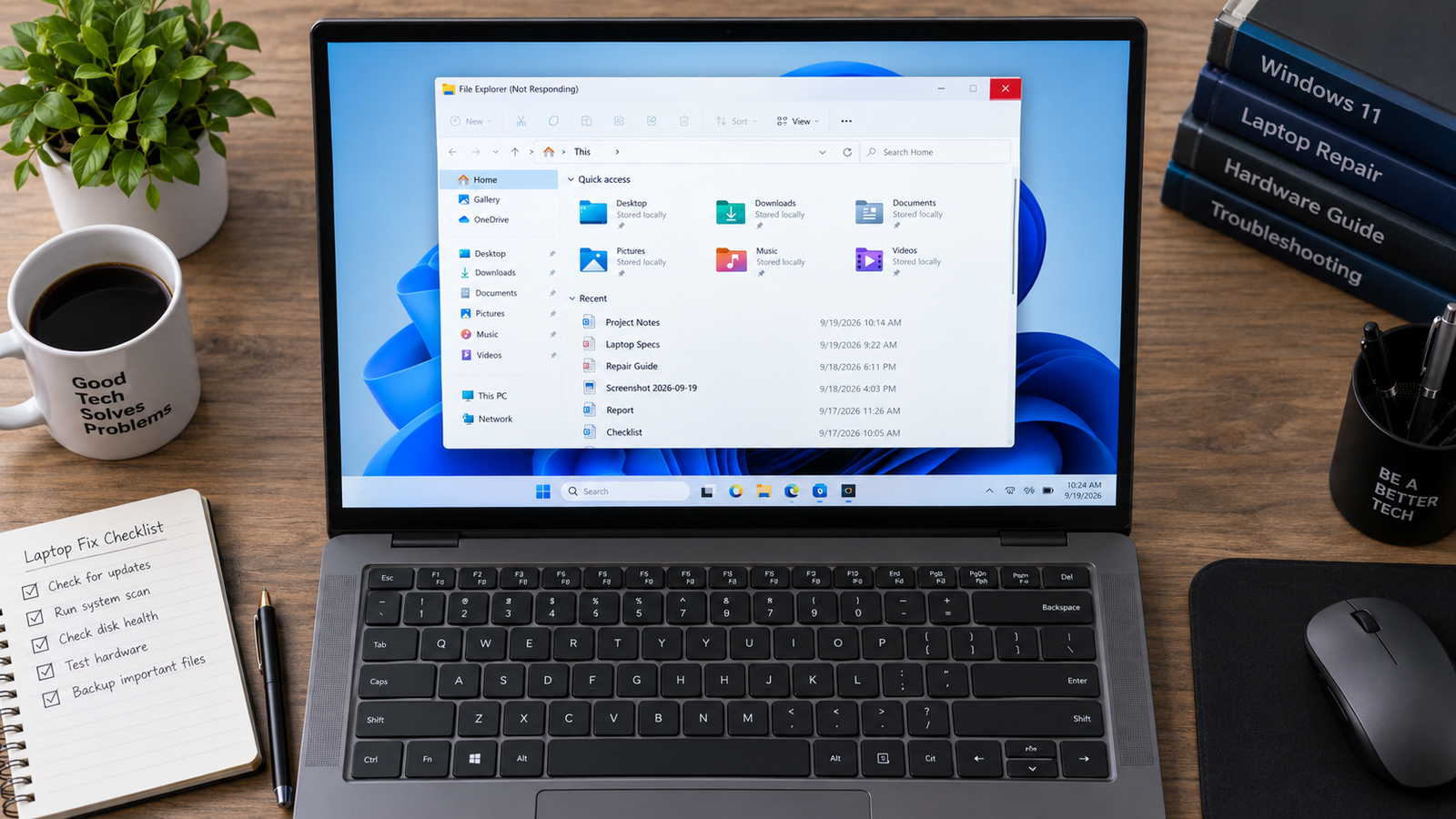
A bloated Quick Access history or a corrupt explorer.exe process causes most Windows 11 File Explorer freezes. Press Ctrl + Shift + Esc, right-click Windows Explorer in Task Manager, and select Restart. If that doesn’t hold, clear the jump list cache through File Explorer Options. Most users are back working within five minutes.
Introduction
You click the folder icon and the window opens, then locks up the moment you try to interact with it. The title bar shows “Not Responding” and the cursor spins. This guide covers every confirmed cause of Windows 11 File Explorer not responding, from a 30-second restart to shell extension and system file repairs, in the order that actually works.
Symptoms

- File Explorer title bar reads “Not Responding” in grey
- Folder contents take 10 to 45 seconds to load or never load
- Right-click context menu fails to appear or freezes
- Quick Access sidebar does not populate on open
- Explorer window goes completely white or blank
- Taskbar becomes unresponsive when File Explorer is open
- File Explorer crashes and restarts in a loop
- Freezing happens only in specific folders or on mapped network drives
- CPU or RAM spikes when File Explorer window is in focus
What Causes File Explorer to Stop Responding
1. Corrupted Quick Access cache and jump list files Windows 11 stores recently accessed files and folders as small binary files inside two hidden shell folders. When these files get corrupted, explorer.exe stalls trying to read them every time you open File Explorer. You can confirm this is the cause if File Explorer freezes most often immediately after opening, especially when Quick Access is the default landing view.
2. Third-party shell extensions conflicting with explorer.exe Apps like cloud storage clients (OneDrive, Dropbox, Google Drive), antivirus suites, and archive tools inject code directly into File Explorer through shell extensions. A buggy or outdated extension can lock up the entire explorer.exe process. Confirmation sign: the problem appeared or got worse shortly after installing a new app.
3. Corrupted Windows system files or a damaged explorer.exe System File Checker and DISM exist for this exact situation. When core Windows components that File Explorer depends on are damaged, the freeze is unpredictable and no amount of cache clearing will fix it. Confirmation sign: SFC /scannow reports found and repaired corrupted files, or the problem survives a clean boot.
How to Fix Windows 11 File Explorer Not Responding

Fix 1: Restart Windows Explorer
Cost: Free | Time: 1 minute | Difficulty: Easy
- Press Ctrl + Shift + Esc to open Task Manager.
- Click the Processes tab.
- Scroll to find Windows Explorer in the list.
- Right-click Windows Explorer and select Restart.
- The taskbar will flicker briefly as explorer.exe reloads.
Expected Result: File Explorer reopens and responds normally. If Failed: Move to Fix 2.
Fix 2: Clear File Explorer History and Jump List Cache
Cost: Free | Time: 3 minutes | Difficulty: Easy
- Press Windows + R, type control folders, and press Enter.
- On the General tab, click Clear next to “Clear File Explorer history” in the Privacy section.
- Click Apply, then OK.
- For a deeper clean, press Windows + R and type %APPDATA%\Microsoft\Windows\Recent\AutomaticDestinations and press Enter.
- Select all files with Ctrl + A and delete them.
- Press Windows + R again and type %APPDATA%\Microsoft\Windows\Recent\CustomDestinations and press Enter.
- Select all files and delete them.
- Empty the Recycle Bin.
- Restart Windows Explorer via Task Manager (Fix 1).
Expected Result: File Explorer opens without stalling on Quick Access. If Failed: Move to Fix 3.
Fix 3: Disable the Preview Pane and Rebuild the Thumbnail Cache
Cost: Free | Time: 5 minutes | Difficulty: Easy
- Open File Explorer.
- Click the View menu at the top.
- Select Show, then uncheck Preview Pane.
- Open Command Prompt as administrator (search “cmd,” right-click, Run as administrator).
- Type the following commands one at a time, pressing Enter after each:
taskkill /f /im explorer.exe
del /f /s /q %LocalAppData%\Microsoft\Windows\Explorer\thumbcache_*.db
start explorer.exe
Expected Result: Thumbnail rendering no longer locks up File Explorer, especially in folders with large images or videos. If Failed: Move to Fix 4.
Fix 4: Reset Folder View Settings
Cost: Free | Time: 3 minutes | Difficulty: Easy
- Open Command Prompt as administrator.
- Paste the following command and press Enter:
reg delete “HKCU\Software\Classes\Local Settings\Software\Microsoft\Windows\Shell\BagMRU” /f && reg delete “HKCU\Software\Classes\Local Settings\Software\Microsoft\Windows\Shell\Bags” /f
- Restart Windows Explorer via Task Manager.
Expected Result: Folder-specific crashes caused by saved view corruption are resolved. If Failed: Move to Fix 5.
Fix 5: Check for a Pending Windows Update
Cost: Free | Time: 5 to 15 minutes | Difficulty: Easy
- Open Settings with Windows + I.
- Click Windows Update.
- Click Check for updates.
- Install any available updates, including optional driver updates.
- Restart the laptop when prompted.
Expected Result: Known File Explorer bugs patched in recent cumulative updates are resolved. If Failed: Move to Fix 6.
Fix 6: Identify and Disable Problematic Shell Extensions
Cost: Free | Time: 10 minutes | Difficulty: Medium
- Download ShellExView from NirSoft: https://www.nirsoft.net/utils/shexview.html
- Run the application (no installation needed).
- Click the Company column header to sort extensions alphabetically.
- Focus on any extension that is not made by Microsoft.
- Right-click a third-party extension and select Disable Selected Items.
- Restart Windows Explorer via Task Manager.
- Test File Explorer. If it responds normally, the last-disabled extension was the cause.
- Repeat by enabling extensions one at a time until the freezing returns to identify the exact culprit.
Common offenders: cloud storage overlay handlers (OneDrive, Dropbox, Google Drive), antivirus context menu scanners, 7-Zip and WinRAR context menu entries on older versions.
Expected Result: The specific extension causing the freeze is identified and disabled. If Failed: Move to Fix 7.
Fix 7: Test with a Mapped Network Drive or NAS Disconnected
Cost: Free | Time: 2 minutes | Difficulty: Easy
- Open File Explorer.
- In the left panel, right-click any mapped network drive and select Disconnect.
- If you have a NAS device connected, power it off temporarily.
- Open a local folder such as C:\Users\YourName\Documents.
- Test whether File Explorer responds normally.
Expected Result: If local folders work but network folders caused the freeze, a slow or unreachable server is the problem. Keep the mapped drive disconnected until the server is accessible, or adjust the reconnect settings. If Failed: Move to Fix 8.
Fix 8: Run SFC and DISM Scans
Cost: Free | Time: 15 to 30 minutes | Difficulty: Medium
- Search for “cmd” in the Start menu, right-click Command Prompt, and select Run as administrator.
- Type the following and press Enter:
sfc /scannow
- Wait for the scan to complete. Do not close the window.
- After SFC finishes, type the following and press Enter:
DISM /Online /Cleanup-Image /RestoreHealth
- Restart the laptop after DISM completes.
Expected Result: Corrupted Windows components that File Explorer depends on are repaired. If Failed: Move to Fix 9.
Fix 9: Create and Test a New Local User Account
Cost: Free | Time: 5 minutes | Difficulty: Medium
- Open Settings, then Accounts, then Family and other users.
- Click Add account.
- Select the option to add a local account without a Microsoft account.
- Log out of your current account and log into the new account.
- Open File Explorer and test whether it responds normally.
Expected Result: If File Explorer works fine in the new account, the problem is isolated to your original user profile. The fix is to migrate files to the new account or repair the original profile’s settings. If File Explorer freezes in the new account too, the problem is system-wide and Fix 10 applies. If Failed: Move to Fix 10.
Fix 10: Perform a Windows Repair Install (In-Place Upgrade)
Cost: Free | Time: 1 to 2 hours | Difficulty: Medium
- Download the Windows 11 Installation Assistant from microsoft.com/software-download/windows11.
- Run the tool and select Upgrade this PC now.
- Choose to keep your files and apps when prompted.
- Allow the installation to complete and restart.
Expected Result: Windows system files are replaced without deleting your data or apps. This resolves deep corruption that SFC and DISM cannot fix. If Failed: Professional repair is warranted.
Mistakes to Avoid
Deleting explorer.exe manually. Explorer.exe is a core Windows process. Deleting or renaming it breaks the entire Windows shell, including the taskbar and Start menu. Restart it through Task Manager, never delete it.
Running SFC and DISM as the first fix. These scans take 15 to 30 minutes and fix system-file corruption, not cache bloat or shell extension conflicts. Skipping the fast fixes first wastes significant time.
Reinstalling Windows because File Explorer froze once. A single freeze is almost always a cache or process glitch. A repair install or full reinstall is only appropriate after every other fix fails consistently.
Ignoring a newly installed app as the cause. Shell extensions injected by third-party apps are one of the most common causes of recurring File Explorer freezes. If the problem started after an installation, disable that app’s shell extension before anything else.
When to Stop and Get Professional Help
Take the laptop to a repair shop if File Explorer crashes every few minutes even after a repair install, or if SFC consistently reports that it cannot repair corrupted files. Repeated unrepaired corruption can indicate a failing SSD or RAM issue, which no software fix will resolve permanently.
Prevention Tips
- Keep Windows 11 updated to receive File Explorer performance patches from Microsoft.
- Uninstall cloud storage clients you no longer use to remove leftover shell extensions.
- Clear File Explorer history monthly through File Explorer Options.
- Avoid installing multiple antivirus programs simultaneously, as overlapping context menu handlers conflict in File Explorer.
- Run chkdsk C: /f annually to catch early-stage drive errors before they corrupt Windows components.
Frequently Asked Questions
Why does Windows 11 File Explorer freeze when I right-click? Right-clicking triggers every installed shell extension to load simultaneously. A single broken extension from an antivirus, cloud storage app, or archive tool can freeze the entire context menu. Use ShellExView (Fix 6) to isolate and disable the culprit.
Will clearing File Explorer history delete my files? No. Clearing history only removes the list of recently accessed files and folders that appears in Quick Access. Your actual files and folders are untouched.
Why did File Explorer stop working after a Windows Update? Some cumulative updates change how explorer.exe handles Preview Pane rendering and shell extension loading. Restarting explorer.exe and clearing the thumbnail cache (Fix 3) resolves most post-update freezes. If the issue persists, check for a newer update that patches the regression.
My File Explorer only freezes on one specific folder. Why? That folder likely contains a large number of image or video files that overload the thumbnail rendering engine, or it contains a file type that a broken shell extension tries to handle. Disable the Preview Pane, clear the thumbnail cache, and test with a simple folder view to confirm.
Conclusion
Corrupted Quick Access cache and third-party shell extensions cause the overwhelming majority of Windows 11 File Explorer freezes. Start with the Task Manager restart and cache clear, move to shell extension isolation if the problem returns, and use SFC and DISM only when those steps fail. Contact a technician if the freezing survives a repair install.