
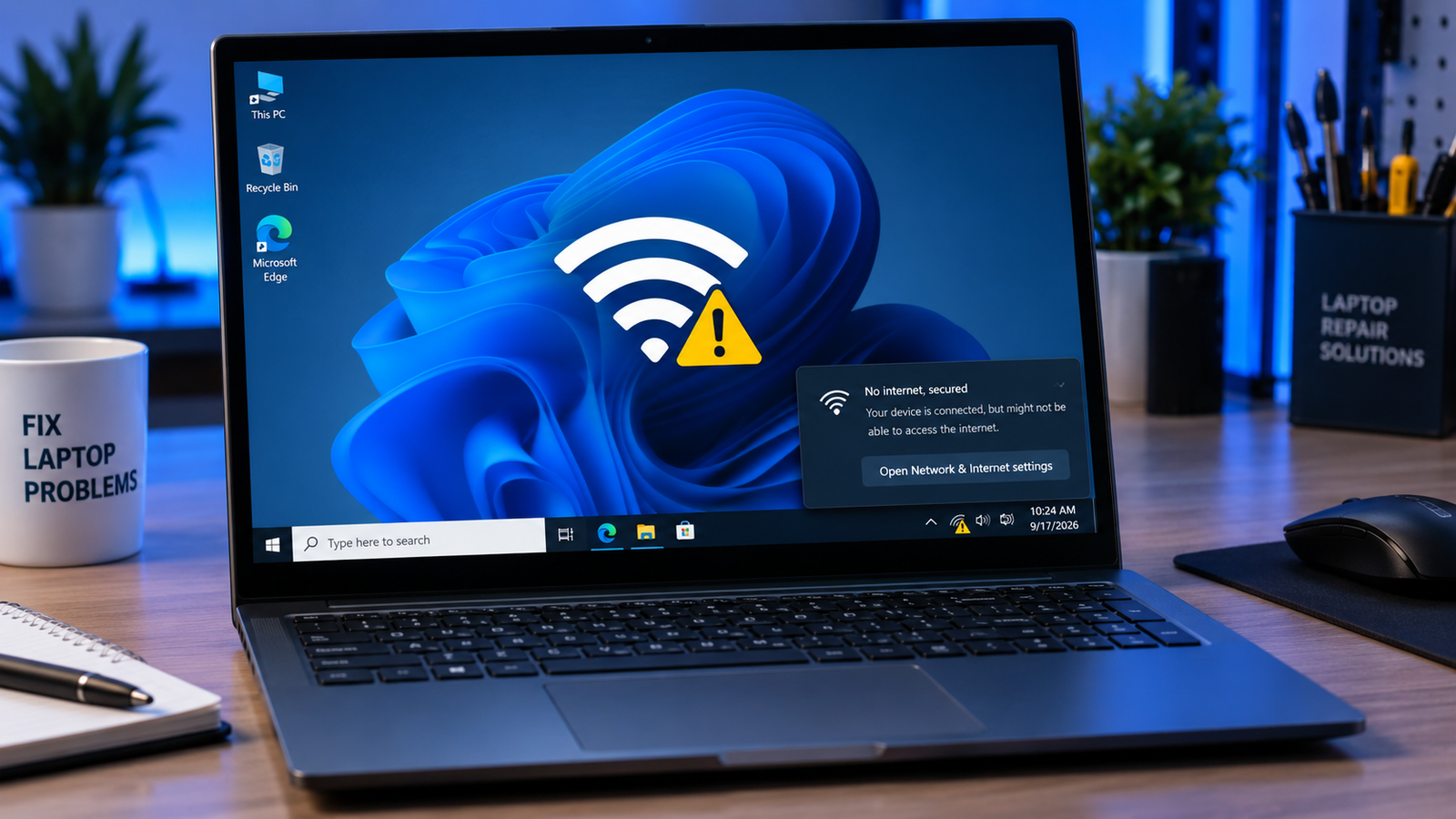
Quick Answer
Your laptop is connected to the router but the router is not reaching the internet, or Windows has an invalid IP configuration. The fastest fix is to open Command Prompt as administrator and run netsh winsock reset followed by ipconfig /release and ipconfig /renew, then restart. Most users are back online in under two minutes.
Introduction
You open your laptop, connect to WiFi, and see “No Internet, Secured” where the signal bars should be. Every other device in the house works fine. Nothing about your password changed. This guide covers every verified cause of this error on Windows 10 and Windows 11 and walks you through fixes ordered from fastest to most involved.
Symptoms

- WiFi shows connected with full bars but no pages load
- Status reads “No Internet, Secured” in the system tray
- Yellow triangle icon next to the WiFi symbol in the taskbar
- Browser shows “This site can’t be reached” or DNS errors
- Other phones and tablets on the same network work normally
- Ethernet cable works but WiFi does not
- Error appeared after a Windows Update or driver update
- Reconnecting to the network does not help
What Causes “No Internet, Secured”
1. Invalid or stuck IP configuration
Windows failed to get a valid IP address from the router via DHCP. This happens after sleep cycles, after Windows Updates, or when the DHCP lease expires and renewal fails. Confirmation sign: running ipconfig in Command Prompt shows an IP starting with 169.254.x.x – that is a self-assigned address, meaning no DHCP lease was issued.
2. Corrupted Winsock or TCP/IP stack
The Winsock catalog manages how Windows handles network connections at a low level. Third-party software, a bad update, or port-forwarding changes can corrupt it silently. Confirmation sign: the troubleshooter reports “WiFi doesn’t have a valid IP configuration” even after restarting.
3. VPN, antivirus, or firewall interference
VPN clients and some antivirus packages install virtual network adapters that intercept traffic. When they malfunction or get stuck, they break internet access while leaving the WiFi connection intact. Confirmation sign: the error appeared right after installing or updating a VPN, antivirus, or security suite.
How to Fix Laptop WiFi Says Secured But No Internet

Fix 1: Restart your router and laptop
Cost: Free | Time: 2 minutes | Difficulty: Easy
- Power off the router by unplugging it from the wall.
- Shut down the laptop completely (not sleep).
- Wait 30 seconds, then plug the router back in.
- Wait for all lights to stabilize (about 60 seconds).
- Power on the laptop and reconnect to WiFi.
Expected Result: Clears stuck DHCP leases and temporary connection glitches. If Failed: Move to Fix 2.
Fix 2: Flush IP and renew DHCP lease
Cost: Free | Time: 3 minutes | Difficulty: Easy
- Press Windows + X and select “Terminal (Admin)” or “Command Prompt (Admin).”
- Type
ipconfig /releaseand press Enter. - Type
ipconfig /flushdnsand press Enter. - Type
ipconfig /renewand press Enter. - Close the window and check your connection.
Expected Result: Forces Windows to request a fresh IP address from the router. If Failed: Move to Fix 3.
Fix 3: Reset Winsock and TCP/IP stack
Cost: Free | Time: 5 minutes | Difficulty: Easy
- Open Command Prompt as administrator (Windows + X, then “Terminal (Admin)”).
- Run each command one at a time:
netsh winsock resetnetsh int ip resetipconfig /releaseipconfig /flushdnsipconfig /renew
- Restart the laptop.
Expected Result: Rebuilds the networking stack from scratch. This resolves the majority of persistent “No Internet, Secured” cases. If Failed: Move to Fix 4.
Fix 4: Change DNS to Google or Cloudflare
Cost: Free | Time: 5 minutes | Difficulty: Easy
- Press Windows + R, type
ncpa.cpl, and press Enter. - Right-click your WiFi adapter and select “Properties.”
- Double-click “Internet Protocol Version 4 (TCP/IPv4).”
- Select “Use the following DNS server addresses.”
- Enter Preferred DNS:
8.8.8.8and Alternate DNS:8.8.4.4(Google) or use1.1.1.1and1.0.0.0(Cloudflare). - Click OK and close all windows.
Expected Result: Bypasses a faulty or slow ISP DNS server that was blocking resolution. If Failed: Move to Fix 5.
Fix 5: Run the Windows Network Troubleshooter
Cost: Free | Time: 5 minutes | Difficulty: Easy
Windows 11: Settings > System > Troubleshoot > Other Troubleshooters > Network and Internet > Run. Windows 10: Settings > Update and Security > Troubleshoot > Additional Troubleshooters > Internet Connections > Run the troubleshooter.
- Follow any prompts the troubleshooter provides.
- Restart the laptop when it completes.
Expected Result: Windows auto-repairs common adapter and IP issues and reports what it found. If Failed: Note the error message it reports, then move to Fix 6.
Fix 6: Disable VPN and temporarily pause antivirus
Cost: Free | Time: 5 minutes | Difficulty: Easy
- Right-click the system tray and look for any VPN icons (NordVPN, ExpressVPN, ProtonVPN, etc.).
- Disconnect or exit the VPN application completely.
- Open your antivirus settings and temporarily disable real-time protection.
- Check if the internet works now.
- Re-enable antivirus immediately after testing.
Expected Result: Confirms or rules out third-party software as the cause. If Failed: Move to Fix 7.
Fix 7: Update or reinstall the WiFi adapter driver
Cost: Free | Time: 10 minutes | Difficulty: Moderate
- Right-click Start and open “Device Manager.”
- Expand “Network Adapters.”
- Right-click your wireless adapter (Intel Wireless, Realtek, Qualcomm Atheros, Broadcom, or similar) and select “Update driver.”
- Choose “Search automatically for drivers.”
- If no update is found, visit your laptop manufacturer’s support page directly:
- Dell: dell.com/support
- HP: support.hp.com
- Lenovo: support.lenovo.com
- ASUS: asus.com/support
- Acer: acer.com/support
- MSI: msi.com/support
- Download and install the latest WiFi driver for your exact model.
- Restart the laptop.
Expected Result: Replaces a corrupted or outdated driver that was causing the IP handshake to fail. If Failed: Move to Fix 8.
Fix 8: Full network reset (last resort)
Cost: Free | Time: 10 minutes | Difficulty: Moderate
Windows 11: Settings > Network and Internet > Advanced Network Settings > Network Reset > Reset Now. Windows 10: Settings > Network and Internet > Status > Network Reset > Reset Now.
- Click “Reset Now” and confirm.
- The laptop will restart and reinstall all network adapters automatically.
Expected Result: A complete rebuild of every network adapter and stack setting. Resolves cases where all other fixes failed.
Note: This removes all saved WiFi passwords and VPN configurations. Write down your WiFi password before running this.
Mistakes to Avoid
Disabling IPv6 permanently. Many guides suggest turning off IPv6 to fix this error. It works as a short-term diagnostic but can break modern services and apps that rely on IPv6. Test with it disabled, confirm the fix, then re-enable it and look for another cause.
Skipping the router restart. Most users jump straight to Command Prompt fixes. The router restart is fast and resolves a large share of cases because stuck DHCP tables on the router are a common culprit.
Reinstalling Windows as a first response. Forum posts often end with “just reinstall Windows.” A full network reset (Fix 8) rebuilds everything the OS can rebuild without wiping your data. Try that before considering a reinstall.
Ignoring a recent Windows Update. If the error appeared right after updating Windows, check Settings > Windows Update > Update History and look for a recently installed update. Rolling it back via “Uninstall Updates” has resolved this for many users.
When to Stop and Get Professional Help
Take the laptop to a technician if the error persists after completing all eight fixes, especially if Ethernet also does not work. A WiFi adapter that fails on both your home network and a mobile hotspot is likely hardware at fault. Physical damage to the antenna cables inside the laptop can also produce this symptom. Replacement WiFi cards cost $20 to $50 and most shops will install one during a standard diagnostic appointment.
Prevention Tips
- Keep WiFi drivers updated through your manufacturer’s support page, not just Windows Update.
- Restart your router once a week to clear DHCP table buildup.
- Avoid installing VPN clients from unknown sources – they often install ghost network adapters that cause conflicts.
- Before major Windows Updates, note your current WiFi driver version so you can roll back easily.
- If you port forward on your router, double-check the changes did not alter DHCP or firewall settings.
Frequently Asked Questions
Why does my laptop say “No Internet, Secured” when other devices work fine? The issue is specific to your laptop’s IP configuration or network stack, not the router itself. The router is handing out addresses correctly to other devices, but your laptop is failing to receive or renew its lease. Flushing the IP with ipconfig /release and ipconfig /renew usually resolves it.
Will resetting Winsock delete any of my files? No. The Winsock reset only affects how Windows handles network connections at the system level. It does not touch your files, applications, or browser history. You will need to re-enter any manually configured proxy settings afterward.
Can a Windows Update cause “No Internet, Secured”? Yes. Faulty cumulative updates have caused this on both Windows 10 and 11. If the error appeared immediately after an update, go to Settings > Windows Update > Update History > Uninstall Updates and remove the latest update to test.
My laptop connects fine to a mobile hotspot but not my home WiFi. What does that mean? Your WiFi adapter is working correctly. The problem is between your laptop and your specific router, likely a DHCP conflict or a stored network profile with corrupt settings. Forget the network (right-click the WiFi name > Forget), restart both devices, and reconnect from scratch.
Conclusion
“No Internet, Secured” means your laptop can see the router but cannot get data from the internet. In most cases, flushing the IP and resetting Winsock with a few Command Prompt lines gets you back online in minutes. If those do not work, update your WiFi driver or run a full network reset before assuming hardware failure.