
Quick Answer
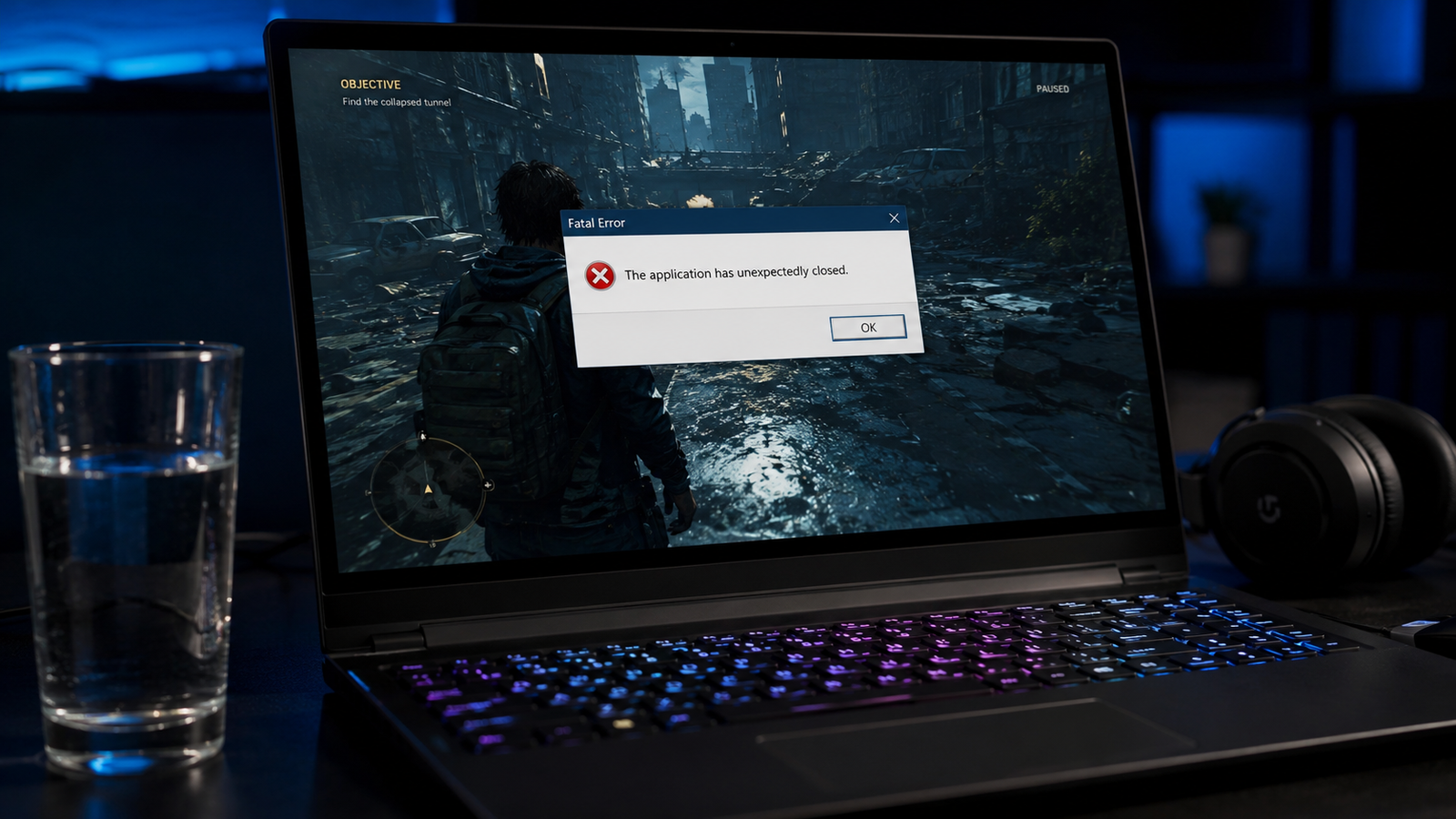
The most common reason a game crashes on startup on a laptop is either an outdated or corrupted GPU driver, missing Visual C++ runtime files, or antivirus software blocking the game process. Update your GPU driver through the manufacturer’s site, install the latest Visual C++ redistributables from Microsoft, and whitelist your game folder in Windows Security. Most cases clear up in under 20 minutes.
Introduction
You hit Play, the game logo flashes for a second, and then the whole thing closes. No error message, no blue screen, just back to your desktop like nothing happened. Sometimes there is a generic crash popup. Sometimes the screen goes black and the laptop comes back to life a few seconds later.
This specific failure pattern trips up a lot of people because it looks random. The game was working before, you did not change anything, and now it refuses to launch. What is actually happening is that the game loads just far enough to stress your GPU, hit a driver or runtime dependency it needs, or run into a blocked process, and then the system kills it before you see a single frame of gameplay.
This guide covers every confirmed cause in order of how frequently we see each one. You will find a fast diagnosis section to narrow down your specific problem, then step-by-step fixes from the easiest to the most involved.
Symptoms

- Game closes immediately after clicking Play with no error message
- Black screen for 1 to 3 seconds, then returns to desktop
- Generic “game has stopped working” or “application crash” popup
- Error mentioning a missing DLL file (vcruntime140.dll, msvcp140.dll, d3dx9.dll)
- “Failed to initialize DirectX” or “DirectX runtime error” message
- Game launches in the launcher but crashes when the actual level starts loading
- Some games crash on startup but others work fine
- Game worked yesterday with no changes made since
- Crash happens faster when plugged in versus on battery (or vice versa)
- Laptop fan spins up briefly then the crash happens
Start Here: Fast Diagnosis
Work through this decision tree before jumping to fixes. Matching your exact symptom saves 30 to 60 minutes of trial and error.
Does the game crash on ALL launchers or just one?
Only crashes through Steam but works on Epic or vice versa: Likely a launcher overlay conflict or per-launcher permission issue. Go to Fix 4 (Disable Overlays) and Fix 6 (Run as Administrator).
Crashes across all launchers and all games: Points to a system-level problem. GPU driver, Visual C++, DirectX, or overheating. Start at Fix 1.
Only one specific game crashes on startup, others work: Corrupted game files or that game’s specific runtime dependency is missing. Start at Fix 5 (Verify Game Files) and Fix 3 (Visual C++ and DirectX).
Does the crash happen before or after the loading screen?
Crashes at the very instant you hit Play (no window appears at all): Antivirus block, missing DLL, or permission error. Start at Fix 4 (Antivirus), Fix 3 (Visual C++), Fix 6 (Run as Admin).
Game window opens briefly then closes: GPU driver crash or VRAM allocation failure. Start at Fix 1 (GPU Driver) and check Fix 8 (Lower In-Game Settings Before Launch).
Game runs through the menu but crashes when a level loads: RAM running low, overheating from sustained GPU load, or a specific shader compile crash. Check Fix 9 (Overheating) and Fix 11 (RAM and SSD).
Is there an error message?
“vcruntime140.dll” or “msvcp140.dll” missing: Go directly to Fix 3 (Visual C++ Redistributables).
“Failed to initialize DirectX” or DirectX version error: Go to Fix 3 (DirectX Runtime) and Fix 1 (GPU Driver).
“0xc000007b” error code: Mixed 32-bit and 64-bit runtime mismatch. Install both x86 and x64 versions in Fix 3.
No error at all, just silent crash: Read the Windows Event Viewer crash log before doing anything else (see How to Diagnose below).
Tools Needed
Built-in Windows tools:
- Windows Event Viewer (eventvwr.msc)
- Device Manager (devmgmt.msc)
- Windows Memory Diagnostic (mdsched.exe)
- DirectX Diagnostic Tool (dxdiag)
- System File Checker (sfc /scannow)
- Task Manager
Free software tools:
- HWiNFO64 or MSI Afterburner (temperature monitoring)
- Display Driver Uninstaller / DDU (clean GPU driver removal)
- MemTest86 (USB RAM testing for severe cases)
- GPU-Z (VRAM and GPU load verification)
Game launcher tools:
- Steam: Verify Integrity of Game Files
- Epic Games: Verify in the Library
- Battle.net, GOG Galaxy, EA App, Ubisoft Connect: each has an equivalent repair option
| Symptom | Likely Cause | Fast Fix |
| Silent crash, no error, all games | GPU driver corrupt | Clean reinstall GPU driver |
| DLL missing error message | Visual C++ not installed | Install x86 + x64 redistributables |
| DirectX initialization error | Missing legacy DirectX components | Run DirectX End-User Runtime installer |
| One game crashes, others fine | Corrupt game files | Verify/repair through launcher |
| Crashes only on battery power | Power plan limits GPU | Switch to High Performance plan |
| Crash after 30 to 60 seconds of loading | Overheating from cold GPU spike | Clean vents, test with lower settings |
| Antivirus popup at game launch | AV blocking game executable | Whitelist game folder in Windows Security |
| Crash with black screen then recovery | GPU driver crash (TDR timeout) | DDU clean driver reinstall |
| Works on menu, crashes on level load | RAM or VRAM shortage | Lower texture settings or add RAM |
| Error code 0xc000007b | 32/64-bit runtime mismatch | Install both x86 and x64 VC++ |
Troubleshooting Matrix
What Causes Game Crashes on Startup

Outdated or Corrupted GPU Driver
This is the single most common cause we see in the shop. The GPU driver is the translator between the game and your graphics hardware. When it is outdated, partially corrupted after a Windows Update, or installed incorrectly, games either crash on the first GPU call or produce a black screen recovery event.
What users misunderstand: Windows Update often installs a generic Microsoft GPU driver over your proper NVIDIA or AMD driver after major Windows updates. Device Manager may show the driver as “current” because it has a valid signature, but it is not the manufacturer’s full driver package with all the gaming components.
Confirmation sign: Open Device Manager, expand Display Adapters, and look for two entries (iGPU + dGPU). If the dGPU shows a yellow warning icon, the driver is broken. If the date in driver properties is from a Windows Update cycle rather than NVIDIA/AMD’s release date, it has likely been overwritten.
Missing or Corrupted Visual C++ Redistributables
Games do not bundle all their runtime code inside the executable. They rely on Microsoft’s Visual C++ runtime DLL files already being present on your system. When those are missing, partially installed, or corrupted, the game cannot even finish its own startup sequence.
The error usually shows as “vcruntime140.dll was not found” or the more generic “The following components are required to run this program: Microsoft Visual C++ Runtime.” Older games need 2010, 2013, and 2015 builds. Newer games almost universally need the 2015 through 2022 package.
Confirmation sign: A DLL name in the error message ending in “140.dll” or “120.dll” directly points to this cause.
Missing DirectX Runtime Components
Windows 11 includes DirectX 12 at its core, but it does not ship with the legacy DirectX 9 and DirectX 10/11 optional components many games still depend on. Games built before 2016 commonly need D3DX9 or XACT libraries that are not on a fresh Windows install.
What users misunderstand: Running dxdiag and seeing “DirectX 12” listed does NOT mean all DirectX components are present. The version number only reflects the core runtime. The optional D3DX DLLs are a completely separate install.
Confirmation sign: A “Failed to initialize DirectX” error that still appears after you have already updated your GPU driver.
Antivirus or Windows Security Blocking the Game
Antivirus engines sometimes flag game executables or anti-cheat modules as threats because they use low-level system hooks that look similar to malware behavior. When this happens, the game process is killed the moment it tries to launch.
This catch is especially common with games that ship with kernel-level anti-cheat software (Easy Anti-Cheat, BattlEye, Ricochet). The anti-cheat driver loads before the game, triggers the antivirus scanner, and the whole process chain gets terminated.
Confirmation sign: The crash happens in under one second with no loading at all, or Windows Security shows a recent blocked item in its Protection History for the game folder.
Corrupted Game Files
A failed update, interrupted download, a bad SSD sector, or even a crash during a previous play session can corrupt one or more game files. The game may launch partially but crash when it tries to load the corrupted asset.
Confirmation sign: Happens with one game only. Other games launch fine. Running the launcher’s file verification tool finds and replaces files.
Overheating During the Initial GPU Load Spike
Laptops sit at low temperatures when idle. When you launch a game, the GPU suddenly ramps from near zero to 80 to 90 percent load in seconds. If the cooling system is blocked with dust, the thermal paste is dried out, or the laptop is sitting on a surface blocking its vents, temperatures can spike past the shutdown threshold before the fans have time to respond.
What users misunderstand: The crash happens at startup, so they think it cannot be overheating because the laptop “was not even running anything yet.” The startup GPU spike is actually one of the hardest moments for the cooling system to handle.
Confirmation sign: Game crashes faster when the laptop has been running for a while. The fan stays quiet for a second and then the crash happens. Touching the bottom of the laptop immediately after a crash feels noticeably hot.
Hybrid Graphics Conflict (iGPU vs dGPU)
Most gaming laptops run two GPUs: an integrated Intel or AMD graphics chip and a dedicated NVIDIA or AMD GPU. The system uses NVIDIA Optimus or AMD equivalent technology to decide which GPU handles each application. When this switching logic fails, the game gets handed to the wrong GPU, runs out of VRAM on the iGPU, and crashes.
Confirmation sign: The game opens at unusually low resolution, crashes quickly, and HWiNFO shows the dGPU at near zero load during the launch attempt.
Windows Hardware-Accelerated GPU Scheduling (HAGS)
HAGS is a Windows 10/11 feature that shifts GPU scheduling management from the CPU to the GPU firmware. On some laptop configurations, particularly older NVIDIA GPUs or systems with dual GPU setups, HAGS causes instability that reads exactly like a game startup crash.
Confirmation sign: Crashes started after a specific Windows feature update. Disabling HAGS (Settings > Display > Graphics > Change default graphics settings) stops the crashes.
Power Plan Limiting GPU Power at Launch
On battery power, Windows often applies aggressive power limits to the GPU. When the game launches and demands full GPU power, the power plan throttles it so hard the frame fails to render, the game detects a crash condition, and closes itself.
Confirmation sign: The game crashes on battery but launches successfully when plugged into wall power on the Performance or High Performance power plan.
Insufficient Disk Space or SSD Errors
Games need free working space on the drive to unpack shader caches, write save data, and load assets at launch. If the drive is under 5 to 10 GB free, or if the SSD has bad sectors on the install partition, the game crashes while trying to read or write during the startup sequence.
Confirmation sign: Drive is nearly full. Running SMART diagnostics on the SSD shows reallocated sectors or read errors.
What We See Most Often
The majority of “game crashes on startup” tickets that come through the bench are GPU driver problems. Not outdated drivers specifically, but GPU drivers that got corrupted or overwritten by a Windows Update. The second most common cause is missing Visual C++ redistributables, especially on laptops that had Windows reinstalled without going through the manufacturers’ driver and software bundles.
Overheating as a startup crash cause is consistently underestimated. People associate overheating with crashes during long gaming sessions, not at the two-second mark. But gaming laptops that have not been cleaned in over a year often have enough dust blocking the GPU exhaust that a cold launch spike is enough to hit the thermal protection cutoff.
Antivirus blocks are the most frustrating cause to diagnose because the laptop gives you nothing to look at. No error, no log, just a silent close. Always check Windows Security’s Protection History before spending an hour reinstalling drivers.
How to Diagnose the Problem

Step 1: Check the Windows Event Viewer
Open Event Viewer (Win + R, type eventvwr.msc, press Enter). Navigate to Windows Logs then Application. Look for errors stamped within a minute of when you tried to launch the game. The “Faulting module name” field in the error details tells you exactly which file or process caused the crash.
Expected result: An error entry showing the game’s .exe or a specific DLL name. If failed: Look under Windows Logs then System for separate hardware-level errors logged at the same timestamp. Next action: Use the faulting module name to identify the correct fix below.
Step 2: Run DxDiag
Press Win + R, type dxdiag, press Enter. Check the Display tab and confirm Direct3D Acceleration and DirectDraw Acceleration both show as “Enabled.” Look for any warnings or errors listed on the tab.
Expected result: All DirectX features show Enabled, no warnings. If failed: Any “Not Available” result means DirectX or GPU driver needs repair. Proceed to Fix 1 and Fix 3. Next action: Screenshot the dxdiag output for reference before making changes.
Step 3: Check GPU Temperature During Launch
Install HWiNFO64 or MSI Afterburner with RivaTuner. Enable the sensor overlay. Launch the game and watch the GPU temperature reading. On a gaming laptop in good condition, GPU temperature should not exceed 88 to 90 degrees Celsius under load.
Expected result: Temperature stays below 85 degrees Celsius during the startup sequence. If failed: Temperature spikes past 90 degrees or GPU usage drops to zero right before the crash. Next action: Clean the vents immediately. Proceed to Fix 9.
Step 4: Check Windows Security Protection History
Open Windows Security. Go to Virus and Threat Protection then Protection History. Look for any blocked or quarantined items related to your game’s folder within the past 24 hours.
Expected result: No blocked items from the game directory. If failed: A blocked item confirms antivirus is the crash cause. Next action: Proceed to Fix 4 to whitelist the game.
Step 5: Test a Second Game
Launch a different game you know works. If it also crashes on startup, the problem is system-wide (GPU driver, Visual C++, or DirectX). If only the original game crashes, the problem is that specific game’s installation or a missing runtime it uniquely needs.
Expected result: At least one other game launches successfully. If failed: All games crash, confirming a system-level problem. Next action: Start at Fix 1 regardless of symptom pattern.
Which Fix Usually Works?
| Fix | Typical Success Rate | Cost | Difficulty |
| GPU driver clean reinstall | Very Common | Free | Easy |
| Visual C++ redistributables | Very Common | Free | Easy |
| Antivirus whitelist | Common | Free | Easy |
| Verify and repair game files | Common | Free | Easy |
| DirectX runtime installer | Common | Free | Easy |
| Disable overlays (Discord, Game Bar) | Common | Free | Easy |
| Run game as Administrator | Common | Free | Easy |
| Disable HAGS | Occasional | Free | Easy |
| Clean vents / fix overheating | Occasional | Free to moderate | Moderate |
| Switch to High Performance power plan | Occasional | Free | Easy |
| RAM or SSD fault repair | Occasional | Varies | Moderate |
| Windows system file repair (SFC/DISM) | Occasional | Free | Easy |
Step-by-Step Fixes

Fix 1: Clean Reinstall the GPU Driver
Cost: Free Time: 20 to 30 minutes Difficulty: Easy
- Download the latest GPU driver for your laptop from NVIDIA (nvidia.com/drivers) or AMD (amd.com/support). Do not use Windows Update or Device Manager for this step. Use the manufacturer’s site directly.
- Download Display Driver Uninstaller (DDU) from Wagnardsoft.com.
- Boot into Safe Mode: Hold Shift, click Restart, go to Troubleshoot, Advanced Options, Startup Settings, and select Safe Mode.
- Run DDU in Safe Mode. Select GPU and click “Clean and restart.”
- After the laptop restarts normally, run the driver installer you downloaded. Choose “Custom Installation” if offered. Check “Perform a clean installation.”
- Restart after installation completes.
- Launch the game.
Expected result: GPU driver fully replaced. Game launches past the startup crash point. If failed: Proceed to Fix 3 (Visual C++ and DirectX). Technician tip: If you have both an NVIDIA dGPU and an Intel iGPU, download and update both drivers separately. The iGPU driver matters even if the game runs on the dGPU.
Fix 2: Verify Game File Integrity
Cost: Free Time: 5 to 20 minutes depending on game size Difficulty: Easy
Steam: Right-click the game in Library, Properties, Local Files, Verify Integrity of Game Files. Epic Games: Click the three-dot menu next to the game, select Manage, click Verify. Battle.net / GOG Galaxy / EA App / Ubisoft Connect: Each has an equivalent “Repair” or “Verify” option in the game’s settings menu.
After verification completes, let the launcher download any replaced files, then launch the game.
Expected result: Corrupted or missing files are replaced. Game launches normally. If failed: If verification finds and replaces files but the game still crashes, the install directory itself may have a bad sector. Try moving the game to a different drive or reinstalling fresh. Technician tip: Verification does not always catch 100 percent of corrupted files on first pass. If the first verify shows zero issues but the game still crashes, run a second pass to confirm.
Fix 3: Install Visual C++ Redistributables and DirectX Runtime
Cost: Free Time: 10 minutes Difficulty: Easy
Visual C++ Redistributables:
- Go to microsoft.com and search “Visual C++ redistributable downloads” or navigate to the Microsoft Learn VC++ downloads page.
- Download and install the latest x64 version AND the x86 version. Both are required.
- If older games are crashing, also install the 2013 and 2010 packages.
- Restart the laptop.
DirectX End-User Runtime:
- Search “DirectX End-User Runtime Web Installer” on Microsoft’s site and download it.
- Run the installer. It adds legacy DirectX 9 and DirectX 10 components that Windows 11 does not include natively.
- Restart.
Expected result: Missing DLL errors stop. Game launches past the startup point. If failed: The faulting DLL may be specific to that game’s build. Check the game’s Steam discussion page for that exact DLL name and whether a specific older VC++ version is needed. Technician tip: Uninstalling and reinstalling all existing Visual C++ entries from Programs and Features before doing a fresh install resolves conflicts caused by partial or broken prior installations. Expert warning: Do not delete DLL files manually from System32 trying to “reset” them. This breaks other programs. Always go through the official installer.
Fix 4: Disable Antivirus Block and Whitelist the Game
Cost: Free Time: 5 to 10 minutes Difficulty: Easy
- Open Windows Security. Go to Virus and Threat Protection, then Protection History. Note any recent blocked items from the game’s folder.
- Go to Virus and Threat Protection, then Manage Settings.
- Scroll to Exclusions and click Add or Remove Exclusions.
- Click Add an Exclusion and select Folder.
- Navigate to and select the game’s full installation folder (usually in Program Files or your Steam / Epic library drive).
- Confirm and close. Launch the game.
For third-party antivirus (Kaspersky, Bitdefender, Norton, Malwarebytes): each has its own Exclusions or Whitelist section. Add the full game folder path there as well.
Expected result: Game launches without being terminated by the antivirus engine. If failed: Temporarily disable real-time protection entirely and test. If the game launches with protection fully off, the exclusion did not apply correctly. Re-add it. Technician tip: Anti-cheat software (Easy Anti-Cheat, BattlEye) needs its own folder whitelisted, not just the main game folder. Look in Program Files for a separate anti-cheat directory for that game title.
Fix 5: Disable Third-Party Overlays
Cost: Free Time: 5 minutes Difficulty: Easy
Overlays inject code into the game process to display their UI. When two or more overlays try to hook into the same game, conflicts cause silent startup crashes.
Disable overlays from these sources before testing:
Discord: User Settings, Activity Settings, scroll to “In-Game Overlay” and toggle it off. Steam: Steam menu, Settings, In-Game, uncheck “Enable the Steam Overlay while in-game.” Xbox Game Bar: Windows Settings, Gaming, Xbox Game Bar, toggle it off. NVIDIA GeForce Experience: Settings (gear icon), General, uncheck “In-Game Overlay.” MSI Afterburner / RivaTuner: If using for monitoring, disable the OSD/overlay injection temporarily.
Launch the game after disabling all overlays simultaneously.
Expected result: Game launches without the overlay conflict killing the startup sequence. If failed: Re-enable overlays one at a time to identify the specific conflicting one.
Fix 6: Run the Game as Administrator
Cost: Free Time: 2 minutes Difficulty: Easy
- Navigate to the game’s installation folder.
- Right-click the main game executable (.exe file, not the launcher).
- Select Properties, go to the Compatibility tab.
- Check “Run this program as an administrator.”
- Click Apply and OK.
Expected result: Permission errors that silently killed the startup process are resolved. If failed: The crash is not permission-related. Move to other fixes. Technician tip: Also right-click the game launcher (Steam.exe, EpicGamesLauncher.exe) and set it to run as administrator. Some games need the whole chain elevated.
Fix 7: Switch to High Performance Power Plan
Cost: Free Time: 2 minutes Difficulty: Easy
- Press Win + I to open Settings.
- Go to System, then Power and Battery (Windows 11) or Power and Sleep (Windows 10).
- Click “Additional power settings” and select High Performance or Ultimate Performance.
- If using an NVIDIA laptop, also open NVIDIA Control Panel, go to Manage 3D Settings, Global Settings, and set Power Management Mode to “Prefer Maximum Performance.”
- Launch the game while plugged into wall power.
Expected result: GPU receives full power during game startup. Crashes caused by power throttling stop. If failed: Power plan was not the cause. Continue to Fix 8. Expert warning: High Performance mode drains battery faster and may increase temperatures. Use it when gaming plugged in, not on battery.
Fix 8: Force the Game to Use the Dedicated GPU
Cost: Free Time: 5 minutes Difficulty: Easy
- Right-click the desktop and open NVIDIA Control Panel or AMD Radeon Software.
- Go to Manage 3D Settings, then Program Settings.
- Click Add, browse to the game’s main .exe file, and add it.
- Set “Preferred graphics processor” for that program to “High-performance NVIDIA processor” or equivalent AMD option.
Alternatively in Windows Settings: System, Display, Graphics, scroll to find the game or click Browse to add it, set it to High Performance.
Expected result: Game loads on the dGPU instead of the iGPU. VRAM shortage and iGPU driver incompatibility crashes stop. If failed: The crash is not a hybrid GPU routing problem. Technician tip: After adding the game in NVIDIA Control Panel, also check that the laptop’s BIOS does not have a setting to disable Optimus or force iGPU-only mode. Some gaming laptops have a MUX switch in BIOS that needs to be set correctly.
Fix 9: Address Overheating (Vents and Cooling)
Cost: Free to moderate Time: 15 to 30 minutes Difficulty: Easy to Moderate
Immediate steps:
- Set the laptop on a hard flat surface. Soft surfaces like beds and sofas block the bottom vents completely.
- Use compressed air to blow out the exhaust vents on the sides and rear. Point the can from the outside in short bursts. Do not blow into the intake vents on the bottom.
- In NVIDIA Control Panel or AMD Software, lower the game’s texture quality and shadow settings before launching. This reduces the GPU load spike on startup.
- Install HWiNFO64 and monitor GPU temperature during launch. If it spikes past 90 degrees Celsius within five seconds of the game window opening, the cooling system needs professional cleaning.
If temperatures remain high after cleaning the exterior: Bring the laptop in for internal cleaning. Dust packed inside against the heatsink fins is the usual culprit. Dried thermal paste between the GPU die and the heatsink is the second most common issue on laptops over three years old.
Expected result: Temperature during startup stays below 85 degrees Celsius. Game completes its loading sequence. If failed: Hardware-level thermal issue. See “When Hardware Replacement Is Necessary.” Technician tip: A good indicator of dried thermal paste is when the laptop’s CPU and GPU temperatures are always 10 to 15 degrees Celsius higher than they used to be on the same games.
Fix 10: Disable Windows Hardware-Accelerated GPU Scheduling (HAGS)
Cost: Free Time: 5 minutes Difficulty: Easy
- Open Windows Settings.
- Go to System, then Display, then Graphics.
- Click “Change default graphics settings.”
- Toggle off “Hardware-accelerated GPU scheduling.”
- Restart the laptop.
- Launch the game.
Expected result: Startup crashes related to HAGS instability stop. If failed: HAGS was not the cause. Re-enable it if you want (it benefits some systems). Technician tip: HAGS incompatibilities are most common on laptops running older NVIDIA cards (RTX 20 series and below) paired with Windows 11 updates from 2024 onward.
Fix 11: Repair Windows System Files
Cost: Free Time: 15 to 30 minutes Difficulty: Easy
- Open Command Prompt as administrator (search CMD, right-click, Run as administrator).
- Run this command: sfc /scannow
- Wait for the scan to complete. If it reports “Windows Resource Protection found corrupt files,” run the following DISM repair:
- DISM /Online /Cleanup-Image /RestoreHealth
- After DISM finishes (it can take 15 to 20 minutes), run sfc /scannow again.
- Restart and test the game.
Expected result: Corrupted system DLLs or Windows components needed by the game are repaired. If failed: System file corruption is deeper than SFC and DISM can reach. Consider an in-place Windows repair install using the Windows 11 ISO without wiping data. Expert warning: If SFC reports it found corrupt files but could not repair them, do not ignore this. It means a core Windows component is damaged. Run DISM first to fix the Windows image, then run SFC again.
Fix 12: Test RAM for Errors
Cost: Free Time: 1 to 8 hours (Memtest runs best overnight) Difficulty: Easy to Moderate
Quick test (Windows built-in):
- Press Win + R, type mdsched.exe, press Enter.
- Choose “Restart now and check for problems.”
- The laptop will reboot into the memory test. Let it run through two full passes.
Thorough test: Download MemTest86, write it to a USB drive, boot from it, and let it run four or more passes overnight.
Expected result: Zero errors on both tests. If failed: Any errors on RAM testing point to a faulty RAM module as the crash cause. If the laptop has two sticks, test each one individually by seating only one at a time. Technician tip: RAM errors that cause game startup crashes often do not cause problems in light use like browsing or office work. Games are among the most RAM-intensive operations a laptop performs, which is why RAM faults surface under gaming before anything else.
Mistakes That Make the Problem Worse
Reinstalling the game before checking the GPU driver. A corrupted GPU driver will crash every game regardless of how fresh the installation is. Reinstalling the game wastes time and does not touch the actual problem.
Updating the GPU driver through Device Manager. Device Manager pulls from the Windows driver cache, which may contain the same generic Microsoft driver that caused the problem. Always download directly from NVIDIA or AMD’s website.
Manually deleting DLL files from System32. Some guides suggest deleting specific DLLs to force a reinstall. This breaks other applications that depend on the same file. Run the official Visual C++ or DirectX installer instead.
Running the game as administrator permanently without investigating why. If a game needs admin rights to run, that usually means there is a permission error on the installation folder. Fix the folder permissions rather than permanently elevating every session.
Disabling Windows Update entirely to prevent driver overwrites. While Windows Update does occasionally overwrite GPU drivers, disabling it entirely leaves the laptop vulnerable. A better approach is using the “Show or Hide Updates” troubleshooter from Microsoft to block only the specific Generic GPU driver update.
Blowing compressed air into the intake vents. This pushes dust deeper into the heatsink fins instead of clearing them. Always blow from the exhaust side outward.
Reinstalling Windows without saving and reinstalling GPU drivers, Visual C++, and DirectX Runtime afterward. A clean Windows install removes all these components. Failing to reinstall them means the exact same crash happens on the fresh OS.
Brand-Specific Considerations
Dell
Dell Alienware and G-series gaming laptops have a unique issue where the BIOS’s “Hybrid Mode” versus “Discrete GPU Mode” setting affects startup crashes. Hybrid Mode uses Optimus switching, which occasionally hands a game to the iGPU incorrectly. Switching to Discrete GPU Mode in the BIOS (F2 at boot, then Hybrid Graphics settings) forces all rendering through the NVIDIA GPU and eliminates Optimus-related startup crashes. Dell also bundles its own NVIDIA driver build via Dell Update; these are sometimes a version or two behind GeForce’s latest and can be the source of the problem.
HP
HP’s Omen and Victus gaming laptops are notable for HP Omen Gaming Hub’s conflicts with third-party overlays. Omen Gaming Hub’s own performance overlay can conflict with Discord or Steam overlays and cause silent startup crashes. Disabling Omen Gaming Hub’s overlay while testing narrows this down quickly. HP’s BIOS updates for these models also directly address GPU power delivery, so checking HP Support Assistant for pending BIOS updates is worth doing before a full driver reinstall.
Lenovo
Lenovo Legion and IdeaPad gaming laptops ship with Lenovo Vantage, which controls the Hybrid Mode setting (same concept as Dell’s BIOS setting but done in software). If Vantage has been updated or reset, it may revert to Hybrid Mode. Open Lenovo Vantage, go to Hardware Settings, then Graphics, and verify whether Discrete GPU mode or Hybrid is selected. Lenovo’s dGPU power profiles in Vantage also affect whether the NVIDIA card receives full power on startup.
ASUS
ASUS ROG and TUF gaming laptops use Armoury Crate and the GPU Mode switch in the BIOS accessed at shutdown. Switching between Optimus, Standard (MUX switch enabled), and Ultimate GPU modes requires a full restart and occasionally gets stuck between states after a Windows Update. If a game was working before and started crashing after a Windows Update, check Armoury Crate’s GPU Mode status. ASUS also releases BIOS updates specifically addressing GPU power stability, so keep the BIOS current through the MyASUS app.
Acer
Acer Nitro and Predator laptops have a known quirk where PredatorSense software’s “Turbo” and “Auto” fan modes interfere with thermal management on startup GPU spikes. Running the laptop in “Turbo” mode from the first moment the game is launched (not after the game is open) ensures the fans are already at high speed when the GPU spike happens. Acer’s drivers are best obtained from acer.com rather than Windows Update, as the OEM packages include additional power management components not present in the generic Windows driver.
MSI
MSI gaming laptops running Dragon Center or MSI Center have a performance mode setting that directly affects dGPU power limits at startup. Setting this to “Extreme Performance” mode before launching a crashing game often resolves the issue immediately. MSI laptops also have a “Optimus Mode” and “Discrete Mode” switch in MSI Center similar to the other brands. MSI’s current laptops benefit from keeping MSI Center updated as it pushes BIOS-adjacent power tuning firmware.
Repair Shop Diagnosis

When a gaming laptop comes in with startup crashes across multiple games, the first thing on the bench is a dxdiag capture and an Event Viewer export from the time of the last crash. The faulting module name in Event Viewer tells us in about 30 seconds whether this is a driver crash, a missing runtime, or an anti-cheat termination.
Second step is GPU temperature logging during a game launch attempt. We use HWiNFO64 with sensor logging active, trigger the game, and pull the log after the crash. A temperature spike above 93 degrees Celsius within 10 seconds tells us the cooling system is the culprit, not software.
If the log shows GPU usage dropping to zero at the crash moment without a temperature spike, that points to a power delivery problem, a driver TDR (timeout detection and recovery) failure, or a VRAM allocation error.
Most startup crash repairs at an independent shop run between $50 and $120 depending on whether it resolves with a driver and runtime reinstall (30 to 60 minutes of labor) or requires internal cleaning with thermal paste replacement (60 to 90 minutes of labor). Full motherboard or GPU diagnostics add another $50 to $100 to confirm whether hardware is at fault.
When Hardware Replacement Is Necessary
GPU failure: The GPU produces visual artifacts before crashing, or crashes happen even after a completely clean driver install with the laptop cooled to ambient room temperature. GPU replacement on a laptop is rarely cost-effective due to the soldered-on nature of most laptop GPUs.
RAM failure: MemTest86 returns errors consistently. Games crash on startup but other RAM-intensive tests also fail. If RAM slots are user-accessible, replacing the stick is straightforward. If soldered, the motherboard is the replacement.
SSD failure: SMART diagnostics show reallocated sectors or pending uncorrectable errors. Startup crashes accompanied by slow loading times or file access errors confirm SSD problems. SSDs are replaceable on most gaming laptops and usually cost $60 to $150 for a quality replacement.
Motherboard fault: Crashes happen across all games, all drivers have been cleanly reinstalled, RAM and SSD test clean, and temperatures are normal. If the GPU power delivery circuit on the motherboard is damaged, no software fix will resolve it.
Stop Troubleshooting and Seek Professional Repair If
- You smell something burning when the laptop is under any load
- The laptop battery is visibly swollen or the base panel is bulging
- The laptop shuts off hard within seconds of any game launch with temperatures already at normal levels
- You see GPU artifacts (colored blocks, lines, flickering) before the crash happens
- The BSOD error code is specifically DRIVER_IRQL_NOT_LESS_OR_EQUAL or VIDEO_TDR_FAILURE and persists after a DDU clean driver reinstall
- SFC and DISM both report they cannot repair system files
- The laptop has been exposed to liquid in the past
These symptoms indicate hardware-level damage that cannot be resolved through software. Continuing to troubleshoot software causes while hardware is failing can make the situation worse.
Prevention Tips

Use a laptop stand or hard surface when gaming. Even a millimeter of lift on the bottom panel improves airflow through the intake vents enough to meaningfully reduce startup temperature spikes.
Clean the exhaust vents with compressed air every three to four months. A thin layer of lint and dust at the vent opening reduces airflow by more than it appears. You do not need to open the laptop to do this effectively.
Set the game launcher and the game executable to run on the dedicated GPU in NVIDIA Control Panel or Windows Graphics settings from the first time you install a game. Do not leave it on “Auto” which can route to the iGPU.
Keep Visual C++ redistributables installed in both x86 and x64 versions. When a new year package is released (e.g., the 2022 build), install it alongside older versions rather than replacing them. Games targeting older runtimes still need the older packages.
Download GPU drivers directly from NVIDIA or AMD, not through Device Manager. After a major Windows feature update, check whether Windows silently replaced your GPU driver with a generic one.
Install the DirectX End-User Runtime once after any clean Windows install or factory reset. It only needs to be run once and it adds all the legacy DirectX components that Windows no longer ships with natively.
Whitelist your entire game library folder in Windows Security before installing games into it. It saves the repeated re-whitelisting each time a new game or anti-cheat update triggers the AV scanner.
Frequently Asked Questions

Why does my game crash on startup with no error message?
Silent startup crashes almost always point to antivirus terminating the game process, a GPU driver timeout (TDR event), or the operating system killing the process due to a missing dependency it cannot find. Open Windows Event Viewer immediately after a crash and look under Windows Logs, Application for an error entry. The “Faulting module name” field identifies the exact cause.
My game worked fine last week. What changed?
Windows Update is the most common cause of sudden startup crashes in a previously working game. It frequently overwrites your GPU driver with a generic Microsoft version, removes or conflicts with Visual C++ redistributable versions, or pushes a Windows feature update that activates HAGS differently. Check Windows Update history to see what installed the day before crashes began.
Does reinstalling the game fix startup crashes?
It fixes crashes caused by corrupted game files, which is one possible cause. It does not fix GPU driver problems, missing Visual C++ runtimes, antivirus blocks, overheating, or power plan issues. Verify game files through the launcher first before doing a full reinstall, since verification repairs corrupt files without consuming a full download.
My game crashes on startup only when I am on battery. Is that normal?
No. This is a power delivery issue. Windows battery power profiles limit the GPU’s power draw to extend battery life. When the game demands full GPU power at launch and the power plan restricts it, the GPU frame fails to render and the game crash detects it. Set the power plan to High Performance and confirm the setting in NVIDIA Control Panel under Power Management Mode.
How do I know if my GPU is actually failing or if it is just a driver problem?
A clean DDU driver reinstall with no other changes is the cleanest test. If the game still crashes after a fresh driver install on a laptop cooled to room temperature, and temperatures are normal during the crash, the GPU itself may be failing. Symptoms of actual GPU failure include visual artifacts (colored blocks, shimmering, lines) that appear on screen before the crash, crashes across all graphics applications (not just games), and crashes that happen at lower and lower graphics loads over time.
Can a failing SSD cause games to crash on startup?
Yes. The game installation is stored on the SSD, and the game reads assets continuously during the loading sequence at startup. A failing SSD with bad sectors causes read errors that the game interprets as missing files, which triggers an immediate crash. Run the Windows “Optimize Drives” tool and check the drive health with CrystalDiskInfo to see the SMART status.
Why does verifying game files never find any problems but the game still crashes?
The launcher’s file verification checks file size and checksum against its server database. It does not check whether your GPU can actually render those files, whether your driver supports the game’s DirectX feature level, or whether your system has the required runtime dependencies. Verification confirms the game files are complete, not that the environment can run them. If verification passes, move to GPU driver, Visual C++, and overheating checks.
Conclusion
Game crashes on startup on a laptop are almost always caused by one of three things: a GPU driver that is outdated, corrupted, or was overwritten by Windows Update; missing Visual C++ or DirectX runtime components the game depends on; or antivirus software terminating the game process before it can fully launch. Start by reading the Windows Event Viewer crash log to identify the exact faulting module, then work through the GPU driver reinstall, Visual C++ install, and antivirus whitelist fixes in that order. If all software fixes are clean and crashes continue, measure GPU temperature during startup using HWiNFO64 and inspect the cooling system before drawing conclusions about hardware failure.