
Quick Answer
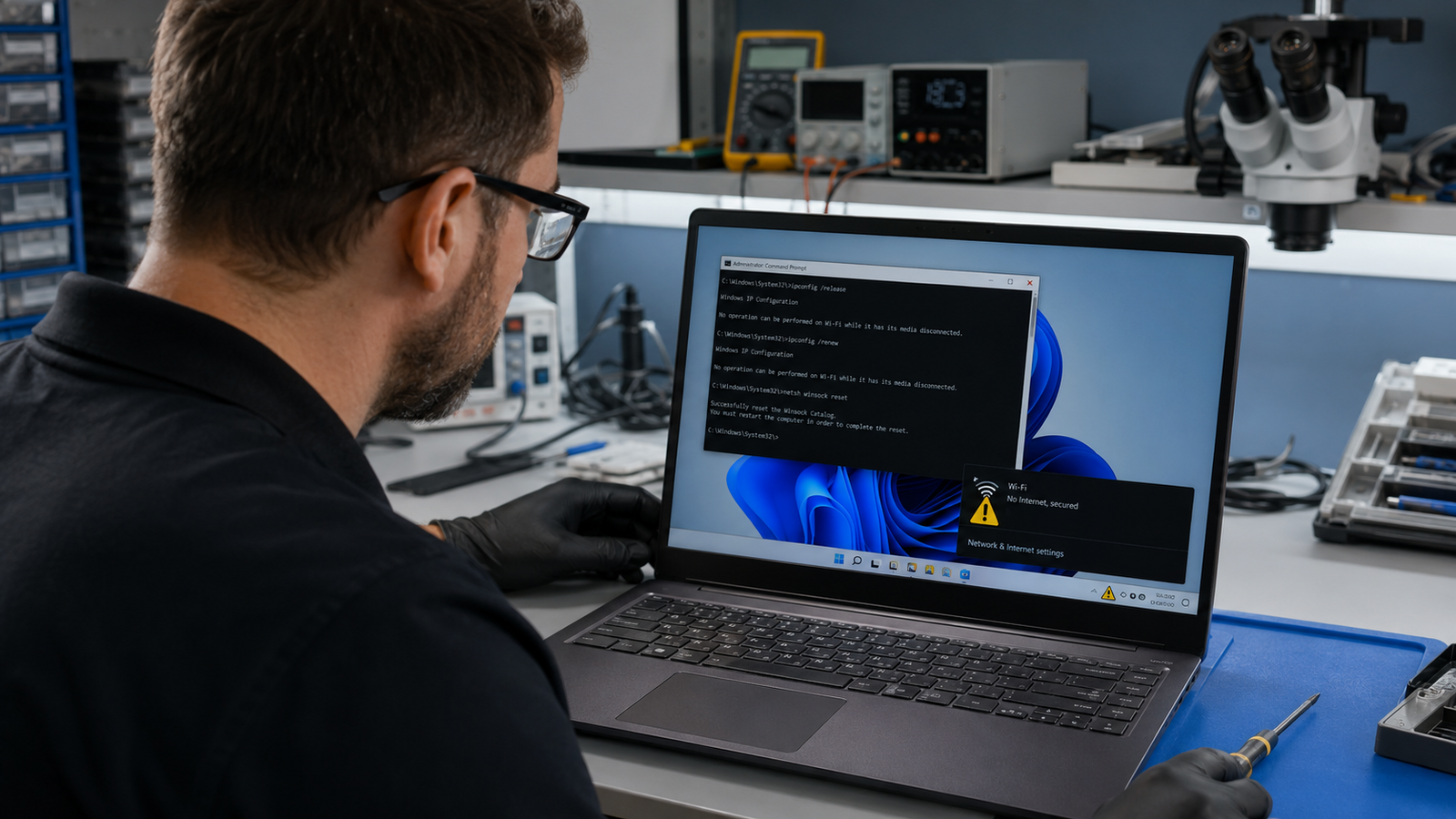
Limited connectivity means your laptop reached the router but Windows cannot confirm internet access. The most common cause is a failed DHCP lease, which leaves your laptop with no valid IP address, or a corrupted TCP/IP stack after a Windows Update or VPN install. Flush your DNS cache, run ipconfig /release and ipconfig /renew in an elevated Command Prompt, then reset the stack with netsh winsock reset. That clears the problem in most cases within five minutes.
Introduction
You open your laptop, connect to WiFi, and see the yellow exclamation mark sitting on the network icon in the taskbar. The tooltip says “Limited connectivity” or “No Internet, secured.” Your phone loads websites instantly on the same router. Your laptop is stuck.
This is one of the most misdiagnosed WiFi problems we see in the repair shop. People assume it is a router problem, spend an hour rebooting networking equipment, and still get the same result. The actual cause is almost always inside Windows: a broken IP lease, a corrupted network stack, an aggressive power-saving setting cutting the wireless adapter off, or a driver that stopped handling DHCP packets correctly.
This guide covers every root cause, a fast diagnostic workflow to identify which one applies to your situation, and step-by-step fixes ordered from fastest to most involved.
Symptoms of Limited Connectivity

- Yellow exclamation mark on the WiFi icon in the Windows taskbar
- Tooltip reads “Limited connectivity,” “No Internet, secured,” or “Connected, no internet”
- WiFi icon shows signal bars but browsers fail to load any page
- Some apps load partially or show connection errors while others work (this is a DNS-layer clue)
- Problem affects only this laptop while other devices on the same network work normally
- Connectivity drops after sleep or hibernate then recovers after a full restart
- ipconfig shows an IP address starting with 169.254.x.x (APIPA address, meaning DHCP failed)
- Running the Windows Network Troubleshooter produces “Default gateway is not available” or “DNS server isn’t responding”
- Limited connectivity appeared immediately after a Windows Update, driver change, or VPN install
Start Here: Fast Diagnosis
Work through this decision tree before touching any fix. Knowing which layer is broken saves you from running ten commands that do not apply to your situation.
Check whether other devices on the same network have internet access. If other devices also have no internet, the problem is the router or your ISP. Reboot the router and call your ISP if that fails. Stop reading this guide. If only your laptop is affected, continue below.
Check your IP address. Open Command Prompt and type ipconfig. Look at the IP address under your WiFi adapter. If it starts with 169.254.x.x, DHCP failed. Your laptop could not get a valid IP from the router. Go directly to Fix 2 (IP renewal) and Fix 3 (TCP/IP reset). If it shows a normal address like 192.168.x.x or 10.x.x.x, DHCP worked. The problem is DNS, a corrupted stack, or a driver issue. Go to Fix 1 (DNS flush) first.
Check whether the limited status is permanent or self-resolving. If the yellow exclamation disappears on its own within 2 to 3 minutes, the NLA (Network Location Awareness) service is slow to confirm connectivity. This is a Windows timing issue, not a real connection failure. Update your wireless driver and skip the stack reset unless it keeps occurring. If the yellow exclamation stays for more than 5 minutes, there is a real connection failure. Work through the fixes below in order.
Check whether the problem survives a restart. If a restart fixes it temporarily but it comes back after sleep, the wireless adapter power management setting is killing the connection. Go directly to Fix 8 (power management). If a restart does not help at all, the TCP/IP stack or driver is the issue.
Check whether the problem appeared after a specific event. After a Windows Update: rollback the driver or run a network reset. After installing a VPN: disable or uninstall the VPN and test. After installing antivirus: temporarily disable it and test. After no obvious change: corrupted stack or failed DHCP service. Run Fix 3.
Tools Needed
Built-in Windows tools:
- Command Prompt (run as Administrator)
- Device Manager
- Windows Settings (Network and Internet)
- Services (services.msc)
- Network Troubleshooter
Software tools:
- WiFi driver from manufacturer website (Dell, HP, Lenovo, ASUS, Acer, MSI support pages)
- Display Driver Uninstaller (DDU) only if a clean driver reinstall is needed
Hardware tools:
- Ethernet cable (to confirm whether the problem is WiFi-specific or affects all network adapters)
- USB WiFi adapter (a $15 backup adapter confirms whether the internal card has failed)
Troubleshooting Matrix
| Symptom | Likely Cause | Fast Fix |
| 169.254.x.x IP address shown in ipconfig | DHCP lease failure | ipconfig /release, /renew |
| Yellow exclamation disappears after 2 min | NLA service timing | Driver update |
| Happened after Windows Update | Driver or stack corruption | Rollback driver or Network Reset |
| Happened after VPN install | VPN virtual adapter conflict | Uninstall VPN, flush DNS |
| Problem only after sleep/hibernate | Wireless adapter power saving | Disable power management on adapter |
| Problem on WiFi only, Ethernet works | Wireless card or driver | Update/reinstall WiFi driver |
| Ethernet and WiFi both fail | TCP/IP stack corrupt | netsh winsock reset + netsh int ip reset |
| Restarting fixes it temporarily | Driver memory leak or DHCP service | Update driver, restart DHCP Client service |
| Some apps work, browsers fail | DNS failure | Flush DNS, change DNS to 8.8.8.8 |
| All apps fail, IP address is valid | Routing or firewall blocking | Disable antivirus temporarily, check proxy settings |
What Causes Limited Connectivity on a Laptop

DHCP Lease Failure
Your router hands out IP addresses automatically through a protocol called DHCP. When your laptop connects to WiFi, it sends a request asking for an IP address. If that request goes unanswered, Windows assigns itself a fallback address starting with 169.254.x.x, which cannot reach the internet.
Why it happens: The router’s DHCP table is full, the wireless adapter sent the request before the radio finished initializing, or the DHCP Client service inside Windows stopped running.
How to identify it: Type ipconfig in Command Prompt. If the IP under your WiFi adapter starts with 169.254, DHCP failed.
What users misunderstand: A 169.254.x.x address does not mean the WiFi card is broken. It means the IP request failed. The hardware is usually fine.
Confirmation sign: Running ipconfig /renew returns an error like “Unable to contact your DHCP server.”
Corrupted TCP/IP Stack or Winsock Catalog
Windows manages network communication through a layered stack. The Winsock catalog sits between applications and the network hardware. VPN software, firewalls, security tools, and botched driver installs can corrupt entries in this catalog without Windows noticing. The result: the adapter appears connected but packets cannot flow correctly.
Why it happens: Installing or uninstalling VPN clients is the most common trigger. Certain antivirus products also inject themselves into the Winsock stack and leave broken entries behind when removed.
How to identify it: All network activity fails even though ipconfig shows a valid IP address. Pinging 8.8.8.8 by IP address also fails.
What users misunderstand: Reinstalling the WiFi driver does nothing to fix a corrupted Winsock catalog. The driver and the stack are separate components.
Confirmation sign: Running netsh winsock show catalog in Command Prompt returns LSP entries from software that is no longer installed.
Outdated or Buggy Wireless Adapter Driver
The driver controls how your wireless card communicates with Windows. An outdated driver may handle DHCP packet timing incorrectly, drop the connection after sleep, or fail to re-authenticate after returning from hibernate.
Why it happens: Windows Update sometimes pushes a generic Microsoft-signed driver that replaces the manufacturer’s optimized version. The generic driver works well enough for basic connectivity but fails under specific conditions.
How to identify it: Limited connectivity only appears after sleep or hibernate, not on a fresh boot. Or the problem started immediately after Windows Update ran.
What users misunderstand: The Device Manager “Update Driver” button searches Windows Update, which may reinstall the same bad driver. Always download directly from the laptop manufacturer’s support page, not from Windows Update.
Confirmation sign: Rolling back the driver in Device Manager (Properties > Driver > Roll Back Driver) immediately resolves the problem.
Wireless Adapter Power Management
Windows can power down network adapters during idle periods to save battery. This setting is aggressive on laptops and often cuts the adapter off mid-session rather than waiting for actual idle time.
Why it happens: Windows enables this by default on battery-powered devices. Some manufacturers ship laptops with the setting enabled even on AC power.
How to identify it: Limited connectivity appears after the laptop sits idle for a few minutes. A restart or manually disabling and re-enabling the WiFi adapter fixes it temporarily.
What users misunderstand: This is not a signal issue. Full WiFi bars can be showing while the adapter is being throttled at the software level.
Confirmation sign: Disabling “Allow the computer to turn off this device to save power” in the adapter’s Power Management tab stops the problem from recurring.
VPN or Antivirus Interference
VPN software creates virtual network adapters that sit between Windows and your physical wireless card. If the VPN crashes, disconnects improperly, or leaves orphaned adapter entries, Windows can get confused about which adapter to route traffic through.
Why it happens: VPN software that is not properly uninstalled leaves virtual adapter entries in Device Manager and broken Winsock LSP entries. Some antivirus products intercept DNS traffic and can block it entirely if their own servers become unreachable.
How to identify it: Limited connectivity only happens on certain networks (your home WiFi works, a hotel WiFi does not, or vice versa). Or the problem began right after installing or updating security software.
What users misunderstand: Temporarily disabling antivirus in the system tray does not remove the Winsock hook. A full uninstall using the vendor’s removal tool is necessary to test whether it is the cause.
Confirmation sign: Booting into Safe Mode with Networking and testing connectivity rules out active software interference.
DNS Server Failure
Your laptop has a valid IP address and can technically reach the internet, but the DNS server it points to is unavailable or responding slowly. Windows interprets this as “no internet” because its connectivity check fails.
Why it happens: Your router’s default DNS settings sometimes point to your ISP’s DNS servers, which can be slow or intermittently unavailable. A VPN that was disconnected may have left incorrect DNS server entries in your network adapter settings.
How to identify it: You can load a website by typing its IP address directly (for example, 142.250.80.46 for Google) but not by typing the domain name. Or nslookup google.com in Command Prompt returns a timeout or error.
What users misunderstand: Flushing the DNS cache (ipconfig /flushdns) clears cached lookup results but does not fix a broken DNS server address. You need to change the DNS server itself.
Confirmation sign: Changing your DNS to 8.8.8.8 (Google) or 1.1.1.1 (Cloudflare) in your adapter settings immediately restores full browsing.
NLA Service Timing Issue
Windows uses a service called Network Location Awareness to check whether an internet connection is available after connecting to a network. If this service runs its check before the router finishes assigning an IP or before the connection is fully established, it reports “limited connectivity” even though the connection is actually fine.
Why it happens: Slow routers, older access points, or networks with long DHCP lease times can trigger this. The NLA check runs on a fixed internal timer and does not wait for the connection to fully stabilize.
How to identify it: The yellow exclamation mark disappears on its own within 1 to 3 minutes without any intervention.
What users misunderstand: If the exclamation mark self-resolves consistently, this is not a real problem. It is a timing mismatch between Windows and the router. An updated wireless driver often resolves it by improving connection initialization speed.
Confirmation sign: The issue only appears immediately after connecting, never during an active session.
What We See Most Often
In the repair shop, the split between causes breaks down roughly like this.
The single most common scenario we see is power management cutting the wireless adapter off after the laptop returns from sleep. The user sees “limited connectivity,” panics, restarts, it works again, and the cycle repeats. Disabling the “turn off to save power” option on the adapter takes 30 seconds and permanently ends the problem.
The second most common cause is a DHCP failure from a corrupted TCP/IP stack, usually triggered by a VPN install or Windows Update. Running the three-command stack reset clears it in under two minutes.
Actual hardware failure (dead wireless card) is rare. When it does happen, it almost always affects older laptops past the 4-year mark, or laptops that took physical damage. Before calling the wireless card dead, always test with a USB WiFi adapter. If the USB adapter works normally, the internal card is the problem. If the USB adapter also shows limited connectivity, the issue is in Windows, not the hardware.
How to Diagnose Limited Connectivity

Step 1: Test another device on the same network.
Connect a phone or second laptop to the same WiFi. Try loading a website.
Expected Result: Other device has full internet access, confirming the problem is isolated to this laptop.
If Failed: Both devices have limited or no access. The issue is the router or ISP. Reboot router, contact ISP.
Next Action: Continue to Step 2.
Step 2: Check the IP address in ipconfig.
Open Command Prompt as Administrator. Type ipconfig and press Enter. Look for the IP address next to your wireless adapter.
Expected Result: An IP starting with 192.168.x.x or 10.x.x.x indicates DHCP worked. An IP starting with 169.254.x.x confirms DHCP failure.
If Failed (169.254.x.x seen): DHCP failed. Skip to Fix 2 (IP renewal) immediately.
Next Action: If IP looks normal, continue to Step 3.
Step 3: Ping the router gateway.
In Command Prompt, type ipconfig and note the Default Gateway address (usually 192.168.1.1 or 192.168.0.1). Then type ping 192.168.1.1 (replace with your actual gateway).
Expected Result: Replies come back with low latency (under 10ms), confirming the laptop can reach the router.
If Failed: No replies or “Request timed out.” Your laptop cannot reach even the router. The wireless driver or adapter may be the issue. Skip to Fix 5 (driver reinstall).
Next Action: If ping succeeds, the laptop reaches the router. The problem is further up the chain (DNS or stack). Continue to Step 4.
Step 4: Ping a public IP directly.
Type ping 8.8.8.8 in Command Prompt.
Expected Result: Replies come back from 8.8.8.8, confirming internet routing works.
If Failed: Pings fail. The TCP/IP stack or routing is broken. Go to Fix 3 (stack reset).
Next Action: If ping succeeds but websites fail in the browser, DNS is the issue. Go to Fix 1 (DNS flush) or Fix 4 (DNS server change).
Step 5: Run the Windows Network Troubleshooter.
Right-click the network icon in the taskbar. Select Troubleshoot problems. Let it run.
Expected Result: Troubleshooter identifies a specific issue such as “DNS server not responding” or “Default gateway not available” and may fix it automatically.
If Failed: Troubleshooter reports “No issues found” but connectivity is still broken. This is common when the actual cause is a Winsock corruption or power management setting.
Next Action: Proceed to the manual fixes below.
Which Fix Usually Works?
| Fix | Typical Success Likelihood | Cost | Difficulty |
| Flush DNS and renew IP | Very Common | Free | Easy |
| Reset TCP/IP stack (netsh) | Very Common | Free | Easy |
| Disable adapter power management | Very Common | Free | Easy |
| Update wireless driver from manufacturer | Common | Free | Easy |
| Change DNS to 8.8.8.8 / 1.1.1.1 | Common | Free | Easy |
| Disable/uninstall VPN or antivirus | Common | Free | Easy |
| Windows Network Reset | Common | Free | Moderate |
| Rollback wireless driver | Occasional | Free | Easy |
| Restart DHCP Client service | Occasional | Free | Easy |
| Safe Mode network test + clean boot | Occasional | Free | Moderate |
| Replace wireless card | Rare | $15 to $50 | Moderate |
Step-by-Step Fixes

Fix 1: Flush DNS Cache and Renew IP Address
Cost: Free Time: 5 minutes Difficulty: Easy
- Press the Windows key, type cmd, right-click Command Prompt, and select Run as administrator.
- Type the following commands one at a time, pressing Enter after each:
ipconfig /flushdns
ipconfig /release
ipconfig /renew
- Wait for each command to complete before entering the next.
- Open a browser and test connectivity.
Expected Result: DNS cache is cleared and a fresh IP address is assigned. Connectivity restores immediately.
If Failed: The ipconfig /renew command may return an error if DHCP is blocked or the stack is corrupted. Proceed to Fix 3.
Next Action: If this works but the problem returns after sleep, also apply Fix 7 (power management).
Technician Tip: If ipconfig /renew hangs for more than 30 seconds, force-close Command Prompt, restart the DHCP Client service (see Fix 9), then retry.
Fix 2: Check and Restart the DHCP Client Service
Cost: Free Time: 5 minutes Difficulty: Easy
- Press Windows + R, type services.msc, and press Enter.
- Scroll down to “DHCP Client” in the list.
- Check its Status column. It should show “Running.”
- If it shows “Stopped,” right-click it and select Start.
- If it shows “Running,” right-click it and select Restart.
- Close Services and test connectivity.
Expected Result: The DHCP Client service restarts and your laptop successfully requests a new IP address from the router.
If Failed: The service starts but limited connectivity persists. Proceed to Fix 3.
Next Action: Fix 3 (TCP/IP stack reset).
Technician Tip: If the DHCP Client service is stuck or refuses to start, try rebooting Windows before doing anything more invasive. A stuck service often clears on restart.
Fix 3: Reset the TCP/IP Stack and Winsock Catalog
Cost: Free Time: 10 minutes Difficulty: Easy
This fix resolves corrupted network stack entries caused by VPNs, firewalls, or botched driver installs.
- Open Command Prompt as Administrator.
- Type the following commands one at a time and press Enter after each:
netsh winsock reset
netsh int ip reset
netsh int ipv4 reset
netsh int ipv6 reset
ipconfig /flushdns
ipconfig /release
ipconfig /renew
- Restart your laptop after all commands complete.
- Reconnect to WiFi and test.
Expected Result: Windows rebuilds the network stack from scratch. Most stack-level corruption is permanently cleared.
If Failed: Restart did not resolve limited connectivity. Proceed to Fix 4.
Next Action: Fix 4 (DNS server change) or Fix 5 (driver update).
Technician Tip: Write down any custom DNS settings, VPN configurations, or static IP addresses before running these commands. The reset wipes manually configured network settings.
Expert Warning: If you use Hyper-V virtual switches or a corporate VPN, those virtual adapter configurations are also cleared by this process. Coordinate with your IT team before running this on a work laptop.
Fix 4: Change DNS Server to Google or Cloudflare
Cost: Free Time: 5 minutes Difficulty: Easy
- Open Settings > Network and Internet > WiFi > Hardware Properties (Windows 11). For Windows 10: Control Panel > Network and Sharing Center > Change adapter settings > Right-click WiFi adapter > Properties > Internet Protocol Version 4 (TCP/IPv4) > Properties.
- Select “Use the following DNS server addresses.”
- Enter:
- Preferred DNS: 8.8.8.8
- Alternate DNS: 8.8.4.4 (Alternatively use 1.1.1.1 and 1.0.0.1 for Cloudflare)
- Click OK and test connectivity.
Expected Result: Bypasses a slow or failed ISP DNS server. Browsing restores immediately if DNS was the cause.
If Failed: DNS was not the issue. Revert to “Obtain DNS server address automatically” and proceed to Fix 5.
Next Action: Fix 5 (wireless driver update).
Technician Tip: If changing DNS fixes the problem on this laptop but not others on the same network, the issue is specific to how this adapter negotiates DNS with your router. Keeping a manual DNS entry set to 8.8.8.8 is a permanent, clean solution.
Fix 5: Update the Wireless Adapter Driver from the Manufacturer Website
Cost: Free Time: 15 to 30 minutes Difficulty: Easy
Never use “Update Driver” inside Device Manager for this step. That searches Windows Update, which may reinstall the same driver already causing the problem.
- Find your laptop model name and number (check the sticker on the bottom).
- Go to your manufacturer’s support page:
- Dell: support.dell.com
- HP: support.hp.com
- Lenovo: support.lenovo.com
- ASUS: asus.com/support
- Acer: acer.com/support
- MSI: msi.com/support
- Search for your exact model and navigate to Drivers and Downloads.
- Find the wireless LAN or WiFi driver. Download the latest version.
- Run the installer and restart your laptop.
- Reconnect to WiFi and test.
Expected Result: Updated driver handles DHCP, sleep recovery, and packet routing correctly. Limited connectivity does not return.
If Failed: Latest driver still causes limited connectivity. Try rolling back to the previous version instead (Device Manager > Network adapters > Right-click adapter > Properties > Driver > Roll Back Driver).
Next Action: Fix 6 (disable adapter power management).
Technician Tip: Check the driver release notes on the manufacturer’s website. If a recent driver specifically mentions “fixed intermittent wireless disconnection” or “resolved limited connectivity after sleep,” that is your driver.
Fix 6: Disable Wireless Adapter Power Management
Cost: Free Time: 5 minutes Difficulty: Easy
- Right-click the Start button and select Device Manager.
- Expand Network adapters.
- Right-click your wireless adapter and select Properties.
- Click the Power Management tab.
- Uncheck “Allow the computer to turn off this device to save power.”
- Click OK.
- Also open Settings > System > Power and sleep > Additional power settings > Change plan settings > Change advanced power settings > Wireless Adapter Settings > Power Saving Mode > Set to Maximum Performance.
- Restart and test.
Expected Result: The adapter stays active during idle periods and after sleep. Limited connectivity from power cycling does not recur.
If Failed: Power management was not the cause. Proceed to Fix 7.
Next Action: Fix 7 (VPN and antivirus check).
Technician Tip: On HP laptops, the Power Management tab is sometimes missing from the adapter properties. In that case, rely entirely on the advanced power settings path through the Power Plan settings.
Fix 7: Disable or Uninstall VPN and Check Antivirus
Cost: Free Time: 10 to 20 minutes Difficulty: Easy
- Open Settings > Apps > Installed apps (Windows 11) or Control Panel > Programs > Programs and Features (Windows 10).
- Look for any VPN software (NordVPN, ExpressVPN, Cisco AnyConnect, etc.).
- Uninstall the VPN client completely. For Cisco AnyConnect, also run the official removal tool from Cisco’s website.
- Restart your laptop and test connectivity before proceeding.
- If the problem persists, temporarily uninstall your antivirus software (Windows Defender is safe to keep active).
- After testing, reinstall antivirus if it was not the cause.
Expected Result: Removing the VPN clears orphaned virtual adapter entries and broken Winsock hooks. Connectivity restores.
If Failed: VPN and antivirus were not the cause. Proceed to Fix 8.
Next Action: Fix 8 (Windows Network Reset).
Technician Tip: Simply disconnecting a VPN in the app does not remove its Winsock hooks. A full uninstall followed by a TCP/IP stack reset (Fix 3) is the only reliable way to confirm the VPN was the cause.
Fix 8: Windows Network Reset
Cost: Free Time: 15 minutes (laptop reboots automatically) Difficulty: Moderate
This removes and reinstalls all network adapters, clears custom DNS and proxy settings, and resets the Winsock catalog. It is more thorough than the manual netsh commands in Fix 3.
- Open Settings (Windows key + I).
- Go to Network and Internet.
- Scroll down to “Advanced network settings.”
- Click “Network reset.”
- Click “Reset now.”
- Confirm the prompt. Windows restarts automatically.
- After reboot, reconnect to WiFi by entering your password again.
- Test connectivity.
Expected Result: All network components return to factory defaults. Persistent limited connectivity from stack or adapter corruption is fully resolved.
If Failed: Limited connectivity persists after a full network reset. This is now a strong indicator of a hardware or router-level issue.
Next Action: Test with an Ethernet cable. If Ethernet works, the WiFi card may have failed. If Ethernet also shows limited connectivity, contact your ISP and check router settings.
Expert Warning: Network reset removes all saved WiFi passwords. Have your router password available before proceeding.
Fix 9: Boot into Safe Mode with Networking to Isolate Third-Party Software
Cost: Free Time: 15 minutes Difficulty: Moderate
Safe Mode with Networking loads only essential Windows services. If connectivity is normal in Safe Mode, a third-party program is causing limited connectivity in normal mode.
- Open Settings > System > Recovery > Advanced Startup > Restart now.
- Choose Troubleshoot > Advanced Options > Startup Settings > Restart.
- Press 5 to boot Safe Mode with Networking.
- Connect to WiFi and test.
Expected Result: Connectivity works normally in Safe Mode, confirming a startup program or service is interfering.
If Failed: Limited connectivity also appears in Safe Mode. The problem is in Windows core components or hardware. Proceed to hardware testing.
Next Action: If Safe Mode works, perform a clean boot in normal mode (msconfig > Services > Hide all Microsoft services > Disable all > restart) to identify the conflicting startup item.
Technician Tip: Safe Mode testing is particularly useful when limited connectivity only occurs on specific networks (like a hotel or office WiFi) but not others. Corporate networks with 802.1X authentication sometimes conflict with third-party network management software.
Fix 10: Replace the Wireless Network Card
Cost: $15 to $50 for a replacement card Time: 30 to 60 minutes Difficulty: Moderate
Before replacing the internal card, always test with a USB WiFi adapter first ($10 to $20 at any electronics retailer). If the USB adapter works normally while the internal card shows limited connectivity, the internal card has failed.
- Purchase a replacement M.2 or mini-PCIe wireless card compatible with your laptop model. Intel AX200 and AX210 are compatible with most laptops from the last 6 years.
- Power off the laptop, unplug the charger, and remove the battery if removable.
- Remove the laptop back panel (Phillips screwdriver).
- Locate the wireless card (small rectangular card near a corner, with one or two thin antenna wires attached).
- Unscrew the single retaining screw, slide out the card, and disconnect the antenna leads.
- Insert the new card, reconnect the antenna leads, and secure with the screw.
- Reassemble the laptop, power on, and install the driver from the manufacturer’s website.
Expected Result: Full WiFi connectivity with no further limited connectivity errors.
If Failed: If the USB adapter also shows limited connectivity, or if a new internal card also shows limited connectivity, the issue is in Windows or the router, not the hardware.
Next Action: If hardware replacement does not resolve it, escalate to a Windows reinstall.
Expert Warning: Disconnecting the antenna cables with force can break the connector on the motherboard. Lift straight up, never pull sideways.
Mistakes That Make the Problem Worse
Rebooting the router repeatedly without checking whether other devices are affected. This wastes time and does not help when the problem is inside Windows. Check another device first. If other devices work fine, the router is not the cause.
Using Device Manager’s “Update Driver” to fix the wireless driver. This searches Windows Update and usually installs the same driver already causing the problem. Always download from the laptop manufacturer’s support page directly.
Running ipconfig /renew without first running ipconfig /release. Renewing without releasing first can result in Windows trying to extend an already-broken lease rather than requesting a clean one.
Disabling Windows Defender to test antivirus interference, then forgetting to re-enable it. Turning off Defender leaves your laptop unprotected. After testing, re-enable it. If Defender was the cause (very rare), the permanent fix is adjusting its network inspection settings, not disabling it permanently.
Performing a Windows Network Reset without writing down saved WiFi passwords first. Network Reset clears all saved wireless profiles. If you do not know your router password, you cannot reconnect to WiFi after the reset.
Blaming the WiFi card as broken before testing with a USB adapter. A dead wireless card is one of the least common causes of limited connectivity. Replacing it without ruling out software causes first wastes money.
Installing “network optimizer” or “driver updater” utilities from third-party websites. These tools frequently install unwanted software and can inject Winsock LSP entries that cause the exact problem you were trying to fix.
Brand-Specific Considerations
Dell
Dell laptops often use Intel wireless cards (Intel AX200, AX210, or older Intel 8265). The most reliable driver source for Dell is SupportAssist or the Dell Drivers and Downloads page, not Windows Update. Dell BIOS versions released from 2022 onward include a wireless adapter initialization option. If the wireless card stopped being detected entirely after a BIOS update, check whether WiFi is enabled under the BIOS security or device configuration section (accessed at startup with F2).
HP
HP laptops with Realtek wireless cards have a known issue with power management settings resetting after Windows Updates, re-enabling the “turn off to save power” option on the adapter. After every major Windows Update, it is worth verifying this setting has not been re-enabled. HP’s PC Hardware Diagnostics tool (available from the F2 menu at startup) includes a wireless module test that can confirm card failure at the hardware level without needing to boot Windows.
Lenovo
Lenovo Vantage includes a network settings section that can sometimes conflict with manual Windows network settings. If you have made manual DNS changes but the problem persists on a Lenovo, check whether Lenovo Vantage or Lenovo Network Adapter Diagnostics is managing network settings separately. Lenovo IdeaPad models from 2019 to 2021 shipped with Realtek RTL8723 wireless cards that are known for intermittent limited connectivity under Windows 11. Updating to the latest Realtek driver from Lenovo’s support page (not from Realtek’s site directly) is the correct fix.
ASUS
ASUS laptops support an EC (Embedded Controller) reset and RTC (Real-Time Clock) reset that can resolve WiFi initialization failures without a full BIOS reset. On supported models, hold the power button for 40 seconds with the charger disconnected to trigger an EC reset. ASUS ROG and TUF gaming laptops have Armoury Crate or MyASUS software that can be used to update the wireless driver through a single automated scan, which pulls the correct driver version for that specific model.
Acer
Acer laptops commonly use Qualcomm or Realtek wireless cards. The correct driver must be matched to the exact card model, as multiple Acer models use different cards even within the same product line. The Acer Care Center application can identify the correct driver automatically. Acer models running Windows 11 occasionally show limited connectivity caused by IPv6 binding conflicts. Disabling IPv6 on the adapter (Properties > uncheck Internet Protocol Version 6) can resolve this without affecting normal internet use on most home networks.
MSI
MSI gaming laptops ship with Dragon Center or MSI Center, which includes a network performance mode setting. Setting this to “Gaming Mode” disables the aggressive power saving that causes limited connectivity after idle periods. The MSI Dragon Center network settings override the standard Windows power management tab, so changing only the Windows setting may not be sufficient on MSI laptops.
Repair Shop Diagnosis

When a laptop comes in for limited connectivity, the first thing we do is check which devices on the same network are affected. If it is only this laptop, we go straight to ipconfig to check the IP address class.
A 169.254.x.x address sends us immediately to the DHCP Client service and the TCP/IP stack reset. That combination resolves the problem in roughly half of all cases we see, usually in under five minutes.
If the IP address is valid but pinging 8.8.8.8 fails, we reset the Winsock catalog. If pinging 8.8.8.8 succeeds but websites do not load, we check DNS settings and switch to 8.8.8.8 manually.
For recurring limited connectivity that comes back after sleep, we check the power management setting on the wireless adapter before touching anything else. That is the most common cause of “my restart fixes it” complaints.
Typical repair costs for in-shop diagnosis and fix: $40 to $80 labor for a software resolution. Wireless card replacement adds $15 to $50 for the part plus one additional hour of labor.
Diagnostic tools used: Command Prompt, Device Manager, Windows Network Troubleshooter, ping, ipconfig, netsh winsock show catalog.
Professional repair is justified when the customer has already run all software fixes and a replacement USB WiFi adapter also shows limited connectivity. At that point, the issue is either in Windows at a deep level (requiring a reinstall) or with router-side settings.
When Hardware Replacement Is Necessary
Wireless card failure is confirmed when a USB WiFi adapter works normally on the same laptop while the internal card consistently shows limited connectivity or fails to appear in Device Manager. Replacement cards cost $15 to $50 and take 20 to 40 minutes to swap.
Motherboard antenna damage is possible after physical damage or a poor repair job. If a replacement wireless card also shows weak signal or limited connectivity, the antenna wires may be broken or disconnected at the screen hinge.
SSD failure can indirectly cause limited connectivity by corrupting Windows system files, including network stack components. If sfc /scannow returns “Windows Resource Protection found corrupt files it could not repair,” SSD health should be checked with CrystalDiskInfo or the manufacturer’s drive diagnostic tool.
Stop Troubleshooting and Seek Professional Repair If
Liquid damage is suspected. Liquid on the motherboard can cause intermittent wireless adapter faults. This requires professional cleaning and component-level inspection.
A burning smell came from the laptop before connectivity failed. This indicates a component failure. Stop using the laptop immediately and have it inspected.
The wireless card does not appear in Device Manager at all, even after a restart and a BIOS reset. This suggests hardware failure or a severed antenna connection.
Limited connectivity appeared alongside other sudden failures such as a black screen, fan spinning at maximum speed constantly, or random shutdowns. These suggest a broader hardware problem, not an isolated WiFi issue.
Every fix above has been applied and the problem persists after a clean Windows reinstall. At this point, the hardware is the cause.
Prevention Tips

Download wireless drivers directly from your laptop manufacturer’s support page after every major Windows Update. Windows Update regularly pushes generic drivers that replace manufacturer-optimized versions.
Set your wireless adapter power management to Maximum Performance in the Power Plan advanced settings. This single setting prevents the most common recurring cause of limited connectivity.
Uninstall VPN software completely rather than just disabling it, when it is no longer needed. Orphaned VPN adapters and Winsock entries are a leading cause of persistent limited connectivity.
Keep a USB WiFi adapter in your laptop bag. A $15 adapter instantly tells you whether limited connectivity is a hardware or software problem. It also serves as a working backup during the repair process.
Avoid installing driver update utilities from third-party websites. These tools frequently inject unwanted software into the network stack. Use only the laptop manufacturer’s support page for driver updates.
Reboot your router once a month. DHCP tables can fill up or become stale on routers that are never power-cycled. A monthly reboot keeps the DHCP table clean and prevents lease failures.
Check the Winsock catalog after installing any new security software by running netsh winsock show catalog in Command Prompt and reviewing for unexpected entries. If new entries from recently installed software appear, research them before assuming they are safe.
Frequently Asked Questions

Why does my laptop show limited connectivity but my phone works fine on the same WiFi? The router and internet connection are working. The problem is inside your Windows network stack, wireless driver, or DHCP settings. Your phone uses different network software and a different radio, so it is not affected by Windows-specific faults. Start with ipconfig to check your IP address and work through the DNS flush and TCP/IP reset steps.
Will resetting the TCP/IP stack delete my files or Windows installation? No. The netsh reset commands only modify network configuration entries. Your files, installed apps, and Windows license are completely unaffected. The only things that change are network settings, and those return to defaults.
My limited connectivity fixes itself after I restart, but comes back the next day. What is the cause? This is almost always the wireless adapter power management setting. Windows puts the adapter to sleep to save battery, and it does not fully recover. Disable “Allow the computer to turn off this device to save power” in the adapter’s Power Management properties tab and set the Power Plan’s wireless adapter mode to Maximum Performance.
What does a 169.254.x.x IP address mean? It is an APIPA (Automatic Private IP Addressing) address that Windows assigns to itself when it cannot reach a DHCP server. It confirms that your laptop did not receive a valid IP address from the router. Run ipconfig /release followed by ipconfig /renew to request a new one, or restart the DHCP Client service in services.msc.
Can a VPN cause limited connectivity even when I am not connected to the VPN? Yes. VPN software installs virtual network adapters and Winsock LSP entries that remain active even when you are not connected to a VPN server. If the VPN client is installed but the VPN server is unreachable, it can intercept and block network traffic. Uninstall the VPN client completely, run netsh winsock reset, restart, and test.
Does antivirus software cause limited connectivity? Occasionally. Some antivirus products filter DNS traffic or inject network monitoring components into the Winsock catalog. Temporarily uninstalling (not just disabling) your antivirus is the correct way to test this. If connectivity restores after uninstalling, the antivirus settings need adjustment, or the product should be replaced with one that does not intercept DNS.
My laptop shows limited connectivity only on hotel and public WiFi, but works fine at home. Why? Public and corporate networks often use captive portals (the login page that appears when you first connect) and 802.1X authentication, which can conflict with certain third-party network management software. Try booting into Safe Mode with Networking on the public network. If connectivity works in Safe Mode, a startup program is causing the conflict.
Should I replace my wireless card if nothing else works? First test with a $15 USB WiFi adapter. If the USB adapter works normally on the same laptop and network, the internal card has likely failed and replacement is justified. If the USB adapter also shows limited connectivity, the issue is in Windows, not the hardware. A Windows reinstall is the next step before spending money on hardware.
Conclusion
Most cases of laptop limited connectivity come down to four things: a failed DHCP lease, a corrupted TCP/IP stack, a wireless driver misbehaving after sleep, or power management cutting the adapter off. Flush your DNS, renew your IP, run the netsh stack reset, disable the adapter power saving setting, and download a fresh driver from your manufacturer’s support page. That sequence clears the problem in the large majority of cases. When all software fixes fail and a USB WiFi adapter also shows limited connectivity, the internal wireless card or Windows installation itself needs replacement.