
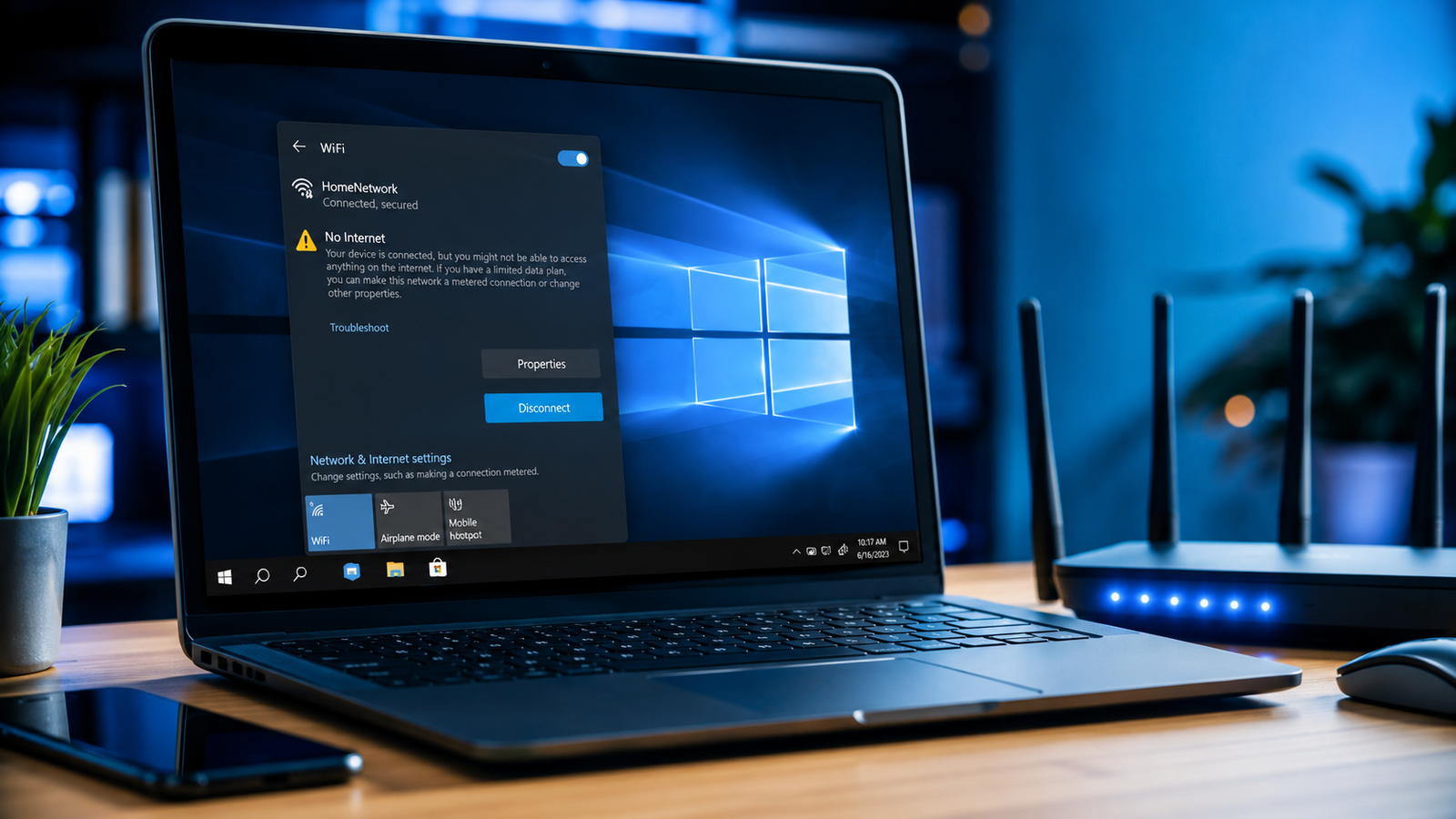
A laptop showing “WiFi connected but no internet” usually means your device can reach the router but cannot access the internet due to DNS errors, IP conflicts, outdated drivers, router failures, or ISP outages. Restarting the router, resetting network settings, and updating the WiFi adapter resolves the issue in most cases.
- Restart both the laptop and router before changing settings
- Reset DNS and TCP/IP configurations to restore internet access
- Update or reinstall the wireless network driver if the issue keeps returning
Your laptop says it’s connected to WiFi, the signal bars look normal, but websites refuse to load. Videos buffer endlessly, apps show offline errors, and Windows keeps displaying “No Internet, secured.” This is one of the most common laptop networking problems across Windows 10, Windows 11, and even older systems.
The problem usually comes from broken DNS settings, corrupted network configurations, router communication failures, outdated drivers, or ISP interruptions. The good news is that you can fix most cases in under 30 minutes without replacing hardware. Follow the solutions below in exact order to restore your internet connection quickly.
Symptoms of the Problem

These are the most common signs of the “laptop WiFi connected but no internet” issue:
- WiFi icon shows connected status but browsers cannot open websites
- Windows displays:
- “Connected, No Internet”
- “No Internet, secured”
- “Limited access”
- YouTube, Discord, Steam, or Spotify stay offline
- Web pages load partially or time out
- Other devices on the same network also lose internet
- VPN connections fail immediately
- Network troubleshooting reports “DNS server not responding”
- WiFi disconnects randomly every few minutes
- Microsoft Store refuses downloads despite active WiFi signal
- Laptop works on mobile hotspot but not on home WiFi
System Requirements & Tools Needed

You only need a few built-in tools to complete these fixes safely:
- Windows Settings app
- Command Prompt (Administrator)
- Device Manager
- Router access panel
- Ethernet cable (optional but useful)
- Latest WiFi driver from your laptop manufacturer
- Mobile hotspot for testing internet access
- Administrator account on Windows
💡 TIP: Keep your phone connected to mobile data while troubleshooting so you can download drivers if needed.
Troubleshooting Matrix (Quick Comparison Table)

| Observed Symptom | Potential Root Cause | Recommended Fast Fix |
| WiFi connected but browser won’t load pages | DNS failure | Flush DNS cache |
| “No Internet, secured” message | Router IP conflict | Restart router and laptop |
| Internet works on phone but not laptop | Corrupted adapter settings | Reset network adapter |
| WiFi disconnects every few minutes | Outdated wireless driver | Update WiFi driver |
| Only specific apps fail online | Firewall or VPN conflict | Disable VPN and firewall temporarily |
| Internet returns after restart only | Router firmware issue | Update router firmware |
| Laptop works on hotspot only | Router DNS issue | Change DNS server |
| Random packet loss and lag | Power-saving mode enabled | Disable adapter power management |
Step-by-Step Fixes

Restart the Router and Laptop
Restarting both devices clears temporary networking conflicts and restores fresh IP assignments.
- Shut down your laptop completely.
- Unplug your WiFi router and modem from power.
- Wait at least 60 seconds.
- Plug the modem back in first.
- Wait until all internet lights stabilize.
- Power on the router.
- Start your laptop and reconnect to WiFi.
This process resets cached network sessions that often block internet access despite active WiFi connections.
⚠️ EXPERT WARNING: Do not repeatedly power-cycle the router rapidly. This can corrupt firmware on older routers.
Forget and Reconnect to the WiFi Network
Removing the saved wireless profile fixes corrupted authentication data.
- Open Settings > Network & Internet > WiFi
- Click Manage known networks
- Select your WiFi network
- Click Forget
- Reconnect using the WiFi password
If the saved security configuration became corrupted after a Windows update or router change, this resolves the connection immediately.
Run the Windows Network Troubleshooter
The built-in troubleshooter automatically repairs several common network failures.
- Open Settings
- Go to System > Troubleshoot
- Click Other troubleshooters
- Run Internet Connections
- Apply all suggested repairs
The troubleshooter resets adapters, renews IP configurations, and checks gateway communication automatically.
Flush DNS and Reset TCP/IP
Resetting network commands restores broken internet routing configurations.
- Search for Command Prompt
- Right-click and choose Run as administrator
- Enter the following commands one by one:
ipconfig /flushdns
ipconfig /release
ipconfig /renew
netsh winsock reset
netsh int ip reset
- Restart your laptop
These commands clear corrupted DNS records, rebuild TCP/IP stacks, and renew your network address from the router.
💡 TIP: This fix resolves most “connected but no internet” issues caused by failed Windows updates.
Disable VPN, Proxy, and Security Software Temporarily
VPNs and aggressive antivirus firewalls frequently block internet access while leaving WiFi connected.
- Disconnect any active VPN
- Open Settings > Network & Internet > Proxy
- Turn off:
- Automatically detect settings
- Use a proxy server
- Temporarily disable third-party antivirus software
- Test internet access again
If the internet starts working immediately, your VPN or firewall configuration caused the issue.
⚠️ EXPERT WARNING: Re-enable antivirus protection after testing. Never browse long-term with security software disabled.
Change DNS Server Settings
Switching to reliable public DNS servers fixes failed domain lookups.
- Open Control Panel
- Go to Network and Sharing Center
- Click Change adapter settings
- Right-click your WiFi adapter
- Select Properties
- Double-click Internet Protocol Version 4 (TCP/IPv4)
- Choose Use the following DNS server addresses
- Enter:
Preferred DNS:
8.8.8.8
Alternate DNS:
8.8.4.4
- Click OK
- Restart the browser
Google DNS servers are faster and more stable than many ISP-provided DNS systems.
Disable Power Saving for the WiFi Adapter
Windows power management often disables wireless adapters aggressively to save battery.
- Press Windows + X
- Open Device Manager
- Expand Network adapters
- Right-click your wireless adapter
- Select Properties
- Open the Power Management tab
- Uncheck:
- “Allow the computer to turn off this device to save power”
- Click OK
This stops Windows from putting the WiFi card into unstable low-power states.
💡 TIP: This fix is especially important for gaming laptops and ultrabooks.
Update the Wireless Network Driver
Updating the WiFi driver fixes compatibility problems introduced by Windows updates.
- Open Device Manager
- Expand Network adapters
- Right-click the WiFi adapter
- Select Update driver
- Choose:
- “Search automatically for drivers”
If Windows finds nothing, download the latest driver directly from your laptop manufacturer website.
Manufacturers commonly release fixes for:
- Random disconnects
- WiFi 6 compatibility
- Router handshake failures
- Packet loss issues
Reinstall the WiFi Adapter Driver
Reinstalling the driver removes corrupted network software entirely.
- Open Device Manager
- Right-click the wireless adapter
- Select Uninstall device
- Check:
- “Delete the driver software for this device” (if available)
- Restart the laptop
Windows automatically reinstalls a clean network driver after reboot.
⚠️ EXPERT WARNING: Download the replacement WiFi driver beforehand if possible, especially on older laptops.
Reset Network Settings Completely
A full network reset restores Windows networking to factory defaults.
- Open Settings
- Go to Network & Internet
- Click Advanced network settings
- Select Network reset
- Click Reset now
- Restart the laptop
This removes:
- Saved adapters
- Corrupted configurations
- Broken virtual network interfaces
- VPN remnants
Check Router Firmware and ISP Outages
Sometimes the laptop is not the real problem.
- Test internet on another device
- Restart the modem separately
- Access the router admin panel
- Check for firmware updates
- Contact your ISP to verify outages
If every device loses internet simultaneously, the router or ISP connection is failing.
Common router issues include:
- Overheating
- Memory overload
- Expired firmware
- DNS forwarding failures
💡 TIP: Routers older than five years often struggle with modern WiFi 6 devices.
Disable IPv6 Temporarily
Certain routers handle IPv6 poorly and break internet routing.
- Open Network Connections
- Right-click the WiFi adapter
- Select Properties
- Uncheck:
- Internet Protocol Version 6 (TCP/IPv6)
- Click OK
- Restart the connection
If internet access immediately returns, your router has IPv6 compatibility problems.
Boot Into Safe Mode With Networking
Safe Mode identifies software conflicts causing internet failures.
- Press Windows + R
- Type:
msconfig
- Open the Boot tab
- Enable:
- Safe boot
- Network
- Restart the laptop
If WiFi works normally in Safe Mode:
- Antivirus software
- VPN applications
- Firewall tools
- Background services
are blocking your internet connection in normal Windows mode.
Scan for Malware and Browser Hijackers
Malware frequently damages DNS and internet settings.
- Run Windows Security Full Scan
- Remove suspicious browser extensions
- Reset browser settings
- Scan using trusted anti-malware software
Browser hijackers often redirect DNS traffic and create fake “connected but no internet” conditions.
Test With an Ethernet Cable
Using Ethernet isolates WiFi hardware failures quickly.
- Connect the laptop directly to the router using Ethernet
- Disable WiFi temporarily
- Test internet access
Results:
- Ethernet works = WiFi adapter or wireless settings issue
- Ethernet also fails = router, ISP, or Windows networking issue
When to Replace Hardware & Prevention Tips

Software fixes stop working when the underlying hardware starts failing.
Replace the WiFi card or router if you notice:
- Constant disconnects after clean Windows reinstall
- WiFi disappearing entirely from Windows
- Adapter overheating
- Extremely weak signal beside the router
- Internet works only with Ethernet permanently
- Router dropping all devices repeatedly
Laptop WiFi cards commonly fail after years of heat exposure, especially in gaming systems.
To prevent future internet problems:
- Restart the router weekly
- Keep Windows updated
- Install official drivers only
- Avoid cheap VPN software
- Replace routers every 4–6 years
- Keep laptops cool during gaming sessions
- Disable unnecessary startup networking tools
⚠️ EXPERT WARNING: Avoid downloading random “driver updater” utilities. Many install malware or unstable drivers.
Frequently Asked Questions (FAQs)

Why does my laptop say connected but no internet only on one WiFi network?
Your router likely has DNS conflicts, IP assignment issues, or outdated firmware causing communication failures with the laptop.
Why does the internet work on my phone but not my laptop?
The laptop usually has corrupted network settings, broken drivers, or firewall conflicts blocking internet traffic.
Can a bad WiFi card cause connected but no internet?
Yes. Failing wireless adapters can maintain a signal connection while losing actual internet data transfer capability.
Why does restarting the router temporarily fix the issue?
Restarting clears memory overload, renews IP addresses, and resets failed DNS communication inside the router.
Conclusion
Most “laptop WiFi connected but no internet” problems come from DNS corruption, outdated drivers, or router communication failures rather than broken hardware. Start with simple resets first, then move through DNS repairs, adapter settings, and driver fixes in order. If the issue survives a full network reset and Ethernet testing, your router or WiFi card likely needs replacement. Test the first three fixes immediately and note which error message changes during troubleshooting.