
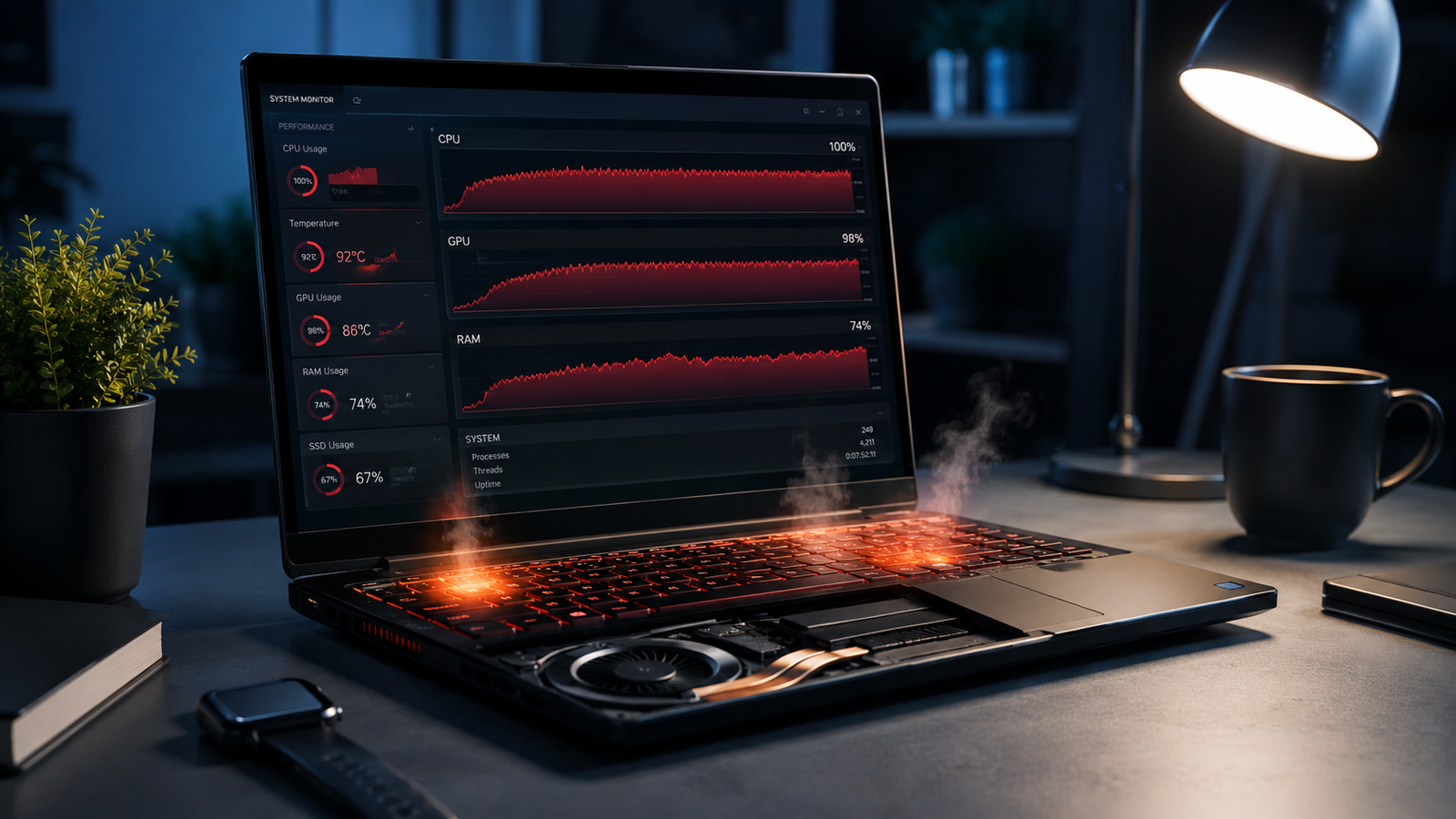
A laptop that overheats and slows down usually suffers from blocked airflow, excessive background processes, failing cooling hardware, outdated drivers, or thermal throttling. Cleaning the cooling system, reducing CPU load, updating software, and replacing worn thermal paste restores stable temperatures and normal speed in most cases.
- High temperatures force the CPU and GPU to reduce performance automatically
- Dust buildup inside fans is one of the most common causes
- Ignoring overheating can permanently damage the motherboard or battery
Your laptop starts sounding like a jet engine, the keyboard becomes hot, apps freeze randomly, and even opening browser tabs feels painfully slow. This is one of the most common laptop complaints across gaming systems, office notebooks, and student laptops alike.
In most cases, overheating and sluggish performance happen because the cooling system can no longer keep temperatures under control. Dust-clogged vents, overloaded startup programs, failing fans, malware, old thermal paste, and power setting misconfiguration all contribute to the issue. The fixes below move from quick software adjustments to advanced hardware maintenance so you can restore full performance safely.
Symptoms of the Problem

Laptop overheating and slowdowns rarely appear as a single symptom. Most users notice several warning signs at the same time.
Common signs include:
- Laptop fan running constantly at high speed
- Bottom panel becoming extremely hot during normal use
- Sudden lag spikes while browsing or gaming
- Programs freezing or crashing randomly
- Battery draining unusually fast
- Keyboard area heating up excessively
- Screen stuttering during videos or games
- CPU usage staying near 100% in Task Manager
- Unexpected shutdowns or automatic restarts
- Loud grinding or rattling fan noises
- Blue Screen of Death (BSOD) errors under load
- Charging becoming slower than normal
- Performance dropping after a few minutes of use
- Games running smoothly initially, then slowing dramatically
System Requirements & Tools Needed

Before troubleshooting, prepare the following tools and utilities:
Software Tools
- Windows Task Manager
- Windows Update
- BIOS/UEFI update utility
- Malware scanner
- HWMonitor or Core Temp temperature monitor
- Driver update utility from your laptop manufacturer
Physical Tools
- Compressed air can
- Soft cleaning brush
- Small precision screwdriver set
- Microfiber cloth
- Cooling pad (optional)
- Thermal paste for advanced repairs
⚠️ EXPERT WARNING: Always power off and unplug the laptop before opening the bottom panel or cleaning internal components.
Troubleshooting Matrix (Quick Comparison Table)

| Observed Symptom | Potential Root Cause | Recommended Fast Fix |
| Laptop extremely hot near vents | Dust blocking airflow | Clean vents and fans |
| Slow performance during gaming | Thermal throttling | Lower temperatures and clean cooling system |
| Fan always loud | Excess CPU background usage | End unnecessary processes |
| Laptop freezes randomly | Overheating CPU or RAM | Check temperatures and memory usage |
| Battery drains quickly | High CPU load | Disable startup apps |
| System slows after 10 minutes | Thermal paste deterioration | Replace thermal paste |
| Sudden shutdowns | Failing cooling fan | Inspect and replace fan |
| Browser lag with few tabs | Malware or excessive extensions | Scan system and remove junk software |
Step-by-Step Fixes

Restart the Laptop Properly
A complete restart clears stuck background processes and resets temporary overheating conditions.
- Save all active work.
- Click the Start menu.
- Select Power > Restart.
- Wait for Windows to fully reload.
- Test performance immediately after startup.
Many laptops remain slow because users only close the lid instead of performing a full reboot for weeks at a time.
💡 TIP: Disable Fast Startup in Windows if your laptop behaves sluggishly after waking from sleep repeatedly.
Close High CPU Background Processes
Background apps consuming excessive CPU power generate heat constantly.
- Press Ctrl + Shift + Esc to open Task Manager.
- Click the Processes tab.
- Sort by CPU usage.
- Identify apps using unusually high resources.
- Right-click unnecessary processes and select End Task.
Focus especially on:
- Browser tabs with video playback
- Cloud syncing apps
- RGB control software
- Antivirus scans running continuously
- Game launchers
Avoid ending Windows system processes unless you know exactly what they do.
Disable Unnecessary Startup Programs
Too many startup programs overload the CPU immediately after boot.
- Open Task Manager.
- Go to the Startup Apps section.
- Disable non-essential applications.
- Restart the laptop.
Programs commonly safe to disable:
- Spotify
- Discord
- Adobe background services
- Steam auto-launch
- Printer monitoring software
Reducing startup load immediately lowers idle temperatures.
Check CPU Temperature Levels
Monitoring temperatures confirms whether overheating is truly the issue.
Typical safe temperature ranges:
- Idle: 40°C–60°C
- Normal workload: 60°C–80°C
- Heavy gaming/rendering: 80°C–90°C
- Dangerous range: Above 95°C
- Install HWMonitor or Core Temp.
- Run the program while using the laptop normally.
- Watch CPU and GPU temperature readings.
- Note whether temperatures spike rapidly.
If temperatures exceed 95°C frequently, thermal throttling is almost certainly reducing performance.
Clean Laptop Air Vents
Blocked airflow traps heat inside the chassis.
- Shut down the laptop completely.
- Disconnect the charger.
- Use compressed air to blow dust from air vents.
- Hold the fan blades gently in place while cleaning.
- Remove visible dust buildup carefully.
Pay attention to:
- Rear exhaust vents
- Side air intakes
- Bottom ventilation grilles
⚠️ EXPERT WARNING: Never spin laptop fans aggressively with compressed air. Overspinning can damage the bearings.
Use the Laptop on a Hard Surface
Soft surfaces block airflow underneath the chassis.
Avoid using the laptop on:
- Beds
- Blankets
- Pillows
- Sofas
- Cushions
Instead:
- Place the laptop on a desk or hard table.
- Raise the rear slightly for better airflow.
- Consider a cooling stand or pad.
Even premium gaming laptops overheat quickly when bottom vents are blocked.
Reduce Browser Resource Usage
Modern browsers consume huge amounts of RAM and CPU power.
- Close unused tabs.
- Remove unnecessary browser extensions.
- Disable auto-playing videos.
- Enable memory-saving mode in Chrome or Edge.
- Clear browser cache.
Chrome-based browsers commonly cause overheating when dozens of tabs remain open continuously.
Scan for Malware and Cryptominers
Malware often causes unexplained overheating and sluggishness.
- Open Windows Security.
- Navigate to Virus & Threat Protection.
- Run a full system scan.
- Remove detected threats immediately.
Cryptomining malware secretly forces your CPU or GPU to run near maximum load constantly.
Signs include:
- High fan speed while idle
- Constant CPU usage spikes
- Battery draining rapidly
- Laptop heating up even with no apps open
Update Windows and Drivers
Old drivers can create excessive CPU usage and poor thermal management.
- Open Settings > Windows Update.
- Install all pending updates.
- Visit your laptop manufacturer website.
- Download the latest:
- Chipset drivers
- Graphics drivers
- BIOS updates
- Power management drivers
Outdated BIOS firmware commonly causes fan control problems.
⚠️ EXPERT WARNING: Never interrupt a BIOS update. Loss of power during installation can permanently damage the motherboard.
Change Windows Power Settings
High-performance power plans keep the CPU running aggressively.
- Open Control Panel.
- Select Power Options.
- Choose Balanced mode.
- Click Change advanced power settings.
- Reduce maximum processor state to 95%.
This prevents turbo boost overheating on many laptops.
Performance reduction is usually minimal while temperatures drop significantly.
Clean Internal Fans and Heatsinks
Internal dust accumulation is one of the biggest overheating causes.
- Remove the laptop bottom cover carefully.
- Locate the cooling fans and heatsinks.
- Use compressed air and a soft brush to remove dust.
- Clean fan blades thoroughly.
- Reassemble the laptop.
Gaming laptops collect dust rapidly because they move large amounts of air continuously.
If airflow looks blocked by thick dust layers, internal cleaning often restores massive performance gains instantly.
Replace Old Thermal Paste
Dried thermal paste prevents proper heat transfer from the CPU and GPU.
- Remove the heatsink assembly.
- Clean old thermal paste using isopropyl alcohol.
- Apply fresh thermal paste carefully.
- Reinstall the heatsink evenly.
- Test temperatures afterward.
Thermal paste typically degrades after several years.
Signs thermal paste replacement is needed:
- Sudden temperature spikes
- High temperatures immediately after startup
- Fans running at maximum constantly
- Severe thermal throttling
⚠️ EXPERT WARNING: Applying too much thermal paste reduces cooling efficiency. Use only a small pea-sized amount.
Check if Cooling Fans Are Failing
A damaged fan cannot remove heat properly.
Signs of failing fans:
- Grinding noises
- Clicking sounds
- Fan stopping randomly
- No airflow from vents
- Overheating within minutes
- Listen carefully during startup.
- Check fan RPM readings using monitoring software.
- Replace defective fans immediately.
Ignoring fan failure can permanently damage:
- CPU
- GPU
- SSD
- Battery
- Motherboard
Reduce Gaming and Rendering Load
Heavy workloads generate extreme heat.
For gaming laptops:
- Lower graphics settings.
- Cap FPS to 60.
- Disable unnecessary background apps.
- Reduce resolution slightly.
- Enable DLSS or FSR if supported.
For content creation:
- Lower export quality temporarily
- Avoid multitasking during rendering
- Use hardware acceleration efficiently
Thermal throttling becomes severe during sustained heavy loads.
Reset or Reinstall Windows
Corrupted Windows installations can cause constant background CPU activity.
- Back up important files.
- Open Settings > Recovery.
- Choose Reset this PC.
- Select Keep my files if needed.
- Follow the reset instructions.
If problems continue after a reset, perform a clean Windows installation using a USB installer.
A fresh installation removes:
- Corrupted drivers
- Junk software
- Malware remnants
- Registry issues
When to Replace Hardware & Prevention Tips

Some overheating problems cannot be solved with software fixes alone.
Replace hardware when:
- Fans no longer spin properly
- Laptop shuts down repeatedly under light use
- Temperatures remain above 95°C after cleaning
- Battery swelling is visible
- Thermal throttling persists after repasting
- The motherboard shows burn damage
Hardware upgrades that improve thermal performance:
- SSD replacement for old HDD systems
- RAM upgrades
- New cooling fans
- Fresh thermal pads
- New battery
Long-Term Prevention Tips
- Clean vents every 2–3 months
- Avoid blocking airflow
- Keep software updated
- Don’t leave heavy apps running constantly
- Use cooling pads during gaming
- Shut down the laptop weekly
- Replace thermal paste every few years
- Avoid charging under blankets or pillows
- Keep room temperatures moderate
Consistent maintenance prevents most overheating issues before they become severe.
Frequently Asked Questions (FAQs)

Why is my laptop overheating even when idle?
Background applications, malware, failing fans, or blocked airflow usually cause overheating during idle usage.
Can overheating permanently damage a laptop?
Yes. Continuous overheating damages the CPU, GPU, battery, SSD, and motherboard over time.
Does replacing thermal paste improve laptop speed?
Yes. Lower temperatures reduce thermal throttling, allowing the processor to maintain higher speeds consistently.
Why does my laptop become slow after a few minutes?
This usually happens because the CPU reaches dangerous temperatures and automatically reduces performance to protect itself.
Conclusion
Laptop overheating and slow performance almost always trace back to excessive heat buildup, airflow restriction, or overloaded system resources. Start with simple fixes like cleaning vents, reducing background processes, and updating drivers before moving to advanced hardware maintenance. If temperatures remain dangerously high after cleaning and repasting, failing cooling hardware usually needs replacement. Apply the first troubleshooting step now and monitor your CPU temperatures immediately before the damage worsens.