
Quick Answer
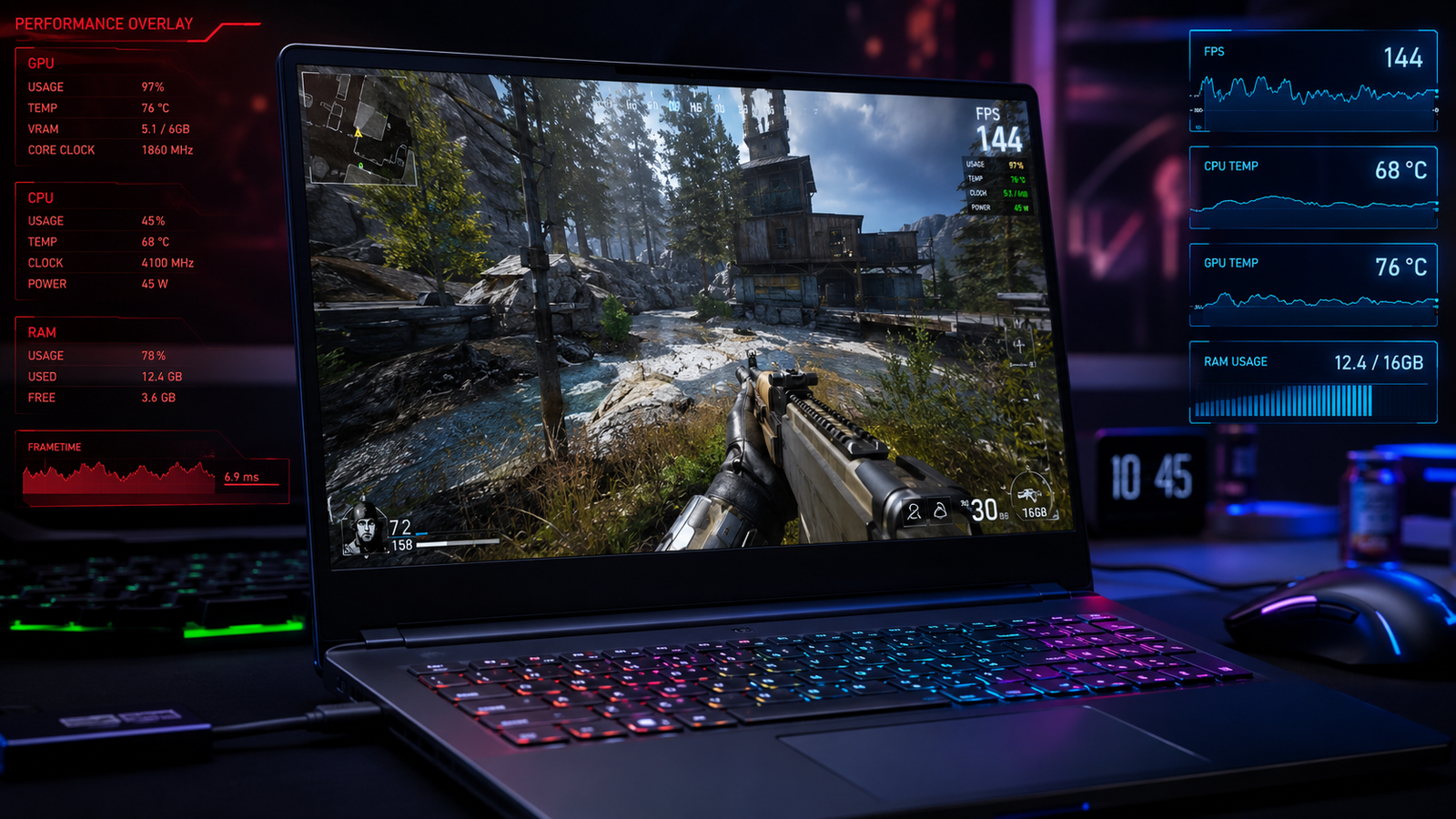
The most common cause of laptop stuttering while gaming is thermal throttling (the CPU or GPU overheating and cutting clock speeds to protect itself). Switch to High Performance power mode, make sure the laptop is plugged in, and check temperatures with HWiNFO64. Most stutter cases resolve with a power plan change, a driver update, or disabling hybrid GPU mode.
Introduction
You’re mid-game. Your FPS counter says 80. The game feels like it’s running through wet concrete.
That’s stuttering, and it’s one of the most misdiagnosed laptop problems out there. People assume it’s a GPU issue, buy a new charger, reinstall Windows, and still get the same jerky frames. The problem is usually something completely different.
Laptop stuttering is not the same as low FPS. Low FPS is consistently slow. Stuttering is irregular: frames come out unevenly, so even a decent average FPS feels choppy, laggy, and broken. The frame counter lies to you. What matters is frame time consistency.
This guide covers every cause specific to laptops: thermal throttling, GPU switching (Optimus), power limits, driver faults, shader compilation hitches, and RAM configuration. Work through the diagnosis section first. You’ll find the cause in under five minutes, then go straight to the relevant fix.
Symptoms of Laptop Stuttering While Gaming

- Game feels choppy even when FPS counter reads 60 or higher
- Random 0.5 to 2-second freezes during gameplay, then back to normal
- Stutter gets worse 10 to 20 minutes into a session (classic throttle pattern)
- Stutter disappears when you plug the laptop in (battery mode is throttling you)
- Game is smooth on an external monitor but stutters on the built-in screen
- GPU usage drops suddenly from 80% to 20% then jumps back up
- Fan ramps to maximum speed right before a stutter spike
- Stutter started after a Windows update or driver update
- Frame time graph in MSI Afterburner shows wild spikes even when FPS looks stable
- Stutter only happens in demanding scenes, open-world areas, or during explosions
Start Here: Fast Diagnosis
Work through this in order. Most people find the cause before reaching step 4.
Is the laptop plugged into AC power? No: plug it in and retest. Battery mode enforces strict power limits that destroy frame consistency. If plugged in fixes it, your culprit is power limiting.
Does stuttering start after 10 to 20 minutes of play? Yes: this is thermal throttling. The CPU or GPU is hitting temperature limits and cutting clock speeds. Skip to Fix 3.
Does the game run smoothly on an external monitor but stutter on the built-in screen? Yes: hybrid GPU mode (Optimus) is the problem. Frames are rendering on the discrete GPU but routing through the integrated graphics chip before reaching your screen. Skip to Fix 5.
Did stuttering start after a Windows Update or driver update? Yes: roll back the GPU driver or check Windows update history. Skip to Fix 4.
Is GPU usage spiking up and down with no temperature problem? Yes: background processes or a power plan issue is starving the GPU. Skip to Fix 2.
Does the game show “Compiling Shaders” on launch? Yes: you’re hitting shader stutter on first play. This is temporary. Skip to Fix 7.
If none of these match exactly, start from Fix 1 and work downward.
Tools Needed
Built-in (free, already on Windows):
- Task Manager (Ctrl + Shift + Esc)
- Device Manager
- Windows Power Options
Free software (download once, keep permanently):
- HWiNFO64: best real-time CPU and GPU temperature and throttle detection
- MSI Afterburner + RivaTuner: in-game overlay showing FPS, frame time, GPU usage, temperatures
- GPU-Z: confirms which GPU is actually running your game
- DDU (Display Driver Uninstaller): clean GPU driver removal
Hardware (for thermal fixes):
- Cooling pad
- Compressed air can
- Quality thermal paste (Arctic MX-6 or Thermal Grizzly Kryonaut)
- Small Phillips screwdriver set
Troubleshooting Matrix
| Symptom | Likely Cause | Fast Fix |
| Stutter starts after 10-20 min | Thermal throttling | Clean vents, repaste, cooling pad |
| Smooth on plugged in, stutter on battery | Power limiting | Set High Performance, game plugged in |
| Smooth on external screen, stutter on built-in | Optimus hybrid GPU routing | Disable Optimus / enable discrete GPU mode |
| Stutter started after update | Driver or Windows conflict | Rollback GPU driver via DDU |
| GPU drops from 80% to 20% randomly | Power plan or driver issue | High Performance + driver reinstall |
| Frame spikes every 30-60 seconds | DPC latency or background process | Task Manager cleanup, check USB power mgmt |
| Stutter only in new games | Shader compilation | Let game finish shader compiling on launch |
| High FPS but choppy feel | Frame time inconsistency | Cap FPS, enable V-Sync or G-Sync |
What Causes Laptop Stuttering While Gaming

Thermal Throttling
When your CPU or GPU hits its maximum temperature threshold, the chip reduces its own clock speed automatically. This is not a fault; it is a protection mechanism. The result is a sudden drop in processing speed that shows up as a stutter or freeze, then recovers when the chip cools down slightly.
Laptops throttle far more aggressively than desktops because they have smaller heatsinks, tighter airflow, and thinner chassis. Dust buildup on fans and vents is the single most common cause. Dried thermal paste on chips older than two years makes it significantly worse.
The confirmation sign: open HWiNFO64 during gameplay. Look for “CPU Thermal Throttling” or “Power Limit Throttling” flags turning on. If the clock speed of your CPU drops from, say, 4.0 GHz to 0.8 GHz during a stutter, throttling is confirmed.
Hybrid GPU Mode (Optimus) Causing Frame Routing Delays
Most gaming laptops use two graphics chips: an integrated GPU inside the CPU (weak, efficient) and a dedicated GPU (powerful, power-hungry). In hybrid mode (NVIDIA Optimus, MSHybrid), the discrete GPU renders the frames but sends them through the integrated GPU before they reach your screen.
This extra hop adds latency and sometimes causes timing inconsistencies that produce stutter, even when temperatures and FPS look completely normal. Some laptops show worse stutter when “NVIDIA GPU Only” is selected from the NVIDIA Control Panel, because that setting is not a true hardware bypass. The real fix is disabling hybrid mode from the manufacturer’s software (Armoury Crate, Lenovo Vantage, MSI Dragon Center, etc.), not from within Windows.
The confirmation sign: connect an external monitor via HDMI and test the game on it. If stutter disappears on the external screen, Optimus frame routing is the cause.
Power Plan Running on Battery or Balanced Mode
Windows aggressively limits CPU and GPU performance in Balanced and Power Saver modes. Even when plugged in, if the power plan is set to Balanced, Windows enforces performance caps that cause inconsistent frame delivery.
Running on battery makes this dramatically worse. Manufacturers add their own firmware-level power restrictions on top of Windows restrictions when battery is detected. A laptop that runs perfectly smooth at the wall can feel completely broken on battery.
The confirmation sign: the stutter changes noticeably depending on whether you’re plugged in or not, or the Task Manager shows CPU clock speeds jumping between low and high values during gameplay.
Outdated or Corrupted GPU Drivers
A driver mismatch, partially failed update, or conflict between Windows Update and the GPU driver causes frame timing issues that look exactly like stutter. This is especially common after Windows feature updates (22H2, 23H2, 24H2) that push a new GPU driver alongside OS files.
What users often misdiagnose: they reinstall the driver from Device Manager, which does not fully remove the old one. A clean install using DDU (Display Driver Uninstaller) removes all driver remnants and installs fresh. Simple reinstallation over the top of a broken driver rarely fixes the problem.
The confirmation sign: stutter appeared suddenly after a Windows Update, or the issue started after installing a new GPU driver version.
CPU Bottleneck Starving the GPU
If the CPU cannot prepare frames fast enough for the GPU to render, the GPU sits idle for brief moments then spikes back to activity. This produces a specific stutter pattern: high GPU average usage but with visible dips in the frame time graph.
On laptops, this is particularly common because laptop CPUs have lower sustained power limits than their desktop equivalents. A laptop CPU may boost to 4.5 GHz for 30 seconds, then settle to 2.8 GHz under sustained load due to thermal and power constraints.
The confirmation sign: in MSI Afterburner overlay, GPU usage regularly drops below 90% and bounces around rather than sitting steady near 95 to 100%.
Shader Compilation Stutter
Modern games compile graphics shaders in real time as you encounter new areas, effects, or animations. During compilation, the game hitches briefly while the GPU preprocesses shader code. This is worst on first playthrough and improves significantly on repeat sessions once shaders are cached.
This is not a hardware fault. It is a normal behavior in modern game engines that is much more noticeable on laptops because laptop CPUs have fewer cores and lower sustained clocks for background compilation work.
The confirmation sign: stutter is worst on first launch of a new game, improves on second play session, and the game displayed a “Compiling Shaders” message on startup.
RAM Running in Single-Channel or Without XMP
Laptop RAM running in single-channel mode (one stick installed, or two sticks not properly detected as dual-channel) cuts memory bandwidth roughly in half. This creates a bottleneck that shows up as stutter in GPU-intensive games.
XMP (Extreme Memory Profile) is a BIOS setting that runs your RAM at its rated speed. Most laptops default to the lowest stable RAM frequency (often 2400 MHz) even when the RAM is rated for 3200 or 3600 MHz. Not enabling XMP means slower RAM than you paid for.
The confirmation sign: open CPU-Z and check the Memory tab. If it shows “Single” under Channels, or the DRAM Frequency is well below the rated speed on your RAM sticker, this is affecting your performance.
What We See Most Often
In a shop, the order is predictable. Thermal throttling accounts for the majority of gaming stutter cases on laptops older than 18 months. Dust-blocked vents and dried thermal paste are the physical causes. The laptop sounds like a jet engine, hits 95°C within minutes, then the CPU clock speed collapses.
Second most common is Optimus / hybrid GPU mode. Users spend weeks tweaking in-game settings without knowing that frames are routing through the wrong chip. Disabling hybrid mode in the manufacturer’s software and rebooting takes 60 seconds and often completely eliminates the stutter.
Third is the power plan sitting on Balanced or Power Saver. Surprisingly common even on users who think they’ve checked this, because laptops sometimes reset the power plan after a Windows update.
Genuine hardware failure causing stutter (failing GPU, bad VRAM) is rare. If you’ve gone through every software and thermal fix and stutter persists, a shop with proper diagnostics is the next step.
How to Diagnose Laptop Stuttering While Gaming

Step 1: Check what GPU is actually running your game
Open GPU-Z. Under the “Sensors” tab, launch your game and watch the GPU Load percentage. If it reads 0% or single digits on the discrete GPU while you’re in-game, the game is running on integrated graphics.
Expected Result: discrete GPU shows 60 to 100% load during gameplay.
If Failed: the game is not using the discrete GPU. Force it through NVIDIA Control Panel or fix Optimus settings.
Step 2: Check temperatures and throttle flags in real time
Open HWiNFO64. Click “Sensors Only.” Scroll to the CPU section and look for “CPU Package Power,” “CPU Core Temp,” and “Thermal Throttling” entries. Launch your game for 15 minutes, then check if the Thermal Throttling flag triggered.
Expected Result: no throttling flags active, CPU stays below 95°C, GPU stays below 88°C.
If Failed: thermal throttling is confirmed. Move to Fix 3.
Step 3: Check frame time in MSI Afterburner
Open Afterburner, enable RivaTuner overlay, and add Frametime to the display. Play for 10 minutes. Look for spikes in the frame time graph: tall spikes that don’t match FPS drops indicate inconsistent frame delivery (stutter).
Expected Result: flat frame time graph, consistent spacing between spikes.
If Failed: something is interrupting the frame pipeline. Check power plan, GPU switching mode, or driver health.
Step 4: Check background CPU usage in Task Manager
Open Task Manager (Ctrl + Shift + Esc), click “More details,” sort by CPU. Look for any process above 5% CPU usage during gameplay that is not your game or GPU-related.
Expected Result: only the game, Discord (if open), and system processes visible.
If Failed: close background apps. Common offenders: browser, antivirus scan, Windows Update, OneDrive sync, Steam background downloads.
Step 5: Test on external monitor
Connect an HDMI cable to a TV or monitor. Run the same game for 10 minutes. Compare stutter behavior on the external screen vs the built-in screen.
Expected Result: same behavior on both screens.
If Failed: stutter is only on built-in screen. Optimus / hybrid GPU routing is confirmed. Go to Fix 5.
Which Fix Usually Works?
| Fix | Typical Success Likelihood | Cost | Difficulty |
| High Performance power plan | Very Common | Free | Easy |
| Close background apps | Common | Free | Easy |
| GPU driver clean reinstall | Very Common | Free | Medium |
| Disable Optimus / hybrid mode | Common | Free | Easy |
| Vent cleaning with compressed air | Common | $5-10 | Easy |
| Thermal paste replacement | Common | $10-20 | Hard |
| Enable XMP in BIOS | Common | Free | Medium |
| Cooling pad | Occasional | $20-40 | Easy |
| Cap FPS / enable G-Sync | Occasional | Free | Easy |
| BIOS update | Occasional | Free | Medium |
Step-by-Step Fixes

Fix 1: Set Power Plan to High Performance
Cost: Free Time: 2 minutes Difficulty: Easy
- Press Windows key, type “Power Plan,” click “Choose a power plan.”
- Select “High Performance.” If it is not visible, click “Show additional plans.”
- Alternatively: open Settings > System > Power & Battery, set “Power mode” to “Best performance.”
- On NVIDIA laptops, also open NVIDIA Control Panel, go to “Manage 3D Settings,” set “Power management mode” to “Prefer Maximum Performance.”
- Close all settings and retest the game.
Expected Result: Stutter reduces significantly or disappears, especially if it was worse on battery.
If Failed: Power plan was not the culprit. Move to Fix 2.
Technician Tip: Always confirm the laptop is plugged in during gaming. Windows resets some power behaviors when the charger is connected vs disconnected. If stutter vanishes when you plug in but persists after changing the power plan, check that the charger is the correct wattage for the laptop, because an underpowered charger will still trigger power limiting.
Fix 2: Close Background Processes
Cost: Free Time: 5 minutes Difficulty: Easy
- Press Ctrl + Shift + Esc to open Task Manager.
- Click “More details” if in compact view.
- Sort by CPU column. End any process above 5% that is not your game. Common offenders: browser tabs, Windows Update (wuauclt.exe), antivirus scans, OneDrive, Steam client update, Discord video encoder.
- Go to Settings > Windows Update, pause updates for 7 days before a gaming session.
- Disable Xbox Game Bar if not using it: Settings > Gaming > Xbox Game Bar, toggle off.
- Disable background recording: Settings > Gaming > Captures, turn off “Record in the background while I’m playing a game.”
Expected Result: GPU usage stabilizes and stops spiking. Stutter reduces in frequency.
If Failed: Background processes were not the cause. Continue to Fix 3.
Technician Tip: Windows Defender real-time scanning often triggers during game loading screens because the game is reading files rapidly. You cannot fully disable Defender, but you can exclude the game’s install folder from scanning: Windows Security > Virus and threat protection > Manage settings > Exclusions.
Fix 3: Fix Thermal Throttling (Clean Vents First)
Cost: $5-10 for compressed air Time: 15-30 minutes Difficulty: Easy to Medium
- Shut down the laptop completely (not sleep).
- Use a can of compressed air to blow out all vents. Typical vent locations: rear edge, left side, right side near the hinge. Hold the fans still with a toothpick while blasting, since spinning a fan with compressed air can damage the bearings.
- Tilt the laptop and blow from multiple angles. You should see visible dust coming out of blocked units.
- Power on and retest for 20 minutes while monitoring temperatures in HWiNFO64.
Expected Result: CPU temperature drops by 5 to 15°C. Thermal throttling flags no longer activate during gaming.
If Failed: Vents are clear but throttling still occurs. Thermal paste needs replacement. Move to thermal paste repair below.
Technician Tip: Prop the rear of the laptop up by 2 to 3 cm during gaming. Rubber feet or a cooling pad both work. This simple change can drop temperatures by 3 to 8°C by improving airflow under the chassis.
Expert Warning: Do not run the fans at maximum speed manually using third-party software as a permanent fix. Forcing max fan speed accelerates fan bearing wear and does not address the underlying heat buildup. Fix the heat source, not just the symptom.
Fix 3b: Thermal Paste Replacement
Cost: $10-20 for paste Time: 45-90 minutes Difficulty: Hard
- Look up your exact laptop model on YouTube or iFixit for a disassembly guide. Laptop disassembly varies significantly by model.
- Remove the back panel screws (typically Torx T5 or Phillips PH0/PH00).
- Carefully pry the back panel using a plastic spudger, since metal tools scratch and damage clips.
- Locate the heatpipe assembly covering the CPU and GPU dies.
- Remove the heatpipe screws in the order specified in your service manual (typically numbered 1 to 4 outward from the chip center). Loosen in reverse order.
- Clean old paste from both the chip surface and the copper heatpipe contact plate using isopropyl alcohol (90%+) and a lint-free cloth.
- Apply fresh thermal paste (pea-sized dot in the center of each die for CPUs, thin spread for GPUs with larger surface areas).
- Reassemble, run HWiNFO64 during a gaming session, confirm temperatures have dropped.
Expected Result: CPU and GPU temperatures drop 10 to 20°C. Throttling stops. Stutter disappears.
If Failed: Internal airflow is blocked by damaged fans or misaligned heatpipes. Professional repair is required.
Technician Tip: Laptop thermal paste degrades faster than desktop paste because the chips run hotter and the mechanical stress from opening and closing the lid flexes the heatpipe contact. On a laptop older than 2 years showing thermal stutter, repasting is almost always worth it.
Fix 4: Clean Reinstall GPU Driver
Cost: Free Time: 20 minutes Difficulty: Medium
- Download DDU (Display Driver Uninstaller) from guru3d.com. Download your new GPU driver from NVIDIA.com or AMD.com. Do not use the version Windows Update offers.
- Boot into Safe Mode: Settings > System > Recovery > Advanced Startup > Restart now. Then choose Troubleshoot > Advanced Options > Startup Settings > Restart > Press 4 for Safe Mode.
- Run DDU in Safe Mode. Select “GPU” as the device type, select NVIDIA or AMD, click “Clean and restart.”
- After restart (back in normal Windows), install the fresh GPU driver you downloaded.
- Do not install GeForce Experience unless you need it, as it adds background processes and overlay hooks that can contribute to stutter.
Expected Result: Driver-related stutter disappears. FPS becomes consistent and frame time graph flattens.
If Failed: The driver was not the issue. Continue to Fix 5.
Technician Tip: If the stutter started after a Windows feature update (like upgrading from 22H2 to 24H2), the Windows Update installed an older driver version that conflicts with your hardware. Always reinstall the GPU driver manually after any major Windows update, not just when problems appear.
Fix 5: Disable Hybrid GPU Mode (Optimus)
Cost: Free Time: 5 minutes + reboot Difficulty: Easy
This fix depends on your laptop brand. All methods require a restart to take effect.
ASUS (Armoury Crate): Open Armoury Crate > System Configuration > GPU Mode > Select “Ultimate” or “Discrete GPU Only.” Restart.
Lenovo Legion (Lenovo Vantage): Open Lenovo Vantage > My Device Settings > Display & Camera > Look for “Hybrid Mode” and toggle it off. Restart.
MSI (MSI Center): Open MSI Center > General Settings > GPU Switch > Select “Discrete Graphics Mode.” Restart.
HP OMEN (OMEN Gaming Hub): Open OMEN Gaming Hub > Select “Graphics Switcher” tab > Switch to “Discrete.” Restart.
Acer Predator (PredatorSense): Open PredatorSense > Settings cog > Select “Discrete GPU Only.” Restart. Note: not all Acer Predator models support this. If the option is absent, your model lacks a hardware MUX switch.
Dell / Alienware: Reboot and enter BIOS (press F2 at startup). Go to Advanced > Enable or Disable Hybrid Graphics. Save and exit.
Expected Result: Games run directly on the discrete GPU with no integrated GPU routing. Stutter that occurs specifically on the built-in screen should disappear.
If Failed: Your laptop does not have a hardware MUX switch, or the setting did not apply correctly. Connect an external monitor and test there, since external HDMI ports on most laptops connect directly to the discrete GPU, which is an effective workaround.
Technician Tip: Disabling Optimus increases power consumption and generates more heat, because the discrete GPU never fully sleeps. Use cooling pad and High Performance mode together when gaming in discrete-only mode. Switch back to hybrid/Optimus for regular use and battery conservation.
Fix 6: Enable XMP / DOCP in BIOS
Cost: Free Time: 5 minutes Difficulty: Medium
- Restart the laptop and press the BIOS key repeatedly at startup: F2 (most brands), Delete, or F10 depending on model.
- Look for “XMP,” “DOCP,” or “Memory Profile” in the BIOS menu. It is often under Advanced, Overclocking, or Tweaker sections.
- Enable XMP Profile 1 (the rated speed of your installed RAM).
- Save and exit BIOS (usually F10).
- Boot into Windows and open CPU-Z. Under the Memory tab, confirm the DRAM Frequency has increased to match the rated speed on your RAM sticker (divide by 2 for actual MHz, so “1600 MHz” in CPU-Z equals 3200 MHz DDR).
Expected Result: Memory bandwidth increases. Games that were starving the GPU of frame data improve noticeably, especially open-world titles and games using large textures.
If Failed: RAM is already running at full speed, or the bottleneck is elsewhere. Continue diagnosing.
Expert Warning: If the laptop does not POST (boot) after enabling XMP, enter BIOS again (usually by holding F2 or Del at startup) and disable XMP. Some laptop RAM does not support XMP profiles and needs to run at default speeds.
Fix 7: Shader Compilation Stutter (First Launch)
Cost: Free Time: Let it run Difficulty: Easy
- When launching a game for the first time and you see “Compiling Shaders” or “Building Shaders Cache,” let it finish completely before playing. Do not skip or minimize.
- In NVIDIA Control Panel: go to Manage 3D Settings > Global Settings > Shader Cache Size > Set to “Unlimited.”
- In AMD Radeon Software: go to Gaming > Global Graphics > Shader Cache and make sure it is enabled.
- After the first full play session, launch the game a second time. Compilation stutter should be significantly reduced.
Expected Result: On second and subsequent play sessions, shader-related hitches are gone or minimal.
If Failed: Stutter is not shader-related. Check the other causes.
Technician Tip: Capping your FPS slightly below the monitor’s maximum refresh rate gives the CPU headroom to compile shaders in the background without competing with frame rendering. For a 144Hz display, cap at 120 FPS. In-game settings or RTSS (RivaTuner) can set this cap.
Fix 8: Cap FPS and Stabilize Frame Delivery
Cost: Free Time: 5 minutes Difficulty: Easy
- Open MSI Afterburner > RivaTuner Statistics Server. Set a frame rate limit: 10 to 20% below the maximum the game can push. If you average 100 FPS, cap at 80.
- Enable in-game V-Sync OR enable G-Sync / FreeSync if your laptop display supports it (check manufacturer specs).
- In NVIDIA Control Panel: set “Vertical Sync” to “Use the 3D application setting” and enable V-Sync in-game instead of forcing it at the driver level for better latency.
Expected Result: Frame delivery becomes more consistent. Perceived stutter reduces even though average FPS drops slightly.
If Failed: Frame pacing is not the root issue. A hard stutter with consistent frame drops points back to thermal or driver problems.
Technician Tip: An uncapped game at 200 FPS stresses the CPU and GPU harder than a capped game at 120 FPS. In lightly-threaded or older game engines, the CPU can actually cause more thermal and power stress when uncapped than in a demanding modern game. A frame cap often reduces temperatures and eliminates throttling-triggered stutter simultaneously.
Mistakes That Make the Problem Worse
Reinstalling the GPU driver from Device Manager Device Manager’s “Update driver” or “Uninstall device” does not remove driver remnants. The next install writes over corrupted files. Only DDU in Safe Mode does a proper clean removal.
Disabling Windows Defender to “free up CPU” Defender’s real-time scanning typically uses under 1% CPU at idle. The performance gain from disabling it is negligible. You are removing security for no meaningful FPS improvement.
Forcing NVIDIA GPU Only from the NVIDIA Control Panel without touching manufacturer settings On most laptops, the NVIDIA Control Panel option labeled “NVIDIA GPU Only” is not a hardware bypass. It triggers Advanced Optimus software switching, which on many models causes worse stutter than standard hybrid mode. The real fix is disabling hybrid mode from the manufacturer’s software (Armoury Crate, Vantage, etc.).
Applying max fan speed through third-party software as a permanent solution Fan speed control software increases airflow but does not fix the underlying heat source. Fan bearings wear out faster under sustained maximum load. Fix the thermal paste and clean the vents instead.
Maxing out all graphics settings after a driver reinstall A fresh driver install often needs the game run at moderate settings first so the shader cache can populate. Launching at ultra settings immediately after a driver wipe will hit maximum shader compilation stutter. Start at medium, let the game run for 30 minutes, then raise settings.
Buying a new GPU when the real issue is Optimus routing Several users on forums have replaced laptops or claimed their GPU was dying, when the actual problem was hybrid GPU mode adding latency between the discrete card and the built-in screen. Diagnose with an external monitor first.
Disabling all background processes including essential Windows services Task Manager shows many “unknown” processes that are actually core Windows functions. Ending services like “System” or “Registry” can cause crashes or instability. End only clearly identified third-party apps (browsers, cloud sync, launchers).
Brand-Specific Considerations
ASUS ROG / TUF
ASUS laptops have three GPU modes in Armoury Crate: Optimus (standard hybrid), MSHybrid (Windows hybrid), and Ultimate (discrete only, true MUX bypass). “Ultimate” mode requires a reboot and provides the cleanest gaming performance. ASUS ROG models also have Armoury Crate Scenario Profiles that can reset GPU mode automatically. Check that the gaming profile is set to “Ultimate” and not reverting to Optimus on game launch.
Lenovo Legion
Hybrid Mode on Lenovo Legion is controlled through Lenovo Vantage, not the NVIDIA Control Panel. Disabling hybrid mode in Vantage (not in NVIDIA Control Panel) is the correct method. Several Legion users report that selecting “NVIDIA GPU Only” from NVIDIA’s settings while Lenovo Vantage has Hybrid Mode enabled causes severe stutter, because both settings conflict. Disable hybrid in Vantage first, reboot, then adjust NVIDIA settings if needed.
Dell / Alienware
Dell G-series laptops often lack a software MUX switch interface. The only way to disable hybrid mode is through the BIOS (F2 at startup, under Advanced settings). Alienware models with Alienware Command Center have a display mode toggle, but behavior varies between generations. Advanced Optimus on the m15 R4 and R5 is known to cause significant stutter for some users. Disabling it via BIOS and testing manually is recommended before assuming a hardware fault.
MSI
MSI gaming laptops use MSI Center (formerly Dragon Center) to toggle between Hybrid and Discrete Graphics Mode. MSI’s “Auto” GPU mode has caused stutter in several documented cases when the system incorrectly switches modes during gameplay. Set MSI Center to “Discrete Graphics Mode” for gaming, then switch back to Hybrid for battery use.
Acer Predator / Nitro
Not all Acer gaming laptops have a MUX switch. The Acer Nitro line generally does not. The Predator Helios 300 (2022 and later) supports discrete-only mode via PredatorSense. If the option is missing from PredatorSense, the model does not have a hardware MUX switch and the integrated GPU cannot be bypassed on the internal display. Use an external monitor in this case.
HP OMEN
OMEN Gaming Hub includes a “Graphics Switcher” tab. Toggle between Hybrid and Discrete modes there. HP also has a known issue on some OMEN 16 and 17 models where the power delivery fluctuates when the battery is between 90 and 100% charge, causing brief CPU power dips that create stutter. A workaround is to keep the battery between 50 and 80% using HP’s battery care mode during gaming.
Repair Shop Diagnosis

When a gaming laptop comes in with stutter complaints, the diagnostic workflow starts with HWiNFO64 running a logging session during a 20-minute game. The technician watches for three specific flags: thermal throttling, power limit throttling, and GPU usage drops below 70%.
If throttling flags appear, temperatures are recorded at the point of the first stutter. Anything above 92°C on the CPU or 88°C on the GPU confirms a thermal issue. The laptop gets vents cleaned and repasted as standard.
If temperatures are fine but stuttering persists, the external monitor test is next. Smooth on external, choppy on built-in screen: GPU switching is the cause. The technician disables hybrid mode in the manufacturer software, reboots, and retests.
If both tests come back clear, the GPU driver gets a DDU wipe and fresh install. This alone resolves a meaningful share of stutter complaints.
Typical repair costs: vent cleaning is often free or $20 to $40 at a shop. Thermal repaste runs $30 to $80 depending on labor. Driver troubleshooting is usually free if you do it yourself.
When Hardware Replacement Is Necessary
Failing GPU / VRAM: If stutter persists after every software fix, appears as visual artifacts alongside the hitches, or the GPU fails hardware diagnostics, VRAM degradation or GPU failure is possible. Confirm with GPU stress tests (FurMark, Unigine Superposition). Artifacts + stutter = hardware failure. GPU replacement in laptops is rarely economical, since most gaming laptop GPUs are soldered to the motherboard.
Damaged fan bearing: If the fan grinds, clicks, or does not spin smoothly under load, it is not moving enough air to prevent throttling. Fan replacement costs $20 to $60 for the part plus labor. A failed fan is straightforward to diagnose: the laptop thermally throttles immediately under load, the fan sounds unusual, and in HWiNFO64 the fan RPM reads abnormally low.
Deteriorated heatpipe: In older laptops, the heat pipe (the copper tube that carries heat from chip to fan) can lose its internal coolant efficiency. Repasting does not fix this. The heatpipe assembly itself needs replacement. Signs: temperatures still spike severely after a fresh repaste.
Motherboard power delivery issues: Rare, but documented. If the laptop shows stutter even on simple desktop tasks, crashes under low load, and shows power-related event logs in Windows Event Viewer, a failing VRM (voltage regulation module) on the motherboard could be cutting power delivery inconsistently. This is a board-level repair.
Stop Troubleshooting and Seek Professional Repair If
- The laptop emits a burning smell during gaming
- Visible GPU artifacts appear (colored dots, lines, screen corruption) alongside the stutter
- The laptop shuts down completely within minutes of starting a game and the behavior repeats
- The chassis is warm before the game even starts and temperatures immediately spike above 95°C at launch
- You notice physical damage: cracked solder joints near the GPU area visible through the vent, discolored motherboard
- The stutter worsened suddenly and coincides with a drop, liquid exposure, or power surge
Attempting to repair a board-level issue without proper tools and experience can cause permanent damage. A shop with thermal imaging equipment can identify exactly what is failing.
Prevention Tips

Clean the vents every 3 to 4 months. A can of compressed air and 10 minutes prevents the majority of throttling-related stutter. Set a recurring reminder.
Game plugged into AC power, always. Battery mode enforces power limits that make smooth gaming impossible on almost every laptop. This is not a bug. It is by design.
Keep GPU drivers current but install them manually. Do not let Windows Update manage GPU drivers. Get them directly from NVIDIA.com or AMD.com. Install after every second or third Windows feature update.
Limit FPS to your display’s refresh rate. An uncapped game at 200 FPS generates heat and power draw far beyond what your display can show. A frame cap reduces thermal load and improves frame consistency simultaneously.
Do not game on soft surfaces. Beds, pillows, and carpet block the underside vents and raise temperatures by 10 to 15°C within minutes. A hard flat surface or laptop stand is the minimum.
Repaste every 2 years on gaming laptops. Most factory-applied thermal paste is adequate at launch. After 18 to 24 months of regular gaming, degraded paste is a measurable contributor to throttling. It is the single highest-impact maintenance task on any gaming laptop.
Keep the laptop elevated at the rear during gaming. Even 2 to 3 cm of elevation dramatically improves airflow under the chassis. Purpose-made laptop stands work well. So does a thick book.
Frequently Asked Questions

Why does my laptop stutter at 90 FPS but not at 60 FPS? High FPS does not guarantee smooth gameplay. What matters is frame time consistency, which means each frame takes the same amount of time to render. At 90 FPS with inconsistent frame times, some frames take 5ms and others take 40ms. The 40ms frames are your stutter. Capping FPS slightly lower often smooths out the frame delivery because the GPU is no longer working at its absolute limit.
Why does stutter disappear when I plug in an external monitor? The built-in laptop screen connects to the integrated GPU in hybrid mode. The external HDMI port usually connects directly to the discrete GPU. When you game on an external monitor, frames go straight from the discrete GPU to the display without routing through the integrated chip, eliminating the frame timing delay that Optimus causes on the built-in screen.
Will adding more RAM fix gaming stutter? Possibly. If you are currently at 8GB, upgrading to 16GB makes a significant difference because Windows uses the SSD as virtual memory when RAM is full, and SSD paging causes severe stutter. If you are already at 16GB, more RAM only helps if you run multiple apps while gaming. Also verify that your RAM is running in dual-channel mode and at its rated XMP speed.
My laptop has a dedicated RTX GPU. Why is it gaming on integrated graphics? The game is launching on the wrong GPU. Fix it in NVIDIA Control Panel: go to Manage 3D Settings > Program Settings > select your game > set “Preferred graphics processor” to “High-performance NVIDIA processor.” Some laptops also require you to right-click the game’s desktop icon and select “Run with graphics processor > High-performance NVIDIA.”
Should I disable V-Sync to stop stuttering? It depends on the type of stutter. If your GPU is hitting 100% usage and struggling to keep up, V-Sync can make stutter worse because it forces the GPU to wait for the display’s sync signal. If you have a G-Sync or FreeSync display, enabling adaptive sync is better than standard V-Sync. If you have neither, cap your FPS slightly below the monitor’s max refresh rate instead.
Can a Windows Update cause gaming stutter to start? Yes. Windows feature updates sometimes install older GPU driver versions that conflict with current hardware. They can also enable or change power plan settings, reset hybrid GPU mode preferences, or introduce new DPC latency from updated drivers. After any major Windows update, reinstall your GPU driver manually and verify power plan settings.
Is thermal paste replacement risky on a laptop? The process carries some risk, since you are disassembling the laptop and working near sensitive components. Using a plastic spudger instead of metal tools, not touching capacitors or PCB traces, and following a model-specific video guide reduces risk significantly. If you have never opened a laptop before, a repair shop can handle repasting for $30 to $80.
Conclusion
Laptop stuttering while gaming is almost always caused by thermal throttling, hybrid GPU routing through Optimus, a wrong power plan, or a corrupted GPU driver. Start the diagnosis with HWiNFO64 to check for throttle flags, test the game on an external monitor to rule out Optimus, and switch to High Performance power mode immediately. Hardware failure is the rare exception. Work through the software and thermal fixes first. The problem usually resolves before you reach anything that costs money.