
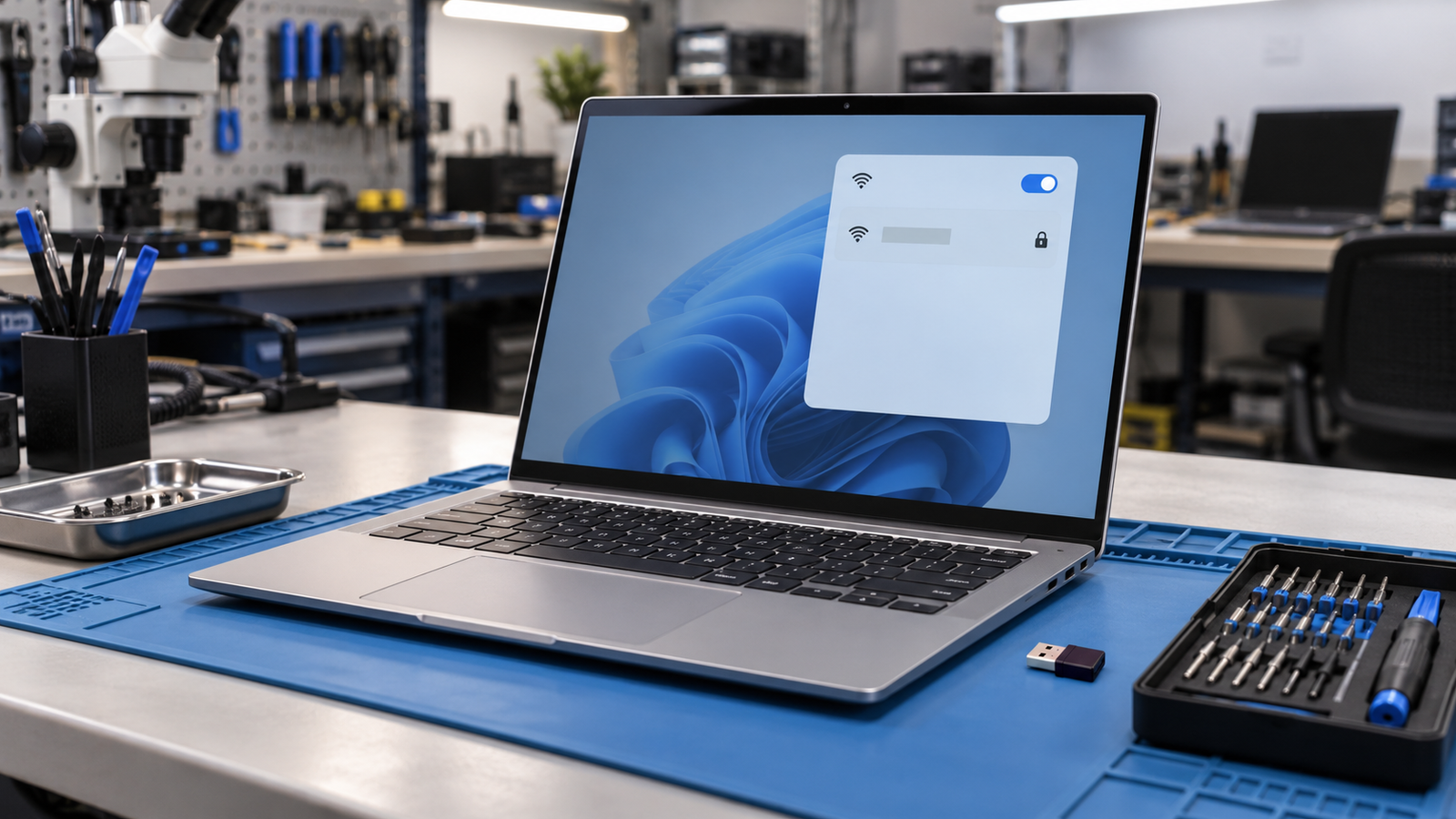
Most laptops stuck on 2.4GHz have either an older single-band WiFi card or an adapter setting locked to that band. Run netsh wlan show drivers and look for 802.11a, ac, or ax. If any appears, set Preferred Band to 5GHz in Device Manager. If none appears, a USB dual-band adapter adds 5GHz in minutes.
Introduction
Your laptop joins the 2.4GHz network without trouble, but the 5GHz network never shows up in the list. Your phone sees both, which makes the laptop look broken. This guide separates a card that physically cannot use 5GHz from a driver, setting, or router fault that only looks the same. You will know which one you have in about two minutes.
Symptoms

- Only the 2.4GHz network name appears in the WiFi list, with no 5GHz twin
- A phone or another device sees the 5GHz network from the same spot
- Speed tests cap far below what the same router gives other devices
- The 5GHz network appears but fails with “cannot connect to this network”
- netsh wlan show interfaces reports a 2.4GHz band and 802.11n radio on a laptop that should be on 5GHz
- Preferred Band is missing from the adapter’s Advanced tab
- Wireless Mode offers only 802.11b or b/g choices
- The problem started after a Windows update, a driver update, or a router swap
What Causes a Laptop to Connect Only to 2.4GHz WiFi
- Single-band WiFi card. Older adapters such as the Intel Centrino Wireless-N series and the Realtek RTL8723AE carry a 2.4GHz radio only. Run netsh wlan show drivers and check whether Radio types supported lists only 802.11b, g, and n. Confirmation sign: the Advanced tab has no Preferred Band entry and Wireless Mode offers only 802.11b and b/g.
- Driver or adapter settings locked to 2.4GHz. A driver update, a Windows update, or a manual change can leave Preferred Band, Wireless Mode, or the 802.11n/ac mode restricted to the lower band. Radio types supported lists 802.11a, ac, or ax, yet the laptop never offers a 5GHz network. Confirmation sign: Preferred Band reads Prefer 2.4GHz Band, or the wireless mode excludes 802.11a, ac, and ax.
- Router not offering a 5GHz network the card can join. The 5GHz radio may be switched off, hidden, or parked on a high channel that older cards cannot use. The router admin page shows the 5GHz radio disabled, or the channel set to a high number. Confirmation sign: the 5GHz network appears on the laptop after you move the router to a low channel such as 36 or 40.
How to Fix a Laptop That Only Connects to 2.4GHz WiFi

Fix 1: Check what your adapter supports Cost: Free Time: 2 minutes Difficulty: Easy Steps:
- Press Windows + R, type cmd, and press Enter.
- Run netsh wlan show drivers.
- Read the line Radio types supported.
Expected Result: 802.11a, 802.11ac, or 802.11ax appears, so the card supports 5GHz and the cause is settings, driver, or router. If Failed: Only 802.11b, g, and n appear, so the card is single band. Skip to Fix 5.
Fix 2: Confirm the router is broadcasting 5GHz Cost: Free Time: 10 minutes Difficulty: Easy Steps:
- Hold a phone next to the laptop and confirm it lists a 5GHz network.
- Open the router admin page, usually 192.168.1.1 or 192.168.0.1.
- Under wireless settings, turn the 5GHz radio on and enable SSID broadcast.
- Set the 5GHz channel to Auto, or to 36, 40, 44, or 48 if Auto lands on a high channel.
- Save and let the router restart.
Expected Result: The 5GHz network appears in the laptop’s WiFi list. If Failed: Move to Fix 3.
Fix 3: Reset the adapter’s band settings Cost: Free Time: 5 minutes Difficulty: Easy Steps:
- Press Windows + X and open Device Manager.
- Expand Network adapters, right-click the WiFi adapter, and open Properties.
- On the Advanced tab, set Preferred Band to Prefer 5GHz Band, or No Preference.
- Set Wireless Mode to the dual-band option, such as 802.11a/b/g.
- Set the 802.11n/ac or 802.11ax mode to Enabled and Channel Width for 5GHz to Auto.
- Click OK and reconnect.
Expected Result: The 5GHz network appears and connects. If Failed: If the options above are missing, move to Fix 4. If 5GHz joins but keeps dropping, follow the random WiFi disconnect fixes for Windows 11.
Fix 4: Install the manufacturer driver and rejoin the network Cost: Free Time: 20 minutes Difficulty: Easy Steps:
- On your laptop maker’s support page, enter the exact model and download the WLAN driver for your Windows version. Intel adapters also accept Intel’s generic driver.
- Save the installer to a USB drive in case the adapter drops out during the swap. The full process is in our guide to reinstalling the WiFi driver from the manufacturer’s site.
- In Device Manager, uninstall the WiFi adapter, run the installer, and restart.
- Open Settings, Network & internet, WiFi, Manage known networks, and select Forget on the affected network.
- Reconnect to the 5GHz network and enter the password again.
Expected Result: Preferred Band returns to the Advanced tab and the 5GHz network connects. If Failed: Move to Fix 5.
Fix 5: Add a USB dual-band adapter Cost: $10 to $25 Time: 10 minutes Difficulty: Easy Steps:
- Buy an adapter that lists dual band AC or AX support.
- Plug it into a USB 3.0 port and install its driver.
- Select the 5GHz network from the WiFi list.
Expected Result: 5GHz networks appear through the adapter, with the single-band internal card left idle. If Failed: If the USB adapter also cannot see 5GHz, the router is the problem. Return to Fix 2. If it works and you want 5GHz internally, move to Fix 6.
Fix 6: Replace the internal WiFi card Cost: $15 to $50 for the card Time: 30 to 60 minutes Difficulty: Moderate Steps:
- Check the service manual to confirm the card is a removable M.2 or mini-PCIe module, not soldered.
- Shut down, unplug the charger, and hold the power button for 10 seconds.
- Remove the bottom panel and gently unclip both antenna cables.
- Remove the retaining screw, slide the old card out, and seat a compatible dual-band card such as an Intel AX200 or AX210.
- Reconnect the cables, close the laptop, and install the driver.
Expected Result: The adapter lists 802.11ac or ax and 5GHz networks appear. If Failed: Older HP and Lenovo business laptops use a BIOS whitelist and reject unlisted cards, so match the OEM part number or stay with the USB adapter from Fix 5. Warning: Antenna connectors snap easily. Lift them straight up with a plastic tool and never pull the cable.
Mistakes to Avoid
Reinstalling Windows without a backup. A clean install wipes the drive and does nothing for a single-band card. One reader replaced the card with the same model and reinstalled Windows, and the laptop still joined only 2.4GHz. Check Radio types first, and back up files before any reset.
Factory resetting the router. A reset erases the ISP login and custom settings along with the 5GHz setup. Some ISPs require credentials you may not have on hand, which leaves the whole household offline. Change the 5GHz settings in place and save a screenshot before touching anything.
Downloading drivers from third-party sites. Driver packs and “universal WiFi” downloads can install the wrong driver or bundle malware that puts personal files at risk. Pull the driver from your laptop maker’s support page using the exact model number.
Forcing a card or antenna cable. Antenna connectors and M.2 slots crack under pressure, and a damaged slot means a board repair. Seat the card at its angle and press the antenna connectors straight down.
When to Stop and Get Professional Help
Stop and get professional help if the laptop shows liquid damage, a burning smell, or a swollen battery pushing the bottom panel up. Stop if a replacement WiFi card triggers a BIOS error such as 1802 Unauthorized Network Card on an HP. Stop if the card is soldered to the motherboard and a USB adapter does not fix the problem. Forcing a cable or card into the slot can turn a small fix into a board repair.
Prevention Tips

- Save the manufacturer’s WLAN driver installer on a USB drive so you can reinstall it without internet.
- Recheck Preferred Band in the adapter’s Advanced tab after every major Windows update.
- Give the 5GHz network its own name so you can tell which band you joined.
- Keep the router’s 5GHz channel on Auto or a low channel so older cards can still see it.
- Confirm 802.11ac or ax in the spec sheet before buying a laptop or replacement card, because “WiFi” alone does not guarantee 5GHz.
Frequently Asked Questions
Why can my phone see 5GHz WiFi but my laptop cannot? Your laptop’s card may support only 2.4GHz, or its band settings may exclude 5GHz. Run netsh wlan show drivers and check Radio types supported for 802.11a, ac, or ax.
How do I check if my laptop supports 5GHz WiFi? Open Command Prompt and run netsh wlan show drivers. If Radio types supported lists 802.11a, 802.11ac, or 802.11ax, the card supports 5GHz.
Why is Preferred Band missing from my WiFi adapter settings? Windows hides it when the adapter supports only one band, or when the driver does not expose it. Check Radio types first, then install the manufacturer driver.
Can a USB adapter add 5GHz to an old laptop? Yes. A dual-band USB adapter adds 5GHz without opening the laptop and works alongside a single-band internal card.
Conclusion
A laptop stuck on 2.4GHz usually has a single-band card, an adapter setting locked to that band, or a router that is not offering a 5GHz network the card can join. Read the radio types first, then fix the band settings or driver if 5GHz is listed, or add a USB dual-band adapter if it is not. Stop and bring the laptop to a technician if you smell burning, see liquid damage or a swollen battery, or a card swap triggers a BIOS error.