
Quick Answer
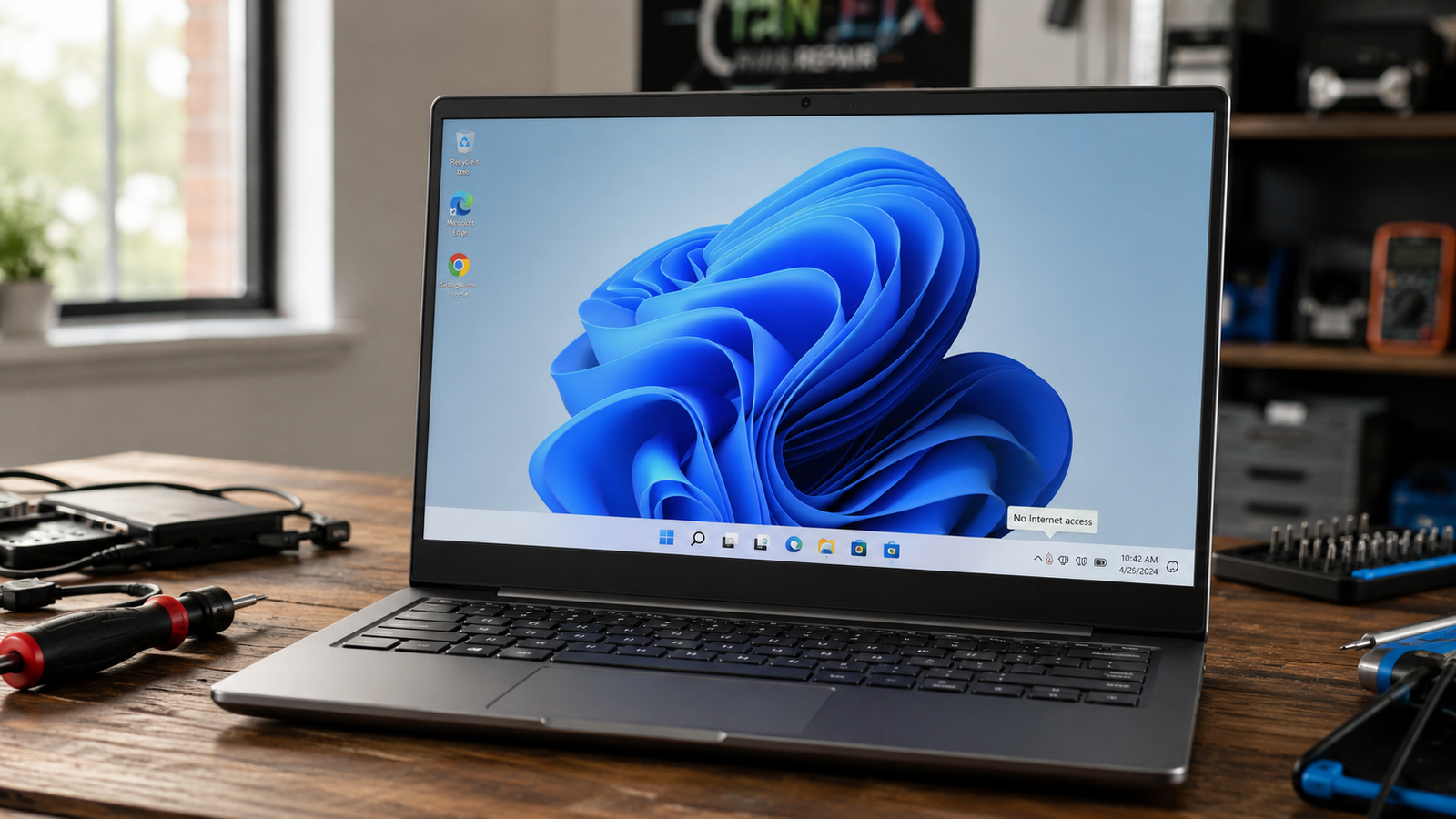
Most random WiFi disconnects on Windows 11 laptops come from power management cutting the wireless adapter to save battery. Open Device Manager, find your WiFi adapter, and disable “Allow the computer to turn off this device to save power.” Restart and test for 30 minutes. If drops continue, update or reinstall the WiFi driver next.
Introduction
Your WiFi icon shows full bars, then the connection drops for no clear reason. Sometimes it reconnects on its own in a few seconds. Other times you have to manually toggle WiFi off and back on before pages will load again.
This happens because something between your laptop’s wireless adapter and the router is breaking the handshake, and on Windows 11 there are a handful of common culprits behind it. Power management settings, an outdated driver, and even a recent Intel firmware conflict can all produce the exact same symptom. Most competing guides treat every disconnect the same way and jump straight to “update your driver,” which misses the real cause more often than it finds it.
This guide walks through the diagnostic process we use in the shop before changing a single setting. You will learn how to tell a router problem from a laptop problem in under two minutes, then work through the fixes in the order that actually solves the issue fastest.
Symptoms of the Problem

- WiFi icon shows connected, then disconnects without warning, sometimes several times an hour
- Drops happen at random times, or oddly enough at the exact same time every day
- Network reconnects on its own after a few seconds, interrupting video calls and downloads each time
- “No internet, secured” warning appears even though the WiFi icon shows full signal
- Speed tests pass fine right before a drop, ruling out a weak signal as the only explanation
- Device Manager shows a yellow warning triangle on the network adapter, or an error code like Code 10 or Code 43
- WiFi disappears entirely for a few seconds and has to rediscover networks before reconnecting
- Other devices on the same network stay connected while only the laptop drops
Start Here: Fast Diagnosis
If other devices on the same network also disconnect → Likely a router or ISP issue, not the laptop.
If only this laptop disconnects while phones and other computers stay connected → Likely a laptop-side driver, power setting, or hardware issue.
If the laptop drops WiFi only when running on battery → Likely power management cutting the wireless adapter.
If the laptop drops WiFi only after using Bluetooth devices like headphones or a mouse → Likely a Bluetooth and WiFi coexistence conflict, common on Intel adapters.
If Device Manager shows a yellow warning or error code on the network adapter → Likely driver corruption or a hardware fault.
If disconnects happen at the exact same time every day → Likely a scheduled task, DHCP lease renewal, or modem reboot, not the laptop at all.
Tools Needed
Built-in tools:
- Device Manager
- Windows Network and Internet troubleshooter
- Event Viewer
- Command Prompt (ipconfig, netsh)
Software tools:
- Manufacturer support utility (Dell SupportAssist, HP Support Assistant, Lenovo Vantage, MyASUS, Acer Care Center, MSI Center)
- Intel Driver and Support Assistant, for Intel WiFi or Killer adapters
- Router admin panel, accessed through a browser
Hardware tools:
- Small Phillips screwdriver for bottom panel access
- Plastic pry tool for opening the chassis safely
- Compressed air for cleaning the card slot during a reseat
Troubleshooting Matrix
| Symptom | Likely Cause | Fast Fix |
|---|---|---|
| Drops only on battery, fine when plugged in | Power management on the adapter | Disable power saving in Device Manager |
| Drops happen at the same time every day | DHCP lease renewal or scheduled task | Set a static IP or check Task Scheduler |
| Drops got worse after a driver update | Bad or mismatched driver | Roll back, then reinstall the OEM version manually |
| WiFi disappears after using Bluetooth headphones | Bluetooth and WiFi coexistence conflict | Update WiFi and Bluetooth drivers together |
| Only this laptop drops on a shared network | Mesh node roaming or adapter handling | Connect to the nearest single node, not mesh roaming |
| Yellow warning in Device Manager | Driver corruption | Uninstall the device, restart, let Windows reinstall |
| Drops worse near a microwave or other electronics | 2.4GHz interference | Switch to the 5GHz band on the router |
| Connects but shows “No internet” | Network stack or DNS issue | Run a network reset, flush DNS |
What Causes Laptop WiFi to Disconnect Randomly on Windows 11

WiFi Adapter Power Management
Windows 11 ships with a power plan that lets the OS cut power to network hardware whenever it thinks you do not need it, mainly to stretch battery life. The wireless adapter drops into a low power state and loses the connection rather than just slowing it down.
Drops that are far more frequent on battery than when plugged into a charger point straight at this cause. Most people assume the power saving mode only touches the screen and CPU, not realizing it throttles the network adapter too. Unchecking “Allow the computer to turn off this device to save power” in Device Manager and watching the drops stop almost immediately is the clearest confirmation.
Outdated or Corrupted WiFi Driver
Manufacturers and Microsoft both push driver updates, and the two do not always agree on which version should be installed. A mismatch between the OEM driver and the version Windows Update installs causes the adapter to reset itself at random.
Check the driver date and version inside Device Manager’s adapter properties. Anything older than a year, or anything installed right before the problem started, is worth suspecting. People often assume the newest driver is automatically the safest choice, but a generic version pushed through Windows Update sometimes conflicts with the OEM driver already on the machine. Two separate driver entries listed for the same adapter, or symptoms starting right after a Windows Update, both confirm this cause.
Killer Networking Software Conflicts
Many gaming laptops ship with the Intel Killer Performance Suite, which layers a “Prioritization Engine” and bandwidth control feature on top of the actual WiFi driver. That extra layer occasionally misreads network traffic and forces a disconnect while it tries to “optimize” the connection.
Open the Killer Control Center, if one is installed, and check whether Prioritization Engine or Advanced Stream Detect is switched on. Owners almost always blame the WiFi card itself here, when the driver underneath the Killer software is usually working fine on its own. Turning off the Prioritization Engine and watching the disconnects stop, without touching the driver at all, confirms this is the cause.
Intel WiFi and Bluetooth Coexistence Bug
Intel publicly confirmed a WiFi and Bluetooth coexistence issue on Windows 11 in 2026, where both radios fight over the same 2.4GHz channel and one drops to let the other through. This shows up as WiFi disconnecting specifically whenever a Bluetooth accessory like headphones or a mouse is active.
The pattern only appears when a Bluetooth device is connected at the same time as WiFi, never when Bluetooth is switched off entirely. Most people troubleshoot WiFi and Bluetooth as two unrelated problems, missing that both ride on the same physical chip in most laptops. Disconnecting every Bluetooth accessory and watching WiFi stay rock solid for the rest of the session is the confirmation sign.
Router-Side Interference and Channel Congestion
2.4GHz WiFi shares its frequency range with microwaves, baby monitors, and neighboring routers, all of which can generate enough noise to force a brief disconnect. This gets worse in apartment buildings and dense neighborhoods with dozens of routers stacked on the same channels.
Other devices on the same band showing occasional drops too, not just the laptop, points toward this cause. People tend to assume interference only slows a connection rather than realizing it can fully break a weak handshake. Switching the laptop to the router’s 5GHz band and seeing the drops disappear or sharply reduce confirms it.
Auto-Connect Competing Across Multiple Saved Networks
Windows 11 automatically reconnects to any saved network in range, and if two networks with overlapping coverage are both saved, the laptop can flip back and forth between them. This is especially common with routers that broadcast separate 2.4GHz and 5GHz networks under similar names.
Check Settings, then Network & Internet, then WiFi, then Manage Known Networks for old networks, a neighbor’s network, or your own router’s second band saved separately. People forget their own router often shows up twice in that list. Disabling “Connect automatically” on every saved network except the one you actually want stops the flipping.
Windows Network Stack Corruption
The TCP/IP stack and Winsock catalog can get corrupted by a botched update, a VPN install, or aggressive third-party security software, causing intermittent connectivity even while the radio itself stays connected. The adapter looks fine the entire time, which throws people off.
WiFi shows connected with full signal, but the “No internet, secured” warning appears and websites time out anyway. People reinstall the WiFi driver repeatedly here when the actual fault sits higher up in the stack, not inside the driver. A full network reset clearing the problem where driver reinstalls did nothing confirms this cause.
Failing or Loose WiFi Card and Antenna
On laptops that have been dropped, opened for cleaning, or are simply a few years old, the internal M.2 WiFi card or its thin antenna cables can work loose. This produces an intermittent connection rather than a constant failure.
The problem getting noticeably worse when the laptop is moved, the lid is opened or closed, or the chassis is bumped is the giveaway here. People assume any laptop that connects to WiFi at all must have a “working” card, when a loose antenna connector still allows a connection, just an unstable one. A USB WiFi adapter plugged into a USB port staying perfectly stable while the internal card keeps dropping confirms the internal hardware is at fault.
What We See Most Often
In the shop, power management settings and outdated drivers account for the vast majority of random WiFi disconnect tickets we see on Windows 11 laptops. Most of these get resolved in the first 15 minutes without opening the laptop at all.
Gaming laptops tell a different story. ASUS, MSI, and Acer machines running Intel Killer networking show up far more often than business laptops, and the cause is almost always the Killer software layer rather than the WiFi card underneath it.
The cases that genuinely need a part are rare, but they do happen. We typically see a real WiFi card or antenna failure after liquid exposure, a previous repair where the antenna cable was not reseated correctly, or a laptop that has taken a hard drop. Customers often assume the worst before checking power settings first, which means plenty of “broken WiFi” appointments turn into a five minute fix.
How to Diagnose the Problem

1. Confirm it is the laptop, not the network
Connect a phone or another laptop to the same WiFi and watch for drops over 15 minutes. Expected Result: Other devices stay connected while only your laptop drops. If Failed: Other devices drop too. This points to the router or ISP, not the laptop. Next Action: Restart the router and check with your ISP before going further. If only your laptop drops, move to Step 2.
2. Check Device Manager for adapter errors
Open Device Manager, expand Network Adapters, and look for a yellow warning icon on the WiFi adapter. Expected Result: No warning icon, adapter listed as working properly. If Failed: Yellow warning or error code present. Next Action: Skip ahead to the driver reinstall fix later in this guide.
3. Check the power management setting
Right-click the WiFi adapter in Device Manager, open Properties, then the Power Management tab. Expected Result: “Allow the computer to turn off this device to save power” is already unchecked. If Failed: The box is checked. Next Action: Uncheck it, restart, and test on battery for 30 minutes before changing anything else.
4. Run the Windows Network and Internet troubleshooter
Go to Settings, then System, then Troubleshoot, then Other troubleshooters, then Network and Internet. Expected Result: The troubleshooter finds and fixes a specific issue. If Failed: It reports no problem found. Next Action: This rules out the obvious automated fixes, not the underlying issue. Move to Step 5.
5. Check Event Viewer for a disconnect pattern
Open Event Viewer, go to Windows Logs, then System, and filter for Warning and Error events around the time of a recent disconnect. Expected Result: Timestamps line up with a specific cause, such as a driver event, a power event, or a DHCP renewal. If Failed: No clear pattern shows up in the logs. Next Action: The issue may be intermittent hardware rather than a logged event. Move to the driver reinstall and hardware fixes below.
6. Test with a fresh driver install
Uninstall the WiFi driver completely in Device Manager, checking the box to delete the driver software, then restart and let Windows reinstall it, or download the manufacturer’s version directly. Expected Result: Disconnects stop after the clean reinstall. If Failed: Drops continue. Next Action: The driver was not the root cause. Move to the hardware section, since the software options are now exhausted.
7. Test with a USB WiFi adapter
Plug in a USB WiFi adapter, or use a phone hotspot temporarily, and watch whether the laptop holds a stable connection through it. Expected Result: The connection through the USB adapter stays stable while the internal card keeps dropping. If Failed: The USB adapter drops too. Next Action: This points back to Windows or the router rather than the internal WiFi hardware. Revisit the network stack and router-side fixes instead of opening the laptop.
Which Fix Usually Works?
| Fix | Typical Success Likelihood | Cost | Difficulty |
|---|---|---|---|
| Disable adapter power saving | Very Common | Free | Easy |
| Update or reinstall WiFi driver | Very Common | Free | Easy |
| Disable Killer Prioritization Engine | Common | Free | Easy |
| Network reset | Common | Free | Easy |
| Update router firmware | Common | Free | Moderate |
| Switch to 5GHz band | Common | Free | Easy |
| Update laptop BIOS | Occasional | Free | Moderate |
| Reseat WiFi card and antenna | Occasional | Free DIY, $40 to $80 at a shop | Hard |
| Replace WiFi card | Rare | $25 to $60 part, $50 to $100 labor | Hard |
Step-by-Step Fixes

Disable WiFi Adapter Power Saving
Cost: Free Time: 5 minutes Difficulty: Easy
Steps
- Right-click the Start button and open Device Manager.
- Expand Network Adapters and find your WiFi adapter, usually labeled Wireless, WiFi, or 802.11.
- Right-click it, select Properties, then open the Power Management tab.
- Uncheck “Allow the computer to turn off this device to save power.”
- Click OK, then restart the laptop.
Expected Result: WiFi stays connected on battery power for at least 30 minutes of normal use. If Failed: Move to the driver update fix below. Technician Tip: This setting can quietly re-enable itself after a Windows Update, so if disconnects return months later, check this box again before assuming a new problem. Expert Warning: Disabling this slightly increases battery drain. The difference is small enough that it is almost always worth it for a stable connection.
Stop Auto-Connect Conflicts on Saved Networks
Cost: Free Time: 5 minutes Difficulty: Easy
Steps
- Open Settings, then Network & Internet, then WiFi.
- Click Manage Known Networks.
- Open each network you do not actively need and uncheck “Connect automatically.”
- Pay close attention to your own router’s 2.4GHz and 5GHz bands, since they often appear as two separate saved networks.
Expected Result: The laptop stays on one consistent network instead of flipping between two. If Failed: Move to the router restart and band switch fix. Technician Tip: Giving your router’s 5GHz band a different network name than the 2.4GHz band makes this kind of conflict far easier to spot and manage going forward.
Restart the Router and Switch Bands
Cost: Free Time: 10 minutes Difficulty: Easy
Steps
- Unplug the router’s power cable, wait 30 seconds, then plug it back in.
- Wait for all lights to settle before reconnecting any device.
- If the router broadcasts both 2.4GHz and 5GHz, connect the laptop to the 5GHz band specifically.
- If you have a mesh system, connect the laptop to the nearest single node rather than letting it roam automatically.
Expected Result: Disconnects stop or drop sharply, especially if interference or mesh roaming was the cause. If Failed: Move to the driver update fix. Technician Tip: Mesh systems have been reported to disconnect Windows 11 laptops more than other devices on the same network. Reducing to one node, or connecting that laptop by Ethernet as a test, confirms whether mesh roaming is the culprit.
Update or Reinstall the WiFi Driver
Cost: Free Time: 15 to 20 minutes Difficulty: Easy
Steps
- Open Device Manager, expand Network Adapters, right-click your WiFi adapter, and select Uninstall Device.
- Check the box for “Attempt to remove the driver for this device,” if it appears, then confirm.
- Restart the laptop. Windows usually reinstalls a generic driver automatically.
- Visit your laptop manufacturer’s support page, search your exact model, and download the specific WiFi driver listed for Windows 11.
- Install that manufacturer version over the generic one and restart again.
Expected Result: The adapter shows no warning in Device Manager, and the connection holds steady through normal use. If Failed: Move to the Killer software fix if your laptop has Killer networking, otherwise move to the network reset. Technician Tip: Download the driver from your laptop manufacturer’s site rather than from Intel or Realtek directly when possible, since OEM versions are tuned for that specific antenna and chassis.
Disable Killer Prioritization Engine
Cost: Free Time: 5 minutes Difficulty: Easy
Steps
- Open Killer Control Center or Killer Intelligence Center from the Start menu.
- Find the Prioritization Engine or Advanced Stream Detect toggle in Quick Settings.
- Turn it off.
- Restart the laptop and test.
Expected Result: Disconnects stop without touching the underlying driver. If Failed: Uninstall the Killer Control Center entirely through Settings, then Apps, while keeping the base network driver, and test again. Technician Tip: Most gaming laptop owners never use the prioritization features Killer adds, so disabling or removing it entirely rarely costs anything in practice.
Run a Full Network Reset
Cost: Free Time: 10 minutes Difficulty: Easy
Steps
- Go to Settings, then Network & Internet, then Advanced Network Settings.
- Scroll to Network Reset and click Reset Now.
- Confirm the reset. The laptop restarts automatically.
- Reconnect to your WiFi network and re-enter the password.
Expected Result: Network components rebuild cleanly and the “No internet, secured” pattern disappears. If Failed: Move to the firmware and hardware fixes below. Expert Warning: This removes every saved WiFi network, VPN profile, and Ethernet configuration on the laptop. Have your WiFi password ready before running it.
Update Router Firmware and Laptop BIOS
Cost: Free Time: 20 to 30 minutes Difficulty: Moderate
Steps
- Log in to the router’s admin page, usually at 192.168.1.1 or 192.168.0.1, and check for a firmware update under Administration or System.
- Install any available update and let the router restart.
- On the laptop, check your manufacturer’s support page for a BIOS update matching your exact model number.
- Install the BIOS update only if one is listed, following the manufacturer’s instructions exactly.
Expected Result: Router and laptop firmware both run current, stable versions. If Failed: Move to the hardware fixes, since software and firmware options are now exhausted. Expert Warning: Never interrupt a BIOS update once it starts. A power loss during a BIOS flash can leave a laptop unable to boot, which then requires a board-level repair.
Reseat the WiFi Card and Antenna Cables
Cost: Free if done yourself, $40 to $80 if done by a shop Time: 30 to 45 minutes Difficulty: Hard
Steps
- Shut down the laptop completely and disconnect the charger.
- Remove the bottom panel using the correct screwdriver, following your model’s service manual.
- Locate the M.2 WiFi card and gently disconnect both antenna cables, noting which connector goes where.
- Reconnect both antenna cables firmly, then remove and reseat the card itself in its slot.
- Reassemble the bottom panel and power on to test.
Expected Result: The connection becomes stable, especially if drops were worse when the laptop was moved or bumped. If Failed: Move to WiFi card replacement. Expert Warning: Antenna connectors on M.2 cards are small and fragile. If you are not comfortable opening the chassis, this is a fair point to hand the laptop to a shop instead of risking a snapped connector.
Replace the WiFi Card or Use a USB Adapter
Cost: $25 to $60 for the part, $50 to $100 for labor at a shop, or $15 to $30 for a USB WiFi adapter as a workaround Time: 30 to 60 minutes for a card swap Difficulty: Hard
Steps
- Confirm the exact card model and connector type, M.2 with antenna or older mini-PCIe, before ordering a replacement.
- Order a card matching your laptop’s WiFi standard, usually WiFi 6 or WiFi 6E, and chassis compatibility.
- Replace the card following the same disassembly steps as the reseating fix above.
- Alternatively, plug in a USB WiFi adapter as an immediate workaround while a replacement card is on order.
Expected Result: A stable connection returns immediately, either through the new card or the USB adapter. If Failed: This is uncommon once a confirmed hardware fault has been replaced. Next Action: Have the motherboard’s wireless connector inspected by a repair shop, since the fault may sit on the board itself rather than the card.
Mistakes That Make the Problem Worse
Reinstalling the driver repeatedly without checking anything else.
It feels like doing something productive and has worked on other problems before. If the real cause is power management or a Killer software conflict, the driver was never actually broken. Run through the fast diagnosis steps first to confirm the real cause before touching the driver.
Installing random “driver booster” tools from search ads.
These promise a one-click fix and tend to rank high in search results. Many install generic or mismatched drivers that cause more disconnects than the original problem, and some bundle unwanted software. Download drivers directly from your laptop manufacturer’s official support page instead.
Running a network reset as the very first step.
It is a single button and feels like a clean slate. It also wipes every saved network and VPN profile, which is a heavy reset for what might be a five second power setting fix. Save network reset for after the easier fixes have been ruled out.
Ignoring the pattern of when drops happen.
A disconnect is annoying enough that the instinct is to fix it immediately rather than observe it. The timing pattern, battery only, same time daily, only with Bluetooth active, is the fastest route to the actual cause. Note when drops happen for a day before changing settings.
Opening the laptop chassis before ruling out software causes.
People assume “random” disconnects must mean a loose part somewhere inside. Most random disconnects on Windows 11 laptops are software or settings related, and opening the chassis unnecessarily risks a cracked clip or a disconnected cable. Work through every software and firmware fix first, and only open the chassis once those are exhausted.
Disabling the WiFi adapter entirely “to reset it” over and over.
Toggling the adapter off and on through Device Manager seems harmless and sometimes provides a brief fix. Doing this repeatedly can occasionally corrupt the driver state further, especially on older driver versions. Use the WiFi toggle in the taskbar for a quick reset instead of disabling the device in Device Manager.
Brand-Specific Considerations
Dell Dell laptops, especially the XPS and Inspiron lines, commonly ship with Intel WiFi and Killer networking combinations. Dell SupportAssist includes a network diagnostic that flags driver mismatches faster than the generic Windows troubleshooter. BIOS access is F2 on most models, and the BIOS network stack rarely needs changes for this specific issue.
HP HP laptops use a mix of Intel and Realtek WiFi adapters depending on the model and price tier. HP Support Assistant often catches outdated wireless drivers before you notice the problem yourself, so running a scan there early is worth the time. BIOS access is F10 on most models, and older Pavilion and EliteBook units sometimes include a “WLAN Auto Sense” setting that duplicates the Device Manager power setting.
Lenovo ThinkPad and Legion laptops both lean heavily on Intel wireless cards, with Legion gaming models frequently including Killer networking software. Lenovo Vantage has a network troubleshooting tool that tends to be more reliable than the generic Windows one on ThinkPad models specifically. BIOS access is F1 on most ThinkPads and F2 on IdeaPad and Legion models.
ASUS ASUS gaming laptops in the ROG and TUF lines are some of the most common machines we see with Killer networking conflicts, since ASUS bundles Killer Control Center by default on many models. MyASUS includes a driver update tool pulling from ASUS servers directly, which is usually safer than letting Windows Update push a generic version. Disabling the bundled GameFirst software alongside Killer Control Center is worth testing if disconnects persist on ROG models.
Acer Predator and Nitro gaming laptops also frequently use Killer networking, while Aspire and Swift models lean toward standard Intel or Realtek cards. Acer Care Center handles driver updates reasonably well, but Acer’s own support page sometimes lags behind Intel’s official releases for the same chipset. BIOS access is typically F2.
MSI MSI gaming laptops are, in our experience, the brand most likely to ship with Killer networking as the default and only wireless option, making the Killer software fixes in this guide especially relevant for MSI owners. MSI Center can conflict with Killer Control Center if both try to run network optimization features at the same time, so disabling one of the two rather than running both is the cleaner fix. BIOS access is Delete or F2 depending on the model generation.
Repair Shop Diagnosis

When a laptop comes in for random WiFi drops, the first thing we check is whether the problem follows the laptop or the network, using a phone or test laptop on the same WiFi as a baseline. This takes under five minutes and immediately rules out a large share of “WiFi broken” tickets that turn out to be router or ISP problems.
From there we open Device Manager and Event Viewer side by side, looking for error codes and timestamp patterns before touching any settings. A WiFi analyzer app or the router’s own connected-devices log helps confirm channel congestion when interference is suspected.
Typical repair costs for confirmed hardware issues run $40 to $80 for diagnosis and a card reseat, or $25 to $60 for the part plus $50 to $100 in labor for a full card replacement. Professional repair is worth it once internal antenna cables are suspected of damage, since a snapped connector during a DIY attempt can turn a $40 fix into a full motherboard repair.
When Hardware Replacement Is Necessary
WiFi card replacement becomes necessary when the card shows physical damage, when Device Manager reports a hardware error code that survives a clean driver reinstall, or when a USB WiFi adapter stays stable while the internal card keeps failing under identical conditions. Antenna cable replacement or reseating is needed when drops correlate directly with the laptop’s physical position, such as the lid angle or recent movement. A full motherboard-level repair becomes necessary only in the rare case where the wireless module’s onboard connector itself is damaged, usually from liquid exposure or a previous repair gone wrong.
Stop Troubleshooting and Seek Professional Repair If
Stop troubleshooting on your own and get professional help if you notice liquid damage near the keyboard or WiFi card area, a burning smell coming from the laptop at any point, or a swollen battery pressing against the bottom panel. Any of these signs means the risk extends well beyond a WiFi problem.
Also stop if you see visible damage to the motherboard once the bottom panel is open, such as corrosion, scorch marks, or a clearly snapped connector, since continuing to troubleshoot at that point risks turning a repairable laptop into one that needs a full board replacement. A laptop that repeatedly shuts down under load, separate from the WiFi issue, points to a power or thermal problem that should be diagnosed before it causes further damage.
Prevention Tips

- Leave WiFi adapter power saving disabled permanently, and recheck it after every major Windows update since updates sometimes reset this setting.
- Keep only one saved WiFi network active per physical router, and disable auto-connect on guest networks or old networks you no longer use.
- Update WiFi and Bluetooth drivers together as a pair rather than separately, especially on Intel-based laptops where both share the same chip.
- If you own a gaming laptop with Killer networking, disable the Prioritization Engine from day one instead of waiting for problems to show up.
- Place mesh router nodes so your main work area sits clearly closer to one node than another, reducing mid-task roaming handoffs.
- Check your router’s admin panel for firmware updates every few months, since most routers do not update themselves automatically.
- Avoid placing the laptop directly next to a microwave, baby monitor, or other 2.4GHz device during long work sessions or video calls.
Frequently Asked Questions

Why does my laptop WiFi disconnect only when I am not plugged into a charger?
This is almost always WiFi adapter power management cutting the connection to save battery. Disable “Allow the computer to turn off this device to save power” in Device Manager and the pattern should stop.
Why does my WiFi drop every time I use my Bluetooth headphones?
WiFi and Bluetooth share the same physical radio chip on most laptops, and Intel has confirmed a coexistence conflict between the two on Windows 11. Updating both the WiFi and Bluetooth drivers together usually resolves this specific pattern.
Is a network reset safe to run?
Yes, but it removes every saved WiFi network, VPN profile, and Ethernet setting on the laptop. Have your WiFi password ready before running it, and use it only after simpler fixes have not worked.
My driver shows as up to date, but WiFi still drops. What now?
“Up to date” through Windows Update is not always the same version your laptop manufacturer recommends. Download the WiFi driver directly from your laptop’s support page and reinstall it manually.
Why does only my Windows 11 laptop disconnect while my phone stays connected on the same mesh network?
This is a documented pattern where Windows 11 laptops handle mesh node roaming differently than phones and older Windows versions. Connecting the laptop to the closest single node, rather than letting it roam automatically, usually fixes it.
Can a router problem cause random disconnects even if my WiFi signal looks strong?
Yes. Channel congestion, an outdated router firmware version, or too many devices on an aging router can all cause drops that have nothing to do with signal strength.
Conclusion
Most random WiFi disconnects on Windows 11 laptops trace back to power management settings, an outdated or conflicting driver, or a Bluetooth coexistence issue rather than a failed WiFi card. Work through the fast diagnosis steps first, since they point you straight to the right fix instead of guessing. Software and firmware fixes solve the large majority of cases, and hardware replacement should stay a last resort reserved for confirmed physical damage. If you have worked through every fix here and the laptop still drops connection, a professional diagnosis will save you more time than continuing to guess.