
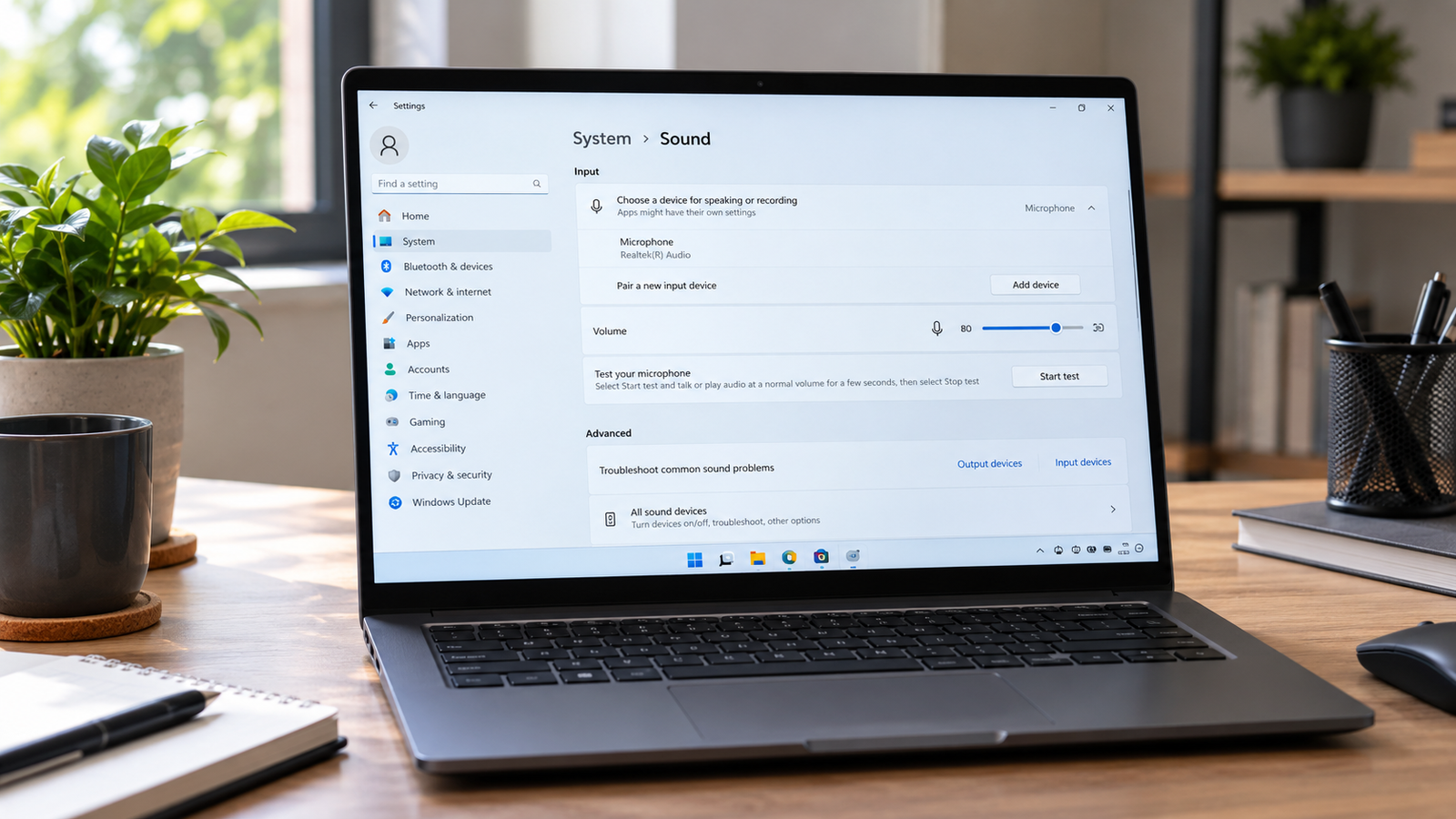
Windows 11 microphone not working is almost always a disabled privacy permission, not broken hardware. Go to Settings > Privacy and security > Microphone and turn on both Microphone access and Let apps access your microphone. If that does not work, check that the right input device is selected in Sound settings. Most cases resolve in under two minutes.
Introduction
You unmute yourself on a Zoom call and the other side hears silence. Or you hit record and play back nothing but quiet. Windows 11 introduced stricter privacy controls and a redesigned audio stack, and either one can kill your mic without any warning. This guide walks you through the proven fixes, starting with the fastest and ending only if something deeper is wrong.
Symptoms

- Microphone shows in Device Manager but records nothing
- Input level bar stays flat when speaking in Sound settings
- Apps like Zoom, Teams, or Discord say no microphone is found
- Voice typing and Cortana do not respond
- Mic worked in Windows 10 and stopped after upgrading to Windows 11
- Mic worked until a recent Windows update
- Microphone is detected but callers still cannot hear you
- Wireless earbud mic is silent while audio playback works fine
What Causes Windows 11 Microphone Not Working
- Privacy permissions blocked (most common). Windows 11 added two separate privacy toggles for microphone access. A Windows update or a fresh install can reset one or both to off. You confirm this when the mic tests fine in Settings but every app that uses it hears nothing.
- Wrong default input device. Windows may select a different device as the default after a driver update or when new audio hardware connects, such as a Bluetooth headset or a USB dock. You confirm this when the input level bar in Sound settings moves only when you switch to a different mic from the dropdown.
- Corrupted or outdated audio driver. A bad driver commonly appears after a Windows feature update and causes the mic to stop mid-session or stay silent at boot. You confirm this when rolling back the driver in Device Manager immediately restores audio input.
How to Fix Windows 11 Microphone Not Working

Fix 1: Check Privacy Permissions
Cost: Free | Time: 1 minute | Difficulty: Easy
- Press Windows + I to open Settings.
- Click Privacy and security, then click Microphone.
- Turn on Microphone access (the master switch at the top).
- Turn on Let apps access your microphone.
- Scroll down and toggle on any specific app that is not working (Teams, Zoom, Discord, etc.).
- Restart the affected app and test.
Expected Result: Mic works in all apps immediately.
If Failed: Move to Fix 2.
Fix 2: Set the Correct Default Input Device
Cost: Free | Time: 1 minute | Difficulty: Easy
- Right-click the speaker icon in the taskbar and select Sound settings.
- Under Input, click the dropdown and select the correct microphone.
- Speak and watch the volume bar. It should move.
- If you have multiple devices listed, test each one.
Expected Result: Input bar shows activity and the correct mic is now active.
If Failed: Move to Fix 3.
Fix 3: Run the Recording Audio Troubleshooter
Cost: Free | Time: 2 minutes | Difficulty: Easy
- Open Settings and go to System > Troubleshoot > Other troubleshooters.
- Find Recording Audio and click Run.
- Follow the on-screen steps and apply any fix it suggests.
- Restart your laptop and test.
Expected Result: Troubleshooter identifies and resolves a driver or service conflict.
If Failed: Move to Fix 4.
Fix 4: Enable the Microphone in Device Manager
Cost: Free | Time: 2 minutes | Difficulty: Easy
- Press Windows + X and select Device Manager.
- Expand Audio inputs and outputs.
- Right-click your microphone and check if Enable device appears. If so, click it.
- If the mic shows a yellow warning triangle, right-click it and select Update driver > Search automatically for drivers.
- Restart and test.
Expected Result: Mic is active and recognized by Windows.
If Failed: Move to Fix 5.
Fix 5: Restart the Windows Audio Service
Cost: Free | Time: 2 minutes | Difficulty: Easy
- Press Windows + R, type services.msc, and press Enter.
- Scroll to Windows Audio, right-click it, and select Restart.
- Repeat for Windows Audio Endpoint Builder.
- Close the window and test your mic.
Expected Result: Audio service resets and mic becomes responsive.
If Failed: Move to Fix 6.
Fix 6: Update or Roll Back the Audio Driver
Cost: Free | Time: 5 to 10 minutes | Difficulty: Moderate
- Open Device Manager and expand Audio inputs and outputs.
- Right-click your microphone, select Properties, then click the Driver tab.
- If the mic stopped working after a recent update, click Roll Back Driver.
- If Roll Back Driver is greyed out, right-click the mic and choose Uninstall device. Check “Attempt to remove the driver for this device” and confirm.
- Restart. Windows will reinstall the driver automatically.
- Test the mic.
Expected Result: The driver reinstalls cleanly and mic input is restored.
If Failed: Move to Fix 7.
Fix 7: Install the OEM Audio Driver
Cost: Free | Time: 10 to 15 minutes | Difficulty: Moderate
- Identify your laptop brand (Dell, HP, Lenovo, ASUS, Acer, MSI).
- Go to the manufacturer’s support site and search for your model number.
- Download the latest audio driver listed for Windows 11.
- Uninstall the existing driver through Device Manager first (see Fix 6, step 4).
- Run the downloaded installer and follow the prompts.
- Restart and test.
Expected Result: OEM driver resolves compatibility issues that the generic Windows driver could not.
If Failed: Test the mic on another device to rule out hardware failure. If it works elsewhere, the issue is system-level and may need a Windows repair install.
Mistakes to Avoid
Disabling audio enhancements without checking if they are the problem first. Some users turn off enhancements trying to boost mic quality but this step actually causes the mic to stop working on certain Realtek setups. Only disable them if you have confirmed that basic permissions and drivers are already working.
Skipping the per-app permission toggle and only turning on the master switch. The Microphone access master toggle and the Let apps access your microphone toggle are separate. Turning on only the master toggle leaves every app still blocked. Both must be on, and some apps need their own individual toggle enabled below.
Ignoring the physical mute switch on a headset or earbud. A hardware mute button on a headset cable or earcup overrides every software setting. Many users spend 30 minutes in Device Manager before noticing the mute button on the cord is pressed in.
Installing a third-party audio driver without removing the existing one first. Stacking drivers causes device conflicts and can make the mic permanently undetectable until you run a clean driver removal. Always uninstall the current driver before installing a replacement.
When to Stop and Get Professional Help
If the microphone does not appear at all in Device Manager even under hidden devices, or if the mic fails on multiple machines, the hardware itself is likely damaged. Internal microphone ribbons on laptops can tear from hinge stress or liquid exposure. At that point, a technician can replace the mic array for far less than a full board swap.
Prevention Tips

- Set Windows Update to notify before installing driver updates so audio drivers do not change without warning.
- After any major Windows feature update, open Sound settings and confirm the correct input device is still selected.
- Back up your working audio driver using a tool like DriverBackup before running Windows upgrades.
- Avoid plugging USB audio devices into unpowered hubs, since low power causes unreliable mic detection.
- Check your laptop manufacturer’s support page for Windows 11-specific driver updates before upgrading from Windows 10.
Frequently Asked Questions
Why did my microphone stop working after a Windows 11 update?
Windows updates can reset privacy permissions and replace working audio drivers with generic versions. Check Settings > Privacy and security > Microphone first, then roll back or reinstall your audio driver from Device Manager.
My mic is detected in Settings but apps cannot hear me. Why?
This is almost always the per-app privacy toggle. Even when the master Microphone access switch is on, individual apps need their own toggle enabled under Settings > Privacy and security > Microphone.
Why does my Bluetooth headset mic stop working in Teams but work in other apps?
Apps like Teams use their own audio stack and sometimes lock onto a different input device than the one Windows has set as default. Open Teams Settings > Devices and manually select the correct microphone from the dropdown.
Can a Windows 11 microphone problem damage my laptop?
No. Microphone issues are almost entirely software-related. The only hardware risk is if you physically force a connector or attempt to open the laptop without discharging static first.
Conclusion
Windows 11 microphone not working is almost never a hardware problem. The fix comes down to a blocked privacy permission, the wrong input device, or a driver that broke after an update. Work through the steps in order and you will have audio back within minutes. If the mic is still dead after reinstalling the OEM driver and confirming it fails on a second device, take it to a repair technician.