
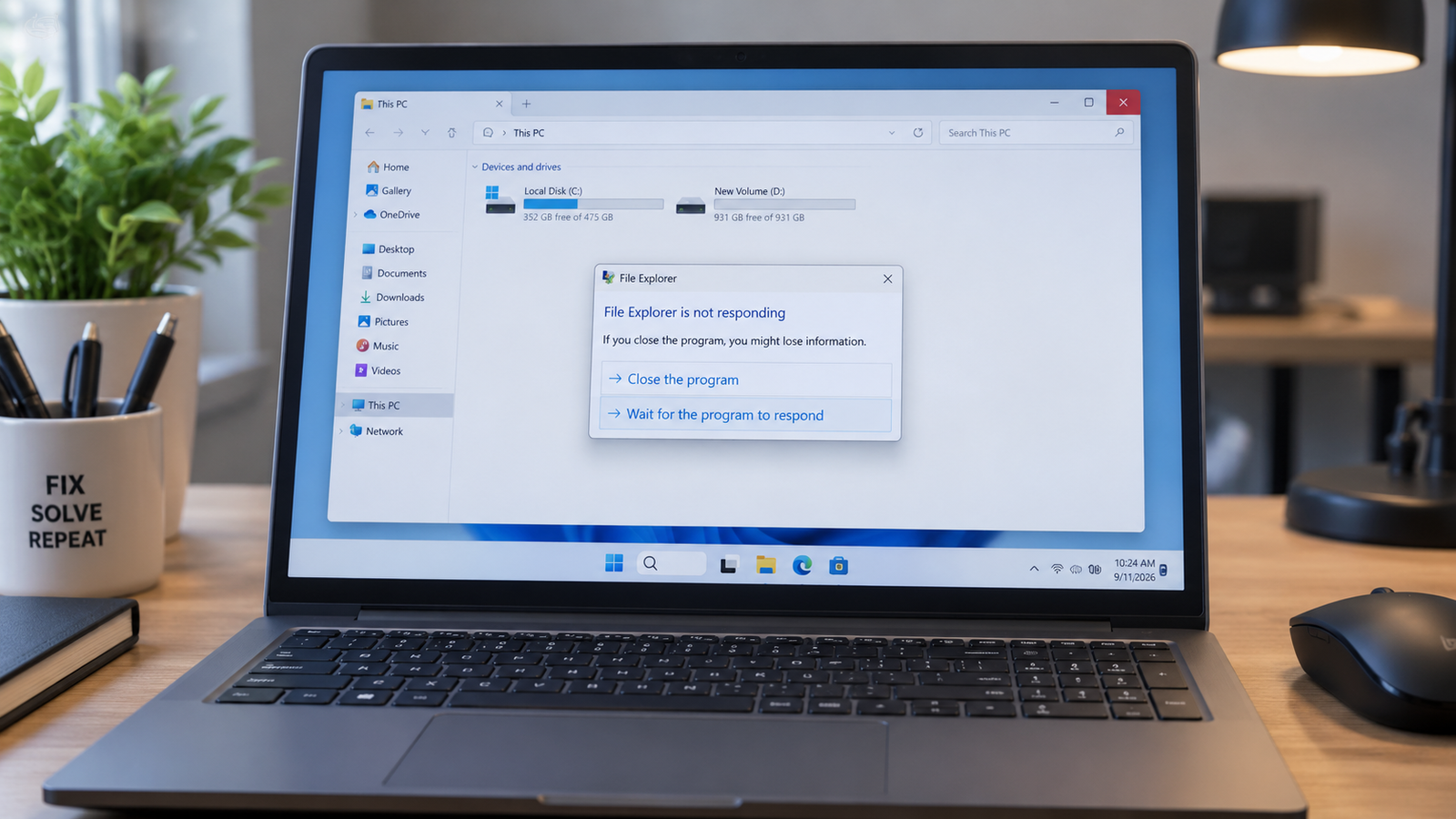
The most common cause of File Explorer crashing on Windows 11 is a corrupted Quick Access cache or a rogue third-party shell extension injecting into explorer.exe. Start by restarting Windows Explorer through Task Manager. That takes 30 seconds and resolves random crashes instantly. If it returns, clear the Explorer cache or disable shell extensions to find the real culprit.
Introduction
File Explorer opens, freezes, and either closes itself or takes the taskbar down with it. The problem usually starts after a Windows update or a new software installation. This guide covers the eight fixes that actually resolve it, ordered from fastest to most involved, with exact steps for each.
Symptoms

- File Explorer closes without warning after opening
- The taskbar disappears when Explorer crashes
- File Explorer freezes when opening the Downloads folder
- Explorer crashes specifically on right-click
- The “Windows Explorer has stopped working” error appears repeatedly
- File Explorer crashes when using the search bar inside it
- Opening specific file types or folders triggers the crash
- Explorer crashes only when launched from the taskbar, not from the Start menu
What Causes File Explorer to Keep Crashing
1. Corrupted Quick Access cache or Explorer history
Explorer stores recently accessed files and folders in a cache file on disk. When that cache becomes corrupted, explorer.exe fails to render the Quick Access view and crashes on launch. Confirm it: Explorer crashes immediately on open, but navigating to a specific drive path via the address bar works fine.
2. Third-party shell extensions injecting into explorer.exe
Shell extensions are DLLs that run inside Explorer’s process. Archivers, cloud sync clients, antivirus tools, and old software all register them. A buggy or outdated extension crashes Explorer the moment it tries to load. Confirm it: The crash happens on right-click, or it started directly after installing new software.
3. Corrupted Windows system files or GPU driver regression
A bad Windows update or outdated graphics driver can destabilize explorer.exe at the rendering level. This type of crash is less predictable and harder to pin to a trigger. Confirm it: Crashes happen randomly with no consistent trigger, and the Windows Update history shows a recent cumulative update installed around the time it started.
How to Fix File Explorer Keeps Crashing Windows 11

Fix 1: Restart Windows Explorer
Cost: Free | Time: 30 seconds | Difficulty: Easy
- Press Ctrl + Shift + Esc to open Task Manager.
- In the Processes tab, scroll to Windows Explorer.
- Right-click it and select Restart.
- The taskbar and desktop will flicker and reload.
Expected Result: File Explorer opens normally. Temporary process corruption is cleared.
If Failed: The crash returns within minutes. Move to Fix 2.
Fix 2: Clear the Explorer Cache
Cost: Free | Time: 2 minutes | Difficulty: Easy
- Press Win + R, type control folders, and press Enter.
- In the File Explorer Options window, click the General tab.
- Under Privacy, click Clear (next to “Clear File Explorer history”).
- Click OK.
- Also set “Open File Explorer to” from Quick Access to This PC using the dropdown.
Expected Result: The corrupted cache is deleted. Explorer stops crashing on launch.
If Failed: Cache was not the cause. Move to Fix 3.
Fix 3: Disable Shell Extensions with ShellExView
Cost: Free | Time: 10 minutes | Difficulty: Moderate
- Download ShellExView from nirsoft.net (free, no install required).
- Run it as administrator.
- Go to Options, select Hide All Microsoft Extensions.
- The remaining entries are all third-party shell extensions.
- Select all non-Microsoft entries (Ctrl + A after filtering).
- Press F7 to disable them all.
- Restart Explorer via Task Manager and test.
- If the crash stops, re-enable extensions in small batches (F8) to isolate the offender.
Expected Result: The crash stops immediately after disabling the problematic extension.
If Failed: Shell extensions are not the cause. Move to Fix 4.
Fix 4: Run an SFC Scan
Cost: Free | Time: 10 to 15 minutes | Difficulty: Easy
- Click Start, type cmd, right-click Command Prompt, and select Run as administrator.
- Type sfc /scannow and press Enter.
- Wait for the scan to complete. Do not close the window.
- Restart the laptop when it finishes.
Expected Result: Corrupted Windows system files are detected and repaired automatically.
If Failed: Run a DISM scan next. Type DISM /Online /Cleanup-Image /RestoreHealth and press Enter, then restart.
Fix 5: Run DISM to Repair the Windows Image
Cost: Free | Time: 15 to 20 minutes | Difficulty: Easy
- Open Command Prompt as administrator (same as Fix 4).
- Type DISM /Online /Cleanup-Image /RestoreHealth and press Enter.
- Wait for the process to reach 100%. It may appear to stall around 20%.
- Restart the laptop when complete.
Expected Result: The underlying Windows component store is repaired, fixing crashes that SFC alone cannot resolve.
If Failed: System file corruption is not the cause. Move to Fix 6.
Fix 6: Update or Roll Back GPU Drivers
Cost: Free | Time: 10 minutes | Difficulty: Moderate
- Right-click Start and open Device Manager.
- Expand Display Adapters.
- Right-click your GPU and select Properties.
- Go to the Driver tab.
If the driver is recent and the crashes started after an update:
- Click Roll Back Driver.
If the driver is old:
- Click Update Driver, then Search automatically for drivers.
- Or download the latest driver directly from nvidia.com, amd.com, or intel.com depending on your GPU.
- Restart the laptop after any driver change.
Expected Result: Explorer rendering stability improves. Crashes tied to graphics driver regressions stop.
If Failed: Driver was not the cause. Move to Fix 7.
Fix 7: Rebuild the Windows Search Index
Cost: Free | Time: 20 to 40 minutes | Difficulty: Easy
Use this fix if Explorer crashes specifically when using the search bar inside it.
- Open Settings, go to Privacy and Security, then Searching Windows.
- Scroll down and click Advanced indexing options.
- In the Indexing Options window, click Advanced.
- Under Troubleshoot, click Rebuild.
- Confirm and wait. Indexing runs in the background.
Expected Result: Search-triggered crashes stop once the corrupted index is rebuilt.
If Failed: The search index was not corrupted. Move to Fix 8.
Fix 8: Disable Preview Pane and Thumbnails
Cost: Free | Time: 3 minutes | Difficulty: Easy
- Open File Explorer.
- Click the View menu at the top.
- Click Show, then uncheck Preview Pane if it is active.
- Open Folder Options (View menu, Options).
- Go to the View tab.
- Check “Always show icons, never thumbnails.”
- Click Apply, then OK.
- Restart Explorer via Task Manager.
Expected Result: Crashes triggered by large files, corrupted media, or unsupported formats in the preview pane stop.
If Failed: Perform a Windows repair install using the Windows 11 media creation tool from microsoft.com. This reinstalls Windows while keeping personal files intact.
Mistakes to Avoid
Restarting the PC instead of restarting Explorer. A full restart can temporarily mask the problem without clearing the actual cause. Use Task Manager to restart only the Windows Explorer process and observe whether the crash returns.
Disabling Microsoft shell extensions in ShellExView. Only disable third-party entries. Disabling Microsoft extensions can break the context menu, taskbar, and desktop rendering entirely, requiring a system restore to fix.
Running SFC without following up with DISM. SFC can identify corruption but cannot always repair it if the Windows component store itself is damaged. Always run DISM afterward if SFC reports errors it could not fix.
Assuming an antivirus uninstall or update is safe to skip. Antivirus software registers aggressive shell extensions that are among the most common Explorer crash causes. If crashes started right after an antivirus update, disable its shell extension via ShellExView before uninstalling the product entirely.
When to Stop and Get Professional Help
Stop DIY troubleshooting and contact a technician if File Explorer crashes persist after completing a Windows repair install. At that point, the issue may involve a failing drive with bad sectors affecting the Windows partition, RAM that is producing intermittent errors under load, or a system where a third-party application has damaged registry entries beyond what standard scan tools can repair. Run Windows Memory Diagnostic before the repair visit to rule out RAM.
Prevention Tips

- Avoid installing software that registers shell extensions unless you actively use it.
- Keep GPU drivers updated directly from the manufacturer’s site, not from Windows Update.
- Clear File Explorer history monthly through File Explorer Options.
- Uninstall old software properly rather than deleting its folder, to prevent orphaned shell extension entries.
- Install Windows cumulative updates within two weeks of release to catch known explorer.exe bug fixes.
Frequently Asked Questions
Why does File Explorer crash only when I right-click?
Right-click crashes point directly to a third-party shell extension. When you right-click a file, Windows loads every registered context menu handler. A buggy one crashes the entire Explorer process. Use ShellExView to find and disable it.
Does restarting fix File Explorer crashes permanently?
Restarting Explorer clears temporary process corruption but does not fix the root cause. If the crash returns after restarting, a deeper fix such as clearing the cache or disabling shell extensions is needed.
Why does my Downloads folder crash File Explorer?
The Downloads folder is set to optimize for “Pictures” or “Videos” by default in some Windows 11 configurations, which forces Explorer to generate thumbnails for every file. A large file or a corrupted media file triggers the crash. Fix it by setting the folder type to General Items via right-click, Properties, Customize.
Can a Windows update cause File Explorer to crash?
Yes. Cumulative updates have caused documented explorer.exe crashes on Windows 11. Microsoft has patched several of these, including a confirmed crash introduced in late 2024. If crashes started right after an update, check Windows Update history and roll back the update through Settings, Windows Update, Update History, Uninstall Updates.
Conclusion
Most File Explorer crashes on Windows 11 come from a corrupted Quick Access cache, a rogue shell extension, or a graphics driver regression. Start with the Task Manager restart and cache clear. If those do not hold, ShellExView will isolate the exact shell extension causing the problem. Reach a technician only if crashes persist after a Windows repair install.