
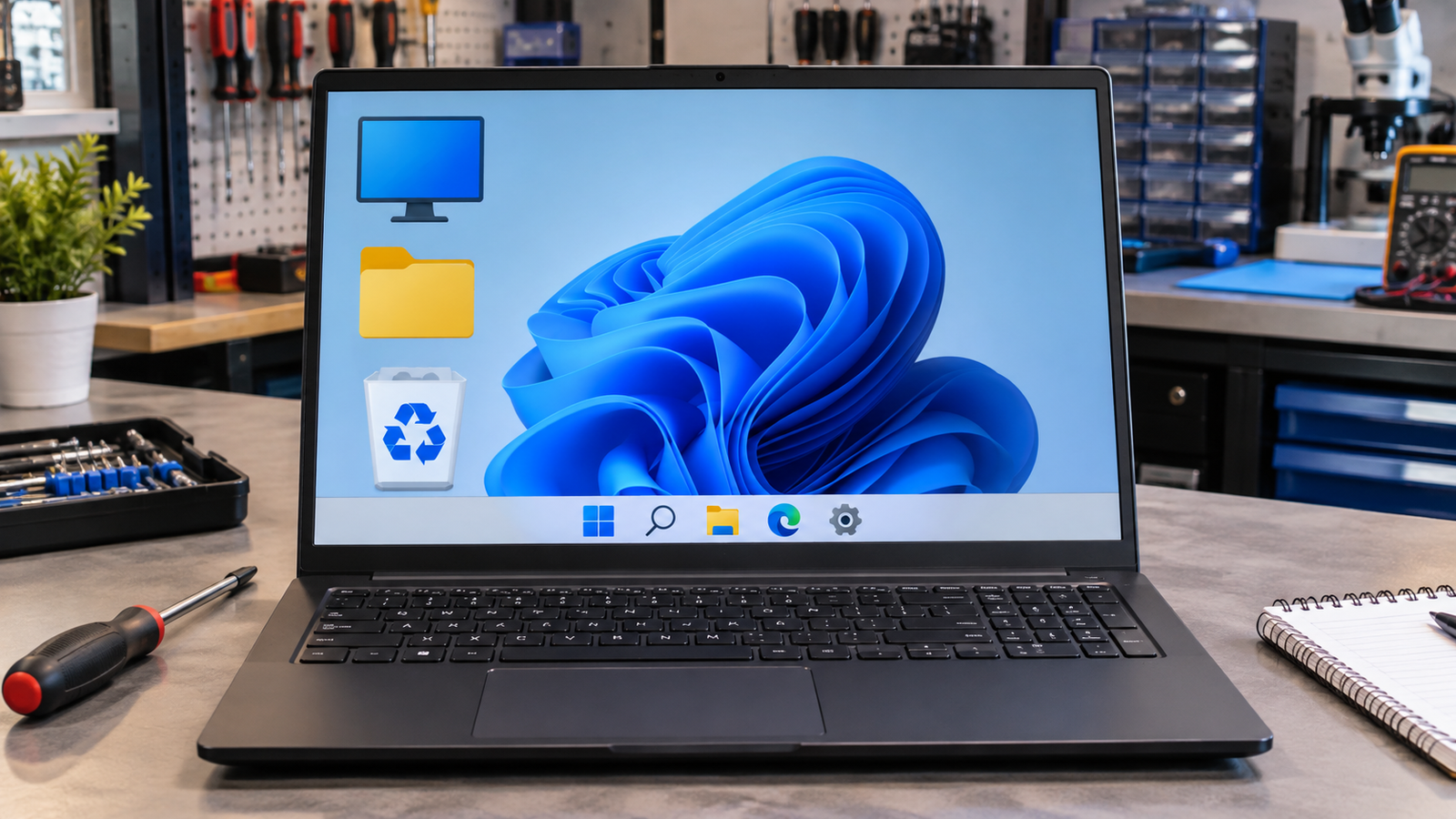
A stuck laptop resolution almost always means Windows has fallen back to the Microsoft Basic Display Adapter, a generic fallback driver that only supports low resolutions. Reinstalling the correct GPU driver from your laptop manufacturer’s website resolves the problem in most cases. Expect the fix to take under 15 minutes and cost nothing.
Introduction
Your screen looks zoomed in, icons are enormous, and the resolution dropdown either shows a single low option or reverts every time you change it. This almost always happens after a Windows Update overwrites your GPU driver with a basic fallback version. This guide covers every confirmed fix, ordered from the fastest software solution to hardware-level causes.
Symptoms

- Resolution locked at 1024×768, 1280×720, or 800×600 regardless of what you select
- Resolution dropdown in Display Settings shows only one or two options
- Selected resolution reverts to the previous setting after clicking Apply
- Everything on screen looks oversized or blurry
- Device Manager shows “Microsoft Basic Display Adapter” instead of your GPU
- Display adapter entry has a yellow warning icon in Device Manager
- Screen looks fine on an external monitor but is stuck on the built-in display
- Resolution changed without warning after a Windows Update or driver install
What Causes a Stuck Laptop Screen Resolution
1. Microsoft Basic Display Adapter has replaced your GPU driver
Windows installs a generic fallback driver when the real GPU driver is missing, corrupted, or incompatible with a recent update. This generic adapter supports only a handful of low resolutions.
Confirm it: Open Device Manager, expand Display Adapters. If it shows “Microsoft Basic Display Adapter” instead of Intel, NVIDIA, or AMD, this is your cause.
2. GPU driver became corrupted after a Windows Update
Major Windows updates frequently overwrite or break existing GPU drivers. The adapter entry in Device Manager may still show your GPU name, but the driver behind it is damaged.
Confirm it: Right-click your GPU in Device Manager, select Properties, then the Driver tab. Check the driver date. If it changed recently and matches your last Windows Update, the update broke it.
3. Monitor detected incorrectly (Generic PnP Monitor)
Windows reads monitor capabilities through EDID data to determine which resolutions to offer. When the monitor is misidentified as a Generic PnP Monitor, Windows restricts the available modes.
Confirm it: In Device Manager, expand Monitors. If it shows “Generic PnP Monitor” on a laptop with a built-in display, monitor detection has failed.
How to Fix a Stuck Laptop Screen Resolution

Fix 1: Reinstall the GPU Driver from the Manufacturer
Cost: Free | Time: 10-15 minutes | Difficulty: Easy
- Open Device Manager (right-click Start, select Device Manager).
- Expand Display Adapters, right-click your GPU or Microsoft Basic Display Adapter, select Uninstall Device. Check “Delete the driver software for this device” if shown.
- Restart your laptop. Windows will reinstall a basic driver automatically.
- Open your browser and go to your laptop manufacturer’s support page (Dell, HP, Lenovo, ASUS, Acer, or MSI) and search by your exact model number.
- Download the latest graphics driver for your model and Windows version.
- Run the installer. Choose “Clean Install” if the option appears.
- Restart and check Display Settings for your full resolution options.
Expected Result: Native resolution returns to the resolution dropdown.
If Failed: Move to Fix 2.
Fix 2: Roll Back the GPU Driver
Cost: Free | Time: 5 minutes | Difficulty: Easy
- Open Device Manager.
- Expand Display Adapters, right-click your GPU, select Properties.
- Go to the Driver tab and click Roll Back Driver.
- Select a reason and click Yes.
- Restart your laptop.
Expected Result: The previous working driver is restored and full resolution returns.
If Failed: The Roll Back button is greyed out if Windows has no stored previous driver. Move to Fix 3.
Fix 3: Fix the Generic PnP Monitor Misdetection
Cost: Free | Time: 5-10 minutes | Difficulty: Easy
- Open Device Manager.
- Expand Monitors. Right-click Generic PnP Monitor and select Update Driver.
- Select “Browse my computer for drivers,” then “Let me pick from a list.”
- Select the correct monitor or the closest Standard Monitor Type that matches your panel’s specs.
- Click Next and apply.
- Restart and check Display Settings.
Expected Result: Windows now correctly reads the monitor’s supported resolutions.
If Failed: Move to Fix 4.
Fix 4: Run a Clean Driver Install Using DDU in Safe Mode
Cost: Free | Time: 20-30 minutes | Difficulty: Moderate
- Download Display Driver Uninstaller (DDU) from wagnardsoft.com.
- Boot into Safe Mode: Hold Shift while clicking Restart, then go to Troubleshoot, Advanced Options, Startup Settings, Restart, and press 4.
- In Safe Mode, run DDU. Select your GPU type (NVIDIA, AMD, or Intel) and click “Clean and Restart.”
- After the restart, Windows will load the generic display adapter.
- Download and install the correct GPU driver from your laptop manufacturer’s site.
- Restart normally.
Expected Result: All previous driver remnants are removed, and the fresh install restores native resolution.
If Failed: Move to Fix 5.
Fix 5: Uninstall the Problematic Windows Update
Cost: Free | Time: 10-15 minutes | Difficulty: Easy
- Open Settings, go to Windows Update, then View Update History.
- Click Uninstall Updates at the top.
- Sort by date and remove the most recent update installed around the time the resolution broke.
- Restart your laptop.
- After confirming the resolution is fixed, pause Windows Updates temporarily to prevent the same update from reinstalling: go to Windows Update, Advanced Options, Pause Updates.
Expected Result: Resolution returns to normal once the conflicting update is removed.
If Failed: Move to Fix 6.
Fix 6: Check the Display Cable Connection (Hardware)
Cost: Free if reseated / $15-40 if cable replaced | Time: 30-60 minutes | Difficulty: Hard
- Shut down and unplug the laptop completely.
- Remove the back panel screws and lift the panel carefully.
- Locate the display cable running from the motherboard to the screen connector near the hinge.
- Disconnect the cable from both ends and reseat it firmly.
- Reassemble and boot.
Expected Result: If a loose eDP/LVDS cable was causing misdetection, the resolution options return after reseating.
If Failed: The cable may be damaged and require replacement, or the panel itself has failed.
Mistakes to Avoid
Forcing a custom resolution before fixing the underlying driver. Using the Custom Resolution Utility or NVIDIA/AMD control panel to force a resolution while the Microsoft Basic Display Adapter is still active masks the real problem and can cause a blank screen that requires a Safe Mode recovery.
Downloading GPU drivers from a generic source instead of your laptop manufacturer. Desktop GPU drivers from NVIDIA.com or AMD.com do not always work correctly on laptops with modified OEM firmware. Get the driver from Dell, HP, Lenovo, ASUS, or your specific brand’s support page.
Skipping DDU and just reinstalling over the existing driver. A standard reinstall leaves corrupted driver files in place. Running DDU in Safe Mode fully removes old driver remnants before the fresh install, which is the difference between a clean fix and a recurring problem.
Updating the monitor driver in Device Manager to a random model. Choosing a monitor type that does not match your panel’s actual resolution and refresh rate can permanently lock you out of valid resolution options.
When to Stop and Get Professional Help
Take the laptop to a technician if Fix 6 is required and you have no disassembly experience, especially on thin-and-light models where ribbon cables tear easily. Seek help immediately if the screen shows physical damage like cracks, discoloration, or horizontal lines alongside the resolution issue, as those point to panel failure rather than a driver problem.
Prevention Tips

- Always download GPU driver updates from your laptop manufacturer’s support page, not from GPU vendor sites directly.
- After any major Windows feature update, check Display Settings before assuming the driver survived intact.
- Pause Windows Updates for seven days after a major release to let early driver conflicts get patched before they hit your machine.
- Keep a note of your laptop’s exact model number so you can find the right driver immediately when needed.
- If you use an external monitor, always safely eject or disconnect the display before shutting down to prevent EDID misdetection on the next boot.
Frequently Asked Questions
Why did my resolution change by itself after a Windows Update?
Windows Updates sometimes replace your manufacturer’s GPU driver with a generic Microsoft Basic Display Adapter. This fallback only supports a small set of low resolutions, which is why the dropdown suddenly shows fewer options.
My GPU shows correctly in Device Manager but the resolution is still stuck. Why?
The device may be listed correctly but running a damaged driver underneath. Check the Driver tab in Properties and look at the driver date. A recent change that coincides with your update date confirms the driver was overwritten.
Will reinstalling the GPU driver delete my files?
No. GPU driver reinstallation only replaces display software. Your personal files, apps, and Windows settings are not affected.
The resolution fixed but reverts every time I restart. What is happening?
Windows Update is reinstalling the broken driver on every boot. Install the correct manufacturer driver, then pause Windows Updates temporarily. You can also use Group Policy or the Microsoft “Show or Hide Updates” tool to block that specific update.
Conclusion
A stuck laptop screen resolution almost always traces back to the Microsoft Basic Display Adapter replacing your real GPU driver after a Windows Update. Reinstalling the correct driver from your laptop manufacturer’s support page fixes the majority of cases in under 15 minutes. If the driver fixes fail, a loose display cable or damaged panel is the next thing to check.