
Quick Answer
The “USB device not recognized” error almost always comes from Windows power management cutting the USB controller, a corrupted USB Root Hub driver, or outdated chipset drivers. Open Device Manager, expand Universal Serial Bus Controllers, right-click every USB Root Hub, and select Uninstall. Restart and let Windows reinstall the drivers automatically. That single step clears the problem in most cases.
Introduction
You plug in a USB drive, a mouse, or an external hard drive and Windows throws up a notification: “USB device not recognized.” Sometimes the device icon appears briefly in the taskbar before disappearing. Other times nothing happens at all. The port looks fine physically and the device works on another computer, so the problem is clearly on your laptop’s end.
This error is one of the most common USB complaints across Windows 10 and 11. It almost never means your laptop’s USB port is physically broken. The root cause is nearly always a driver conflict, a power management setting cutting power to the controller, or a chipset driver that needs updating. Hardware failure is rare, but this guide covers that scenario too so you know when to stop troubleshooting and get professional help.
Work through these fixes in order. Start with the 60-second checks before touching drivers.
Symptoms of the Problem

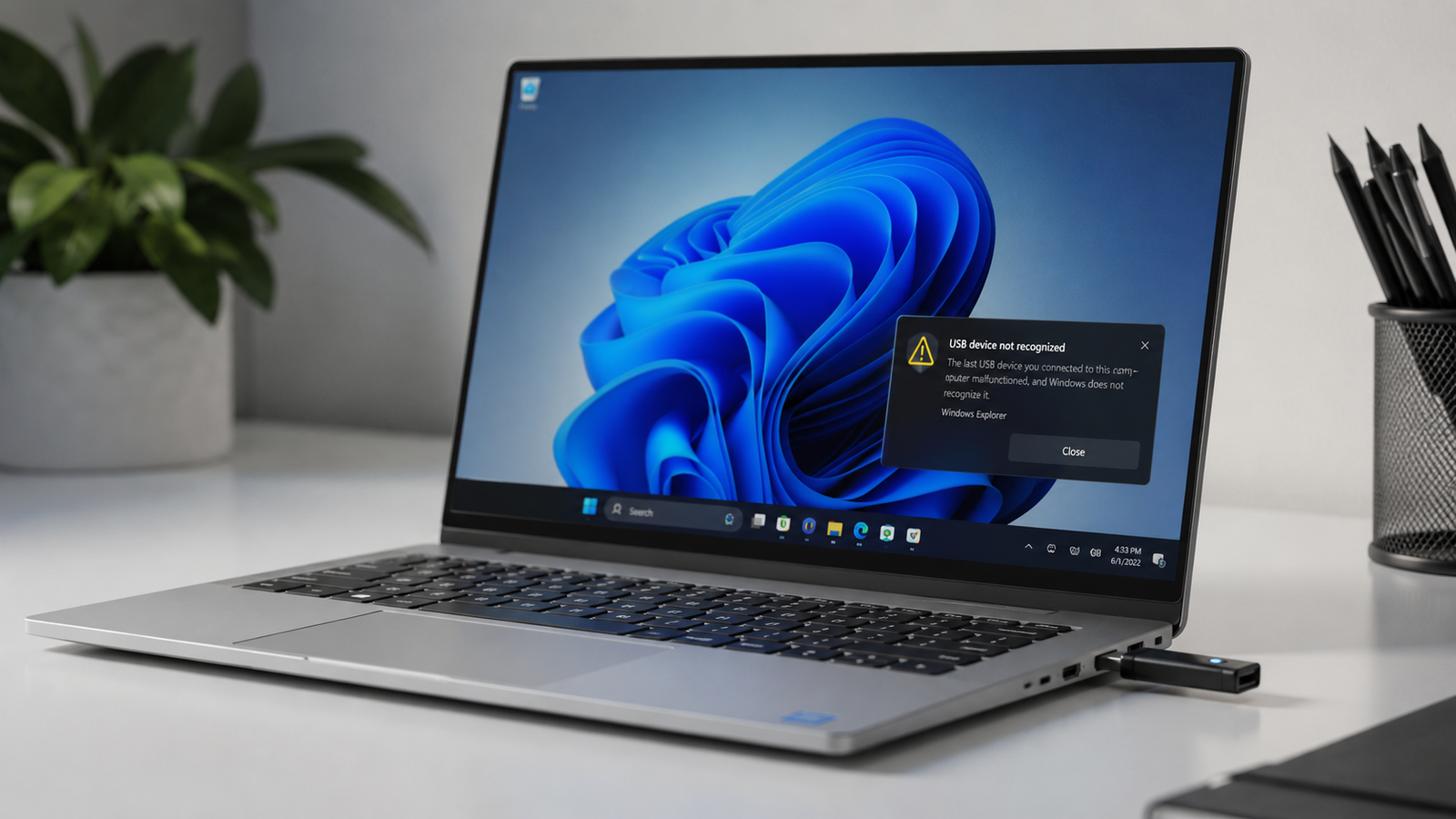
- Windows notification bubble appears: “USB device not recognized” or “The last USB device you connected to this computer malfunctioned”
- Device shows up in Device Manager with a yellow warning triangle
- Error code in Device Manager: “Device Descriptor Request Failed” (Code 43)
- USB device shows up briefly then disappears from File Explorer
- Device works on another computer but not on this laptop
- External hard drive spins and lights up but never appears in File Explorer or Disk Management
- Specific ports fail but others work
- All USB ports fail at the same time after a Windows update
- USB hub or dock stops working even though direct connections still work
Start Here: Fast Diagnosis
Work through this tree before touching any settings.
Does the device work on a different computer?
- Yes, works elsewhere: the problem is your laptop’s USB stack, not the device. Continue below.
- No, fails everywhere: the device itself is dead or failing. Replace the device.
Does the device work on a different port on the same laptop?
- Yes, works on another port: that specific port has a hardware fault or a driver assignment issue. Skip to the port-specific fix.
- No, fails on all ports: the USB controller is the problem. This is a software issue in most cases.
Does the device show up in Device Manager at all (with or without an error)?
- Yes, it shows with a yellow triangle: driver corruption. Uninstall the device and the USB Root Hub drivers, then restart.
- No, it doesn’t appear at all: check if USB is enabled in BIOS, or the device has a power delivery problem.
Did this start after a Windows update?
- Yes: Windows update likely replaced or corrupted the USB or chipset driver. Roll back or reinstall from the manufacturer site.
- No sudden trigger: USB Selective Suspend is the most common silent culprit. Disable it in Power Options.
Tools Needed
Built-in Windows tools:
- Device Manager (devmgmt.msc)
- Disk Management (diskmgmt.msc)
- Command Prompt (administrator)
- Power Options / Advanced Power Settings
- Windows Update
- Hardware Troubleshooter (Settings > System > Troubleshoot)
Optional software:
- Snappy Driver Installer Origin (for driver reinstalls without internet on the affected machine)
Hardware:
- A second known-working USB device to test ports
- Compressed air for port cleaning if physical debris is suspected
Troubleshooting Matrix
| Symptom | Likely Cause | Fast Fix |
| Error on all ports after Windows Update | Driver or chipset update conflict | Reinstall USB Root Hub drivers or roll back chipset |
| Works on one port, fails on another | Port-level hardware fault or power issue | Test remaining ports, check USB 2.0 vs 3.0 port type |
| External hard drive spins but won’t show | Insufficient USB power delivery | Use a powered USB hub or plug directly into wall-powered port |
| Mouse works, flash drive doesn’t | Device-specific firmware or driver conflict | Update chipset, try drive in Disk Management |
| Yellow triangle in Device Manager | Corrupted USB device or Root Hub driver | Uninstall device in Device Manager, restart |
| Device shows then instantly disappears | USB Selective Suspend cutting power | Disable USB Selective Suspend in Power Options |
| BIOS recognizes device but Windows doesn’t | Windows USB driver stack corrupted | Full USB controller reinstall via Device Manager |
| Nothing responds on any USB port | USB disabled in BIOS | Enter BIOS, enable USB under Integrated Devices |
What Causes USB Device Not Recognized

Corrupted or Outdated USB Root Hub Drivers
Windows manages USB devices through the USB Root Hub driver. When this driver gets corrupted by a failed update, a sudden shutdown, or a driver conflict, Windows can no longer hand off power and data commands to the physical port correctly. The device plugs in, gets no response from the driver, and Windows throws the error. This is the single most common cause across all laptop brands.
How to identify it: Yellow exclamation marks on USB entries in Device Manager, or the error message mentions “malfunctioned.”
What users misunderstand: Updating the driver does not always fix this. The corrupted version needs to be uninstalled completely so Windows reinstalls a clean copy from scratch.
Confirmation sign: Uninstalling USB Root Hub entries and restarting brings the device back.
USB Selective Suspend Cutting Power
Windows has a power-saving feature called USB Selective Suspend that puts individual USB ports into a low-power state when the laptop is on battery or idle. On many laptops, especially after Windows 11 updates, this feature cuts power too aggressively and fails to restore it when a new device is plugged in. The port looks dead even though the hardware is fine.
How to identify it: The problem is worse or only happens when on battery, or the device briefly appears and then vanishes.
What users misunderstand: Simply unplugging and replugging doesn’t fix this because the port is still in the suspended state until the setting is changed.
Confirmation sign: Plugging the device in while the laptop is connected to AC power works, but battery mode fails.
Outdated Chipset Drivers
The chipset driver is the foundational software layer that controls how your laptop’s processor communicates with USB controllers, storage, and other hardware. When the chipset driver is outdated or missing, the USB controller can’t receive proper instructions from Windows, causing recognition failures. This is especially common on fresh Windows installations or after major version upgrades.
How to identify it: All USB-connected devices fail sporadically, or the problem started after reinstalling Windows without downloading manufacturer drivers.
What users misunderstand: Windows Update does not always deliver the correct chipset driver. You need to download it directly from your laptop manufacturer’s support page.
Confirmation sign: Installing the manufacturer chipset driver fixes all USB ports simultaneously.
USB Disabled in BIOS
Some laptops ship with USB ports partially restricted in BIOS for security or enterprise deployment reasons. This can also happen accidentally when someone entered BIOS to change boot order and unknowingly disabled a USB option. Dell laptops in particular have a separate “Enable External USB Ports” toggle inside BIOS that is easy to miss.
How to identify it: No USB device is detected by Windows at all, but the device works in BIOS setup when you enter it during startup.
What users misunderstand: Most users never check BIOS because they assume it’s a Windows problem. If the device shows up during BIOS but vanishes after Windows loads, BIOS settings are likely the culprit.
Confirmation sign: USB devices become visible in BIOS but not in Windows.
Insufficient USB Port Power
External hard drives and some other devices require more power than a USB 2.0 port can supply (500mA) or even some USB 3.0 ports on laptops set to low-power mode (up to 900mA normally, but reduced under battery savings). If the device needs more current than the port can deliver, Windows detects an error and reports the device as unrecognized.
How to identify it: The problem only affects power-hungry devices like external hard drives, not mice or keyboards. The drive’s light may flicker or stay off.
What users misunderstand: The USB 3.0 port (blue tab inside) supplies more power than USB 2.0 (black tab). Moving the device to the blue port alone often fixes this.
Confirmation sign: Using a self-powered USB hub or plugging the drive into the blue USB 3.0 port resolves it.
Faulty USB Flash Drive or Device
The device itself can fail. Flash drives have a finite number of read/write cycles and the controller chip fails silently. External hard drives develop bad sectors or firmware corruption that causes detection errors. A faulty device will often show the yellow triangle with Code 43 no matter which laptop it’s plugged into.
How to identify it: The device fails on multiple computers, not just yours.
What users misunderstand: A device that lights up or spins is not necessarily functional. The controller can fail while the physical motor or LED still has power.
Confirmation sign: The device fails on a second and third computer consistently.
Physical Port Damage
Repeated plugging and unplugging eventually bends or loosens the USB port’s internal contacts. A slightly bent pin inside the port can make intermittent contact, causing Windows to detect and lose the device repeatedly. This is a hardware issue that software cannot fix.
How to identify it: The device is detected only when you hold the cable at a specific angle, or it disconnects when the laptop is moved.
What users misunderstand: This type of damage looks subtle. A port can feel physically fine to the touch while a single internal pin is bent just enough to cause intermittent contact loss.
Confirmation sign: The device works on every other port but never on this specific one.
What We See Most Often
The overwhelming majority of USB device not recognized complaints come from two places: USB Selective Suspend and corrupted USB Root Hub drivers. These two causes together account for most of what we see in repair settings.
USB Selective Suspend trips people up because it’s invisible. The laptop looks normal, the port looks fine, and the device worked yesterday. What changed is that Windows decided to cut power to the controller more aggressively after a background update or power settings adjustment. The device never gets a proper handshake and Windows reports it as unrecognized.
The second pattern we see frequently is all USB ports failing after a Windows 11 major update. The update replaces or partially overwrites the chipset driver, and suddenly no USB device works reliably. Installing the correct chipset driver directly from the laptop manufacturer’s support page, not from Windows Update, is the fix that holds.
Physical port damage comes in third place, mostly on laptops that see heavy travel or are used by multiple people. A port that worked for two years will sometimes fail after one too many USB insertions at an angle.
How to Diagnose the Problem

Step 1: Test with a different USB device
Plug a USB mouse or a known-working flash drive into the port. If it works, the original device is failing, not the port.
Expected Result: The substitute device is detected immediately.
If Failed: Move to Step 2. The port or controller itself has an issue.
Step 2: Test the same device on a different port
Move the original device to a different USB port on the same laptop. If possible, try the blue USB 3.0 port.
Expected Result: Device is recognized on the alternate port.
If Failed: The issue is system-wide, not port-specific. Move to Step 3.
Step 3: Check Device Manager for errors
Press Win + X and select Device Manager. Expand Universal Serial Bus Controllers. Look for any entries with a yellow triangle.
Expected Result: You see one or more entries with warning symbols.
If Failed (no warnings visible): The device may not be registering at all. Move to Step 4.
Step 4: Check if USB is enabled in BIOS
Restart the laptop and press the BIOS key repeatedly as it boots (F2 on most Dell and ASUS, F10 on HP, F1 or Enter on Lenovo). Navigate to Advanced > USB Configuration or Integrated Devices and confirm USB ports are enabled.
Expected Result: USB is enabled in BIOS. Exit and test.
If Failed: Enable USB in BIOS, save and exit, then retest.
Step 5: Test in Safe Mode
Restart into Safe Mode (hold Shift while clicking Restart > Troubleshoot > Advanced Options > Startup Settings > Restart > press 4). Plug in the USB device.
Expected Result: Device is recognized in Safe Mode.
If So: A third-party driver or software is conflicting in normal mode. Move to a clean reinstall of USB drivers.
If Failed in Safe Mode Too: The USB controller driver within Windows itself is corrupted, or there is a hardware fault.
Which Fix Usually Works?
| Fix | Typical Success | Cost | Difficulty |
| Uninstall USB Root Hub drivers and restart | Very Common | Free | Easy |
| Disable USB Selective Suspend | Very Common | Free | Easy |
| Update or reinstall chipset drivers | Common | Free | Easy |
| Enable USB in BIOS | Common | Free | Easy |
| Power cycle (battery removal + drain) | Common | Free | Easy |
| Try a different USB port | Common | Free | Easy |
| Use a powered USB hub | Common | $15-$30 | Easy |
| Run Windows Hardware Troubleshooter | Occasional | Free | Easy |
| Full USB controller driver reinstall | Occasional | Free | Moderate |
| USB port physical repair or board rework | Rare | $40-$120 | Professional |
Step-by-Step Fixes

Fix 1: Reconnect to a Different Port and Power Cycle
Cost: Free Time: 2 minutes Difficulty: Easy
Steps:
- Unplug the USB device.
- Unplug the laptop’s AC adapter.
- If your laptop has a removable battery, remove it. If not, proceed to step 4.
- Hold the power button for 30 seconds to drain residual power from the motherboard’s USB controller.
- Reconnect AC power (no battery yet if you removed it).
- Plug the USB device into a different port, preferably the blue USB 3.0 port.
- Reinsert the battery if you removed it.
Expected Result: Windows recognizes the device immediately.
If Failed: Move to Fix 2.
Technician Tip: This power drain step forces the USB controller to reset at the hardware level, not just at the Windows driver level. It clears stuck states that a normal restart won’t clear.
Fix 2: Uninstall USB Root Hub Drivers and Restart
Cost: Free Time: 5 minutes Difficulty: Easy
Steps:
- Press Win + X and select Device Manager.
- Expand Universal Serial Bus Controllers.
- Right-click the first USB Root Hub entry and select Uninstall device.
- Repeat for every USB Root Hub entry. Do not uninstall other entries like USB host controllers yet.
- Do not restart yet. Uninstall all Root Hub entries first.
- Restart the laptop.
Windows automatically reinstalls clean USB Root Hub drivers during startup.
- After restart, plug the USB device in and test.
Expected Result: Device is recognized without any error.
If Failed: Move to Fix 3.
Technician Tip: If your only input device is USB (keyboard or mouse), connect a PS/2 keyboard if available, or use the on-screen keyboard through the accessibility button on the login screen to navigate.
Fix 3: Disable USB Selective Suspend
Cost: Free Time: 5 minutes Difficulty: Easy
Steps:
- Click Start and type “Edit power plan” and open it.
- Click Change advanced power settings.
- In the Power Options window, scroll down to USB settings.
- Expand USB settings, then expand USB selective suspend setting.
- Change both On battery and Plugged in to Disabled.
- Click Apply then OK.
- Restart the laptop.
Expected Result: USB devices are detected consistently regardless of battery state.
If Failed: Move to Fix 4.
Technician Tip: This setting is especially important on gaming laptops and thin-and-light machines that use aggressive power profiles. Disabling it has negligible impact on battery life in practice.
Fix 4: Update or Reinstall Chipset Drivers
Cost: Free Time: 10 minutes Difficulty: Easy
Steps:
- Identify your laptop model (check the sticker on the bottom or press Win + R and type msinfo32).
- Go to your manufacturer’s support page:
- Dell: dell.com/support
- HP: support.hp.com
- Lenovo: support.lenovo.com
- ASUS: asus.com/support
- Acer: acer.com/support
- Search by your model number or service tag.
- Under Drivers and Downloads, filter by Chipset.
- Download and install the latest chipset driver.
- Restart the laptop.
Expected Result: All USB ports work reliably after restart.
If Failed: Move to Fix 5.
Technician Tip: If the manufacturer’s site asks for your OS version, always specify Windows 11 64-bit unless you’re on an older install. Installing a Windows 10 chipset driver on a Windows 11 system can introduce new conflicts.
Expert Warning: Do not download chipset drivers from third-party driver aggregator sites. Use only the official manufacturer support page or Intel/AMD’s official driver tools.
Fix 5: Enable USB in BIOS
Cost: Free Time: 5 minutes Difficulty: Easy
Steps:
- Restart the laptop.
- As it powers on, press the BIOS key repeatedly:
- Dell: F2
- HP: F10 or Esc then F10
- Lenovo: F1 or Enter during the logo screen
- ASUS: F2 or Delete
- Acer: F2 or Delete
- Navigate to Advanced settings or Integrated Devices.
- Look for USB Configuration, External USB Ports, or Enable USB.
- Set to Enabled.
- Press F10 to save and exit.
- Test after Windows loads.
Expected Result: USB devices are now detected in Windows.
If Failed: Move to Fix 6.
Technician Tip: On Dell laptops specifically, look for “Enable External USB Ports” as a standalone checkbox. It is separate from the general USB enable setting and is sometimes toggled off by accident.
Fix 6: Full USB Controller Reinstall
Cost: Free Time: 15 minutes Difficulty: Moderate
Steps:
- Open Device Manager (Win + X > Device Manager).
- Expand Universal Serial Bus Controllers.
- Right-click each item in the list and select Uninstall device. This includes USB Root Hubs, USB Host Controllers, and USB Enhanced Host Controllers.
- Before restarting: disconnect all USB devices except your mouse/keyboard if they are wired.
- Restart the laptop.
- Windows reinstalls all USB controller drivers automatically.
- Plug in the USB device and test.
Expected Result: Full USB stack is refreshed and devices are detected cleanly.
If Failed: Move to Fix 7.
Technician Tip: If Windows can’t reinstall the drivers automatically after restart, manually trigger it by opening Device Manager and clicking Action > Scan for hardware changes.
Fix 7: Disable USB Selective Suspend via Registry (Advanced)
Cost: Free Time: 10 minutes Difficulty: Moderate
Use this only if Fix 3 didn’t hold or the Power Options menu doesn’t show USB settings.
Steps:
- Press Win + R, type regedit, and run as administrator.
- Navigate to: HKEY_LOCAL_MACHINE\SYSTEM\CurrentControlSet\Services\USB
- If a DisableSelectiveSuspend value exists, set it to 1.
- If it doesn’t exist, right-click the right pane, select New > DWORD (32-bit) Value, name it DisableSelectiveSuspend, and set its value to 1.
- Close Registry Editor.
- Restart the laptop.
Expected Result: USB Selective Suspend is permanently disabled at the system level.
If Failed: Move to Fix 8.
Expert Warning: Only edit registry values you recognize. Do not modify other entries in this path.
Fix 8: Run DISM and SFC to Repair Windows USB Stack
Cost: Free Time: 20 minutes Difficulty: Moderate
Steps:
- Open Command Prompt as administrator (search cmd > right-click > Run as administrator).
- Type this command and press Enter: DISM /Online /Cleanup-Image /RestoreHealth
- Wait for the scan to complete. This can take 10 to 20 minutes.
- After DISM finishes, type: sfc /scannow
- Restart after both scans complete.
Expected Result: Corrupted Windows system files including USB driver components are repaired.
If Failed: The issue is hardware-level. Proceed to the hardware section below.
Technician Tip: DISM downloads replacement files from Windows Update, so the laptop needs a working internet connection during this step. Use the built-in WiFi or a USB ethernet adapter if your LAN port is available.
Mistakes That Make the Problem Worse
1. Downloading drivers from third-party sites Users search for chipset or USB drivers and land on driver aggregator sites that serve outdated or mismatched driver packages. Installing the wrong chipset driver version can break all USB ports simultaneously or cause BSOD on restart. Always get drivers from your laptop manufacturer’s official support page.
2. Deleting USB Host Controller entries without planning Uninstalling USB Host Controllers (not Root Hubs) while the only input devices are USB mice and keyboards leaves you unable to control the laptop until the drivers are reinstalled on restart. If your only input devices are USB, use the on-screen keyboard or have a plan before uninstalling everything.
3. Reinstalling Windows without downloading chipset drivers first A clean Windows install will not have the correct chipset driver for your laptop. Without it, USB may be partially functional at best. Always download chipset and USB drivers from the manufacturer’s site to a local folder or a known-working USB drive before starting the reinstall.
4. Forcing USB hubs to power-hungry devices Using an unpowered USB hub with an external hard drive often makes the problem worse because the hub splits the port’s already-limited power across multiple devices. If the drive needs more power than the port supplies, use a self-powered hub (one with its own AC adapter) or plug the drive directly into the laptop.
5. Updating BIOS as a first step BIOS flashes carry a small risk of bricking the laptop if interrupted. Several users report jumping to a BIOS update before trying driver-level fixes and ending up with a more serious problem. Try every software fix first. BIOS update is only appropriate when the manufacturer’s release notes specifically mention a USB fix for your model.
6. Ignoring the USB 2.0 vs 3.0 distinction Plugging a USB 3.0 flash drive into a USB 2.0 port reduces transfer speeds but usually works. However, plugging a USB 3.0 device into a USB 2.0 port while the USB 3.0 controller driver is corrupted can trigger recognition failures that don’t happen on the blue port. Always try the blue USB 3.0 port first when diagnosing.
7. Assuming hardware failure before exhausting software fixes USB controller hardware failure on laptops is rare compared to driver and software issues. Many users go straight to “I need a new laptop” when a chipset driver reinstall would have fixed everything in 10 minutes.
8. Pulling drives during transfer Removing a USB flash drive or external hard drive while Windows is still writing data corrupts the drive’s partition table or file system. The next time it’s plugged in, it may not show up in File Explorer at all, even though the hardware is fine. Always eject safely through the system tray.
Brand-Specific Considerations
Dell
Dell laptops have a BIOS option labeled “Enable External USB Ports” under Advanced > Integrated Devices that is separate from the general USB enable setting. This toggle is toggled off accidentally more often than you’d expect, especially on machines that have been in enterprise environments. If all USB ports fail simultaneously and Device Manager shows no USB devices at all, check this setting before doing anything else.
Dell’s SupportAssist application can scan and install chipset and USB drivers automatically. Run it before manual driver hunting.
HP
HP laptops frequently encounter the “USB device not recognized” error after major Windows version upgrades because HP’s custom USB power management driver conflicts with the Windows 11 USB stack. Go to support.hp.com, enter your serial number, and download the chipset and USB driver package specific to your model. HP’s BIOS USB settings are typically under Security > USB Security.
HP also ships some models with a “charging-only” USB port that will not enumerate data devices. If your USB data device fails consistently on one port but others work, check your model’s spec sheet to confirm which port is data-capable.
Lenovo
Lenovo ThinkPads run Lenovo Vantage, which includes a hardware diagnostics tool that tests USB port functionality at the hardware level before you spend time on software. Run the USB port test through Vantage first. Lenovo’s BIOS calls the relevant setting “USB Port” under Config > USB, and some enterprise ThinkPads ship with USB ports disabled by policy.
Lenovo also uses Intel chipsets almost universally, so downloading the Intel Chipset Software Installation Utility directly from Intel is a reliable fallback if the Lenovo support page version is outdated.
ASUS
ASUS ROG and TUF gaming laptops have aggressive power profiles called Armoury Crate performance modes that can override Windows power management settings and apply their own USB power limits. If USB recognition issues start after enabling a performance or silent mode in Armoury Crate, reset the power plan to Balanced in Armoury Crate and test again.
ASUS’s BIOS USB setting is found under Advanced > USB Configuration. Enable “Legacy USB Support” if it is disabled, as some USB 2.0 devices require it for full recognition.
Acer
Acer laptops are known for shipping with aggressive USB power saving defaults. The Acer Care Center application includes a power management section where USB power settings can be adjusted outside of standard Windows Power Options. If Power Options changes don’t stick across restarts, check Acer Care Center for overriding settings.
MSI
MSI gaming laptops use Dragon Center or MSI Center to manage performance profiles. These applications can apply USB selective suspend settings that override standard Windows configurations. Disable power saving on USB devices within MSI Center under General > Power Management before trying any Windows-level fix.
Repair Shop Diagnosis

When a USB device not recognized issue comes into a repair shop, the first thing a technician checks is whether the problem is in Windows or below it. Plugging a USB device and entering BIOS setup immediately answers that question. If BIOS sees the device, it’s a Windows software problem. If BIOS doesn’t see it either, the hardware is failing.
After confirming it’s a software problem, the technician reinstalls USB Root Hub drivers, checks power management settings, and runs a chipset driver update. This three-step process resolves the vast majority of cases in under 30 minutes.
If the issue persists past software fixes, the technician uses a USB test tool or a known-good bootable USB drive (like a Linux live boot) to test the ports outside of Windows entirely. If the ports work in Linux but not Windows, the Windows USB stack is corrupted deeply and a fresh Windows install is the fastest path. If the ports fail in Linux too, the hardware is the problem.
For confirmed hardware failures, the USB controller is soldered directly onto the motherboard in every modern laptop. That means a failing USB controller requires either a full motherboard replacement or a skilled micro-soldering rework of the USB controller IC, a job for a specialist repair shop with the right equipment.
Diagnostic-only fees run $30 to $60. USB driver reinstall or chipset fix is typically $50 to $80 in labor. Motherboard replacement runs $150 to $400 depending on the model.
When Hardware Replacement Is Necessary
USB controller failure on the motherboard: If the ports work in BIOS but fail in Windows after a full OS reinstall, and another USB port on the same chip works fine while one doesn’t, the hardware is failing. This requires a motherboard replacement or micro-soldering repair.
Physically damaged ports: A port where the internal plastic tab is broken, the pins are visibly bent, or the port housing is loose from the board needs soldering repair. You can see this by shining a phone flashlight into the port. Bent pins and a loose housing are hardware problems that no driver fix can address.
USB power delivery circuit failure: Some laptops have a dedicated power management IC that controls power to USB ports. When this fails, the ports get no power regardless of what drivers or settings say. A technician can confirm this with a multimeter.
Stop Troubleshooting and Seek Professional Repair If
You see a burning smell near the USB port. This means the power delivery circuit has shorted. Continued use risks damage to the motherboard.
The port feels hot to the touch. Heat around a USB port indicates a short or a failing power regulation component. Stop using that port immediately.
The laptop restarted or shut down when you plugged in a USB device. This points to a power surge on the USB bus, which can indicate a damaged power circuit.
You see a “Power Surge on USB Port” error message. Windows is detecting excess power draw from the port. Continued use can damage the USB controller and the devices you plug in.
All ports stopped working after you got liquid near them. Liquid damage corrodes USB port contacts and can short the USB controller. A professional needs to assess and clean the board before you try anything else.
No USB device is detected even in BIOS after exhausting every software fix. This is a hardware failure. Further software troubleshooting won’t help.
Prevention Tips

Eject USB devices properly before removing them.
Use the Safely Remove Hardware icon in the system tray. Yanking drives during active file operations corrupts the drive’s partition table and can eventually cause the port to stop enumerating the drive correctly.
Use the blue USB 3.0 port for storage devices and the black USB 2.0 port for low-draw devices like mice.
Matching power demand to port capability reduces recognition failures.
Keep chipset drivers up to date after every major Windows version upgrade.
Windows 11 updates sometimes replace manufacturer-supplied chipset drivers with generic Microsoft versions that perform worse. Check your manufacturer’s support page after every major update.
Avoid cheap or uncertified USB cables.
Low-quality cables cause intermittent connection problems that Windows reads as recognition failures. Cables with a USB-IF certification mark are built to spec.
Keep the USB ports clean.
Pocket lint and dust inside a port causes intermittent contact. A quick blast of compressed air every few months keeps contacts clean without abrasion.
Use a powered USB hub for external hard drives.
If your workflow requires connecting external storage regularly, a powered hub removes the laptop’s USB port power limit from the equation entirely.
Disable USB Selective Suspend proactively on laptops that stay plugged in most of the time.
If the machine is mostly used at a desk on AC power, there’s no reason to let power management interfere with USB devices.
Frequently Asked Questions

Why does my USB device work on other computers but not on my laptop?
The issue is specific to your laptop’s USB driver stack or power settings, not the device. The most common cause is a corrupted USB Root Hub driver or USB Selective Suspend cutting power to the controller. Reinstall the USB Root Hub drivers in Device Manager and disable USB Selective Suspend in Power Options.
Why did this start happening after a Windows update?
Windows updates sometimes replace manufacturer-supplied chipset or USB drivers with generic Microsoft versions that perform poorly on certain hardware. Download and reinstall the chipset driver directly from your laptop manufacturer’s support page. That usually reverses the effect.
My external hard drive lights up and spins but doesn’t show in File Explorer. What’s wrong?
The drive is receiving enough power to spin but Windows isn’t enumerating it correctly. Open Disk Management (Win + R > diskmgmt.msc) and check if the drive appears there without a drive letter. If it shows in Disk Management, right-click it and assign a drive letter. If it doesn’t show at all, the USB driver is blocking detection entirely.
Can I fix a physically damaged USB port at home?
Only if you’re comfortable with soldering and have the right tools. Replacing a USB port requires removing the motherboard, desoldering the damaged port, and soldering a replacement in the same footprint. Most people should take this to a repair shop. Attempting it without experience often causes irreversible motherboard damage.
The Windows Hardware Troubleshooter says it fixed the problem but it’s still broken. What now?
The hardware troubleshooter reports “fixed” even when it fails to resolve the underlying issue. Ignore that result and move to a manual USB Root Hub driver reinstall and chipset driver update from the manufacturer’s support page.
Do I need to reinstall Windows to fix this?
In most cases, no. A clean Windows install is a last resort. Running DISM and SFC to repair corrupted system files, reinstalling USB Root Hub drivers, and updating the chipset driver resolves the problem without a full reinstall in the majority of cases.
Why does the error say “Device Descriptor Request Failed”?
This specific error means Windows sent a request to the USB device asking it to identify itself, and the device didn’t respond correctly. This can mean the device firmware has an issue, the USB cable is damaged, or the USB port is delivering unstable power. Try the device with a different cable first, then test on a different port.
Conclusion
The “USB device not recognized” error on a laptop is almost always a software problem, not a hardware one. Reinstalling USB Root Hub drivers in Device Manager, disabling USB Selective Suspend, and updating the chipset driver from your manufacturer’s support page resolve the vast majority of cases without costing anything. Hardware failure, typically a physically damaged port or a failed USB controller IC on the motherboard, is rare and almost always preceded by clear physical symptoms like bent pins, visible damage, or heat. Start with the software fixes in this guide, work in order, and you’ll have the problem resolved in most cases within 30 minutes.