
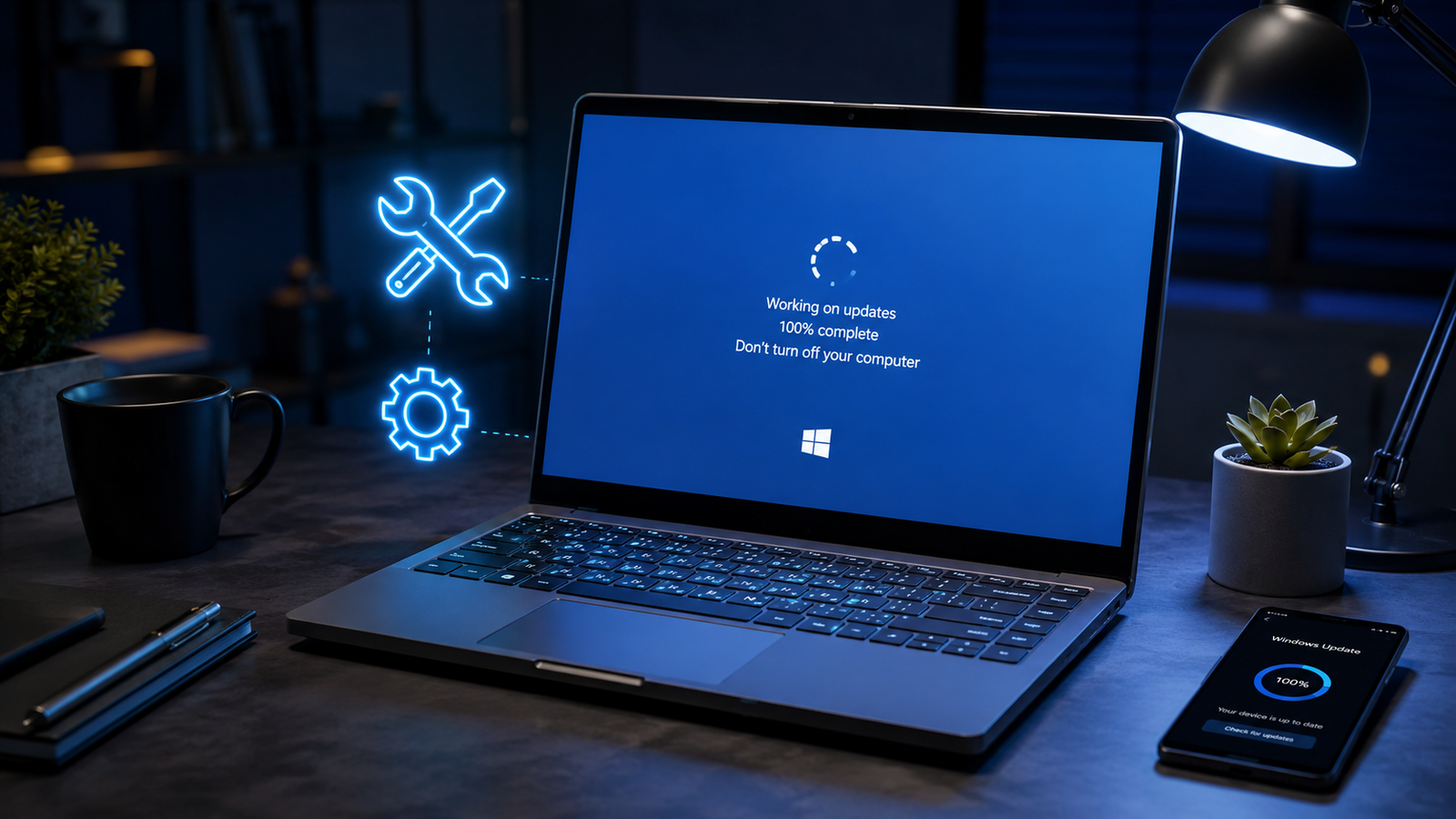
A Windows update stuck issue is usually caused by corrupted update files, low disk space, broken Windows services, driver conflicts, or interrupted downloads. You can fix it by restarting update services, clearing the SoftwareDistribution folder, running built-in troubleshooters, repairing system files, or manually installing the failed update.
• Restart Windows Update services and clear cached files
• Repair corrupted system files with SFC and DISM commands
• Use Safe Mode if Windows freezes during updates
Windows updates freezing at 0%, 20%, 57%, 98%, or “Working on updates” for hours is one of the most frustrating PC problems. Many users force-shut down the computer repeatedly, which often creates even bigger startup issues and corrupted system files.
This problem usually appears after interrupted downloads, damaged update caches, unstable drivers, insufficient storage space, or failed cumulative updates. The good news is that most stuck update problems can be fixed without reinstalling Windows. The solutions below move from quick fixes to advanced recovery methods used by repair technicians.
Symptoms of the Problem

A stuck Windows update can appear in several different ways depending on the stage where the installation failed.
Common symptoms include:
- Windows Update stuck at 0%, 20%, 35%, 57%, 88%, or 100%
- Endless “Checking for updates” message
- “Working on updates. Don’t turn off your computer” for several hours
- Black screen with spinning dots after restart
- Laptop keeps restarting during update installation
- Windows update download frozen indefinitely
- PC becomes extremely slow during update process
- Blue Screen errors after installing updates
- Error codes like 0x80070002, 0x800f081f, or 0x8024a105
- Keyboard and mouse stop responding during updates
- Windows boot loop after failed update
- Update installs repeatedly but never completes
System Requirements & Tools Needed

You’ll need a few built-in Windows utilities and optional recovery tools to safely fix the issue.
Required tools and utilities:
- Windows Settings app
- Command Prompt (Administrator)
- Windows Update Troubleshooter
- Safe Mode
- File Explorer
- Task Manager
- Stable internet connection
- At least 20GB free disk space
- USB drive (optional for recovery)
- Windows installation media (advanced repairs only)
Troubleshooting Matrix

| Observed Symptom | Potential Root Cause | Recommended Fast Fix |
| Update stuck at 0% | Broken update services | Restart Windows Update services |
| Endless “Checking for updates” | Corrupted cache files | Clear SoftwareDistribution folder |
| PC frozen during restart | Driver conflict | Boot into Safe Mode |
| Update reaches 100% but fails | Corrupted system files | Run SFC and DISM scans |
| Laptop boot loop after update | Failed cumulative update | Use Startup Repair |
| Update download extremely slow | Weak internet or Microsoft server issue | Pause and retry updates |
| Error code appears repeatedly | Damaged update components | Reset Windows Update manually |
| Black screen after update | GPU or display driver issue | Roll back graphics driver |
Step-by-Step Fixes

Restart the Computer Properly
A full restart resolves temporary update service failures and clears locked installation processes.
- Hold the power button for 10 seconds until the PC shuts down completely.
- Disconnect external devices except keyboard and mouse.
- Wait 60 seconds before turning the PC back on.
- Let Windows attempt the update process again.
- Check if the progress percentage begins moving normally.
⚠️ EXPERT WARNING: Do not repeatedly force shut down the computer while updates are installing. This damages system files and can trigger startup repair loops.
Wait Longer Before Assuming the Update Is Frozen
Large cumulative updates can legitimately take over an hour on slower HDD systems.
Many users interrupt updates too early when the system is actually still processing files in the background.
Signs the update is still active:
- Hard drive light continues blinking
- Cooling fans periodically increase speed
- Spinning dots are still moving
- Percentage changes slowly every 15–30 minutes
Wait at least:
- 30 minutes on SSD systems
- 2 hours on older HDD laptops
If absolutely nothing changes after those periods, continue with the fixes below.
Run the Windows Update Troubleshooter
The built-in troubleshooter repairs common update database problems automatically.
- Open Settings
- Go to System > Troubleshoot
- Click Other troubleshooters
- Find Windows Update
- Press Run
- Let Windows scan and apply fixes
- Restart the computer
After rebooting:
- Open Settings
- Go to Windows Update
- Click Check for updates
This resolves many stuck download problems immediately.
Free Up Disk Space
Low storage space frequently causes updates to freeze during unpacking or installation.
- Open File Explorer
- Right-click the system drive (usually C:)
- Select Properties
- Click Disk Cleanup
- Remove:
- Temporary files
- Windows Update Cleanup
- Delivery Optimization Files
- Recycle Bin contents
Aim for at least:
- 20GB free space for Windows 11
- 10GB free space for Windows 10
💡 TIP: Large video files and game installations are often the fastest way to recover storage space quickly.
Restart Windows Update Services
Restarting update services resets frozen background tasks.
- Press Windows + R
- Type services.msc
- Press Enter
Find and restart these services one by one:
- Windows Update
- Background Intelligent Transfer Service (BITS)
- Cryptographic Services
To restart:
- Right-click the service
- Choose Restart
After restarting services:
- Reboot the PC
- Retry the update
Clear the SoftwareDistribution Folder
Deleting corrupted update cache files resolves most stuck Windows update downloads.
- Open Command Prompt as Administrator
- Run these commands one at a time:
net stop wuauserv
net stop bits
- Open File Explorer
- Go to:
C:\Windows\SoftwareDistribution
- Delete everything inside the folder
- Return to Command Prompt
- Run:
net start wuauserv
net start bits
- Restart your computer
Windows automatically rebuilds the folder with fresh update files.
⚠️ EXPERT WARNING: Delete only the contents inside SoftwareDistribution, not the folder itself.
Run SFC and DISM Repair Commands
Corrupted Windows system files commonly prevent updates from completing successfully.
Run System File Checker first:
- Open Command Prompt as Administrator
- Enter:
sfc /scannow
- Wait for the scan to complete fully
Next, repair the Windows image:
DISM /Online /Cleanup-Image /RestoreHealth
These scans can take 20–45 minutes depending on system speed.
After completion:
- Restart the computer
- Retry Windows Update
This fix is especially effective for updates stuck at 100%.
Boot Into Safe Mode
Safe Mode disables unnecessary drivers and startup programs that interfere with updates.
- Hold Shift
- Click Restart
- Choose:
- Troubleshoot
- Advanced Options
- Startup Settings
- Restart
- Press 4 for Safe Mode
Once inside Safe Mode:
- Open Windows Update
- Retry the installation
- Or uninstall the problematic update
If the update installs successfully in Safe Mode, a background application or driver caused the issue.
Disconnect External Devices
External hardware can interrupt update initialization.
Disconnect:
- USB drives
- Printers
- Gaming controllers
- Docking stations
- External GPUs
- SD cards
Then restart the update process.
This is especially important for laptops freezing during reboot stages.
Pause and Resume Updates
Pausing updates forces Windows to refresh the download session.
- Open Settings
- Go to Windows Update
- Click Pause updates
- Restart the PC
- Return and click Resume updates
This resolves stalled downloads caused by unstable internet sessions.
Install the Update Manually
Manual installation bypasses the built-in Windows Update mechanism entirely.
- Open Windows Update
- Note the KB update number
- Visit the official Microsoft Update Catalog
- Search the KB number
- Download the correct version
- Run the installer manually
This method works well for stubborn cumulative updates that repeatedly fail.
Reset Windows Update Components Completely
A full reset repairs severely damaged update infrastructure.
Open Command Prompt as Administrator and run:
net stop bits
net stop wuauserv
net stop cryptsvc
net stop msiserver
Rename update folders:
ren C:\Windows\SoftwareDistribution SoftwareDistribution.old
ren C:\Windows\System32\catroot2 Catroot2.old
Restart services:
net start bits
net start wuauserv
net start cryptsvc
net start msiserver
Restart the computer afterward.
This fix resolves deeply corrupted update databases.
Use Startup Repair
Startup Repair fixes update-related boot loops automatically.
- Force shutdown the PC three times during startup
- Windows enters Recovery Mode
- Choose:
- Troubleshoot
- Advanced Options
- Startup Repair
Windows scans startup files and repairs damaged boot entries.
Uninstall the Latest Update
Removing the failed update often restores system stability immediately.
- Boot into Recovery Mode
- Open:
- Troubleshoot
- Advanced Options
- Uninstall Updates
Choose:
- Uninstall latest quality update
- Or uninstall latest feature update
Restart after removal.
Perform a Clean Boot
Third-party software frequently blocks update installation processes.
- Press Windows + R
- Type:
msconfig
- Open the Services tab
- Check Hide all Microsoft services
- Click Disable all
- Open Startup
- Disable unnecessary startup apps
- Restart the PC
Retry Windows Update afterward.
💡 TIP: Antivirus programs are among the most common causes of Windows update freezes.
Update Device Drivers
Outdated drivers can crash the update process during system initialization.
Focus especially on:
- Graphics drivers
- Storage controller drivers
- Chipset drivers
- Wi-Fi drivers
Update them through:
- Device Manager
- Manufacturer support pages
- Windows optional updates
Avoid random driver updater programs from unknown websites.
Use System Restore
System Restore returns Windows to a stable state before the update failure occurred.
- Boot into Recovery Mode
- Select:
- Troubleshoot
- Advanced Options
- System Restore
- Choose a restore point created before the update issue began
This preserves personal files while reversing problematic system changes.
Reinstall Windows Without Losing Files
If all repairs fail, reinstalling Windows resolves persistent update corruption.
Use the built-in reset feature:
- Open Recovery options
- Choose Reset this PC
- Select Keep my files
Windows reinstalls core system files while preserving personal data.
⚠️ EXPERT WARNING: Back up important files before performing any reset or reinstall procedure.
When to Replace Hardware & Prevention Tips

Some update failures are actually symptoms of failing hardware rather than software corruption.
Consider hardware replacement if:
- The SSD or HDD shows bad sectors
- SMART disk warnings appear
- RAM fails memory diagnostics
- The system overheats during updates
- Random crashes continue after clean Windows installation
- BIOS corruption prevents stable booting
A failing storage drive is one of the biggest causes of endless update loops and frozen installations.
Prevention tips:
- Keep at least 20% free storage space
- Install updates regularly instead of delaying for months
- Use an SSD instead of older HDD storage
- Avoid interrupting updates during installation
- Keep drivers updated from official manufacturers
- Create regular restore points
- Use a UPS on desktop systems to avoid power interruption
- Run periodic disk health scans
Frequently Asked Questions (FAQs)

Why is Windows update stuck at 100% for hours?
Windows may still be configuring files in the background, especially on HDD systems. If nothing changes after two hours, restart update services or run SFC and DISM repairs.
Can I shut down my PC while Windows is updating?
You should avoid force shutdowns during updates because interrupted installations corrupt system files and trigger boot problems.
Why does Windows update keep failing repeatedly?
Repeated failures usually indicate corrupted update cache files, damaged system files, incompatible drivers, or insufficient storage space.
How do I fix a laptop stuck on “Working on updates”?
Boot into Safe Mode or Recovery Mode, clear the SoftwareDistribution folder, and run Startup Repair if Windows cannot load normally.
Conclusion
Most Windows update stuck problems are caused by corrupted update files, damaged services, or driver conflicts rather than permanent hardware failure. Clearing the update cache, repairing system files, and resetting update components resolves the issue in the majority of cases. If updates still fail after every repair step, test the SSD and RAM before reinstalling Windows. Start with the simplest fixes first and work progressively toward advanced recovery methods.