
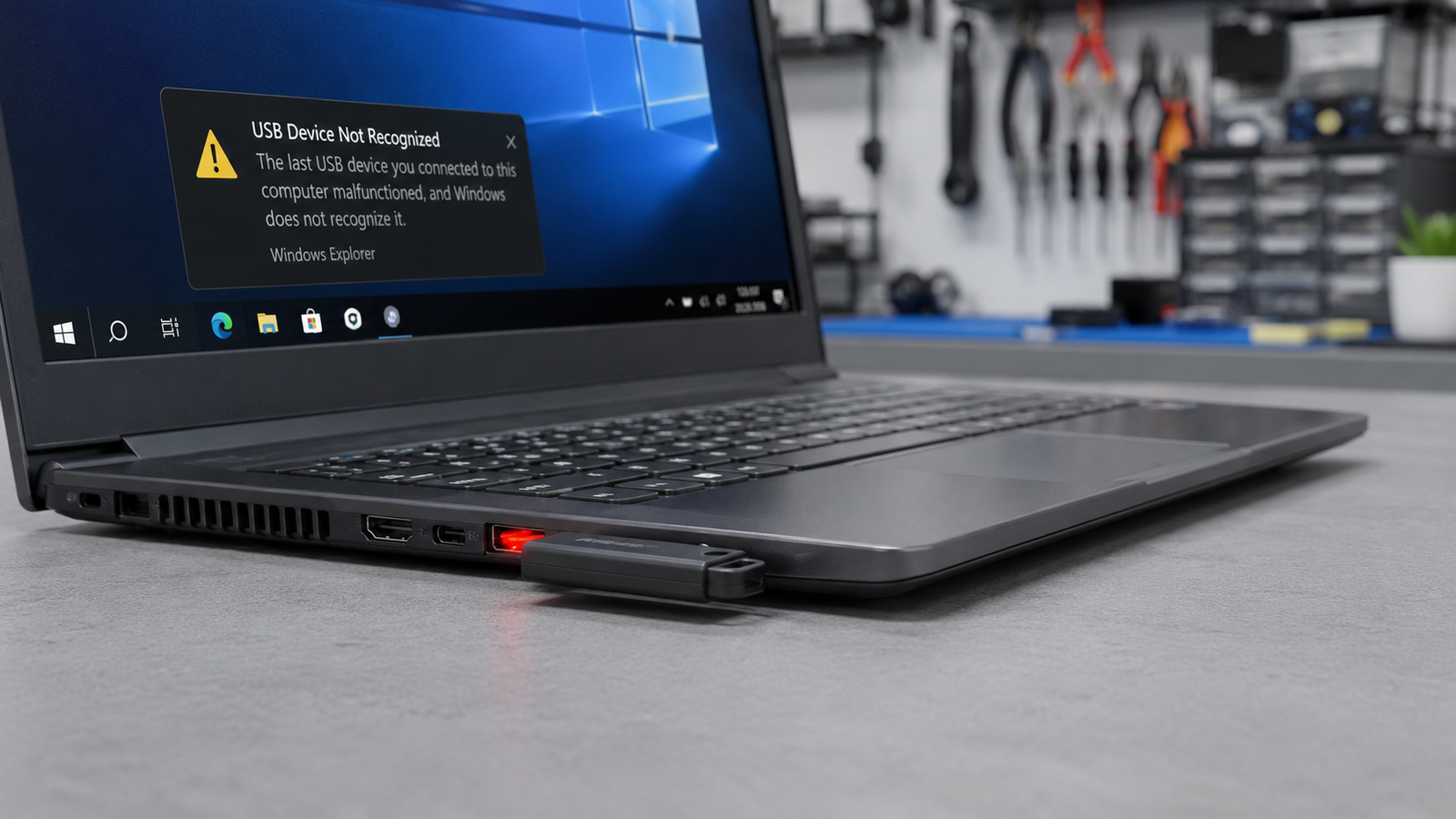
Quick Answer
The most common reason laptop USB ports stop working is Windows power management cutting power to the USB controller and failing to restore it. Go to Device Manager, expand Universal Serial Bus Controllers, right-click each USB Root Hub, open Properties, go to Power Management, and uncheck “Allow the computer to turn off this device to save power.” Restart and test. This fixes the problem in about 40% of cases.
Introduction
You plug in a flash drive, a mouse, or your phone and nothing happens.
No sound. No notification. No device detected at all.
Sometimes it is just one port. Sometimes it is all of them. Either way, the laptop feels useless the moment you cannot connect anything to it.
USB port failures on laptops are common enough that repair shops see them almost daily. The frustrating part is that the cause is not always obvious. A dead port could mean a corrupted driver, a Windows power setting behaving badly, a blown USB controller chip, or a physically damaged socket and each one needs a different fix.
This guide walks you through every cause in the order most likely to apply to your situation. You will know exactly what is wrong and what to do about it before reaching the end.
Symptoms of the Problem

- No sound or notification when plugging in a USB device
- Device shows up in Device Manager with a yellow warning triangle
- Error message: “USB device not recognized”
- Error message: “Unknown USB Device Descriptor Request Failed”
- Error code 43 in Device Manager
- USB device charges but no data transfers
- One or more ports work while others are completely dead
- Ports worked before a Windows update and stopped immediately after
- Ports are intermittent they connect and disconnect randomly
- Port has power (device LED lights up) but the device is still not recognized
- Laptop freezes when a USB device is plugged in
- USB hub works but direct port connection does not
Start Here: Fast Diagnosis
Work through this before trying any fix. It will cut your troubleshooting time in half.
Does the device work in a different USB port on the same laptop?
If yes the problem is isolated to one physical port. Jump to the hardware fixes section.
If no all ports are affected, which points to a driver, software, BIOS, or USB controller issue.
Does the same device work on a different computer?
If yes the device is fine. The problem is 100% the laptop.
If no the USB device itself may be faulty. Test with a different cable or device before continuing.
Did the problem start after a Windows update?
If yes start with USB Root Hub power management and USB controller driver reinstallation. These are the most common culprits after updates.
Do the ports deliver power but not data?
Charging works but the device is not recognized this is almost always a driver or controller issue, not hardware.
Are ALL ports completely dead with zero power?
No LED, no charging at all this points to a blown USB controller chip or a motherboard power rail issue. Software fixes will not help here.
Did ports die immediately after a power event (surge, sudden shutdown, battery disconnect)?
The USB overcurrent protection circuit may have triggered. A BIOS reset or full power drain is the first step.
Tools Needed
Built-in tools:
- Windows Device Manager
- Windows Hardware and Devices Troubleshooter
- Windows Event Viewer
- BIOS/UEFI settings screen
Software tools:
- Intel Driver & Support Assistant (for Intel chipset systems)
- Dell SupportAssist / HP Support Assistant / Lenovo Vantage (brand-specific)
- USBDeview by NirSoft (to see all USB activity and history)
- Crystal Disk Info (to rule out USB-connected storage issues)
Hardware tools:
- Compressed air canister (port cleaning)
- Wooden toothpick (debris removal never metal)
- Known-good USB device for testing
- USB hub (to isolate port vs. device issues)
- Multimeter (for technicians checking port voltage output)
Troubleshooting Matrix
| Symptom | Likely Cause | Fast Fix |
|---|---|---|
| All ports dead after Windows update | Power management / USB controller driver | Disable USB selective suspend, reinstall controllers |
| One port dead, others fine | Physical port damage or isolated controller | Inspect port, try USB hub on dead port |
| No power to any port | USB controller chip failure or BIOS issue | Power drain reset, check BIOS USB settings |
| Power but no data | Driver corruption or USB 3.0/2.0 handshake issue | Reinstall USB controller drivers |
| Ports work randomly/intermittent | Loose port solder joint or failing controller | Physical inspection, reflow or replacement |
| Error code 43 in Device Manager | Driver failure or device conflict | Uninstall device, reinstall USB controllers |
| Ports died after plugging in device | Overcurrent protection triggered | Power drain + BIOS reset |
| Works in USB hub but not direct | Damaged port socket | Port replacement or use hub as workaround |
| Ports worked in Linux/live USB | Windows driver issue confirmed | Full USB controller driver reinstall |
What Causes USB Ports to Stop Working

Windows Power Management Override
Why it happens: Windows has an energy-saving feature called USB Selective Suspend that cuts power to USB controllers when the laptop is idle. When the system fails to wake the controller properly which happens more often than Microsoft would like to admit the port appears dead until a reboot or until the power settings are corrected.
How to identify it: All ports stopped working after the laptop woke from sleep or hibernation. They may work after a restart but fail again after the next sleep cycle.
What users misunderstand: Most people think sleep mode causing USB failures means the port is dying. It does not. This is a software behavior and is fully reversible.
One confirmation sign: Restarting the laptop brings the ports back temporarily, but they fail again after sleep.
Corrupted or Outdated USB Controller Drivers
Why it happens: USB controllers depend on drivers to communicate with Windows. A Windows update, a bad driver install, a system crash, or even a virus scan can corrupt the USB controller driver files. When the driver is broken, the controller goes unresponsive.
How to identify it: Device Manager shows the USB Root Hub or USB controller with a yellow triangle. Error code 43 is the most common one you will see.
What users misunderstand: People reinstall the specific device driver for the USB device (like a mouse or phone) and wonder why it does not help. The issue is the USB controller driver, not the driver for the thing you are plugging in.
One confirmation sign: Plugging the same USB device into another computer works perfectly.
Overcurrent Protection Trigger
Why it happens: Every USB port has a protection circuit that cuts power if a device draws more current than the port can handle. This is by design. A faulty USB device, a shorted cable, or a power spike can trigger this protection and on some laptops, it does not automatically reset. The port stays dead until the controller is reset.
How to identify it: One or more ports died suddenly while a device was connected. The device may have been fine on a different computer, or it may have been a cheap cable or hub.
What users misunderstand: Users assume the port itself is broken and start looking at hardware repairs immediately. Often the overcurrent latch just needs a full power drain to reset.
One confirmation sign: Booting into BIOS shows the port is recognized there but not in Windows or a full power drain brings one or more ports back.
Physical Port Damage
Why it happens: USB ports take a beating. Repeated plug-and-unplug cycles loosen the solder joints holding the port connector to the motherboard. Dropping the laptop with a USB device plugged in, yanking cables sideways, or using heavy dongles at sharp angles all cause the port to shift or crack. Once the solder joint is compromised, the connection is intermittent or gone.
How to identify it: The port feels loose or wiggly. Devices only work at a specific angle. The port worked intermittently before completely dying.
What users misunderstand: People run every software fix they can find on a physically damaged port. No driver update in the world fixes a cracked solder joint.
One confirmation sign: Wiggling the USB plug makes the device connect and disconnect.
USB Controller Chip Failure
Why it happens: The USB controller is a chip on the motherboard that manages all USB communication. It can fail from age, a power surge, heat damage, or a manufacturing defect. When this chip dies, all ports on that controller stop working simultaneously. Most laptops have two controllers one handling USB 3.0 ports and another handling the USB 2.0 or USB-C ports so you may see half the ports dead while others still work.
How to identify it: Multiple ports died at the same time. No software fix, no driver reinstall, and no BIOS reset brings them back. The ports show no power at all.
What users misunderstand: This is often misdiagnosed as a motherboard failure. A skilled technician can sometimes replace just the USB controller chip, which costs far less than a motherboard swap.
One confirmation sign: Booting from a Linux live USB on a working port confirms the dead ports are unresponsive at the hardware level.
BIOS USB Settings Disabled
Why it happens: BIOS settings control whether USB ports are active at the hardware level. A failed BIOS update, a settings reset, or a CMOS battery dying can revert USB settings to disabled. When USB is off in BIOS, no amount of Windows troubleshooting will make those ports respond.
How to identify it: Ports stopped working after a BIOS update or a CMOS battery replacement. USB keyboard or mouse also does not work during boot.
What users misunderstand: Most users never check the BIOS because they assume USB settings are always on by default. They spend hours in Windows when the fix is a single BIOS toggle.
One confirmation sign: No USB device works even before Windows loads during the boot screen.
What We See Most Often
In a repair shop, USB port complaints fall into three buckets most of the time.
The first and most common is the power management issue triggered by Windows updates. Laptops that started having USB problems right after an update almost always come back to life after disabling USB Selective Suspend and resetting the Root Hub power settings. Takes five minutes.
The second is physical port damage usually on gaming laptops and thin-and-light models where the chassis flexes. The USB-A port on the left side of HP and Dell budget models is particularly prone to solder joint failure because users tend to leave drives or receivers plugged in while moving the laptop. The port feels solid but has a broken solder joint underneath. This needs a reflow or a port replacement.
The third is the corrupted driver scenario, especially on Lenovo and ASUS machines that received a Windows 11 update in late 2024 or 2025. Device Manager shows the controller but with an error code. A clean driver reinstall through the manufacturer’s support app fixes it in most cases.
True USB controller chip death is actually rare. When we see it, it is usually on older machines (3+ years) that have had heat issues, or on laptops that took a power surge through a cheap USB hub.
How to Diagnose the Problem

Step 1: Test with a different USB device
Use a known-good flash drive or USB mouse.
Expected Result: If the new device works, your original device was faulty.
If Failed: All devices fail the port or driver is the problem. Continue.
Step 2: Test the same device in every port on the laptop
Expected Result: At least one port should recognize the device if the issue is port-specific.
If Failed: All ports are dead this is a system-wide issue (driver, BIOS, or USB controller). Continue.
Step 3: Restart the laptop and test immediately
Expected Result: Ports work after restart but not after sleep confirms power management issue.
If Failed: Ports are dead even right after a fresh boot. Continue.
Step 4: Open Device Manager and check Universal Serial Bus Controllers
Look for yellow triangles on any USB Root Hub, USB Controller, or connected device entry.
Expected Result: You see an error code (most commonly Code 43 or Code 10).
If Failed: No errors shown, everything looks clean the BIOS or hardware level needs checking next.
Step 5: Boot into BIOS and try plugging in a USB device
Power on, press F2/Del/Esc (varies by brand), and enter BIOS. Plug in a USB device during BIOS if it responds (keyboard works in BIOS), the issue is Windows-level. If nothing responds in BIOS, the problem is hardware.
Expected Result: USB works in BIOS confirms software problem.
If Failed: Nothing works in BIOS hardware level issue. Check USB settings within BIOS, then consider physical repair.
Step 6: Boot from a Linux live USB on a working port (if available)
Expected Result: USB ports work in Linux but not Windows confirms Windows driver corruption.
If Failed: Ports fail in Linux too confirms hardware failure. Proceed to hardware-level repairs.
Which Fix Usually Works?
| Fix | Typical Success Likelihood | Cost | Difficulty |
|---|---|---|---|
| Disable USB Selective Suspend | Very Common | Free | Easy |
| Power drain reset | Common | Free | Easy |
| USB controller driver reinstall | Common | Free | Easy |
| BIOS USB settings check | Common | Free | Easy |
| Windows Hardware Troubleshooter | Occasional | Free | Easy |
| Chipset driver update | Occasional | Free | Moderate |
| Physical port reflow (solder) | Common (for loose ports) | $40–$90 | Hard |
| USB port socket replacement | Occasional | $60–$120 | Hard |
| USB controller chip replacement | Rare | $80–$200 | Expert only |
| Motherboard replacement | Very Rare | $250–$600 | Expert only |
Step-by-Step Fixes

Fix 1: Full Power Drain Reset
Cost: Free Time: 5 minutes Difficulty: Easy
This resets the USB controller’s overcurrent protection and clears any stuck power state. Try this first it works more often than it deserves credit for.
- Shut down the laptop completely. Do not use sleep or hibernate.
- Unplug the power adapter.
- If the battery is removable, remove it. If not, skip this step.
- Hold the power button for 30 seconds. This drains residual power from the capacitors.
- Release the button, plug the power adapter back in, and power on.
- Test the USB ports before doing anything else.
Expected Result: Ports come back to life.
If Failed: Power state was not the issue. Move to Fix 2.
Technician Tip: On laptops with non-removable batteries (most modern ones), you can sometimes access a battery disconnect jumper on the motherboard if you open the back panel. This is not necessary for most users but is worth knowing for stubborn cases.
Fix 2: Disable USB Selective Suspend
Cost: Free Time: 5 minutes Difficulty: Easy
This stops Windows from cutting power to USB controllers during idle periods.
- Right-click the Start button and select Device Manager.
- Expand Universal Serial Bus Controllers.
- Right-click the first USB Root Hub entry and select Properties.
- Click the Power Management tab.
- Uncheck “Allow the computer to turn off this device to save power.”
- Click OK.
- Repeat for every USB Root Hub listed (there are often multiple).
You should also disable USB Selective Suspend at the power plan level:
- Open Control Panel and go to Power Options.
- Click “Change plan settings” next to your active plan.
- Click “Change advanced power settings.”
- Expand USB settings, then expand USB selective suspend setting.
- Set it to Disabled.
- Click Apply and OK.
Expected Result: Ports stay active after sleep and resume correctly.
If Failed: Power management was not the issue. Move to Fix 3.
Expert Warning: Some Lenovo ThinkPad BIOS settings can override Windows power management for USB. If ports still sleep after this fix, check the BIOS for a “USB power delivery in sleep” or similar setting.
Fix 3: Reinstall USB Controller Drivers
Cost: Free Time: 10–15 minutes Difficulty: Easy
This clears any corrupted driver installation. Windows reinstalls clean drivers on reboot.
- Right-click the Start button and select Device Manager.
- Expand Universal Serial Bus Controllers.
- Right-click each entry listed under this section USB Root Hub, USB Enhanced Host Controller, xHCI Host Controller, and any others.
- Select “Uninstall device” for each one. Do NOT check “Delete the driver software” unless instructed.
- Once all controllers are uninstalled, restart the laptop.
- Windows will automatically detect and reinstall the USB controller drivers on startup.
- Test the ports.
Expected Result: Ports recognized correctly, no error codes in Device Manager.
If Failed: The base Windows driver reinstall did not resolve it. Move to Fix 4.
Technician Tip: If you are doing this and have no working USB port or keyboard, plug in a USB keyboard through any port that delivers power or use a Bluetooth keyboard to navigate. Alternatively, you can use the Windows on-screen keyboard temporarily.
Fix 4: Run the Hardware and Devices Troubleshooter
Cost: Free Time: 5 minutes Difficulty: Easy
Microsoft’s built-in troubleshooter detects configuration problems the Device Manager does not surface directly.
- Press Windows + R to open the Run dialog.
- Type:
msdt.exe -id DeviceDiagnosticand press Enter. - Click Next and let the troubleshooter scan.
- Apply any fixes it recommends.
- Restart and test.
On Windows 11, this can also be accessed through Settings > System > Troubleshoot > Other troubleshooters > Hardware and Devices.
Expected Result: Troubleshooter identifies and corrects a misconfiguration.
If Failed: Move to Fix 5.
Fix 5: Update or Reinstall Chipset Drivers
Cost: Free Time: 15–30 minutes Difficulty: Moderate
The USB controller is part of the motherboard chipset. Outdated or corrupted chipset drivers can break USB functionality even when the USB-specific drivers look fine.
- Identify your chipset. On Intel systems, open Device Manager and expand System Devices look for “Intel Chipset” entries. On AMD systems, look for AMD entries.
- Download the latest chipset driver directly from your laptop manufacturer’s support page (Dell, HP, Lenovo, ASUS, Acer, MSI all have driver download portals).
- Run the installer. It will overwrite any corrupted chipset files.
- Restart the laptop when prompted.
- Test USB ports.
Expected Result: USB controller now communicates correctly through a clean chipset driver stack.
If Failed: Driver-level fixes are exhausted. Move to BIOS-level checks.
Technician Tip: Do not use third-party driver update tools for this. Download directly from the manufacturer. Third-party tools frequently install generic drivers that create new problems.
Fix 6: Check and Reset BIOS USB Settings
Cost: Free Time: 10 minutes Difficulty: Moderate
If USB fails completely even before Windows loads, the problem is in BIOS.
- Power on the laptop and immediately press the BIOS key for your brand:
- Dell: F2
- HP: F10 (some models: Esc then F10)
- Lenovo: F2 or Fn+F2 (ThinkPads: Enter then F1)
- ASUS: F2 or Delete
- Acer: F2 or Delete
- MSI: Delete
- Navigate to the Advanced or Integrated Peripherals section.
- Look for USB Configuration or similar.
- Confirm USB Controller is set to Enabled.
- Also check for “USB Charging in Sleep” or “USB Power” make sure it is set correctly.
- Save and exit with F10.
- Test ports on reboot.
If you want to do a full BIOS reset while here:
- Find the “Load Defaults,” “Load Optimized Defaults,” or “Restore Defaults” option.
- Apply it, then save and exit.
Expected Result: USB controller is active at the hardware level.
If Failed: BIOS is not the issue. The problem is hardware-level. Move to Fix 7.
Fix 7: Physical Port Inspection and Cleaning
Cost: Free to $15 for compressed air Time: 10 minutes Difficulty: Easy
Debris, dust, and bent pins inside the port can prevent a proper connection.
- Power off and unplug the laptop completely.
- Use a flashlight to look inside each USB port. Look for lint, dust, bent pins, or visible damage.
- Use a can of compressed air hold it upright and use short bursts at an angle to blow debris out. Do not use a vacuum.
- If you see debris that compressed air will not remove, use a wooden toothpick or a plastic pick gently. Never use metal tools inside a USB port.
- Power on and test.
Expected Result: Clean port with no obstructions connects devices normally.
If Failed: Port is clean but still non-functional solder joint failure or port socket damage is the likely cause. Move to professional repair.
Expert Warning: Never insert anything metal into a USB port while the laptop is powered. A short between the data pins and ground can damage the USB controller.
Fix 8: Hardware Repair Port Reflow or Replacement
Cost: $40–$120 depending on shop and brand Time: 1–3 hours at a shop Difficulty: Expert only
This applies when a port is physically damaged loose, wiggly, broken pins, or dead after a physical impact.
On many laptops, USB ports are soldered directly to the motherboard. Reflowing means a technician applies heat to the existing solder joint to re-bond it. Port replacement means removing the old port and soldering in a new one. Both require proper micro-soldering equipment and experience.
Do not attempt this without the right tools and training. Overheating the board near delicate traces will create a far more expensive problem.
Expected Result: Port is mechanically sound and electrically connected.
If Failed: The port is on the motherboard in an area with additional damage, or the USB controller chip itself needs attention.
Technician Tip: On some HP, Dell, and Lenovo models, one or two USB ports are on a separate daughterboard connected to the main motherboard by a ribbon cable. These are far cheaper to replace the daughterboard costs $10–$30 and the labor is simple. Always ask your technician if this applies to your model before agreeing to a full motherboard replacement.
Mistakes That Make the Problem Worse
Installing random driver updater software
Third-party driver update utilities frequently install generic, unsigned, or mismatched drivers. These can break USB functionality further or create new conflicts in Device Manager. Always use the manufacturer’s official support page.
Reinstalling only the device driver instead of the USB controller
Most users uninstall the driver for the thing they are plugging in the phone, the mouse, the drive. The actual issue is the USB controller driver. Fixing the wrong layer does nothing.
Using metal objects to clean USB ports
A paperclip or pin inside a USB port can bend the data pins, short the controller, or scratch the contacts. This can kill a port that was repairable or trigger the overcurrent protection in a way that requires board-level repair.
Doing a Windows Reset without trying BIOS checks first
A full Windows reset takes hours and is often unnecessary. Many USB failures are either a BIOS configuration issue or a driver issue that takes five minutes to fix. Reset should be a last resort, not an early step.
Skipping the other port test
Users spend 30 minutes troubleshooting one port without testing the others. A dead port is sometimes just a dead port not a system-wide problem. Always test every port first.
Assuming a soft crash means hardware failure
All ports dying suddenly after a freeze or BSOD almost always means a driver or power state got stuck. People assume the worst and head to a repair shop when a restart and USB Selective Suspend fix would have sorted it instantly.
Plugging a suspected faulty device into every port to test
If the USB device is defective and drawing excess current, plugging it into port after port trips the overcurrent protection on each one. Test with a known-good device first.
Brand-Specific Considerations
Dell
Dell laptops especially Inspiron and XPS models are well-known for the left-side USB port dying from solder joint stress. The chassis flexes near the hinge area on thin models, and repeated plug-and-unplug cycles crack the joint under the port.
Dell SupportAssist (built into most Dell laptops) includes a USB port hardware test. Run it before doing any manual troubleshooting. Go to SupportAssist > Hardware Tests > Components > USB Port Test.
Dell BIOS (accessed via F2 at boot) has a USB configuration section under Settings > System Configuration > USB Configuration. If you recently updated BIOS using Dell’s update tool and USB stopped working, check that USB 3.0 is enabled here.
HP
HP laptops have their USB ports scattered across two different controllers on many models. The left-side ports and right-side ports often use separate controllers. This is why you can sometimes have the left side completely dead while the right works fine or vice versa.
HP OMEN and Spectre models are the most prone to USB controller failures from heat buildup. If you have an OMEN with a dead USB port and a cooling issue, fix the cooling first the controller may recover once temperatures normalize.
HP Support Assistant includes diagnostics. Run it and select the USB test under Diagnostic Tools > Hardware Tests.
Lenovo
ThinkPad models have a robust USB implementation with BIOS-level control. The BIOS (accessed via Enter at boot, then F1) includes a USB configuration section where you can toggle individual controllers. ThinkPad docking station users often see USB issues that trace back to dock firmware, not the laptop itself.
Lenovo Vantage (for consumer IdeaPad, Legion, Yoga) and Lenovo Commercial Vantage (for ThinkPad) both include hardware diagnostics. Run USB diagnostics here before any manual steps.
Legion gaming models with USB-C/Thunderbolt ports sometimes need a firmware update to the Thunderbolt controller when USB-C accessories stop being recognized.
ASUS
ASUS ROG and TUF models often have a USB controller that doubles as the USB hub for the built-in RGB lighting system. If USB ports fail on these models, the lighting system may also behave strangely or disconnecting the USB lighting devices internally may restore port function.
ASUS MyASUS and ASUS Armoury Crate both include a system diagnostic function. Use it to run a hardware check before diving into Device Manager manually.
Acer
Acer Aspire and Nitro models are known for relatively fragile USB port housings. The port socket itself can crack from normal use, especially the rightmost port on 15-inch models where users tend to leave things plugged in while carrying the laptop.
Acer Care Center provides hardware diagnostics. Check it before manual troubleshooting.
MSI
MSI gaming laptops frequently have USB issues tied to Thunderbolt/USB4 software. MSI’s USB ports can stop working after Dragon Center or MSI Center software updates conflict with USB controller drivers. Uninstalling and cleanly reinstalling MSI Center has resolved this in many cases.
MSI BIOS (Delete key at boot) includes USB configuration under Settings > Advanced > USB Configuration. Confirm all controllers are enabled here if software fixes fail.
Repair Shop Diagnosis

When a laptop comes in with USB issues, the diagnostic workflow goes like this.
First step is always a plug test with a known-good USB device. We check power delivery with a multimeter a USB-A port should output 5V on the power pins. If there is zero voltage, the problem is either a hardware controller failure or a BIOS-level disable.
Next we boot into BIOS. If USB works in BIOS but not Windows, we go straight to driver reinstallation and power management. Takes 10–15 minutes.
If USB fails in BIOS too, we pull up the schematic for that board (if available) and test voltage on the USB controller chip. A dead controller reads as no response and needs replacement or a board swap.
For physical damage, we put the board under magnification and look at the solder joints around the port. A cracked joint is obvious once you are looking at it closely. A reflow takes about 20–30 minutes of work.
Typical diagnostic charge: $30–$60 at an independent shop.
Typical repair outcomes:
- Software/driver fix: $0–$40 (labor only, sometimes done for free as a quick fix)
- Port reflow: $50–$90
- Port socket replacement: $80–$120
- Daughterboard replacement (brand/model dependent): $40–$80 including parts
- USB controller chip replacement: $100–$200 (requires micro-soldering expertise)
- Motherboard replacement: $250–$600 depending on brand and model age
When Hardware Replacement Is Necessary
USB controller chip failure: If both the software and BIOS-level fixes fail, and the multimeter confirms no voltage on the USB pins, the controller chip has likely failed. Replacement is possible at board-level repair shops. If your laptop is more than 4–5 years old and repair costs exceed 50% of the laptop’s current value, replacement makes more financial sense.
Motherboard failure: When the USB controller chip is embedded directly into the main processing chip (common on some ultra-thin laptops) or when there is additional board damage around the USB region, a full motherboard replacement may be the only option. This is when you start doing the math on whether repair is worth it.
Port socket damage: If the port housing is cracked, the pins are bent beyond straightening, or the port has pulled away from the board pads, it needs to be replaced. Do not ignore a physically damaged port a loose port that shorts can damage the controller.
Stop Troubleshooting and Seek Professional Repair If
You smell burning from the USB port area. This indicates a short circuit or a component burning out. Stop using the laptop immediately and do not plug anything into the ports.
The laptop shuts down every time you plug in a USB device. This is a serious overcurrent or short circuit condition. Using the laptop in this state risks further motherboard damage.
The laptop was exposed to liquid and USB ports stopped working. Corrosion from liquid damage spreads over time. Get it to a repair shop as soon as possible earlier intervention means a better chance of recovery.
You see a swollen battery in the same laptop. A swollen battery is a fire risk that takes priority over everything else. Stop using the laptop entirely.
The USB port is visibly damaged with broken or bent pins that you cannot straighten. Any DIY attempt to repair this risks making the problem permanent.
Error code 43 persists after a full driver reinstall and Windows reset. This is a hardware signal at that point the USB device and/or controller is communicating a hardware failure to Windows.
Prevention Tips

Use a USB hub for frequently connected devices. Plugging and unplugging directly into the laptop 20 times a day wears out the solder joint faster than almost anything else. A powered USB hub takes the wear and the risk away from the laptop’s built-in ports.
Remove USB devices before moving the laptop. Leaving a flash drive or dongle plugged in while putting the laptop in a bag puts lateral stress on the port every time the bag shifts. This is the number one cause of solder joint failure we see in shops.
Disconnect USB devices before sleep if you are having intermittent issues. Windows sometimes fails to properly wake USB controllers when devices are attached. Disconnecting before sleep and reconnecting after often prevents the issue entirely.
Keep port areas clean. Lint and dust build up inside USB ports and can cause intermittent connection issues. A monthly blast of compressed air takes five seconds and prevents a much bigger headache.
Avoid cheap USB hubs and cables. Poorly made USB accessories can overdraw current and trigger overcurrent protection. Stick to USB-IF certified accessories, especially for anything that draws significant power.
Update chipset and USB drivers proactively. Do not wait for a failure. Check for driver updates every few months through your manufacturer’s support application.
Use surge protection. Plugging a laptop into an unprotected outlet during a storm or in an area with unreliable power is a real risk for controller damage. A surge protector or UPS adds meaningful protection.
Frequently Asked Questions

Why did my USB ports stop working after a Windows update? Windows updates occasionally push new USB controller driver versions or change power management defaults in a way that conflicts with existing settings. The most reliable fix is to go into Device Manager, uninstall all entries under Universal Serial Bus Controllers, then restart so Windows reinstalls clean drivers. Disabling USB Selective Suspend in your power plan settings prevents future recurrences.
Can a dead USB port be fixed without replacing the motherboard? In most cases, yes. Physical port socket replacement or solder joint reflow costs far less than a motherboard swap and is the correct repair for a physically damaged port. USB controller chip replacement is also possible at shops with micro-soldering capability. A motherboard replacement is only the right call when the damage extends beyond the port or controller.
My USB port has power but won’t recognize any device what does that mean? Power delivery and data communication run on separate circuits inside the port. When a port charges your phone but Windows never detects it, the USB controller driver is almost always to blame. Reinstalling the USB controller drivers through Device Manager and disabling USB Selective Suspend resolves this in most cases.
Why does only one of my USB ports work? Most laptops use two or more separate USB controllers. When one controller fails or its driver gets corrupted, the ports on that controller go dead while ports on the other controller keep working fine. This is actually useful diagnostic information it confirms the problem is controller-specific, not a full system failure.
Does fast startup in Windows affect USB ports? Yes, it can. Windows Fast Startup uses a hybrid shutdown that does not fully power down the USB controllers the way a real shutdown does. If USB ports are misbehaving after startup (but work after a true restart), disable Fast Startup. Go to Control Panel > Power Options > Choose what the power buttons do > uncheck “Turn on fast startup.”
Can a faulty USB device damage my laptop’s ports? A device that is shorted or draws excessive current can trigger the laptop’s overcurrent protection circuit, which cuts power to that port or group of ports. In most cases this is reversible with a power drain reset. In rare cases involving prolonged exposure to excessive current, the protection component on the motherboard can fail and needs replacement.
My laptop is under warranty and USB ports stopped working should I take it in? Yes, without attempting any hardware repairs yourself. Software troubleshooting (drivers, power settings, BIOS) is fine and will not void a warranty. Opening the laptop, attempting soldering, or damaging any internal components will. Document the problem with photos and a written timeline of when it started before submitting a warranty claim.
Conclusion
Most USB port failures on laptops come down to three things Windows power management misbehaving, driver corruption after a system update, or a physical port that has taken too much wear. Start with the power drain reset and power management settings, move to driver reinstallation, and check BIOS before assuming hardware damage. When ports are completely dead with no power and software fixes do nothing, a technician with micro-soldering skills can repair the port or controller chip for far less than a motherboard replacement in most cases.