
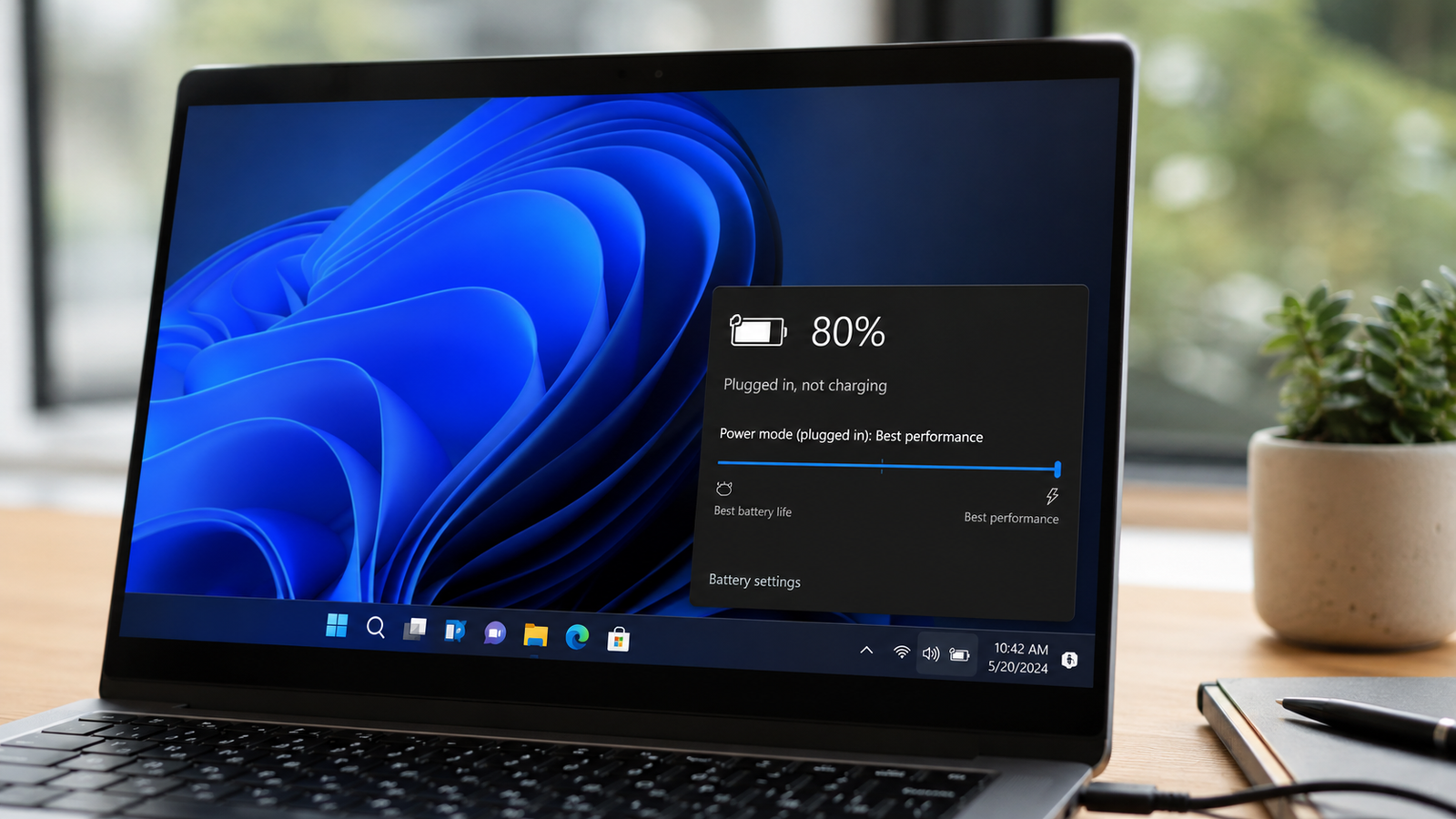
TL;DR: If your laptop is plugged in but not charging, the most common causes are a faulty charger, battery health limits, power management settings, or outdated drivers.
- Check the charger, cable, and power outlet first
- Reset battery and power drivers in Windows
- Review battery protection settings from your laptop manufacturer
Introduction
“My laptop says plugged in, not charging, but the battery percentage never goes up. Do I need a new battery?” Variations of this question appear daily on Reddit, Microsoft forums, Lenovo support threads, and Quora. The issue is frustrating because the laptop often works while connected to power, yet refuses to recharge the battery.
The good news is that many charging problems are caused by software settings, battery protection modes, or charger faults rather than a dead battery. This guide explains every proven laptop plugged in not charging fix, helping you identify the exact cause and restore normal charging as quickly as possible.
What Does “Plugged In, Not Charging” Mean?
Definition: “Plugged in, not charging” means the laptop detects external power but is intentionally or unintentionally preventing battery charging.
When this message appears, the charging system recognizes the adapter connection. However, the battery is not receiving enough power to increase its charge level.
Common symptoms include:
- Battery percentage stays frozen
- Charging icon appears but no progress occurs
- Battery drains slowly while plugged in
- Charging starts and stops repeatedly
- Laptop only works when connected to power
Understanding the difference between detection and charging is important. Your laptop may recognize the charger perfectly while another issue prevents actual battery charging.
Common Causes of Laptop Charging Problems

Most common causes include charger faults, battery protection settings, driver issues, overheating, and battery wear.
Modern laptops contain intelligent battery management systems designed to extend battery lifespan. Sometimes these systems create confusion by limiting charging under specific conditions.
Here are the leading causes:
| Cause | Typical Symptom | Difficulty to Fix |
| Damaged charger | Battery percentage unchanged | Easy |
| Loose charging port | Charging disconnects randomly | Easy |
| Battery conservation mode | Stops at 60% or 80% | Easy |
| Corrupted battery drivers | Charging errors in Windows | Easy |
| BIOS issues | Charging inconsistencies | Medium |
| Overheating | Charging pauses automatically | Medium |
| Worn battery | Very slow or no charging | Medium |
| Motherboard fault | Battery never charges | Hard |
Most users discover the problem within the first three categories, making repair relatively simple.
Check the Charger and Power Source First

Checklist: inspect the adapter, cable, connector, outlet, and charging indicator.
Before changing software settings, verify that power delivery is working correctly.
Start with the wall outlet. Plug another device into the same outlet and confirm it receives power. If available, test a different outlet entirely.
Next, inspect the charger carefully. Look for:
- Bent connector pins
- Frayed cable sections
- Burn marks
- Loose power brick connections
- Excessive heat
Many USB-C laptops require chargers with sufficient wattage. For example, a laptop designed for a 65W charger may show charging errors when connected to a 30W phone charger.
If possible, test using a compatible replacement charger. This single step often identifies the problem immediately.
Also examine the charging port on the laptop. Dust, lint, and debris can interfere with proper contact between the charger and internal charging circuitry.
Verify Battery Health and Charging Limits

Battery health tools reveal whether charging restrictions are intentional or caused by battery wear.
Many users mistake battery protection features for charging failures.
Manufacturers frequently include battery preservation modes that intentionally stop charging at specific percentages:
- Lenovo Conservation Mode: usually 55%–60%
- ASUS Battery Health Charging: often 60% or 80%
- Dell Primarily AC Use Mode
- HP Adaptive Battery Optimizer
- Acer Battery Charge Limit
These settings reduce battery aging by avoiding constant charging to 100%.
Check your manufacturer’s utility software and look for battery optimization settings. If enabled, charging may stop long before reaching full capacity.
To generate a Windows battery report:
- Open Command Prompt as administrator
- Type powercfg /batteryreport
- Press Enter
- Open the generated report
Compare design capacity with full charge capacity. Significant differences indicate battery degradation.
A battery that retains less than 50% of its original capacity often requires replacement.
Restart the Laptop and Perform a Power Reset

Power resetting clears temporary hardware communication errors affecting charging systems.
A simple reboot solves many charging problems.
Follow these steps:
- Shut down the laptop completely
- Disconnect the charger
- Remove the battery if removable
- Hold the power button for 15 to 30 seconds
- Reconnect battery and charger
- Start the laptop normally
For modern laptops with sealed batteries:
- Turn off the laptop
- Disconnect all accessories
- Unplug the charger
- Hold the power button for 30 seconds
- Reconnect power
- Boot the system
This process drains residual electrical charge from internal components and resets power management controllers.
Many manufacturers recommend this procedure as the first troubleshooting step for charging abnormalities.
Reinstall Battery Drivers in Windows

Removing and reinstalling battery drivers restores proper communication between Windows and charging hardware.
Driver corruption can prevent normal charging behavior.
To reinstall battery drivers:
- Right-click Start
- Open Device Manager
- Expand Batteries
- Right-click Microsoft ACPI-Compliant Control Method Battery
- Select Uninstall Device
- Confirm removal
- Restart the laptop
Windows automatically reinstalls required battery drivers during startup.
You can also uninstall:
- Microsoft AC Adapter
- Microsoft ACPI-Compliant Control Method Battery
After rebooting, Windows rebuilds both drivers from scratch.
This method frequently resolves charging status errors that appear after Windows updates or driver conflicts.
Update BIOS and Battery Firmware

BIOS and firmware updates correct charging bugs and improve battery management behavior.
Laptop manufacturers regularly release firmware updates addressing power-related issues.
Before updating:
- Connect the original charger
- Ensure stable power
- Back up important files
- Follow manufacturer instructions carefully
Check your laptop support page for:
- BIOS updates
- Embedded controller updates
- Battery firmware updates
- Power management updates
If release notes mention charging, battery detection, power stability, or USB-C improvements, installing the update may solve the issue directly.
Never interrupt a BIOS update. Loss of power during installation can damage system firmware.
Fix USB-C Charging Problems

USB-C charging issues usually involve incompatible chargers, cables, ports, or power delivery negotiation failures.
USB-C charging introduces more variables than traditional barrel connectors.
Verify the following:
- Charger supports USB Power Delivery
- Cable supports charging and sufficient wattage
- Port supports charging input
- Charger meets manufacturer wattage requirements
Many USB-C cables transfer data but cannot deliver enough power for laptop charging.
Try these troubleshooting steps:
- Test another USB-C cable
- Use a different charging port
- Disconnect peripherals
- Restart the laptop
- Update USB drivers
If charging works intermittently, cable quality is often responsible.
Using certified high-wattage USB-C accessories significantly improves reliability.
When to Replace the Battery or Seek Repair

Replace the battery when capacity is severely degraded or charging hardware fails diagnostic testing.
Batteries are consumable components.
Typical lithium-ion batteries maintain useful performance for approximately 300 to 1,000 charge cycles depending on usage patterns and operating temperatures.
Warning signs indicating replacement:
- Battery swelling
- Sudden shutdowns
- Extremely short runtime
- Battery not detected
- Capacity below 50%
- Charging stops permanently
Professional repair may be necessary when:
- Charging port is damaged
- Motherboard charging circuitry fails
- USB-C controller malfunctions
- Internal connectors loosen
If multiple chargers fail and driver fixes produce no improvement, hardware diagnosis becomes the next logical step.
Prevent Future Charging Issues

Best practices include proper charger use, temperature control, battery protection settings, and regular updates.
To maximize battery lifespan:
- Use the original charger whenever possible
- Avoid extreme heat
- Keep vents clean
- Update BIOS periodically
- Enable battery health features when stationary
- Avoid constant deep discharges
- Store laptops around 50% charge during long inactivity
Heat remains the biggest enemy of lithium-ion batteries. Keeping temperatures under control significantly slows long-term degradation.
Consistent charging habits and proper maintenance reduce the likelihood of future charging failures while extending battery longevity.
Conclusion
Most plugged in not charging errors originate from charger problems, battery conservation settings, driver corruption, or aging batteries rather than catastrophic hardware failure. Working through the checks in order usually identifies the cause within minutes. Start with the charger, verify battery health settings, perform a power reset, and reinstall battery drivers before considering replacement. If your battery still refuses to charge, run diagnostics and arrange professional hardware inspection.