
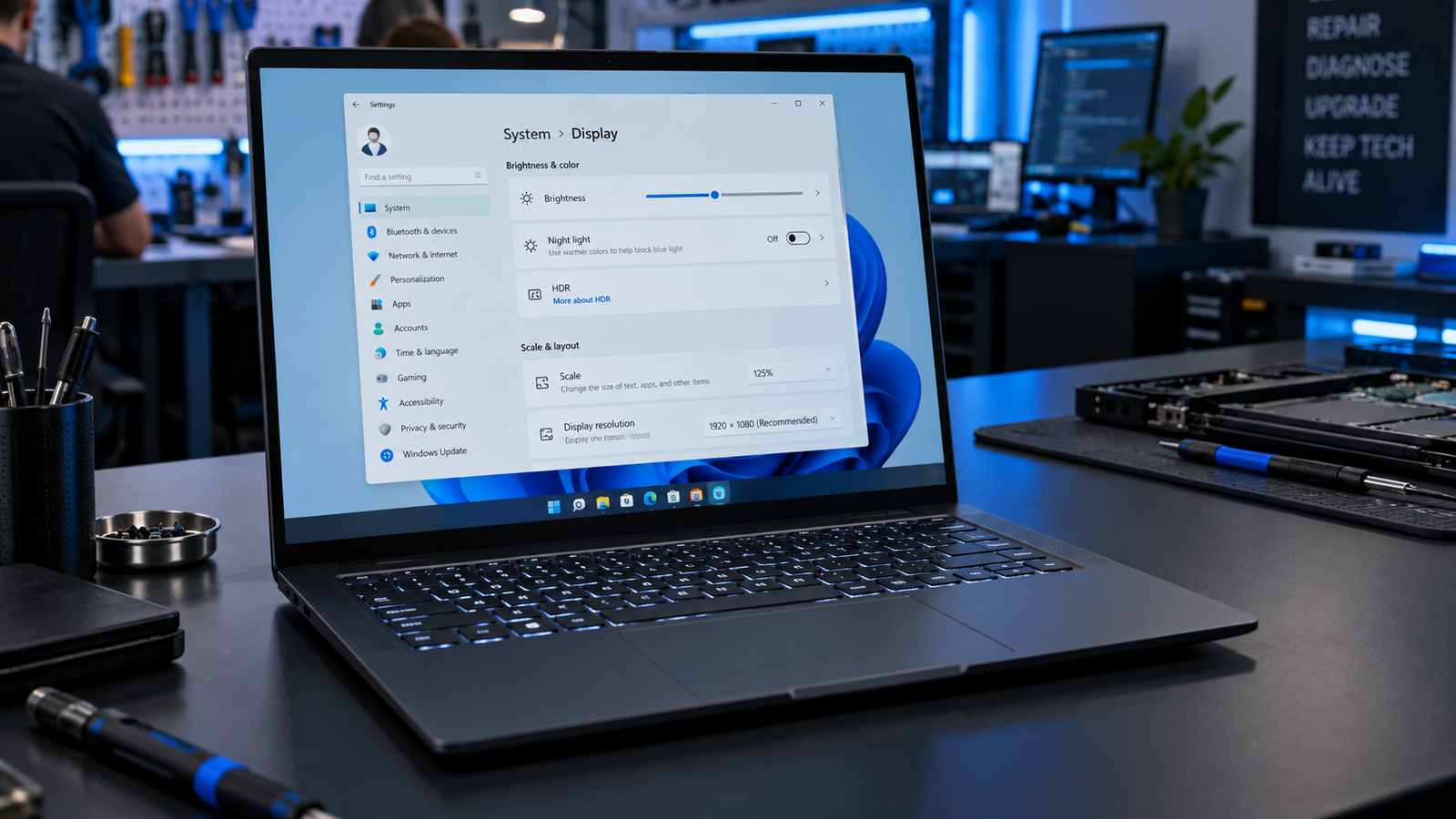
The most common cause is a corrupted display driver after a Windows update. Open Device Manager, expand Display Adapters, right-click your GPU driver, and choose Update Driver. If the brightness slider is missing entirely, go to Monitors in Device Manager and enable Generic PnP Monitor. Most users are fixed in under five minutes with one of those two steps.
Introduction
You press the Fn brightness keys and nothing happens. Or the slider moves in Settings but the screen stays exactly the same. Both point to the same broken chain: Windows can no longer talk to your display hardware properly.
This guide covers every fix in order, from the 30-second checks to the deeper driver repairs. Work through them top to bottom and you will find the cause.
Symptoms

- Fn brightness keys (Fn + F5/F6 or similar) show the OSD popup but screen brightness does not change
- Brightness slider in Settings > System > Display is present but unresponsive
- Brightness slider is completely missing from Settings and Quick Settings (Win + A)
- Brightness slider is grayed out and cannot be moved
- Screen is stuck at maximum or minimum brightness
- Brightness worked before a Windows update or driver update
- Screen dims and brightens on its own without any input (adaptive brightness conflict)
What Causes Laptop Brightness Not Changing on Windows 11
1. Corrupted or outdated display driver A Windows update frequently installs a generic Microsoft Basic Display Adapter driver instead of your GPU’s proper driver, which cuts off brightness control entirely. You can identify this by opening Device Manager and seeing “Microsoft Basic Display Adapter” listed under Display Adapters instead of your Intel, NVIDIA, or AMD GPU name.
2. Disabled or broken Generic PnP Monitor driver Windows routes laptop brightness through the monitor driver, not just the GPU. When this driver gets disabled (often silently during a Windows update or after installing a utility like TeamViewer or AnyDesk), the brightness slider disappears from Settings completely. Confirmation sign: the slider is entirely absent from Settings > System > Display.
3. Adaptive brightness or CABC overriding manual control Windows 11 has two separate auto-brightness features: the ambient light sensor setting and Content Adaptive Brightness Control (CABC), introduced in 24H2. When either is active, manual slider adjustments appear to work but the screen ignores them. Confirmation sign: brightness changes on its own when you open a dark or bright webpage.
How to Fix Laptop Brightness Won’t Change on Windows 11

Fix 1: Check the Fn Lock first
Cost: Free | Time: 1 minute | Difficulty: Easy
- Press your brightness Fn key alone (Fn + F5 or F6 on most brands).
- If nothing changes, hold the Fn key and press the brightness key together.
- If one of these methods works, your Fn Lock is toggled. Press Fn + Esc (or the Fn Lock key) to toggle it off.
- Check for a small indicator light on the Fn key or keyboard panel to confirm its status.
Expected Result: Brightness keys respond correctly. If Failed: Move to Fix 2.
Fix 2: Disable Adaptive Brightness and CABC
Cost: Free | Time: 2 minutes | Difficulty: Easy
- Open Settings > System > Display.
- Click the Brightness option to expand it.
- Turn off “Change brightness automatically when lighting changes.”
- Turn off “Help improve battery by optimizing the content shown and brightness” (this is CABC).
- Try adjusting the slider manually.
Expected Result: Slider now controls brightness without interference. If Failed: Move to Fix 3.
Fix 3: Enable or reset the Generic PnP Monitor driver
Cost: Free | Time: 3 minutes | Difficulty: Easy
- Right-click the Start button and open Device Manager.
- Expand the Monitors section.
- Right-click Generic PnP Monitor.
- If you see “Enable device,” click it. If it is already enabled, click “Disable device,” wait 10 seconds, then right-click and choose “Enable device.”
- Restart your laptop.
- Check Settings > System > Display for the brightness slider.
Expected Result: Brightness slider reappears and works. If Failed: Move to Fix 4.
Fix 4: Restart the Display Enhancement Service
Cost: Free | Time: 3 minutes | Difficulty: Easy
- Press Win + S, type “Services,” and open it as administrator.
- Scroll to “Display Enhancement Service.”
- Right-click it and select Properties.
- Set Startup type to Automatic.
- Click Stop, wait 5 seconds, then click Start.
- Click OK and check the brightness slider.
Expected Result: Slider becomes active without a driver reinstall. If Failed: Move to Fix 5.
Fix 5: Update the display and GPU drivers
Cost: Free | Time: 5 to 10 minutes | Difficulty: Easy
- Right-click the Start button and open Device Manager.
- Expand Display Adapters.
- Right-click your GPU (Intel Iris Xe, NVIDIA GeForce, or AMD Radeon) and choose “Update driver” > “Search automatically for drivers.”
- After that finishes, expand Monitors, right-click Generic PnP Monitor, and choose “Update driver” > “Search automatically.”
- Restart your laptop.
Expected Result: Correct driver reinstalled, brightness control restored. If Failed: Move to Fix 6.
Fix 6: Roll back or reinstall the GPU driver manually
Cost: Free | Time: 10 to 20 minutes | Difficulty: Moderate
- Go to your laptop manufacturer’s support page and download the display driver for your exact model:
- Dell: dell.com/support
- HP: support.hp.com
- Lenovo: support.lenovo.com
- ASUS: asus.com/support
- Acer: acer.com/support
- MSI: msi.com/support
- Open Device Manager > Display Adapters > right-click your GPU > Properties > Driver tab.
- Click “Roll Back Driver” if the option is available and the issue started after a recent update.
- If Roll Back is grayed out, click “Uninstall Device” and check “Delete the driver software for this device.”
- Restart your laptop. Windows will reinstall a basic driver automatically.
- Install the driver you downloaded from the manufacturer’s site.
- Restart again and test brightness.
Expected Result: Clean driver install resolves all brightness control issues. If Failed: Move to Fix 7.
Fix 7: Run an SFC scan to repair corrupted system files
Cost: Free | Time: 10 to 15 minutes | Difficulty: Moderate
- Press Win + S, type “cmd,” right-click Command Prompt, and choose “Run as administrator.”
- Type: sfc /scannow and press Enter. Wait for the scan to complete.
- After it finishes, type: DISM /Online /Cleanup-Image /RestoreHealth and press Enter.
- Restart your laptop and test brightness again.
Expected Result: Corrupted system files repaired, brightness control restored. If Failed: Move to Fix 8.
Fix 8: Uninstall conflicting virtual monitor software
Cost: Free | Time: 5 minutes | Difficulty: Easy
- Open Settings > Apps > Installed apps.
- Search for TeamViewer, AnyDesk, or any remote desktop software.
- Uninstall it.
- Open Device Manager > Monitors and look for any entry that is not “Generic PnP Monitor.” If you see a virtual monitor driver (such as “TeamViewer Virtual Monitor” or “AnyDesk Portable Monitor”), right-click and uninstall it.
- Restart and test brightness.
Expected Result: Brightness slider returns once the conflicting virtual monitor driver is removed. If Failed: Move to Fix 9.
Fix 9: Check Group Policy settings (Windows 11 Pro only)
Cost: Free | Time: 5 minutes | Difficulty: Moderate
- Press Win + R, type gpedit.msc, and press Enter.
- Navigate to: User Configuration > Administrative Templates > Control Panel > Display.
- Find “Disable the Display Control Panel” and double-click it.
- If it is set to Enabled, change it to Disabled or Not Configured.
- Restart and check Settings > System > Display.
Expected Result: Brightness slider reappears in Settings. If Failed: Proceed to professional diagnosis.
Mistakes to Avoid
Updating drivers through Windows Update only. Windows Update rarely installs the correct manufacturer-specific display driver. It often installs a generic version that does not expose brightness controls. Always download drivers from your laptop manufacturer’s support page or the GPU maker’s site directly.
Ignoring the Monitors section in Device Manager. Most guides focus on Display Adapters and skip Monitors entirely. The Generic PnP Monitor driver is what Windows uses to send brightness commands to the panel. A disabled or missing monitor driver will kill the slider completely, even if your GPU driver is fine.
Reinstalling drivers without restarting. Driver changes require a full restart to take effect. Running multiple driver operations back to back without restarting between them causes conflicts and makes it harder to identify which fix actually worked.
Assuming an external monitor will support software brightness control. Windows cannot control the brightness of most external monitors through the OS slider. External display brightness must be adjusted using the physical buttons on the monitor itself (the OSD menu). This is a hardware limitation, not a Windows bug.
When to Stop and Get Professional Help
Seek a technician if brightness is physically stuck at maximum or minimum even after a clean Windows reinstall, if the screen dims unevenly with bright or dark patches, or if you see flickering or color shifts alongside the brightness problem. These symptoms suggest a failing backlight, a damaged LVDS or eDP cable, or a display controller fault. No software fix will resolve hardware damage.
Prevention Tips
- After every major Windows update, check Device Manager > Display Adapters and confirm your GPU driver name has not reverted to “Microsoft Basic Display Adapter.”
- Download display drivers from your laptop manufacturer’s site, not from Windows Update or third-party driver websites.
- Before installing remote desktop software like TeamViewer or AnyDesk, note that these apps install virtual monitor drivers that can conflict with brightness control.
- Keep adaptive brightness turned off if you want full manual control over your display.
- Run sfc /scannow from an admin Command Prompt once every few months to catch system file corruption before it causes driver issues.
Frequently Asked Questions
Why did my brightness stop working after a Windows update? Windows updates sometimes replace your GPU driver with a generic Microsoft Basic Display Adapter, which does not support brightness control. Open Device Manager > Display Adapters and check what is listed. If it says Microsoft Basic Display Adapter, reinstall the correct driver from your laptop manufacturer’s support page.
Why is my brightness slider missing entirely from Windows 11 Settings? A missing slider means Windows cannot detect the brightness control interface at all. The most common cause is a disabled Generic PnP Monitor driver. Open Device Manager > Monitors, right-click Generic PnP Monitor, and enable it. The slider should reappear after a restart.
My Fn brightness keys show the popup but the screen does not change. Why? The OSD popup is triggered by Windows, but the actual brightness command goes through the display driver. If the driver is not set up correctly, the visual feedback shows but nothing is applied. Update or reinstall your GPU driver and the Generic PnP Monitor driver, then restart.
Can I control brightness on an external monitor through Windows 11? No. Windows can only control brightness on your laptop’s built-in display through software. External monitors must be adjusted using the physical OSD buttons on the monitor itself. Some monitors support DDC/CI, which allows third-party tools like ClickMonitorDDC to change brightness, but this is a separate protocol from the Windows slider.
Conclusion
The root cause is almost always a display driver problem triggered by a Windows update, either the GPU driver reverting to a generic version or the Generic PnP Monitor driver getting disabled. Fix 3 (enabling the monitor driver) and Fix 5 (updating display adapters) resolve the issue for most users. If the screen brightness stays broken after all software fixes, the backlight or display cable likely needs physical inspection by a technician.