
Quick Answer
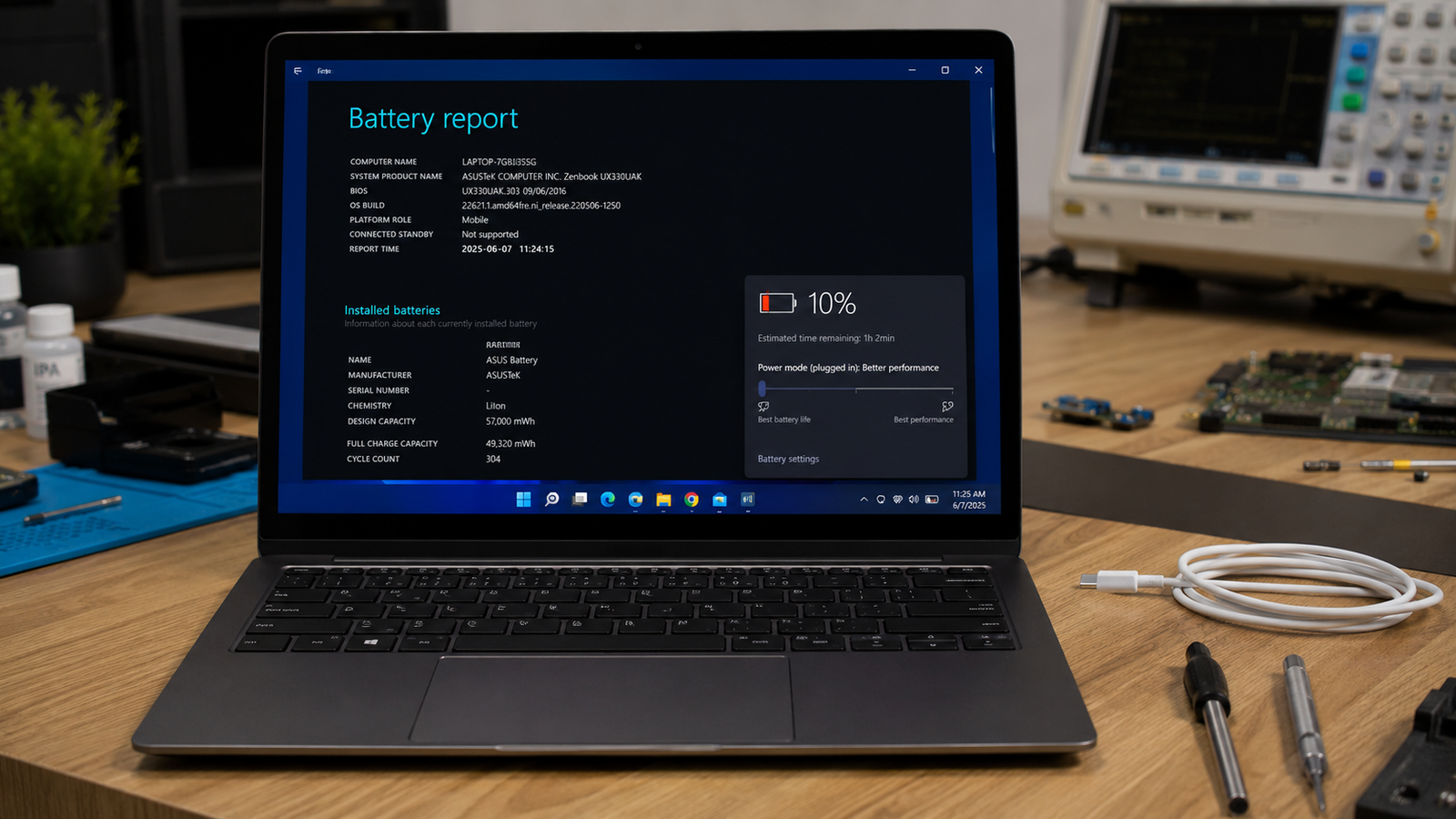
A laptop battery that drains fast is usually caused by background applications, excessive power settings, display brightness, overheating, or a worn-out battery. The fastest fix is checking battery usage, enabling Battery Saver mode, and generating a battery report. If battery health has fallen below 50–60% of its original capacity, replacement is often required.
Introduction
Your laptop showed 100% battery an hour ago.
Now it is already searching for a charger.
Rapid battery drain is one of the most common laptop complaints because the cause is not always the battery itself. Windows settings, drivers, background apps, overheating, and firmware issues can all reduce runtime dramatically.
In this guide, you’ll learn how technicians diagnose battery drain, how to identify the real cause, and which fixes actually work.
Symptoms of the Problem

Common signs include:
- Battery percentage drops unusually fast
- Laptop lasts far less than advertised runtime
- Fan runs constantly on battery power
- Laptop becomes hot during normal use
- Battery drains while sleeping
- Unexpected shutdowns
- Windows battery health warnings
- Battery reaches 100% quickly but discharges rapidly
- Runtime reduced after Windows update
- Gaming or video editing causes extreme battery loss
- Battery charge decreases while plugged in
Tools Needed
Built-In Tools
- Task Manager
- Windows Battery Report
- Device Manager
- Windows Power Settings
- Event Viewer
Software Tools
- HWMonitor
- BatteryInfoView
- Lenovo Vantage (Lenovo)
- MyASUS
- Dell SupportAssist
Hardware Tools
- Compressed air
- Small screwdriver set
- Infrared thermometer (optional)
- Replacement battery (if required)
| Symptom | Likely Cause | Fast Fix |
| Battery drops quickly | Background apps | End unnecessary processes |
| Battery drains during sleep | Modern Standby | Disable unnecessary wake features |
| Laptop hot on battery | Dust or overheating | Clean cooling system |
| Battery lasts under 1 hour | Worn battery | Check battery health report |
| Fan always running | High CPU usage | Identify power-hungry apps |
| Drain started after update | Driver issue | Update or rollback drivers |
| Battery loses charge while off | Fast Startup issue | Disable Fast Startup |
| Charge percentage inaccurate | Battery calibration issue | Recalibrate battery |
Troubleshooting Matrix
What Causes Laptop Battery Draining Fast

High Screen Brightness
The display is usually the largest power consumer in a laptop.
Many users unknowingly run brightness at 100% even indoors.
Confirmation Sign: Battery life improves immediately when brightness is reduced.
Background Applications
Applications continue consuming CPU resources even when minimized.
Browsers, cloud sync tools, launchers, and messaging apps are common offenders.
Confirmation Sign: Task Manager shows high CPU activity while idle.
High Performance Power Plan
Many gaming and workstation laptops prioritize speed over battery life.
Users often mistake this for battery failure.
Confirmation Sign: Switching to Balanced mode noticeably extends runtime.
Battery Wear
Lithium-ion batteries degrade naturally with charging cycles.
Capacity decreases over time.
Confirmation Sign: Battery report shows significantly lower Full Charge Capacity than Design Capacity.
Overheating
Heat forces fans to run continuously.
The cooling system consumes more power while elevated temperatures accelerate battery degradation.
Confirmation Sign: Bottom chassis feels unusually hot.
Faulty Drivers
Drivers can prevent components from entering low-power states.
GPU, Wi-Fi, and chipset drivers are common culprits.
Confirmation Sign: Battery drain begins after updates.
Modern Standby Issues
Many modern laptops remain partially active during sleep.
Network activity and background processes continue running.
Confirmation Sign: Battery percentage decreases significantly overnight.
How to Diagnose the Problem

1. Check Battery Usage
Open:
Settings → System → Power & Battery → Battery Usage
Expected Result: One or more applications show abnormal battery consumption.
If Failed: Continue to Step 2.
2. Generate a Battery Report
Open Command Prompt as Administrator.
Run:
powercfg /batteryreport
Open the generated report.
Expected Result: View battery health information.
If Failed: Continue to Step 3.
3. Compare Design Capacity vs Full Charge Capacity
Review battery report values.
Expected Result: Full Charge Capacity remains above 70%.
If Failed: Battery may require replacement.
4. Check CPU Usage
Open Task Manager.
Sort by CPU.
Expected Result: Idle CPU below 10%.
If Failed: Investigate applications causing load.
5. Check Temperature
Use HWMonitor.
Expected Result: Idle temperatures below 60°C.
If Failed: Cooling system inspection required.
6. Test Sleep Drain
Charge to 100%.
Put laptop to sleep overnight.
Expected Result: Less than 5% battery loss.
If Failed: Modern Standby issue likely.
Step-by-Step Fixes

Fix 1: Enable Battery Saver
Cost: Free
Time: 2 Minutes
Difficulty: Easy
Steps
- Open Settings.
- Power & Battery.
- Enable Battery Saver.
Expected Result
Battery runtime improves immediately.
If Failed
Proceed to Fix 2.
Technician Tip
Set Battery Saver to activate at 30%.
Fix 2: Reduce Display Brightness
Cost: Free
Time: 1 Minute
Difficulty: Easy
Steps
- Lower brightness to 50%.
- Disable adaptive brightness if unstable.
Expected Result
15–30% longer runtime in many situations.
If Failed
Continue to Fix 3.
Technician Tip
OLED displays benefit significantly from darker themes.
Fix 3: Close Power-Hungry Applications
Cost: Free
Time: 5 Minutes
Difficulty: Easy
Steps
- Open Task Manager.
- Sort by CPU.
- Close unnecessary programs.
Expected Result
Fan speed decreases and battery drain slows.
If Failed
Continue to Fix 4.
Fix 4: Disable Startup Programs
Cost: Free
Time: 10 Minutes
Difficulty: Easy
Steps
- Open Task Manager.
- Startup Apps.
- Disable unnecessary entries.
Expected Result
Lower background resource consumption.
If Failed
Continue to Fix 5.
Fix 5: Update Drivers
Cost: Free
Time: 20 Minutes
Difficulty: Easy
Steps
- Open Device Manager.
- Update chipset drivers.
- Update graphics drivers.
- Update Wi-Fi drivers.
Expected Result
Improved power efficiency.
If Failed
Rollback recently updated drivers.
Expert Warning
Do not install random driver packs.
Fix 6: Disable Keyboard Backlighting
Cost: Free
Time: 1 Minute
Difficulty: Easy
Steps
- Turn off keyboard illumination.
- Test battery life.
Expected Result
Small but measurable improvement.
Fix 7: Disable Bluetooth and Unused Radios
Cost: Free
Time: 2 Minutes
Difficulty: Easy
Steps
- Disable Bluetooth.
- Disconnect unused peripherals.
Expected Result
Reduced background power draw.
Fix 8: Clean Cooling System
Cost: $0–$15
Time: 30 Minutes
Difficulty: Medium
Steps
- Shut down laptop.
- Open bottom cover.
- Remove dust from fan and vents.
Expected Result
Lower temperatures and longer runtime.
If Failed
Inspect fan operation.
Technician Tip
Dust-clogged heatsinks are a major cause of battery drain.
Fix 9: Update BIOS
Cost: Free
Time: 20 Minutes
Difficulty: Medium
Steps
- Visit manufacturer support page.
- Install latest BIOS.
Expected Result
Improved battery management.
Expert Warning
Keep charger connected during BIOS updates.
Fix 10: Calibrate Battery
Cost: Free
Time: 6–8 Hours
Difficulty: Medium
Steps
- Charge to 100%.
- Use until below 5%.
- Recharge uninterrupted.
Expected Result
More accurate battery readings.
If Failed
Battery wear likely exists.
Fix 11: Replace Battery
Cost: $40–$150
Time: 20–60 Minutes
Difficulty: Medium
Steps
- Verify battery health.
- Purchase genuine replacement.
- Replace battery.
Expected Result
Battery life returns near original specifications.
If Failed
Motherboard charging circuit diagnosis required.
Repair Shop Diagnosis

When a laptop arrives with battery complaints, technicians usually check:
- Battery health report
- Charging circuit operation
- Current draw levels
- CPU usage at idle
- Battery wear percentage
- Thermal performance
Common diagnostic tools include:
- HWMonitor
- BatteryMon
- OEM diagnostics
- Thermal cameras
- USB power meters
Typical diagnostic fees:
- Basic diagnosis: $20–$50
- Advanced power diagnostics: $50–$100
Professional repair becomes worthwhile when:
- Battery replacement requires complete disassembly
- Motherboard charging faults exist
- Battery swelling is present
- Firmware issues cannot be resolved normally
When Hardware Replacement Is Necessary
SSD Failure
Replace if abnormal power draw accompanies storage errors.
RAM Failure
Replace when memory errors create excessive system instability.
Display Failure
Replace if backlight circuits consume excessive power.
Fan Failure
Replace if temperatures exceed safe operating limits.
Battery Failure
Replace when:
- Full Charge Capacity below 50–60%
- Battery swelling
- Runtime below one hour
- Sudden shutdowns occur frequently
Motherboard Failure
Replace or repair when charging circuits malfunction despite a good battery.
Prevention Tips

- Keep screen brightness below 70% indoors.
- Clean cooling vents every 6 months.
- Avoid using laptops on beds and couches.
- Disconnect unused USB devices.
- Review startup programs quarterly.
- Generate a battery report every few months.
- Avoid extreme heat exposure.
- Use manufacturer-approved chargers only.
Frequently Asked Questions

Why is my laptop battery draining even when not in use?
Modern Standby can keep components active while sleeping. Faulty drivers and background tasks can also cause overnight drain.
How do I know if my battery is bad?
Generate a battery report and compare Full Charge Capacity to Design Capacity. Significant reduction usually indicates wear.
Can Windows updates cause battery drain?
Yes. Driver conflicts or post-update indexing processes can temporarily increase battery consumption.
Is it normal for gaming laptops to have poor battery life?
Yes. Powerful CPUs and GPUs consume substantial power even when battery health is good.
How many years should a laptop battery last?
Most lithium-ion laptop batteries remain usable for 2–5 years depending on charging habits and heat exposure.
Should I leave my laptop plugged in all the time?
Occasional use on battery is healthy. Constant charging at 100% can accelerate long-term wear.
Conclusion
Fast battery drain is usually caused by power-hungry software, overheating, poor power settings, or battery wear. Start by checking battery health and identifying resource-heavy applications before spending money on parts. If battery capacity has dropped significantly or swelling is present, replacement is the correct solution. Most users can restore acceptable battery life with software optimization and proper maintenance.