
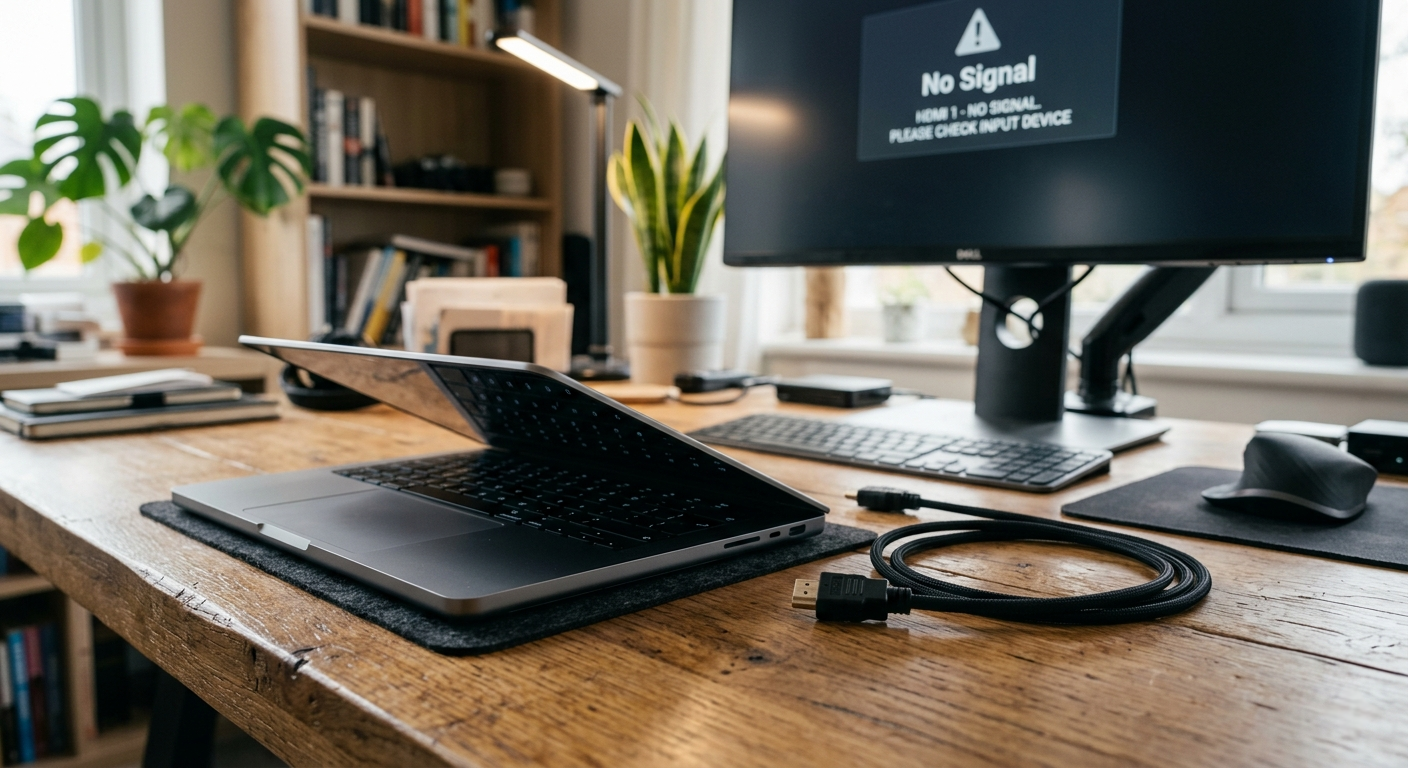
An HDMI port that suddenly stops working is one of the most frustrating laptop problems. One moment everything is fine, and the next your external monitor, TV, or projector shows a blank screen with no signal.
The good news is that in most cases, this is not a hardware failure. The problem is usually caused by wrong display settings, an outdated or corrupted graphics driver, or a conflict triggered by a recent Windows update.
This guide covers 10 proven fixes for Windows 10 and Windows 11 users, ordered from the easiest to the most advanced. Work through them one by one and you will most likely fix the issue without spending a single dollar.
Why Is Your Laptop’s HDMI Port Not Working?
Before jumping into fixes, it helps to understand the two main categories of causes.
Software causes are the most common. These include incorrect display settings, an outdated or recently corrupted graphics driver, a Windows update that broke driver compatibility, or corrupted system files. These are all fixable without any tools or repair shop visits.
Hardware causes are less common but do happen. A bent pin inside the HDMI port, dust or debris blocking the connection, or physical damage from a dropped cable can all prevent a proper signal. A dead HDMI port is rare but possible.
Start with the software fixes first. Most users find their solution before ever reaching the hardware section.
Fix 1: Restart Your Laptop and External Display in the Right Order

This is the most overlooked fix, and it works surprisingly often. The reason order matters is that your laptop and external display perform an HDMI handshake when they both power on. If the sequence is wrong, the handshake fails and no signal is sent.
Turn off your laptop and your external display completely. Unplug the HDMI cable from both devices. Now turn on the external display first and wait for it to fully boot. Then turn on your laptop and let it load completely. Once Windows is fully loaded, plug the HDMI cable back in.
This simple sequence resets the HDMI handshake and restores the connection in many cases.
Fix 2: Check and Change Your Display Settings

Sometimes the HDMI port is working perfectly, but Windows is not sending any signal to the external screen. This is a display settings issue, not a hardware issue.
Press the Windows key and P at the same time. A panel will appear on the right side of your screen with four display mode options: PC Screen Only, Duplicate, Extend, and Second Screen Only.
If your mode is set to PC Screen Only, your laptop is intentionally sending no signal to the HDMI port. Switch to Duplicate or Extend and check if the external display turns on.
If the monitor still does not appear, go to Settings, then System, then Display, and click the Detect button. This forces Windows to search for connected displays.
Fix 3: Update Your Graphics Driver

An outdated graphics driver is one of the most common reasons HDMI stops working. Your graphics driver controls how your laptop communicates with any external display, and an old version may not handle the connection correctly.
Right-click the Start button and open Device Manager. Expand the Display Adapters section. Right-click on your graphics card and select Update Driver. Choose the option to search automatically and let Windows find the latest version.
If you have an NVIDIA or AMD graphics card, it is better to download the latest driver directly from their official websites. The manufacturer’s driver is always more up to date than what Windows finds automatically.
Fix 4: Roll Back Your Graphics Driver
This fix is something almost every competitor blog misses. Updating a driver does not always help. In many real-world cases, a new driver update is actually what broke the HDMI in the first place.
If your HDMI stopped working right after a driver update, rolling back to the previous version is the correct fix.
Open Device Manager and expand Display Adapters. Right-click your graphics card and select Properties. Click the Driver tab. If the Roll Back Driver button is available, click it and confirm. Restart your laptop after the rollback completes and test the HDMI connection again.
Fix 5: Fix HDMI Audio Not Working

Many users have their video displaying correctly but hear no sound through the external screen or speakers. This is a separate issue from the video signal and is very easy to fix.
Right-click the speaker icon in the bottom-right corner of your taskbar and open Sound Settings. Go to the Playback tab. Look for an entry labeled HDMI Output, Digital Output, or the name of your external display. Right-click on it and select Set as Default Device.
If you do not see the HDMI option, right-click on an empty area in the Playback tab and enable the option to show disabled devices. The HDMI audio device may be hidden.
Fix 6: Run the System File Checker (SFC Scan)
Corrupted Windows system files can silently break HDMI detection. Your laptop may appear fine in every other way, but underneath, a missing or damaged file is blocking the display connection.
Click the Start button and type CMD. Right-click on Command Prompt and select Run as Administrator. In the window that opens, type sfc /scannow and press Enter. Wait for the scan to finish. It can take several minutes.
If the scan finds and repairs any corrupted files, restart your laptop and test the HDMI connection again.
Fix 7: Uninstall a Recent Windows Update
A Windows Update breaking HDMI is more common than most people realize. Multiple users on Microsoft’s support forums and HP Community have reported HDMI stopping overnight with no other explanation, only to discover a silent Windows update was installed the night before.
Go to Settings, then Windows Update, then View Update History. Look for any updates installed around the time your HDMI stopped working. Click Uninstall Updates, find the update in the list, and remove it.
After uninstalling, restart your laptop and test HDMI. If it works, you may want to pause Windows Updates temporarily while Microsoft releases a fix.
Fix 8: Try a USB-C to HDMI Adapter

Many modern laptops no longer have a traditional HDMI port. Instead, they use USB-C ports that support video output through a DisplayPort signal. If your traditional HDMI port is not working or is damaged, a USB-C to HDMI adapter is a fast and affordable workaround.
Check if your laptop has a USB-C port. If it does, check your laptop’s specification page to confirm that the USB-C port supports DisplayPort output. Most laptops made after 2020 do. A USB-C to HDMI adapter costs between $10 and $20 and works just as well as a built-in HDMI port.
If your laptop is a ThinkPad, Dell XPS, or MacBook, this is especially relevant as these models increasingly rely on USB-C for all display output.
Fix 9: Inspect the HDMI Port for Physical Damage

If none of the software fixes have worked, it is time to physically inspect the HDMI port. Take a flashlight and look inside the port carefully.
Look for bent pins, which will appear as metal contacts that are not sitting flat or straight. Look for dust, lint, or debris packed into the port, which can prevent a solid connection. If you see debris, use a can of compressed air to gently clean the port. Do not insert any metal objects as this will cause permanent damage.
If you see visibly bent pins, the port needs professional repair. This is not a DIY fix for most users.
Fix 10: Seek Professional Repair

If every fix above has failed, there is likely a hardware issue that cannot be solved with software. This could be a broken solder joint on the HDMI port, a failed internal I/O controller, or a GPU issue.
Take your laptop to an authorized service center for your brand. HP, Dell, Lenovo, and ASUS all have official repair programs. In many cases, an HDMI port repair or replacement is affordable and much cheaper than buying a new laptop.
While your laptop is being repaired, a USB-C to HDMI adapter is a practical temporary solution that keeps you working without interruption.
Frequently Asked Questions
Why did my HDMI port stop working all of a sudden?
The most common sudden causes are a Windows update that broke driver compatibility, a graphics driver that updated automatically, or a loose HDMI cable. In most cases it is a software issue, not a hardware failure.
Can a Windows update break my HDMI?
Yes. This is a documented and confirmed issue. Multiple users on Microsoft’s support forums have reported HDMI stopping after a Windows update. Uninstalling the recent update often restores HDMI functionality immediately.
How do I know if my HDMI port is physically broken?
Test your cable on another laptop. If the cable and monitor work fine on another device but not on yours, the issue is with your laptop’s port or software. If you see bent pins inside the port with a flashlight, it is a physical hardware issue.
My HDMI has video but no sound. How do I fix that?
This is an audio output setting issue. Right-click the speaker icon in your taskbar, open Sound Settings, go to the Playback tab, and set your HDMI output as the default device. Video and audio output are handled separately by Windows.
Final Thoughts
In the vast majority of cases, a laptop HDMI port that has stopped working is a software problem with a software solution. Work through the fixes in this guide from the top down.
Start with the display settings and restart sequence. If those do not work, focus on the graphics driver, either updating it or rolling it back. If a recent Windows update is the culprit, uninstalling it usually brings HDMI back immediately.
If you have tried everything and the port is still dead, a USB-C to HDMI adapter is an affordable and reliable alternative while you arrange a professional repair.