
Quick Answer
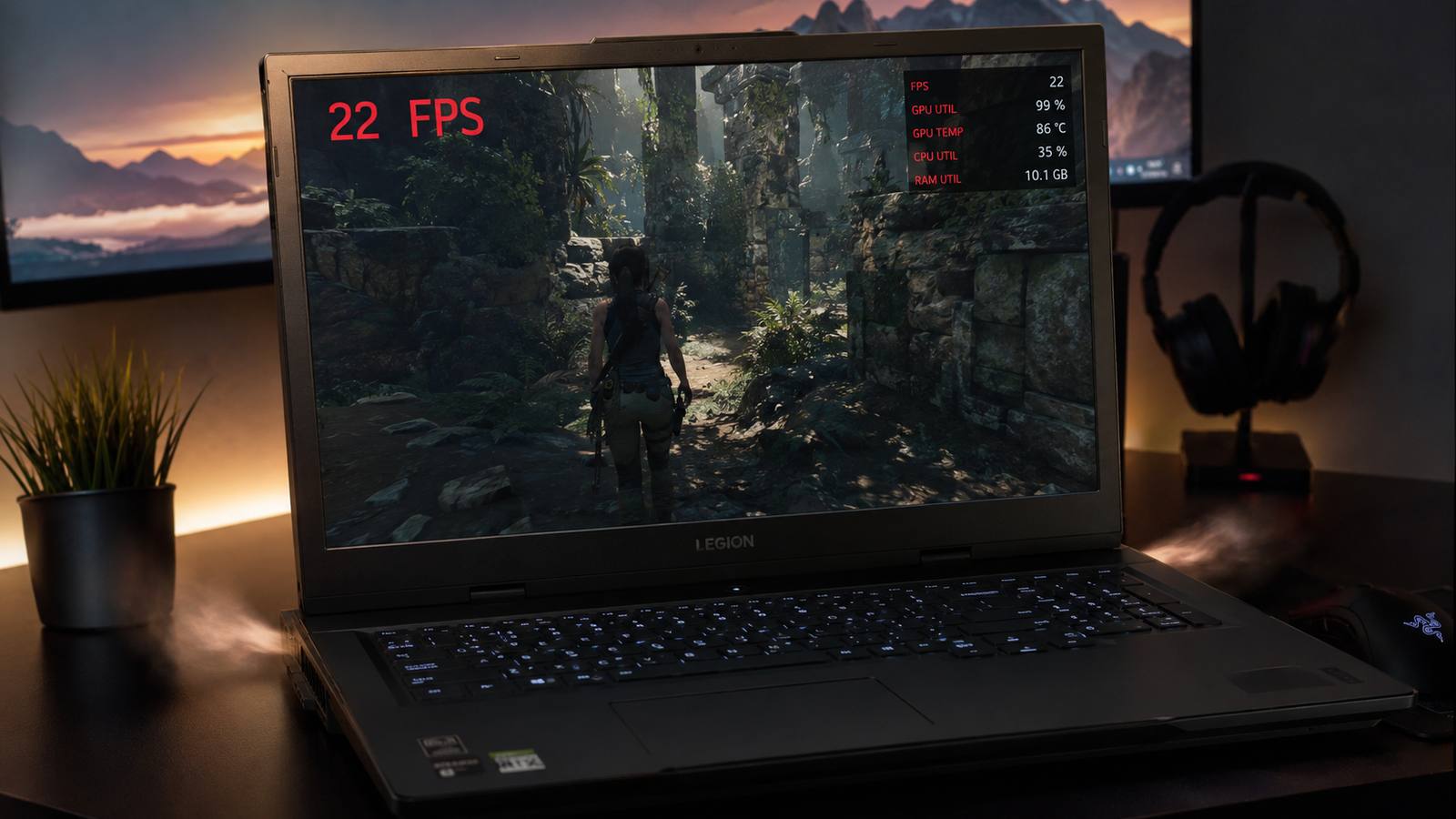
The most common cause of FPS drops on a laptop is thermal throttling, where the CPU or GPU overheats and cuts its own clock speed to avoid damage. Cleaning the vents and switching to the High Performance power plan fixes this in most cases. You should see stable FPS return within minutes of applying both fixes.
Introduction
You load up a game, the first five minutes feel smooth, then suddenly your frame rate collapses. Sometimes it drops every few seconds like clockwork. Sometimes it stays low for the rest of the session. Sometimes it only started after a Windows update you barely noticed installing.
FPS drops on laptops are not the same as FPS drops on desktops. A desktop GPU has a full-size cooler, unrestricted airflow, and a wall outlet powering it directly. A laptop GPU shares a small heatsink with the CPU, sits inside a chassis designed for portability over cooling, and gets its power budget from a BIOS profile that may be capping performance without your knowledge.
This guide covers every real cause, ordered from most to least common, with exact steps to diagnose and fix each one. We will also cover brand-specific tools you need to know about, mistakes that make the problem worse, and the signs that tell you it is time to stop troubleshooting and take the laptop in for service.
Symptoms of the Problem

- FPS starts normal then tanks after 5 to 15 minutes of gameplay
- FPS drops suddenly every few seconds in a repeating pattern
- FPS dropped permanently after a Windows or driver update
- GPU or CPU usage drops sharply during the FPS dip (visible in Task Manager overlay)
- CPU or GPU temperatures spike to 90C or above before each drop
- Game feels smooth on battery saver mode in menus but tanks in actual gameplay
- FPS is normal on low settings but drops appear only at medium or high settings
- Frame time spikes visible in RTSS or MSI Afterburner even when average FPS looks acceptable
- FPS drop started after opening the laptop or cleaning it yourself
- Fan ramps to full speed before each stutter event
Start Here: Fast Diagnosis
Use this before attempting any fix. It will save you an hour.
Does the FPS drop happen immediately when the game loads?
Check your power plan first. If you are on Balanced or Power Saver, that is almost certainly the cause.
Does the FPS drop start after 5 to 15 minutes of gameplay?
This is thermal throttling. Monitor your temperatures before doing anything else.
Did the FPS drop start after a specific Windows update?
Check your power plan first since Windows Update frequently resets it, then check GPU driver version.
Does the FPS drop happen only on battery?
Battery mode power limits are the cause. Plug in the charger.
Is GPU or CPU utilization dropping sharply at the same moment FPS drops?
This confirms throttling. The component is cutting its own clock speed.
Is GPU utilization near 100% constantly but FPS is still low?
The GPU is working but cannot keep up. Check resolution, settings, and VRAM usage.
Does the FPS drop happen in all games or one specific game?
One game only usually points to that game’s settings, VRAM limits, or a specific driver conflict.
Did the FPS drop start after you opened or cleaned the laptop?
Check that the GPU is still detected properly. A loose heatsink contact is a common cause after DIY work.
Tools Needed
Built-in tools:
- Task Manager (Ctrl + Shift + Esc) with GPU section enabled
- Windows Performance Monitor
- Device Manager
- Windows Power Options
Free software tools:
- HWiNFO64 (thermal and clock monitoring, best available)
- MSI Afterburner with RivaTuner Statistics Server (in-game overlay)
- GPU-Z (GPU power limit and clock verification)
- CPU-Z (CPU clock verification during load)
- ThrottleStop (Intel CPU throttling diagnosis and override)
- DDU (Display Driver Uninstaller, for clean driver reinstall)
- LatencyMon (for driver latency spikes causing micro-stutters)
- CrystalDiskMark (to rule out SSD as a bottleneck)
Hardware tools (for thermal fixes):
- Compressed air canister
- Thermal paste (Thermal Grizzly Kryonaut or Noctua NT-H1 recommended)
- Precision screwdriver set
Troubleshooting Matrix
| Symptom | Likely Cause | Fast Fix |
| FPS tanks after 10 min of gameplay | Thermal throttling | Clean vents, monitor temps |
| FPS dropped after Windows update | Power plan reset to Balanced | Switch to High Performance |
| FPS drops only on battery | Battery power limit | Plug in charger |
| GPU usage drops during FPS drop | GPU throttling | Check temps, power plan, driver |
| Micro-stutters, average FPS is fine | Frame time spikes | Check VRAM usage, background apps |
| FPS drop in one game only | Game settings, VRAM, or driver conflict | Lower settings, check VRAM |
| FPS drop after DIY work | Loose heatsink or reseated GPU | Re-check heatsink contact |
| FPS drop with fan noise | Cooling paste dried out | Repaste CPU and GPU |
| FPS drop after driver update | New driver bug | Roll back driver |
| FPS drop + CPU usage spike | Background process stealing CPU | Check Task Manager |
What Causes FPS Drops on a Laptop

Thermal Throttling
When a laptop CPU or GPU reaches its temperature limit (usually 95C to 105C depending on the chip), it automatically reduces its clock speed to prevent permanent damage. This is called thermal throttling and it is the single most common cause of FPS drops on laptops more than two years old.
Why it happens: Thermal paste between the chip and heatsink dries out and loses conductivity over time. Dust builds up in the heatsink fins and fan blades, blocking airflow. On older laptops, the thermal pads on VRAM and VRMs can also harden.
How to identify it: Open HWiNFO64 and watch CPU and GPU temperatures and clock speeds during gameplay. If the clock speed drops at the same moment FPS drops, and temperature is above 85C on the CPU or 83C on the GPU just before it happens, thermal throttling is confirmed.
What users misunderstand: Many users think the problem is the GPU not being powerful enough. The GPU is actually powerful enough but it is being forced to run slower than its rated speed because it is too hot.
One confirmation sign: In HWiNFO64, enable the “CPU Package Power” and “GPU Thermal Throttling” sensors. If the throttling sensor shows “Yes” during a drop, you have your answer.
Wrong Power Plan
A laptop set to Balanced or Power Saver mode actively limits CPU and GPU performance to reduce heat and extend battery life. This is completely normal behavior, but it can cut gaming performance by 30 to 60 percent depending on the laptop.
Why it happens: Windows Update frequently resets the power plan to Balanced without warning. Many laptops also default to Balanced out of the box.
How to identify it: Press Win + R, type powercfg.cpl, and check which plan is active. If it is not High Performance or the manufacturer’s gaming plan, this is likely contributing to your FPS drops.
What users misunderstand: Balanced mode does not just affect battery, it also limits performance when plugged into the wall.
One confirmation sign: Switch to High Performance with the charger plugged in and relaunch the game. If FPS improves immediately, the power plan was the cause.
Battery-Mode Power Capping
When a laptop runs on battery, the system enforces strict power limits on the CPU and GPU to extend runtime. Most laptops cap GPU TDP to 50 to 70 percent of its maximum when unplugged.
Why it happens: The GPU draws far too much power to run at full speed on battery without draining it in under an hour. The power limit is baked into the BIOS and is not a bug.
How to identify it: Unplug the charger during gameplay and watch GPU power draw in GPU-Z or HWiNFO64. It will drop significantly compared to plugged-in operation.
What users misunderstand: Some users believe their laptop is broken because FPS drops when unplugged. It is working exactly as designed.
One confirmation sign: FPS that is noticeably lower on battery than on AC power, especially at higher graphical settings.
Outdated or Corrupted GPU Driver
A buggy GPU driver can cause FPS drops, stuttering, and random performance dips even when hardware is working correctly. This became significantly more common after certain NVIDIA driver versions released in 2024 and 2025 that introduced micro-stuttering on Turing and Ampere mobile GPUs.
Why it happens: Driver updates can introduce regressions. Partial driver installs from failed updates can cause corrupted state files that degrade performance over time.
How to identify it: Note the exact driver version in Device Manager or GPU-Z and check NVIDIA or AMD release notes for known issues with that version. If your FPS dropped shortly after a driver update, that is a strong indicator.
What users misunderstand: Newer drivers are not always better. Rolling back one or two versions is a legitimate fix, not a workaround.
One confirmation sign: GPU driver was updated within the week before FPS drop began.
Background Processes Stealing CPU and GPU Resources
Windows background processes, antivirus scans, Windows Defender, system updates, and browser hardware acceleration can silently consume CPU time and VRAM while you game.
Why it happens: Windows Update often schedules downloads and installations during active use. Antivirus software scans on write operations, which spikes during game asset loading. Chrome and Edge running in the background use GPU memory even when minimized.
How to identify it: Open Task Manager during a drop event and sort by CPU and GPU columns. Look for any non-game process consuming more than 5 percent.
What users misunderstand: Many users blame the game or driver when Windows Defender or Windows Update is the actual bottleneck during that specific moment.
One confirmation sign: FPS drops that coincide with disk activity light flashing or Windows Update notification appearing.
VRAM Saturation
When a game needs more VRAM than your GPU has available, it spills into system RAM over a slow PCIe link. This causes visible stuttering and frame time spikes even if average FPS still looks reasonable.
Why it happens: Games with high-resolution textures at 1080p or above can exceed 4GB VRAM easily in 2025 and 2026. Most mid-range laptop GPUs have 4GB to 6GB of VRAM.
How to identify it: In GPU-Z or HWiNFO64, watch VRAM usage during the drops. If it hits or exceeds your total VRAM capacity, textures are spilling to system RAM.
What users misunderstand: Reducing resolution does not fix VRAM overflow if texture quality is set to ultra. Reducing texture quality specifically is the correct adjustment.
One confirmation sign: Stuttering happens on high texture settings but disappears when textures are set to medium.
Laptop-Specific GPU Power Limit (TDP Cap)
Many gaming laptops ship with GPU TDP limits set conservatively to manage thermals and battery life. NVIDIA’s Max-Q design, for example, runs GPUs at significantly lower wattage than desktop equivalents. Some brands allow users to raise this limit through manufacturer software.
Why it happens: A 70W version of a GPU and a 140W version of the same GPU can have dramatically different gaming performance. The laptop BIOS sets this limit and software tools can sometimes adjust it.
How to identify it: Check GPU-Z under the Performance Limiters section. If “Power” is listed as a limiter, the GPU is being held back by its power budget rather than thermals.
What users misunderstand: Upgrading to a higher-tier GPU on paper means little if the new GPU runs at a lower TDP than expected.
One confirmation sign: GPU temperature is under 80C, power plan is correct, but performance is still lower than expected for that GPU model.
Dried Thermal Paste and Degraded Thermal Pads
Thermal paste has a useful life of roughly three to five years under regular gaming use. As it dries out, thermal resistance increases and the GPU and CPU can no longer transfer heat efficiently, leading to faster throttling onset.
Why it happens: Heat, time, and pump-out effect under the heatsink pressure plate cause paste to migrate and dry out. Thermal pads on VRAM modules on mobile GPUs can also harden and crack.
How to identify it: If the laptop is more than three years old and you have never repasted, assume the paste is contributing to thermal issues. In HWiNFO64, compare idle and load temperatures to normal baselines for your GPU model.
What users misunderstand: Cleaning the vents alone does not fix dried paste. Both the vents and the paste need to be addressed together for full thermal recovery.
One confirmation sign: Temperatures drop 10C or more after repasting, which then brings throttling under control.
SSD or Storage Bottleneck
If a game is loading assets from a slow SSD or HDD while you play, it can cause micro-stutter and FPS dips that look identical to GPU throttling.
Why it happens: Open-world games and heavily modded titles stream textures and geometry continuously from storage. A failing or slow drive creates read bottlenecks that show up as frame spikes.
How to identify it: Run CrystalDiskMark on your drive and check sequential and random read speeds. Also check the drive health in CrystalDiskInfo for any reallocated sectors or caution status flags.
What users misunderstand: A stuttering pattern with disk activity is often blamed on the GPU when the drive is actually the bottleneck.
One confirmation sign: FPS drops are accompanied by brief freezes when entering new areas or when a lot of assets load at once.
What We See Most Often
In a typical repair shop, around half of gaming laptop FPS complaints come down to two things that were both present at once: thermal paste dried out, and the power plan reset to Balanced after a Windows update. The user tried cleaning the vents, saw no improvement because the paste was still bad, assumed it was a hardware fault, and brought it in.
The second most common scenario is newer laptops, usually under a year old, where the user is gaming on battery. The GPU runs at half power unplugged and nobody told them. Plugging in the charger and switching the power plan solves it in five minutes.
Background app interference is the third category we see regularly, particularly on machines with aggressive antivirus software or automatic cloud backup tools that trigger during gaming sessions.
How to Diagnose the Problem

Step 1: Set up monitoring before you test
Install HWiNFO64 and MSI Afterburner with RivaTuner overlay. Configure the overlay to show: CPU temperature, GPU temperature, CPU clock, GPU clock, CPU usage, GPU usage, VRAM usage, and GPU power. This is the only way to see exactly what happens at the moment of a drop.
Expected Result: You now have real data instead of guessing.
If Failed: If HWiNFO conflicts with Afterburner, disable HWiNFO’s GPU monitoring and use GPU-Z’s sensor tab separately.
Step 2: Check power plan and plug in the charger
Press Win + R, type powercfg.cpl. Switch to High Performance. Make sure the charger is connected.
Expected Result: FPS may improve immediately in the next gaming session.
If Failed: Power plan was not the cause. Move to step 3.
Step 3: Game for 15 minutes and watch the overlay
Look for the exact moment FPS drops. Check which sensor spiked or dropped at that moment.
Expected Result: You identify whether it is temperature-driven throttling, power-driven throttling, background CPU spikes, or VRAM overflow.
If Failed: If nothing shows clearly in the overlay, run LatencyMon for 10 minutes during gameplay to check for driver latency spikes.
Step 4: Check for background processes
Open Task Manager (Ctrl + Shift + Esc). Sort by CPU, then by GPU usage. Close anything not needed for gaming, especially browsers, cloud backup software, and any antivirus running a scheduled scan.
Expected Result: Some immediate relief if a background process was the cause.
If Failed: Resource contention was not the primary cause. Continue diagnosis.
Step 5: Check driver version
Open Device Manager, expand Display Adapters, right-click your GPU, select Properties, then Driver tab. Note the version. Compare against current stable release from NVIDIA or AMD’s website.
Expected Result: Identify whether you are on a problematic driver version.
If Failed: Not the cause. Proceed to thermal inspection.
Which Fix Usually Works?
| Fix | Typical Success Rate | Cost | Difficulty |
| Switch to High Performance power plan | Very Common | Free | Easy |
| Plug in charger + disable battery saver | Very Common | Free | Easy |
| Clean vents with compressed air | Common | Under $10 | Easy |
| Roll back or update GPU driver | Common | Free | Easy |
| Close background processes | Common | Free | Easy |
| Repaste CPU and GPU | Common | $10 to $20 | Moderate |
| Reduce in-game texture settings | Common | Free | Easy |
| Use manufacturer performance mode software | Common | Free | Easy |
| Replace thermal pads | Occasional | $15 to $40 | Moderate to Hard |
| Replace SSD | Occasional | $50 to $150 | Moderate |
| Motherboard service for VRM fault | Rare | $150 to $400+ | Professional |
Step-by-Step Fixes

Fix 1: Switch to High Performance Power Plan
Cost: Free
Time: 2 minutes
Difficulty: Easy
- Press Win + R and type powercfg.cpl, then press Enter.
- Select High Performance from the list. If it is not visible, click “Show additional plans.”
- If your laptop manufacturer’s gaming plan is available (Turbo, Performance, or similar), select that instead.
- Plug in the AC charger if not already connected.
- Launch your game and monitor FPS.
Expected Result: FPS stabilizes, especially in the first few minutes of a session.
If Failed: The power plan was not the limiting factor. Proceed to Fix 2.
Technician Tip: Windows Update resets this setting silently. Check it again after every major Windows update.
Fix 2: Disable Battery Saver Mode and Check Power Delivery
Cost: Free
Time: 3 minutes
Difficulty: Easy
- Click the battery icon in the system tray.
- Confirm battery saver is off.
- Check that the charger is connected and the charge light is on.
- Verify the charger wattage matches the laptop’s requirement (check the sticker on the charger or the laptop’s spec sheet). Underpowered chargers cause performance throttling.
- Launch the game with the charger connected and monitor FPS.
Expected Result: FPS on AC power should be significantly higher than on battery.
If Failed: Battery power was not the cause. Proceed to Fix 3.
Expert Warning: Using a USB-C charger that is lower wattage than the rated laptop charger can result in the laptop drawing power from the battery even while plugged in, causing both poor performance and battery degradation.
Fix 3: Clean the Vents with Compressed Air
Cost: Under $10
Time: 10 to 15 minutes
Difficulty: Easy
- Power off the laptop completely.
- Locate the exhaust vents (usually on the rear or sides) and intake vents (usually on the bottom).
- Insert the straw from the compressed air canister at an angle into the exhaust vents.
- Spray in short bursts to dislodge dust. Do not hold the can upside down.
- Use a flashlight to check the intake vents on the bottom. Clear any visible dust.
- Power on, game for 15 minutes, and monitor temperatures with HWiNFO64.
Expected Result: CPU and GPU peak temperatures should drop 3C to 8C. Throttling onset should be delayed or eliminated.
If Failed: Dust was not the primary cause, or the paste is also degraded. Proceed to Fix 5 (repasting).
Technician Tip: If dust is compacted like felt inside the vents, compressed air alone will not clear it. The laptop needs to be opened for a proper cleaning.
Fix 4: Clean Install or Roll Back GPU Driver
Cost: Free
Time: 20 to 40 minutes
Difficulty: Easy to Moderate
- Download DDU (Display Driver Uninstaller) and your target driver from NVIDIA’s or AMD’s website before proceeding.
- Boot into Safe Mode (hold Shift, click Restart, then Troubleshoot, Advanced Options, Startup Settings, Restart, press F4).
- Run DDU and select “Clean and Restart” for GPU.
- After restart in normal mode, install the driver you downloaded.
- If rolling back to a previous version, do not use Windows Update to install drivers. Download directly from the manufacturer.
- Test gaming performance.
Expected Result: Stutters or FPS drops caused by driver corruption or a bad driver version are resolved.
If Failed: The driver was not the cause. Proceed to background process checks.
Expert Warning: Do not use the “Recommended” driver from Windows Update for gaming. Download directly from NVIDIA.com or AMD.com for the full Game Ready or Adrenalin release.
Fix 5: Repaste CPU and GPU
Cost: $10 to $25 (thermal paste plus isopropyl alcohol)
Time: 45 to 90 minutes depending on laptop model
Difficulty: Moderate
- Power off the laptop and disconnect the charger. Remove the battery if removable.
- Remove the bottom panel using the appropriate screwdrivers (Phillips head and sometimes Torx, depending on brand).
- Locate the heatsink that covers the CPU and GPU (usually a single copper pipe assembly).
- Remove the heatsink screws in reverse order of the numbered sequence printed on the heatsink (if present). If no numbers, work from outside in.
- Lift the heatsink straight off. Do not twist.
- Clean old paste from both the chip surface and heatsink contact plate using isopropyl alcohol (90 percent or higher) and a lint-free cloth.
- Apply a small pea-sized amount of new thermal paste to the center of each chip.
- Reattach the heatsink, tightening screws in the numbered order (inside out pattern) to ensure even pressure.
- Reassemble, power on, and test.
Expected Result: CPU and GPU peak temperatures drop by 5C to 15C. Throttling is resolved or significantly delayed.
If Failed: Temperatures are still high. Check that the heatsink is making full contact. Also inspect thermal pads on VRAM modules, which may need replacement separately.
Technician Tip: Thermal Grizzly Kryonaut is the recommended paste for laptop GPU and CPU repasting. Avoid cheap paste kits included with budget heatsink accessories.
Fix 6: Use Manufacturer Performance Mode Software
Cost: Free
Time: 5 minutes
Difficulty: Easy
Most gaming laptops have manufacturer software that controls performance profiles, fan curves, and GPU power limits.
- Install or open the relevant software for your brand (details in the Brand-Specific section below).
- Select the highest performance or turbo mode.
- Verify fan control is set to Performance or Manual maximum.
- Some tools allow you to set custom fan curves. Push the fan to higher RPMs at lower temperatures to prevent throttling before it starts.
- Retest gaming performance.
Expected Result: GPU power limits increase, fan runs harder, temperatures stay lower, and throttling is reduced.
If Failed: The laptop may not support higher TDP profiles, or thermals are too poor to sustain higher performance regardless of the profile.
Technician Tip: On ASUS laptops, Armoury Crate’s Turbo mode increases fan speeds aggressively but this is the correct setting for gaming, not an indication the laptop is being damaged.
Fix 7: Reduce VRAM-Heavy Settings in Game
Cost: Free
Time: 5 minutes
Difficulty: Easy
- Open GPU-Z or HWiNFO64 and note your VRAM capacity.
- During gameplay, monitor VRAM usage in the overlay.
- If VRAM usage is at or above 90 percent of total capacity, open in-game settings.
- Reduce Texture Quality first, as this is the largest VRAM consumer.
- Also reduce Shadow Quality and any ray tracing or ambient occlusion settings.
- Test performance again.
Expected Result: Stutter and frame time spikes disappear. Average FPS may also improve.
If Failed: VRAM overflow was not the cause, or you need to reduce settings further.
Technician Tip: In 2026, running ultra textures on a laptop with 4GB VRAM is not realistic in most modern titles. Medium textures at 1080p is the correct target for stable performance on 4GB VRAM GPUs.
Fix 8: Disable Hardware-Accelerated GPU Scheduling (HAGS)
Cost: Free
Time: 3 minutes
Difficulty: Easy
Hardware-Accelerated GPU Scheduling was introduced in Windows 10 version 2004 and can cause micro-stuttering on some laptop GPU and driver combinations.
- Go to Settings, System, Display, Graphics settings.
- Turn off “Hardware-accelerated GPU scheduling.”
- Restart the system and test gaming performance.
Expected Result: Micro-stutters reduce or disappear on affected configurations.
If Failed: HAGS was not the cause. You can re-enable it if preferred.
Technician Tip: HAGS benefits vary widely by GPU generation. On older Turing (RTX 20 series) mobile GPUs, disabling it often reduces stutter more reliably than on Ampere or Ada laptops.
Mistakes That Make the Problem Worse
Reinstalling Windows as the first step
This is a common reaction but it solves almost nothing for FPS drops, which are almost always hardware or driver related. It wastes two to three hours and risks data loss. Check temperatures and the power plan first.
Overclocking a throttling laptop
Attempting to overclock a GPU that is already thermally throttling makes temperatures worse and throttling more severe. Overclock only after you have resolved the thermal situation.
Using laptop cooling pads as the only fix
Cooling pads reduce bottom-panel temperatures by a few degrees but they cannot compensate for dried thermal paste or clogged internal heatsinks. They are supplemental, not a primary solution.
Updating drivers without using DDU
Installing a new driver over an existing one without a clean uninstall can leave corrupted registry entries and leftover shader caches that cause exactly the performance issues you are trying to fix.
Applying excessive thermal paste
More paste is not better. Excess paste can flow onto surface mount components around the die and cause shorts, or reduce thermal transfer by increasing the gap between chip and heatsink plate.
Running games at maximum settings to test after a fix
Test at settings that were previously stable. Going straight to maximum after a fix confuses whether the fix worked or whether you are just hitting a settings-related VRAM or GPU limit.
Ignoring Windows power settings after repasting
Repasting fixes thermals but if the power plan is still on Balanced, performance remains capped. Both fixes need to be applied together.
Closing Task Manager during load tests
Task Manager itself uses CPU resources when open. For accurate load testing, use HWiNFO64 with logging instead of keeping Task Manager open during gameplay.
Brand-Specific Considerations
Dell
Dell laptops use Dell Command Center (consumer) and Dell Power Manager for performance profile management. Gaming laptops in the G and Alienware series have a dedicated performance mode in Alienware Command Center or Dell Optimizer. Dell’s BIOS has a thermal management setting called “Optimized” that throttles more aggressively than the “Cool” or “Ultra Performance” option. If you are on Dell G15 or G16 and experiencing throttling, switching from Optimized to Ultra Performance in BIOS and in Alienware Command Center is often the fastest fix.
HP
HP’s Omen laptops use HP Omen Gaming Hub for fan control and performance profiles. HP laptops outside the Omen line often lack dedicated performance software and must rely on Windows power plans. The HP Thermal Policy setting in BIOS on Omen devices can be switched from Cool to Performance. HP Victus series laptops have lower power limits by default compared to Omen series and are more prone to sustained throttling under load.
Lenovo
Lenovo has one of the best per-brand tools with Lenovo Vantage and Lenovo Legion Space. On Legion laptops, switching from Balanced mode to Performance or Extreme Performance mode in Vantage or Legion Space significantly increases GPU TDP allowance. Lenovo’s Intelligent Cooling function sometimes overrides manual settings, so disable Intelligent Cooling if you are locking to a performance mode. IdeaPad gaming models have a dedicated keyboard shortcut (Fn + Q) to cycle through performance modes.
ASUS
ASUS ROG and TUF laptops use Armoury Crate for performance and fan control. Turbo mode in Armoury Crate enables the highest power limits and fan speeds and is the recommended mode for gaming. ASUS ROG laptops also have a physical MUX switch option in BIOS that bypasses the iGPU and allows the dedicated GPU to render directly to the display, which can improve performance by 10 to 15 percent in GPU-bound games.
Acer
Acer uses Predator Sense for Predator series and Nitro Sense for Nitro series. These tools allow fan curve adjustment and power mode selection. Acer Nitro 5 and Nitro 16 are particularly prone to thermal throttling due to the more compact chassis design. The fan control in Nitro Sense should be set to maximum during gaming sessions. Acer’s GPU power limits on Nitro series are conservative and thermal management is more critical than on Predator models.
MSI
MSI laptops use Dragon Center (older models) or MSI Center for performance management. On MSI gaming laptops, the Extreme Performance mode increases fan speed and GPU TDP. MSI Afterburner works particularly well on MSI hardware and is useful for undervolting and power limit adjustments. Some MSI models allow a slight GPU power limit increase through MSI Center’s overclocking settings, which can reduce throttling frequency.
Repair Shop Diagnosis

When a gaming laptop comes in for FPS drop complaints, the first check is always temperature under load. A technician will run a 10-minute stress test using FurMark for GPU and Prime95 for CPU simultaneously, while logging all sensors with HWiNFO64.
The diagnostic workflow typically looks like this:
- Stress test with full sensor logging
- Identify which component throttles first and at what temperature
- Open the laptop and inspect the heatsink contact quality and thermal paste condition
- Check power plan and BIOS thermal mode
- Verify GPU driver version against known stable releases
- Check VRAM usage under the game that triggered the complaint
Common repair outcomes:
- Repasting and vent cleaning resolves 50 to 60 percent of thermal throttling cases
- Power plan or BIOS mode change resolves another 20 to 25 percent without any hardware work
- Driver clean install resolves 10 to 15 percent of cases
- Thermal pad replacement on VRAM is needed on roughly 10 percent of laptops over four years old
Typical repair costs in a shop:
- Vent cleaning only: $30 to $60
- Repaste (CPU and GPU): $60 to $120
- Thermal pad replacement: $80 to $150
- Full thermal service (clean, repaste, new pads): $120 to $200
Professional repair is worth it when you have tried the software fixes, the laptop is over three years old, and temperatures are still over 90C after vent cleaning.
When Hardware Replacement Is Necessary
GPU failure: If the GPU shows artifacts, crashes to a black screen under load, or is not detected in Device Manager, the GPU itself may be failing. On laptops, this typically means motherboard replacement since the GPU is soldered. Cost ranges from $300 to $800 depending on model.
Fan failure: A fan that spins erratically, makes grinding noises, or does not spin at all will cause immediate and severe thermal throttling. Fan replacement costs $30 to $80 for parts and is one of the most straightforward repairs on most laptops.
SSD failure: A degraded SSD causes asset loading stutters that look like GPU drops. If CrystalDiskInfo shows reallocated sectors or the drive health shows Caution or Bad status, replace the SSD. A 1TB NVMe SSD costs $60 to $120 in 2026.
RAM failure: Faulty RAM can cause intermittent micro-freezes that look like FPS drops. Test with MemTest86 if other causes have been ruled out. RAM replacement on laptops with user-accessible slots costs $30 to $80.
Motherboard failure: If VRMs on the motherboard are failing, the GPU will throttle even with perfect thermals. This is rare but happens on laptops that were run hot for years. Signs include throttling that starts within seconds of load, not after a warmup period.
Stop Troubleshooting and Seek Professional Repair If
You smell burning or plastic odor during or after gaming. Power off immediately. Do not attempt further testing.
The battery is swollen. A swollen battery pushes against the motherboard from below and can cause shorts and component damage. Stop using the laptop and take it in.
The laptop shuts down completely under load. This is not normal throttling. It indicates a thermal protection emergency shutdown, a failing battery, or a PSU fault.
You opened the laptop, touched the heatsink, and now FPS is worse. The heatsink may not have been reseated correctly or the paste was applied incorrectly. Do not continue attempting the repair without experience.
The GPU or CPU shows as missing or with errors in Device Manager. There may be a solder joint failure or physical connector issue that requires board-level diagnosis.
You see flickering, color artifacts, or screen corruption during FPS drops. This is GPU hardware failure, not a software or thermal issue.
Prevention Tips

Game only while plugged into the rated AC adapter.
Using underpowered adapters or running on battery accelerates throttling and degrades battery health faster.
Clean vents with compressed air every six months.
Set a calendar reminder. On laptops used in dusty environments, do it every three months.
Repaste every two to three years if you game regularly.
Thermal paste degrades faster under sustained high-temperature loads. Budget for this as routine maintenance, not a repair.
Check your power plan after every major Windows update.
Windows frequently resets it to Balanced without prompting you.
Monitor temperatures with HWiNFO64 before problems start.
If you know your normal gaming temperatures, you will spot degradation early before it becomes a significant problem.
Keep GPU drivers updated but not blindly.
Check NVIDIA or AMD forums for feedback on a new driver before installing it. Wait two weeks after release if you are in the middle of an important gaming period.
Do not block the laptop’s vents.
Gaming on a bed, couch, or pillow blocks the bottom intake vents completely. Use a hard flat surface or a vented laptop stand.
Frequently Asked Questions

Why does my laptop FPS drop after 10 minutes but not right away?
This is thermal throttling. The GPU and CPU take several minutes to heat up to the throttle threshold. Once they hit their limit, they reduce clock speeds to prevent damage and FPS collapses. Clean the vents, check the thermal paste, and make sure the power plan is on High Performance.
Will a cooling pad fix my FPS drops?
A cooling pad helps slightly by reducing bottom-panel temperatures but it cannot fix dried thermal paste or clogged internal heatsinks. It is useful as a supplement after proper thermal maintenance, not as a standalone fix.
My FPS is fine for the first game session but drops in the second. Why?
The laptop never fully cools between sessions. Starting a second gaming session while the chassis is still warm means you hit throttle temperatures much faster. Let the laptop cool for 15 to 20 minutes between sessions, or address the underlying thermal issue.
Why did my FPS drop after a Windows update?
Windows Update resets the power plan to Balanced and sometimes installs generic GPU drivers over your Game Ready drivers. Check both the power plan and the GPU driver version immediately after any Windows update.
Is FPS dropping on battery normal?
Yes, on most laptops it is expected behavior. The GPU runs at a reduced power limit on battery to extend runtime. Plug in the charger for full gaming performance.
Why does my GPU usage drop when FPS drops?
The GPU is throttling its own clock speed due to heat or power limits. When the clock drops, both usage and FPS drop simultaneously. High temperature or a power limit cap is the cause.
Can RAM cause FPS drops on a laptop?
Faulty RAM can cause micro-stutters that look like FPS drops. Dual-channel RAM configuration also matters. If only one stick is installed in a laptop with two slots, the system runs in single-channel mode, which reduces memory bandwidth and can lower gaming performance by 10 to 20 percent in bandwidth-sensitive games.
Conclusion
Most laptop FPS drops come down to thermal throttling, wrong power plan, or battery mode limiting GPU power. Start with the free fixes first: switch to High Performance, plug in the charger, and clean the vents. If temperatures are still too high after that, the thermal paste has likely dried out and needs replacing. Repasting combined with a correct power plan resolves the vast majority of gaming performance complaints on laptops that were working fine before.