
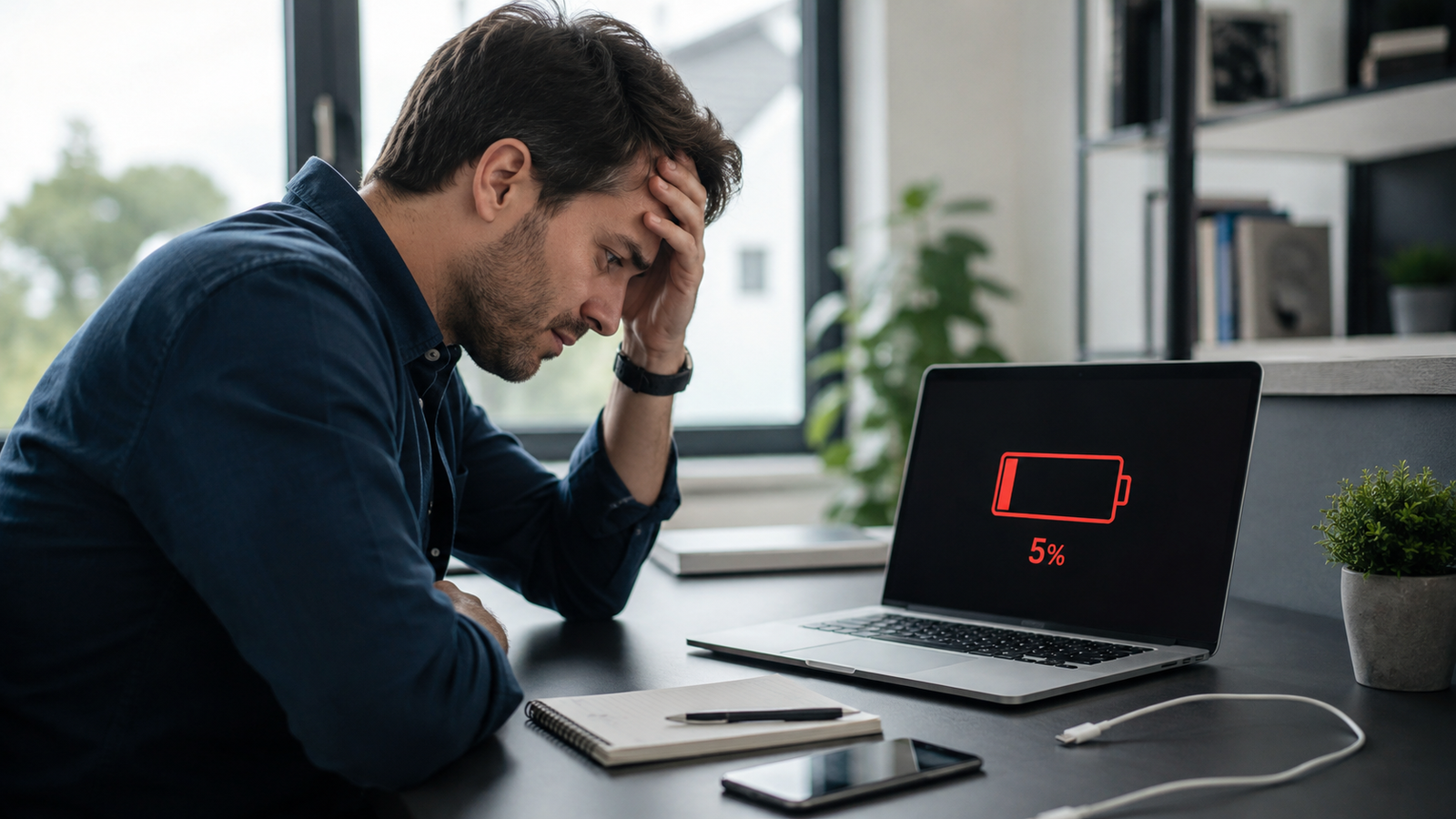
Your laptop promised 8 hours of battery life. Reality? You are charging it every 2 to 3 hours.
Sound familiar? You are not alone. Battery drain is one of the most frustrating laptop problems people face every day, especially remote workers and students who cannot always be near a power outlet.
The good news is that most battery drain problems are caused by settings, habits, and background activity that you can fix right now. This guide covers 10 proven ways to lower battery drain on your laptop, plus a myth-busting section that might change how you charge forever.
Why Is My Laptop Battery Draining So Fast?

Before jumping to fixes, it helps to know what is actually eating your battery.
Modern laptop batteries are designed to last 6 to 10 hours on a full charge under normal use. If you are seeing far less than that, here are the most common reasons:
- You have too many apps running in the background
- Your screen brightness is turned all the way up
- Your laptop is running in high-performance mode
- Your battery is getting old and losing capacity
- Your system software or drivers are outdated
The average laptop battery lasts 2 to 5 years, or about 300 to 1,000 charge cycles, before it starts to degrade noticeably. If your laptop is older than 3 years and the battery is draining fast, aging cells could be part of the problem.
Quick Check First: How to See Your Battery Health

Before you start changing settings, check how healthy your battery actually is.
On Windows 11:
Open the Start menu and search for Command Prompt. Right-click it and choose “Run as administrator.” Type the following command and press Enter:
powercfg /batteryreport
Windows will generate a detailed battery report saved as an HTML file. Open it and look at the “Design Capacity” vs “Full Charge Capacity” numbers. If your full charge capacity is below 80% of the original design capacity, your battery is noticeably degraded.
On Mac:
Go to System Settings, then click Battery. Look for the “Battery Health” section. If it says “Normal,” your battery is fine. If it says “Service Recommended,” it is time to act.
10 Ways to Lower Battery Drain on Your Laptop
1. Lower Screen Brightness (Your Biggest Win)

The display is the single largest power consumer on any laptop. This is the easiest fix with the biggest payoff.
Research shows that reducing screen brightness by just 50% can extend battery life by up to 30%. You do not need to go fully dim. Dropping from 100% brightness to 50 or 60% is enough to make a serious difference.
On Windows, press the Windows key + A to open Quick Settings and drag the brightness slider down.
On Mac, go to System Settings, then Displays, and lower the brightness slider. You can also enable “Automatically adjust brightness” so your Mac does the work for you.
2. Switch to Battery Saver Mode
Both Windows and Mac have built-in power modes designed to squeeze more life out of your battery.
On Windows 11, open Settings and go to System, then Power and Battery. Select “Battery Saver” to turn it on manually, or set it to activate automatically when the battery drops below a certain percentage.
On Mac, go to System Settings, then Battery, and turn on “Low Power Mode.” This reduces background activity and slightly dims the display to conserve power.
These modes do reduce performance slightly, but for everyday tasks like browsing, writing, and video calls, you will not notice a difference.
3. Kill Background Apps and Startup Programs

Hidden apps running in the background are one of the sneakiest causes of battery drain. Programs like Microsoft Teams, Spotify, OneDrive, and browser sync services keep running even when you are not actively using them.
According to Microsoft, disabling unnecessary startup apps can improve battery life by 10 to 15%.
On Windows, press Ctrl + Shift + Esc to open Task Manager. Click the “Startup Apps” tab and disable anything you do not need running at boot.
On Mac, go to System Settings, then General, then Login Items. Remove any apps that do not need to start automatically.
4. Lower Your Screen Refresh Rate (Most People Miss This)

This is one of the most overlooked battery tips, especially on newer laptops with high-refresh-rate screens.
Many modern laptops come with 120Hz or 144Hz displays. These screens look smooth, but they refresh more often, which uses significantly more power. Dropping from 120Hz down to 60Hz can save 10 to 30% of battery life.
On Windows 11, go to Settings, then System, then Display, then Advanced Display. Change the refresh rate to 60Hz when you are on battery.
On Mac (for newer models with ProMotion), go to System Settings, then Displays, and set the refresh rate to 60Hz manually when you need extra battery life.
5. Turn Off Bluetooth and Wi-Fi When Not Needed
Both Bluetooth and Wi-Fi consume power even when you are not actively using them.
If you are working offline or using a wired ethernet connection, turning off Wi-Fi can free up battery. If you are not using wireless headphones, mice, or speakers, disable Bluetooth too.
On Windows, click the network icon in the taskbar and toggle Wi-Fi and Bluetooth off.
On Mac, click the Control Center icon in the menu bar and turn off Bluetooth and Wi-Fi with a single click.
6. Unplug Accessories and USB Devices
Your laptop powers every device connected to it. External mice, USB drives, webcams, and even your phone charging through USB all draw power from your battery.
When you are working on battery and need to stretch your charge, unplug anything you are not actively using. This is a simple fix but most people forget about it completely.
7. Keep Your Laptop Cool

Heat is one of the biggest enemies of battery life, both short-term and long-term.
According to Battery University, the ideal operating temperature for lithium-ion laptop batteries is between 20 and 25 degrees Celsius. When your laptop runs hot, the battery drains faster and degrades more quickly over time.
Avoid using your laptop on soft surfaces like beds or sofas that block the vents. Use it on a hard, flat surface so air can circulate underneath.
Clean the dust out of your vents periodically. A clogged fan cannot cool the laptop properly, which pushes temperatures up and battery drain higher.
8. Use Integrated Graphics Instead of a Dedicated GPU
If your laptop has a dedicated graphics card from Nvidia or AMD, it is consuming a lot of power even during basic tasks.
Switching to integrated graphics for everyday work like browsing, writing, and video calls can dramatically reduce battery drain.
On Windows, you can set specific apps to use integrated graphics. Go to Settings, then System, then Display, then Graphics. Click on an app and choose “Power Saving” to force it to use the integrated GPU.
On Mac, go to System Settings, then Battery, and turn on “Automatic Graphics Switching.” Your Mac will automatically use the lower-power integrated chip when a powerful GPU is not needed.
9. Charge Between 20% and 80% (Stop Draining to Zero)

This is one of the most important habits you can build, and almost no one does it.
Research shows that regularly draining your battery below 20% can reduce its total lifespan by 30 to 50%. Deep discharges put extreme stress on the battery cells during the next recharge cycle.
Similarly, keeping your battery at 100% all the time while plugged in causes the battery to stay in a high-stress state due to the combination of full charge and heat.
Dell, Apple, and Lenovo all recommend keeping your battery between 20 and 80% for optimal long-term health.
Windows 11 has a built-in battery limit feature. Go to Settings, then System, then Power and Battery, and look for a “Smart Charging” option to cap charging at 80%.
On Mac, go to System Settings, then Battery, and turn on “Optimized Battery Charging.” This prevents your Mac from charging to 100% all the time.
10. Update Your OS, Drivers, and BIOS
Outdated software is a sneaky cause of excessive battery drain, especially after major system updates.
When Windows or macOS pushes a big update, it sometimes introduces power management bugs that cause unusual battery drain. Manufacturers release follow-up updates and driver patches to fix these issues.
Keep your operating system, graphics drivers, and especially your BIOS updated. BIOS updates often include improvements to battery management that are invisible but impactful.
On Windows, check for updates in Settings under Windows Update. For BIOS updates, visit your laptop manufacturer’s support website.
On Mac, go to System Settings, then General, then Software Update.
3 Charging Myths That Are Ruining Your Battery

Myth 1: You Should Drain the Battery to 0% Before Charging
This advice comes from the era of old nickel-cadmium batteries, which suffered from a “memory effect.” Modern lithium-ion batteries work completely differently.
Fact: Draining your battery to 0% repeatedly puts serious stress on the cells and accelerates their aging. Charge before it drops below 20%.
Myth 2: Always Charge to 100% for Best Performance
Charging to 100% constantly keeps the battery in a high-stress state, especially when combined with heat from regular use.
Fact: Stopping the charge at around 80% and recharging at around 20% significantly extends battery lifespan. Apple even automates this with Optimized Battery Charging.
Myth 3: Leaving Your Laptop Plugged In All Night Ruins the Battery
Modern laptops have built-in protection circuits that stop charging once the battery reaches full capacity. Overcharging in the traditional sense is essentially not possible on current hardware.
Fact: The real concern is not the overnight charging itself. It is the heat generated when a fully charged battery stays plugged in during heavy use like gaming or video rendering. Keep the laptop cool, and plugging it in overnight is generally safe.
When to Replace Your Laptop Battery Instead of Just Fixing It

Sometimes the battery is too far gone for settings tweaks to make a real difference. Here are the signs it is time to replace:
Your battery health report shows full charge capacity is below 60% of the original design capacity. Your laptop shuts down suddenly even when the battery shows 20 to 30% remaining. Your battery is physically swollen or bulging, which is a safety concern that requires immediate attention. Your laptop can no longer last more than an hour or two even with all power-saving settings turned on.
Replacing a laptop battery is usually much cheaper than buying a new laptop. Most third-party and OEM replacement batteries cost between $30 and $80 depending on the model.
Final Thoughts
Battery drain is frustrating, but it is almost always fixable.
Start with the quick wins: lower your brightness, enable battery saver mode, and kill background apps. These three changes alone can add 1 to 2 hours of daily battery life without any technical effort.
For long-term battery health, the 20 to 80% charging habit is the single most impactful thing you can do. It takes a little discipline at first, but it can add months or even years to your battery’s useful life.
Pick two or three tips from this list and apply them today. Your battery will thank you.