
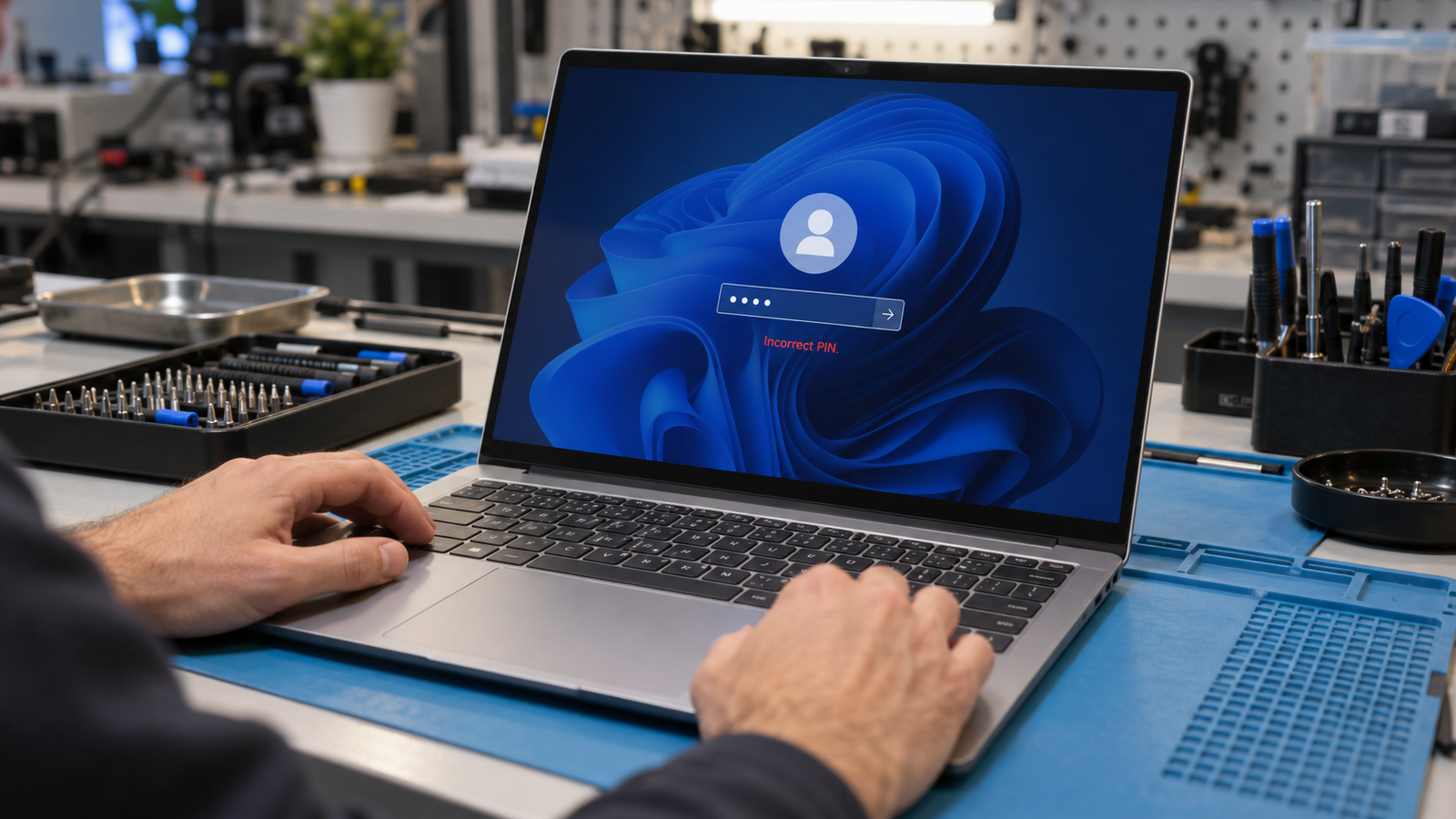
Windows 11 usually blocks sign-in because the PIN credential is corrupted or no longer matches the TPM after an update or BIOS change. Choose Sign-in options on the lock screen, enter your account password, then rebuild the PIN in Settings. This restores access in under ten minutes without losing files.
Introduction
You type the right PIN or password and Windows 11 drops you back at the lock screen, or it announces that your PIN is unavailable. Sometimes the “I forgot my PIN” link does nothing, and sometimes the whole sign-in option is disabled. This guide covers the three real causes and eight fixes, ordered from a two-minute check to a full account repair, with your files protected at every step.
Symptoms

- The lock screen returns to the sign-in box after you enter a password you know is correct
- “Something happened and your PIN isn’t available” with a Set up my PIN button that loops
- “This sign-in option is disabled because of failed sign-in attempts or repeated shutdowns”
- “You can’t sign in with this account. Try a different account”
- The “I forgot my PIN” link is missing, greyed out, or unresponsive
- A greyed out Sign in button that does nothing when clicked
- The spinning “Please wait” circle sits there far longer than usual after you enter credentials
- Fingerprint or face sign-in disappears at the same time as the PIN
- Sign-in works only while Ethernet is plugged in
- Safe Mode restarts end at the same sign-in screen
- A BitLocker recovery screen appears before Windows loads
- The problem began right after a Windows Update, BIOS update, or password reset
What Causes Windows 11 Can’t Sign In
- Corrupted PIN or Windows Hello data. The PIN credential lives in a protected folder called Ngc, and an update, crash, or forced shutdown can damage it. Your password works under Sign-in options while the PIN fails every time. Confirmation sign: the PIN reset link errors out or the screen says your PIN isn’t available.
- TPM or BIOS change. A Windows Hello PIN is bound to the laptop’s TPM, so a BIOS update, CMOS reset, or altered security setting makes Windows reject a PIN that is typed correctly. Suspect this when the lockout started right after firmware work. Confirmation sign: a BitLocker recovery prompt appears, or tpm.msc reports the TPM as not ready.
- Password mismatch or no connection. Windows has to reach Microsoft’s servers to verify a recently changed Microsoft account password, and Caps Lock or the wrong keyboard layout can silently alter what you type. Suspect this when the error reads “password incorrect” soon after a reset. Confirmation sign: sign-in succeeds once Wi-Fi or Ethernet connects, or your previous password works once.
Updates that damage sign-in data often damage other parts of Windows too, which is why the same update can also cause Windows 11 apps not opening.
How to Fix Windows 11 Can’t Sign In

- Check the keyboard and connect to the internet
- Cost: Free
- Time: 3 minutes
- Difficulty: Easy
- Steps: Turn Caps Lock off and Num Lock on if you type on the number pad. Click the language icon at the bottom right and confirm the layout matches your keyboard. Click the network icon and join Wi-Fi, or plug in Ethernet. Retype the password and use the eye icon to check it. If no networks appear at all, follow the no WiFi adapter found fix first.
- Expected Result: The password is accepted once input and verification are fixed.
- If Failed: Go to Fix 2.
- Sign in with your password and rebuild the PIN
- Cost: Free
- Time: 5 minutes
- Difficulty: Easy
- Steps: Select Sign-in options below the PIN box and choose the key icon for password. Sign in, then open Settings > Accounts > Sign-in options > PIN (Windows Hello). Select Remove, restart, then return and select Set up to create a new PIN.
- Expected Result: The new PIN works at the next lock screen.
- If Failed: Go to Fix 3.
- Wait out the lockout and restart cleanly
- Cost: Free
- Time: 30 minutes to 2 hours
- Difficulty: Easy
- Steps: Stop entering codes, because every failed attempt can extend the lock. Leave the laptop plugged in and select Power > Restart from the lock screen. HP community staff advise waiting up to two hours before trying again.
- Expected Result: The disabled sign-in option returns.
- If Failed: Go to Fix 4.
- Reset the Microsoft account password from another device
- Cost: Free
- Time: 10 minutes
- Difficulty: Easy
- Steps: On a phone or another PC, open account.live.com/password/reset and verify your identity with the emailed or texted code. Set a new password. Connect the locked laptop to the internet, then use Sign-in options > password with the new one.
- Expected Result: The laptop accepts the new password and lets you in.
- If Failed: Go to Fix 5.
- Boot into Safe Mode with Networking
- Cost: Free
- Time: 10 minutes
- Difficulty: Medium
- Steps: Hold Shift and select Power > Restart on the lock screen. Choose Troubleshoot > Advanced options > Startup Settings > Restart, then press 5. Sign in with your password, remove the PIN in Settings > Accounts > Sign-in options, restart normally, and add a new PIN.
- Expected Result: Normal sign-in returns with a fresh PIN.
- If Failed: Go to Fix 6.
- Rename the Ngc folder to reset Windows Hello
- Cost: Free
- Time: 15 minutes
- Difficulty: Medium
- Steps: Open Command Prompt as administrator in Safe Mode, or through Troubleshoot > Advanced options > Command Prompt in recovery. In recovery, the Windows drive is often D:, so confirm with dir first. Run the three commands below, restart, sign in with your password, and set up a new PIN.
- Rename the folder, never delete it, because the original is your only way back if something else is wrong.
takeown /f C:\Windows\ServiceProfiles\LocalService\AppData\Local\Microsoft\Ngc /r /d y
icacls C:\Windows\ServiceProfiles\LocalService\AppData\Local\Microsoft\Ngc /grant administrators:F /t
ren C:\Windows\ServiceProfiles\LocalService\AppData\Local\Microsoft\Ngc Ngc.old
-
- Expected Result: Windows rebuilds the Hello data and the PIN setup works again.
- If Failed: Go to Fix 7.
- Restore the TPM setting in BIOS
- Cost: Free
- Time: 15 minutes
- Difficulty: Medium
- Steps: Restart and tap your BIOS key (F2 on Dell, ASUS, and Acer, F1 or F2 on Lenovo, Esc or F10 on HP, Delete on MSI). Open the Security section and enable the TPM, listed as Intel PTT on Intel laptops or AMD fTPM on AMD laptops. Save and exit, and enter your BitLocker recovery key from aka.ms/myrecoverykey if prompted. If the BIOS clock keeps resetting to a default date, the CMOS battery is dying and needs replacement.
- Expected Result: The TPM reports ready and Windows accepts your credentials again.
- If Failed: Go to Fix 8.
- Reset this PC and keep your files
- Cost: Free
- Time: 1 to 2 hours
- Difficulty: Hard
- Steps: Hold Shift and select Power > Restart, then Troubleshoot > Reset this PC. Choose Keep my files and Local reinstall. Sign in afterward with the same Microsoft account.
- Expected Result: Fresh Windows with your documents intact and apps removed.
- If Failed: Back up files with a bootable USB and seek professional help.
Mistakes to Avoid
Choosing Remove everything. On the Reset this PC screen, this option wipes the drive, and your photos, documents, and downloads are gone for good. Pick Keep my files every time.
Clearing the TPM without your recovery key. Clearing it on a BitLocker-encrypted drive locks you out of the data itself. Confirm the key at aka.ms/myrecoverykey before touching any TPM option.
Deleting the Ngc folder or the user profile. Deleting a profile folder under C:\Users destroys everything stored in it. Rename folders and keep the originals until sign-in works.
Running a clean install before copying files. A clean install from USB formats the drive and erases your data. Reinstalling Windows repeatedly also fails to cure a TPM or BIOS fault, as several forum posters found when the PIN error returned after every reinstall.
When to Stop and Get Professional Help
Stop if the BitLocker recovery screen appears and the key is missing from your Microsoft account, if Windows reports the drive as missing or the drive clicks, or if the laptop belongs to a workplace or school and shows an organization sign-in message. Do not keep guessing passwords or clear the TPM in these cases. Files on an encrypted drive cannot be recovered without the key.
Prevention Tips

- Save your BitLocker recovery key from aka.ms/myrecoverykey before any BIOS or major Windows update.
- Memorize your account password or store it in a password manager, because a PIN only unlocks the one laptop.
- Create a second local administrator account so a damaged profile never locks you out entirely.
- Leave the laptop plugged in and let updates finish instead of forcing a shutdown mid-install.
- Copy Desktop and Documents to OneDrive or an external drive before updating the BIOS.
Frequently Asked Questions
Why does Windows 11 say my PIN isn’t available? The stored PIN data is damaged or no longer matches the TPM, usually after an update or BIOS change. Sign in with your password and set up a new PIN.
Why does Windows 11 reject my correct password? A recently changed password needs an internet connection to verify, and Caps Lock or a wrong keyboard layout can change what you type. Connect to Wi-Fi, check the layout icon, and try again.
What if the “I forgot my PIN” link does nothing? Choose Sign-in options and use your password, or boot Safe Mode with Networking through Shift and Restart. Reset the PIN from Settings once you are in.
Will I lose my files fixing a sign-in problem? Fixes 1 through 7 do not touch your files. Reset this PC with Keep my files preserves them too, but Remove everything wipes the drive.
Conclusion
Most Windows 11 sign-in failures come from a damaged PIN, a TPM or BIOS change, or a password that cannot be verified. The best fix is signing in with your password through Sign-in options and rebuilding the PIN. If a BitLocker recovery prompt appears and you have no key, stop and bring the laptop to a technician.