
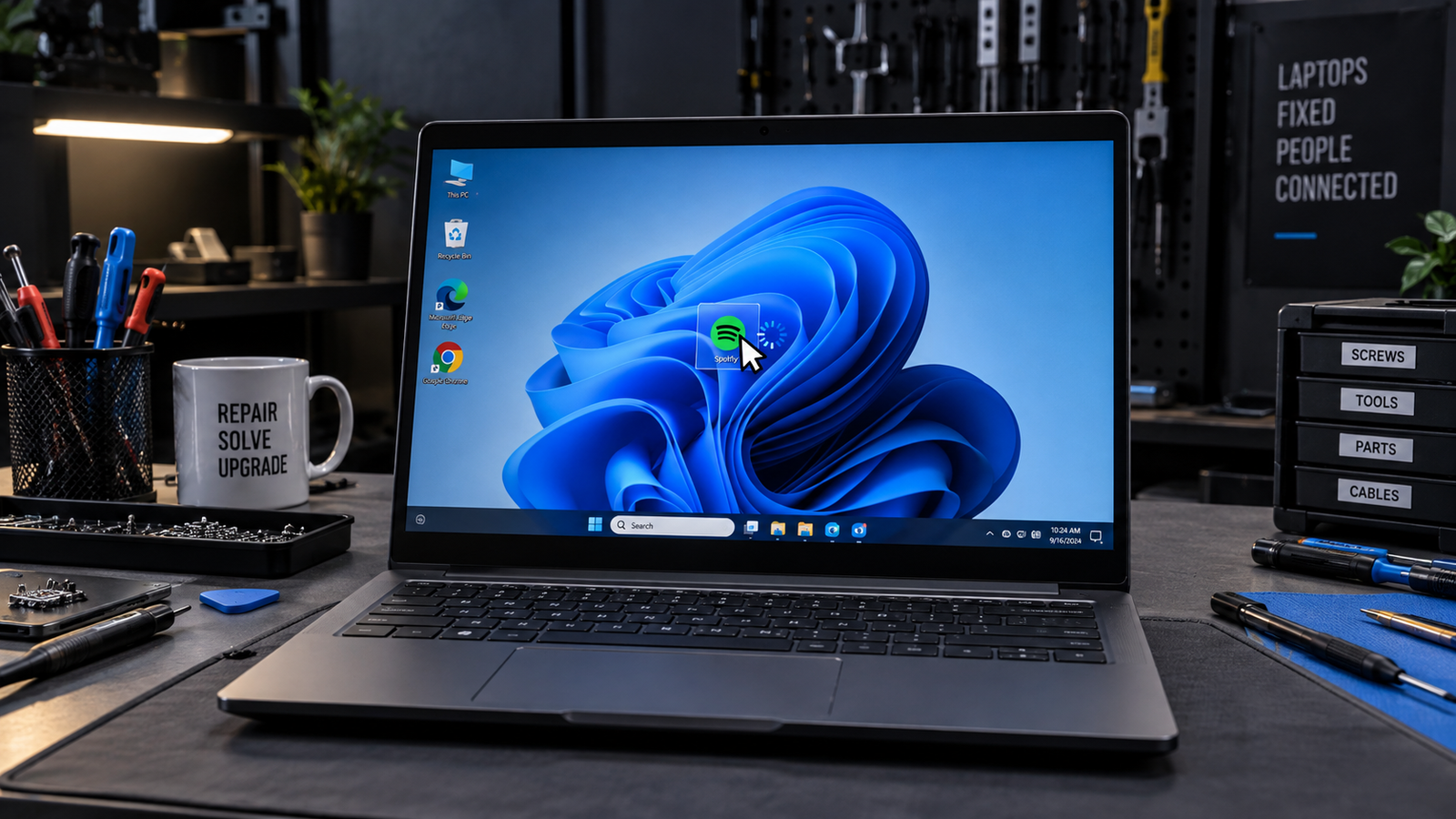
The most common reason Windows 11 programs take forever to open is too many startup apps competing for resources the moment Windows loads, combined with Windows Defender scanning every executable before it runs. Disable non-essential startup programs in Task Manager, then check whether a second antivirus is running alongside Defender. Most laptops return to normal launch times within five minutes.
Introduction
You click an app and stare at the cursor for 10 to 30 seconds before anything appears. The laptop is not frozen; it just acts like every program has to fight for permission to exist. This guide covers the four most common causes of slow program launches in Windows 11 and walks through every fix from the easiest one-minute change to the nuclear SFC repair, in order of effort.
Symptoms

- Programs take 10 to 60 seconds to open after being clicked
- Double-clicking an icon produces no visible response for several seconds
- The taskbar icon flashes briefly then disappears before the program loads
- Launch delay happens on all programs, not just one specific app
- Performance feels worst right after boot and improves slightly after 10 to 15 minutes
- Task Manager shows high CPU or disk usage even when no apps are visibly open
- HDD or SSD activity light stays solid or spins constantly at idle
What Causes Windows 11 Programs to Take Forever to Open
1. Startup program overload
Every application installed on the laptop that adds itself to startup drains memory and CPU at boot before you open a single app yourself. By the time you click something, the processor is already buried. Confirm this by opening Task Manager (Ctrl + Shift + Esc), clicking the Startup apps tab, and counting how many items show High or Medium impact. If you see more than five high-impact entries, this is almost certainly a contributing factor.
2. Windows Defender and SmartScreen scanning delay
Before Windows executes any program, Defender performs a real-time scan on the file. On most machines this takes under a second. When SmartScreen reputation checks are also active, the OS sends file hash data to Microsoft’s servers to verify the executable is safe before running it. On a slow internet connection or after certain Windows updates, this verification can take 5 to 30 seconds per launch. The confirmation sign is that programs hosted on your internal SSD launch slowly, but launching the same program a second time is noticeably faster because the scan result is cached.
3. Corrupted system files or a pending incomplete Windows Update
A bad Windows Update that stopped mid-install, or a corrupt system DLL, forces Windows to fall back to slower code paths when loading programs. Opening programs from the Start Menu takes longer than double-clicking the .exe directly. If the system also occasionally throws random application errors or the Windows Security icon shows a yellow warning, corrupted system files are likely involved.
How to Fix Windows 11 Programs That Take Forever to Open

Fix 1: Disable startup programs
Cost: Free | Time: 2 minutes | Difficulty: Easy
- Press Ctrl + Shift + Esc to open Task Manager.
- Click the Startup apps tab.
- Sort by Status and look for Enabled entries with High or Medium impact.
- Right-click any non-essential app (game launchers, cloud backup clients, chat apps, manufacturer utilities you do not use daily) and select Disable.
- Restart the laptop and test launch speed.
Expected Result: Programs open noticeably faster after boot, especially within the first five minutes of use.
If Failed: Move to Fix 2.
Fix 2: Set the power plan to High Performance
Cost: Free | Time: 1 minute | Difficulty: Easy
- Press Win + R, type powercfg.cpl, and press Enter.
- Click Show additional plans if High Performance is not visible.
- Select High Performance.
- Test program launch speed immediately, no restart needed.
Expected Result: Consistent launch times regardless of whether the laptop is plugged in. Laptops defaulting to Power Saver or Balanced mode throttle the CPU on battery, which directly delays program loading.
If Failed: Move to Fix 3.
Fix 3: Remove duplicate antivirus software
Cost: Free | Time: 5 minutes | Difficulty: Easy
- Press Win + I to open Settings, then go to Apps and search for any third-party antivirus (Norton, McAfee, Avast, Kaspersky, Bitdefender).
- If you find one installed alongside Windows Defender, uninstall it via the three-dot menu next to the app name.
- Restart the laptop.
- Confirm Windows Security is active by searching Windows Security in the Start Menu.
Expected Result: Every executable no longer gets scanned twice before running. Running two antivirus programs simultaneously is one of the most common causes of severe launch delays that forum threads never directly call out.
If Failed: Move to Fix 4.
Fix 4: Turn off SmartScreen for apps and files
Cost: Free | Time: 2 minutes | Difficulty: Easy
- Open Windows Security from the Start Menu.
- Click App and browser control in the left sidebar.
- Click Reputation-based protection settings.
- Under Check apps and files, toggle the setting to Off.
- Test program launch speed.
Note: This reduces one layer of real-time protection. Only do this if your antivirus is active and you do not regularly download software from unknown sources.
Expected Result: Programs that previously took 10 to 30 seconds to open launch in under two seconds. This fix specifically addresses the server-side SmartScreen verification delay.
If Failed: Move to Fix 5.
Fix 5: Free up disk space
Cost: Free | Time: 5 minutes | Difficulty: Easy
- Press Win + I, go to System, then Storage.
- Click Temporary files and check Temporary files, Recycle Bin, and Delivery Optimization Files.
- Click Remove files.
- Confirm your system drive (usually C:) has at least 15% free space. Below that, Windows page file operations slow everything down.
Expected Result: Immediate improvement if disk space was below 10% free. Windows needs room to write temporary data while launching programs.
If Failed: Move to Fix 6.
Fix 6: Run SFC and DISM to repair system files
Cost: Free | Time: 20 to 45 minutes | Difficulty: Moderate
- Type cmd in the Start Menu, right-click Command Prompt, and select Run as administrator.
- Type sfc /scannow and press Enter. Let it complete fully without closing the window.
- After SFC finishes, type the following and press Enter after each line:
- DISM /Online /Cleanup-Image /CheckHealth
- DISM /Online /Cleanup-Image /ScanHealth
- DISM /Online /Cleanup-Image /RestoreHealth
- Restart the laptop after both tools finish.
Expected Result: Corrupted system DLLs and registry files are restored from the Windows component store. Launch delays caused by Windows falling back to degraded code paths are eliminated.
If Failed: Move to Fix 7.
Fix 7: Perform a Clean Boot to isolate a software conflict
Cost: Free | Time: 15 minutes | Difficulty: Moderate
- Press Win + R, type msconfig, and press Enter.
- Click the Services tab, check Hide all Microsoft services, then click Disable all.
- Click the Startup tab, then click Open Task Manager and disable every startup item listed.
- Close Task Manager, click OK in msconfig, and restart.
- Test if programs open at normal speed in this clean boot state.
- If yes, re-enable services in small batches to identify which third-party service caused the conflict.
Expected Result: The conflicting service is identified and permanently disabled. Clean boot is the most reliable way to catch hidden background services that slow down every program launch without appearing obviously in Task Manager.
If Failed: Move to Fix 8.
Fix 8: Check and replace the storage drive
Cost: $40 to $120 for a new SSD | Time: 30 to 60 minutes | Difficulty: Hard
- Download CrystalDiskInfo (free) and run it.
- Look at the Health Status of your drive. Yellow (Caution) or Red (Bad) status means the drive is failing.
- Check Reallocated Sector Count and Uncorrectable Sector Count. Any value above zero on these attributes is a red flag.
- If the drive is failing, clone it to a new SSD using Macrium Reflect Free before replacing it.
Expected Result: A healthy SSD delivers consistent program launch times under two seconds. A failing drive or an old mechanical HDD running Windows 11 is a hardware-level bottleneck no software fix can overcome.
If Failed: Contact a technician, as the issue may be a failing CPU, corrupted Windows installation beyond repair, or incompatible hardware running Windows 11 outside its minimum requirements.
Mistakes to Avoid
Running registry cleaners
Registry cleaners marketed as speed boosters do more harm than good on Windows 11. Removing registry entries that appear unused can break program associations and cause new launch failures. Microsoft explicitly advises against third-party registry tools.
Disabling Windows Defender entirely
Turning off Defender rather than adjusting SmartScreen leaves the laptop completely unprotected. The SmartScreen reputation toggle in Fix 4 addresses the performance issue without disabling real-time protection.
Installing a third-party optimizer to fix the problem
Tools like CCleaner, WinOptimizer, and similar apps frequently introduce new startup entries and background services that worsen the same problem they claim to solve. Use the built-in Windows tools in this guide instead.
Force-closing programs during the first launch delay
Clicking the app again, or force-closing it through Task Manager during the initial load, can queue multiple instances of the same process simultaneously. This stacks resource usage and makes the next launch even slower. Wait for the first instance to either open or fail before acting.
When to Stop and Get Professional Help
Take the laptop to a technician if CrystalDiskInfo shows a Caution or Bad drive health status, if SFC and DISM both report errors they cannot repair, or if programs remain slow even after a Clean Boot with all third-party services disabled. These outcomes point to either a failing storage drive, a hardware compatibility issue, or a Windows installation corrupt beyond self-repair. Continuing to run a laptop with a failing drive risks data loss.
Prevention Tips

- Audit your startup apps every three months and disable any entry you do not actively use at login.
- Keep at least 20% of your system drive free at all times to give Windows enough room for temporary files.
- Only run one antivirus at a time. Windows Defender is sufficient when kept updated.
- Install Windows updates promptly. Updates that sit incomplete in the background consume disk and CPU while staged, slowing every launch.
- Check drive health once a year with CrystalDiskInfo, especially on laptops older than three years.
Frequently Asked Questions
Why do my programs open slowly only after restarting?
Startup program overload is the cause. Every app set to launch at boot competes for the same CPU and RAM during the first few minutes. Disable non-essential startup items in Task Manager to fix it.
Does adding more RAM fix slow program launches?
Only if you are regularly hitting your RAM limit. Open Task Manager while a program is loading slowly and check the Memory column in the Performance tab. If memory usage stays below 80%, adding RAM will not help.
Can malware cause programs to take forever to open?
Yes. Malware that runs hidden background processes can saturate CPU and disk usage without showing anything obvious. Run a full scan with Windows Defender or Malwarebytes if other fixes do not improve launch times.
Why does the same program open instantly the second time?
Windows and Defender cache recently launched executables in RAM. The first launch triggers a full disk read and antivirus scan. Subsequent launches pull from cache, which is far faster. Persistent first-launch slowness points to Defender scanning delays or disk fragmentation on an HDD.
Conclusion
The most common cause of Windows 11 programs taking forever to open is a combination of startup overload and Windows Defender or SmartScreen scanning executables before they run. Disabling unnecessary startup apps and removing duplicate antivirus software resolves most cases in under ten minutes. If those fixes do not work, run SFC and DISM to repair system files, and check drive health with CrystalDiskInfo before assuming the problem requires a hardware replacement.