
Quick Answer
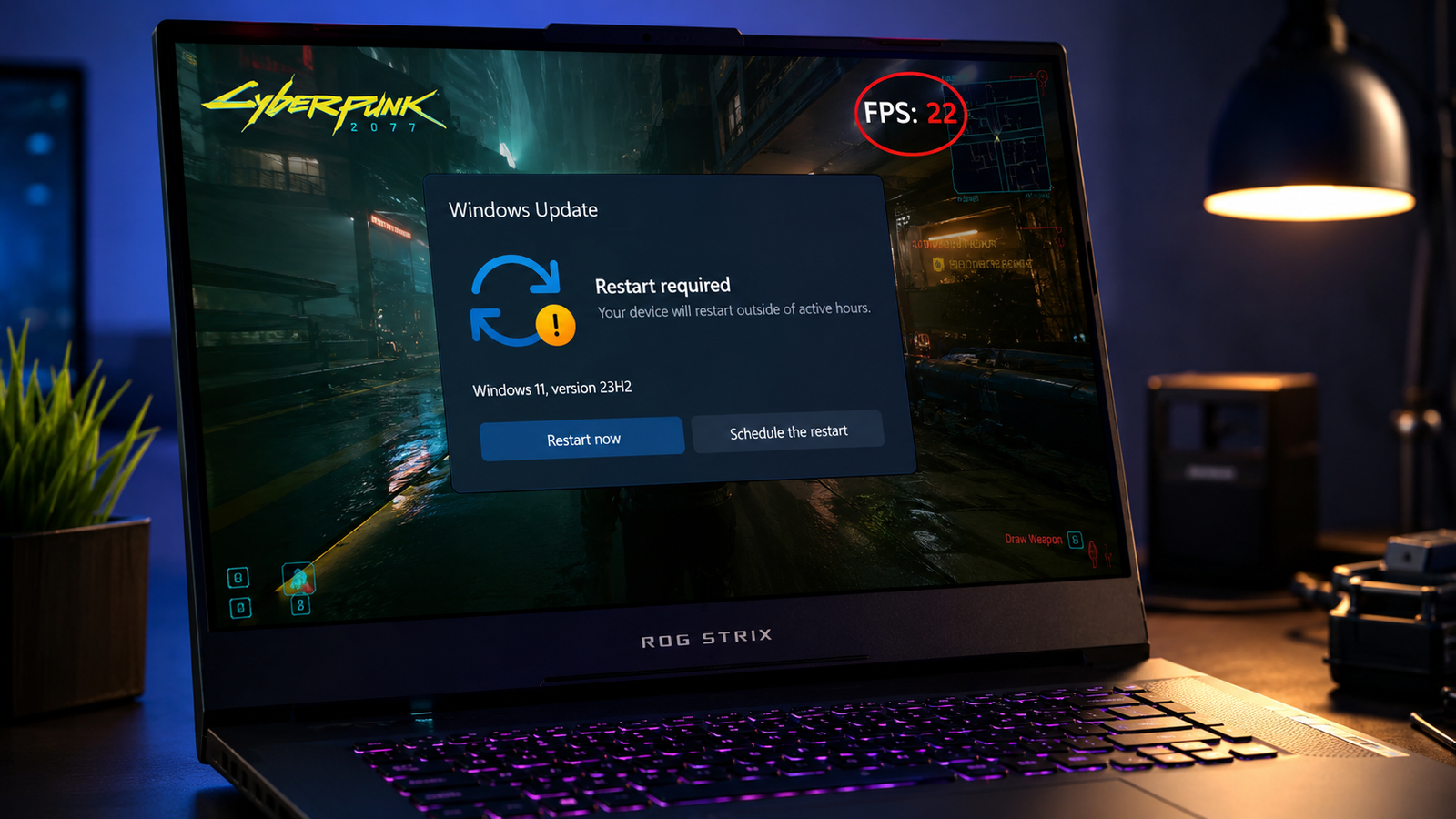
A Windows update most commonly causes low FPS by resetting your power plan to Balanced or silently replacing your dedicated GPU driver with an older OEM version. Switch to High Performance power plan first, then check your GPU driver version in Device Manager and reinstall directly from NVIDIA or AMD if the version has changed. Most users recover full FPS within 20 minutes.
Introduction
You were playing your games fine. Then Windows installed an update overnight, and the next session felt like you were running on integrated graphics. The FPS that was smooth yesterday is now half or worse, and nothing else in your setup changed.
This is one of the most common laptop repair complaints we handle after Patch Tuesday cycles. The frustrating part is that the cause is rarely obvious because Windows does not tell you what it changed, and the symptom looks identical to a hardware problem or a thermal issue that has nothing to do with the update.
This guide breaks down every confirmed cause of post-update FPS loss, from the most common ones you can fix in two minutes to the rarer cases where the update itself introduced a regression that requires a more deliberate workaround. You will know exactly what changed, how to confirm it, and how to reverse it.
Symptoms of the Problem

- FPS dropped noticeably after a Windows update and was fine before
- Frames per second are consistently low in all games, not just one
- GPU usage drops sharply during gameplay when it used to stay high
- CPU clock speed is lower than expected under load
- The performance drop started immediately after a restart from Windows Update
- Games that ran at 100+ FPS now sit at 30 to 50 FPS
- GPU temperature is lower than usual during load, which suggests the GPU is not running at full capacity
- Device Manager shows a different driver date or version than what you last installed
- Performance is acceptable in menus but poor once a game loads fully
- The issue affects every title, not just newer or more demanding games
Start Here: Fast Diagnosis
Work through this before trying any fix. Five minutes here saves hours of guessing.
Did the FPS drop start immediately after a Windows restart or update notification? Check the power plan first. Windows Update resets it to Balanced on most systems.
Is the power plan already on High Performance but FPS is still low? Open Device Manager, expand Display Adapters, right-click your GPU, go to Properties, then the Driver tab. Check the driver date. If the date is older than what you last installed, Windows replaced your driver.
Is the GPU driver date unchanged but FPS is still lower? The update itself may contain a direct performance regression. Check the KB number of the last update installed (Settings, Windows Update, Update History) and search for it alongside your GPU model.
Is the FPS drop only happening in one specific game? A game file became corrupted during the update cycle, or an antivirus scan triggered during the install and interfered with game files. Verify game files through Steam or the game launcher.
Is the GPU showing in Device Manager but with a warning icon? The driver install failed or is partially corrupted. A clean driver reinstall is required.
Is GPU usage dropping to near zero during FPS drops? The GPU is throttling from a power or thermal limit. Check if the charger is connected and the power plan is correct.
Does unplugging the charger make no difference? The update may have reset the laptop’s BIOS performance profile or manufacturer software settings.
Tools Needed
Built-in Windows tools:
- Settings, Windows Update, Update History (to identify which update ran)
- Device Manager (to check GPU driver version and date)
- Power Options / powercfg.cpl (to check and change power plan)
- Task Manager (Ctrl + Shift + Esc) for CPU and GPU usage monitoring
Free software tools:
- HWiNFO64 for full sensor monitoring (CPU clock, GPU clock, temperatures, power draw)
- GPU-Z for GPU driver version and power limits
- MSI Afterburner with RivaTuner for in-game performance overlay
- DDU (Display Driver Uninstaller) for clean driver removal
- GPU-Z Sensor tab for real-time GPU power limit status
Optional for advanced diagnosis:
- LatencyMon for driver interrupt latency spikes
- ThrottleStop for Intel CPU power limit inspection and override
Troubleshooting Matrix
| Symptom | Likely Cause | Fast Fix |
| FPS dropped right after Windows update | Power plan reset to Balanced | Switch to High Performance |
| Driver date changed in Device Manager | Windows replaced GPU driver with older OEM version | Clean reinstall from NVIDIA or AMD |
| GPU usage drops but temp is fine | Power limit reduced by update or plan change | Check power plan, BIOS settings |
| All games affected equally | System-level change, not game-specific | Power plan, driver, or update regression |
| One game affected | Game files corrupted during update | Verify game integrity in launcher |
| Temps lower than normal during gaming | GPU running below rated speed | Power plan or driver power management setting |
| CPU clock lower than normal under load | Power plan throttling CPU | Switch to High Performance or manufacturer gaming mode |
| FPS fine after fresh clean Windows install | Update itself contained a regression | Block the specific update temporarily |
| NVIDIA GPU at 99% but low FPS | Update broke GPU power state handling | Update NVIDIA driver directly from NVIDIA |
| Frame drops with normal avg FPS | Driver latency regression | Roll back driver or install NVIDIA hotfix |
What Causes Low FPS After a Windows Update

Power Plan Reset to Balanced
This is the single most common cause and it takes under two minutes to fix. Windows Update, particularly cumulative and feature updates, frequently resets the active power plan to Balanced as part of the update’s default state restoration process.
Why it happens: The update modifies power management components and, as part of that process, reverts power settings to a safe default. Balanced mode caps both CPU and GPU performance to reduce power draw, which directly cuts gaming performance by 30 to 60 percent on most laptops.
How to identify it: Press Win + R, type powercfg.cpl, press Enter. If the active plan is Balanced or Power Saver, this is confirmed.
What users misunderstand: Balanced mode throttles performance even when plugged into the wall. It is not just a battery-saving setting. Gaming on Balanced while plugged in still cuts clock speeds significantly.
One confirmation sign: Switching to High Performance immediately improves FPS in the next gaming session without any other change.
Windows Update Replaced Your Dedicated GPU Driver
Microsoft confirmed in May 2026 that Windows Update has been silently replacing manually installed GPU drivers with older OEM-packaged versions from its driver catalog. This happens because the Windows Update driver ranking system can score an older OEM-matched driver higher than a newer one installed directly from NVIDIA or AMD.
Why it happens: When the update runs, Windows compares available driver packages against your hardware ID. If an OEM-certified driver exists in the update catalog that matches your laptop model, Windows can install it over your current driver even if it is significantly older. The performance loss follows immediately because the OEM driver may be months or years behind the manufacturer’s latest Game Ready or Adrenalin release and lacks recent game optimizations.
How to identify it: Open Device Manager, expand Display Adapters, right-click your discrete GPU, select Properties, then the Driver tab. Compare the Driver Date and Driver Version against the last driver you manually installed. If the date regressed, Windows replaced it.
What users misunderstand: Many users reinstall the latest driver, see it work, then assume the problem is solved. The problem returns with the next Windows Update because the root behavior is unchanged. Blocking driver updates via Group Policy (covered in Fix 4) is the permanent solution.
One confirmation sign: GPU performs correctly after reinstalling the driver directly from NVIDIA or AMD, but the problem returns after the next Windows Update cycle.
The Update Itself Contained a GPU Performance Regression
Some cumulative updates have introduced direct performance regressions in GPU scheduling, power state handling, or graphics stack behavior. The October 2025 update KB5066835 is a documented example, where NVIDIA GPUs dropped significantly in FPS across multiple titles. NVIDIA responded with Hotfix GeForce driver 581.94 to address that specific regression. The January 2026 KB5074109 update caused similar reports.
Why it happens: Windows updates modify kernel-level graphics and power management components. A change to GPU power state handling or the Direct3D scheduler can degrade performance in a way that is invisible to the user but measurable in frame rate.
How to identify it: Check Settings, Windows Update, Update History. Note the most recently installed KB number. Search that KB number alongside your GPU model or “FPS drop” to check for community or vendor reports.
What users misunderstand: A clean Windows reinstall does not fix a regression tied to a specific update unless you install from an older ISO that predates the problematic update. Users who reinstall using Windows’ built-in reset and then immediately run Windows Update will reinstall the same problematic update.
One confirmation sign: Uninstalling the update through Settings, Windows Update, Update History, View Update History, Uninstall Updates restores FPS. Note that cumulative updates can only be uninstalled within 10 to 14 days of installation.
GPU Power Management Mode Reset to Default
Certain Windows updates reset NVIDIA Control Panel or AMD Adrenalin settings back to their defaults. The Power Management Mode in NVIDIA Control Panel defaults to “Optimal Power” or “Adaptive,” which allows the GPU to run below its rated clock speed when the driver decides load does not justify full power. This cuts FPS, especially in lighter scenes where the driver incorrectly reduces the GPU’s power state.
Why it happens: The GPU driver component that stores these settings can be reset during updates, especially when the update touches display adapter components.
How to identify it: Open NVIDIA Control Panel, go to Manage 3D Settings, and check the Power Management Mode setting under Global Settings. If it is set to anything other than “Prefer Maximum Performance,” it was likely reset.
What users misunderstand: The GPU can appear to be working (high usage percentage visible in Task Manager) but still run below rated speed if power management is pulling it back. Users see 99% GPU utilization and assume the GPU is fine, when actually the 99% is being achieved at a much lower clock speed than normal.
One confirmation sign: Setting Power Management Mode to “Prefer Maximum Performance” in NVIDIA Control Panel and retesting shows immediate FPS improvement.
Hardware-Accelerated GPU Scheduling (HAGS) Behavior Change
Windows updates have, on certain driver and hardware combinations, changed how HAGS behaves. HAGS was introduced as a performance feature but causes micro-stutters and frame time spikes on older Turing mobile GPUs and some AMD configurations. An update can re-enable HAGS after a user had previously disabled it.
Why it happens: The HAGS setting is stored in the Windows registry and can be reset or re-enabled by updates that touch display subsystem components.
How to identify it: Go to Settings, System, Display, Graphics, Change default graphics settings. Check if Hardware-Accelerated GPU Scheduling is on. If you previously had it off and it is now on, the update re-enabled it.
What users misunderstand: HAGS does not hurt performance on all hardware. On newer Ampere and Ada laptops, it can help or be neutral. On older Turing mobile GPUs (RTX 2060, 2070, 2080 mobile), it is more likely to hurt frame time consistency.
One confirmation sign: Disabling HAGS and rebooting reduces or eliminates stuttering that appeared after the update.
Background Services Activated or Changed by the Update
Windows updates can activate or change the behavior of background services, particularly telemetry, Windows Defender scanning, and Connected Standby components. These services can consume CPU time or generate disk I/O during gaming sessions in the hours immediately after an update installs.
Why it happens: Post-update indexing, Defender scanning newly modified files, and telemetry collection all run at elevated priority in the first hours to days after a major update.
How to identify it: Open Task Manager during a drop event, sort by CPU, and look for services like MsMpEng.exe (Defender), SgrmBroker.exe, TiWorker.exe (Windows Update), or WMI Provider Host consuming meaningful CPU time during gameplay.
What users misunderstand: This type of interference is temporary. It can resolve itself within 24 to 48 hours as post-update background activity settles. Ruling it out by checking Task Manager is still the right step, but waiting a day before doing deeper troubleshooting is also valid.
One confirmation sign: FPS is worse on the day of the update but gradually returns toward normal over the following day or two without any intervention.
Manufacturer Software Settings Reset
On gaming laptops with brand-specific software (Armoury Crate, Lenovo Vantage, MSI Center, Dell Command Center), Windows updates can reset performance profiles or interfere with the software’s stored settings. A laptop previously running in Performance or Turbo mode may revert to Balanced or Silent mode after an update.
Why it happens: These tools store settings in registry entries or configuration files that can be overwritten or reset when Windows updates touch related system components.
How to identify it: Open your brand’s performance software and check which mode is currently active. If it shows Balanced, Silent, or any non-performance mode, switch it back to the highest setting.
What users misunderstand: Brand performance software and Windows power plans are separate but interact. You need both set correctly. Setting the manufacturer software to Performance while the Windows power plan remains on Balanced still results in reduced performance.
One confirmation sign: Switching the manufacturer software to Turbo or Performance mode alongside High Performance in Windows power options restores FPS.
What We See Most Often
In the shop, the typical post-update FPS complaint follows a specific pattern. The user updated overnight, noticed the problem the next gaming session, assumed hardware was failing, and spent two to three days trying things like reinstalling Windows or adjusting in-game settings. They came in after none of that worked.
In almost every case, the cause was one of two things or both: the power plan reset to Balanced, or Windows replaced the NVIDIA or AMD driver with an older OEM version. The fix takes under 20 minutes.
The harder cases are the ones where the update itself introduced a regression. Those require identifying the specific KB number, confirming via community reports that it is a known bad update, and either uninstalling the update or installing an NVIDIA or AMD hotfix driver that specifically addresses that update’s regression. The Nvidia hotfix for the October 2025 update was released within three weeks of the regression being reported, which is the typical turnaround when the impact is significant enough.
How to Diagnose the Problem

Step 1: Find out which update ran
Go to Settings, Windows Update, Update History. The most recently installed KB number is the starting suspect. Note the date it installed. If your FPS dropped on or after that date, it is the trigger.
Expected Result: You identify the exact update. If Failed: The update history may list multiple updates. The cumulative update (LCU) is the most likely cause, not definition or driver updates.
Step 2: Check the power plan
Press Win + R, type powercfg.cpl, press Enter. Check which plan is active.
Expected Result: If not on High Performance, switching it may immediately resolve the issue. If Failed: The power plan was already correct. Move to Step 3.
Step 3: Check the GPU driver date
Open Device Manager, expand Display Adapters, right-click the discrete GPU (NVIDIA or AMD), select Properties, Driver tab. Note the Driver Date and Version.
Expected Result: If the date is older than your last manual install, Windows replaced the driver. Skip to Fix 4. If Failed: Driver date matches what you last installed. Move to Step 4.
Step 4: Check GPU power management settings
For NVIDIA: Open NVIDIA Control Panel, go to Manage 3D Settings, Global Settings. Check Power Management Mode. For AMD: Open AMD Adrenalin, go to Gaming, Global Graphics. Check Power Tuning or performance level settings.
Expected Result: If Power Management is set to anything below maximum, changing it may restore FPS. If Failed: Power management was not reset. Move to Step 5.
Step 5: Check manufacturer software performance mode
Open your brand’s software (Armoury Crate, Lenovo Vantage, MSI Center, Dell Command Center, Omen Gaming Hub, Nitro Sense).
Expected Result: If the mode was reset to Balanced or Silent, switching to Performance or Turbo may restore FPS. If Failed: Software settings were not the cause. Move to Step 6.
Step 6: Monitor under load
Install HWiNFO64 and configure an in-game overlay with GPU clock, CPU clock, GPU temperature, and GPU power. Game for 15 minutes.
Expected Result: You can see whether GPU clock is lower than its rated speed, whether throttling is occurring, and whether background CPU spikes correlate with FPS drops. If Failed: Everything looks normal in monitoring but FPS is still low. The update likely introduced a graphics stack regression. See Fix 7.
Which Fix Usually Works?
| Fix | Typical Success Rate | Cost | Difficulty |
| Switch to High Performance power plan | Very Common | Free | Easy |
| Reinstall GPU driver directly from manufacturer | Very Common | Free | Easy |
| Set NVIDIA Power Management to Prefer Maximum Performance | Common | Free | Easy |
| Switch manufacturer software back to Performance mode | Common | Free | Easy |
| Disable HAGS | Common (older GPUs) | Free | Easy |
| Uninstall the specific Windows update | Occasional | Free | Easy to Moderate |
| Block Windows from replacing GPU drivers via Group Policy | Occasional (prevention) | Free | Moderate |
| Install NVIDIA or AMD hotfix driver | Occasional | Free | Easy |
| Roll back to a previous Windows version | Rare | Free | Moderate |
| Clean reinstall of Windows from pre-update ISO | Rare | Free | Advanced |
Step-by-Step Fixes

Fix 1: Switch to High Performance Power Plan
Cost: Free Time: 2 minutes Difficulty: Easy
- Press Win + R, type powercfg.cpl, press Enter.
- Select High Performance from the listed plans. If it is not visible, click “Show additional plans.”
- If your laptop has a manufacturer gaming plan (Legion Performance, Turbo, Extreme Performance), select that instead of the generic High Performance plan.
- Close the window and launch your game.
- Recheck this setting after every future Windows update.
Expected Result: FPS improves immediately in the next gaming session. If Failed: The power plan was not the cause. Continue to Fix 2. Technician Tip: After a major Windows update, always check the power plan before anything else. It takes 10 seconds and resolves the issue for a significant portion of affected users.
Fix 2: Restore GPU Control Panel Power Settings
Cost: Free Time: 5 minutes Difficulty: Easy
For NVIDIA:
- Right-click the desktop and select NVIDIA Control Panel.
- Click “Manage 3D Settings” in the left menu.
- Select “Global Settings” tab.
- Scroll to “Power Management Mode.”
- Change it from “Optimal Power” or “Adaptive” to “Prefer Maximum Performance.”
- Click Apply.
For AMD:
- Open AMD Adrenalin (right-click desktop, AMD Software: Adrenalin Edition).
- Go to Gaming, then Global Graphics.
- Set Graphics Profile to “Performance” or ensure the performance slider is at maximum.
- Apply and close.
Expected Result: GPU now runs at full clock speed instead of pulling back in lighter scenes. If Failed: Power management was not the cause. Continue to Fix 3. Expert Warning: “Prefer Maximum Performance” in NVIDIA Control Panel increases idle power consumption slightly. On battery-powered use this is not ideal, so switch back to Adaptive when not gaming if battery life matters.
Fix 3: Restore Manufacturer Software Performance Mode
Cost: Free Time: 5 minutes Difficulty: Easy
Locate and open the performance software for your laptop brand:
- ASUS ROG / TUF: Armoury Crate, set Scenario Profile to “Turbo” or “Performance”
- Lenovo Legion: Lenovo Vantage or Legion Space, set Power Mode to “Performance” or “Extreme Performance”
- MSI: MSI Center, set User Scenario to “Extreme Performance”
- Dell G / Alienware: Alienware Command Center or Dell Command Center, switch to “Full Speed” or “High Performance” thermal policy
- HP Omen: Omen Gaming Hub, set OMEN Performance Control to maximum
- Acer Predator / Nitro: Predator Sense or Nitro Sense, set to “Turbo” or “Performance,” and manually set fan speed to maximum
After changing the software mode, also confirm the Windows power plan is on High Performance (Fix 1). Both need to be set correctly.
Expected Result: GPU TDP limit increases, fan runs harder, and sustained FPS improves. If Failed: The software settings were not reset by the update. Continue to Fix 4. Technician Tip: On Lenovo Legion laptops, Intelligent Cooling can override your manual mode selection. Disable Intelligent Cooling in Vantage if it keeps reverting to Balanced.
Fix 4: Reinstall the GPU Driver Directly from the Manufacturer
Cost: Free Time: 20 to 40 minutes Difficulty: Easy to Moderate
This fix addresses the confirmed Windows Update behavior of replacing dedicated GPU drivers with older OEM versions.
- Before starting, download the latest driver for your GPU:
- NVIDIA: nvidia.com/drivers, select your GPU model and Windows 11, download the Game Ready Driver
- AMD: amd.com/en/support, select your GPU, download the Adrenalin Edition full installer
- Download DDU (Display Driver Uninstaller) from guru3d.com.
- Boot into Safe Mode: Hold Shift, click Start, Restart, then navigate Troubleshoot, Advanced Options, Startup Settings, Restart, then press F4 for Safe Mode.
- Run DDU inside Safe Mode. Select GPU type (NVIDIA or AMD), then click “Clean and restart.”
- After the laptop restarts into normal mode, do not connect to the internet yet (to prevent Windows from auto-installing its driver). Install the driver file you downloaded in step 1.
- Reboot and test performance.
Expected Result: GPU runs at full driver capability with current game optimizations. FPS should return to pre-update levels. If Failed: The driver was not the cause of the regression. The update itself introduced a performance regression. See Fix 7. Expert Warning: Do not use Windows Update or Windows Update’s “optional driver updates” to install your GPU driver. Always install directly from NVIDIA.com or AMD.com for gaming.
Fix 5: Prevent Windows from Replacing Your GPU Driver (Permanent Fix)
Cost: Free Time: 10 minutes Difficulty: Moderate (requires Windows Pro or higher for Group Policy method)
Method A: Group Policy Editor (Windows 11 Pro and above)
- Press Win + R, type gpedit.msc, press Enter.
- Navigate to: Computer Configuration, Administrative Templates, Windows Components, Windows Update.
- Double-click “Do not include drivers with Windows Update.”
- Set it to “Enabled” and click OK.
From now on, Windows Update will no longer automatically install or replace device drivers, including GPU drivers.
Method B: Registry Edit (Works on Windows 11 Home)
- Press Win + R, type regedit, press Enter.
- Navigate to: HKEY_LOCAL_MACHINE\SOFTWARE\Policies\Microsoft\Windows\WindowsUpdate
- Right-click the right pane, select New, DWORD (32-bit) Value.
- Name it ExcludeWUDriversInQualityUpdate.
- Double-click it and set Value Data to 1.
- Reboot.
After applying either method, manually install GPU drivers directly from the manufacturer as usual. Windows will no longer overwrite them.
Expected Result: Your manually installed GPU driver remains in place through future Windows updates. If Failed: The setting may require a reboot to take effect. Confirm the registry value is set correctly. Technician Tip: After blocking driver updates, set a reminder to manually check for GPU driver updates every 4 to 6 weeks. You will no longer get them automatically.
Fix 6: Disable Hardware-Accelerated GPU Scheduling (HAGS)
Cost: Free Time: 3 minutes Difficulty: Easy
- Go to Settings, System, Display.
- Scroll down and click “Graphics.”
- Click “Change default graphics settings.”
- Under Hardware-Accelerated GPU Scheduling, toggle it off.
- Restart the system.
Expected Result: Frame time consistency improves on affected GPU models, reducing stutters that appeared after the update. If Failed: HAGS was not causing the issue on your specific hardware. You can re-enable it if preferred. On newer GPUs (RTX 30 and 40 series mobile), HAGS is more neutral and can stay on. Technician Tip: On NVIDIA Turing mobile GPUs (RTX 2060, 2070, 2080 mobile variants), disabling HAGS more reliably reduces micro-stutters than on newer Ampere or Ada Lovelace mobile GPUs.
Fix 7: Uninstall the Problematic Windows Update
Cost: Free Time: 15 to 25 minutes Difficulty: Easy to Moderate
This applies when the update itself introduced a performance regression rather than a settings reset.
- Go to Settings, Windows Update, Update History.
- Click “Uninstall Updates.”
- Find the most recently installed cumulative update in the list (these are labeled KB followed by a number).
- Click Uninstall next to it.
- Follow the prompts and let the system restart.
- After restart, test gaming performance.
Important limitation: Windows only allows uninstalling updates within 10 to 14 days of installation. After that window closes, this option is no longer available for that specific update.
Expected Result: If the update itself was the cause of a regression, uninstalling it restores FPS to pre-update levels. If Failed: Either the update was not the direct cause, or it has already been installed too long to uninstall through the standard method. Expert Warning: Removing a security update reduces system protection against the vulnerabilities it patched. Monitor NVIDIA and AMD release notes for hotfix drivers that address the specific regression, then reinstall the update after the hotfix is available.
Fix 8: Install an NVIDIA or AMD Hotfix Driver
Cost: Free Time: 15 minutes Difficulty: Easy
When a Windows update causes a known GPU performance regression, NVIDIA and AMD typically release a hotfix driver within two to four weeks. These hotfix drivers specifically address the regression caused by a particular update.
- Visit NVIDIA’s driver page at nvidia.com/drivers and check for any recently released hotfix drivers. Hotfix drivers appear separately from the main Game Ready releases and are labeled “Hotfix” in the release notes.
- For AMD, check amd.com/en/support for any Optional or Beta driver releases that reference Windows update-related performance issues.
- Read the release notes for the hotfix and confirm it mentions the specific KB number you installed.
- Download and install using DDU in Safe Mode for a clean installation.
Expected Result: Hotfix driver resolves the regression introduced by the Windows update without requiring you to uninstall the update itself. If Failed: A hotfix has not been released yet for your specific configuration. Monitor NVIDIA and AMD channels and check back in one to two weeks. Technician Tip: NVIDIA’s hotfix for the October 2025 KB5066835 regression was Hotfix 581.94. Keep an eye on similar releases after future problematic updates.
Fix 9: Block the Update via Windows Update Pause (Temporary)
Cost: Free Time: 5 minutes Difficulty: Easy
If a known-bad update is spreading and you have not yet installed it:
- Go to Settings, Windows Update.
- Click “Pause Updates.”
- Select the maximum pause duration available (up to 5 weeks on Windows 11).
This gives time for Microsoft or NVIDIA/AMD to release a fix before the update reaches your system.
Expected Result: The problematic update does not install during the pause period. If Failed: The update was already installed before you paused. Use Fix 7 to uninstall it. Technician Tip: Check Reddit’s r/Windows11 or r/pcgaming on Patch Tuesdays (second Tuesday of each month) to get fast reports of any update-related performance regressions before they reach your system.
Mistakes That Make the Problem Worse
Reinstalling Windows before checking the power plan A clean Windows install takes two to three hours, risks data loss, and then reinstalls all the same updates, including the one that caused the problem. Check the power plan and the driver version in five minutes first.
Reinstalling Windows and immediately running Windows Update If the cause is a specific update regression, a clean install only helps if you install from an older ISO and then avoid or block the problematic update. Running Windows Update immediately after reinstalling brings the bad update right back.
Updating the GPU driver through Windows Update instead of the manufacturer’s site Windows Update provides OEM-certified drivers, which are often months behind the current Game Ready or Adrenalin release and lack recent game optimizations. Always install GPU drivers directly from NVIDIA.com or AMD.com.
Using DDU without downloading the new driver first DDU removes the existing driver and leaves the system with no GPU driver. If Windows Update then installs a driver before you get yours in, you are back to the same situation. Download the manufacturer driver before running DDU.
Overclocking after a regression update Attempting to overclock your way out of a regression caused by a kernel-level change is unlikely to help and may introduce instability. Fix the root cause first.
Changing only the Windows power plan without checking the manufacturer software Both the Windows power plan and the brand software must be set to Performance. Setting one without the other leaves performance partially capped.
Assuming higher GPU temperature means better performance after an update After some updates, the GPU runs at a lower clock speed and lower power draw, which results in lower temperatures. Lower temperature combined with lower FPS is a sign of a throttling or power management issue, not a sign the system is running well.
Brand-Specific Considerations
Dell
Dell’s G series and Alienware laptops use Dell Command Center and Alienware Command Center respectively. After a Windows update, check that the Thermal Policy in Alienware Command Center is still set to “Full Speed.” Dell G series users should check Dell Command Center for any performance mode that may have reset to Cool or Optimized, which actively limits GPU TDP. Dell laptops are also among those most commonly affected by the Windows Update driver replacement issue, as Dell publishes its own signed GPU drivers to Windows Update that are often months behind NVIDIA’s current Game Ready releases.
HP
HP Omen laptops use Omen Gaming Hub. After a Windows update, check the OMEN Performance Control slider. HP Victus laptops have more limited software control and rely primarily on Windows power plans. On HP laptops, also verify BIOS thermal management settings, particularly on Omen models where the Thermal Policy option in BIOS can be reset to “Cool” by certain updates.
Lenovo
Lenovo Legion laptops are particularly susceptible to post-update performance resets because Legion Space and Lenovo Vantage compete for control over the same power and thermal settings. After any Windows update, open both Vantage and Legion Space, confirm the Power Mode is set to Performance or Extreme Performance, and turn off Intelligent Cooling if it keeps reverting modes. IdeaPad Gaming users can use the Fn + Q shortcut to cycle through performance modes after an update.
ASUS
ASUS ROG and TUF laptops run Armoury Crate for performance and fan profiles. After a Windows update, check that Scenario Profile is still set to Turbo or Performance. ASUS ROG laptops with a MUX switch (hardware iGPU bypass available in BIOS) may have that setting reset to Optimus mode after a feature update. Re-enabling dGPU Only mode in BIOS through the Advanced settings can recover 10 to 15 percent FPS.
Acer
Acer Predator and Nitro series use Predator Sense and Nitro Sense. After a Windows update, check that the performance mode is not on Silent or Auto. Acer Nitro 5 and Nitro 16 models are particularly prone to conservative power limits at rest, so ensuring the fan control is manual and set to maximum during gaming is critical. Acer gaming laptops are also more likely to need BIOS updates from Acer’s support site after major Windows updates to maintain stable GPU behavior.
MSI
MSI laptops use MSI Center (formerly Dragon Center). After a Windows update, check the User Scenario in MSI Center. If it reset to Balanced or Silent, switch it to Extreme Performance. MSI Afterburner’s Power Limit setting may also have been changed by the update. Check the Afterburner OC profile if you use one.
Repair Shop Diagnosis

When a laptop comes in with a post-update FPS complaint, the diagnostic workflow is straightforward.
The first thing checked is the update history. Knowing which update ran and when it ran tells you exactly where to focus. The second check is the power plan, which takes under a minute and resolves the majority of cases right there.
If the power plan is fine, the next step is Device Manager to inspect the GPU driver date. Technicians use GPU-Z alongside this to see whether the driver version matches NVIDIA or AMD’s current release. On more than half of post-update cases, the driver has been downgraded and reinstalling it directly from the manufacturer closes the complaint.
For the remaining cases where settings are correct and the driver is current, the technician confirms whether the performance difference is measurable on a calibrated benchmark (3DMark Time Spy or Unigine Superposition) versus normal expected scores for that GPU. A meaningful gap from expected scores on a confirmed regression update then leads to checking whether NVIDIA or AMD has released a hotfix, or whether temporarily uninstalling the update restores the expected score.
Typical diagnostic fee: $40 to $60 for software diagnosis only. Most repairs do not require any physical hardware work.
When Hardware Replacement Is Necessary
Low FPS after a Windows update is almost never a hardware failure. That said, there are edge cases where the update surfaced an underlying hardware issue rather than creating one.
If FPS was already declining before the update: The update may have simply pushed a degrading GPU or thermal situation past its threshold. Repasting and thermal service are then appropriate. If temperatures are already high before and after the update, the thermal system was the existing problem.
If the GPU is not detected in Device Manager at all: The update may have surfaced a loose solder joint or failing chip. This requires motherboard-level diagnosis and potentially motherboard replacement. Cost ranges from $300 to $800 depending on model.
If the laptop shuts down completely under gaming load: Not related to the update. The update may have coincided with a failing battery or VRM issue that was already present. Stop gaming and have it diagnosed.
Stop Troubleshooting and Seek Professional Repair If
The laptop shuts off immediately under load after the update. This is not a performance regression from the update. It suggests a hardware fault the update may have coincidentally revealed.
You smell burning or notice the bottom case is excessively hot. Power off. Do not continue testing.
The GPU shows as an unknown device or with a yellow error in Device Manager, and reinstalling the driver does not clear it. There may be a hardware failure that predated the update or was revealed by it.
You have tried all software fixes and performance is still 50 percent or more below expected. If the laptop was previously benchmarked, a consistent 50 percent shortfall that survives a clean driver install and correct power settings is unusual and warrants professional evaluation.
The screen shows artifacts, flickering, or corruption during gaming after the update. This indicates a GPU hardware issue, not a software regression from the update.
Prevention Tips

Check the power plan after every Windows update before gaming. It takes 10 seconds and prevents the most common cause of post-update FPS loss.
Install GPU drivers directly from NVIDIA.com or AMD.com, never from Windows Update. Manufacturer drivers are current, game-optimized, and include the full feature set. OEM drivers from Windows Update are often months old and lack recent optimizations.
Use Group Policy or the registry edit to block Windows from replacing your GPU driver automatically. This is the only reliable way to prevent the silent driver downgrade issue that Microsoft confirmed in 2026. The fix for this behavior is not expected until late 2026 at the earliest.
Pause Windows updates on Patch Tuesday if community reports flag a problematic update. Check Reddit’s r/Windows11 and r/pcgaming on the second Tuesday of each month. If a cumulative update is causing widespread FPS regressions, pause updates for two to three weeks until a hotfix driver or updated update is available.
Take a CPU-Z and GPU-Z screenshot before updating Windows. Having your baseline driver version and clock speeds documented makes it much easier to confirm what the update changed.
Enable Restore Points before major Windows updates. Settings, System, About, System Protection. A restore point lets you roll back the entire system state if an update breaks more than just gaming performance.
Keep manufacturer performance software updated separately from Windows. Armoury Crate, Legion Space, MSI Center, and similar tools have their own update cycles. Keeping them current ensures their settings survive Windows update interference.
Frequently Asked Questions

Why did my FPS drop exactly after a Windows update and not before?
Windows updates modify power management settings, GPU driver components, and system-level graphics stack behavior. The three most common changes are resetting the power plan to Balanced, replacing your dedicated GPU driver with an older OEM version, and altering how the GPU’s power states are handled at the kernel level. Checking and correcting these three things resolves most cases.
Will reinstalling Windows fix my post-update FPS drop?
Usually not, unless you install from an older ISO that predates the problematic update and avoid reinstalling that update. A standard Windows reset or clean install through the built-in tool reinstalls the same updates, including the one causing the regression.
How do I know if Windows replaced my GPU driver?
Open Device Manager, expand Display Adapters, right-click your GPU, select Properties, then the Driver tab. Compare the Driver Date against the date of the driver you last manually installed. If the date is older than expected, Windows replaced it.
Is it safe to uninstall a Windows security update to fix FPS?
It temporarily reduces your protection against the vulnerabilities the update addressed. It is a valid short-term fix while waiting for NVIDIA or AMD to release a hotfix driver that addresses the regression. Reinstall the update once the hotfix is available.
Why does my GPU show 99% usage but FPS is still low after the update?
The GPU is running at full utilization but at a reduced clock speed due to a power management change. 99% usage at 800MHz is very different from 99% usage at 1600MHz. Open GPU-Z or HWiNFO64 and check the actual GPU core clock during gameplay. If it is well below its rated boost speed, a power management or power limit change is the cause.
My friend has the same laptop and the update did not affect his FPS. Why am I affected?
Windows Update can install different driver packages depending on the hardware ID match in its catalog. Your laptop model may have an OEM-certified driver in the update catalog while your friend’s model does not, resulting in only your system receiving the driver downgrade. The power plan reset is more universal but can also depend on what the update touched on your specific configuration.
How long until Microsoft fixes the driver replacement issue?
Microsoft announced a phased fix called “CHID Narrowing” that prioritizes exact hardware ID matches when ranking drivers. The rollout is expected in phases, with the full fix not arriving until approximately mid-2027 based on Microsoft’s disclosed timeline as of May 2026. Until then, using Group Policy or the registry method to block driver updates through Windows Update is the reliable workaround.
Conclusion
Low FPS after a Windows update comes down to one of three things in the vast majority of cases: the power plan was reset to Balanced, Windows replaced your dedicated GPU driver with an older OEM version, or the update itself introduced a GPU power state regression. Start with the power plan check, then verify your GPU driver date in Device Manager and reinstall from the manufacturer if it has changed. If neither of those fixes it, check NVIDIA Control Panel power settings and your laptop’s manufacturer software mode. Hardware replacement is almost never the answer here. The problem is software-level and so is the fix.