
Quick Answer
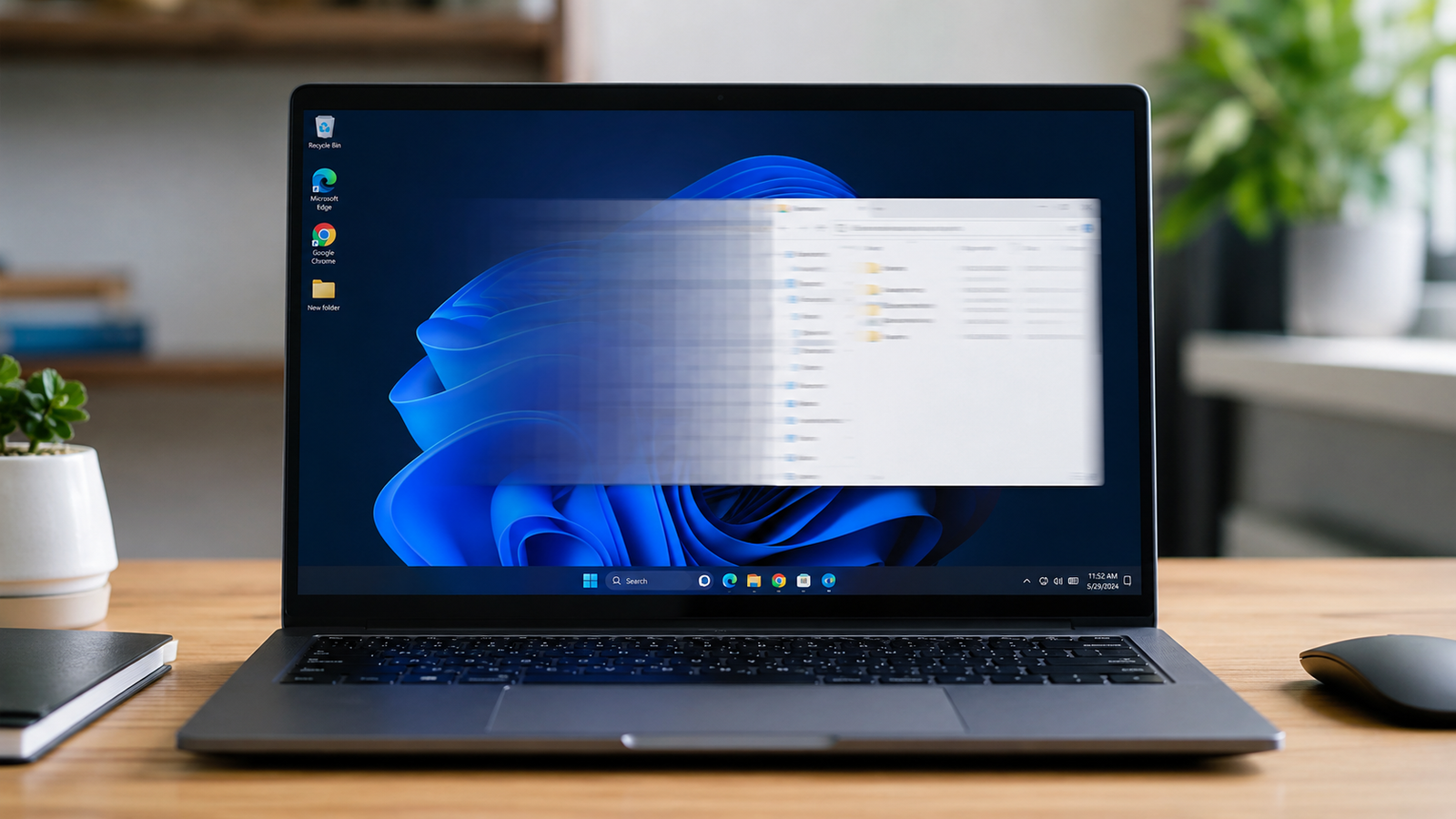
Laptop screen ghosting is caused by slow pixel response time. The pixels cannot keep up with fast-moving content, leaving a blurry trail behind moving objects. Fix it by enabling or adjusting the overdrive setting in your laptop manufacturer’s software, setting the display to its maximum refresh rate, and updating your GPU driver. Most cases resolve without hardware replacement.
Introduction
You are gaming, scrolling through a spreadsheet, or watching a video when you notice a smeared trail following every moving object on screen. It looks like a ghost of the image left behind. On a laptop display, this is almost always a pixel response time problem.
LCD panels work by physically twisting liquid crystals to change color. When those crystals cannot twist fast enough to match the incoming frames from your GPU, the old color lingers on screen for a fraction of a second. That leftover image is what you see as ghosting.
This guide walks through exactly how to diagnose it, which fix matches your specific situation, and what to do when the panel itself is the problem.
Symptoms of the Problem

- Blurry or smeared trails following moving objects, especially during fast motion
- Dark shadows or after-images visible behind cursors, windows, or game characters
- Motion blur that appears worse in games than in normal desktop use
- Bright white or blue halos appearing in front of moving objects (inverse ghosting)
- Ghosting that is only visible on certain background colors, especially dark scenes
- Trailing that gets worse when the laptop runs on battery power
- Display artifacts that appeared or worsened after a Windows update
- Ghosting that changes in intensity when you adjust the screen angle or move the lid
Start Here: Fast Diagnosis
Work through this decision tree before picking a fix. It will save you time.
Does the ghosting change when you move the lid or change the screen angle? If yes, the display ribbon cable is the likely cause. Skip to Fix 6.
Does the ghosting appear or get noticeably worse when you unplug the charger? If yes, your power plan is throttling the display. Skip to Fix 4.
Do you see bright white or blue halos in front of moving objects instead of dark trails behind them? If yes, you have inverse ghosting from excessive overdrive. Skip to Fix 2 and reduce the overdrive level.
Does the ghosting appear on an external monitor connected via HDMI or DisplayPort? If yes, the internal panel is not the issue. The problem is with the GPU driver or the external cable. Skip to Fix 5.
If none of the above apply, is this a gaming or high-refresh-rate laptop? If yes, check whether Windows is running the display at its full refresh rate. A 144Hz laptop forced to 60Hz will ghost severely. Skip to Fix 3.
If none of these match your situation: start with Fix 1 (the UFO test and overdrive adjustment). That solves the majority of cases.
Tools Needed
Built-in tools:
- Windows Display Settings (Win + I, System, Display)
- Device Manager (Right-click Start, Device Manager)
- Task Manager (Ctrl + Shift + Esc)
Free software tools:
- TestUFO at testufo.com (ghosting test)
- NVIDIA Control Panel or AMD Radeon Software (GPU driver settings)
- Intel Arc Control or Intel Graphics Command Center (Intel iGPU users)
- Display Driver Uninstaller, DDU (for clean driver removal)
Manufacturer software (install only if missing):
- ASUS Armoury Crate
- Lenovo Vantage
- HP Omen Command Center
- Dell Display Manager or Alienware Command Center
- MSI Center (formerly Dragon Center)
- Acer PredatorSense or NitroSense
- Razer Synapse
Hardware tools (only needed for cable-related ghosting):
- Phillips screwdriver (PH0 or PH1 depending on model)
- Plastic spudger or guitar pick for panel separation
- Compressed air can
Troubleshooting Matrix
| Symptom | Likely Cause | Fast Fix |
| Dark blurry trail behind moving objects | Slow pixel response, overdrive off | Enable overdrive in manufacturer software |
| Bright white/blue halo in front of objects | Overdrive set too high (inverse ghosting) | Reduce overdrive one level |
| Ghosting only on battery power | Power plan throttling display | Switch to High Performance power plan |
| Ghosting after Windows update | Refresh rate reset to 60Hz or driver corrupted | Reset refresh rate, reinstall GPU driver |
| Ghosting changes when lid moves | Loose or damaged display ribbon cable | Reseat or replace ribbon cable |
| Ghosting on external monitor only | Faulty external cable or wrong refresh rate | Replace cable, verify monitor refresh rate |
| Ghosting in dark scenes only | VA panel black smearing (panel limitation) | Partial relief via overdrive; upgrade panel to fix fully |
| Ghosting on all content since purchase | Underpowered panel, no overdrive | Accept limitation or upgrade display |
What Causes Laptop Screen Ghosting

Slow Pixel Response Time (Primary Cause)
Why it happens: LCD panels change color by physically twisting liquid crystals. The speed of that transition is measured in milliseconds, called Gray-to-Gray response time or GtG. When the panel cannot complete the color change before the next frame arrives, the previous color bleeds through and creates a visual trail.
How to identify it: The UFO test at testufo.com shows blurry, smeared tails following each moving spaceship. The faster the motion on screen, the more visible the trail.
What users misunderstand: Many users assume ghosting means the panel is defective or dying. Most laptop panels ghost because the manufacturer shipped the overdrive setting disabled by default, not because the hardware is faulty.
Confirmation sign: Enabling overdrive in the manufacturer app reduces or eliminates the trail immediately.
Overdrive Set Too Low or Disabled
Why it happens: Overdrive is a feature that pushes extra voltage to pixels to force them to change color faster. On many laptops, especially gaming models, overdrive ships in a disabled or minimal state. The user never adjusts it because the setting is buried in manufacturer software rather than Windows settings.
How to identify it: Ghosting is present but reduces immediately when you enable overdrive at Normal or Medium.
What users misunderstand: Overdrive is not a one-size-fits-all setting. Too little causes regular ghosting. Too much causes inverse ghosting, which looks like a bright corona or halo around moving objects. Finding the right level requires a brief test after each adjustment.
Confirmation sign: After enabling overdrive at Medium, the UFO test shows noticeably less trailing than before.
Overdrive Set Too High (Inverse Ghosting)
Why it happens: When overdrive pushes too much voltage, pixels overshoot their target color. Instead of landing on the correct shade, they briefly flash to a brighter or lighter value before settling. You see this as a bright, washed-out halo appearing in front of moving objects.
How to identify it: The moving objects on the UFO test have bright white or blue coronas appearing ahead of them, not dark trails behind them.
What users misunderstand: Inverse ghosting looks very different from standard ghosting, but many users assume it is the same problem getting worse. It is the opposite problem: too much overdrive rather than too little.
Confirmation sign: Reducing overdrive from Extreme to Fast, or from Fast to Medium, eliminates the bright halos.
Wrong Refresh Rate Setting
Why it happens: Windows does not always activate the maximum refresh rate on a laptop display after driver updates, Windows reinstalls, or lid detection changes. A 144Hz or 165Hz panel running at 60Hz will produce severe ghosting because each frame stays on screen far longer than the panel was designed for.
How to identify it: Go to Settings, System, Display, Advanced Display Settings. Check the refresh rate shown. If it is 60Hz on a gaming laptop, this is the problem.
What users misunderstand: Ghosting that appears after a Windows Update is almost always a refresh rate regression, not panel damage. Windows sets a safe default of 60Hz when it cannot confirm the display’s capabilities, which happens after certain driver installations.
Confirmation sign: Ghosting disappears or reduces significantly after selecting the panel’s maximum rated Hz.
Power Plan Throttling
Why it happens: Windows power plans can reduce GPU and display controller performance on battery power to extend runtime. This sometimes results in the display running at a reduced refresh rate or the GPU delivering fewer frames, both of which increase visible ghosting.
How to identify it: Unplug the charger and repeat the UFO test. If ghosting appears or worsens significantly on battery versus plugged in, the power plan is throttling the display system.
What users misunderstand: Battery-related ghosting is almost universally misdiagnosed as a failing panel. The panel is usually fine. The display controller is running slower to save power.
Confirmation sign: Switching to High Performance power plan while on battery eliminates or significantly reduces the battery-mode ghosting.
Damaged or Loose Display Ribbon Cable
Why it happens: The display ribbon cable connects the laptop’s motherboard to the screen panel, running through the hinge. After repeated lid opening and closing or physical impact, this cable can develop micro-fractures or lose seating at one of its connectors. A degraded signal produces visual artifacts including ghosting, color distortion, and flickering.
How to identify it: The ghosting changes in intensity when you adjust the lid angle. Opening the lid fully might eliminate it, while partially closing it makes it worse, or vice versa.
What users misunderstand: Cable-related ghosting is often confused with a dying panel. The key distinction is that panel ghosting is consistent at any lid angle, while cable ghosting changes when you move the display.
Confirmation sign: Ghosting reduces, changes pattern, or disappears when you hold the lid at a specific angle.
VA Panel Black Smearing
Why it happens: Vertical Alignment panels have higher contrast ratios than IPS displays but their pixels transition especially slowly through dark tones. This creates a specific type of ghosting called black smearing where dark objects moving against a dark background leave long, visible trails.
How to identify it: Ghosting is most visible in dark game environments or during nighttime scenes in videos. It barely appears on bright content.
What users misunderstand: Black smearing on a VA panel is a fundamental hardware limitation of the panel type, not a software problem. No driver update or settings adjustment will eliminate it entirely.
Confirmation sign: The ghost trails appear almost exclusively in dark scenes and are significantly worse than on-screen smearing during bright content.
Outdated or Corrupted GPU Driver
Why it happens: GPU drivers control how frames are delivered to the display. A corrupted or outdated driver can cause incorrect pixel timing, wrong refresh rate reporting, or display signal errors. All of these produce visual artifacts that look like ghosting.
How to identify it: Ghosting appeared suddenly after a Windows Update, after a manual driver installation, or after a system crash. It was not present before the driver change.
What users misunderstand: Many users try Device Manager’s “Update Driver” option and assume the newest driver is now installed. Device Manager pulls from Windows Update, which is often several versions behind the manufacturer’s current release.
Confirmation sign: A clean driver reinstall from the GPU manufacturer’s website reduces or eliminates the artifact.
What We See Most Often
The overwhelming majority of laptop ghosting cases we handle at the shop fall into one of two categories. The first is a gaming laptop where the display overdrive was never enabled because the user did not know the setting existed inside Armoury Crate, Lenovo Vantage, or MSI Center. Enabling overdrive at Medium resolves it in minutes.
The second is a laptop that started ghosting after a Windows Update reset the refresh rate to 60Hz. The user assumes the screen is damaged. Switching back to the native 144Hz or 165Hz setting fixes it immediately.
Battery-mode ghosting is less common but almost always misdiagnosed. Users bring in laptops convinced the panel needs replacement, but plugging in the charger eliminates the ghosting entirely. The panel is fine; the power plan is running the GPU below its rated threshold.
Physical cable damage appears after hinge stress or drops and is the most common hardware-side repair we see for display artifacts. It is usually a cable reseating or replacement, not a panel swap.
How to Diagnose the Problem

Step 1: Run the UFO Test
Open testufo.com in a browser and watch the spaceships move across the screen for 30 seconds.
Expected Result: Clean image with no trailing means no standard ghosting.
If Failed: Blurry trails mean slow pixel response. Bright halos mean inverse ghosting from excessive overdrive. Note which type you see before proceeding.
Step 2: Check Your Refresh Rate
Go to Settings, System, Display, Advanced Display Settings. Check the active refresh rate.
Expected Result: Rate matches your panel’s maximum specification (for example, 144Hz on a 144Hz display).
If Failed: Rate is lower than maximum. Select the highest available Hz from the dropdown and retest.
Step 3: Test on Battery vs Plugged In
Unplug the charger and repeat the UFO test. Then plug in and test again.
Expected Result: Ghosting is the same in both states.
If Failed: Ghosting worsens on battery. Switch to High Performance power plan and retest on battery.
Step 4: Test Lid Position
Slowly change the screen angle while watching a moving window or running the UFO test.
Expected Result: Ghosting stays consistent regardless of lid angle.
If Failed: Ghosting changes with lid position. The display ribbon cable is the cause. Stop software troubleshooting and inspect the cable.
Step 5: Connect an External Monitor
Connect a monitor via HDMI or DisplayPort and run the UFO test on the external display.
Expected Result: External display shows clean motion, confirming the problem is in the internal panel.
If Failed: External display also shows ghosting. The GPU driver is the cause, not the panel. Reinstall the GPU driver.
Which Fix Usually Works?
| Fix | Typical Success | Cost | Difficulty |
| Enable or adjust overdrive | Very Common | Free | Easy |
| Restore correct refresh rate | Very Common | Free | Easy |
| Update GPU driver (clean install) | Common | Free | Easy |
| Switch to High Performance power plan | Common | Free | Easy |
| Reseat display ribbon cable | Occasional | Free | Moderate |
| Replace display ribbon cable | Occasional | $10 to $40 | Moderate |
| Replace display panel | Rare | $80 to $250 | Hard |
Step-by-Step Fixes

Fix 1: Enable or Adjust Overdrive in Manufacturer Software
Cost: Free Time: 5 minutes Difficulty: Easy
Open your laptop manufacturer’s control software. The paths by brand:
- ASUS: Armoury Crate, then Gaming, then Display, then Panel Overdrive or Response Time
- MSI: MSI Center, then Display Settings, then Response Time
- Lenovo: Lenovo Vantage, then Display and Camera, then Display Settings
- HP Omen: Omen Gaming Hub, then Display section
- Acer Predator / Nitro: PredatorSense or NitroSense, then Display
- Dell Alienware: Alienware Command Center, then Display
- Razer: Razer Synapse, then Display
Start at Normal or Medium and open testufo.com. Check for trailing. If trailing persists, move to Fast. If you see bright halos instead of trails, step back to Normal or Medium.
Expected Result: Dark trailing behind moving objects reduces or disappears.
If Failed: Move to Fix 2 and verify the refresh rate first.
Technician Tip: Non-gaming laptops usually have no adjustable overdrive. If the manufacturer software has no display tab, move to the refresh rate fix next.
Fix 2: Set Display to Maximum Refresh Rate
Cost: Free Time: 2 minutes Difficulty: Easy
Press Win + I to open Settings. Go to System, then Display, then Advanced Display Settings. Look at the refresh rate field. If it shows 60Hz on a display rated for 120Hz, 144Hz, or higher, click the dropdown and select the maximum available rate.
Click Keep Changes when Windows asks to confirm.
Expected Result: Ghosting reduces significantly or disappears completely.
If Failed: Refresh rate was already at maximum. Move to Fix 3.
Technician Tip: If your maximum refresh rate does not appear in the dropdown, the GPU driver may not be recognizing the panel correctly. Run Fix 5 (GPU driver reinstall) and then recheck.
Fix 3: Switch to High Performance Power Plan
Cost: Free Time: 2 minutes Difficulty: Easy
Search for “power plan” in the Windows Start menu. Select “Choose a power plan.” Select High Performance. If it is not listed, click “Show additional plans” to reveal it.
Test while on battery power specifically by unplugging the charger and running the UFO test.
Expected Result: Battery-mode ghosting disappears or reduces to the same level as when plugged in.
If Failed: Power plan was not the cause. The panel itself has slow response time. Continue to Fix 4.
Technician Tip: On Windows 11, the power mode slider in Settings under System, Power, Power Mode achieves the same result. Set it to Best Performance.
Fix 4: Disable GPU Post-Processing Features
Cost: Free Time: 5 minutes Difficulty: Easy
Open NVIDIA Control Panel (right-click desktop) or AMD Radeon Software. Look for settings labeled Motion Blur Reduction, Dynamic Contrast, Noise Reduction, or Sharpening under the display or video settings section.
Disable each of these. Then test motion again on the UFO page.
Expected Result: Software-added blur or smearing is eliminated.
If Failed: GPU post-processing was not contributing. Continue to Fix 5.
Technician Tip: In-game motion blur settings are separate. Check your game settings and disable any motion blur or camera shake options as well.
Fix 5: Clean Reinstall GPU Driver
Cost: Free Time: 20 minutes Difficulty: Easy
Download the latest GPU driver from the manufacturer website directly. For NVIDIA, go to nvidia.com and use the driver search. For AMD, go to amd.com. For Intel integrated graphics, go to intel.com/graphics.
Download Display Driver Uninstaller from guru3d.com. Boot into Safe Mode (hold Shift while clicking Restart, then Troubleshoot, Advanced Options, Startup Settings, Restart, F4). Run DDU and select Clean and Restart.
After restarting normally, install the fresh driver you downloaded. Do not let Windows Update install a driver first.
Expected Result: Driver-related ghosting and display artifacts disappear.
If Failed: The driver was not the cause. Move to hardware inspection.
Technician Tip: After the clean install, go back to Display Settings and confirm your refresh rate is still set to maximum. Driver reinstalls sometimes reset it to 60Hz.
Expert Warning: DDU permanently removes the current driver. Make sure you have already downloaded the new driver before running DDU so you can install it without internet access in the driver-absent state.
Fix 6: Reseat the Display Ribbon Cable
Cost: Free Time: 30 to 60 minutes Difficulty: Moderate
Power down the laptop completely and disconnect the charger. Search YouTube for your exact laptop model and “display cable” or “screen replacement” to find a teardown video before starting.
Remove the bottom panel screws and carefully lift the base cover using a plastic spudger. Locate the display cable connector on the motherboard, usually near the hinge area. Disconnect it by lifting the small locking tab and pulling the cable free. Inspect for visible damage, kinks, or fraying. Reseat the cable firmly and ensure the locking tab clicks back into place. Reassemble and test.
Expected Result: Position-dependent ghosting and flickering disappear.
If Failed: The cable is damaged rather than just loose. Replace it entirely (Fix 7).
Technician Tip: Take a photo of the cable routing before removing it. The path through the hinge must be followed exactly or the cable will be pinched and fail faster.
Expert Warning: Never force the ZIF connector tab. These small plastic locks break easily and require a replacement connector board if snapped.
Fix 7: Replace Display Ribbon Cable
Cost: $10 to $40 Time: 45 to 90 minutes Difficulty: Moderate
Find the correct replacement cable by searching your laptop model number plus “LCD cable” or “EDP cable.” Avoid universal listings. Buy the part specific to your model from a reputable parts site.
Follow the same disassembly steps as Fix 6. Remove the damaged cable fully, route the new cable through the same hinge path, and seat it firmly at both ends. The motherboard end and the display panel end must both be fully inserted with locking tabs engaged.
Expected Result: Ghosting and any flickering tied to lid position are permanently resolved.
If Failed: The display panel itself is damaged, not just the cable.
Technician Tip: After installing the new cable, open and close the lid 20 times to confirm the cable does not bind in the hinge channel.
Fix 8: Replace Display Panel
Cost: $80 to $250 Time: 60 to 120 minutes Difficulty: Hard
Find a replacement panel by taking your laptop’s model number into a parts search and noting the original panel’s part number (usually printed on a sticker on the back of the existing panel, visible after partial disassembly). Match the resolution, refresh rate, and connector type exactly.
Disassemble the display bezel, separate the panel from the lid frame, disconnect the old panel from the cable, and install the new one in reverse order.
Expected Result: All ghosting attributed to the panel’s slow response time or physical damage is permanently resolved.
If Failed: The new panel ghosts similarly. The issue was not the panel type. Review GPU driver and refresh rate settings again.
Technician Tip: If you are replacing a 60Hz IPS panel on a budget laptop, consider sourcing a higher-refresh-rate panel from a compatible model of the same brand. Many laptop chassis accept panels with better specs than the original, though BIOS compatibility must be verified.
Expert Warning: Panel replacement voids most manufacturer warranties. Check warranty status before disassembling.
Mistakes That Make the Problem Worse
1. Maxing out overdrive immediately Users enable overdrive and set it to Extreme on the first try. This creates inverse ghosting that looks worse than the original problem. Start at Normal or Medium, test, then step up only if trailing persists.
2. Using Device Manager to update GPU drivers Device Manager installs whatever Windows Update has on file, which is typically months behind the manufacturer’s current release. This does not fix driver-related ghosting. Always download directly from NVIDIA, AMD, or Intel.
3. Ignoring the refresh rate after a Windows Update Many users never check whether a Windows Update reset their refresh rate to 60Hz. They assume the software change caused damage when the fix takes 30 seconds.
4. Replacing the panel before checking the cable A display ribbon cable costs under $30 and takes an hour to replace. A display panel costs up to $250. Skipping cable diagnosis and going straight to panel replacement wastes money in a large percentage of cases.
5. Confusing image retention with ghosting Image retention is a faint ghost of a static image that persists after switching to a different window. It is not caused by slow pixel response and requires different fixes. Treating it as ghosting leads users down the wrong diagnostic path entirely.
6. Running software fixes on a cable-damaged display If ghosting changes when the lid moves, no amount of driver updates or overdrive adjustments will fix it. The signal is physically degraded. Continuing software troubleshooting just delays the hardware diagnosis.
7. Disabling FreeSync or G-Sync to fix ghosting Adaptive sync technologies help reduce frame timing irregularities and screen tearing. Disabling them because someone suggested it online rarely helps ghosting and often makes motion artifacts worse overall.
8. Blowing compressed air into the display bezel A common but pointless step users find on forums. Dust does not cause pixel response issues. Do not spray anything into a display that is showing only ghosting with no other symptoms.
Brand-Specific Considerations
ASUS
ASUS gaming laptops (ROG, TUF, Zephyrus) have Panel Overdrive in Armoury Crate under the Display tab. The setting is called “Overdrive” or “Response Time.” Some older TUF models label it “TraceFree.” The default setting is often Off, which is why new ASUS gaming laptops ghost noticeably out of the box. Enabling it at Normal immediately improves motion clarity. ASUS Vivobook and Zenbook lines typically have no overdrive adjustment since they use budget IPS panels without this capability.
Lenovo
ThinkPad models generally use low-response IPS panels with no adjustable overdrive. Ghosting on a ThinkPad is a panel limitation. Legion gaming laptops offer overdrive via Lenovo Vantage under Display settings, labeled “Response Time.” One known issue on certain Legion models: enabling overdrive while G-Sync is active can create inverse ghosting. Disabling G-Sync temporarily and testing overdrive independently identifies the conflict.
HP
HP Omen laptops offer overdrive through the Omen Gaming Hub. The setting appears under Display and is called “Response Time” or “Overdrive.” HP Envy, Pavilion, and Spectre models have no overdrive adjustment. If these models ghost, the panel specification is the limiting factor and no setting change will fully resolve it.
Dell
Standard Latitude and Inspiron models have no overdrive control accessible from Windows. Alienware laptops expose overdrive through Alienware Command Center under the Display tab, labeled “Response Time.” Dell Gaming (G-series) laptops sometimes include a basic overdrive toggle in the Dell Mobile Connect or Dell SupportAssist, though it is less prominently placed than Alienware’s implementation.
Acer
Predator and Nitro gaming laptops include overdrive in PredatorSense or NitroSense under the Display section. Acer Aspire and Swift models have no such control. One specific Acer quirk: some Predator models reset overdrive to Off after a BIOS update. Check the setting again any time you apply a firmware update on an Acer gaming laptop.
MSI
MSI gaming laptops (Raider, Stealth, Crosshair, Katana) offer overdrive through MSI Center under Display settings. The label varies: some models say “Response Time,” others show a level selector from 1 to 4. Level 2 or 3 is the safe starting range. MSI gaming panels are often factory-calibrated better than other brands, so overdrive at the wrong level is less common but still possible.
Repair Shop Diagnosis

When a laptop comes in for ghosting, the first thing we do is the UFO test at the current settings. This confirms whether the issue is standard ghosting, inverse ghosting, or something else entirely that the user misidentified.
The second check is always the refresh rate. This takes 15 seconds and resolves the problem more often than any other single step.
After that we open the manufacturer’s display software and look at overdrive. If it is off, we enable it at Medium, retest, and call it done if the ghosting clears.
For laptops with ghosting that changes at the lid, we do a teardown and inspect the display cable connector on the motherboard. A loose connector seats and the ghosting stops. A damaged cable gets replaced.
Repair costs for ghosting issues in a shop typically range from $0 (settings adjustment) to $40 for cable replacement to $180 to $300 for panel replacement including labor. Most ghosting cases resolve at the settings or cable level.
When Hardware Replacement Is Necessary
Display ribbon cable replacement is necessary when the cable shows visible wear, cracking at the hinge fold, or physical damage from impact. Cost is typically $10 to $40 for the part.
Display panel replacement is necessary when the panel itself has slow response time that overdrive cannot adequately compensate for, when pixels are physically damaged, or when the panel shows additional symptoms beyond ghosting such as color banding, dead zones, or severe backlight bleed. Panel costs range from $80 to $250 depending on resolution and refresh rate.
No other internal component failure causes isolated ghosting. If your diagnostics point to RAM, SSD, or motherboard issues, the symptom set will include crashes, errors, or black screens alongside any display artifacts.
Stop Troubleshooting and Seek Professional Repair If
- The display cable shows burn marks, melted insulation, or visible electrical damage when inspected
- Ghosting is accompanied by a burning smell or the display area feels unusually hot to the touch
- The laptop has suffered a liquid spill and display artifacts appeared immediately after
- Ghosting is accompanied by the display going completely black randomly, which can indicate a short in the display cable
- Attempting panel access reveals a damaged connector board or torn hinge socket that requires soldering
- The laptop is still under warranty, since opening it yourself voids coverage and the manufacturer should repair it at no cost
Prevention Tips

1. Set your refresh rate after every Windows Update. Verify it is still at maximum in Advanced Display Settings any time a major update installs.
2. Open and close the lid gently. The display ribbon cable bends at the hinge with every lid cycle. Forcing the lid or twisting the display frame accelerates cable wear.
3. Keep manufacturer software installed and updated. Armoury Crate, Lenovo Vantage, MSI Center, and similar tools are the only way to access overdrive settings. Removing them for “cleaner Windows” also removes display control.
4. Keep GPU drivers current. Check the manufacturer website every 2 to 3 months or enable automatic updates in NVIDIA, AMD, or Intel software.
5. Store the laptop flat or in a padded case. Physical pressure on the display from objects in bags or stacked items can damage LCD layers. Protect the screen panel from the outside.
6. Never use the laptop on blankets or fabric. Soft surfaces restrict airflow under the chassis. Consistent overheating can cause the display controller to throttle, worsening motion clarity during extended use.
7. Run a display test after any physical repair or cleaning. If you clean inside the chassis or reseat RAM, reconnect all display cables exactly as found and run the UFO test before reassembling fully.
Frequently Asked Questions

Is laptop screen ghosting permanent?
Standard motion ghosting is not permanent. It is a limitation of pixel response time and clears the moment the screen is refreshed with new content. True permanent ghosting is called image retention or burn-in, which is a different issue. Motion ghosting never causes physical damage to the panel.
Why does my laptop only ghost on battery power?
The Windows power plan is reducing GPU or display controller performance to extend battery life. Switch to High Performance power plan in Windows Power Options and test again while unplugged. This resolves battery-specific ghosting in most cases.
Can I fix ghosting without opening the laptop?
Yes, in the majority of cases. Overdrive settings, refresh rate adjustment, power plan changes, and GPU driver reinstalls are all done entirely through Windows and manufacturer software. Opening the laptop is only necessary when the display cable is loose or damaged.
Is overdrive safe to enable?
Overdrive at Normal or Medium is safe and causes no damage. Overdrive at Extreme or Maximum can cause inverse ghosting artifacts, but this also causes no physical harm to the panel. Reducing the overdrive level immediately fixes the artifact.
My laptop has an OLED screen. Why do I see ghosting?
OLED panels do not have traditional ghosting because their pixels switch nearly instantly. What you are seeing is likely software-side motion blur enabled in-game, Black Frame Insertion toggling incorrectly, or Windows smoothness settings. Disable in-game motion blur and check your game’s display options for any motion processing settings.
Can a GPU driver update cause ghosting?
Yes. Driver updates sometimes reset refresh rates to 60Hz or introduce display timing conflicts. If ghosting appeared immediately after a driver update, reinstall the previous driver version using DDU and the previous driver file, or restore via Windows System Restore to a pre-update checkpoint.
How do I know if the ghosting is bad enough to justify replacing the panel?
If your overdrive setting is at the optimal level, your refresh rate is at maximum, and you still see significant trailing that disrupts daily use or gaming, the panel’s response time is the limiting factor. At that point, replacement with a better-spec panel is the only hardware path forward.
What is the difference between ghosting and screen tearing?
Ghosting leaves blurry trails behind moving objects and comes from slow pixel response. Screen tearing creates a horizontal split across the image where the top and bottom halves show different frames simultaneously, caused by the GPU and monitor being out of sync. They are separate issues with different fixes.
Conclusion
Laptop screen ghosting is almost always caused by slow pixel response time, and it is almost always fixable without touching the hardware. Check your overdrive setting in the manufacturer software first, then verify the refresh rate, then run a clean GPU driver install if needed. Reserve cable and panel work for cases where ghosting changes with lid position or persists after every software fix. A correctly configured laptop resolves ghosting in 80% of cases before any part replacement is needed.