
Quick Answer
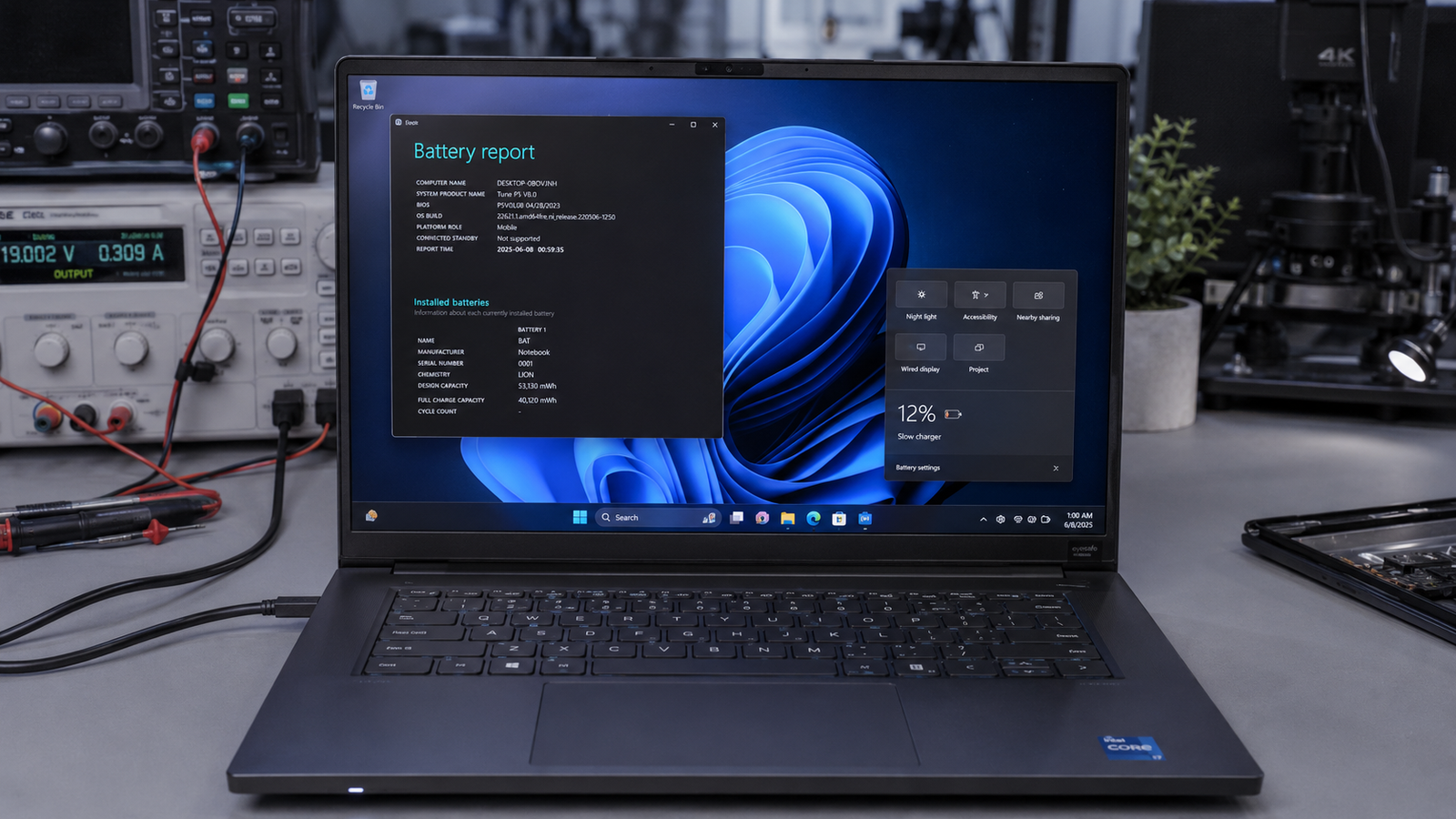
A laptop charging slowly is usually caused by an underpowered charger, battery wear, overheating, power-hungry applications, or charging port issues. The fastest fix is to verify charger wattage, reduce system load, and check battery health. In most cases, charging speed returns to normal without replacing the battery.
Introduction
You plug in your laptop expecting the battery percentage to climb steadily, but hours later it has barely moved.
Sometimes the battery charges only a few percent per hour. Other times the laptop gains charge while powered off but barely charges when in use.
Slow charging can be caused by software settings, power delivery limitations, overheating, battery aging, or hardware faults. This guide walks through the exact diagnostic process technicians use to identify the problem and restore normal charging speed.
Symptoms of the Problem

Common signs include:
- Battery percentage increases very slowly
- Charging takes several hours longer than normal
- Battery drains while plugged in
- “Plugged In, Charging” message appears but percentage barely changes
- Laptop becomes unusually hot during charging
- Charger brick feels excessively warm
- Battery charges normally when laptop is off
- Charging stops around 60% or 80%
- USB-C charger charges inconsistently
- Battery health warnings appear in Windows
- Performance slows while charging
- Charging icon repeatedly connects and disconnects
Tools Needed
Built-In Tools
- Windows Battery Report
- Task Manager
- Device Manager
- BIOS diagnostics
- Windows Settings
Software Tools
- HWMonitor
- HWiNFO
- Lenovo Vantage
- Dell SupportAssist
- HP Support Assistant
Hardware Tools
- Known-good charger
- USB-C power meter
- Multimeter (advanced users)
- Replacement charging cable
- Flashlight for port inspection
- Compressed air
Troubleshooting Matrix
| Symptom | Likely Cause | Fast Fix |
| Charges very slowly | Low wattage charger | Use original charger |
| Battery drains while plugged in | Heavy CPU/GPU load | Reduce workload |
| Stops at 80% | Battery conservation mode | Disable battery protection |
| Charges only when off | Weak charger output | Test higher wattage charger |
| Charger gets extremely hot | Faulty adapter | Replace charger |
| USB-C charging slow | Incompatible PD charger | Use correct Power Delivery charger |
| Charges intermittently | Loose charging port | Inspect connector |
| Slow after years of use | Battery wear | Check battery health |
What Causes Laptop Charging Slowly

Underpowered Charger
Modern laptops require specific power levels to charge efficiently.
Using a lower wattage charger may power the laptop but leave little energy available for battery charging.
How to Identify It
- Charger wattage lower than manufacturer recommendation
- Slow charging during use
- Faster charging when powered off
What Users Usually Misunderstand
Many users believe any charger with the correct connector will perform identically.
Confirmation Sign
Charging speed improves immediately when using the original charger.
Battery Aging
Lithium-ion batteries naturally lose efficiency over time.
As battery cells age, internal resistance increases and charging speed decreases.
How to Identify It
- Battery health below 80%
- Reduced runtime
- Laptop more than 2–4 years old
What Users Usually Misunderstand
Users often assume capacity loss and charging speed are unrelated.
Confirmation Sign
Battery report shows significant wear.
Overheating
Charging systems intentionally reduce charging speed when temperatures rise.
This protects the battery from damage.
How to Identify It
- Fans running constantly
- Hot palm rest or underside
- Slow charging during gaming
What Users Usually Misunderstand
Many think overheating only affects performance.
Confirmation Sign
Charging speed improves after cooling the laptop.
Heavy System Load
Running demanding applications consumes power faster than the charger can replenish it.
This commonly occurs during gaming or video rendering.
How to Identify It
- CPU or GPU usage above 80%
- Battery percentage barely increases
What Users Usually Misunderstand
They assume the charger is defective.
Confirmation Sign
Charging speed improves when workload decreases.
Battery Conservation Mode
Manufacturers often include battery protection features.
These intentionally stop or slow charging beyond certain thresholds.
How to Identify It
- Charging stops at 60–80%
- No hardware issues detected
What Users Usually Misunderstand
They think the battery is failing.
Confirmation Sign
Battery settings reveal conservation mode enabled.
USB-C Power Delivery Limitations
Not all USB-C chargers provide the same power.
Some chargers support only phones and tablets.
How to Identify It
- Third-party USB-C charger in use
- Laptop supports USB-C charging
What Users Usually Misunderstand
They assume all USB-C chargers are equivalent.
Confirmation Sign
Original charger restores charging speed.
Charging Port Problems
Dust, wear, or connector damage can restrict charging performance.
How to Identify It
- Loose cable connection
- Charging disconnects intermittently
What Users Usually Misunderstand
Users blame the battery first.
Confirmation Sign
Physical movement affects charging behavior.
How to Diagnose the Problem

Step 1: Verify Charger Specifications
Compare charger wattage with laptop requirements.
Expected Result
Wattage matches manufacturer recommendation.
If Failed
Replace charger.
Next Action
Test original charger.
Step 2: Check Battery Health
Generate a Windows Battery Report.
Open Command Prompt as Administrator and run:
powercfg /batteryreport
Expected Result
Battery health above 80%.
If Failed
Battery wear is contributing.
Next Action
Evaluate battery replacement.
Step 3: Monitor Temperatures
Use HWMonitor or HWiNFO.
Expected Result
CPU temperatures below 90°C.
If Failed
Cooling problem exists.
Next Action
Clean cooling system.
Step 4: Test Charging While Powered Off
Shutdown laptop completely.
Charge for 30 minutes.
Expected Result
Significant percentage increase.
If Failed
Hardware issue likely.
Next Action
Inspect charger and battery.
Step 5: Inspect Charging Port
Look for:
- Bent pins
- Dust buildup
- Connector damage
Expected Result
Port appears clean and secure.
If Failed
Repair required.
Next Action
Professional inspection.
Step-by-Step Fixes

1. Free Fixes
Fix: Reduce Power-Hungry Applications
Cost: $0
Time: 5 Minutes
Difficulty: Easy
Steps
- Open Task Manager.
- Sort by CPU usage.
- Close unnecessary applications.
- Disconnect external peripherals.
Expected Result
Charging speed improves.
If Failed
Proceed to charger diagnostics.
Next Action
Check charger wattage.
Technician Tip
Gaming can consume more power than the charger supplies.
Fix: Disable Battery Conservation Mode
Cost: $0
Time: 5 Minutes
Difficulty: Easy
Steps
- Open manufacturer utility.
- Locate battery settings.
- Disable conservation mode.
- Restart laptop.
Expected Result
Charging resumes normally.
If Failed
Check battery health.
Next Action
Run diagnostics.
Technician Tip
Lenovo, ASUS, Dell, and HP frequently enable this feature.
2. Software Fixes
Fix: Reinstall Battery Drivers
Cost: $0
Time: 10 Minutes
Difficulty: Easy
Steps
- Open Device Manager.
- Expand Batteries.
- Remove battery devices.
- Restart laptop.
Expected Result
Windows reinstalls drivers automatically.
If Failed
Update BIOS.
Next Action
Proceed to firmware troubleshooting.
Technician Tip
Corrupted battery drivers occasionally affect charging behavior.
Fix: Update Power Management Software
Cost: $0
Time: 15 Minutes
Difficulty: Easy
Steps
- Visit laptop support page.
- Download power management drivers.
- Install updates.
- Restart.
Expected Result
Charging performance improves.
If Failed
Update BIOS.
Next Action
Firmware diagnostics.
3. Firmware Fixes
Fix: Update BIOS
Cost: Free
Time: 20 Minutes
Difficulty: Moderate
Steps
- Connect charger.
- Download latest BIOS.
- Install update.
- Allow automatic restart.
Expected Result
Charging controller functions correctly.
If Failed
Hardware inspection required.
Next Action
Evaluate battery and charger.
Technician Tip
Manufacturers occasionally release charging fixes through BIOS updates.
Expert Warning
Do not interrupt BIOS updates.
4. Hardware Fixes
Fix: Replace Charger
Cost: $25–$100
Time: 5 Minutes
Difficulty: Easy
Steps
- Verify laptop wattage requirements.
- Purchase original charger.
- Test charging speed.
Expected Result
Normal charging restored.
If Failed
Battery may be failing.
Next Action
Battery diagnostics.
Technician Tip
Use OEM chargers whenever possible.
Fix: Clean Charging Port
Cost: $0–$10
Time: 10 Minutes
Difficulty: Easy
Steps
- Power off laptop.
- Use compressed air.
- Inspect connector.
- Retest charging.
Expected Result
Stable charging connection.
If Failed
Port damage likely.
Next Action
Repair port.
Expert Warning
Never insert metal tools into charging ports.
5. Replacement Fixes
Fix: Replace Battery
Cost: $40–$150
Time: 30–60 Minutes
Difficulty: Moderate
Steps
- Verify compatible battery.
- Disconnect power.
- Replace battery.
- Calibrate battery.
Expected Result
Normal charging speed returns.
If Failed
Motherboard charging circuit may be defective.
Next Action
Professional diagnosis.
Technician Tip
Always use reputable battery suppliers.
Repair Shop Diagnosis

A technician typically checks the charger before investigating the battery.
The first tests usually involve:
- Measuring charger voltage
- Verifying charging current
- Running battery health diagnostics
- Inspecting charging ports
- Checking motherboard charging circuits
- Testing with a known-good charger
Common diagnostic tools include:
- Multimeter
- USB-C power analyzer
- Battery diagnostic software
- Thermal camera
- Bench power supply
Typical repair shop costs:
| Service | Typical Cost |
| Diagnostic Inspection | $20–$60 |
| Charger Replacement | $25–$100 |
| Battery Replacement | $40–$150 |
| Charging Port Repair | $50–$180 |
| Motherboard Charging Repair | $100–$350 |
Professional repair is justified when charging ports, charging ICs, or motherboard circuits are suspected.
When Hardware Replacement Is Necessary
SSD Failure
Rarely affects charging directly but may cause abnormal system behavior.
Replacement indicator:
- SSD errors
- System instability
RAM Failure
Uncommon charging cause.
Replacement indicator:
- Memory diagnostics fail
Display Failure
Not related to charging speed.
Replacement indicator:
- Screen defects
Fan Failure
Can indirectly slow charging through overheating.
Replacement indicator:
- High temperatures
- No fan movement
Battery Failure
Most common replacement scenario.
Replacement indicator:
- Health below 70–80%
- Swelling
- Rapid discharge
Motherboard Failure
Most expensive possibility.
Replacement indicator:
- Multiple chargers fail
- Battery replacement ineffective
- Charging circuit faults detected
Prevention Tips

- Use the original charger whenever possible.
- Avoid covering cooling vents during charging.
- Clean air vents every few months.
- Replace damaged charging cables immediately.
- Avoid charging while gaming for extended periods.
- Keep BIOS and power drivers updated.
- Do not leave batteries exposed to excessive heat.
- Inspect charging ports regularly for dust buildup.
Frequently Asked Questions

Why is my laptop charging slowly but not losing power?
Your charger is likely providing enough power to run the laptop but not enough excess power to charge the battery quickly. Charger wattage is often the cause.
Why does my laptop charge faster when turned off?
System components consume power while running. When the laptop is off, all available charger power goes directly to the battery.
Can a bad battery cause slow charging?
Yes. Aging batteries often charge more slowly due to increased internal resistance and degraded cell health.
Is USB-C charging slower than traditional charging?
Not necessarily. A proper USB-C Power Delivery charger can charge as quickly as the original adapter if wattage requirements are met.
Why does charging stop at 80%?
Many manufacturers include battery protection features that intentionally stop charging at 80% to extend battery lifespan.
Should I replace the charger or battery first?
Start with the charger. It is easier and cheaper to test, and charger problems are extremely common.
Conclusion
Slow laptop charging is usually caused by an underpowered charger, battery wear, overheating, or power management settings. Start by verifying charger wattage, checking battery health, and reducing system load during charging. If software fixes fail, test with a known-good charger and inspect the charging port. Battery or motherboard replacement should only be considered after proper diagnostics are completed.