
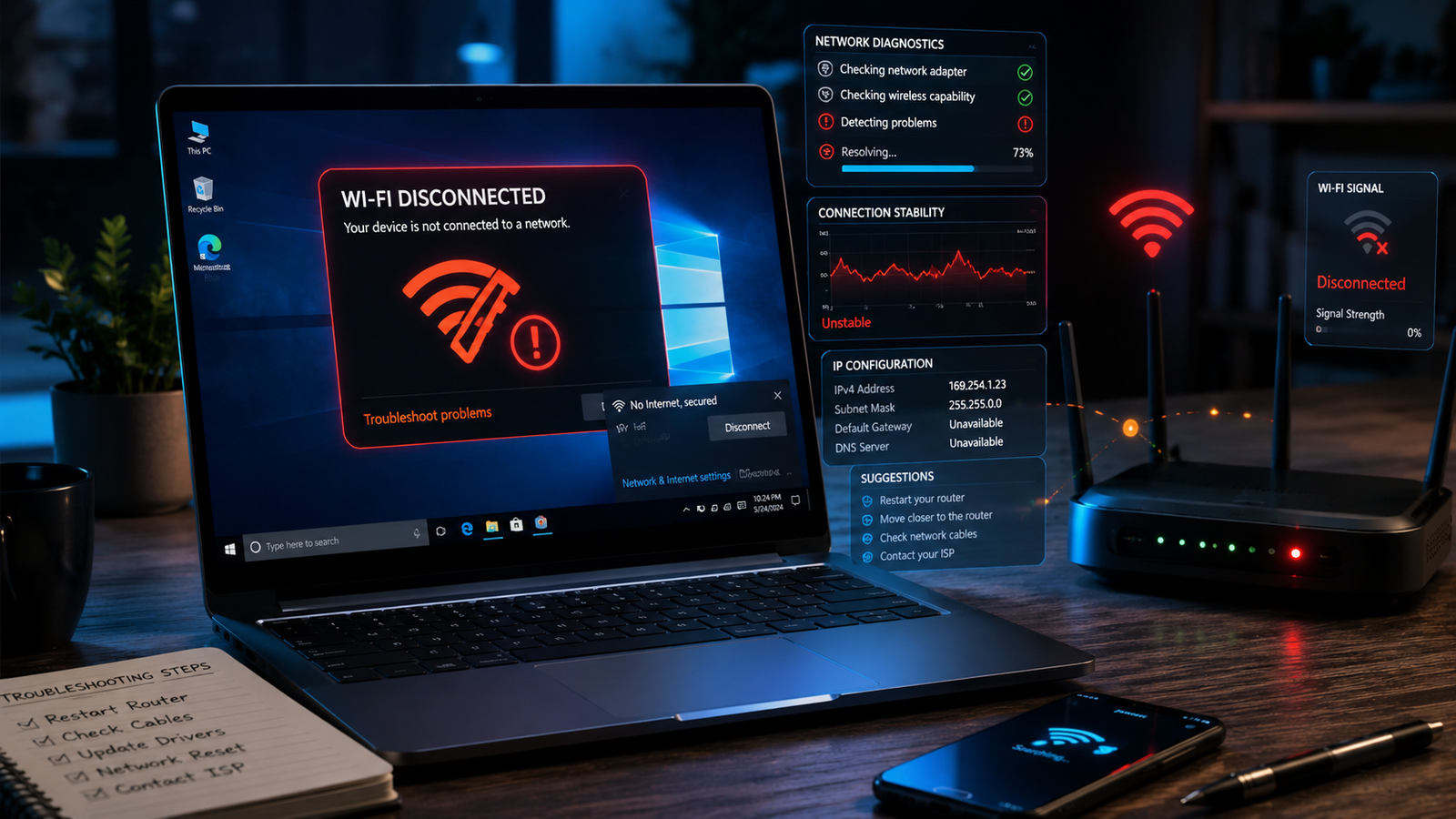
A laptop that keeps disconnecting from WiFi is usually caused by outdated network drivers, aggressive power-saving settings, router instability, corrupted network configurations, or weak wireless signals. Resetting the network adapter, updating drivers, changing power settings, and adjusting router channels resolves most random WiFi drop issues within minutes.
• Disable WiFi power saving to stop random disconnects
• Update wireless adapter drivers directly from the laptop manufacturer
• Reset Windows network settings if the connection drops repeatedly after updates
Your laptop disconnecting from WiFi every few minutes is one of the most frustrating problems on Windows laptops. One second you’re in a video call or downloading files, and the next second the internet vanishes without warning.
Most people assume the router is broken, but the real issue is often hidden inside Windows power management, damaged wireless drivers, outdated firmware, signal interference, or unstable adapter settings. The good news is that this problem follows predictable patterns, and the fixes are usually straightforward when done in the correct order.
Symptoms of the Problem

A laptop with unstable WiFi connections usually shows several warning signs before the connection fully fails.
Common symptoms include:
- WiFi disconnects randomly every few minutes
- Internet works briefly after reconnecting manually
- Laptop shows “No Internet, Secured”
- WiFi icon disappears completely from the taskbar
- Video calls freeze or lag suddenly
- Online games disconnect without warning
- Browser pages stop loading while other devices still work
- Laptop reconnects automatically after 10–30 seconds
- Windows displays “Can’t connect to this network”
- Downloads pause unexpectedly
- Signal strength fluctuates even near the router
- WiFi disconnects after sleep mode or lid close
- Internet drops only on battery power
- Laptop loses WiFi after Windows updates
- Wireless adapter disappears in Device Manager
System Requirements & Tools Needed

Before starting the fixes, prepare these tools and utilities:
- Windows Settings app
- Device Manager
- Command Prompt (Administrator)
- Access to your WiFi router admin panel
- Ethernet cable (recommended for driver downloads)
- USB flash drive (optional for offline drivers)
- Latest WiFi drivers from manufacturer website
- Router firmware update access
- Small screwdriver set (only for internal WiFi card inspection)
- Smartphone or second device for testing router stability
Troubleshooting Matrix

| Observed Symptom | Potential Root Cause | Recommended Fast Fix |
| WiFi disconnects every few minutes | Power-saving settings | Disable adapter power management |
| WiFi disappears completely | Corrupted drivers | Reinstall wireless drivers |
| Internet drops after sleep mode | Fast startup conflict | Disable fast startup |
| Only your laptop disconnects | Adapter issue | Reset network settings |
| All devices disconnect | Router instability | Restart or update router firmware |
| Weak signal in one room | Interference or distance | Change router channel |
| Disconnects during gaming | Driver instability | Install OEM WiFi drivers |
| WiFi works on charger only | Battery optimization | Disable battery WiFi saving |
| Frequent “No Internet” errors | DNS or TCP/IP corruption | Reset network stack |
| Disconnects after Windows update | Broken update driver | Roll back network driver |
Step-by-Step Fixes

Restart the Laptop and Router Properly
A full restart clears temporary network conflicts and restores unstable wireless sessions.
- Shut down your laptop completely.
- Unplug the router and modem power cables.
- Wait at least 60 seconds.
- Plug the modem back in first.
- Wait until all indicator lights stabilize.
- Power on the router.
- Start your laptop after the router fully boots.
Many users only restart the laptop, but unstable router memory frequently causes repeated disconnect loops.
💡 TIP: Avoid testing WiFi immediately after router startup. Give the router at least 2 minutes to fully initialize.
Disable WiFi Power Saving Settings
Windows power management often disables the wireless adapter to save battery power.
- Press Windows + X.
- Open Device Manager.
- Expand Network adapters.
- Right-click your WiFi adapter.
- Select Properties.
- Open the Power Management tab.
- Uncheck:
Allow the computer to turn off this device to save power - Click OK.
Next, adjust advanced power settings:
- Open Control Panel.
- Go to Power Options.
- Click Change plan settings.
- Select Change advanced power settings.
- Expand Wireless Adapter Settings.
- Set both battery and plugged-in modes to:
Maximum Performance
This immediately resolves random WiFi drops on many laptops.
Forget and Reconnect to the WiFi Network
Corrupted saved network profiles frequently cause authentication failures.
- Open Settings.
- Go to Network & Internet.
- Select WiFi.
- Open Manage known networks.
- Select your WiFi network.
- Click Forget.
- Reconnect using the password.
This rebuilds the wireless profile from scratch.
Update the Wireless Network Driver
Outdated WiFi drivers are one of the biggest causes of unstable wireless connections.
- Identify your wireless adapter:
- Intel
- Realtek
- MediaTek
- Qualcomm
- Killer WiFi
- Visit your laptop manufacturer website:
- HP
- Dell
- Lenovo
- ASUS
- Acer
- MSI
- Download the newest WiFi driver specifically for your laptop model.
- Install the driver.
- Restart the system.
Avoid relying solely on Windows Update drivers because they are often generic and unstable.
⚠️ EXPERT WARNING: Never install random third-party driver packs. They frequently install incompatible network drivers that worsen disconnect issues.
Reinstall the WiFi Adapter Completely
A corrupted adapter installation causes Windows to repeatedly lose communication with the wireless hardware.
- Open Device Manager.
- Expand Network adapters.
- Right-click the WiFi adapter.
- Select Uninstall device.
- Check:
Delete the driver software for this device - Restart the laptop.
Windows will automatically reinstall a clean version of the adapter driver during startup.
If WiFi still fails afterward, manually install the official manufacturer driver.
Run Windows Network Troubleshooter
The built-in troubleshooter fixes many hidden networking problems automatically.
- Open Settings.
- Go to System.
- Select Troubleshoot.
- Open Other troubleshooters.
- Run:
Network and Internet
Windows may automatically repair DNS problems, adapter resets, or TCP/IP conflicts.
Reset TCP/IP and DNS Settings
Damaged network stack configurations often cause repeated internet interruptions.
Open Command Prompt as Administrator and run:
netsh winsock reset
netsh int ip reset
ipconfig /flushdns
ipconfig /release
ipconfig /renew
Restart the laptop afterward.
This rebuilds core Windows networking components.
Disable Fast Startup
Fast Startup sometimes prevents the wireless adapter from initializing correctly after sleep or reboot cycles.
- Open Control Panel.
- Go to Power Options.
- Click Choose what the power buttons do.
- Select:
Change settings that are currently unavailable - Uncheck:
Turn on fast startup - Save changes.
- Restart the laptop.
This fix is especially effective when WiFi disconnects after waking from sleep mode.
Change WiFi Band from 2.4GHz to 5GHz
Wireless congestion causes unstable connections in crowded environments.
Use 5GHz if available:
- Open router settings.
- Enable dual-band broadcasting.
- Connect your laptop to the 5GHz network.
Benefits of 5GHz:
- Faster speeds
- Less interference
- More stable video calls
- Better gaming performance
However, 5GHz has shorter range compared to 2.4GHz.
Change Router Channel
WiFi interference from neighboring routers creates random disconnects.
For 2.4GHz networks:
- Use channels 1, 6, or 11 only
For 5GHz networks:
- Use lower congestion channels manually
Most routers default to automatic channels, which sometimes switch aggressively and interrupt connections.
Disable VPNs and Security Software Temporarily
VPN software and antivirus firewalls frequently interfere with wireless networking.
Temporarily disable:
- VPN clients
- Third-party antivirus
- Network monitoring apps
- Traffic shaping software
Then test WiFi stability again.
If the problem disappears, reinstall or replace the problematic software.
Reset Windows Network Settings Completely
A full network reset restores all adapters and network services to default state.
- Open Settings.
- Go to Network & Internet.
- Open Advanced network settings.
- Select Network reset.
- Click Reset now.
Windows will restart automatically.
This removes:
- Saved adapters
- VPN settings
- DNS configurations
- Network corruption
⚠️ EXPERT WARNING: Write down WiFi passwords before performing a network reset.
Roll Back Recent Windows Updates
Certain Windows updates introduce unstable WiFi drivers.
- Open Settings.
- Go to Windows Update.
- Select Update history.
- Click Uninstall updates.
- Remove the most recent update.
- Restart the laptop.
If WiFi stabilizes afterward, pause Windows updates temporarily.
Adjust Roaming Aggressiveness Settings
Some WiFi adapters disconnect repeatedly while searching for stronger signals.
- Open Device Manager.
- Right-click the WiFi adapter.
- Select Properties.
- Open the Advanced tab.
- Find:
Roaming Aggressiveness - Set it to:
Lowest
This stops constant roaming scans that interrupt connections.
Disable WiFi Sense and Background Network Scanning
Windows background network scanning occasionally interrupts active connections.
- Open Settings.
- Go to Network & Internet.
- Open WiFi.
- Disable:
- Connect to suggested hotspots
- Random hardware addresses
- Background scanning options
This improves stability on some laptops.
Check for Router Firmware Updates
Outdated router firmware causes compatibility issues with newer Windows devices.
- Log into your router admin page.
- Locate Firmware Update.
- Install the latest stable firmware.
- Restart the router.
Firmware updates often resolve:
- Random disconnects
- Channel instability
- DHCP assignment failures
- WiFi authentication errors
Test the Laptop on Another WiFi Network
Testing another network helps isolate the source of the problem.
Connect the laptop to:
- Mobile hotspot
- Office WiFi
- Public network
- Another home router
Results interpretation:
- Disconnects everywhere → laptop issue
- Stable elsewhere → router issue
- Only unstable at home → interference or ISP issue
Replace the Internal WiFi Card
Failing WiFi hardware eventually becomes impossible to stabilize through software fixes.
Common hardware failure signs include:
- WiFi disappears randomly from Windows
- Adapter not detected in BIOS
- Bluetooth also stops working
- Frequent driver crashes
- Weak signal beside the router
Most laptops use replaceable M.2 wireless cards.
⚠️ EXPERT WARNING: Disconnect the battery before opening the laptop chassis.
Popular replacement cards include:
- Intel AX200
- Intel AX210
- Intel BE200
These newer adapters dramatically improve stability and speed.
When to Replace Hardware & Prevention Tips

Software fixes stop working when the wireless card, router hardware, or motherboard begins failing physically.
Replace hardware if:
- Disconnects persist after clean Windows installation
- WiFi vanishes from Device Manager repeatedly
- Multiple driver versions fail identically
- Laptop overheats near the WiFi module
- Router disconnects all devices daily
- Antenna cables are loose or damaged
Prevention tips for long-term WiFi stability:
- Keep Windows and router firmware updated
- Restart the router weekly
- Avoid blocking vents near the WiFi card area
- Use 5GHz whenever possible
- Keep the laptop within reasonable router range
- Avoid cheap USB WiFi adapters
- Clean dust buildup inside the laptop yearly
- Avoid placing routers near microwaves or thick concrete walls
- Use surge protectors for networking equipment
- Replace aging routers older than 5 years
Frequently Asked Questions (FAQs)

Why does my laptop keep disconnecting from WiFi but other devices work?
This usually means the laptop has a driver issue, power management conflict, or failing wireless adapter rather than a router problem.
Why does WiFi disconnect only when gaming?
Gaming increases adapter load and exposes unstable drivers, overheating issues, or aggressive power-saving settings.
Can overheating cause WiFi disconnections?
Yes. Excessive internal temperatures can destabilize the wireless card and cause temporary adapter shutdowns.
Why does my laptop disconnect from WiFi after sleep mode?
Fast Startup and power-saving features often prevent the adapter from reconnecting properly after sleep or hibernation.
Conclusion
Most laptop WiFi disconnect problems are caused by power settings, unstable drivers, or router interference rather than total hardware failure. Start with driver updates, power management fixes, and network resets before replacing components. If disconnects continue across every network, the internal wireless card is likely failing. Apply the first three fixes immediately and track whether your connection stabilizes afterward.