
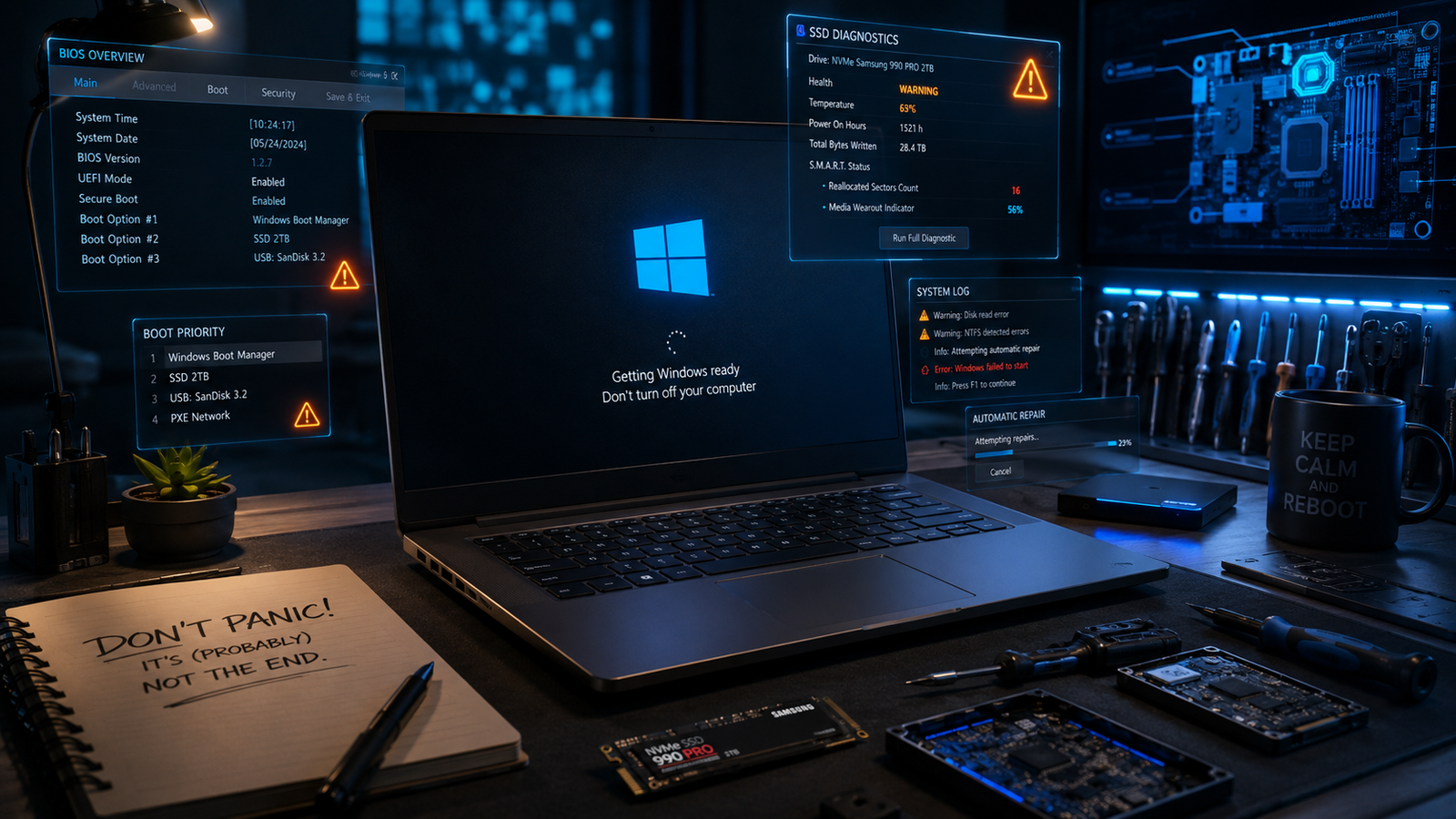
A laptop that won’t boot Windows is usually caused by corrupted startup files, failed updates, damaged storage drives, BIOS problems, or hardware faults. You can fix most boot failures by disconnecting external devices, entering Windows Recovery, repairing startup files, checking BIOS settings, and testing the SSD or RAM.
• Repair Windows startup files using Automatic Repair or Command Prompt
• Check BIOS boot order and confirm the SSD is detected correctly
• Replace failing SSDs or faulty RAM if software fixes stop working
Your laptop powers on, the fan spins, maybe the logo appears, and then Windows refuses to load. Some systems freeze on a black screen, others loop endlessly into recovery mode, and some display messages like “Preparing Automatic Repair” forever. This problem frustrates users because it often appears suddenly after an update, shutdown failure, driver crash, or storage issue.
Most boot failures trace back to corrupted system files, damaged boot sectors, failed Windows updates, BIOS configuration errors, bad SSD sectors, or failing memory modules. The good news is that many systems can recover without reinstalling Windows or losing files. The fixes below move from quick recovery steps to advanced repair procedures used in real repair shops.
Symptoms of the Problem

A laptop that won’t boot Windows usually shows one or more of these warning signs:
- Laptop powers on but stays on a black screen
- Windows logo appears and freezes indefinitely
- Endless spinning loading circle during startup
- “Automatic Repair couldn’t repair your PC” error
- Blue screen with boot-related stop codes
- “No Bootable Device Found” warning
- Laptop restarts repeatedly before Windows loads
- BIOS opens automatically instead of Windows
- SSD or HDD missing from BIOS storage list
- Cursor blinking on a black screen permanently
- Keyboard lights turn on but display remains blank
- Clicking noises coming from a mechanical hard drive
- “INACCESSIBLE_BOOT_DEVICE” blue screen
- Windows update loop after reboot
- Laptop freezes after manufacturer logo
System Requirements & Tools Needed

Before attempting repairs, gather these tools and utilities:
- Working power adapter
- USB flash drive (8GB or larger)
- Windows installation media
- Small screwdriver set
- External monitor (optional for display testing)
- Built-in BIOS or UEFI menu
- Windows Recovery Environment
- Command Prompt access
- Internet connection for driver recovery
- Anti-static workspace for hardware inspection
Troubleshooting Matrix (Quick Comparison Table)

| Observed Symptom | Potential Root Cause | Recommended Fast Fix |
| Black screen after logo | Corrupted startup files | Run Startup Repair |
| Endless loading circle | Failed Windows update | Boot into Safe Mode |
| “No Bootable Device” | SSD not detected | Check BIOS storage settings |
| Blue screen on startup | Driver or boot corruption | Use System Restore |
| Laptop restarts repeatedly | RAM instability | Reseat or test memory |
| BIOS opens automatically | Wrong boot order | Set SSD as primary boot drive |
| Clicking hard drive noise | Failing HDD | Replace drive immediately |
| Automatic Repair loop | Broken boot configuration | Rebuild BCD using Command Prompt |
| Blank screen but fan runs | Display or GPU issue | Connect external monitor |
| Windows freezes during startup | Damaged SSD sectors | Run CHKDSK and SSD health test |
Step-by-Step Fixes (From Easiest to Advanced)

Restart the Laptop Completely
A full power reset clears temporary firmware and startup conflicts that stop Windows from loading.
- Shut down the laptop completely.
- Disconnect the charger and all USB devices.
- Hold the power button for 20 seconds.
- Reconnect only the charger.
- Turn the laptop back on.
External drives, USB hubs, printers, and docking stations frequently interrupt the Windows boot sequence.
💡 TIP: Disconnect every external device before troubleshooting. Even faulty USB storage can prevent Windows from booting.
Check if the Screen Is Actually Working
A failed display can make it appear that Windows is not booting when the system is actually running normally.
- Power on the laptop.
- Listen for startup sounds or fan activity.
- Increase brightness using the keyboard shortcut.
- Connect an external monitor using HDMI.
- Press Windows + P repeatedly.
If the external monitor works, the laptop screen, display cable, or GPU output path is damaged.
Enter Windows Recovery Environment
Windows Recovery gives access to startup repair and advanced recovery tools.
- Turn on the laptop.
- Force shutdown during boot by holding the power button.
- Repeat this process three times.
- Windows should load “Preparing Automatic Repair.”
- Open:
- Troubleshoot
- Advanced Options
From here, you can access Startup Repair, Safe Mode, Command Prompt, and System Restore.
Run Startup Repair
Startup Repair automatically fixes damaged boot files and startup configuration problems.
- Open Windows Recovery Environment.
- Select:
- Troubleshoot
- Advanced Options
- Startup Repair
- Choose your Windows installation.
- Allow the scan to complete.
This process repairs:
- Missing boot files
- Corrupted BCD entries
- Startup configuration damage
- Failed update boot conflicts
If Startup Repair reports failure repeatedly, continue with manual repair methods below.
Boot into Safe Mode
Safe Mode loads only essential Windows drivers and services.
- Open Windows Recovery.
- Select:
- Troubleshoot
- Advanced Options
- Startup Settings
- Click Restart.
- Press 4 for Safe Mode.
If Windows boots successfully in Safe Mode, the problem usually involves:
- Graphics drivers
- Windows updates
- Startup programs
- Corrupted drivers
Once inside Safe Mode:
- Open Device Manager.
- Uninstall recent drivers.
- Remove recently installed software.
- Run Windows Update manually.
⚠️ EXPERT WARNING: Do not uninstall chipset or storage drivers unless absolutely necessary. Incorrect removal can make Windows unbootable.
Remove Failed Windows Updates
A broken update often causes endless boot loops after restarting.
- Enter Windows Recovery.
- Open:
- Troubleshoot
- Advanced Options
- Uninstall Updates
- Select:
- Uninstall latest quality update
- Restart the laptop.
If the issue began after a major Windows version upgrade, uninstall the latest feature update instead.
Use System Restore
System Restore rolls Windows back to a previously working state.
- Open Advanced Options.
- Click System Restore.
- Select a restore point created before the issue began.
- Confirm restoration.
This restores:
- Registry settings
- Drivers
- Boot configuration
- System files
Personal files remain untouched.
Repair Boot Files Using Command Prompt
Repairing the boot sector manually fixes severe startup corruption.
- Open Advanced Options.
- Launch Command Prompt.
- Enter the following commands one at a time:
bootrec /fixmbr
bootrec /fixboot
bootrec /scanos
bootrec /rebuildbcd
Restart the laptop after completing the commands.
If /fixboot returns “Access Denied,” use:
bootsect /nt60 sys
Then retry the repair commands.
Run CHKDSK to Repair Disk Errors
Disk corruption prevents Windows from reading critical startup data.
Open Command Prompt and run:
chkdsk C: /f /r
This scans for:
- Bad sectors
- File system corruption
- SSD or HDD damage
- Partition errors
Large drives can take hours to complete.
💡 TIP: If CHKDSK repeatedly finds new bad sectors, the storage drive is failing physically.
Verify BIOS or UEFI Settings
Incorrect BIOS settings frequently stop Windows from booting.
- Restart the laptop.
- Press the BIOS key repeatedly:
- F2
- DEL
- ESC
- F10
- Open Boot Settings.
Check the following:
- SSD or HDD appears in storage list
- Windows Boot Manager is first boot device
- UEFI mode is enabled
- Secure Boot settings are unchanged
If the drive is missing entirely, hardware failure becomes highly likely.
Reset BIOS to Default Settings
Incorrect firmware changes can block the operating system.
- Enter BIOS.
- Locate:
- Load Setup Defaults
- Reset to Default
- Save changes and restart.
This reverses accidental configuration changes affecting boot behavior.
Test the SSD or Hard Drive
A failing storage device is one of the most common reasons Windows refuses to start.
Signs of storage failure include:
- Clicking sounds
- Slow BIOS detection
- Frequent freezing
- Repeated CHKDSK errors
- “No Bootable Device” warnings
Use another computer to create a bootable diagnostic USB using:
- CrystalDiskInfo
- Samsung Magician
- WD Dashboard
- Seagate SeaTools
Replace the drive immediately if SMART status shows failure warnings.
Reseat or Replace RAM
Faulty RAM prevents Windows from loading correctly.
- Power off the laptop completely.
- Disconnect power.
- Remove the back cover.
- Locate RAM modules.
- Remove and reinstall them firmly.
- Test one RAM stick at a time.
If the laptop boots with one module removed, the other stick is defective.
⚠️ EXPERT WARNING: Always discharge static electricity before touching internal laptop components.
Check for Overheating or Motherboard Issues
Some laptops shut down during startup because of thermal protection or power delivery faults.
Common signs include:
- Laptop powers off suddenly
- Fan spins at maximum speed
- Burn smell near vents
- No display with power lights active
Inspect:
- Cooling fans
- Thermal paste condition
- DC charging port
- Motherboard burn marks
At this stage, professional board-level repair is usually required.
Reinstall Windows Completely
A clean Windows installation resolves severe operating system corruption.
- Create Windows installation media using another PC.
- Boot from the USB drive.
- Select Install Windows.
- Delete corrupted system partitions if necessary.
- Install Windows fresh.
Back up important files first whenever possible.
⚠️ EXPERT WARNING: A clean installation removes installed programs and can erase files if partitions are formatted incorrectly.
When to Replace Hardware & Prevention Tips

Software repair stops working once physical hardware begins failing. Replace components when you notice repeated boot failures even after reinstalling Windows.
Replace the SSD or HDD if:
- SMART warnings appear
- CHKDSK repeatedly finds bad sectors
- BIOS intermittently loses the drive
- Clicking or grinding noises occur
Replace RAM if:
- Blue screens continue randomly
- Memory tests fail
- Boot loops occur only with specific RAM sticks
Consider motherboard repair if:
- Laptop receives power but never POSTs
- USB ports stop functioning together
- Burn marks or overheating appear
- Charging becomes inconsistent
To prevent future boot problems:
- Avoid forced shutdowns during updates
- Keep at least 20% SSD space free
- Update BIOS only when necessary
- Use surge protection
- Create regular restore points
- Back up important files weekly
- Monitor SSD health every few months
- Keep laptop vents clean to reduce overheating
Frequently Asked Questions (FAQs)

Why does my laptop turn on but Windows never loads?
This usually happens because startup files are corrupted, the SSD is failing, or a recent Windows update damaged the boot configuration.
Can bad RAM stop Windows from booting?
Yes. Faulty RAM often causes boot loops, blue screens, freezing during startup, and failed Windows loading screens.
Why does BIOS open instead of Windows?
BIOS usually opens automatically when the storage drive is missing, boot order is incorrect, or Windows Boot Manager becomes corrupted.
Will reinstalling Windows fix boot problems permanently?
A clean installation fixes software corruption permanently, but it will not solve failing SSDs, damaged RAM, or motherboard faults.
Conclusion
Most laptops that won’t boot Windows recover successfully once startup files, BIOS settings, or corrupted updates are repaired. The most important step is identifying whether the failure comes from software corruption or failing hardware. Start with recovery tools and Safe Mode before replacing expensive components. If your laptop shows a specific boot error code, document it immediately and use it to narrow down the exact cause.