
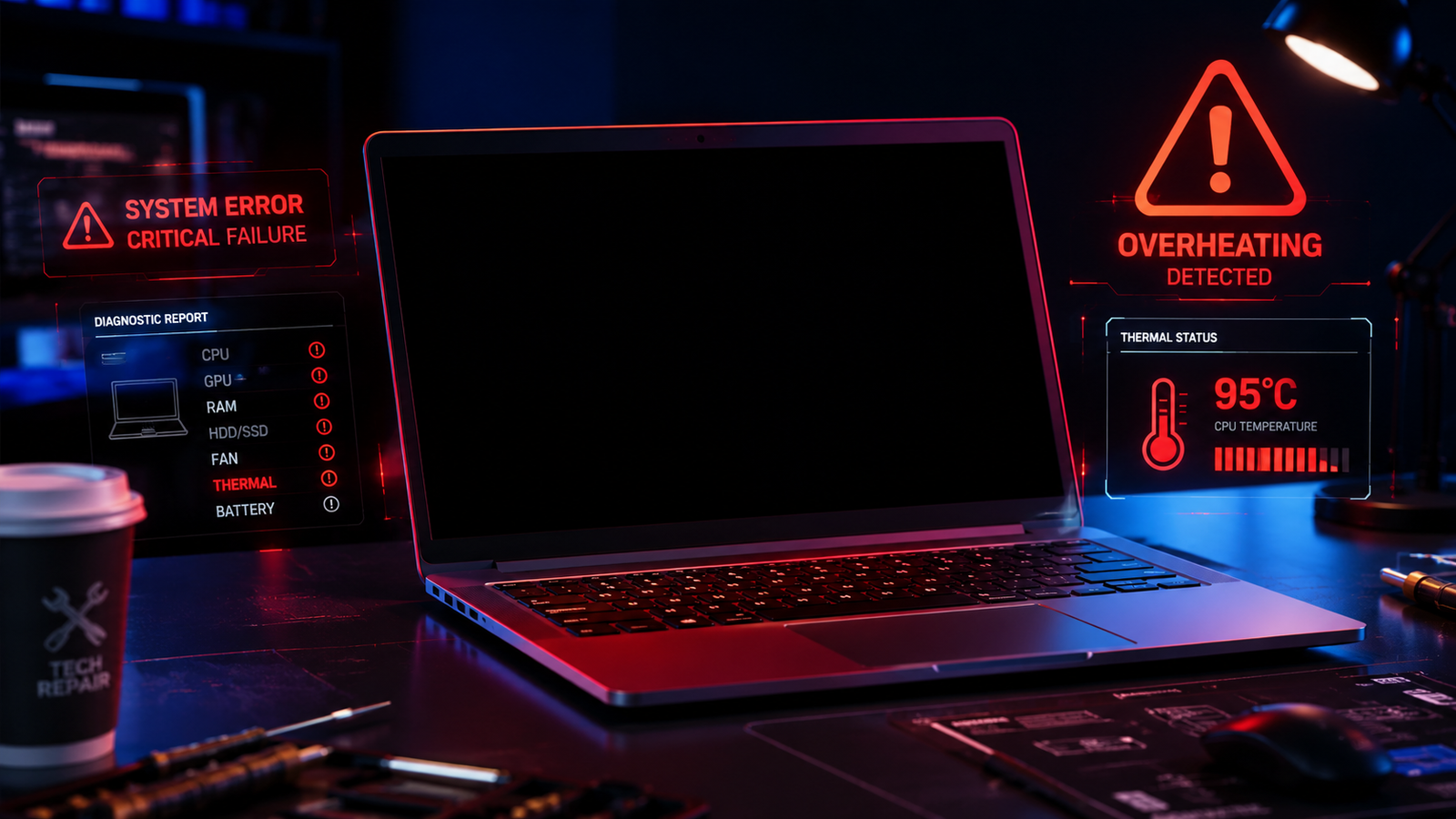
A laptop screen that goes black randomly is usually caused by display driver crashes, overheating, loose screen connections, power settings conflicts, or failing hardware components. Fixing the issue starts with checking display drivers, disabling fast startup, testing external monitors, and monitoring system temperatures before moving to hardware inspection.
• Update or reinstall GPU drivers to stop sudden black screen crashes
• Check overheating and power settings that trigger random display shutdowns
• Test external displays to identify screen cable or panel failure quickly
Random black screen crashes are one of the most frustrating laptop problems because they often happen without warning. Your laptop may keep running while the display suddenly turns off, flicker black during gaming, or go completely dark after waking from sleep.
Most users assume the laptop is dying, but many cases are caused by software instability, GPU driver corruption, aggressive power-saving settings, or thermal shutdown protection. The fixes below move from quick software corrections to advanced hardware diagnosis so you can isolate the exact cause without wasting time.
Symptoms of the Problem

A laptop screen going black randomly can appear in several different ways depending on the root cause.
Common symptoms include:
- The screen suddenly turns black while the laptop stays powered on
- Display cuts out for a few seconds and returns
- Black screen appears during gaming or heavy workloads
- Screen goes dark when moving the laptop lid
- Laptop boots with a black display but keyboard lights remain active
- Random flickering before complete display loss
- External monitor works while laptop screen stays black
- Black screen after sleep or hibernation mode
- Fans become extremely loud before the display shuts off
- System freezes alongside black screen crashes
- Screen brightness randomly drops to zero
- Display returns only after force restarting the laptop
System Requirements & Tools Needed

You’ll need a few built-in tools and basic accessories to diagnose the issue safely.
Software Tools
- Windows Device Manager
- Windows Update
- BIOS or UEFI settings
- Event Viewer
- GPU control panel
- Hardware monitoring software
- Safe Mode access
Physical Tools
- External monitor or TV
- HDMI or DisplayPort cable
- Compressed air can
- Small flashlight
- Precision screwdriver kit
- Thermal paste (advanced repairs only)
⚠️ EXPERT WARNING: Disconnect the charger and fully power down the laptop before opening the bottom panel or touching internal hardware.
Troubleshooting Matrix (Quick Comparison Table)

| Observed Symptom | Potential Root Cause | Recommended Fast Fix |
| Screen blacks out during gaming | GPU overheating | Clean fans and monitor temperatures |
| Black screen after sleep mode | Power management conflict | Disable fast startup |
| External monitor works normally | Faulty laptop display cable | Inspect screen connector |
| Entire system freezes with black screen | GPU driver corruption | Reinstall graphics drivers |
| Screen flickers before going dark | Loose display cable | Check hinge cable routing |
| Laptop turns black under load | Power delivery issue | Test charger and battery |
| Random black screen while moving lid | Failing lid sensor or cable | Adjust lid close settings |
| Black screen during startup | BIOS or hardware issue | Reset BIOS defaults |
| Display cuts out briefly then returns | Display refresh instability | Lower refresh rate temporarily |
Step-by-Step Fixes (From Easiest to Advanced)

Restart the Graphics Driver Immediately
A frozen or crashing graphics driver causes temporary black screens on many laptops.
Press:
Windows + Ctrl + Shift + B
Your screen should blink briefly, and Windows will reload the graphics driver automatically. If the display returns immediately, the problem is tied to GPU driver instability rather than hardware failure.
This shortcut works especially well after gaming crashes, wake-from-sleep failures, or flickering displays.
💡 TIP: Save your work frequently while testing because graphics driver resets can close unstable applications.
Disable Fast Startup in Windows
Fast Startup frequently causes black screen problems after booting or waking from sleep.
- Open Control Panel
- Select “Power Options”
- Click “Choose what the power buttons do”
- Select “Change settings that are currently unavailable”
- Uncheck “Turn on fast startup”
- Save changes
- Restart the laptop completely
Fast Startup stores parts of the previous system session in memory. Corrupted startup states often trigger display initialization failures.
This fix resolves many black screen issues on Windows 10 and Windows 11 laptops.
Update or Reinstall Graphics Drivers
Corrupted graphics drivers are one of the most common causes of random black screens.
- Right-click the Start button
- Open Device Manager
- Expand “Display adapters”
- Right-click your GPU
- Choose “Uninstall device”
- Restart the laptop
- Install the latest official GPU drivers
Use drivers directly from:
- NVIDIA
- AMD
- Intel
Avoid third-party driver update utilities because they often install unstable versions.
If the issue began immediately after a recent driver update, roll back to the previous version instead.
Check for Overheating Problems
Overheating forces the GPU or display system to shut down suddenly.
- Install temperature monitoring software
- Observe CPU and GPU temperatures during use
- Watch for temperatures exceeding 90°C
- Inspect fan vents for dust buildup
- Clean vents using compressed air
Gaming laptops are especially vulnerable because clogged cooling systems trap heat quickly.
Signs of overheating include:
- Loud fan noise
- Hot keyboard surface
- Performance drops before black screen
- System lag during heavy workloads
⚠️ EXPERT WARNING: Never blow compressed air directly into spinning fans at high speed. Hold the fan blades steady during cleaning.
Test with an External Monitor
An external monitor instantly helps isolate whether the issue is the display panel or the graphics system.
- Connect the laptop to a TV or monitor using HDMI
- Press Windows + P
- Select “Duplicate” or “Second screen only”
- Observe whether black screens continue
Results interpretation:
- External monitor works normally → Laptop screen, cable, or hinge issue
- Both displays go black → GPU, motherboard, or driver issue
- Only laptop panel flickers → Internal display cable problem
This single test dramatically narrows the troubleshooting process.
Adjust Power Management Settings
Aggressive power-saving settings can randomly disable the display.
- Open Power Options
- Select your current power plan
- Click “Change advanced power settings”
- Expand “PCI Express”
- Disable “Link State Power Management”
- Expand “Display”
- Increase screen timeout settings
- Disable adaptive brightness
On some laptops, battery optimization settings interfere with GPU power delivery and trigger black screen events.
High-performance mode often stabilizes systems with recurring display shutdowns.
Lower the Refresh Rate Temporarily
Unstable refresh rates can trigger intermittent black screen flickering.
- Right-click the desktop
- Open Display Settings
- Select Advanced Display
- Change refresh rate to 60Hz temporarily
- Restart the system
High refresh rate panels sometimes fail after GPU updates or unstable display timing changes.
If lowering the refresh rate stops the issue, the display cable or panel may be struggling at higher bandwidth settings.
Disable Hardware Acceleration in Apps
Browser and application hardware acceleration can trigger GPU crashes.
Disable hardware acceleration in:
- Google Chrome
- Discord
- Adobe applications
- Streaming software
- Video editing programs
For Chrome:
- Open Settings
- Search “hardware acceleration”
- Disable the option
- Restart the browser
Many black screen reports during YouTube playback or streaming sessions trace back to GPU acceleration conflicts.
Boot into Safe Mode
Safe Mode helps determine whether third-party drivers are causing the problem.
- Hold Shift while clicking Restart
- Open Advanced Startup Options
- Select Troubleshoot
- Choose Startup Settings
- Press F4 for Safe Mode
If the black screen issue disappears in Safe Mode:
- GPU drivers are likely corrupted
- Startup software may be unstable
- Windows services may conflict with display hardware
This step isolates software problems from hardware failure.
Reset BIOS or Update Firmware
Incorrect BIOS settings can break display initialization.
- Restart the laptop
- Enter BIOS or UEFI setup
- Load default settings
- Save and reboot
If problems continue, install the latest BIOS update from your laptop manufacturer.
Manufacturers commonly release firmware patches addressing:
- GPU stability
- Sleep mode issues
- Display wake failures
- Thermal control problems
⚠️ EXPERT WARNING: Never interrupt a BIOS update. Power loss during firmware flashing can permanently damage the motherboard.
Inspect the Laptop Display Cable
A loose or damaged display cable causes black screens when moving the lid.
Symptoms usually include:
- Screen cutting out when adjusting angle
- Flickering near hinges
- Display returning after pressure near bezel
The internal display cable routes through the laptop hinge and wears over time.
Inspection steps:
- Power off the laptop
- Disconnect battery if removable
- Open the bottom cover carefully
- Locate display connector near motherboard
- Reseat the cable securely
If damage is visible, the cable requires replacement.
Test RAM Stability
Faulty RAM can cause random display crashes and system instability.
- Press Windows key
- Search “Windows Memory Diagnostic”
- Restart and run the test
For deeper testing, use MemTest86 from a bootable USB drive.
Bad RAM often produces:
- Random freezing
- Black screens under load
- Unexpected restarts
- Corrupted visuals
Testing memory is essential before replacing expensive display hardware.
Check Battery and Charger Health
Power delivery instability can shut down the display unexpectedly.
Inspect for:
- Swollen battery
- Charger overheating
- Loose charging port
- Flickering charging indicator
Test the laptop:
- On charger only
- On battery only
If black screens occur only in one power mode, the battery or charger is likely failing.
Gaming laptops especially require original high-wattage chargers to maintain GPU stability.
Perform a Clean Windows Installation
Persistent software corruption sometimes survives normal repairs.
- Back up important files
- Create Windows installation media
- Reinstall Windows completely
- Install only essential drivers initially
- Test stability before reinstalling applications
If the issue disappears after a clean installation, the previous operating system environment was corrupted.
This fix is extremely effective for systems affected by malware, broken updates, or registry damage.
When to Replace Hardware & Prevention Tips

Hardware replacement becomes necessary when software fixes no longer stabilize the display.
Replace hardware if:
- Screen flickers even inside BIOS
- External monitor works perfectly but laptop panel fails
- Black screens worsen while moving the lid
- GPU temperatures remain extreme after cleaning
- Burn marks or cable damage appear internally
- The laptop shuts down completely under load
- Display artifacts appear before black screens
Common replacement components include:
- LCD display panel
- Display flex cable
- Cooling fan assembly
- Thermal paste
- GPU module (on supported systems)
- Motherboard
Prevention steps that reduce future black screen problems:
- Clean vents every 3–6 months
- Avoid blocking airflow on beds or blankets
- Keep GPU drivers updated from official sources
- Use cooling pads during gaming
- Avoid forcing the lid open aggressively
- Shut down the laptop periodically instead of constant sleep mode
- Replace failing chargers immediately
💡 TIP: Excessive heat is the leading long-term cause of laptop GPU and display failure. Temperature control directly extends hardware lifespan.
Frequently Asked Questions (FAQs)

Why does my laptop screen randomly go black but the laptop stays on?
This usually happens because the graphics driver crashes, the display cable is loose, or the GPU overheats while the system itself continues running.
Why does my laptop screen go black during gaming?
Gaming pushes the GPU and cooling system heavily. Overheating, unstable GPU drivers, or insufficient power delivery commonly trigger black screen crashes during gameplay.
Can RAM cause random black screens on a laptop?
Yes. Faulty RAM corrupts system data and frequently causes display crashes, freezing, or sudden black screens under load.
Why does my laptop screen go black when I move the lid?
The internal display cable likely has damage near the hinge area. Movement stretches the cable and interrupts the screen connection temporarily.
Conclusion
Random laptop black screens usually trace back to graphics driver failures, overheating, unstable power settings, or damaged internal display hardware. Start with driver resets, power setting adjustments, and temperature checks before moving into hardware inspection. External monitor testing remains the fastest way to isolate display panel failures from GPU problems. Apply the first three fixes immediately and track which symptom changes during testing.