
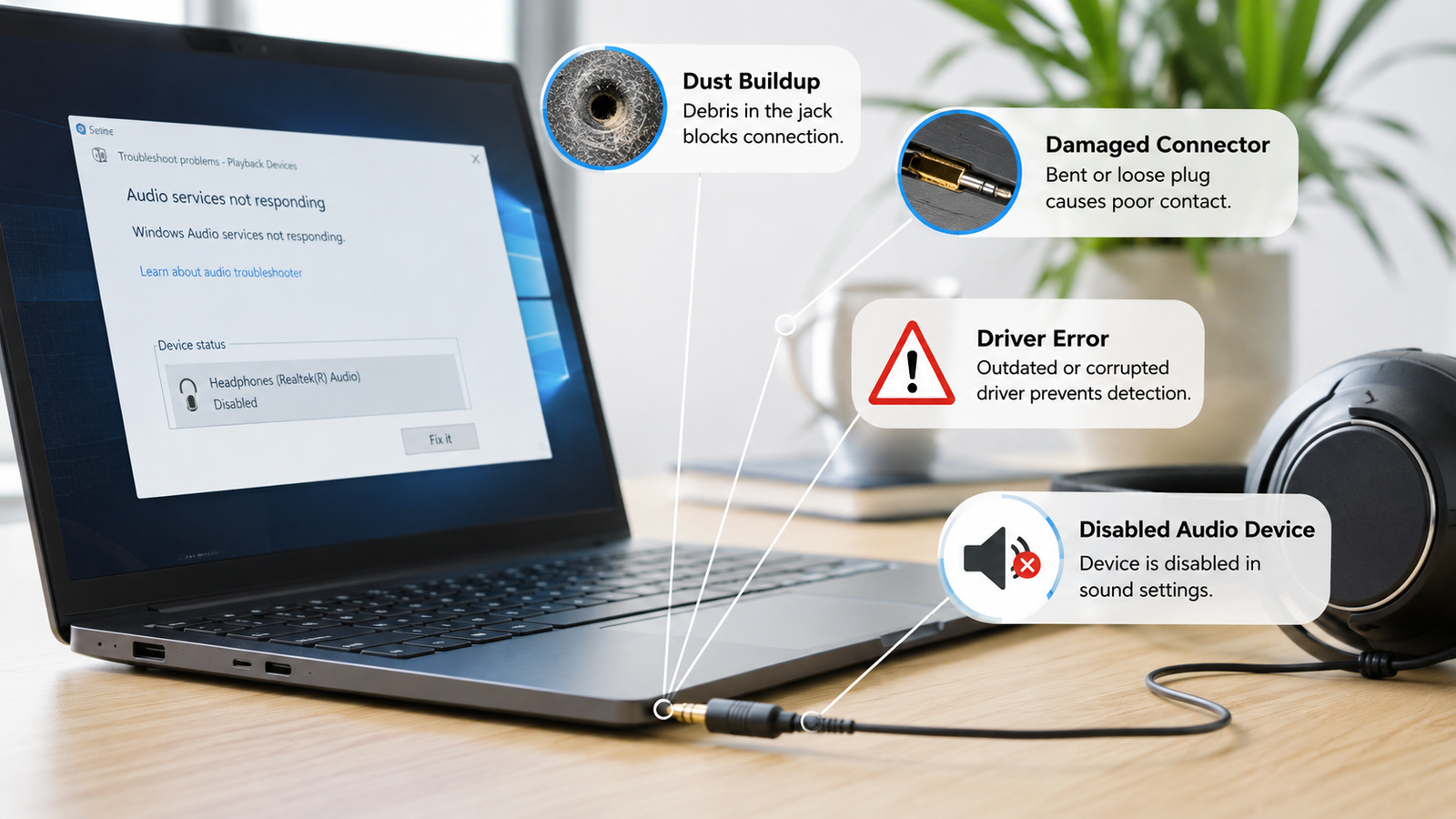
TL;DR: A headphone jack not working laptop issue is usually caused by audio output settings, outdated drivers, disabled devices, or debris inside the port.
• Check the selected playback device first
• Update or reinstall audio drivers
• Clean and inspect the headphone jack for damage
“Why does my laptop keep playing sound through the speakers even when my headphones are plugged in?” That question appears repeatedly across Reddit, Microsoft forums, and tech communities. Many users plug in a headset, expect instant audio switching, and instead get silence or sound blasting from laptop speakers. Sometimes the headphone jack worked yesterday and suddenly stopped after a Windows update. Other times, the laptop fails to detect headphones entirely.
The good news is that most headphone jack issues are software-related and can be fixed in minutes without replacing hardware. This guide walks you through proven solutions that restore headphone audio and help determine whether the problem is caused by settings, drivers, or a faulty port.
Common Reasons a Headphone Jack Stops Working
The most common causes are incorrect audio settings, outdated drivers, disabled playback devices, damaged headphones, or physical port contamination.
When you plug headphones into a laptop, Windows must detect the device and automatically route audio through it. If any part of that chain fails, the headphones won’t work properly.
Typical causes include:
- Wrong playback device selected
- Corrupted audio drivers
- Windows update conflicts
- Disabled audio services
- Dust inside the headphone port
- Loose headphone connector
- Damaged audio jack hardware
- Third-party audio software conflicts
- Faulty headphones or headset cable
- Audio enhancements causing detection issues
Understanding the root cause helps you avoid unnecessary repairs and focus on the correct solution first.
Quick Fixes You Should Try First

Start with simple checks before changing drivers or system settings.
Many users solve the problem in less than five minutes using these basic troubleshooting steps.
First, unplug the headphones and reconnect them firmly. You should feel a gentle click when the connector seats correctly inside the port.
Next, test the headphones on another device such as a smartphone, tablet, or another computer. If they fail there as well, the headphones are likely defective.
Restart the laptop completely rather than using Sleep mode. A full reboot resets audio services and device detection processes.
Then check volume levels:
- Increase Windows volume
- Increase application volume
- Verify headphone inline controls
- Disable mute settings
Also inspect the connector carefully. Bent plugs, damaged cables, or cracked connectors often create intermittent audio failures.
If none of these steps restore audio, continue with Windows audio configuration checks.
Check the Default Audio Output Device

The default playback device determines where your laptop sends sound.
Windows occasionally switches output devices after updates, Bluetooth connections, or docking station use.
To verify the correct device:
- Right-click the speaker icon.
- Select Sound Settings.
- Open Output settings.
- Expand the device list.
- Select your headphones.
If headphones appear in the list but are not selected, choose them manually and test audio playback.
You can also access traditional sound settings:
- Open Control Panel.
- Select Hardware and Sound.
- Click Sound.
- Open the Playback tab.
If your headphones appear, right-click them and choose Set as Default Device.
The following table shows common audio output scenarios.
| Situation | Likely Cause | Recommended Fix |
| Sound from speakers only | Wrong playback device | Select headphones as default |
| No audio anywhere | Driver or service issue | Restart services and drivers |
| Headphones not detected | Port or driver problem | Reinstall audio driver |
| Crackling audio | Hardware or enhancement issue | Disable enhancements |
| Audio cuts in and out | Loose connector | Inspect jack and cable |
After applying changes, unplug and reconnect the headphones.
Update or Reinstall Audio Drivers

Audio drivers allow Windows to communicate with sound hardware.
Corrupted or outdated drivers are among the most common reasons a headphone jack stops responding.
To update drivers:
- Press Windows + X.
- Open Device Manager.
- Expand Sound, Video and Game Controllers.
- Right-click your audio device.
- Select Update Driver.
- Choose Search Automatically.
Windows searches for compatible driver updates and installs them automatically.
If updating doesn’t help, reinstall the driver:
- Open Device Manager.
- Right-click the audio device.
- Select Uninstall Device.
- Confirm removal.
- Restart the laptop.
Windows usually reinstalls the driver during startup.
Laptop manufacturers often provide newer audio packages than Microsoft. Visit the support page for your laptop model and download the latest audio driver directly from the manufacturer.
This step frequently resolves headphone detection failures after operating system updates.
Enable Disabled Playback Devices

Disabled playback devices remain hidden or inactive even when headphones are connected.
Windows can accidentally disable audio outputs during software changes or troubleshooting attempts.
To check:
- Open Control Panel.
- Select Sound.
- Open the Playback tab.
- Right-click an empty area.
- Choose Show Disabled Devices.
If headphones appear in the list with a disabled icon:
- Right-click the device.
- Select Enable.
- Set it as the default playback device.
After enabling the device, reconnect the headphones and test sound again.
Many users discover that their headphone output was disabled without realizing it, making this one of the highest-success fixes available.
Run the Windows Audio Troubleshooter

The Windows troubleshooter automatically detects and repairs common sound configuration problems.
Although not perfect, it can identify disabled services, incorrect device assignments, and configuration conflicts.
To run it:
- Open Settings.
- Select System.
- Click Troubleshoot.
- Open Other Troubleshooters.
- Run Audio Troubleshooter.
Follow the prompts exactly as displayed.
The troubleshooter may:
- Restart audio services
- Detect disconnected devices
- Repair configuration errors
- Reset audio settings
- Recommend driver updates
After troubleshooting completes, restart the laptop and test headphone functionality again.
Clean and Inspect the Headphone Jack

Dust, lint, and physical damage can prevent proper contact inside the audio port.
Laptop headphone jacks are surprisingly sensitive. Even a small amount of debris may block electrical contact between the plug and internal connectors.
Inspect the port using a flashlight.
Look for:
- Dust buildup
- Pocket lint
- Bent contacts
- Broken plastic pieces
- Corrosion
If debris is visible:
- Power off the laptop.
- Use compressed air in short bursts.
- Avoid inserting metal tools.
- Reinspect the port.
Never force objects into the connector because internal contacts can bend permanently.
If headphones only work when held at a certain angle, the port may have loose solder connections or mechanical damage requiring professional repair.
Physical damage typically cannot be corrected through software fixes.
Check Audio Enhancement and Realtek Settings
Audio enhancement features sometimes interfere with headphone detection and playback.
Many laptops include Realtek Audio Console, Waves Audio, Nahimic, DTS, Dolby software, or manufacturer-specific audio controls.
Try disabling enhancements:
- Open Control Panel.
- Select Sound.
- Open Playback Devices.
- Choose Headphones.
- Open Properties.
- Select Enhancements.
- Disable all enhancements.
Then test audio playback.
If your laptop uses Realtek software, open the audio management application and verify that front panel or headphone detection settings remain enabled.
Certain audio applications also include automatic device switching options. Resetting those settings often restores proper headphone recognition.
Frequently Asked Questions (FAQs)
Why does my laptop not recognize plugged-in headphones?
The most common reasons are outdated audio drivers, disabled playback devices, incorrect output selection, or debris inside the headphone jack.
Can a Windows update cause headphone jack problems?
Yes. Some Windows updates replace audio drivers or alter sound settings, which can prevent headphones from being detected correctly until drivers are updated or reinstalled.
How do I know if my headphone jack is physically damaged?
If headphones only work at specific angles, disconnect randomly, or fail despite working drivers and settings, the port may have hardware damage.
Should I replace the headphones or repair the laptop?
Test the headphones on another device first. If they work elsewhere, focus on troubleshooting the laptop’s audio settings, drivers, or headphone port.
[NEXT ARTICLE: “Laptop Plugged In Not Charging Fix” — Learn how to diagnose charging problems, battery detection errors, and power adapter failures before replacing hardware.]
Conclusion
A headphone jack not working laptop problem is usually caused by incorrect audio settings, disabled playback devices, outdated drivers, or contamination inside the port. Start with output device checks and driver updates before assuming hardware failure. Most users restore headphone audio within minutes using the fixes above. Follow each step carefully and test after every change to identify the exact cause.