
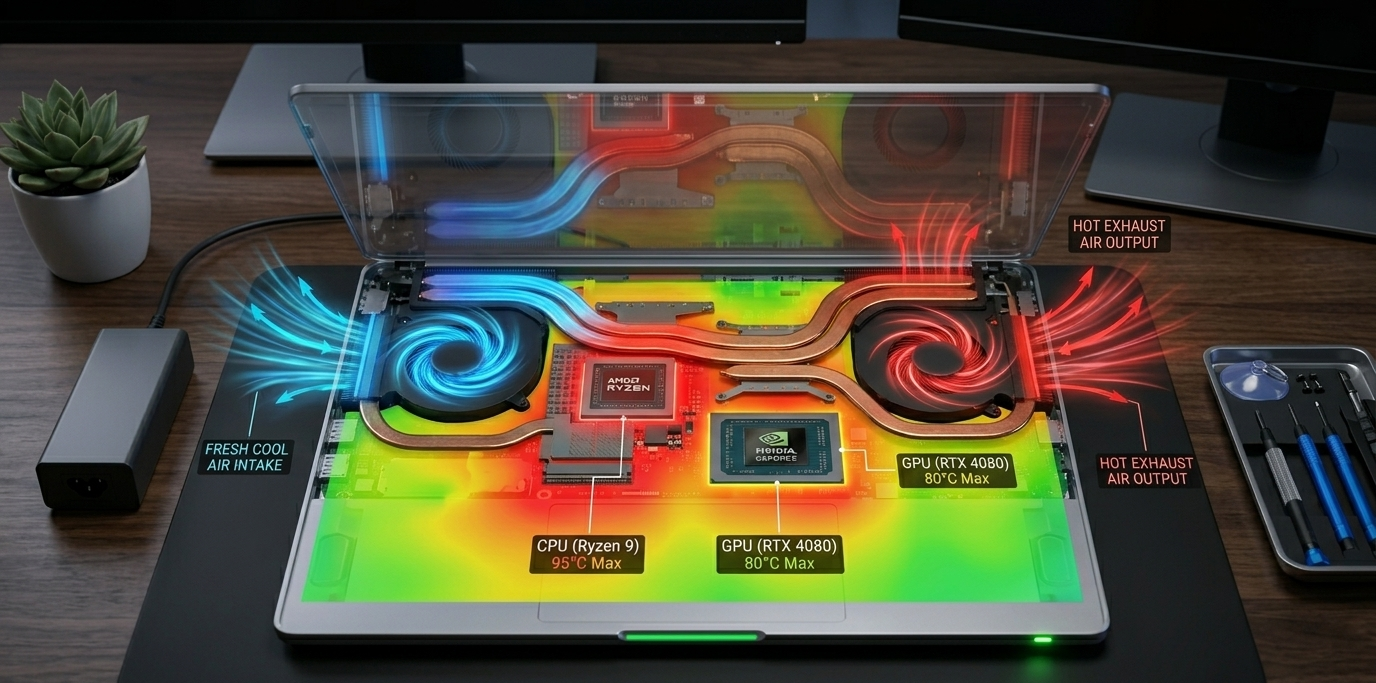
Laptop overheating while gaming is usually caused by restricted airflow, dust buildup, high graphics settings, outdated drivers, or failing cooling hardware.
- Clean vents and fans regularly
- Lower unnecessary GPU and CPU load
- Improve airflow with proper positioning
Introduction
“My gaming laptop hits 95°C after ten minutes and starts lagging. The fans sound like a jet engine, but the temperature keeps climbing.” Similar complaints appear daily across gaming forums, Reddit threads, and support communities. Excessive heat doesn’t just reduce performance. It can trigger thermal throttling, shorten component lifespan, drain battery health, and cause sudden shutdowns during competitive matches.
If your laptop becomes dangerously hot while gaming, the good news is that most causes can be identified and fixed without replacing the entire machine. This guide explains the most effective laptop overheating while gaming fix methods available right now.
Why Gaming Laptops Overheat
Common overheating causes include dust accumulation, blocked air vents, demanding game settings, aging thermal paste, background applications, and cooling system failures.
Gaming laptops combine powerful CPUs and GPUs inside compact chassis designs. Unlike desktop computers with large cooling systems, laptops have limited internal space for heat dissipation.
Modern gaming processors from manufacturers such as Intel and AMD can temporarily exceed 80 watts of power consumption during demanding workloads. Dedicated graphics chips from NVIDIA and AMD also generate significant heat while rendering modern games.
Typical gaming temperatures:
| Component | Normal Gaming Temperature |
| CPU | 70°C–90°C |
| GPU | 65°C–85°C |
| SSD | 40°C–70°C |
| System Surface | Warm but touchable |
When temperatures consistently exceed 95°C on the CPU or 90°C on the GPU, thermal throttling often begins. This safety mechanism reduces clock speeds to prevent hardware damage.
Check Your Laptop Temperature First

Use monitoring software to identify whether the CPU, GPU, or both components are overheating.
Before applying fixes, determine the severity of the issue.
Popular temperature monitoring tools include:
| Tool | Best For | Cost |
| HWiNFO | Detailed hardware monitoring | Free |
| MSI Afterburner | Gaming overlays and GPU tracking | Free |
| HWMonitor | Simple temperature readings | Free |
| Core Temp | CPU temperature monitoring | Free |
Launch your monitoring tool and start the game that normally causes overheating.
Watch for:
- CPU temperatures above 95°C
- GPU temperatures above 90°C
- Sudden clock speed drops
- Fan speeds constantly running at maximum
- Frame rate decreases after several minutes
Accurate temperature data prevents unnecessary troubleshooting and helps you target the actual source of heat.
Clean Dust From Fans and Air Vents

Dust removal is one of the fastest and most effective overheating fixes.
Dust acts like insulation inside the cooling system. It blocks airflow through heat sinks and prevents fans from moving sufficient air.
Signs of dust buildup include:
- Constant fan noise
- Hot exhaust air
- Reduced airflow from vents
- Higher temperatures than when the laptop was new
To clean safely:
- Shut down the laptop.
- Disconnect power.
- Use compressed air on intake and exhaust vents.
- Blow short bursts rather than continuous streams.
- Hold fan blades in place when possible.
- Remove the bottom cover for deeper cleaning if your warranty allows it.
For laptops older than two years, internal cleaning often reduces temperatures by several degrees immediately.
Cleaning every six months helps maintain cooling performance and prevents severe airflow restrictions.
Improve Airflow Around the Laptop

Better airflow allows the cooling system to remove heat more efficiently.
Many gamers unintentionally block intake vents by placing laptops on beds, blankets, cushions, or soft furniture.
For optimal cooling:
- Use a hard flat surface
- Keep side vents unobstructed
- Leave space behind exhaust vents
- Avoid gaming in hot rooms
- Raise the rear of the laptop slightly
Room temperature matters more than many users realize.
A laptop operating in a 30°C room starts much closer to its thermal limits than the same system in a 20°C environment.
Even simple elevation methods can noticeably improve airflow underneath the chassis.
Lower Graphics Settings That Cause Excess Heat

Reducing GPU workload lowers heat production immediately.
Maximum graphics settings aren’t always necessary for a smooth gaming experience.
Settings that generate the most heat include:
| Setting | Heat Impact |
| Ray Tracing | Very High |
| Ultra Shadows | High |
| Unlimited FPS | High |
| Ambient Occlusion | Medium |
| High Anti-Aliasing | Medium |
| Motion Blur | Low |
Effective adjustments include:
- Cap frame rates at 60 or 120 FPS
- Disable unnecessary ray tracing
- Reduce shadow quality
- Lower render resolution slightly
- Enable performance modes
A frame rate cap is especially powerful because GPUs often work at full capacity when no limit exists.
Many players experience lower temperatures and more stable performance after setting a reasonable FPS limit.
Close Background Programs and Processes

Background applications consume CPU cycles, memory, and cooling capacity.
Gaming performance suffers when unnecessary programs continue running during gameplay.
Common offenders include:
- Web browsers with multiple tabs
- Video streaming services
- Screen recording software
- RGB management utilities
- File synchronization programs
- Unused launchers
Open Task Manager and sort processes by CPU usage.
Close applications that aren’t required for gaming sessions.
This reduces processor workload and gives the cooling system more headroom for the game itself.
Systems with limited RAM benefit particularly from reducing background activity.
Update Drivers and BIOS Firmware

Current drivers and firmware improve thermal management and hardware efficiency.
Manufacturers frequently release updates that address power consumption, fan behavior, and system stability.
Update the following components:
- Graphics drivers
- Chipset drivers
- BIOS firmware
- System utilities
- Power management software
Visit your laptop manufacturer’s support page and install recommended updates.
Gaming laptops often receive BIOS revisions that improve fan curves or optimize processor voltage behavior.
Avoid interrupting BIOS updates because doing so can cause serious system issues.
After updating, monitor temperatures again to determine whether thermal performance has improved.
Replace Thermal Paste When Necessary

Thermal paste replacement restores efficient heat transfer between chips and cooling hardware.
Thermal paste fills microscopic gaps between the processor and heat sink.
Over time it can dry out, crack, or lose effectiveness.
Signs replacement may be necessary:
- Laptop older than three years
- Temperatures increasing every year
- Fans running normally but temperatures remain high
- Previous cleaning produced minimal improvement
Quality thermal compounds can significantly improve heat transfer.
However, replacing thermal paste requires disassembling the cooling assembly and should be performed carefully.
If you’re uncomfortable opening the laptop, professional servicing is a safer option.
Many aging gaming laptops regain substantial thermal performance after fresh thermal paste installation.
Use a Cooling Pad: Does It Actually Work?

Cooling pads can lower temperatures modestly when combined with good airflow practices.
Cooling pads are external accessories containing fans that push additional air toward the laptop’s intake vents.
Results vary depending on laptop design.
| Cooling Method | Expected Temperature Reduction |
| Rear Elevation | 2°C–5°C |
| Cooling Pad | 3°C–8°C |
| Dust Cleaning | 5°C–15°C |
| New Thermal Paste | 5°C–15°C |
Cooling pads aren’t miracle solutions, but they can help maintain lower temperatures during long gaming sessions.
Choose models with adjustable fan placement that aligns with your laptop’s intake vents.
The greatest improvements occur when cooling pads are combined with internal maintenance.
Adjust Power Settings for Better Thermals

Power management settings control how aggressively the CPU and GPU consume energy.
High-performance modes maximize speed but often increase temperatures substantially.
Consider these adjustments:
- Use balanced power mode
- Reduce processor maximum state to 99%
- Enable manufacturer cooling profiles
- Select performance presets carefully
- Test quiet or balanced fan modes
Lower power consumption directly reduces heat generation.
Many gamers find that slightly reducing CPU boost behavior has minimal impact on frame rates while producing noticeably cooler operation.
Experiment with different profiles and compare temperature results.
Frequently Asked Questions (FAQs)

Is 90°C too hot for a gaming laptop?
No, many gaming laptops temporarily reach 90°C during demanding games. Sustained temperatures above 95°C are more concerning and usually indicate cooling limitations.
Can overheating damage my gaming laptop?
Yes. Persistent overheating accelerates wear on internal components, batteries, fans, and thermal materials while increasing the likelihood of instability.
Does undervolting help reduce laptop temperatures?
Yes. Stable undervolting can lower CPU temperatures and power consumption without major performance loss, although support varies across processor generations.
Should gaming laptop fans always run loudly?
Not necessarily. Loud fans during gaming are normal, but constant maximum fan speeds during light tasks may indicate dust buildup, software issues, or cooling inefficiencies.
[NEXT ARTICLE: “Laptop Plugged In Not Charging Fix” — Learn how to diagnose charging failures, battery problems, and power adapter issues before replacing expensive parts.]
Conclusion
Most overheating problems come from restricted airflow, dust accumulation, excessive graphics workloads, or aging cooling materials. Start with temperature monitoring, vent cleaning, airflow improvements, and graphics optimization before considering hardware repairs. Consistent maintenance keeps gaming temperatures under control and prevents performance loss. Apply these fixes today and enjoy cooler, smoother gaming sessions.