
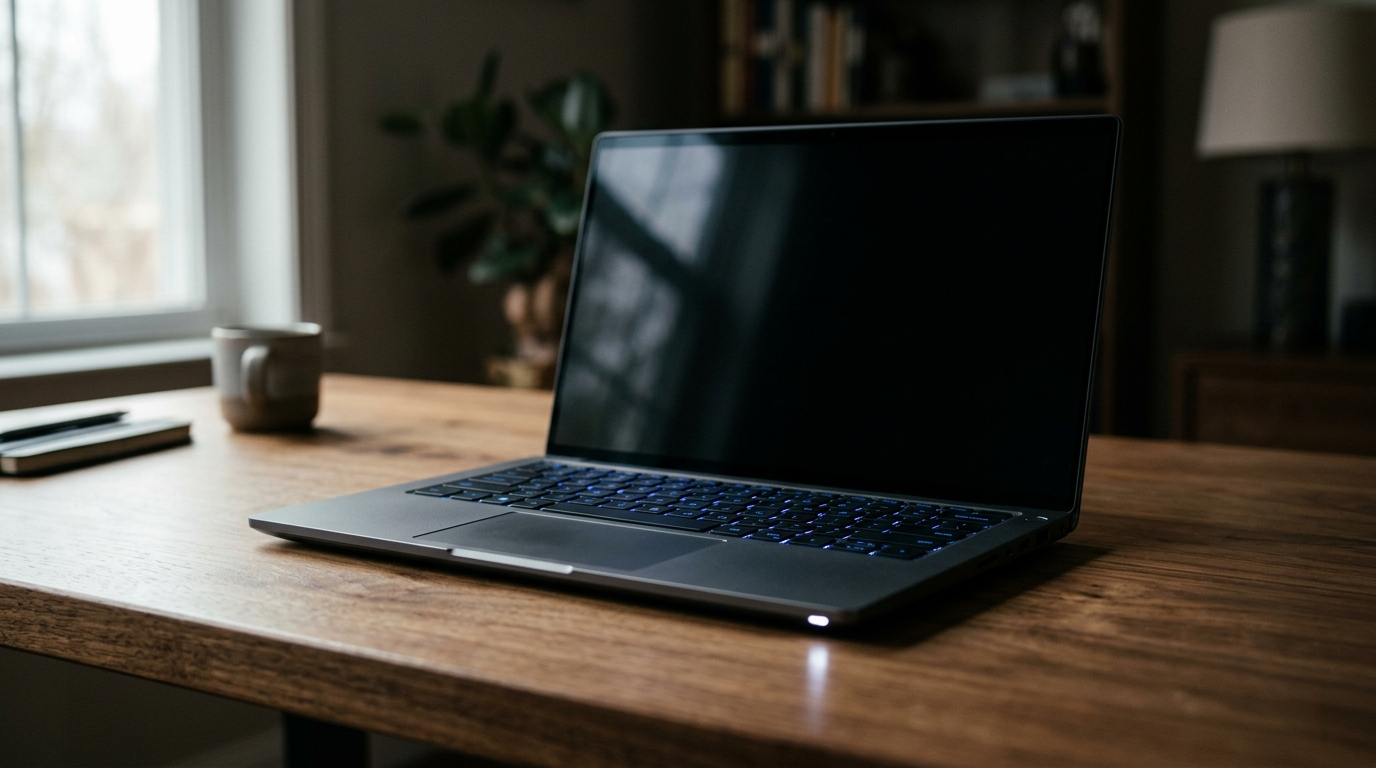
You press the power button. The fan starts spinning. The keyboard lights up. The power indicator is glowing.
But the screen? Completely black.
This is one of the most frustrating situations a laptop user can face. You know your laptop is running, but you cannot see anything. If you have unsaved work open, the panic hits even harder.
Here is the good news: your data is almost certainly safe. A black screen does not mean your laptop is dead or your files are gone. In most cases, the system is running perfectly fine. Only the display is having trouble.
Research shows that about 60% of laptop black screen cases are quick fixes you can do yourself in under 10 minutes. Another 30% need a bit more effort but are still completely doable at home. Only around 10% of cases actually require professional repair.
This guide will walk you through every scenario. We start with a fast diagnosis to figure out exactly what is happening, then move through fixes from the easiest to the most advanced.
Step 1: Understand What Type of Black Screen You Have
Before trying any fix, you need to identify which scenario matches your situation.
Different black screen scenarios have different causes, and jumping to the wrong fix wastes your time.

Scenario A: Laptop is ON but screen is black
The fans are spinning, the power light is on, maybe the keyboard backlight works, but the screen shows nothing.
This is the most common scenario. It usually points to a display output issue, a driver problem, or a power management glitch.
Scenario B: Black screen on startup, Windows does not load
You press the power button and either nothing appears or you see a brief flash, then black. Windows never loads.
This usually points to software corruption, a failed Windows update, RAM issues, or a boot configuration problem.
Scenario C: Screen goes black after sleep or hibernate
The laptop was working fine. You closed the lid or walked away. When you came back, the screen would not wake up.
This is an extremely common issue after Windows 11 updates, especially the Windows 11 24H2 update released in late 2024. The Fast Startup feature is usually the culprit.
Scenario D: Screen goes black when you plug in or unplug the charger
The screen blacks out specifically when you connect or disconnect the power adapter.
This points to a power delivery issue, a battery problem, or a graphics switching failure between integrated and dedicated GPU.
Now that you know your scenario, let us start with a quick diagnostic test before jumping into fixes.
Quick Diagnosis: Run These 3 Tests First (Takes 2 Minutes)
These three tests will tell you whether the problem is in the software, the display hardware, or somewhere else. This information saves you from wasting time on the wrong fixes.

Test 1: External Monitor Test
Find any external monitor or TV and connect it to your laptop using HDMI, DisplayPort, or USB-C.
If the external monitor shows a normal image, the problem is with your laptop screen or the display cable inside. Skip directly to the Display Hardware section below.
If the external monitor is also black, the issue is system-wide. It involves the GPU, RAM, drivers, or the motherboard. Start with the software fixes below.
Test 2: Brightness Check
This sounds too simple, but it is more common than you think.
Press the brightness increase key on your keyboard repeatedly. The key combination varies by brand.
Dell users should try Fn + F6. HP users should try Fn + F2. Lenovo users should try Fn + F5. Asus users should try Fn + F6. Acer users should try Fn + F3.
Sometimes a power-saving setting automatically drops brightness to zero, making the screen look black when the laptop is perfectly fine.
Test 3: Backlight Test (Flashlight Method)
Go into a dark room and shine a phone flashlight directly at your laptop screen at an angle.
If you can see a very faint image of your desktop or login screen, your backlight has failed. The display itself is working, but there is no light behind it to make the image visible. This requires a hardware repair.
If you see absolutely nothing even with the flashlight, the problem is not the backlight. Continue troubleshooting with the fixes below.
Software Fixes: Try These First (No Tools Required)
Start here. These fixes cost nothing and solve the majority of laptop black screen problems.
Fix 1: Press Windows + Ctrl + Shift + B

This is the most underrated fix that almost nobody talks about.
This keyboard shortcut forces Windows to instantly reset the graphics driver. The screen will go black for a split second, then come back on.
Press all four keys together: Windows key + Ctrl + Shift + B.
You will hear a beep and the screen should flicker back to life. This works even when the screen appears completely black, as long as the system is running.
This single shortcut fixes roughly 30% of black screen cases caused by GPU driver crashes. Try this first before doing anything else.
Fix 2: Hard Power Reset (Power Drain Method)

This is the most reliable general-purpose fix for black screens.
First, shut down the laptop completely. If the normal shutdown does not work, hold the power button for 10 full seconds until the laptop forces itself off.
Next, unplug the power adapter from the laptop.
If your laptop has a removable battery, take it out. If the battery is sealed inside (most modern laptops), you will skip this step.
Now hold the power button for 30 full seconds with no battery and no power plugged in.
This drains all residual electrical charge from the circuits and resets the embedded controller, which manages power delivery and display output. It fixes most sleep and wake issues as well as random power management glitches.
Put the battery back in if you removed it, plug in the adapter, and turn the laptop on.
This fix has roughly a 40% success rate for random black screens, especially those that happen after sleep or hibernate.
Fix 3: Force Display Output with Windows + P
Your laptop might be stuck in a display mode that sends the output to an external screen that is not connected.
Even though you cannot see the screen, your laptop may have booted normally. Try this:
Turn on the laptop and wait two full minutes for it to boot completely.
Press Windows key + P to open the display projection menu. Since you cannot see the screen, press the down arrow key once and then press Enter.
Wait about 10 seconds, then repeat the process. Do this four times total to cycle through all four display modes: PC screen only, Duplicate, Extend, and Second screen only.
On older laptops, try pressing Fn + F4, Fn + F5, or Fn + F8 repeatedly instead. These are common display toggle keys.
If the laptop was stuck on “Second screen only” mode, this will bring the display back to the laptop screen.
Fix 4: Boot Into Safe Mode
Safe Mode loads Windows with only the most basic drivers. If a driver conflict is causing your black screen, Safe Mode will work even when normal Windows does not.
Turn on your laptop. As soon as you see the manufacturer logo (Dell, HP, Lenovo, etc.), press F8 repeatedly. On some laptops you may need to press Shift + F8 instead.
If that does not trigger Safe Mode, try this method. Turn on the laptop, wait for the black screen to appear, then hold the power button to force shutdown. Do this three times in a row. After the third restart, Windows will automatically enter Recovery Mode.
From Recovery Mode, navigate to Troubleshoot, then Advanced Options, then Startup Settings, then click Restart.
When the Startup Settings screen appears, press 4 or F4 to boot into Safe Mode.
If Safe Mode works and your screen displays normally, the problem is a driver conflict. Go to Device Manager, find Display Adapters, right-click your graphics card, and either update the driver or roll it back to the previous version.
If Safe Mode also shows a black screen, you have a hardware problem. Move to the hardware fixes further down.

Fix 5: Disable Fast Startup (Critical for Windows 11 Users)
Fast Startup is a Windows feature designed to make boot times faster by saving a partial system state when you shut down. However, it can save a corrupted display state and reload it on the next boot, causing a persistent black screen.
This issue became significantly more common after the Windows 11 24H2 update in late 2024. If your black screen started after a Windows update, this fix has a high chance of working.
You need to access Windows to do this. Boot into Safe Mode first if your normal desktop is not accessible.
Open Control Panel (not the Settings app). Go to Power Options. Click Choose what the power buttons do in the left sidebar. Click Change settings that are currently unavailable at the top of the page.
Uncheck the option that says Turn on fast startup (recommended).
Save the changes and restart your laptop normally.

Fix 6: Restart Windows Explorer (If You Can See Your Cursor)
If your screen is black but you can see your mouse cursor moving, this specific fix is for you.
Windows Explorer, which powers the desktop and taskbar, may have crashed. Restarting it often brings the desktop back immediately.
Press Ctrl + Alt + Delete and select Task Manager.
In Task Manager, look for Windows Explorer in the list of processes. Click on it to select it, then click the Restart button in the bottom right corner.
If Windows Explorer is not listed, go to File, then Run new task, type explorer.exe, and press Enter.
Your desktop should reappear within a few seconds.
Fix 7: Update or Roll Back Your Graphics Driver
Graphics driver issues are one of the top causes of laptop black screens, especially after Windows updates or new game installations.
Boot into Safe Mode. Open Device Manager by right-clicking the Start button. Expand Display adapters to see your graphics card listed.
Right-click your graphics card and select Update driver if you have not updated recently.
If the black screen started right after a driver update, select Properties, go to the Driver tab, and click Roll Back Driver to return to the previous version.
For laptops with both integrated graphics (Intel or AMD) and a dedicated GPU (NVIDIA or AMD), try disabling the dedicated GPU temporarily to see if the integrated graphics work without issue.
Power and Battery Related Fixes
If the standard fixes above did not work, and your black screen is related to charging or battery behavior, try these.
Fix 8: AC Power Only Test
This test tells you whether the battery is causing the problem.
Shut down the laptop. If your laptop has a removable battery, take it out completely. Plug in only the power adapter. Try to boot the laptop on AC power alone.
If the laptop boots and displays normally without the battery, your battery is dead or faulty and needs replacement.
For laptops with a sealed non-removable battery, enter the BIOS during startup (usually by pressing F2 or F10 right after turning on) and look for a Battery Health or Power section to check the battery status.
If the laptop also fails on AC power alone, the battery is not the issue.
Fix 9: Reset BIOS to Default Settings
Corrupted or incorrect BIOS settings can prevent the display from working properly or disable the display output entirely.
Turn on the laptop and immediately press F2, F10, Delete, or F12 repeatedly to enter the BIOS setup screen. The exact key varies by brand, and you will see a brief message on screen when the laptop first starts telling you which key to press.
The BIOS screen should appear even if Windows was showing a black screen, since BIOS runs before Windows loads.
Once inside BIOS, look for an option called Load Optimized Defaults, Load Setup Defaults, or Restore Defaults.
Select it, confirm the action, save, and exit. The laptop will restart with default settings.
Hardware Fixes (Check Your Warranty First)
If software fixes have not resolved the issue, you are likely dealing with a hardware problem. These fixes involve opening the laptop or accessing internal components.
Important: If your laptop is under warranty, contact the manufacturer before attempting any hardware fix. Opening the laptop yourself may void the warranty.
Fix 10: Reseat the RAM

Loose or slightly corroded RAM is responsible for black screens more often than most people realize. This is especially true if the laptop was recently dropped, moved during shipping, or has not been opened in years.
Shut down the laptop completely and unplug it. If the battery is removable, take it out.
Flip the laptop over. Find the RAM access panel on the bottom. Most laptops mark it with a small icon or it is the largest removable panel. Remove the screws and open the panel.
The RAM sticks are held in place by small clips on each side. Push both clips outward at the same time and the RAM stick will pop up at an angle. Slide it out gently.
Take a clean pencil eraser and gently rub it along the gold contacts on the bottom edge of the RAM stick. This removes any oxidation. Blow out any dust from the RAM slot with short puffs of air.
Push the RAM back into the slot firmly until both clips click into place. Close the panel, reattach the battery, and boot.
This fix has a 20 to 30% success rate for black screens that occur on startup.
Fix 11: Reseat the Display Cable

The display cable (called LVDS or eDP cable) runs from the motherboard to the LCD panel inside your laptop. Every time you open and close the lid, this cable flexes. Over thousands of cycles, or after a single drop, it can come loose or get damaged.
This is actually the single most common hardware cause of laptop black screens.
Before attempting this, search YouTube for your exact laptop model with the words “display cable replacement” or “disassembly.” This will show you exactly how to open your specific laptop model and where the cable is located.
Shut down completely and unplug everything including the battery.
Open the bottom panel of the laptop. Locate the flat ribbon cable connecting the motherboard to the hinges and up to the screen. Carefully lift the small connector lock and unplug the cable. Check the cable for any visible damage, cuts, or bends.
Plug it back in firmly and lock the connector. Reassemble and test.
If the cable is physically damaged, a replacement cable typically costs between $10 and $30 for the part, and professional installation runs between $80 and $150 including labor.
Fix 12: Disable the Dedicated GPU
Laptops with both integrated graphics and a dedicated gaming GPU sometimes get stuck when the switching between the two fails. Forcing the laptop to use only the integrated GPU can get the display working again.
Boot into Safe Mode. Open Device Manager and expand Display adapters. You will see two GPUs listed.
Right-click the dedicated GPU (the NVIDIA or AMD one, not the Intel or AMD Ryzen integrated one) and select Disable device. Restart normally.
If the screen works now, the dedicated GPU or its driver is the problem. Download the latest driver directly from the NVIDIA or AMD website (not through Windows Update) and reinstall it fresh. Then re-enable the dedicated GPU.
Fix 13: Check for Overheating

Laptops that overheat will shut off the display or throttle performance to protect internal components. If your screen goes black randomly during use, especially after the laptop has been running for a while, overheating is a likely cause.
Download a free tool called HWMonitor or HWiNFO64. If you can get into Windows even briefly, run this tool and check your CPU and GPU temperatures during normal use.
CPU temperatures above 90 degrees Celsius and GPU temperatures above 85 degrees Celsius indicate a thermal problem.
The fix is usually dust removal. Use compressed air to blow out the vents on the bottom and sides of the laptop. Also consider replacing the thermal paste on the CPU and GPU if the laptop is more than 3 to 4 years old.
Using a cooling pad when placing the laptop on soft surfaces like beds or couches also helps significantly.
Brand-Specific Black Screen Fixes
Each laptop brand has its own quirks and diagnostic tools. Here are the most useful brand-specific fixes.

Dell Laptops (Inspiron, XPS, Latitude)
Dell has a built-in LCD self-test called BIST that can tell you in 30 seconds whether your screen hardware is working.
Shut down the laptop completely. Hold the D key and then press the power button while continuing to hold D.
If color bars appear on the screen, your LCD panel is physically working. The problem is with Windows or the graphics driver.
If the screen remains black even during this test, you have a hardware failure in the cable, the panel itself, or the GPU.
Dell XPS and gaming laptop users who have the NVIDIA Optimus issue should update GPU drivers specifically from the Dell Support website rather than directly from NVIDIA.
HP Laptops (Pavilion, Envy, EliteBook)
HP laptops can run built-in hardware diagnostics by pressing F2 immediately after powering on. This takes you to the HP PC Hardware Diagnostics screen where you can run a display test.
For HP laptops that show a black screen after waking from sleep, disable Fast Startup and also check if the HP Sleep and Charge settings are interfering with the display driver.
Lenovo (ThinkPad, IdeaPad, Legion)
Many Lenovo laptops have a small Novo button, usually a pinhole near the power button or on the side of the laptop. Press this button with a paperclip while the laptop is off to enter a recovery menu without needing Windows.
This menu gives access to BIOS settings, system restore, and recovery options even when Windows cannot boot.
Legion gaming laptop users with NVIDIA graphics should disable NVIDIA’s G-Sync setting in the BIOS if experiencing black screen on startup. This is a known issue on some Legion models.
Asus (VivoBook, ZenBook, ROG)
Asus laptops support BIOS entry using F2 or Delete immediately after power-on. ROG gaming laptop users with a black screen after driver updates should use DDU (Display Driver Uninstaller) in Safe Mode to completely wipe GPU drivers before installing a fresh copy from the Asus support website.
Acer (Aspire, Swift, Predator)
Acer laptops enter BIOS with F2 and boot menu with F12. Predator gaming laptop users experiencing black screens after sleep should update the Intel Management Engine Interface driver from the Acer support website, as this is a known cause of display wake failures.
When Should You See a Professional?

After trying the fixes above, you should have a clear idea of whether the problem is something you can solve at home.
Seek professional repair if any of these are true:
The flashlight test showed a faint image on screen, meaning the backlight has physically failed.
Both the laptop screen and an external monitor show black, which points to a GPU or motherboard failure.
You hear clicking or grinding sounds during startup, which suggests hard drive problems.
The laptop was physically dropped, had liquid spilled on it, or shows signs of physical damage.
All software fixes including Safe Mode still result in a black screen.
Estimated repair costs (2025):
Display cable reseating typically costs between $80 and $150 including parts and labor.
Backlight replacement costs between $100 and $200 professionally, or around $20 to $40 if you do it yourself.
LCD panel replacement ranges from $150 to $400 depending on the laptop model.
Motherboard or GPU repair is the most expensive option, ranging from $300 to $800 or more, and often makes more sense to replace the laptop instead.
Repair versus replace decision:
If your laptop is 1 to 3 years old, repair it. The hardware is still current and the cost is justified.
If it is 4 to 6 years old, compare the repair cost to the price of a comparable used or refurbished laptop. Sometimes replacing makes more sense.
If it is 7 or more years old, replacement is usually the smarter financial decision unless the repair is very inexpensive.
How to Prevent Laptop Black Screen in the Future

Once you have fixed the issue, take a few steps to prevent it from coming back.
Disable Fast Startup permanently. This is the single most effective prevention for Windows 11 black screens. The steps are in Fix 5 above.
Always update graphics drivers manually from the manufacturer website (NVIDIA, AMD, or Intel), not through Windows Update. Windows Update sometimes installs incompatible driver versions.
Create a System Restore point before every major Windows update. This gives you a safety net to roll back if the update causes a black screen.
Clean your laptop vents with compressed air every 6 months. Overheating is a slow killer that causes random black screens over time.
If you live in an area with unstable electricity, use a UPS (uninterruptible power supply) or a good surge protector. Sudden power fluctuations can corrupt display drivers and Windows system files.
Do not ignore the early warning signs. If your screen flickers briefly before going black, or if the display goes black for a second then comes back randomly, address it early. These are signs of a display cable working loose or a GPU driver becoming unstable.
Frequently Asked Questions
Why is my laptop screen black but I can hear it running?
This usually means the laptop has booted successfully but the display output has failed. Try pressing Windows + Ctrl + Shift + B to reset the graphics driver. Also try connecting an external monitor to confirm whether the system is running normally.
How do I fix a laptop black screen without an external monitor?
Use the blind Windows + P cycling method described in Fix 3. Boot into Safe Mode and roll back or update the graphics driver. Also try the hard reset and Fast Startup disable methods.
Can I fix a laptop black screen myself?
Yes. About 60% of black screen cases are software or power management issues that anyone can fix at home using the steps in this guide. Hardware fixes like RAM reseating and display cable reconnection are doable for intermediate users with basic tools.
What causes a laptop screen to go black randomly during use?
Random black screens during use are usually caused by GPU overheating and throttling, a display cable that is working loose (especially if it happens when you move the laptop), a dying backlight, graphics driver crashes, or loose internal connections.
How much does it cost to fix a laptop black screen?
If the fix is software-based, it costs nothing. Hardware repairs range from $80 to $200 for display cable and backlight issues, and up to $400 or more for LCD panel replacement.
Does RAM cause a black screen on laptop?
Yes. Loose, dirty, or failing RAM prevents proper system boot, which often presents as a black screen with the fans running. Reseating the RAM fixes this about 20 to 30% of the time for startup black screens.
Why does my laptop screen stay black after sleep?
This is most commonly caused by Fast Startup in Windows 10 and 11, graphics driver conflicts, or the display cable not maintaining a stable connection. Disabling Fast Startup (Fix 5) resolves this in most cases.
Can I still use my laptop with a black screen?
Yes. If an external monitor works, you can connect your laptop to a TV or monitor and use it normally. This is a good short-term solution while you figure out the underlying hardware issue.
Quick Reference: Which Fix to Try First
Use this table to jump directly to the right fix based on your symptoms.
| What You See | Start With |
|---|---|
| Fan running, cursor visible on screen | Fix 6 (Restart Windows Explorer) |
| Fan running, no cursor, no image | Fix 1 (Win + Ctrl + Shift + B) |
| Black screen after sleep | Fix 5 (Disable Fast Startup) |
| Black after Windows update | Fix 7 (Roll Back Graphics Driver) |
| Black on startup, logo then nothing | Fix 4 (Safe Mode) |
| External monitor also black | Fix 10 (Reseat RAM) |
| Faint image with flashlight | Fix 11 (Display Cable) or professional repair |
| Black when charger is plugged in | Fix 8 (AC Power Test) |
Final Note
A laptop black screen is scary in the moment, but it is almost never a death sentence for your data or your device.
Work through the fixes systematically starting from the easiest. Most people find a solution within the first three or four fixes without ever needing to open the laptop or visit a repair shop.
If you do end up needing a professional, you will now go in with a clear understanding of what the problem likely is, which helps you get an accurate quote and avoid being overcharged for a simple fix.
Last Updated: May 2026 | Tested on Windows 10 and Windows 11 | Covers Dell, HP, Lenovo, Asus, Acer, and other major laptop brands