
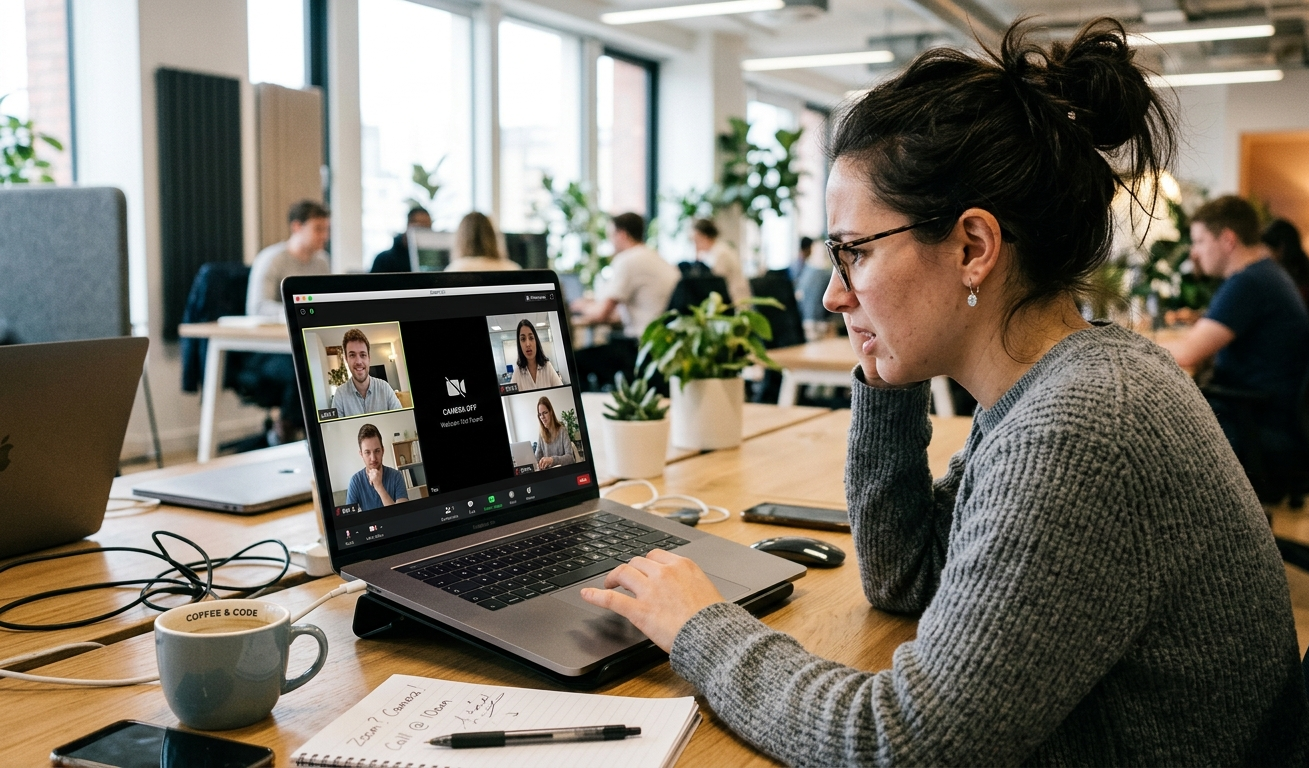
You open your laptop to join a video call.
You turn on your camera. Black screen. Or the camera simply does not appear as an option at all.
Your colleagues are waiting. Your interviewer is ready. Your class has started.
A laptop camera not working is one of the most stressful tech problems because it almost always happens at the worst possible moment.
The good news is that this is almost never a hardware failure. In the vast majority of cases, the fix takes under 10 minutes and costs absolutely nothing.
This guide walks you through every possible cause and every proven fix, including specific solutions for the 2025 Zoom and Teams camera bugs that have affected thousands of users worldwide.
First: Run a Quick Online Camera Test

Before trying any fix, spend 30 seconds on this step. It will tell you exactly where to look.
Open any web browser and go to webcamtests.com. Click Allow when the browser asks for camera permission. The website will show a live preview from your camera immediately.
If the camera shows a live image on the website test, your camera hardware is physically working. The problem is in Windows settings, an app permission, or a specific application. Go directly to Fix 1 or Fix 7 in this guide.
If the camera fails even on the website test, the problem is either in your Windows camera settings or the hardware itself. Start from Fix 1 and work through the guide in order.
| ✅ Time Required: 30 seconds. Difficulty: Very Easy. This single test tells you whether you have a software problem or a hardware problem before you waste time on the wrong fixes. |
Identify Your Exact Camera Problem
Different camera problems have different causes and different fixes. Find the scenario that matches yours exactly.
Scenario A: Camera Not Detected in Any App at All
You open the Windows Camera app, Zoom, or Teams and the camera does not appear as an available device. No camera option shows up anywhere.
This is usually a driver issue or the camera is disabled in Device Manager. Start with Fix 4 then Fix 5.
Scenario B: Camera Shows a Black Screen in One or All Apps
The camera appears as an available device but shows nothing except a black screen when activated.
This is often caused by another app locking the camera, a privacy setting, or a driver conflict. Start with Fix 2 then Fix 1.
Scenario C: Camera Works in Windows Test But Not in Zoom
The Windows Camera app works and shows a live image, but Zoom shows a black screen or cannot detect the camera.
This is a Zoom-specific permission or settings issue. Go directly to Fix 7.
Scenario D: Camera Works Everywhere But Not in Teams
Zoom works, Google Meet works, the Windows Camera app works, but Microsoft Teams shows no camera during live meetings even though it shows correctly in the preview.
This is a confirmed 2025 Teams desktop bug. Go directly to Fix 8.
Scenario E: Camera Stopped Working After a Windows Update
Everything was working perfectly and then Windows installed an update. After the restart, the camera stopped working.
Windows updates frequently reset camera privacy permissions and sometimes install incompatible drivers. Start with Fix 1 then Fix 5.
Scenario F: Camera Works But Shows Mirrored or Wrong Angle
The camera is working but the image is flipped horizontally, rotated, or showing at the wrong angle.
This is almost always an app setting rather than a hardware issue. Look in your video call app settings for a Flip or Mirror video option and toggle it.
Quick Checks Before Any Fix

These take less than 60 seconds and solve the problem for more users than you would expect. Check all of these before trying any detailed fix.
Check the Physical Privacy Shutter
Many modern laptops have a small physical slider or shutter directly above the camera lens. When this shutter is closed, it physically blocks the camera entirely.
Look for a tiny slider or tab above your screen, right next to the camera indicator light. Slide it to the open position if it is closed.
On HP EliteBook and some Lenovo models, this shutter has a colored indicator. Orange or red means the camera is blocked. Clear means it is open.
Check the Fn Camera Disable Key on Keyboard
Many laptops, especially HP, Dell, and Lenovo business models, have a dedicated function key that physically disables the camera.
Look for a camera icon on your function keys row from F1 to F12. Press the Fn key along with that camera key to toggle the camera back on.
On some Lenovo laptops this is Fn + F8. On HP it is sometimes Fn + F4. Check the icons printed on your function keys.
Remove Any Camera Cover or Tape
A webcam privacy cover that was slid to the closed position, or a piece of tape someone placed over the lens, will produce a completely black image.
Check the area immediately around the camera indicator light for any physical cover and slide it to the open position.
Check If Another App Is Currently Using the Camera
Only one application can control a camera at a time on most Windows versions. If Zoom or Teams is running in the background, the Windows Camera app cannot access the camera.
Close all video-related applications completely, including any that might be running in the system tray at the bottom right of your screen. Then test the camera again.
| ✅ Time Required: 1 minute. Difficulty: Very Easy. The physical shutter alone resolves the issue for many users who had no idea the shutter existed. |
Fix 1: Allow Camera Access in Windows Privacy Settings

Windows has strict privacy settings that control which apps can access your camera. These settings are reset by Windows updates more often than most users realize.
Even if your camera was working yesterday, a Windows update may have reset these permissions without any notification.
On Windows 11
- Press the Windows key and I to open Settings.
- Go to Privacy and Security.
- Click Camera under the App Permissions section.
- Make sure Camera Access is switched On at the top.
- Make sure Let Apps Access Your Camera is also switched On.
- Scroll down and find the specific app you are trying to use, such as Zoom, Teams, or Camera.
- Make sure that app’s individual toggle is also switched On.
- Test your camera.
On Windows 10
- Press the Windows key and I to open Settings.
- Go to Privacy.
- Click Camera on the left side panel.
- Click Change and make sure Camera Access for This Device is On.
- Make sure Allow Apps to Access Your Camera is set to On.
- Scroll down and enable the specific app you are using.
| ✅ Time Required: 2 minutes. Difficulty: Very Easy. This single fix resolves the majority of camera issues after Windows updates. |
Fix 2: Close Apps That Are Locking the Camera
This is a fix that most guides mention briefly but never explain properly.
On Windows, only one application can have full control of the camera at a time. Apps like Zoom, Teams, Skype, OBS Studio, and Discord hold onto the camera even when you are not actively using them in a call.
When one app has the camera locked, every other app that tries to access the camera gets either a black screen or a camera not found error.
- Press Ctrl, Shift, and Escape at the same time to open Task Manager.
- Click the Processes tab.
- Look for any video-related applications in the list. Common culprits are Zoom, Teams, Skype, OBS Studio, Discord, Google Meet, and Slack.
- Click on each one and click End Task.
- After closing all of them, wait 10 seconds.
- Open the app you actually want to use and test the camera.
The camera indicator light can sometimes stay on even after closing an app if the app did not release the camera properly. A full system restart clears this reliably.
| ✅ Time Required: 3 minutes. Difficulty: Very Easy. Closing conflicting apps fixes black screen camera issues in a large percentage of cases. |
Fix 3: Run the Windows 11 Camera Troubleshooter in Get Help
Windows 11 has a dedicated camera troubleshooter built into the Get Help app. This is different from the generic Windows troubleshooter and is specifically designed for camera issues.
It automatically runs diagnostics and applies fixes without requiring you to do anything manually.
- Press the Windows key and type Get Help, then press Enter.
- In the Get Help search bar, type Fix camera and press Enter.
- The camera troubleshooter will launch automatically.
- Follow the on-screen prompts and allow it to apply any fixes it finds.
- Restart your laptop after the process completes.
- Test the camera.
| 💡 Windows 10 users can access the camera troubleshooter by going to Settings, then Update and Security, then Troubleshoot, then Additional Troubleshooters, then find Camera or Recording Device in the list. |
| ✅ Time Required: 5 minutes. Difficulty: Very Easy. Run this before attempting any manual driver fixes. |
Fix 4: Enable the Camera in Device Manager

Sometimes the camera gets disabled in Device Manager either by a user accidentally clicking disable, by a Windows update, or by a laptop management tool.
When the camera is disabled in Device Manager, it will not appear in any application and will not show up in Sound Settings.
- Press the Windows key and type Device Manager, then press Enter.
- Look for a section called Cameras or Imaging Devices and click the arrow to expand it.
- If you see your camera listed with a small downward arrow icon on it, the camera is disabled.
- Right-click the camera and select Enable Device.
- If you see a yellow triangle next to the camera, there is a driver error. Move on to Fix 5.
- If the camera does not appear in either section at all, try clicking Action at the top of Device Manager and select Scan for Hardware Changes.
| ✅ Time Required: 3 minutes. Difficulty: Easy. A disabled camera in Device Manager is a surprisingly common and easy fix. |
Fix 5: Update or Reinstall the Camera Driver
An outdated or corrupted camera driver is one of the most common causes of a laptop camera not working.
The driver is the software that lets Windows communicate with the camera hardware. When it breaks or becomes outdated, the camera stops functioning even though the physical camera is perfectly fine.
Update via Device Manager
- Open Device Manager and expand Cameras or Imaging Devices.
- Right-click your camera and select Update Driver.
- Click Search Automatically for Drivers.
- If an update is found, install it and restart your laptop.
Roll Back the Driver if Camera Broke After an Update
- Open Device Manager and expand Cameras.
- Right-click your camera and select Properties.
- Go to the Driver tab.
- Click Roll Back Driver if the option is available and not grayed out.
- Confirm and restart your laptop.
Completely Uninstall and Reinstall the Driver
- Open Device Manager and right-click your camera.
- Select Uninstall Device and confirm.
- Restart your laptop. Windows will attempt to reinstall the driver automatically.
- If it does not reinstall automatically, go to your laptop manufacturer website, search for your model, and download the camera driver from the Drivers section.
| ✅ Time Required: 10 to 15 minutes. Difficulty: Intermediate. Driver reinstallation fixes deep corruption that a simple update cannot repair. |
Fix 6: Check and Disable Antivirus Camera Blocking
This is the fix that most troubleshooting guides completely ignore.
Many antivirus programs include a privacy feature that blocks all applications from accessing the camera. This is designed to protect against spyware and remote access tools, but it also blocks legitimate apps like Zoom, Teams, and the Windows Camera app.
If your camera was working and then stopped after installing or updating antivirus software, this is almost certainly the cause.
How to Check and Fix
- Open your antivirus application.
- Look for sections labeled Privacy, Webcam Protection, Camera Shield, or similar.
- If you find a webcam protection setting, check if it is set to Block All or Strict.
- Either disable webcam protection temporarily or add your specific app like Zoom or Teams to the allowed list.
- Test the camera after making the change.
Norton: Go to Settings, then Device Security, then Manage. Look for Webcam Protection and click Configure to allow specific apps.
Kaspersky: Go to Privacy Protection, then Webcam Protection. Change the setting from Block to Notify or Allow for the relevant apps.
Bitdefender: Go to Privacy, then Video and Audio Protection. Add your apps to the allowed list.
McAfee: Go to PC Security, then Real-Time Scanning. Look for Application Protection settings.
| ⚠️ If you are unsure, temporarily disable your antivirus entirely and test the camera. If it works with antivirus off, re-enable it and look for the camera or webcam protection setting. |
| ✅ Time Required: 5 minutes. Difficulty: Easy. This fixes camera problems that appear after antivirus installation or updates. |
Fix 7: Fix Camera Not Working in Zoom Specifically

If your camera works in the Windows Camera app and the online test but Zoom shows a black screen or cannot detect the camera, the problem is inside Zoom’s own settings.
There are several specific Zoom camera issues that have affected thousands of users, including a confirmed bug on Dell Inspiron laptops that was patched in Zoom version 6.2.0.
Check Zoom App Camera Permission
- Go to Windows Settings and open Privacy and Security.
- Click Camera.
- Scroll down and find Zoom in the app list.
- Make sure the Zoom toggle is switched On.
- If Zoom is not in the list, open Zoom at least once and check again.
Select the Correct Camera in Zoom Settings
- Open Zoom and click the Settings gear icon.
- Go to Video on the left side.
- Look at the Camera dropdown at the top.
- If it shows None or the wrong device, click the dropdown and select your laptop camera.
- A live preview should appear immediately if the correct camera is selected.
Fix the Zoom Camera Black Screen with Light On
This specific problem, where the camera light is on but Zoom shows only black, means Zoom has the camera but cannot display it correctly.
- Close Zoom completely from Task Manager.
- Open Windows Settings and go to Bluetooth and Devices, then Cameras.
- Click on your integrated camera.
- Keep this Settings page open.
- Now open Zoom.
- The camera should now display correctly in Zoom.
Update Zoom to the Latest Version
- Click your profile picture in the top right corner of Zoom.
- Select Check for Updates.
- Install any available update.
- Restart Zoom and test the camera.
| ✅ Time Required: 5 to 10 minutes. Difficulty: Easy. The Dell Inspiron camera bug was confirmed fixed in Zoom 6.2.0. Always update Zoom before spending time on deeper fixes. |
Fix 8: Fix Camera Not Working in Microsoft Teams Specifically
This section covers one of the most frustrating and widely reported camera issues in 2025.
A confirmed bug in the Microsoft Teams desktop application causes the built-in laptop camera to work correctly in the pre-meeting preview but stop working completely the moment a live meeting begins.
The camera works fine in Zoom, Google Meet, Slack, and the Windows Camera app. The Teams web version also works correctly. Only the Teams desktop app during live meetings is affected.
Immediate Workaround: Use Teams in Browser
Open your Teams meeting link in Microsoft Edge or Chrome instead of the Teams desktop app.
Select Allow when the browser asks for camera permission.
This workaround works reliably while the desktop app issue is being resolved.
Check Teams Device Settings
- Open Microsoft Teams and click the three dots next to your profile picture.
- Click Settings.
- Go to Devices on the left side.
- Under Camera, click the dropdown and select your laptop camera.
- A preview should appear. If it does, the camera is recognized correctly.
Clear the Teams Cache
- Close Microsoft Teams completely. Check the system tray and right-click Teams to quit it.
- Press Windows key and R, type percent appdata percent backslash Microsoft backslash Teams and press Enter.
- Delete the Cache folder inside this directory.
- Restart Microsoft Teams and test the camera in a meeting.
Reinstall Microsoft Teams
- Go to Settings, then Apps.
- Find Microsoft Teams and click Uninstall.
- Download the latest version of Teams from the official Microsoft website.
- Install and log back in.
| ✅ Time Required: 10 minutes. Difficulty: Easy. The browser workaround is the fastest solution for urgent meetings while the desktop app issue is being resolved. |
Fix 9: Check If Camera Is Blocked by Admin Policy
If you are using a laptop provided by your employer, school, or university, the camera may be disabled by an IT administrator at the organizational level.
This is different from a regular Windows privacy setting. An admin policy overrides all your personal settings, which is why re-enabling camera permission does not seem to work.
How to Identify an Admin Camera Block
If you go to Windows Privacy Settings and find that the Camera toggle is grayed out and cannot be changed, an administrator policy is in place.
You may also see a message saying Some settings are managed by your organization next to the camera permission.
What to Do
Contact your IT helpdesk or system administrator and explain that you need camera access for video calls. Provide the specific application you need to use.
Most IT teams can grant camera access on a per-application basis without removing all security restrictions.
As a temporary workaround while waiting for IT, an external USB webcam is often not subject to the same policy restrictions and will work immediately when plugged in.
| 💡 A USB plug-and-play webcam costs between 15 and 40 dollars and works on most work laptops without requiring any driver installation or admin approval. |
Fix 10: Reset the Windows Camera App
If the built-in Windows Camera app specifically is showing errors or not working while other apps can access the camera, the Camera app itself may be corrupted.
- Press Windows key and I to open Settings.
- Go to Apps and then Installed Apps or Apps and Features.
- Search for Camera in the list.
- Click the three dots next to Camera and select Advanced Options.
- Scroll down and click Reset.
- Confirm the reset and wait for it to complete.
- Open the Camera app and test.
If resetting does not help, you can uninstall the Camera app and reinstall it from the Microsoft Store. Search for Windows Camera in the Store and install the official Microsoft version.
| ✅ Time Required: 5 minutes. Difficulty: Very Easy. This fixes Camera app-specific issues without affecting any other applications. |
When Should You Use an External Webcam Instead?

If you have tried all the fixes above and the built-in camera still does not work, the camera module may be physically damaged or disconnected internally.
Signs the Built-In Camera Is Physically Damaged
- The camera does not appear in Device Manager even after scanning for hardware changes.
- The camera light never turns on even when an app is actively requesting access.
- The online webcam test fails even with all permissions correctly set.
- The laptop was dropped, had liquid exposure, or experienced physical damage before the camera stopped working.
External Webcam as a Solution
A USB plug-and-play webcam is a fast and affordable permanent solution when the built-in camera is damaged.
Most USB webcams work immediately when plugged in without requiring any driver installation. Windows detects them automatically.
A basic USB webcam costs between 15 and 35 dollars and provides reliable 1080p video quality for all video calls.
If you need something even faster in an emergency, most USB webcams start showing live video within 10 seconds of being plugged in.
How to Prevent Laptop Camera Issues in the Future
These habits prevent most camera problems from coming back.
- Check Windows Update notes before installing: Major Windows updates sometimes reset camera privacy permissions. After any large Windows update, open Privacy Settings and verify your camera permissions are still correctly set.
- Keep Zoom and Teams updated: Both apps release regular updates that fix camera bugs. Enable automatic updates in each app’s settings.
- Use proper slide covers instead of tape: Adhesive tape leaves residue on the lens over time and can block the camera without you realizing the cover is closed. Use a proper webcam privacy slider cover instead.
- Close video apps properly when not in use: Do not just close the window. Right-click the app icon in the system tray and select Quit or Exit to fully release the camera.
- Avoid blocking the lens when closing the lid: Never place anything on the keyboard before closing the laptop. The webcam lens sits directly above the keyboard when the lid closes and can be scratched by objects left on the keys.
Frequently Asked Questions
Why is my laptop camera showing a black screen?
A black screen camera usually means another application is currently locking the camera, Windows privacy settings are blocking the app, or there is a driver conflict.
Start by closing all video applications through Task Manager, then check Windows Privacy Settings for your camera. Full steps are in Fix 2 and Fix 1 of this guide.
Why does my camera work in Teams preview but not during meetings?
This is a confirmed ongoing bug in the Microsoft Teams desktop application affecting built-in laptop cameras on Windows 11.
The fastest workaround is to use Teams in a browser instead of the desktop app. Go to the meeting link in Edge or Chrome and allow camera access when prompted. Full steps are in Fix 8.
How do I fix my camera not working in Zoom?
First check that Zoom has camera permission in Windows Privacy Settings. Then open Zoom Settings, go to Video, and select your laptop camera from the dropdown.
If you see a black screen with the camera light on, open Windows Settings then go to Cameras while keeping that page open, then launch Zoom. This specific sequence resolves the most common Zoom camera black screen issue.
Can antivirus software block my laptop camera?
Yes. Norton, Kaspersky, Bitdefender, McAfee, and several other antivirus programs include webcam protection features that block all applications from accessing the camera.
If your camera stopped working after installing or updating antivirus software, go to the privacy or webcam protection section of your antivirus and add your video call apps to the allowed list. Full steps are in Fix 6.
Is it safe to use a laptop camera?
Yes, using your laptop camera for video calls is completely safe. However, it is good practice to use a physical webcam privacy cover when you are not on a call. This ensures no application can activate your camera without your knowledge, regardless of any software permission.
How do I know if my laptop camera is hacked?
The most reliable indicator is the camera indicator light turning on when you have not opened any application that uses the camera.
You can also check Task Manager for unfamiliar processes that may be accessing the camera. If you suspect unauthorized access, run a full malware scan, change your Windows password, and review which applications have camera permission in Privacy Settings.
Final Thoughts
A laptop camera not working is almost always a software or settings problem, not a hardware failure.
Start with the 30-second online webcam test at webcamtests.com. This one step tells you immediately whether the problem is in the app or in the system itself.
Then run through the quick physical checks: privacy shutter, Fn camera key, and whether another app is locking the camera. These three things alone resolve the issue for a large percentage of users within two minutes.
If those do not help, checking Windows privacy permissions and updating or reinstalling the camera driver fixes most remaining cases.
For Zoom and Teams-specific issues, this guide has dedicated sections for each application covering the specific bugs confirmed in 2024 and 2025.
Which fix worked for you? Share your laptop brand and model in the comments. Your experience helps other readers find the right solution much faster.