
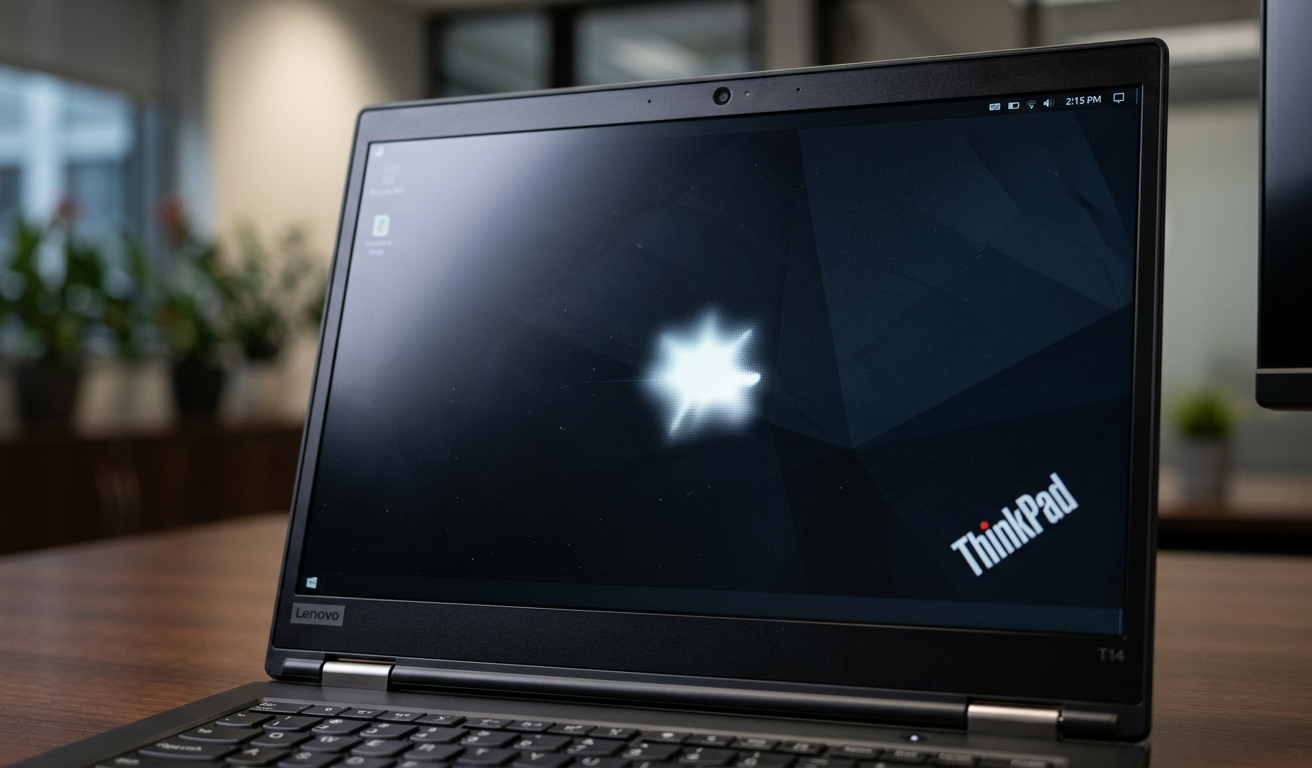
You opened your Lenovo laptop and noticed something unusual.
A small white dot or glowing patch on the screen that was not there before. It does not move when you scroll. It does not disappear when you change the background. It just sits there, distracting you from everything you are trying to do.
White spots on Lenovo laptop screens are more common than most users realize. And they are not always a sign of serious damage.
Some white spots are fixable at home in minutes. Others require professional repair. And in some cases, your Lenovo warranty may cover the entire repair at no cost.
This guide will help you identify exactly what type of white spot you are dealing with, try the right fixes, and make an informed decision about repair before spending any money.
What Exactly Is a White Spot on a Lenovo Laptop Screen?
A white spot on a laptop screen is an area of the display that appears brighter or lighter than the surrounding pixels.
It can look like a tiny sharp dot, a larger glowing patch, or a cloudy smudge-like area. Some spots stay the same size. Others grow slowly over weeks.
White spots are almost always more visible on dark backgrounds. On a white screen or bright document they can be nearly invisible. Switch to a black background in your settings to see the spot clearly.
These spots appear on LCD and LED screens, which are the display types used in Lenovo IdeaPad, ThinkPad, Yoga, and Legion laptops.
Not all white spots mean the same thing. There are four main types, and each one has a different cause and a different fix. Identifying your type first will save you a lot of time and money.
Step 1: Diagnose First Before Trying Any Fix

This is the most important section of this entire guide. Most users skip diagnosis and try fixes randomly. Identifying the exact problem first means you only try the fixes that will actually work for your specific situation.
Run these three tests in order. They take about five minutes total.
Test 1: The Screenshot Test
This test tells you whether the white spot is a hardware problem or a software problem.
- Press the Windows key and Print Screen at the same time to take a screenshot.
- Open the screenshot from your Pictures folder.
- Look at the area where the white spot appears on your screen.
If the white spot appears in the screenshot: the problem is caused by software, a driver issue, or a GPU glitch. The physical display is not damaged.
If the white spot does NOT appear in the screenshot: the problem is physical. The LCD panel, backlight, or display components are damaged.
| ✅ If the spot does not appear in screenshots, skip all software fixes and go directly to the physical fixes in this guide. |
Test 2: The External Monitor Test
This test tells you whether the problem is in the laptop screen itself or in the graphics hardware.
- Connect your Lenovo laptop to a TV or external monitor using an HDMI cable.
- Press Windows key and P and select Duplicate.
- Look at the external screen and check if the white spot appears there too.
If the white spot appears only on the laptop screen: the problem is with your laptop’s LCD panel or backlight. The GPU is working fine.
If the white spot appears on both screens: the problem is with your graphics card or driver, not the display panel itself.
Test 3: The Background Color Test
This test helps you identify exactly what type of white spot you have.
- Set your desktop wallpaper to solid black. Right-click desktop, select Personalize, then Solid Color, and choose black.
- Then try solid red, solid green, and solid blue backgrounds one at a time.
- Note how the white spot looks on each color.
A very small sharp dot that is visible on dark backgrounds but disappears on white: this is a stuck or dead pixel.
A larger glow near the edge or corner of the screen that gets brighter on black backgrounds: this is backlight bleeding.
An irregular cloudy patch anywhere on the screen: this is pressure damage or moisture damage.
| ✅ Time Required: 5 minutes. Difficulty: Very Easy. These three tests give you everything you need to choose the correct fix. |
What Type of White Spot Do You Have?

Knowing your exact type means you only apply fixes that can actually help your situation.
Type 1: Stuck or Dead Pixel
A stuck pixel is a tiny pixel frozen on white or another bright color. A dead pixel has completely stopped working.
It appears as an extremely small, sharp, pin-like dot. It is most visible on dark backgrounds and completely invisible on white backgrounds.
It does not change size or shape over time. Pressing on the screen does not move it.
Fix: Pixel fixing software has a good chance of resolving stuck pixels. Dead pixels cannot usually be fixed.
Type 2: Backlight Bleeding
Backlight bleeding happens when the LED backlight behind the LCD panel leaks through unevenly. Instead of lighting the screen uniformly, light escapes through certain spots.
It appears as a diffuse glow, usually near the corners or edges of the screen. It is most noticeable on dark backgrounds and in dark rooms.
It does not cause physical damage to the panel and does not get worse from use. However, it is a manufacturing or assembly quality issue.
Fix: Backlight bleeding cannot be fixed at home. It requires panel replacement or professional adjustment of the screen bezel.
Type 3: Pressure Damage
Pressure damage happens when something presses against the LCD panel from outside. Common causes include closing the laptop with a pen or earphones on the keyboard, carrying the laptop tightly in a bag, or accidentally pressing on the screen.
It appears as an irregular, blob-shaped white area that is usually larger than a single pixel. The edges are not sharp.
Pressure damage can sometimes worsen over time if the internal LCD layers continue to separate.
Fix: Minor pressure damage sometimes responds to the gentle pressure technique described in Fix 5. Severe pressure damage requires panel replacement.
Type 4: Dust or Debris Under the Panel
Small dust particles or debris can get trapped between the LCD layers during manufacturing or over time.
It appears as a small cloudy smudge or hazy patch. Unlike pressure damage, the edges are very soft and the area looks almost foggy.
Fix: This requires professional disassembly and cleaning. It cannot be fixed from outside the laptop.
Common Causes of White Spots on Lenovo Laptop Screens
Understanding the cause confirms which type you are dealing with.
- Pressure from carrying: Closing the laptop with objects on the keyboard or packing it too tightly in a bag is the leading cause of pressure-related white spots on Lenovo IdeaPad and Yoga models.
- Stuck or dead pixels: These occur due to manufacturing defects or can develop over time from long-term use at extreme brightness levels.
- Backlight LED failure: Individual LEDs in the backlight array can fail or become misaligned, causing bright spots or uneven illumination.
- Liquid or moisture damage: Even a small amount of moisture near the display can cause cloudy white patches that spread over time.
- LCD panel aging: Older Lenovo laptops with many years of daily use can develop white spots as the panel materials degrade.
- Loose display cable: A display cable that is partially disconnected inside the hinge area can cause flickering white areas or static-looking patches.
- Graphics driver glitch: A software-level issue that appears as a white spot but disappears in screenshots. This is the only type that software fixes can fully resolve.
Can I Keep Using My Lenovo Laptop With a White Spot?
This is the question most guides never answer directly. Here is a clear answer.
For most types of white spots, you can continue using your laptop without causing additional damage. The spot is a display defect and not a sign that the laptop is about to fail.
However, there are specific situations where you should stop using the laptop or use it with caution.
- Stop using immediately if: The white area is rapidly expanding in size across multiple sessions, the screen is flickering severely alongside the white spot, or you can see liquid movement inside the panel.
- Safe to continue using if: The spot is stable in size, it is a small pixel or minor backlight bleed, and it is not affecting your work significantly.
As a temporary workaround while you arrange a repair, reduce your screen brightness to around 60 to 70 percent. This makes most white spots significantly less visible without causing any harm to the display.
| ✅ Changing to a light desktop background or theme also makes white spots much less noticeable for everyday work until the repair is done. |
Fix 1: Run Lenovo Vantage Hardware Diagnostic
Lenovo Vantage is the official Lenovo application pre-installed on most Lenovo laptops. It includes a built-in hardware diagnostic that can test your display.
Most users do not know this tool exists. Running it takes five minutes and gives you an official assessment of whether your display hardware has a detectable defect.
- Click the Start menu and search for Lenovo Vantage.
- Open the application.
- Go to the Support section or the Hardware Scan option.
- Select Full Hardware Scan or choose Display from the component list.
- Run the test and wait for results.
- If the diagnostic reports a display defect, save the result. This documentation is useful when making a warranty claim.
| 💡 If Lenovo Vantage is not installed on your laptop, download it from the Microsoft Store for free. Search for Lenovo Vantage in the Store app. |
| ✅ Time Required: 5 to 10 minutes. Difficulty: Very Easy. A failed display test from Lenovo’s own tool significantly strengthens a warranty claim. |
Fix 2: Update or Reinstall the Graphics Driver
This fix applies only if the white spot appeared in your screenshot test from Step 1. If the spot did not appear in the screenshot, skip this fix entirely.
A graphics driver glitch can create bright artifacts on the screen that look exactly like a hardware white spot but are completely software-related.
- Press the Windows key and type Device Manager, then press Enter.
- Expand the Display Adapters section.
- Right-click your graphics card and select Update Driver.
- Click Search Automatically for Drivers.
- Restart your laptop after the update completes.
- If the spot remains, right-click the graphics card again and select Properties.
- Go to the Driver tab and click Roll Back Driver if available.
- Test again after the rollback.
| ✅ Time Required: 10 minutes. Difficulty: Easy. Only try this if the screenshot test confirmed a software issue. |
Fix 3: Try Pixel Fixing Software

Pixel fixing software rapidly cycles through different colors on the affected area of the screen. This stimulates stuck pixels back into normal operation.
This fix works specifically for stuck pixels. It will not fix backlight bleeding, pressure damage, or physical LCD panel defects.
The most widely used free options are JScreenFix and PixelHealer. Both work on Windows and are safe to use.
How to Use JScreenFix
- Go to the JScreenFix website and open it in your browser. No download is needed.
- Drag the flashing color box to the exact location of the white spot on your screen.
- Leave it running for 20 to 30 minutes.
- Check if the spot has reduced or disappeared.
How to Use PixelHealer
- Download PixelHealer from the developer’s website.
- Open the app and position the flashing window over the white spot.
- Set the interval to a fast rate and click Start.
- Run for 20 to 30 minutes and check the result.
Pixel fixing software works about 50 percent of the time on stuck pixels. It has zero effect on hardware damage such as backlight bleed or pressure spots.
If the spot responds even slightly after one session, run the software for longer. Some stuck pixels require multiple sessions over a few days before fully recovering.
| ✅ Time Required: 20 to 30 minutes. Difficulty: Very Easy. Best results on spots that appeared recently rather than older long-standing spots. |
Fix 4: Clean the Screen Properly
What looks like a white spot is sometimes nothing more than a dried liquid smudge, fingerprint oil, or fine dust on the outer surface of the screen.
This is worth checking before assuming any hardware damage.
- Shut down your laptop completely.
- Take a clean, dry microfiber cloth.
- Very gently wipe the spot area in small circular motions.
- If the spot does not respond to dry wiping, slightly dampen a corner of the microfiber cloth with distilled water only.
- Wipe gently and then dry immediately with another part of the cloth.
- Let the screen dry completely before turning the laptop back on.
| ⚠️ Never spray any liquid directly onto the screen. Never use paper towels, tissue, or regular cloths. Never use alcohol or chemical cleaners on laptop screens. These can permanently damage the anti-glare coating. |
| ✅ Time Required: 5 minutes. Difficulty: Very Easy. Worth checking before assuming any hardware issue. |
Fix 5: The Gentle Pressure Technique for Pressure Damage

This technique is specifically for white spots caused by pressure damage. It should not be used for backlight bleeding, stuck pixels, or any other type of spot.
There are two methods. The soft cloth method is safer. The suction cup method is more effective for certain types of pressure damage but carries slightly more risk.
| ⚠️ This technique can sometimes worsen the damage if done incorrectly. Only try it if you identified the spot as pressure damage from the diagnosis tests. Do not apply this to IPS or OLED screens as they are more sensitive to pressure. |
Soft Cloth Method
- Shut down your laptop completely.
- Fold a microfiber cloth several times to create a soft, thick pad.
- Place the cloth pad directly over the white spot.
- Apply very gentle, even pressure using two or three fingers.
- Use small circular motions for 10 to 15 seconds.
- Remove the cloth and turn the laptop back on to check the result.
- Repeat up to two times if there is partial improvement.
Suction Cup Method
This method attempts to gently pull the LCD panel surface away from the damaged internal area, which can sometimes allow the layers to re-seat correctly.
- Purchase a small rubber suction cup from a hardware store or phone repair kit.
- Turn off the laptop.
- Place the suction cup on the screen near the white spot, not directly on it.
- Apply very gentle outward pulling pressure for a few seconds.
- Release and check the result.
- Do not pull hard or quickly. Slow and gentle is essential.
| ✅ Time Required: 5 to 10 minutes. Difficulty: Intermediate. Works best on fresh pressure damage that appeared recently. |
Lenovo Model-Specific Notes
White spots affect different Lenovo models in different ways. Understanding your specific model helps you identify the most likely cause and the best course of action.
Lenovo IdeaPad
IdeaPad laptops are the most commonly affected by pressure-related white spots. Their thinner frames offer less protection for the LCD panel.
The most frequent cause is carrying the laptop in a backpack without a protective sleeve. Books and hard objects pressing against the lid from outside transfer pressure directly to the LCD.
IdeaPad IPS panels also commonly develop backlight bleeding near the corners as the laptop ages past three years.
Lenovo ThinkPad
ThinkPad laptops are built to military durability standards and are more resistant to physical damage than most laptop brands.
White spots on ThinkPad models are more commonly caused by display cable issues near the hinge rather than physical pressure. Frequent opening and closing of the ThinkPad lid gradually stresses the cable running through the hinge.
ThinkPad users who use keyboard covers or leave items between the keyboard and screen when closing are also at risk for pressure spots.
Lenovo Yoga
Yoga laptops are 2-in-1 devices that fold into tablet mode. This hinge design puts repeated stress on the display cable every time the screen is rotated.
White spots on Yoga models that appear near the hinge side of the screen are very likely caused by display cable stress or partial disconnection. This requires professional cable inspection.
Using the Yoga in tent or tablet mode on rough surfaces can also cause pressure spots from uneven contact with the back of the display.
Lenovo Legion
Legion gaming laptops have higher quality display panels that are more resistant to casual damage. However, extended gaming sessions at high brightness generate significant heat.
Long-term heat exposure accelerates LCD panel aging on Legion laptops, which can cause subtle white areas to develop in the center of the screen after several years of intensive use.
Legion users who notice white spots should also check the laptop’s cooling. Overheating can accelerate panel degradation.
Check Your Lenovo Warranty Before Paying for Any Repair
This is the most financially important step in this guide. Many users pay for repairs that should have been covered for free under warranty.
Lenovo provides a standard one-year warranty on most consumer laptops. ThinkPad models often come with three-year warranties. Extended warranties may have been purchased at the time of sale.
How to Check Your Lenovo Warranty
- Find your laptop’s serial number. It is on a sticker on the bottom of the laptop.
- Go to the Lenovo support website and click on Warranty.
- Enter your serial number.
- The site will show your warranty status, expiry date, and what is covered.
What Lenovo Warranty Covers for Display Issues
Manufacturing defects in the display panel, including dead pixels that appeared without physical damage, are typically covered under Lenovo’s standard warranty.
Physical damage caused by pressure, drops, or liquid is usually not covered under standard warranty but may be covered under accidental damage protection if you purchased that plan.
If your warranty is active, contact Lenovo support by phone or chat. Describe the white spot and request a display evaluation. Lenovo may offer free repair, a replacement panel, or a replacement laptop depending on the severity and coverage.
| 💡 Take clear photos of the white spot on your screen before contacting Lenovo support. Good documentation significantly speeds up the warranty claim process. |
Lenovo Screen Repair Cost Breakdown by Model
If your warranty has expired or does not cover the damage, here are realistic repair cost estimates for 2025.
These estimates include both the replacement panel cost and professional labor.
- Lenovo IdeaPad 14 inch to 15 inch: Between 80 and 150 dollars total. Panel alone costs 40 to 80 dollars. Labor adds 40 to 70 dollars at most repair shops.
- Lenovo ThinkPad standard models: Between 100 and 200 dollars total. ThinkPad panels are more expensive due to higher display quality.
- Lenovo ThinkPad X1 Carbon or X1 Yoga: Between 250 and 420 dollars total. Premium OLED and high-resolution panels are significantly more expensive.
- Lenovo Yoga consumer models: Between 120 and 250 dollars total depending on screen resolution and touch capability.
- Lenovo Legion gaming laptops: Between 150 and 300 dollars total. High refresh rate gaming panels cost more than standard panels.
If you are comfortable with electronics, you can reduce costs by purchasing the replacement panel yourself from sites like LaptopScreen.com or eBay and paying only for labor.
This typically saves 40 to 100 dollars compared to letting the repair shop source the part.
Should You Repair the Screen or Buy a New Laptop?
This is the practical question that determines your next step.
Repair Makes Sense When
- The laptop is less than 3 years old and the repair cost is under 40 percent of the laptop’s current value.
- The rest of the laptop is working perfectly and the only issue is the display.
- You are within warranty and Lenovo will cover the repair.
- The laptop has specific features you rely on that are difficult to find in a replacement.
Consider Buying New When
- The laptop is 4 or more years old and the repair cost exceeds 50 percent of its current second-hand value.
- The laptop already has other issues alongside the white spot.
- The screen repair quote from the shop is higher than 300 dollars on a budget or mid-range model.
For many users with a 4-year-old IdeaPad, a 150-dollar repair on a laptop worth 200 dollars second-hand does not make financial sense. A refurbished Lenovo from the same generation often costs 180 to 250 dollars and comes with a working screen.
How to Prevent White Spots on Lenovo Screens in the Future

Prevention is significantly cheaper than repair. These habits protect your Lenovo display for the long term.
- Never close the laptop with anything on the keyboard: This is the single most common cause of pressure damage on IdeaPad and Yoga models. Check the keyboard surface every time before closing.
- Use a properly padded laptop sleeve: A good sleeve keeps the laptop rigid inside a bag and prevents external pressure from books or other items from reaching the LCD.
- Carry the laptop horizontally: Carrying your laptop vertically in a bag puts the weight of other items directly onto the screen from one side.
- Clean with only a microfiber cloth: Never use paper towels or regular cloths. Never spray any liquid onto the screen. A dry microfiber cloth handles most screen cleaning safely.
- Keep liquids at a distance: Even a small amount of moisture near the display hinge can migrate inside and cause cloudy white patches over time.
- Set brightness between 40 and 70 percent for daily use: Running at maximum brightness continuously accelerates pixel aging and backlight wear on LCD panels.
Frequently Asked Questions
Is a white spot on a Lenovo screen covered by warranty?
It depends on the cause. Dead pixels and display defects that appeared without any physical damage are typically covered under Lenovo’s standard warranty. Damage caused by pressure, drops, or liquid exposure is usually not covered unless you have an accidental damage protection plan.
Check your warranty status at Lenovo’s support site using your serial number before spending any money on repairs.
Can white spots on laptop screens spread or get bigger?
It depends on the type. Stuck pixels almost never spread. Backlight bleeding can slowly worsen as the screen ages or is exposed to heat. Pressure damage can spread if the laptop continues to be used in the same way that caused the damage initially.
Liquid damage white spots are the most likely to spread rapidly and should be treated as urgent.
Does pixel fixing software really work?
Pixel fixing software works on stuck pixels around 50 percent of the time. It works best on spots that appeared recently. It has no effect on backlight bleeding, pressure damage, or any physical LCD panel defect.
Always run the screenshot test first. If the spot appears in a screenshot, it is software-related and pixel fixing or driver updates may help. If it does not appear in screenshots, pixel software will not fix it.
How long does a Lenovo screen replacement take?
Most authorized Lenovo service centers complete a screen replacement in 1 to 3 business days depending on parts availability. Local repair shops typically complete the work the same day or next day.
If you order the part yourself and take it to a local shop, the labor alone usually takes 30 to 60 minutes.
What is the difference between a white spot and backlight bleed?
A white spot is a localized bright area anywhere on the screen. Backlight bleed is specifically light leaking from behind the LCD panel, almost always visible near the edges and corners.
The key difference is location and appearance. Backlight bleed looks like a soft glow from the edge inward. A white spot or pixel issue looks like a defined bright point anywhere on the screen.
Can I use my Lenovo laptop with a white spot without causing more damage?
In most cases yes. A stable white spot that is not growing does not indicate ongoing damage and will not worsen from normal use. You can continue using the laptop while arranging a repair.
The exception is liquid damage, which can spread and worsen with heat from continued use. If you suspect moisture caused the white spot, power down the laptop until a technician can assess it.
Final Thoughts
A white spot on a Lenovo laptop screen is frustrating but it is almost never the end of your laptop.
Start by diagnosing the type of spot using the three tests in this guide. The screenshot test alone tells you within seconds whether you are dealing with a software issue or a physical display problem.
For software-caused spots, a driver update or pixel fixing software often resolves the issue completely and for free.
For physical damage, check your warranty first. Many Lenovo users have had their screen repaired for free simply because they checked warranty status before paying a repair shop.
If repair is needed, use the model-specific cost estimates in this guide to budget appropriately and decide whether repair or replacement is the smarter financial decision.
Did one of these fixes help with your Lenovo screen? Share your model and what worked in the comments. Your experience will help other Lenovo users facing the same issue.