
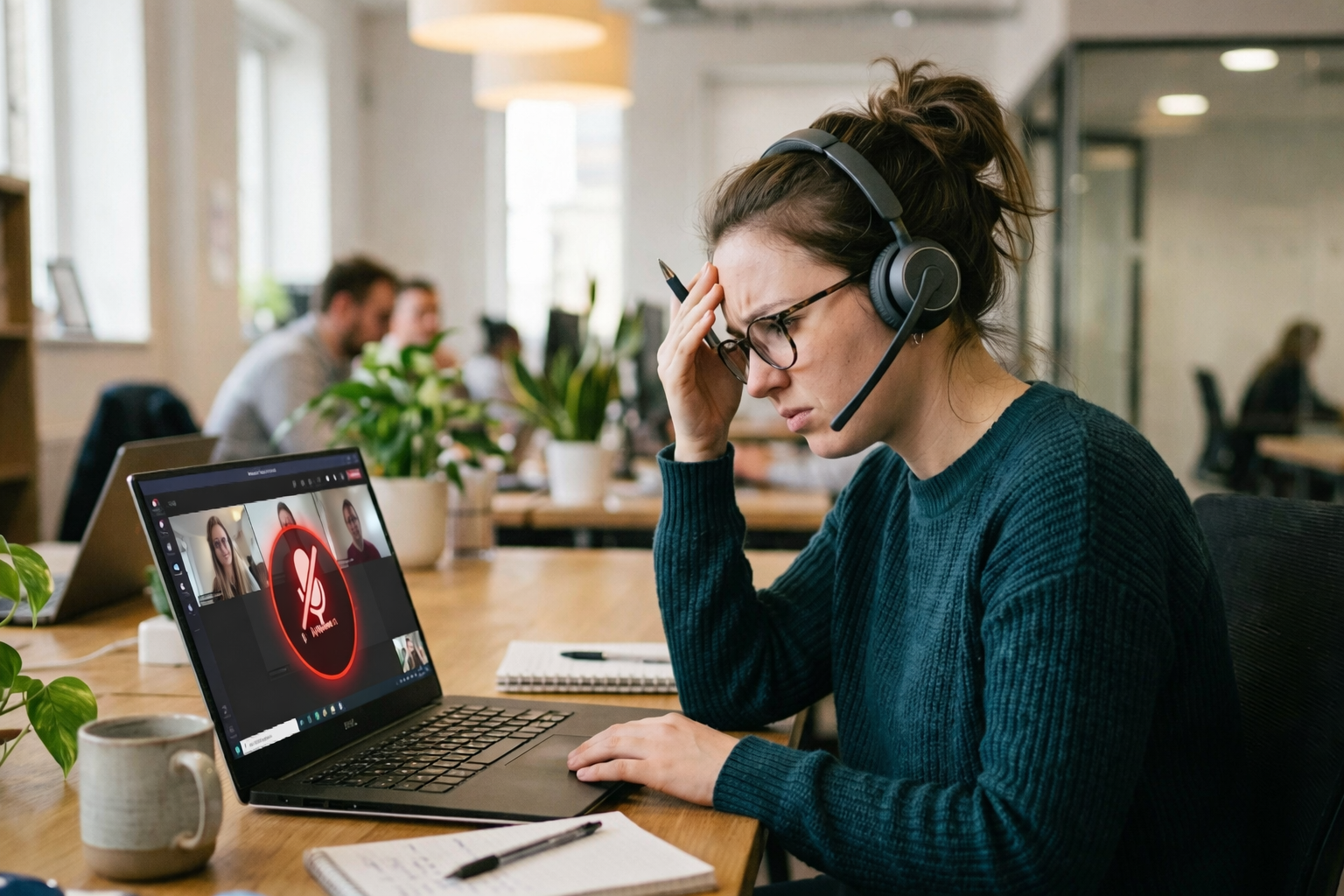
You are about to join a Zoom meeting. You unmute yourself. Nothing.
Your colleagues are waiting. No one can hear you.
Or maybe you recorded a video and played it back only to hear complete silence.
A laptop microphone not working is one of the most stressful tech problems because it almost always happens at the worst possible moment.
The good news is that this is almost never a hardware failure. In the vast majority of cases, the fix takes under 10 minutes and costs nothing.
This guide covers every possible cause and every proven fix, including a 2025-confirmed Windows 11 update bug that silenced microphones on thousands of laptops overnight.
First: Test If Your Microphone Is Actually Working

Before trying any fix, you need to know whether your microphone hardware is working or whether the problem is in the software and settings.
Windows has a built-in mic test that answers this question in 30 seconds.
- Right-click the speaker icon in the bottom right corner of your taskbar.
- Click Sound Settings or Open Sound Settings.
- Scroll down to the Input section.
- Click on your microphone to select it.
- Speak into the microphone and watch the volume level bar next to it.
If the bar moves when you speak, your microphone hardware is physically working. The problem is in software, permissions, or app settings.
If the bar does not move at all no matter how loudly you speak, either the wrong device is selected or the microphone hardware has a problem.
| ✅ Time Required: 1 minute. Difficulty: Very Easy. Always run this test first. It tells you exactly where to look for the fix. |
Identify Your Exact Microphone Problem

Different mic problems have different solutions. Find the scenario that matches yours and jump to the most relevant fix.
Scenario A: Microphone Not Detected at All in Windows
You open Sound Settings and the microphone does not appear in the Input list. Or it appears with a yellow warning symbol.
This is a driver or hardware issue. Start with Fix 4 in this guide.
Scenario B: Mic Works in Windows Test but Not in Zoom or Teams
The Windows sound test bar moves when you speak, but people on your calls cannot hear you.
This is an app-specific permission or settings issue. Go directly to Fix 7 or Fix 8 in this guide.
Scenario C: Mic Stopped Working After a Windows Update
Everything was fine and then Windows installed an update. After the restart, the microphone stopped working completely.
This is a confirmed widespread issue in 2024 and 2025. Go directly to Fix 5 in this guide.
Scenario D: Mic Picks Up Sound but Very Quietly
People on calls say they can barely hear you even when you speak directly into the laptop.
This is a volume and enhancement setting issue. Start with Fix 2 and Fix 6.
Scenario E: Mic Works Sometimes but Cuts In and Out
Audio is inconsistent. You come through clearly for a few seconds then go silent, then come back.
This is usually an exclusive mode or app conflict issue. Go to Fix 6 and Fix 9.
Quick Checks Before Any Fix
Spend 60 seconds on these before diving into detailed fixes. They solve the problem for more users than you would expect.
- Look at your keyboard function keys for a microphone icon. Many laptops have a physical Fn mic mute key that silences the microphone at the hardware level. Press Fn along with that key to toggle it. Look for a small LED indicator that shows mute status.
- If you are using a headset or external microphone, check for a physical mute button or switch on the device itself. These are easy to accidentally activate.
- Open Sound Settings and confirm the correct input device is selected. If you recently plugged in headphones, Windows may have switched to a different microphone automatically.
- Check that the input volume slider for your microphone is not set to zero. A volume of zero produces complete silence even if everything else is correct.
| ✅ Time Required: 1 minute. Difficulty: Very Easy. The physical Fn mute key alone resolves the issue for many users instantly. |
Fix 1: Check and Enable Microphone Privacy Permissions

Windows has strict privacy settings that control which apps can access your microphone. When these permissions are turned off, your mic appears to work in Sound Settings but produces no audio in any application.
Windows updates frequently reset these permissions without warning. This is one of the most common reasons microphones stop working after an update.
On Windows 11
- Press the Windows key and I to open Settings.
- Go to Privacy and Security.
- Click Microphone.
- Make sure the Microphone Access toggle at the top is switched On.
- Also make sure the Let Apps Access Your Microphone toggle is On.
- Scroll down and find your specific app like Zoom or Teams in the list.
- Make sure its individual toggle is also switched On.
On Windows 10
- Open Settings by pressing Windows key and I.
- Go to Privacy.
- Click Microphone on the left side.
- Click Change and make sure microphone access for this device is On.
- Make sure Allow Apps to Access Your Microphone is set to On.
- Scroll down to find your specific app and enable its toggle.
App-Specific Permission Check for Zoom and Teams
Even if the general microphone permission is on, each app needs its own individual permission enabled in the list below the main toggle.
Scroll through the list of apps and find Zoom, Microsoft Teams, or whichever app is not working. Make sure its individual toggle is switched on.
If the app does not appear in the list, it may need to be opened at least once before Windows shows it here.
| ✅ Time Required: 3 minutes. Difficulty: Very Easy. This single fix resolves the majority of microphone issues after Windows updates. |
Fix 2: Set the Correct Default Microphone Device
Windows manages multiple audio input devices at the same time. If the wrong device is set as the default, your voice will not be captured no matter what you do in the apps.
This happens frequently after connecting headphones, a USB mic, or a webcam, as Windows sometimes switches the default input device automatically.
- Right-click the speaker icon in the taskbar and click Sound Settings.
- Scroll down to the Input section.
- Click the dropdown and look through the list of available microphones.
- Select the microphone you want to use as your default. For built-in laptop mic, look for Internal Microphone or Realtek Audio.
- Speak into the microphone and check if the volume bar moves.
- If it does, the correct device is now selected.
| 💡 If you see multiple entries for the same microphone in the list, select the one labeled as Default or the one that responds when you speak the test above. |
| ✅ Time Required: 2 minutes. Difficulty: Very Easy. This is the fastest fix when mic suddenly stops working after plugging in headphones or a new device. |
Fix 3: Run the Windows Audio Troubleshooter
Windows includes a built-in audio troubleshooter that automatically detects and fixes many common microphone problems.
Most users skip this step because they assume it will not help. But it resolves more issues than expected, particularly after Windows updates that change audio settings silently.
On Windows 11
- Press Windows key and I to open Settings.
- Go to System and then Sound.
- Scroll down to the Advanced section.
- Click Troubleshoot Common Sound Problems under the Output or Input section.
- Select Recording Devices or Input Devices when prompted.
- Follow the on-screen steps and apply any fixes suggested.
On Windows 10
- Open Settings and go to Update and Security.
- Click Troubleshoot on the left side.
- Click Additional Troubleshooters.
- Find Recording Audio and click Run the Troubleshooter.
- Apply any recommended fixes.
| ✅ Time Required: 5 minutes. Difficulty: Easy. Run this even if you think it will not help. It often fixes things silently in the background. |
Fix 4: Update or Reinstall the Audio Driver
An outdated or corrupted audio driver is one of the most common causes of laptop microphone not working.
The driver is the software that lets Windows communicate with your microphone hardware. When it breaks or becomes outdated, the mic stops working even though the hardware itself is fine.
Update via Device Manager
- Press the Windows key and type Device Manager, then press Enter.
- Expand the Audio Inputs and Outputs section.
- Right-click your microphone device and select Update Driver.
- Click Search Automatically for Drivers.
- If an update is found, install it and restart.
Roll Back the Driver if Mic Broke After an Update
- Open Device Manager and expand Audio Inputs and Outputs.
- Right-click your microphone and select Properties.
- Click the Driver tab.
- Click Roll Back Driver if the option is available.
- Confirm and restart your laptop.
Download Driver Directly from Manufacturer Website
Windows Update does not always provide the most compatible driver for your specific model. Downloading directly from your laptop manufacturer gives you the version tested for your hardware.
- Find your laptop model number on the sticker on the bottom of the laptop.
- Go to your manufacturer support website and search for your model.
- Download the latest audio driver from the Drivers section.
- Install it and restart your laptop.
Completely Uninstall and Reinstall the Driver
- Open Device Manager.
- Right-click your microphone under Audio Inputs and Outputs.
- Select Uninstall Device and confirm.
- Restart your laptop. Windows will reinstall the driver automatically.
- If it does not reinstall automatically, download from manufacturer website.
| ✅ Time Required: 10 to 15 minutes. Difficulty: Intermediate. Driver reinstallation fixes deep corruption that a simple update cannot repair. |
Fix 5: Disable Intel Smart Sound Technology (2026 Confirmed Fix)

This is a fix that almost no troubleshooting guide covers properly.
Intel Smart Sound Technology is a driver that manages audio processing on Intel-based laptops. After several Windows 11 updates in 2024 and 2025, this driver began conflicting with the built-in microphone on multiple laptop brands.
The result was a microphone that appeared detected in Device Manager and Sound Settings but produced absolutely no audio input.
This fix specifically helped users with Lenovo ThinkPad, Dell Latitude, and HP EliteBook models after Windows 11 updates.
- Press the Windows key and type Device Manager, then press Enter.
- Look for a section called Sound, Video and Game Controllers or System Devices.
- Find an entry called Intel Smart Sound Technology or Intel SST.
- Right-click it and select Disable Device.
- Confirm the disable action.
- Restart your laptop.
- Test your microphone using the Windows Sound Settings test.
| ⚠️ Only disable Intel Smart Sound Technology if your microphone stopped working after a Windows update and other fixes have not helped. On some laptops this driver is needed for other audio functions. If disabling it causes new audio problems, re-enable it by right-clicking and selecting Enable Device. |
| ✅ Time Required: 5 minutes. Difficulty: Intermediate. This is the confirmed fix for the 2024 and 2025 Windows 11 microphone bug affecting Intel-based laptops. |
Fix 6: Disable Audio Enhancements and Exclusive Mode
Windows applies audio enhancements to microphone input by default. These include noise suppression, echo cancellation, and acoustic gain control.
On many laptops, these enhancements actually interfere with the microphone signal and produce distorted audio or complete silence.
Exclusive Mode is a separate setting that allows a single application to take complete control of the microphone. When this is on, other apps cannot access the mic at the same time, causing one of them to receive no audio.
- Right-click the speaker icon in the taskbar and click Sounds.
- Go to the Recording tab.
- Double-click on your microphone to open its Properties.
- Click the Enhancements tab.
- Check the box that says Disable All Enhancements.
- Click the Advanced tab.
- Uncheck both boxes under Exclusive Mode.
- Go to the Communications tab in the main Sound window.
- Select Do Nothing from the dropdown.
- Click Apply and OK.
- Test the microphone.
| ✅ Time Required: 5 minutes. Difficulty: Easy. Disabling exclusive mode fixes the issue where mic works in one app but not another running at the same time. |
Fix 7: Fix Microphone Not Working in Zoom Specifically

If your microphone works fine in Windows Sound Settings but Zoom cannot detect or use it, the problem is inside Zoom’s own settings rather than Windows.
This is extremely common and affects thousands of users after Zoom updates or Windows permission changes.
Check Zoom Microphone Settings
- Open Zoom and click the Settings gear icon.
- Go to Audio on the left side.
- Under Microphone, click the dropdown and select your correct microphone.
- Click Test Mic and speak. Check if Zoom shows audio activity.
- Adjust the Input Volume slider if the reading is too low.
Fix the Zoom App Microphone Permission
- Go to Windows Settings and open Privacy and Security.
- Click Microphone.
- Scroll through the app list and find Zoom.
- Make sure its toggle is switched On.
- If Zoom is not in the list, close and reopen Zoom, then check again.
Fix Zoom Advanced Audio Processing
A confirmed fix for users whose mic works in Teams but not in Zoom involves turning off Windows audio signal processing inside Zoom.
- Open Zoom Settings and go to Audio.
- Click the Advanced button at the bottom.
- Find Signal Processing by Windows Audio Device Drivers.
- Change it from Default to Off (Windows Raw).
- Rejoin your test meeting and check mic quality.
Update Zoom to the Latest Version
An outdated version of Zoom sometimes loses access to microphone permissions after Windows updates.
- Click your profile picture in the top right corner of Zoom.
- Select Check for Updates.
- Install any available update and restart Zoom.
| ✅ Time Required: 5 to 10 minutes. Difficulty: Easy. The advanced signal processing fix resolves Zoom-specific mic issues that Windows-level fixes cannot reach. |
Fix 8: Fix Microphone Not Working in Microsoft Teams Specifically

Teams manages microphone access independently from Windows. Even if Windows permissions are correct, Teams has its own device settings that may point to the wrong microphone.
Check Teams Device Settings
- Open Microsoft Teams and click the three dots menu next to your profile picture.
- Click Settings.
- Go to Devices on the left side.
- Under Microphone, click the dropdown and select your correct microphone.
- Click Make a Test Call to verify audio is working.
Clear Teams Cache
A corrupted Teams cache can prevent the app from properly accessing audio devices. Clearing it forces Teams to rebuild its settings from scratch.
- Close Microsoft Teams completely. Make sure it is not running in the system tray.
- Press the Windows key and R at the same time to open the Run dialog.
- Type %appdata%\Microsoft\Teams and press Enter.
- Delete the Cache folder inside this directory.
- Restart Microsoft Teams and test the microphone.
| ✅ Time Required: 5 minutes. Difficulty: Easy. Cache clearing fixes persistent Teams audio issues that reinstalling the app sometimes does not resolve. |
Fix 9: Run a Clean Boot to Find App Conflicts
If your microphone works in some applications but not others, and none of the previous fixes have helped, an app or background service is likely blocking microphone access.
A clean boot starts Windows with only Microsoft services running. This eliminates all third-party software and lets you identify which application is causing the conflict.
- Press the Windows key and R, type msconfig, and press Enter.
- Go to the Services tab.
- Check the box that says Hide All Microsoft Services.
- Click Disable All to turn off all remaining third-party services.
- Go to the Startup tab and click Open Task Manager.
- Disable all startup items in Task Manager.
- Close Task Manager and click OK in msconfig.
- Restart your laptop.
- Test the microphone in clean boot mode.
If the microphone works in clean boot, one of the disabled services or startup apps is causing the conflict.
Re-enable services one group at a time and test the mic after each group until the problem returns. The last group you enabled contains the conflicting app.
| ⚠️ To exit clean boot, open msconfig again, go to Services, uncheck Hide All Microsoft Services, click Enable All, go to Startup and re-enable all items, then restart normally. |
| ✅ Time Required: 15 to 20 minutes. Difficulty: Intermediate. Clean boot definitively identifies app conflicts that cause intermittent microphone failures. |
Fix 10: Check BIOS for Disabled Microphone
This fix applies specifically to cases where the microphone does not appear in Device Manager at all even after driver reinstallation.
Some business-oriented laptops, particularly Dell Latitude and Lenovo ThinkPad models, allow the internal microphone to be disabled at the BIOS level. When disabled there, Windows cannot detect the hardware at all.
- Shut down your laptop completely.
- Power it on and immediately press F2 repeatedly to enter BIOS. On some laptops it is F10, Del, or Esc.
- Navigate to the Advanced, Security, or Onboard Devices section using arrow keys.
- Look for an option labeled Internal Microphone, Onboard Audio Input, or similar.
- Make sure it is set to Enabled.
- Press F10 to save and exit.
- Boot into Windows and check Sound Settings for the microphone.
| ✅ Time Required: 5 minutes. Difficulty: Intermediate. This is the fix when the microphone simply does not appear anywhere in Windows, even in Device Manager. |
When to Use an External Microphone Instead
If you have tried all the fixes above and the built-in laptop microphone still does not work, the internal mic may be physically damaged.
Rather than spending money on hardware repair, a simple external microphone is often a faster and cheaper solution.
Signs the Built-In Mic Is Physically Damaged
- The microphone does not appear in Device Manager even after BIOS check.
- The microphone was working but the laptop was dropped or had liquid exposure.
- All software fixes have been applied but the Windows Sound Settings bar never moves.
- The mic produces only static or a constant buzzing sound regardless of settings.
External Microphone Options
A small USB plug-and-play microphone costs between 8 and 30 dollars and works immediately without any driver installation.
Simply plug it into any USB port and Windows will detect it automatically within a few seconds.
- Budget option: A basic USB lapel or desk microphone costs 8 to 15 dollars and works reliably for Zoom and Teams calls.
- Mid-range option: A USB condenser microphone in the 25 to 50 dollar range offers noticeably better audio quality for content creation.
If the physical repair of the built-in microphone is needed, most repair shops charge between 60 and 150 dollars depending on the laptop model and complexity of the repair.
Model-Specific Tips
Different laptop brands have slightly different common mic issues. Find your brand below.
HP Laptops
HP laptops frequently experience microphone issues related to Bang and Olufsen audio software conflicts. If HP Audio Control is installed, open it and check that the microphone enhancement settings are not set too aggressively.
HP EliteBook models specifically have the internal microphone enable/disable option in BIOS. Check Fix 10 if the mic is not detected at all.
Dell Laptops
Dell Inspiron and XPS models often experience Realtek audio driver conflicts after Windows 11 updates. Always download the audio driver directly from the Dell Support website using your Service Tag rather than relying on Windows Update.
Dell Latitude models are most commonly affected by the BIOS microphone disable issue described in Fix 10.
Lenovo Laptops
Lenovo ThinkPad models are the most frequently affected by the Intel Smart Sound Technology conflict described in Fix 5. If your ThinkPad mic stopped working after a Windows 11 update, Fix 5 is your first stop.
Lenovo IdeaPad models commonly have microphone issues caused by the Dolby Audio software that comes pre-installed. Open Dolby Access and check that it is not processing microphone input in a way that interferes with capture.
Asus Laptops
Asus laptops with the Asus Audio Wizard software can have mic issues when audio enhancement modes are set to certain profiles. Open Asus Audio Wizard and set it to Normal mode, then test the microphone.
How to Prevent Laptop Microphone Issues in the Future

A few simple habits will keep your microphone working reliably for years.
- Check Windows Update notes before installing: Major Windows updates sometimes break audio drivers. Check the Microsoft Health Dashboard and community forums before installing large updates.
- Keep Zoom and Teams updated: Both apps release updates that fix microphone access issues. Enable automatic updates so you always have the latest version.
- Save your Sound Settings after each update: After every major Windows update, open Sound Settings and verify your default microphone is still correctly set.
- Keep a backup USB microphone: A small 10-dollar USB microphone stored in your laptop bag has saved many people from silent meetings. It is the fastest possible fix when everything else fails.
- Avoid third-party audio enhancement software: Apps like Nahimic, Sonic Studio, and similar tools frequently conflict with microphone drivers. If you do not actively use them, uninstall them.
Frequently Asked Questions
Why did my laptop microphone stop working after a Windows update?
Windows updates frequently reset microphone privacy permissions and sometimes install incompatible audio drivers. The Windows 11 24H2 update in late 2024 specifically broke microphones on Intel-based laptops by conflicting with Intel Smart Sound Technology.
Start with Fix 1 to restore permissions and Fix 5 to address the Intel driver conflict.
How do I fix my microphone not working on Zoom?
First check that Zoom has microphone permission in Windows Privacy Settings. Then open Zoom Settings, go to Audio, and select your correct microphone from the dropdown.
If the mic works in Windows but not Zoom specifically, go to Zoom Audio Advanced settings and set Signal Processing by Windows Audio Device Drivers to Off. Full steps are in Fix 7 of this guide.
Why does my mic work in Windows but not in Teams?
Teams manages device access independently from Windows. Open Teams Settings, go to Devices, and verify the correct microphone is selected. Clearing the Teams cache also resolves persistent device access issues. Full steps are in Fix 8.
How do I test if my laptop microphone is physically broken?
Open Windows Sound Settings and speak into the microphone. If the input level bar moves, the hardware is working and the problem is software-related.
If the bar never moves even after verifying all settings, try the microphone on a different application. If it fails across all apps after all fixes, the hardware may be damaged.
What is Intel Smart Sound Technology and should I disable it?
Intel Smart Sound Technology is a driver that processes audio on Intel-based laptops. After certain Windows 11 updates in 2024 and 2025, it began conflicting with built-in microphones on several laptop brands.
If your mic stopped working after a Windows 11 update and your laptop uses Intel hardware, disabling this driver in Device Manager is the recommended fix. You can always re-enable it if it causes other issues.
Is it worth repairing a broken built-in laptop microphone?
Built-in microphone repair typically costs between 60 and 150 dollars at a professional repair shop. Given that a quality external USB microphone costs 10 to 30 dollars and works immediately, most users choose the external mic as the more practical solution.
Repair makes more sense if the laptop is under warranty, in which case contact your manufacturer for a free fix.
Final Thoughts
A laptop microphone not working is almost always a software or settings problem, not a hardware failure.
Start with the quick checks: the physical Fn mute key, the correct device selection in Sound Settings, and the Windows privacy permissions. These three things resolve the issue for the majority of users within minutes.
If those do not help, update or reinstall your audio driver from the manufacturer’s website. Pair that with disabling Intel Smart Sound Technology if your mic stopped working after a Windows 11 update.
For Zoom-specific issues, the Signal Processing setting in Zoom’s Advanced Audio options is the fix that most other guides miss entirely.
And if everything fails, a 10-dollar USB microphone will have you back on your next meeting in under two minutes.
Which fix worked for your laptop? Share your model and solution in the comments. Your experience will help other readers find their fix faster.