
Quick Answer
Most graphics driver crashes on laptops are caused by corrupted drivers, overheating GPU, or a failed Windows Update that broke the driver. Start by running a clean DDU reinstall of your graphics driver in Safe Mode. That alone resolves around 70% of cases. If the crash continues, suspect heat or a hardware fault.
Introduction
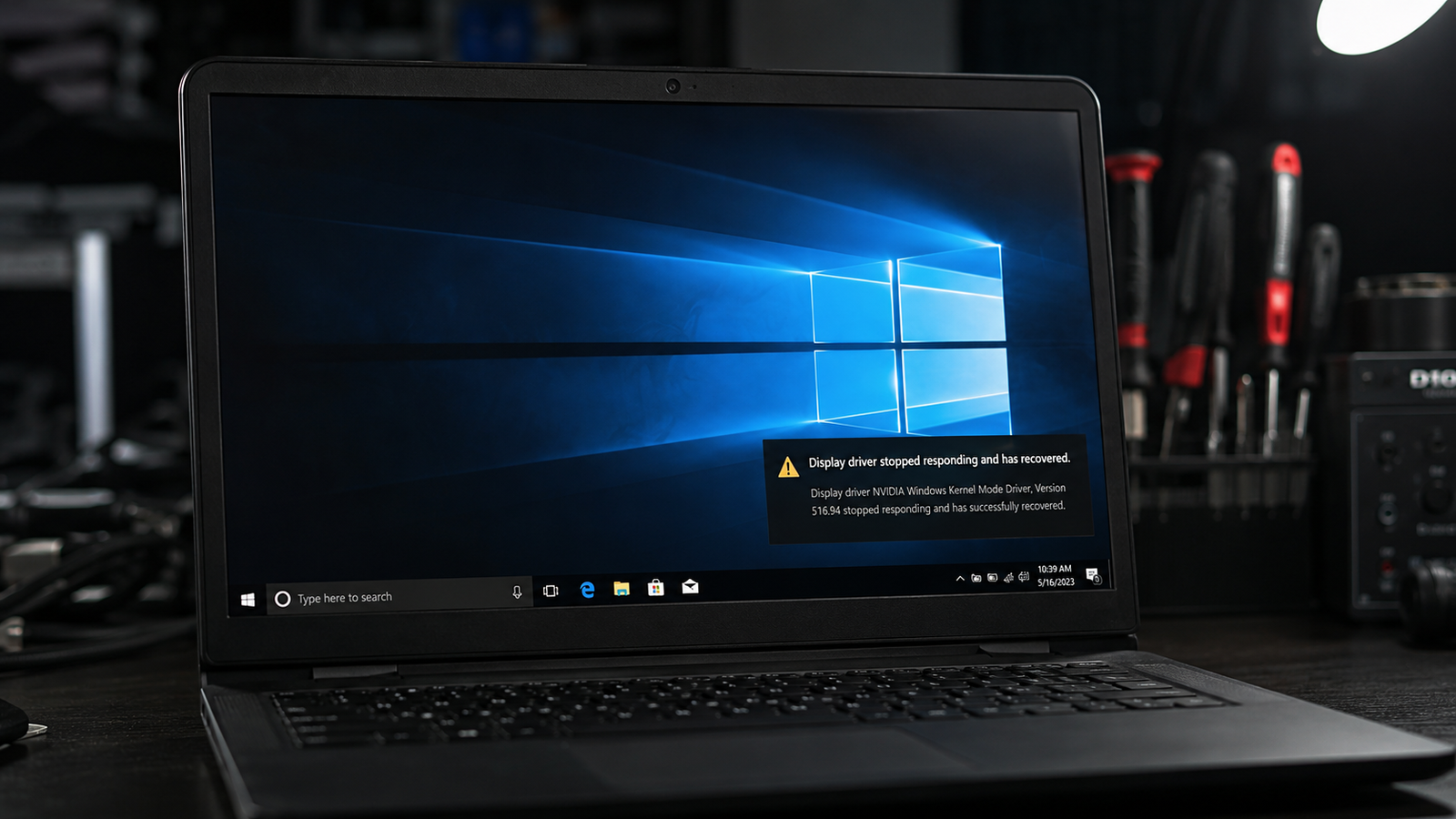
Your laptop is in the middle of something a game, a video edit, or just watching YouTube and the screen freezes, flickers, goes black, or Windows pops up a message saying the display driver stopped responding and recovered. Sometimes you get a blue screen. Sometimes the screen just blinks and then comes back. Either way, you know something is wrong.
Graphics driver crashes on laptops are more common than on desktops, and the reasons are different. A laptop packs its CPU, GPU, and cooling system into a tight chassis heat buildup is faster, power delivery is tighter, and the dual-GPU switching system (Intel iGPU + discrete NVIDIA or AMD) creates conflicts that desktops never deal with. Most guides online treat laptop driver crashes the same as desktop crashes. They’re not the same issue.
This guide covers the laptop-specific causes first, walks you through a fast diagnosis, then gives you every fix in order from free to paid the same workflow used in a repair shop.
Symptoms of a Graphics Driver Crash

- Screen freezes for 2–5 seconds, then returns with a “Display driver stopped responding and has recovered” notification in the system tray
- Black screen that lasts 5–30 seconds before recovering
- Blue Screen of Death (BSOD) showing
VIDEO_TDR_FAILURE,VIDEO_SCHEDULER_INTERNAL_ERROR, oratikmpag.sys/nvlddmkm.syserror codes - Screen flickering or rapid flashing during video playback or gaming
- Artifacts on screen colored blocks, lines, or distorted textures before crash
- Laptop powers on but the screen stays black (no display at all)
- Driver crashes specifically when plugging in an external monitor
- Crash only occurs on battery power but not when plugged in
- Display drops to very low resolution and stays there after recovery
- Event Viewer shows Timeout Detection Recovery (TDR) errors in System logs
Start Here: Fast Diagnosis
Work through this decision tree before touching any settings. It saves time.
Does the crash happen immediately on boot? → Yes: suspect corrupted driver or failed Windows Update. Go to Fix #3 (DDU clean reinstall). → No, only under load: suspect overheating or power delivery. Check temperatures first.
Does the crash happen on battery power only? → Yes: your GPU is being starved of power. Battery or power plan issue. Go to Fix #6. → No, crashes on AC power too: rule out power delivery as the sole cause.
Did the crash start after a Windows Update or driver update? → Yes: roll back the driver first. Go to Fix #2. → No, started randomly: run temperature check and check Event Viewer for TDR logs.
Does the crash happen only with one application (a specific game, Premiere Pro, Chrome GPU acceleration)? → Yes: application-specific GPU conflict. Disable hardware acceleration in that app first. → No, crashes across multiple programs: driver-level or hardware issue.
Does the laptop have both an Intel/AMD iGPU and a discrete NVIDIA or AMD GPU? → Yes: GPU switching conflict is a common culprit on laptops. Check Fix #7.
Have you checked Event Viewer and found TDR events? → Yes: the GPU is timing out. Work through the driver and heat fixes in order. → No TDR events: check if the crash is GPU-related at all — may be RAM or SSD fault.
Tools Needed
Built-in Windows tools
- Device Manager (devmgmt.msc)
- Event Viewer (eventvwr.msc)
- DirectX Diagnostic Tool (dxdiag)
- Windows Update
Free software tools
- HWiNFO64 or GPU-Z temperature and GPU monitoring
- Display Driver Uninstaller (DDU) clean driver removal (guru3d.com, official download)
- MSI Afterburner fan control, GPU temperature monitoring, undervolting
- CPU-Z system information
- LatencyMon identify driver latency issues
Hardware tools
- Compressed air canister cooling duct cleaning
- Thermal paste (Arctic MX-6, Thermal Grizzly Kryonaut) for repaste repair
- Phillips screwdrivers opening laptop chassis
- Anti-static wrist strap safe handling
Troubleshooting Matrix
| Symptom | Likely Cause | Fast Fix |
|---|---|---|
| TDR error after Windows Update | Driver version conflict | Roll back driver in Device Manager |
| Crash only under gaming load | GPU overheating | Check temps, clean vents |
| Black screen, no recovery | Driver corruption or hardware fault | DDU clean reinstall |
| Crash on battery only | Power plan limiting GPU | Set High Performance, check battery |
| Artifacts + crash | VRAM fault or severe overheating | Thermal repaste or hardware |
| Crash on external monitor only | Optimus/GPU switching glitch | Disable Optimus or update driver |
| Crash with specific app only | App GPU acceleration conflict | Disable hardware acceleration |
| Repeated BSODs after fixes | Failing GPU or motherboard | Professional diagnosis needed |
What Causes Graphics Driver Crashes on Laptops

Corrupted or Conflicting Driver Files
Windows driver updates, especially via Windows Update, frequently install partially corrupted files or stack new driver versions on top of old leftover registry entries. On laptops with both an Intel integrated GPU and a discrete NVIDIA or AMD GPU, two separate driver packages have to coexist cleanly and they often don’t. The crash happens when Windows tries to communicate with the GPU through a corrupted instruction path and the GPU fails to respond within the allowed timeout window. Most users try reinstalling the driver through Device Manager, which doesn’t fix this it leaves the same leftover files behind.
GPU Overheating
Laptop cooling systems use shared heat pipes that cool both the CPU and GPU simultaneously. When dust blocks the exhaust vents, both components overheat together. The GPU hits its thermal limit (typically 85–95°C depending on the chip) and the driver crashes to protect the hardware. This is one of the most misdiagnosed problems on laptops users keep reinstalling drivers when the real issue is a laptop that hasn’t been cleaned in two or three years. Confirmation sign: GPU temperature spikes to 85°C or above right before every crash.
Windows TDR Timeout (Timeout Detection and Recovery)
Windows has a built-in safety mechanism called Timeout Detection and Recovery (TDR). When the GPU takes longer than 2 seconds to respond to a command, Windows kills and restarts the driver. The causes behind that slowdown can include overheating, driver corruption, insufficient power, or failing VRAM. TDR events log themselves in Event Viewer under System logs the source will be nvlddmkm (NVIDIA) or atikmpag (AMD). Most users don’t check here and spend hours doing the wrong fixes.
Dual GPU Switching Conflict (Optimus / MUX Switch)
Most mid-range and budget gaming laptops use NVIDIA Optimus or AMD’s equivalent the iGPU handles the display output and the discrete GPU handles processing, then hands the frame back to the iGPU to send to the screen. This switching process involves a software layer that can glitch, particularly when drivers for the iGPU and the discrete GPU are mismatched versions. Connecting an external monitor can trigger this glitch because the signal path changes entirely. Confirmation sign: driver crashes that coincide with connecting a second screen or switching between plugged and unplugged states.
Power Starvation on Battery
Laptop GPUs draw significant power under load. When Windows power plan switches the laptop to a lower power state on battery, the GPU can get insufficient voltage at peak demand. The driver crashes, then Windows misreports it as a driver fault. This is why so many users replace their graphics driver and find the issue persists until they plug in. The battery itself degrading over time makes this worse an aging battery with reduced output capacity can fail to supply enough current during a GPU-intensive spike.
Failed Windows Update or DirectX Update
A Windows Update that modifies DirectX, the Windows Display Driver Model (WDDM), or kernel components can break an existing GPU driver that was previously stable. This is particularly common after major feature updates (Windows 11 version upgrades). The driver was never actually broken Windows changed the rules underneath it. Confirmation sign: crashes started within 24–48 hours of a Windows Update notification.
Failing GPU Hardware
GPU hardware failure on laptops is less common than driver issues but happens on machines over four years old, laptops that have run hot consistently, or units with known manufacturing defects. Symptoms of hardware failure include: crashes that persist through multiple fresh driver installs, visual artifacts (blocks, lines, color distortion) before the crash, and crash frequency that increases over time regardless of what software fixes are applied.
What We See Most Often
The majority of graphics driver crashes we see in the shop fall into one of three buckets. The biggest group: laptops that haven’t been cleaned in two or more years where dust has blocked the exhaust to the point the GPU hits thermal limits within five minutes of gaming. These machines will crash any driver you install because the problem isn’t the driver. Second most common: laptops where a Windows Update silently updated the GPU driver to an incompatible version, or where a NVIDIA/AMD automatic update installed a buggy release. Clean DDU reinstall with the correct OEM driver fixes these quickly. The smallest group but the most frustrating is actual GPU hardware degradation on older gaming laptops. These machines will crash on every driver, every Windows reinstall, every BIOS update. The only confirming test is connecting an external monitor and verifying whether the crash comes from the discrete GPU or the iGPU.
How to Diagnose the Problem

Step 1: Check GPU Temperature Under Load
Open HWiNFO64 or GPU-Z. Start a demanding application (any game, a YouTube video at 1080p, or run FurMark). Watch the GPU temperature in real time.
Expected Result: GPU stays below 85°C under sustained load. If GPU hits 85°C+ within minutes: Overheating is the primary cause. Go to Fix #4. If GPU stays cool and crash still happens: Temperature is not the cause. Continue to Step 2.
Step 2: Check Event Viewer for TDR Errors
Press Win+R, type eventvwr.msc. Navigate to Windows Logs → System. Filter by Source: nvlddmkm (NVIDIA) or atikmpag (AMD). Look for Event ID 4101 or any entries referencing TDR.
Expected Result: TDR events visible at the exact crash timestamps. If TDR events present: Confirms GPU driver timeout. Proceed with driver fixes. If no TDR events: Check Application logs for GPU-related errors from a specific app.
Step 3: Identify When Crashes Occur
Reboot the laptop and note exactly when the crash happens. Only during gaming? Only during video? Only when plugged into external monitor? Only on battery?
Expected Result: A specific trigger pattern becomes clear. If crash happens on battery only: Go to Fix #6 (Power settings). If crash on external monitor only: Go to Fix #7 (Optimus/GPU switching). If crash happens across all scenarios: Driver corruption or hardware fault.
Step 4: Check Device Manager for Errors
Open Device Manager → Display Adapters. Check if either GPU shows a yellow warning triangle or error code.
Expected Result: Both adapters listed with no errors. If error present on discrete GPU: Driver is broken. Proceed to DDU reinstall. If error present on iGPU only: Intel/AMD integrated driver is corrupted. Fix that driver first.
Step 5: Test in Safe Mode
Boot into Safe Mode (hold Shift while clicking Restart → Troubleshoot → Advanced Options → Startup Settings → Safe Mode). Run the laptop normally for 20–30 minutes.
Expected Result: No crash in Safe Mode (which uses Microsoft basic display driver). If no crash in Safe Mode: Confirms the problem is driver-related, not hardware. If crash continues in Safe Mode: RAM or motherboard issue not a driver problem.
Which Fix Usually Works?
| Fix | Typical Success Rate | Cost | Difficulty |
|---|---|---|---|
| Clean DDU driver reinstall | Very Common | Free | Easy |
| Roll back driver after Windows Update | Very Common | Free | Easy |
| Cleaning laptop vents | Common | Free–$10 | Easy |
| Thermal paste replacement | Common | $5–$15 | Medium |
| Power plan adjustment | Common | Free | Easy |
| Disable Optimus / GPU switching fix | Common | Free | Medium |
| Windows Update rollback | Occasional | Free | Medium |
| Disable MPO in registry | Occasional | Free | Medium |
| GPU hardware replacement | Rare | $150–$400+ | Hard |
Step-by-Step Fixes

Fix 1: Set Power Plan to High Performance
Cost: Free Time: 2 minutes Difficulty: Easy
- Right-click the battery icon in the taskbar → Power Options.
- Select High Performance or Ultimate Performance.
- Plug in the charger — always run demanding tasks plugged in.
- If on Windows 11: Settings → System → Power & Sleep → Power Mode → Best Performance.
Expected Result: GPU receives full voltage under load. Crashes on battery often stop immediately. If Failed: Power plan was not the cause. Continue to Fix 2. Technician Tip: On ASUS, Dell, and Lenovo gaming laptops there’s often a performance mode toggle in the manufacturer’s companion app (Armory Crate, Alienware Command Center, Vantage) that overrides Windows power settings. Make sure that’s set to Performance too.
Fix 2: Roll Back Graphics Driver
Cost: Free Time: 5 minutes Difficulty: Easy
- Press Win+X → Device Manager.
- Expand Display Adapters → right-click your discrete GPU.
- Select Properties → Driver tab.
- Click Roll Back Driver (if available).
- Choose the reason, confirm, and restart.
Expected Result: Previous stable driver restored. Crashes after a recent update stop. If Failed: Roll Back is greyed out (no previous driver stored). Proceed to Fix 3. Technician Tip: If you know which Windows Update triggered the crash, open Settings → Update & Security → View Update History → Uninstall Updates. Find the driver update by date and remove it.
Fix 3: Clean Driver Reinstall Using DDU
Cost: Free Time: 20–30 minutes Difficulty: Easy–Medium
This is the most effective software fix for graphics driver crashes. A normal reinstall leaves behind registry entries and shader cache files that corrupt the new installation.
- Before anything else, download the correct driver for your GPU from the manufacturer’s official site:
- NVIDIA: nvidia.com/Download/index.aspx
- AMD: amd.com/en/support
- Intel Arc/Iris: intel.com/content/www/us/en/download-center Save the driver installer somewhere you can access after removing the old one.
- Download DDU from guru3d.com (official source). Extract it.
- Disconnect from the internet (disable Wi-Fi) Windows will auto-reinstall drivers if you stay online.
- Restart into Safe Mode: hold Shift while clicking Restart → Troubleshoot → Advanced Options → Startup Settings → Enable Safe Mode.
- Run
Display Driver Uninstaller.exefrom the extracted folder. - Select device type: GPU. Select device: your GPU brand (NVIDIA/AMD/Intel).
- Click Clean and Restart.
- After reboot, run the driver installer you downloaded in Step 1.
- Reconnect to the internet after the driver installs successfully.
Expected Result: Clean driver environment. Crashes from corrupted files or conflicting versions stop. If Failed: Driver is not the root cause. Check temperatures (Fix 4) or Optimus settings (Fix 7). Technician Tip: On laptops, always use the driver from the laptop manufacturer’s support page first (Dell, HP, Lenovo, ASUS). These are OEM-optimized versions. If those are outdated, use the GPU manufacturer’s driver but be aware it may lack laptop-specific power management optimizations. Expert Warning: Don’t skip Safe Mode. Running DDU in normal Windows sometimes fails to fully remove driver files that are in active use by the system.
Fix 4: Clean Laptop Vents and Heatsink
Cost: Free–$10 (compressed air) Time: 15–30 minutes Difficulty: Easy–Medium
- Power off the laptop completely. Unplug power and remove battery if removable.
- Locate the exhaust vents (usually on the back or sides). Use a flashlight if you can’t see the fan blades through the vent, it’s blocked.
- Hold a compressed air canister upright. Insert the straw into the exhaust vent.
- Blast air in short bursts do not hold the canister at an angle (liquid propellant can spray).
- Alternate between the vent opening and any intake vents on the bottom.
- Repeat until visible dust stops coming out.
- For laptops with accessible bottom panels (most ASUS, Dell, Lenovo gaming models), open the bottom panel and blow directly across the fan and heatsink fins.
Expected Result: GPU temperatures drop 10–20°C under load. Crashes under sustained use stop. If Failed: Dust was not the primary cause, or thermal paste on the GPU die has dried out. Proceed to Fix 5. Technician Tip: If the laptop is over three years old and temperatures are still high after cleaning, thermal paste replacement is the next step not another driver reinstall.
Fix 5: Replace Thermal Paste (GPU and CPU)
Cost: $5–$20 (thermal paste) + possible labor Time: 1–2 hours Difficulty: Medium–Hard
Thermal paste on laptop GPUs dries out and loses conductivity over 3–5 years, depending on operating temperatures. When it cracks or separates, heat can’t transfer to the heatsink properly.
- Follow a disassembly guide specific to your exact laptop model (YouTube is reliable for this search “[laptop model] disassembly thermal paste”).
- Remove the heatsink screws in the numbered order printed on the heatsink plate.
- Clean old paste from the GPU die and heatsink contact surface using 90%+ isopropyl alcohol and a lint-free cloth.
- Apply a pea-sized amount of new paste (Arctic MX-6 or Thermal Grizzly Kryonaut) to the center of the GPU die.
- Reassemble in reverse order.
Expected Result: GPU temperatures drop 10–25°C. Persistent thermal crashes stop. If Failed: Thermal paste wasn’t the issue. Check for failing GPU hardware. Technician Tip: Gaming laptops with vapor chamber cooling or multiple heat pipes sometimes also have thermal pads covering VRAM chips and VRMs. These pads are often the same thickness as a specific measurement check your laptop’s service manual before replacing them, as using the wrong thickness can prevent proper heatsink contact. Expert Warning: Opening a laptop chassis voids the warranty on most machines. If the laptop is under warranty, contact the manufacturer first.
Fix 6: Fix Battery and Power Delivery Issues
Cost: Free (settings) / $50–$120 (battery replacement) Time: 5 minutes–2 hours Difficulty: Easy–Medium
- Test the charger: borrow or source the exact wattage charger for your model. Underpowered third-party adapters can cause GPU crashes under load.
- Open Device Manager → Batteries → right-click Microsoft ACPI-Compliant Control Method Battery → Uninstall. Restart (Windows re-detects the battery).
- Check battery health: open Command Prompt as Admin → type
powercfg /batteryreport→ open the generated HTML report. Look at Design Capacity vs Full Charge Capacity. Anything below 60% of design capacity on a battery that triggers crashes is suspect. - In Windows, disable battery charging limits if your laptop brand has one enabled (ASUS Battery Care, Dell Primary AC Use, Lenovo Conservation Mode) these can artificially limit power delivery.
Expected Result: GPU receives consistent voltage. Battery-only crashes stop. If Failed: Battery condition is not the issue, or the battery needs physical replacement. Technician Tip: Gaming laptops above 100W TDP (ASUS ROG, MSI, Razer Blade) will crash immediately under load if running from a charger below their rated wattage. A 65W USB-C charger on a 150W gaming laptop is never going to work at full load.
Fix 7: Fix Dual GPU / Optimus Switching Issues
Cost: Free Time: 10–20 minutes Difficulty: Medium
- Open NVIDIA Control Panel (right-click desktop → NVIDIA Control Panel).
- Go to Manage 3D Settings → Global Settings → Preferred Graphics Processor.
- Set this to High-performance NVIDIA processor to force the discrete GPU and bypass Optimus switching.
- Alternatively: check your laptop BIOS for a GPU Mode setting. On MSI, ASUS ROG, and Lenovo Legion laptops, there’s often a Discrete Only or dGPU Mode option that completely disables the iGPU and bypasses Optimus entirely.
- To access BIOS: restart → press F2, F10, or Del (varies by brand) immediately after the manufacturer logo appears.
Expected Result: GPU switching conflicts eliminated. Crashes on external monitors or during mode transitions stop. If Failed: The issue isn’t Optimus-related. Check Windows Update logs or proceed to hardware diagnosis. Technician Tip: On ASUS laptops with MUX Switch support (ROG and TUF Gaming models), switching to Discrete GPU Mode in Armory Crate also disables Optimus and often fixes these crashes permanently without needing a BIOS change.
Fix 8: Disable Multiplane Overlay (MPO) in Registry
Cost: Free Time: 10 minutes Difficulty: Medium
Multiplane Overlay is a Windows Display Driver Model feature that can cause conflicts with both AMD and NVIDIA drivers on laptops, particularly after Windows updates. It’s a known contributor to driver crash loops.
- Press Win+R → type
regedit→ press Enter. - Navigate to:
HKEY_LOCAL_MACHINE\SOFTWARE\Microsoft\Windows\Dwm - Right-click in the right pane → New → DWORD (32-bit) Value.
- Name it
OverlayTestMode. - Double-click it and set the value to
5. - Restart the laptop.
Expected Result: MPO-related driver crashes stop, particularly during video playback or multi-monitor setups. If Failed: MPO was not the trigger. Try rolling back to the previous Windows version if a feature update caused the crash. Expert Warning: Registry edits can cause system instability if done incorrectly. Create a restore point before making any registry changes: Search → Create a restore point → Create.
Fix 9: Roll Back Windows Update
Cost: Free Time: 15–30 minutes Difficulty: Medium
- Settings → Update & Security → Recovery.
- Under Go back to a previous version of Windows (if available, within 10 days of update).
- If that option is gone: Settings → Update & Security → View Update History → Uninstall Updates. Sort by date and remove the most recent feature update or cumulative update.
- Restart and test.
Expected Result: GPU driver compatibility restored to pre-update state. Crashes stop. If Failed: Windows Update was not the cause, or the damage persists even after rollback.
Mistakes That Make the Problem Worse
Installing the same driver version over itself without DDU Users download the latest NVIDIA or AMD driver installer and run it, thinking a “fresh install” fixes corruption. It doesn’t. The installer skips over files it believes are already present leaving corrupted registry entries intact. Always use DDU in Safe Mode first.
Only updating the discrete GPU driver and ignoring the Intel iGPU driver On laptops with Optimus, the Intel iGPU and the NVIDIA discrete GPU work together. Updating one and leaving the other on a mismatched version is a reliable way to create switching conflicts. Both need to be on compatible versions.
Downloading drivers from third-party sites Sites like driverpack.io and third-party driver update utilities are notorious for bundling outdated, generic, or flat-out wrong driver versions. Always download from the GPU manufacturer’s official site or your laptop manufacturer’s support page.
Setting TdrDelay high in the registry as a permanent fix Forums recommend editing TdrDelay in the registry to give Windows a longer timeout before reporting a driver crash. This masks the symptom without fixing the cause — and can result in the GPU being held in a failed state longer, which risks hardware damage during thermal events.
Running CPU/GPU stress tests at maximum settings to “test stability” before fixing heat issues Running FurMark at maximum load on an already-overheating laptop can push the GPU into dangerously high temperatures. Use it briefly to confirm temperature spikes, not as an extended stability test, until the cooling issue is resolved.
Reinstalling Windows without fixing the underlying hardware or BIOS driver issue Some users reinstall Windows as a first response to driver crashes. If the problem is overheating, Optimus conflict, or BIOS settings, a fresh Windows install changes nothing. Diagnose the root cause first.
Ignoring Event Viewer Event Viewer shows exactly when and why TDR events happen. Most users never check it and spend hours guessing. Check it first — it usually tells you within 30 seconds whether the crash is driver-related or hardware-related.
Brand-Specific Considerations
Dell (XPS, Inspiron, Alienware)
Dell injects custom driver packages into Windows Update automatically on newer systems. If you install a standard NVIDIA driver on top of Dell’s OEM driver without DDU, you’ll often get conflicts. Always use DDU before switching from a Dell-installed driver to a standard NVIDIA one. Alienware laptops have the Alienware Command Center check that the thermal mode isn’t set to Quiet, which significantly throttles the GPU.
HP (Pavilion, Omen, Spectre)
HP uses a driver versioning system in BIOS that can lock the GPU to older driver versions on some Pavilion models. If DDU + fresh driver still crashes, check HP’s support page for a BIOS update these sometimes include updated GPU firmware that resolves driver incompatibilities. Omen Gaming Hub’s Performance Control panel can override Windows power settings and is worth checking.
Lenovo (Legion, IdeaPad, ThinkPad)
Lenovo Legion has a Discrete GPU Mode option in Lenovo Vantage that bypasses Optimus completely this is often the fastest fix for Legion-specific driver crashes. Also check BIOS for Hybrid Mode settings. ThinkPad laptops running Intel Iris Xe or Arc graphics have known conflicts between the Thunderbolt firmware and display driver check Lenovo’s support page for combined firmware update packages.
ASUS (ROG, TUF, VivoBook, Zenbook)
ASUS ROG and TUF models with MUX Switch support can switch between iGPU, dGPU, and Auto mode in Armory Crate. Setting to dGPU Mode eliminates most Optimus-related crashes. ASUS gaming models also have aggressive fan profiles that can be unlocked in the Armory Crate fan curve settings useful when thermal crashes are the issue. Note: ASUS BIOS updates have occasionally caused new driver crashes on ROG model check community forums before updating BIOS if the system is currently stable.
MSI (Gaming, Creator series)
MSI laptops tend to run hotter than comparable ASUS and Lenovo models due to their slim chassis designs. MSI Dragon Center (or MSI Center in newer firmware) has a Cooler Boost option enable this if GPU temps are causing crashes. MSI also uses Optimus on most consumer models; switching to dGPU Only mode in MSI Center bypasses the switching system.
Acer (Nitro, Predator, Aspire)
Acer Predator Sense gives access to fan speed control and power modes. The default Eco mode throttles GPU performance significantly switch to Turbo or Performance mode when troubleshooting crash behavior under load. Older Acer Nitro 5 and Nitro 7 models have a widely reported thermal paste dryout issue after 2–3 years of use that causes consistent crash-under-load symptoms.
Repair Shop Diagnosis

When a laptop comes in with graphics driver crashes, the first check is always Event Viewer specifically TDR event timestamps matched against the crash reports. That tells us within two minutes whether this is a driver issue or a hardware issue.
Next: GPU temperature under load. We run HWiNFO64 alongside a game or FurMark and watch for the GPU hitting thermal limits within the first five minutes. If temperatures spike above 88–90°C before the crash, it’s a cooling issue cleaning or thermal repaste, not a driver reinstall.
The third diagnostic step for laptops specifically is checking whether the crash is reproduced with only the iGPU active. Disable the discrete GPU in Device Manager, run the same test. If the crash disappears entirely, the discrete GPU is the problem. If it continues on the iGPU, the issue is system-level could be RAM, SSD, or motherboard.
Typical repair costs:
- Driver diagnosis and clean reinstall: $40–$80 bench fee
- Vent cleaning and thermal paste replacement: $60–$120
- Battery replacement: $80–$150 depending on model
- GPU hardware fault confirmation and quote: $50–$100 diagnostic fee
- Motherboard repair (BGA GPU reflow): $150–$350 low long-term success rate on laptops over four years old
Professional repair is justified when: home fixes fail after three complete attempts, the laptop shows hardware artifacts (visual corruption before crash), or the machine is still under warranty.
When Hardware Replacement Is Necessary
GPU hardware failure: If the laptop produces visual artifacts (colored blocks, screen distortion, lines across the display) before every crash, and these persist through multiple clean driver installs and a Windows reinstall, the GPU hardware itself is likely failing. On laptops, the GPU is typically soldered to the motherboard this means GPU replacement means motherboard replacement, which is usually only cost-effective on premium or business models.
Failing RAM: RAM faults can produce crash symptoms identical to driver crashes. Run Windows Memory Diagnostic (search → Windows Memory Diagnostic) or MemTest86 to rule this out before spending money on GPU-related repairs.
SSD failure: A failing SSD can corrupt driver files during installation and cause driver crashes that resist all fixes. Run CrystalDiskInfo and check for Reallocated Sectors or Pending Sectors in the S.M.A.R.T. data.
Battery replacement: When battery health drops below 50–60% of design capacity and crashes only occur during heavy load on battery, a new battery is a straightforward fix typically $60–$120 depending on the model.
Stop Troubleshooting and Seek Professional Repair If
- Burning smell stop using the laptop immediately. This indicates electrical component failure or battery thermal runaway.
- Swollen battery visible bulging under the chassis or trackpad area. Do not charge. This is a fire risk.
- Liquid damage history driver crashes after any liquid contact require professional corrosion cleaning, not software fixes.
- Repeated crashes at desktop with no load if the GPU is crashing when the laptop is essentially idle, the hardware is failing.
- Screen produces visual artifacts even in BIOS if distortion appears before Windows even loads, the problem is hardware, not software.
- System won’t POST after multiple GPU driver attempts stop and take it in. Continued attempts can make recovery harder.
- Crash frequency increasing daily a GPU that’s dying fails progressively faster. Don’t wait.
Prevention Tips

- Clean vents every 6–12 months depending on environment. Pet hair and carpeted rooms clog laptop vents much faster than expected.
- Always run demanding tasks plugged in. Laptop GPUs on battery run at reduced power this accelerates wear on the battery and reduces stability margin during load spikes.
- Delay Windows Update driver installs. Set Windows Update delivery to “semi-annual” in group policy, or use DDU immediately after any major update that touches GPU drivers.
- Monitor temperatures with HWiNFO64. Set a desktop widget showing GPU temp. If you’re regularly seeing 85°C+ during normal gaming, act before the crash starts happening.
- Replace thermal paste every 3–4 years on laptops used for gaming or video production. It’s a $10–$20 fix that extends laptop life significantly.
- Use a laptop cooling pad for sustained loads. Adding even 5°C of headroom reduces thermal throttling and crash risk during long sessions.
- Disable GPU overclocking profiles in NVIDIA or AMD software. Many users forget they left a factory OC profile enabled these reduce stability margins significantly on laptops where thermal headroom is already tight.
Frequently Asked Questions

Why does my graphics driver keep crashing even after reinstalling it? A standard reinstall through Device Manager doesn’t remove all driver files. Old registry entries and shader cache files stay behind and corrupt the new installation. Use Display Driver Uninstaller (DDU) in Safe Mode for a complete removal before reinstalling.
Is VIDEO_TDR_FAILURE a hardware problem or a software problem? Both, depending on the cause. TDR failure means the GPU took too long to respond to a command from Windows. That timeout can be caused by corrupted drivers (software), overheating (thermal), or a failing GPU (hardware). Start with driver fixes and temperature checks before assuming hardware failure.
My laptop driver crashes only when I plug in an external monitor. Why? This almost always points to an Optimus/dual GPU conflict. When an external monitor is connected on a laptop with NVIDIA Optimus, the signal path changes the discrete GPU may need to take over display output entirely, and a mismatch in iGPU and dGPU driver versions causes the crash. Try forcing Discrete GPU Only mode in NVIDIA Control Panel or your laptop’s companion app.
How do I know if my GPU is overheating before the crash happens? Install HWiNFO64 and run it in the background as a sensor overlay. Look at the GPU Temperature and GPU Hot Spot Temperature readings. If the GPU Core reaches 85°C or above within five minutes of gaming, overheating is the primary problem not the driver.
Should I use the NVIDIA driver from my laptop maker’s website or directly from NVIDIA? Start with the laptop manufacturer’s driver. It’s optimized for your exact thermal and power management configuration. If the OEM driver is significantly outdated (6+ months old), the standard NVIDIA driver is generally safe but may lack some laptop-specific power management features.
Can a bad battery cause graphics driver crashes? Yes. A depleted or failing battery can’t supply consistent voltage to the GPU during load spikes, causing the driver to crash. Run powercfg /batteryreport and compare design capacity vs current full charge capacity. Under 60% of design capacity on a machine where crashes correlate with battery use is worth investigating.
My laptop crashes but only after 20–30 minutes of gaming. What is that? This pattern is almost always thermal throttling that eventually hits a hard limit. The laptop needs time to heat up once it reaches the GPU’s thermal protection threshold (usually 85–95°C), the driver crashes to prevent damage. Clean the vents and check if thermal paste needs replacement.
Conclusion
Most graphics driver crashes on laptops come down to three things: corrupted or conflicting driver files, overheating from dust-blocked vents or dried-out thermal paste, and power delivery issues either from battery degradation or wrong power plan settings. A clean DDU reinstall fixes the majority of driver-only cases in under 30 minutes. If that doesn’t resolve it, check temperatures under load before doing anything else. Hardware failure is possible but genuinely rare compared to how often users assume it rule out every software and thermal cause first.