
Quick Answer
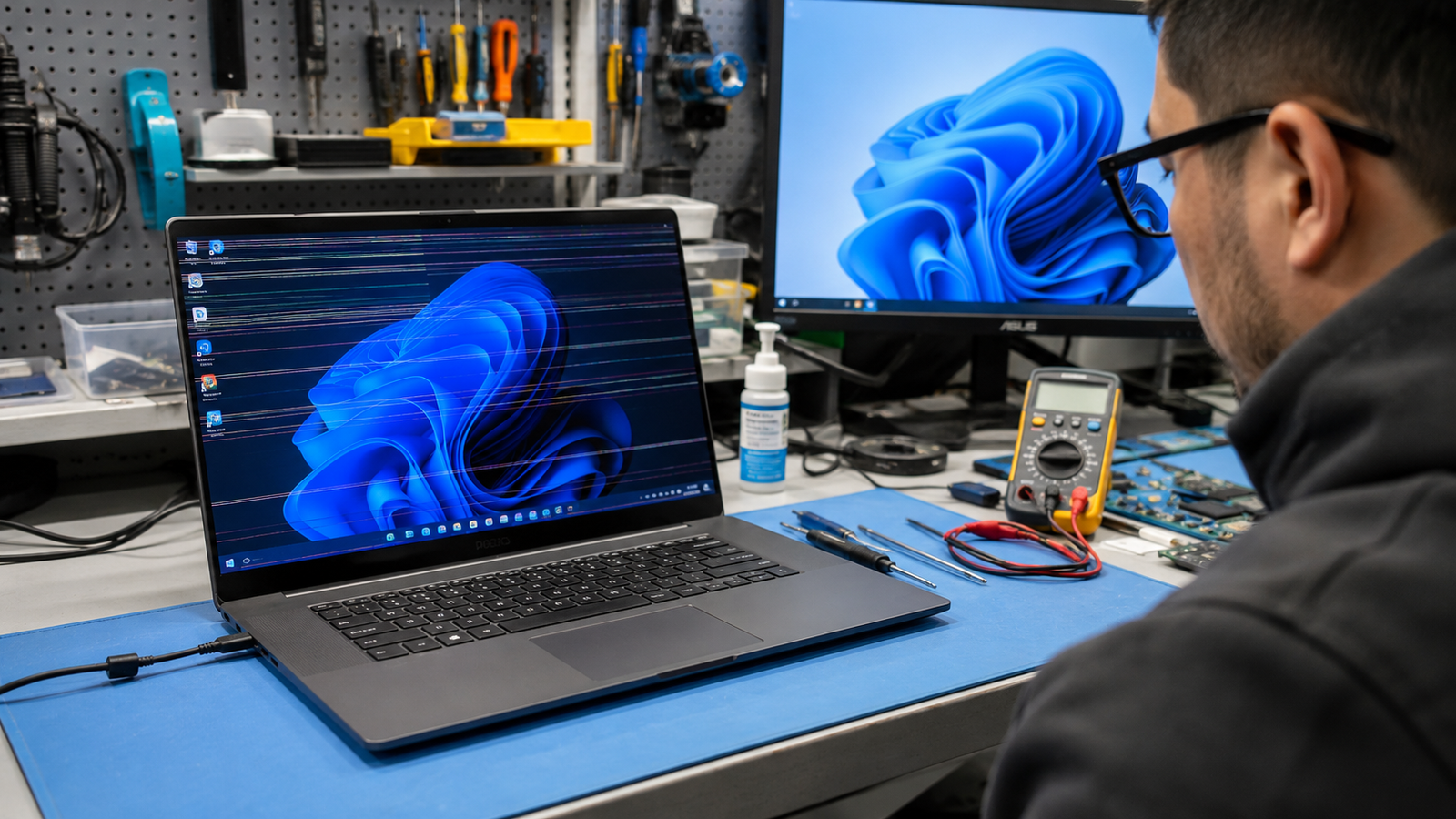
Laptop screen flickering is most commonly caused by graphics driver issues, incorrect refresh rate settings, damaged display cables, or a failing LCD panel. The fastest diagnosis is connecting an external monitor. If the external display works normally, the problem is usually inside the laptop screen assembly rather than the GPU.
Introduction
A flickering laptop screen can be frustrating because the symptoms often look worse than they really are.
Some laptops flicker constantly. Others only flicker while gaming, when running on battery power, after a Windows update, or when the screen is moved to a certain angle.
The challenge is that software faults and hardware failures can produce nearly identical symptoms.
This guide walks through the same diagnostic process used in repair shops to identify the real cause before replacing parts or reinstalling Windows.
Symptoms of the Problem

Common signs include:
- Screen brightness rapidly changing
- Horizontal flashing lines
- Random blinking
- Display briefly turning black
- Screen flashing during startup
- Flickering only in Windows
- Flickering while gaming
- Screen flickering when lid is moved
- Distorted images
- Temporary screen blackouts
- Ghosting effects
- Display instability on battery power
- Display works normally on external monitor
- Flickering after Windows update
Start Here: Fast Diagnosis
Follow this workflow before trying random fixes.
If the screen flickers inside BIOS
→ Likely hardware issue
Check:
- LCD panel
- Display cable
- GPU
- Motherboard
If the screen only flickers in Windows
→ Likely software issue
Check:
- Drivers
- Refresh rate
- Windows updates
- Graphics settings
If external monitor works normally
→ Internal display issue
Check:
- LCD panel
- eDP cable
- Screen connector
If external monitor also flickers
→ Graphics subsystem issue
Check:
- GPU drivers
- Integrated graphics
- Dedicated graphics
- Motherboard
If flickering changes when lid moves
→ Display cable damage highly likely
Inspect:
- Hinge area
- Display cable routing
- Screen connector
Tools Needed
Built-In Tools
- Device Manager
- Event Viewer
- Windows Settings
- BIOS Diagnostics
Software Tools
- Intel Graphics Command Center
- AMD Software
- NVIDIA Control Panel
- HWMonitor
- GPU-Z
Hardware Tools
- External monitor
- HDMI cable
- Precision screwdriver set
- Flashlight
- Plastic pry tools
Troubleshooting Matrix
| Symptom | Likely Cause | Fast Fix |
| Flickers after update | Driver conflict | Roll back driver |
| Flickers only on battery | Power settings | Disable panel self refresh |
| Flickers when moving lid | Damaged display cable | Inspect cable |
| Flickers in BIOS | Hardware fault | Screen diagnostics |
| External monitor normal | LCD assembly issue | Check panel and cable |
| External monitor flickers too | GPU issue | Reinstall graphics drivers |
| Horizontal lines | LCD failure | Test replacement panel |
| Gaming-related flickering | GPU instability | Temperature and driver check |
What Causes Laptop Screen Flickering

Graphics Driver Problems
This is the most common software cause.
A corrupted graphics driver can send unstable display signals to the panel.
How to Identify It
- Started after update
- BIOS display is stable
- Safe Mode reduces symptoms
Common Misunderstanding
Many people reinstall Windows before testing the driver.
Confirmation Sign
Screen becomes stable after driver rollback.
Incorrect Refresh Rate Settings
Modern displays require the correct refresh rate.
An unsupported setting may cause flashing or instability.
How to Identify It
- Started after monitor changes
- Happens after GPU software updates
Confirmation Sign
Flickering stops after refresh rate adjustment.
Damaged Display Cable
The display cable passes through the laptop hinge.
Repeated opening and closing can gradually damage the cable.
How to Identify It
- Flickering changes when lid moves
- Image cuts in and out
Common Misunderstanding
Many users assume the LCD panel is bad.
Confirmation Sign
Moving the screen causes immediate display changes.
Failing LCD Panel
The display panel itself can fail with age or physical stress.
How to Identify It
- Flickers even after cable replacement
- Lines appear permanently
Confirmation Sign
External monitor works perfectly.
GPU Problems
Graphics hardware issues affect both internal and external displays.
How to Identify It
- Artifacts
- Crashes
- Driver errors
- Gaming instability
Confirmation Sign
External monitor also flickers.
Power Management Problems
Windows power-saving features sometimes create display instability.
How to Identify It
- Battery-only flickering
- Brightness fluctuations
Confirmation Sign
Issue disappears while plugged into AC power.
What We See Most Often
In repair work, screen flickering is usually caused by one of three things:
- Driver corruption after updates
- Damaged display cables near the hinge
- Failing LCD panels
Many users replace the screen immediately when the actual fault is a damaged cable. Others spend hours reinstalling Windows when the display panel itself is beginning to fail.
The external monitor test usually reveals the answer within minutes.
How to Diagnose the Problem

Step 1: Test an External Monitor
Expected Result
External display works normally.
If Failed
Continue to GPU diagnostics.
Step 2: Enter BIOS
Restart and open BIOS.
Expected Result
Stable image.
If Failed
Hardware problem likely.
Next Action
Inspect screen assembly.
Step 3: Boot Into Safe Mode
Expected Result
Flickering disappears.
If Failed
Investigate hardware.
Next Action
Display cable testing.
Step 4: Check Device Manager
Look for:
- Warning icons
- Disabled GPU
- Driver errors
Expected Result
No errors.
If Failed
Reinstall drivers.
Step 5: Move the Display Lid
Open and close slowly.
Expected Result
No display changes.
If Failed
Display cable likely damaged.
Step 6: Monitor Temperatures
Use HWMonitor.
Expected Result
Normal temperatures.
If Failed
Cooling system inspection.
Which Fix Usually Works?
| Fix | Typical Success Likelihood | Cost | Difficulty |
| Driver reinstall | Very Common | Free | Easy |
| Refresh rate adjustment | Common | Free | Easy |
| Windows update rollback | Common | Free | Easy |
| Display cable replacement | Common | Moderate | Medium |
| LCD replacement | Occasional | Moderate | Medium |
| GPU repair | Rare | High | Advanced |
Step-by-Step Fixes

Fix 1: Restart Graphics Driver
Cost: Free
Time: 1 minute
Difficulty: Easy
Steps
Press:
Windows + Ctrl + Shift + B
Expected Result
Display refreshes.
If Failed
Continue below.
Technician Tip
This instantly resets the graphics subsystem.
Fix 2: Reinstall Graphics Drivers
Cost: Free
Time: 20–30 minutes
Difficulty: Easy
Steps
- Open Device Manager.
- Remove graphics driver.
- Reboot.
- Install latest version.
Expected Result
Stable display.
If Failed
Check hardware causes.
Expert Warning
Avoid third-party driver update utilities.
Fix 3: Change Refresh Rate
Cost: Free
Time: 3 minutes
Difficulty: Easy
Steps
- Settings
- System
- Display
- Advanced Display
- Select recommended refresh rate
Expected Result
Flickering stops.
If Failed
Proceed to next fix.
Fix 4: Roll Back Recent Windows Updates
Cost: Free
Time: 15 minutes
Difficulty: Easy
Expected Result
Display stability returns.
If Failed
Continue diagnosis.
Fix 5: Update BIOS
Cost: Free
Time: 15–30 minutes
Difficulty: Medium
Expected Result
Firmware-related display issues resolved.
If Failed
Investigate hardware.
Expert Warning
Never interrupt BIOS updates.
Fix 6: Replace Display Cable
Cost: $15–$50
Time: 30–90 minutes
Difficulty: Medium
Expected Result
Flickering disappears immediately.
If Failed
LCD panel likely faulty.
Technician Tip
Inspect hinge area carefully for cable wear.
Fix 7: Replace LCD Panel
Cost: $60–$250+
Time: 30–60 minutes
Difficulty: Medium
Expected Result
Display restored.
If Failed
Motherboard or GPU diagnostics required.
Mistakes That Make the Problem Worse
Reinstalling Windows First
Often wastes hours when hardware is failing.
Ignoring BIOS Testing
BIOS can quickly separate software from hardware faults.
Replacing the Screen Without Testing the Cable
Many flickering issues originate in the hinge cable.
Installing Random Drivers
Incorrect drivers often introduce additional problems.
Continuing to Use an Overheating Laptop
Heat accelerates GPU and display failures.
Updating BIOS With Unstable Power
Can create a much larger repair.
Brand-Specific Considerations
Dell
- ePSA diagnostics available
- BIOS display tests are useful
- Common hinge cable wear on older models
HP
- Hardware diagnostics built into BIOS
- Panel self-refresh settings occasionally contribute
Lenovo
- Lenovo Diagnostics can identify display hardware faults
- ThinkPads commonly reveal cable issues through lid movement
ASUS
- Armoury Crate updates sometimes affect display behavior
- Verify graphics profiles after updates
Acer
- Check Acer Care Center updates
- BIOS updates occasionally resolve display instability
MSI
- Gaming models frequently experience flickering from GPU overheating
- Check dedicated graphics switching settings
Repair Shop Diagnosis

Most repair technicians begin with:
- External monitor testing
- BIOS testing
- Lid movement testing
- Cable inspection
- LCD panel verification
Common diagnostic tools include:
- Known-good LCD panel
- Known-good display cable
- External monitor
- Thermal monitoring software
Typical repair costs:
- Driver repair: $30–$80
- Cable replacement: $50–$150
- Screen replacement: $100–$350+
- GPU repair: $200–$600+
Professional repair is usually justified when screen disassembly is required or motherboard-level faults are suspected.
When Hardware Replacement Is Necessary
Display Failure
Replace when:
- Permanent flickering remains
- Lines appear continuously
- Physical damage exists
GPU Failure
Replace or repair when:
- External monitor also flickers
- Artifacts appear
- Driver crashes persist
Battery Failure
Replace when:
- Flickering only occurs on battery
- Voltage instability confirmed
Motherboard Failure
Consider replacement when:
- Multiple display components test good
- GPU circuitry is damaged
Stop Troubleshooting and Seek Professional Repair If
- Liquid damage occurred
- Burning smell is present
- Battery is swollen
- Visible motherboard damage exists
- Electrical short symptoms appear
- Laptop repeatedly shuts down under load
These conditions can worsen rapidly and may create additional hardware damage.
Prevention Tips

- Avoid opening the lid from one corner.
- Keep GPU temperatures under control.
- Install graphics drivers from official sources.
- Use surge protection.
- Avoid crushing the display assembly.
- Clean cooling systems regularly.
- Update BIOS only when necessary.
- Inspect hinges if resistance increases.
Frequently Asked Questions

Why does my laptop screen flicker but an external monitor works?
This usually points to a failing LCD panel, damaged display cable, or connector issue rather than the GPU.
Can bad RAM cause screen flickering?
Rarely. RAM issues typically cause crashes, blue screens, or boot failures instead.
Why does my laptop screen flicker only on battery power?
Power management settings, battery degradation, or panel self-refresh features are common causes.
Does screen flickering mean the laptop is dying?
Not necessarily. Many cases are solved with driver updates or cable replacement.
Can overheating cause screen flickering?
Yes. Overheating GPUs can produce display instability, artifacts, and flashing.
How much does a flickering laptop screen cost to repair?
Costs vary widely. Software fixes may be free, while screen replacement can range from $100 to $350 or more depending on the model.
Conclusion
Laptop screen flickering is usually caused by graphics drivers, display cables, refresh rate settings, or a failing LCD panel. The quickest diagnosis is testing an external monitor and checking whether the problem appears inside BIOS. If software fixes fail and lid movement affects the display, inspect the cable before replacing the screen. When external displays also flicker, GPU or motherboard diagnostics become the next priority.