
Quick Answer
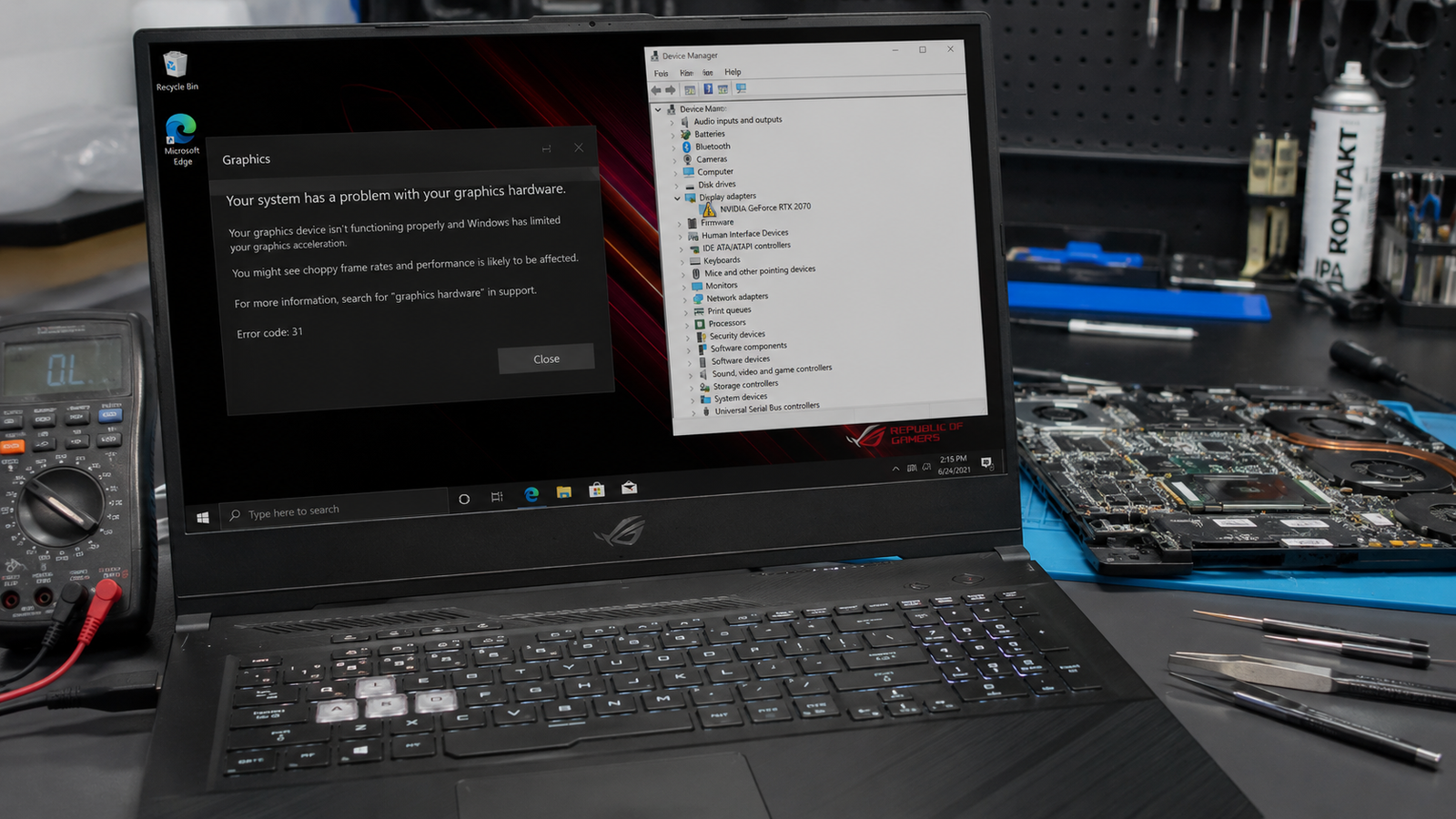
If your laptop graphics card is not working, the most common causes are corrupted GPU drivers, Windows update conflicts, overheating, incorrect graphics settings, or failing hardware. Start by checking Device Manager, reinstalling graphics drivers, and monitoring temperatures. In many cases, software fixes restore full GPU functionality without replacing any hardware.
Introduction
Your laptop’s graphics card handles everything from basic display output to gaming, video editing, CAD work, and AI applications. When the GPU stops working correctly, performance drops dramatically and visual problems often appear immediately.
Some users notice games running at extremely low frame rates. Others see black screens, driver crashes, artifacting, or missing graphics cards in Windows.
The challenge is that many GPU-related symptoms look similar even though the underlying causes are completely different.
A corrupted driver can produce the same symptoms as an overheating graphics chip. Likewise, a failing motherboard can look like a simple Windows problem.
This guide walks through professional diagnostic procedures used by repair technicians to identify the exact cause and apply the correct fix.
Symptoms of the Problem

Common signs that the graphics card is not working properly include:
- Black screen during startup
- Display flickering randomly
- Screen artifacting or colored lines
- Games running at extremely low FPS
- Sudden FPS drops during gameplay
- Laptop freezing under graphics load
- External monitor not detected
- GPU missing from Device Manager
- NVIDIA Control Panel missing
- AMD Software not opening
- Blue screen crashes during gaming
- Graphics driver crash notifications
- Code 43 error in Device Manager
- Yellow warning icon on GPU device
- Display driver stopped responding error
- Fan speed increasing unusually during graphics tasks
- Laptop becoming excessively hot during normal use
Tools Needed
Built-In Windows Tools
- Device Manager
- Task Manager
- Event Viewer
- Windows Update
- DirectX Diagnostic Tool (DXDiag)
- Reliability Monitor
Software Tools
- GPU-Z
- HWMonitor
- HWiNFO
- DDU (Display Driver Uninstaller)
- NVIDIA App
- AMD Software Adrenalin Edition
- Intel Graphics Command Center
Hardware Tools
- External monitor
- HDMI cable
- USB-C display adapter
- Precision screwdriver set
- Thermal paste (advanced repairs)
- Compressed air blower
Troubleshooting Matrix
| Symptom | Likely Cause | Fast Fix |
| GPU missing in Device Manager | Driver corruption | Reinstall drivers |
| Black screen after startup | Driver or hardware failure | Boot Safe Mode |
| Games using integrated graphics | Graphics settings issue | Set high-performance GPU |
| Code 43 error | Driver or GPU fault | Clean driver installation |
| External monitor not working | Port or GPU issue | Test another cable |
| Random crashes during gaming | Overheating | Check temperatures |
| Screen artifacting | GPU memory failure | Stress test GPU |
| Poor gaming performance | Power settings | Enable performance mode |
| Driver installation fails | Windows conflict | Use DDU cleanup |
| GPU disappears after updates | Update corruption | Roll back drivers |
What Causes Graphics Card Problems on a Laptop

Corrupted Graphics Drivers
Graphics drivers act as translators between Windows and the GPU.
When updates fail or files become corrupted, Windows may stop communicating properly with the graphics card.
How to Identify It
- Device Manager warning icon
- Driver installation failures
- Missing GPU control panel
- GPU detected intermittently
Common Misunderstanding
Many users repeatedly install new drivers without removing damaged driver files first.
Confirmation Sign
The GPU reappears temporarily after reinstalling drivers.
Windows Update Conflicts
Windows updates sometimes replace manufacturer drivers with generic versions.
This can disable advanced GPU features or cause compatibility problems.
How to Identify It
- Problem started after a Windows update
- Missing graphics settings
- Driver version changed unexpectedly
Common Misunderstanding
Users often assume the graphics card itself failed when Windows actually installed an incompatible driver.
Confirmation Sign
Rolling back updates restores GPU functionality.
Overheating
Heat is one of the most common causes of graphics-related instability.
As temperatures rise, modern laptops reduce GPU performance to prevent permanent damage.
How to Identify It
- FPS drops after gaming starts
- System crashes under load
- Excessive fan noise
- Hot keyboard area
Common Misunderstanding
Many users think overheating only affects gaming performance, but it can also cause driver crashes and black screens.
Confirmation Sign
GPU temperatures exceed manufacturer recommendations during stress testing.
Hybrid Graphics Switching Issues
Most modern laptops contain both integrated graphics and a dedicated graphics processor.
Windows automatically switches between them to save battery life.
Sometimes this switching mechanism fails.
How to Identify It
- Games run on integrated graphics
- Dedicated GPU shows 0% utilization
- Poor gaming performance despite capable hardware
Common Misunderstanding
Users assume the dedicated GPU is dead when Windows is simply choosing the wrong graphics processor.
Confirmation Sign
Manually assigning the GPU restores normal performance.
BIOS Configuration Problems
Some BIOS settings control how graphics hardware initializes during startup.
Incorrect settings can prevent Windows from detecting the GPU.
How to Identify It
- GPU disappeared after BIOS changes
- Hardware detected inconsistently
- Display issues after firmware updates
Common Misunderstanding
Users rarely suspect BIOS settings because Windows appears to load normally.
Confirmation Sign
Loading BIOS defaults restores detection.
Faulty Graphics Memory (VRAM)
Dedicated GPUs contain video memory used for textures and graphical workloads.
Damaged VRAM often produces visual corruption.
How to Identify It
- Colored blocks on screen
- Texture corruption in games
- Flickering graphics
Common Misunderstanding
Many users blame the display panel when VRAM is actually failing.
Confirmation Sign
Artifacts appear in screenshots and external displays.
Failing Motherboard Components
In many laptops, the GPU is soldered directly onto the motherboard.
Power delivery failures can prevent the graphics processor from functioning.
How to Identify It
- GPU disappears permanently
- Laptop powers on but no display
- Random shutdowns under graphics load
Common Misunderstanding
Users often replace drivers repeatedly while the actual issue is hardware-level failure.
Confirmation Sign
GPU remains undetected even after operating system reinstallation.
Physical Damage
Drops, liquid exposure, and impact damage can affect graphics circuitry.
Even minor motherboard cracks can interrupt GPU communication.
How to Identify It
- Problem began after physical incident
- Intermittent display operation
- Sudden hardware failures
Common Misunderstanding
The laptop may appear visually undamaged despite internal damage.
Confirmation Sign
Symptoms appeared immediately after the incident.
How to Diagnose the Problem

Follow these steps in order. Skipping ahead often leads to unnecessary repairs.
1. Check Device Manager
Open Device Manager and expand Display Adapters.
Verify whether your dedicated GPU appears normally.
Expected Result
GPU is listed without warning icons.
If Failed
GPU missing or showing errors.
Next Action
Proceed to Step 2.
2. Check for Error Codes
Right-click the graphics card and open Properties.
Look for Device Status messages.
Expected Result
“This device is working properly.”
If Failed
Error codes such as Code 43 or Code 31 appear.
Next Action
Document the error code and continue.
3. Run DXDiag
Press Windows + R and type:
dxdiag
Open the Display tab.
Expected Result
GPU information appears correctly.
If Failed
Missing GPU information.
Next Action
Move to driver diagnostics.
4. Monitor GPU Usage
Open Task Manager and select Performance.
Check whether the GPU responds during graphics-intensive tasks.
Expected Result
GPU usage increases under load.
If Failed
Usage remains near 0%.
Next Action
Investigate hybrid graphics settings.
5. Check Temperatures
Use HWMonitor or HWiNFO.
Run a game or benchmark.
Expected Result
Temperatures remain within safe limits.
If Failed
Temperatures rise rapidly.
Next Action
Inspect cooling system.
6. Test an External Monitor
Connect an external display through HDMI or USB-C.
Expected Result
External monitor functions normally.
If Failed
No display output detected.
Next Action
Investigate GPU hardware or output ports.
7. Boot Into Safe Mode
Safe Mode loads basic graphics drivers.
Expected Result
Display works normally.
If Failed
Display problems remain.
Next Action
Hardware failure becomes more likely.
8. Review Event Viewer Logs
Open Event Viewer and check System logs.
Look for graphics-related warnings.
Expected Result
No recurring GPU errors.
If Failed
Driver timeout or hardware errors appear repeatedly.
Next Action
Proceed to advanced troubleshooting and repair steps.
9. Stress Test the GPU
Use a trusted graphics benchmark.
Monitor temperatures, stability, and artifacting.
Expected Result
System remains stable.
If Failed
Crashes, artifacts, or shutdowns occur.
Next Action
Hardware diagnosis is required.
10. Verify BIOS Detection
Enter BIOS setup during startup.
Check for graphics-related settings.
Expected Result
GPU recognized properly.
If Failed
GPU not detected or settings incorrect.
Next Action
Restore BIOS defaults and continue with repair procedures.
Step-by-Step Fixes

Start with the easiest and least expensive fixes first. Many graphics card issues are caused by software corruption rather than hardware failure.
1. Restart the Graphics Driver
Cost
Free
Time
1 Minute
Difficulty
Easy
Steps
- Press Windows + Ctrl + Shift + B
- The screen may flicker briefly
- Listen for the Windows notification sound
- Test graphics performance again
Expected Result
Windows reloads the graphics driver without restarting the laptop.
If Failed
The display remains frozen or performance does not improve.
Next Action
Proceed to a full system restart.
Technician Tip
This shortcut often fixes temporary driver crashes that occur after gaming or waking from sleep mode.
2. Perform a Complete Restart
Cost
Free
Time
5 Minutes
Difficulty
Easy
Steps
- Shut down Windows completely
- Disconnect external devices
- Wait 30 seconds
- Power the laptop back on
- Test the graphics card
Expected Result
The GPU initializes normally.
If Failed
Symptoms return immediately.
Next Action
Check Device Manager.
Technician Tip
Avoid using Fast Startup during troubleshooting because it can preserve faulty driver states.
3. Verify Windows Is Using the Dedicated GPU
Cost
Free
Time
5 Minutes
Difficulty
Easy
Steps
- Open Windows Settings
- Navigate to System → Display → Graphics
- Select the affected application
- Choose High Performance
- Save changes
Expected Result
Applications begin using the dedicated graphics card.
If Failed
Performance remains unchanged.
Next Action
Check GPU utilization in Task Manager.
Technician Tip
This is one of the most common fixes for gaming laptops that suddenly perform poorly.
4. Reinstall Graphics Drivers
Cost
Free
Time
20–30 Minutes
Difficulty
Easy
Steps
- Download the latest driver from the manufacturer
- Open Device Manager
- Uninstall the graphics adapter
- Restart the laptop
- Install the downloaded driver
- Reboot again
Expected Result
The graphics card is detected normally.
If Failed
Errors continue appearing.
Next Action
Perform a clean driver removal using DDU.
Technician Tip
Always download drivers directly from the laptop manufacturer when available.
Expert Warning
Installing incorrect drivers can create additional detection problems.
5. Clean Install Drivers Using DDU
Cost
Free
Time
30–45 Minutes
Difficulty
Medium
Steps
- Download Display Driver Uninstaller (DDU)
- Boot into Safe Mode
- Run DDU
- Remove all graphics drivers
- Restart Windows
- Install fresh drivers
Expected Result
Corrupted driver files are completely removed.
If Failed
The GPU remains undetected.
Next Action
Investigate BIOS and firmware settings.
Technician Tip
Repair shops frequently use DDU before diagnosing hardware failures.
6. Roll Back Recent Windows Updates
Cost
Free
Time
15 Minutes
Difficulty
Easy
Steps
- Open Settings
- Select Windows Update
- Open Update History
- Uninstall recent updates
- Restart the laptop
Expected Result
Graphics functionality returns.
If Failed
No improvement occurs.
Next Action
Update BIOS firmware.
Technician Tip
Many GPU problems begin immediately after Windows updates.
7. Reset BIOS Settings
Cost
Free
Time
10 Minutes
Difficulty
Medium
Steps
- Enter BIOS setup
- Locate Load Defaults option
- Save changes
- Restart the system
Expected Result
Graphics hardware initializes correctly.
If Failed
The GPU remains missing.
Next Action
Update BIOS firmware.
Technician Tip
Incorrect graphics switching settings frequently cause GPU detection issues.
Expert Warning
Do not modify advanced BIOS settings unless you understand their purpose.
8. Update BIOS Firmware
Cost
Free
Time
20–40 Minutes
Difficulty
Medium
Steps
- Visit the laptop manufacturer’s support page
- Download the latest BIOS
- Connect the charger
- Follow manufacturer instructions
- Allow the update to finish
Expected Result
Hardware compatibility issues are resolved.
If Failed
No graphics improvement occurs.
Next Action
Check cooling and hardware health.
Expert Warning
Interrupting a BIOS update can permanently damage the motherboard.
9. Clean the Cooling System
Cost
$0–$15
Time
20–60 Minutes
Difficulty
Medium
Steps
- Power off the laptop
- Remove the bottom cover
- Clean fans and vents
- Remove dust buildup
- Reassemble the laptop
Expected Result
GPU temperatures decrease significantly.
If Failed
Temperatures remain high.
Next Action
Replace thermal paste.
Technician Tip
Dust buildup is one of the most overlooked causes of GPU throttling.
10. Replace Thermal Paste
Cost
$10–$30
Time
45–90 Minutes
Difficulty
Advanced
Steps
- Disassemble the cooling system
- Remove old thermal paste
- Apply fresh thermal compound
- Reinstall the heatsink
- Test temperatures
Expected Result
Lower temperatures and improved stability.
If Failed
Crashes continue under load.
Next Action
Investigate hardware failure.
Expert Warning
Improper thermal paste application can worsen temperatures.
11. Test Using an External Monitor
Cost
Free
Time
10 Minutes
Difficulty
Easy
Steps
- Connect an external monitor
- Select the correct input source
- Test display output
Expected Result
Video appears on the external display.
If Failed
No display output exists.
Next Action
Suspect motherboard or GPU failure.
Technician Tip
This test helps distinguish display issues from GPU issues.
12. Replace the Motherboard or GPU Assembly
Cost
$150–$800+
Time
1–3 Days
Difficulty
Professional Repair
Steps
- Confirm hardware failure
- Source a compatible replacement board
- Install replacement hardware
- Test system stability
Expected Result
Normal graphics operation returns.
If Failed
Additional component faults may exist.
Next Action
Professional diagnostics required.
Expert Warning
Most laptop GPUs are soldered to the motherboard and cannot be replaced separately.
Repair Shop Diagnosis

When a laptop arrives with graphics card problems, technicians typically follow a structured diagnostic process.
The first step is verifying whether the GPU appears in BIOS and Device Manager. If it does, software causes are investigated before any hardware work begins.
Professional repair shops commonly use:
- Hardware diagnostic suites
- Thermal imaging cameras
- Bench power supplies
- Oscilloscopes
- GPU stress testing software
- BIOS recovery tools
- Component-level motherboard testers
Typical diagnostic charges include:
| Service | Typical Cost |
| Basic Diagnosis | $20–$50 |
| Advanced Diagnosis | $50–$100 |
| Thermal Service | $30–$80 |
| Motherboard Repair | $100–$300 |
| Motherboard Replacement | $150–$800+ |
Professional repair is usually justified when:
- The GPU is missing from BIOS
- Artifacting occurs constantly
- Motherboard damage is suspected
- Liquid damage is present
- The laptop crashes under every graphics workload
When Hardware Replacement Is Necessary
Graphics card issues sometimes reveal failures elsewhere in the laptop.
SSD Failure
Replacement indicators:
- Frequent system freezes
- File corruption
- Boot failures
- SMART warnings
A failing SSD can mimic GPU crashes because games and graphics applications constantly access storage.
RAM Failure
Replacement indicators:
- Random blue screens
- Application crashes
- Memory errors during testing
- Inconsistent graphics behavior
Faulty RAM often causes graphical corruption that resembles GPU failure.
Display Failure
Replacement indicators:
- External monitor works normally
- Internal screen flickers
- Backlight issues
- Physical screen damage
If the external display functions correctly, the graphics card may be healthy.
Fan Failure
Replacement indicators:
- Fan not spinning
- Loud grinding noise
- Constant overheating
- Thermal shutdowns
Without adequate cooling, even a healthy GPU will throttle or crash.
Battery Failure
Replacement indicators:
- Performance drops on battery power
- Unexpected shutdowns
- Battery swelling
- Charging problems
Some laptops limit GPU performance when battery health becomes poor.
Motherboard Failure
Replacement indicators:
- GPU never appears in BIOS
- No display output
- Burn marks or liquid damage
- Repeated hardware detection failures
Motherboard replacement is often the only permanent solution when the graphics chip itself has failed.
Prevention Tips

- Clean cooling vents every three to six months.
- Monitor GPU temperatures during gaming sessions.
- Install graphics drivers from trusted sources only.
- Avoid blocking air vents on soft surfaces.
- Keep BIOS firmware reasonably current.
- Use a cooling pad during heavy workloads.
- Shut down immediately if liquid spills occur.
- Replace thermal paste when temperatures begin rising significantly.
Frequently Asked Questions

Why is my graphics card not showing in Device Manager?
The most common causes are driver corruption, BIOS configuration issues, Windows update conflicts, or hardware failure. A clean driver installation is usually the best starting point.
Can a laptop graphics card be repaired?
In some cases, yes. Driver problems, overheating, and power delivery faults can often be repaired. If the GPU chip itself is damaged, motherboard replacement is usually required.
How do I know if my GPU is dying?
Common signs include artifacting, random crashes, black screens, missing GPU detection, and severe instability under graphics load.
Why are my games using integrated graphics instead of the dedicated GPU?
Windows graphics settings, power-saving modes, or driver issues can cause incorrect GPU selection. Manually assigning the dedicated GPU usually resolves the problem.
Can overheating permanently damage a laptop GPU?
Yes. Prolonged exposure to excessive temperatures can degrade solder joints, VRAM chips, and power circuitry.
Is replacing the motherboard worth it?
It depends on the laptop’s age and value. For newer gaming and workstation laptops, motherboard replacement is often more economical than purchasing a new system.
Conclusion
A laptop graphics card that stops working is most commonly caused by driver corruption, Windows update conflicts, overheating, or graphics switching problems. Begin with software diagnostics and temperature checks before assuming hardware failure. If the GPU remains undetected after driver, BIOS, and firmware troubleshooting, motherboard-level repairs may be necessary. In cases involving artifacting, constant crashes, or missing BIOS detection, replacement is often the only long-term solution.