
Quick Answer
If your laptop is not detecting an external monitor, the most common causes are a faulty cable, incorrect display settings, outdated graphics drivers, unsupported USB-C ports, or docking station issues. The fastest fix is to manually detect displays in Windows, test a different cable, and update your graphics driver. In most cases, the monitor can be restored within 15–30 minutes.
Introduction
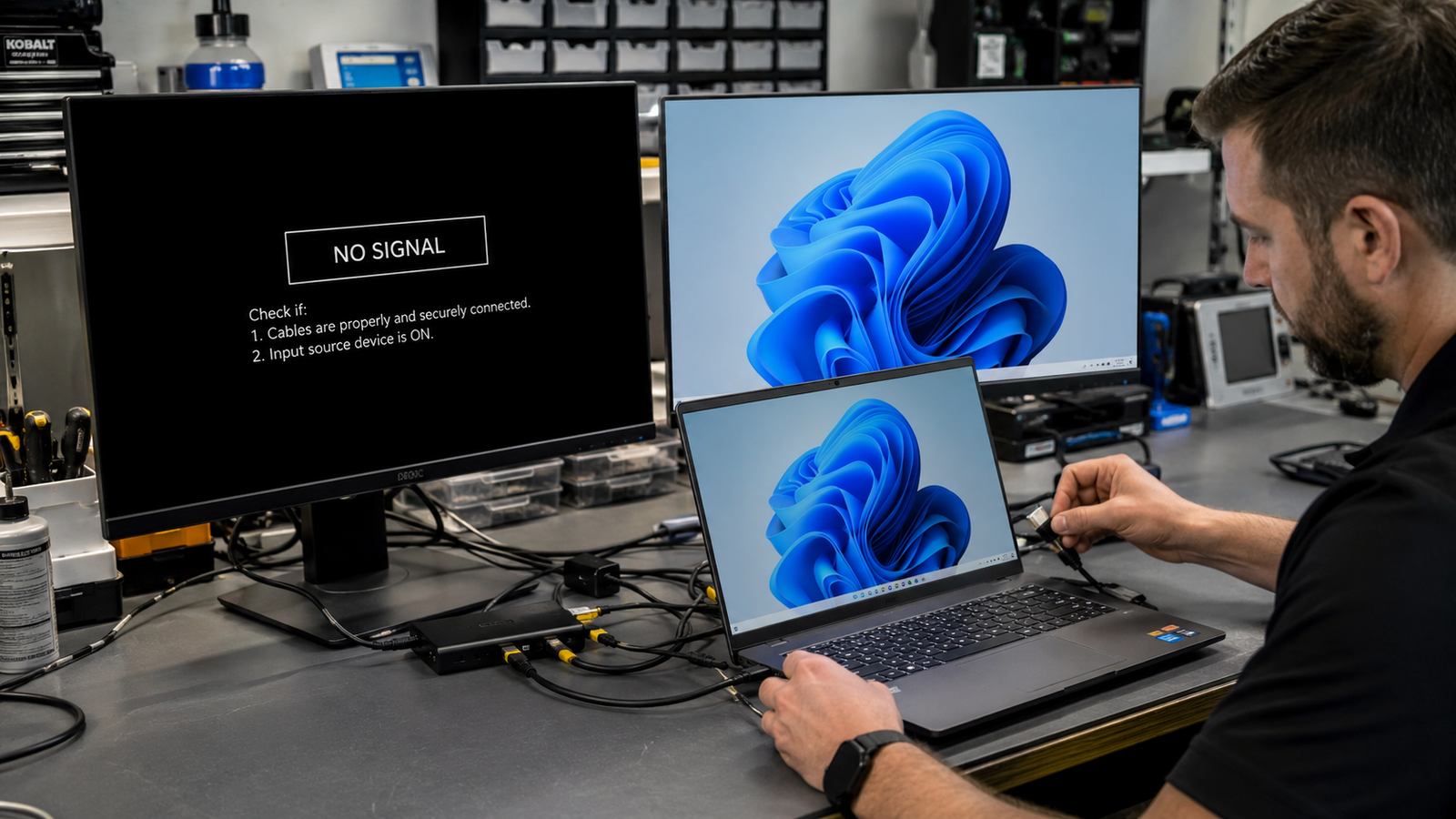
You connect an external monitor to your laptop, but nothing happens. The monitor shows “No Signal,” Windows doesn’t detect the display, or the screen stays black despite the cable being connected.
This problem affects Windows laptops, gaming laptops, business notebooks, and even newer USB-C models. Sometimes the issue is software-related. Other times the fault lies with cables, adapters, ports, graphics hardware, or firmware.
This guide walks through professional troubleshooting steps used by repair technicians to identify the exact cause and restore external display functionality.
Symptoms of the Problem

Common signs include:
- Monitor displays “No Signal”
- External display remains black
- Windows only detects one display
- Display flickers and disconnects repeatedly
- Monitor briefly appears then disappears
- HDMI connection not recognized
- DisplayPort monitor not detected
- USB-C monitor not working
- Docking station monitors stopped working
- Screen duplication works but extend mode fails
- External monitor missing from Device Manager
- Graphics driver errors after connecting monitor
Tools Needed
Built-In Tools
- Windows Display Settings
- Device Manager
- Windows Update
- BIOS Setup Utility
- DirectX Diagnostic Tool (DxDiag)
Software Tools
- Intel Graphics Command Center
- NVIDIA Control Panel
- AMD Software Adrenalin Edition
- HWMonitor
- Display Driver Uninstaller (DDU)
Hardware Tools
- Known-good HDMI cable
- Known-good DisplayPort cable
- USB-C cable supporting video output
- Alternate monitor
- Docking station (if applicable)
- Flashlight for port inspection
Troubleshooting Matrix
| Symptom | Likely Cause | Fast Fix |
| No signal on monitor | Bad cable | Replace cable |
| Monitor not detected | Windows display settings | Detect display manually |
| USB-C monitor not working | USB-C lacks DisplayPort Alt Mode | Verify USB-C specifications |
| Screen flickers | Damaged cable | Replace cable |
| Dock monitor not detected | Dock firmware issue | Update dock firmware |
| Monitor appears then disappears | Graphics driver issue | Reinstall GPU driver |
| Display detected but black | Incorrect refresh rate | Reset display settings |
| Multiple monitors fail | GPU hardware issue | Test external hardware |
What Causes Laptop Not Detecting External Monitor?

Faulty HDMI or DisplayPort Cable
Cables fail more often than most users realize. Internal wire damage can interrupt video transmission while appearing normal externally.
Users often assume a cable is good because it worked previously.
Confirmation Sign:
The monitor works immediately after replacing the cable.
Incorrect Display Settings
Windows sometimes fails to automatically extend displays after updates or hardware changes.
Many users mistakenly believe Windows should always detect monitors automatically.
Confirmation Sign:
The monitor appears after selecting “Detect” in Display Settings.
Outdated Graphics Drivers
Graphics drivers control communication between the GPU and display hardware.
Corrupted or outdated drivers frequently prevent external monitors from being recognized.
Confirmation Sign:
The monitor works after reinstalling the graphics driver.
Unsupported USB-C Port
Not every USB-C port supports video output.
Many users assume every USB-C connector can drive an external display.
Confirmation Sign:
Manufacturer specifications show no DisplayPort Alt Mode support.
Faulty Docking Station
Docking stations contain display controllers and firmware that can malfunction.
Power delivery issues often cause monitor detection failures.
Confirmation Sign:
Direct laptop-to-monitor connection works normally.
Monitor Input Selection Error
Many monitors support multiple inputs.
The monitor may be waiting on DisplayPort while the laptop is connected through HDMI.
Confirmation Sign:
Changing monitor input restores video immediately.
BIOS Configuration Problems
Some laptops allow graphics configuration changes within BIOS.
Firmware bugs occasionally disable external display support.
Confirmation Sign:
External monitor works after BIOS reset.
Graphics Hardware Failure
GPU hardware failures are less common but possible.
Dedicated graphics chips may fail from overheating or power issues.
Confirmation Sign:
Multiple monitors and cables fail across all ports.
How to Diagnose the Problem

Step 1: Verify Monitor Power
Expected Result:
Monitor powers on normally.
If Failed:
Inspect power cable and outlet.
Next Action:
Test another outlet.
Step 2: Verify Input Source
Expected Result:
Correct HDMI or DisplayPort input selected.
If Failed:
Select proper input manually.
Next Action:
Reconnect cable.
Step 3: Test Different Cable
Expected Result:
Monitor becomes detected.
If Failed:
Continue diagnosis.
Next Action:
Test another monitor.
Step 4: Detect Monitor in Windows
Expected Result:
Windows identifies second display.
If Failed:
Continue to graphics troubleshooting.
Next Action:
Check Device Manager.
Step 5: Test Alternate Monitor
Expected Result:
Laptop detects alternate display.
If Failed:
Problem likely exists within laptop.
Next Action:
Inspect graphics drivers.
Step 6: Check Device Manager
Expected Result:
Monitor appears under Monitors.
If Failed:
Reinstall graphics driver.
Next Action:
Update GPU software.
Step 7: Test Without Docking Station
Expected Result:
Monitor functions directly.
If Failed:
Investigate laptop hardware.
Next Action:
Check BIOS settings.
Step 8: Inspect BIOS
Expected Result:
Graphics settings appear normal.
If Failed:
Reset BIOS defaults.
Next Action:
Update BIOS firmware.
Step-by-Step Fixes

1. Reconnect Everything Properly
Cost:
Free
Time:
5 Minutes
Difficulty:
Easy
Steps
- Shut down laptop.
- Power off monitor.
- Disconnect cables.
- Wait 60 seconds.
- Reconnect everything firmly.
- Power monitor first.
- Start laptop.
Expected Result
Monitor appears during startup.
If Failed
Continue to display detection.
Next Action
Run Windows display detection.
Technician Tip
Loose HDMI connections are extremely common.
2. Detect Display Manually
Cost:
Free
Time:
2 Minutes
Difficulty:
Easy
Steps
- Open Settings.
- Select System.
- Select Display.
- Scroll down.
- Click Detect.
Expected Result
Windows finds external monitor.
If Failed
Display remains missing.
Next Action
Test alternate cable.
Technician Tip
Windows updates occasionally disable automatic display detection.
3. Use Keyboard Display Shortcut
Cost:
Free
Time:
1 Minute
Difficulty:
Easy
Steps
- Press Windows + P.
- Select Extend.
- Wait several seconds.
Expected Result
External monitor activates.
If Failed
No change occurs.
Next Action
Inspect graphics drivers.
4. Replace HDMI or DisplayPort Cable
Cost:
$10–$30
Time:
5 Minutes
Difficulty:
Easy
Steps
- Obtain known-good cable.
- Disconnect existing cable.
- Connect replacement.
- Restart monitor.
Expected Result
Display detected instantly.
If Failed
Cable not responsible.
Next Action
Test alternate monitor.
Technician Tip
Cheap cables frequently fail after repeated bending.
5. Reinstall Graphics Driver
Cost:
Free
Time:
15–30 Minutes
Difficulty:
Moderate
Steps
- Open Device Manager.
- Expand Display Adapters.
- Uninstall GPU driver.
- Restart laptop.
- Install latest manufacturer driver.
Expected Result
Monitor appears normally.
If Failed
Driver corruption not primary cause.
Next Action
Update BIOS.
Expert Warning
Avoid generic drivers when manufacturer drivers are available.
6. Update Graphics Software
Cost:
Free
Time:
20 Minutes
Difficulty:
Moderate
Steps
- Download latest GPU package.
- Install update.
- Restart laptop.
- Reconnect monitor.
Expected Result
Display works normally.
If Failed
Continue firmware diagnosis.
Next Action
Update BIOS.
7. Update BIOS Firmware
Cost:
Free
Time:
20–40 Minutes
Difficulty:
Advanced
Steps
- Visit laptop manufacturer’s website.
- Download latest BIOS.
- Connect charger.
- Run update utility.
- Restart system.
Expected Result
Display detection improves.
If Failed
Hardware diagnosis required.
Next Action
Inspect display ports.
Expert Warning
Interrupting a BIOS update can damage the motherboard.
8. Bypass Docking Station
Cost:
Free
Time:
5 Minutes
Difficulty:
Easy
Steps
- Disconnect dock.
- Connect monitor directly.
- Restart laptop.
Expected Result
Monitor functions normally.
If Failed
Dock not responsible.
Next Action
Investigate graphics hardware.
Technician Tip
Dock firmware problems are increasingly common after Windows updates.
9. Replace Faulty Dock
Cost:
$50–$250
Time:
10 Minutes
Difficulty:
Easy
Steps
- Verify dock failure.
- Purchase compatible replacement.
- Install latest firmware.
- Reconnect displays.
Expected Result
External monitors operate normally.
If Failed
Laptop hardware likely faulty.
Next Action
Professional diagnosis.
Repair Shop Diagnosis

Professional technicians typically start with cable verification and monitor testing before examining the laptop.
Diagnostic tools commonly used include:
- Known-good test monitors
- HDMI protocol testers
- USB-C analyzers
- Graphics stress-testing software
- Oscilloscopes for board-level repair
Typical repair shop charges:
- Basic diagnosis: $20–$50
- Advanced hardware diagnosis: $50–$120
- GPU-related board diagnostics: $80–$200
Professional repair becomes worthwhile when multiple displays fail, ports are physically damaged, or motherboard-level faults are suspected.
When Hardware Replacement Is Necessary
SSD Failure
SSD failure rarely causes monitor detection issues.
Replacement is justified when system instability accompanies storage errors.
RAM Failure
Faulty RAM can create graphics initialization problems.
Replace RAM if memory diagnostics report errors.
Display Failure
Replace the monitor if it fails on multiple known-good devices.
Fan Failure
Overheating GPUs may disable external display functionality.
Replace failed cooling components immediately.
Battery Failure
Some laptops experience display instability due to power delivery issues.
Replacement is justified if battery diagnostics indicate severe degradation.
Motherboard Failure
Motherboard replacement may be required when:
- HDMI ports stop functioning
- USB-C display circuitry fails
- GPU communication circuits fail
- Port damage is visible
Prevention Tips

- Avoid sharply bending HDMI cables.
- Use certified USB-C video cables.
- Keep graphics drivers updated.
- Install BIOS updates only from the manufacturer.
- Clean USB-C and HDMI ports regularly.
- Avoid forcing connectors into ports.
- Update docking station firmware periodically.
- Disconnect equipment during electrical storms.
Frequently Asked Questions

Why does my monitor say no signal even though the cable is connected?
The monitor may be on the wrong input source, the cable may be faulty, or Windows may not be detecting the display. Verify all three before investigating hardware faults.
Why is my USB-C monitor not working?
Many USB-C ports only transfer data and charging. Confirm your laptop supports DisplayPort Alt Mode or Thunderbolt video output.
Can a graphics driver stop monitor detection?
Yes. Corrupted or incompatible graphics drivers frequently prevent external displays from being recognized properly.
Why does my monitor work with another computer but not my laptop?
This usually indicates a laptop-side problem involving drivers, ports, firmware, or graphics hardware.
Can a docking station prevent monitor detection?
Yes. Faulty docks, outdated dock firmware, or insufficient power delivery commonly cause display detection failures.
How do I know if my HDMI port is damaged?
Physical looseness, visible bent pins, intermittent connections, and failure with multiple cables are strong indicators of port damage.
Conclusion
A laptop that is not detecting an external monitor is usually caused by faulty cables, incorrect display settings, graphics driver problems, USB-C compatibility limitations, or docking station failures. Start with the simplest fixes such as checking cables and manually detecting displays before moving into driver and BIOS troubleshooting. If multiple monitors fail across multiple ports, hardware diagnosis is warranted. Motherboard or graphics-related repairs are the most likely replacement scenarios.