
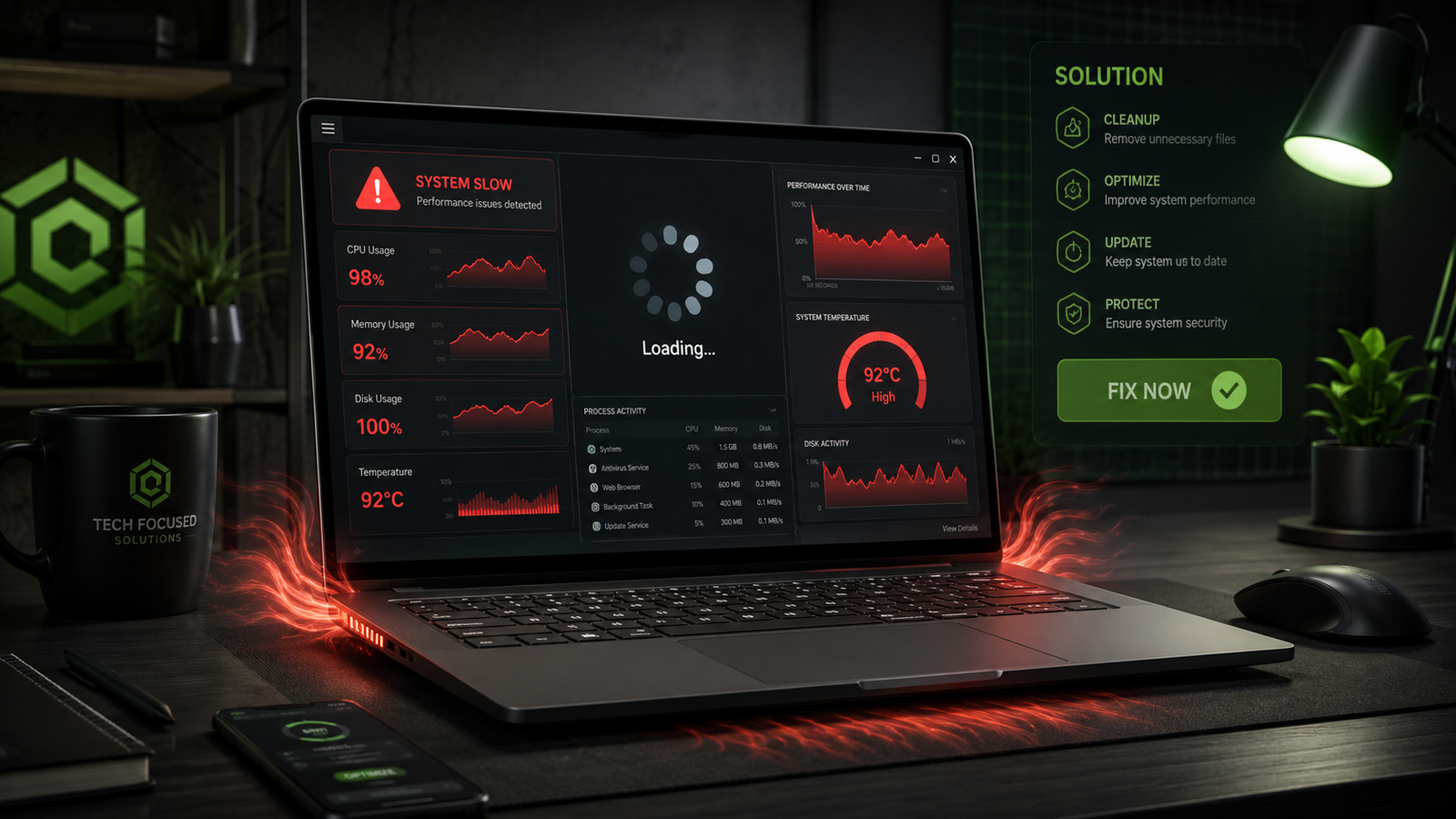
A laptop lagging fix usually starts with reducing startup apps, clearing background processes, updating drivers, and checking storage health. Most slow laptops recover normal speed after removing software overload, fixing overheating, and upgrading RAM or SSD storage when needed.
• Disable unnecessary startup programs to restore boot speed
• Free up storage space and remove corrupted temporary files
• Check CPU, RAM, and disk usage to identify hardware bottlenecks
Your laptop used to open apps instantly, switch tabs smoothly, and boot within seconds. Now it freezes during basic tasks, takes forever to load programs, and sounds like it’s struggling just to stay responsive. That slowdown usually comes from overloaded startup apps, failing storage drives, overheating, outdated drivers, or insufficient RAM.
The good news is that most laptop lagging problems can be fixed without replacing the entire machine. The steps below walk through the exact repair process used by professional technicians, starting with quick software fixes and ending with advanced hardware solutions when necessary.
Symptoms of the Problem

A lagging laptop rarely slows down in only one way. Watch for these common warning signs:
- Applications take several seconds to open
- The mouse cursor freezes or stutters
- Windows takes a long time to boot
- Browser tabs crash or stop responding
- Videos buffer or play with frame drops
- The cooling fan runs loudly during light tasks
- Keyboard input appears delayed while typing
- File Explorer freezes when opening folders
- Games suddenly drop FPS or stutter heavily
- CPU or disk usage stays near 100%
- The screen becomes unresponsive during multitasking
- Windows updates fail repeatedly
- Blue screen crashes appear during heavy workloads
- Programs display “Not Responding” frequently
System Requirements & Tools Needed

Before starting the repair process, prepare these built-in tools and optional hardware items:
- Windows Task Manager
- Windows Settings app
- Device Manager
- Disk Cleanup
- Windows Security
- Storage Sense
- Compressed air can
- Cooling pad
- Small screwdriver set
- External USB drive for backups
- SSD upgrade kit (optional)
- Additional RAM module (optional)
Troubleshooting Matrix (Quick Comparison Table)

| Observed Symptom | Potential Root Cause | Recommended Fast Fix |
| Slow startup | Too many startup apps | Disable startup programs |
| Laptop freezes randomly | High RAM or CPU usage | End heavy background tasks |
| Constant fan noise | Overheating | Clean vents and fans |
| Programs open slowly | Failing HDD | Upgrade to SSD |
| Browser lag | Too many extensions | Remove unused add-ons |
| High disk usage | Corrupted system files | Run SFC and DISM scans |
| Lag during gaming | Thermal throttling | Improve cooling |
| Delayed typing | Driver conflicts | Update keyboard drivers |
| Entire system feels sluggish | Low storage space | Clear temporary files |
| Stutters while multitasking | Insufficient RAM | Upgrade memory |
Step-by-Step Fixes (From Easiest to Advanced)

Restart the Laptop Properly
A full restart clears temporary memory overload and resets stuck background services.
- Save all open files and close applications.
- Click the Windows Start Menu.
- Select the Power icon.
- Choose “Restart” instead of “Shut Down.”
- Wait for Windows to reload completely.
Fast Startup in Windows sometimes prevents a full system refresh during shutdowns. Restarting forces Windows to rebuild active processes cleanly.
💡 TIP: Leave the laptop powered off for two minutes before restarting if it feels extremely hot.
Disable Startup Programs
Disabling unnecessary startup apps immediately improves boot speed and reduces background lag.
- Press Ctrl + Shift + Esc to open Task Manager.
- Click the “Startup Apps” tab.
- Look for apps marked “High Impact.”
- Right-click unnecessary apps.
- Select “Disable.”
Common offenders include:
- Discord
- Spotify
- Adobe Creative Cloud
- Game launchers
- RGB control software
- Cloud syncing apps
Do not disable antivirus software or essential Windows services.
⚠️ EXPERT WARNING: Some driver management utilities are required for touchpads, Wi-Fi adapters, and audio systems. Research unknown startup entries before disabling them.
Free Up Storage Space
A nearly full drive slows Windows dramatically because the system loses working space for caching and virtual memory.
- Open Settings.
- Go to “System.”
- Select “Storage.”
- Click “Temporary Files.”
- Remove:
- Temporary internet files
- Windows update cleanup
- Recycle Bin contents
- Delivery optimization files
Next, uninstall software you no longer use.
- Open “Apps & Features.”
- Sort by size.
- Remove large unused applications.
Aim to keep at least 20% of the drive empty for stable performance.
Check Task Manager for Resource Overload
Task Manager reveals exactly which process is slowing your laptop.
- Press Ctrl + Shift + Esc.
- Click the “Processes” tab.
- Watch the CPU, Memory, and Disk columns.
- Identify apps consuming abnormal resources.
- Right-click heavy processes and select “End Task.”
Warning signs include:
- CPU usage above 90% during idle
- Memory usage constantly near maximum
- Disk usage stuck at 100%
Google Chrome with excessive tabs is a common source of lag.
Update Windows and Drivers
Outdated drivers often cause freezing, input delay, and performance drops.
- Open Settings.
- Go to “Windows Update.”
- Install all pending updates.
- Restart the laptop.
Next, update drivers manually:
- Right-click the Start Menu.
- Open Device Manager.
- Expand categories like:
- Display adapters
- Network adapters
- Keyboards
- Right-click the device.
- Select “Update Driver.”
Pay special attention to GPU drivers from:
- NVIDIA
- AMD
- Intel
Using outdated graphics drivers causes severe stuttering during video playback and gaming.
Scan for Malware and Hidden Crypto Miners
Malware can silently consume CPU power and storage resources.
- Open Windows Security.
- Select “Virus & Threat Protection.”
- Click “Quick Scan.”
- Run a “Full Scan” afterward.
Suspicious symptoms include:
- Constant high CPU usage
- Loud fan noise during idle
- Random browser popups
- Unknown background apps
If infections are detected, remove them immediately and restart the laptop.
⚠️ EXPERT WARNING: Avoid downloading “PC booster” utilities from random websites. Many fake optimization tools actually install spyware.
Reduce Browser Resource Usage
Browsers are one of the largest causes of laptop lag in 2026.
- Close unnecessary tabs.
- Remove unused extensions.
- Disable hardware-heavy browser themes.
- Clear browser cache.
For Chrome:
- Open Chrome Settings.
- Go to “Performance.”
- Enable “Memory Saver.”
Streaming multiple videos simultaneously heavily stresses low-RAM laptops.
Run System File Repairs
Corrupted Windows files slow down system operations and cause random freezes.
Open Command Prompt as Administrator and run:
sfc /scannow
Wait for the scan to complete.
Then run:
DISM /Online /Cleanup-Image /RestoreHealth
Restart the laptop after both scans finish.
These commands repair damaged Windows system files and restore missing operating components.
Reduce Visual Effects
Windows animations consume extra resources on older laptops.
- Search “Advanced System Settings.”
- Open the Performance section.
- Click “Settings.”
- Select:
- “Adjust for best performance”
Or manually disable:
- Animations
- Transparency effects
- Window shadows
This immediately improves responsiveness on low-end systems.
Check Laptop Temperature
Overheating forces the CPU to reduce speed automatically, causing severe lag.
Common overheating symptoms:
- Loud fan noise
- Hot keyboard surface
- FPS drops during gaming
- Sudden slowdowns after 10–15 minutes
To cool the system:
- Shut down the laptop.
- Disconnect power.
- Blow compressed air into air vents.
- Remove visible dust buildup.
Use the laptop on a hard surface only. Beds and blankets block airflow.
💡 TIP: A cooling pad improves airflow and reduces thermal throttling during heavy workloads.
Upgrade from HDD to SSD
Replacing a hard drive with an SSD delivers the biggest speed improvement possible.
Traditional HDDs become extremely slow with age due to mechanical wear.
SSD upgrades improve:
- Boot speed
- App launch times
- File transfers
- Gaming load times
- System responsiveness
Signs your HDD is failing:
- Clicking noises
- Long loading times
- Frequent freezing
- High disk usage
- File corruption
Most older laptops become dramatically faster after an SSD installation.
Upgrade RAM
Adding more RAM fixes lag caused by multitasking overload.
Low-memory symptoms include:
- Browser crashes
- Freezing while switching apps
- Heavy swap file usage
- Constant disk activity
Recommended RAM in 2026:
| Usage Type | Recommended RAM |
| Basic browsing | 8GB |
| Office + multitasking | 16GB |
| Gaming | 16GB–32GB |
| Video editing | 32GB |
Before upgrading:
- Check your laptop’s maximum RAM capacity.
- Match RAM speed and type.
- Install compatible modules only.
Reset Windows as a Last Resort
A clean Windows reset removes deep software corruption and persistent lag.
- Open Settings.
- Go to “System.”
- Select “Recovery.”
- Click “Reset this PC.”
- Choose:
- “Keep my files”
Windows reinstalls the operating system while preserving personal data.
⚠️ EXPERT WARNING: Always back up important files before resetting Windows. Some applications and settings will be removed permanently.
When to Replace Hardware & Prevention Tips

Software repairs stop working when physical components begin failing. Replace hardware if you notice:
- SSD or HDD health warnings
- Swollen laptop battery
- Broken cooling fans
- Persistent overheating after cleaning
- RAM detection errors
- Random shutdowns under load
- Cracking hinge damage affecting internal cables
Long-term prevention habits matter just as much as repairs.
Follow these maintenance practices:
- Restart the laptop weekly
- Keep at least 20% free storage
- Clean cooling vents every 3–6 months
- Avoid installing unnecessary software
- Remove unused browser extensions
- Keep Windows and drivers updated
- Use antivirus protection continuously
- Avoid blocking ventilation during use
- Shut down heavy background apps during gaming
SSD storage and sufficient RAM remain the two most important upgrades for extending laptop lifespan in 2026.
Frequently Asked Questions (FAQs)

Why is my laptop lagging even after restarting?
Persistent lag after restarting usually indicates high startup load, overheating, malware infection, low storage space, or failing hardware like an HDD.
Does upgrading RAM fix laptop lag?
Yes. RAM upgrades resolve freezing and multitasking slowdowns when your system constantly runs out of available memory.
Can overheating make a laptop slow?
Yes. Excess heat forces the processor to reduce performance automatically, causing major lag and stuttering.
Why does my laptop lag only while gaming?
Gaming lag usually comes from overheating, outdated GPU drivers, insufficient RAM, or background apps consuming CPU resources.
Conclusion
Most laptop lagging problems come from startup overload, overheating, failing storage drives, or insufficient memory. Begin with software cleanup and driver updates before moving to hardware upgrades like SSDs and RAM. Consistent maintenance prevents the slowdown from returning. Start with the Task Manager fixes first, then work through the hardware checks if the lag continues.