
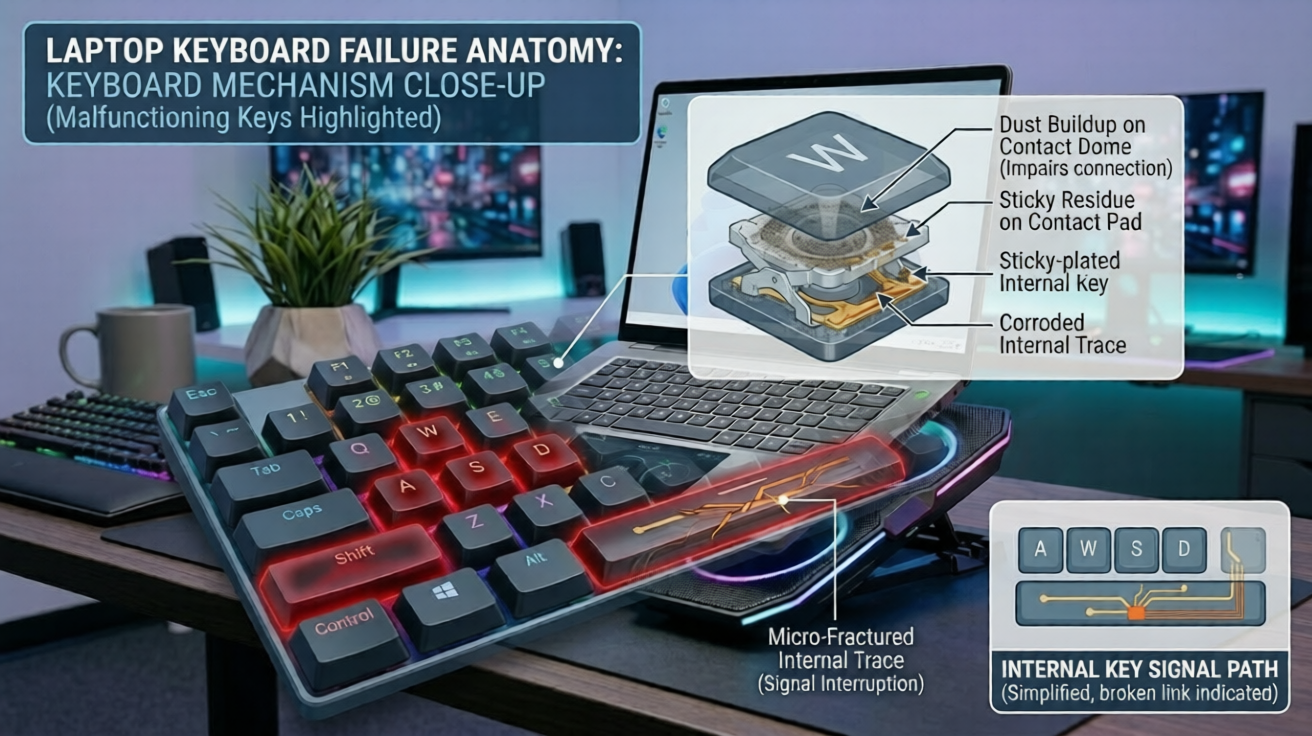
Keys not responding on a laptop are usually caused by dirt, driver errors, software conflicts, or hardware damage.
- Clean the keyboard properly
- Check drivers and keyboard settings
- Test for hardware failure quickly
Introduction
“My laptop keyboard suddenly stopped typing certain letters during work, and restarting didn’t fix anything.” Complaints like this appear constantly across Reddit, Microsoft forums, and laptop support communities. Sometimes only a few keys fail. Other times the entire keyboard becomes unresponsive without warning.
Keyboard problems interrupt gaming, office work, school assignments, and even basic browsing. The issue can come from software glitches, dirt trapped beneath keys, outdated drivers, liquid damage, or failing keyboard hardware.
This guide explains the fastest and most reliable ways to fix keys not responding laptop problems before paying for expensive repairs.
Why Laptop Keys Stop Responding
Common causes include dirt buildup, damaged keyboard hardware, driver corruption, accidental settings changes, liquid spills, and operating system conflicts.
Laptop keyboards contain delicate membrane layers and electrical contact points beneath every key. Even small particles can interfere with proper input registration.
The most common keyboard failure causes include:
| Cause | Typical Symptoms |
| Dust or debris | Random keys fail |
| Driver corruption | Entire keyboard stops |
| Liquid damage | Sticky or repeating keys |
| Hardware wear | Certain keys stop permanently |
| Filter Keys enabled | Delayed typing response |
| BIOS problems | Keyboard fails before Windows loads |
Mechanical wear also becomes more common after several years of daily use. Gaming laptops and office machines with heavy typing workloads often develop worn-out key switches faster than lightly used systems.
Identifying the source of failure early prevents unnecessary part replacements.
Restart the Laptop First

A restart clears temporary software errors affecting keyboard input.
Many keyboard failures happen because background processes or operating system services freeze unexpectedly.
Before changing settings or opening the laptop:
- Save your work.
- Restart the system completely.
- Test the keyboard again after startup.
- Check whether the issue affects all applications.
Do not rely on sleep mode or hibernation during troubleshooting. A full restart reloads drivers and resets temporary system states.
If the keyboard works normally after rebooting, the issue was likely software related rather than hardware failure.
Check Whether Specific Keys or the Entire Keyboard Failed

Testing individual keys helps determine whether the problem is physical or software based.
Press every key slowly and identify exactly which inputs fail.
Different failure patterns usually indicate different causes.
| Symptom | Most Likely Cause |
| One key not working | Dirt or physical damage |
| Entire row failed | Internal connector issue |
| Entire keyboard dead | Driver or motherboard issue |
| Delayed typing | Accessibility settings |
| Repeating letters | Sticky switch or software bug |
You can also test the keyboard inside the BIOS menu.
If the keyboard fails inside BIOS before Windows loads, the problem is usually hardware related.
If the keyboard only fails inside Windows, drivers or software settings are more likely responsible.
Clean the Laptop Keyboard Properly

Keyboard cleaning removes debris that blocks key movement or electrical contact.
Dust, crumbs, pet hair, and oils gradually accumulate underneath laptop keys.
Safe cleaning steps:
- Shut down the laptop.
- Disconnect the charger.
- Turn the laptop upside down gently.
- Use compressed air between keys.
- Wipe surfaces with microfiber cloth.
- Use isopropyl alcohol sparingly for sticky residue.
Avoid spraying liquid directly onto the keyboard.
Compressed air is especially effective for gaming laptops and office systems exposed to dusty environments.
If a single key feels stiff or fails intermittently, debris beneath the keycap is often responsible.
Disable Filter Keys and Accessibility Settings

Filter Keys can cause delayed or ignored keystrokes in Windows.
Windows accessibility features sometimes activate accidentally through keyboard shortcuts.
To disable Filter Keys on Windows 11:
- Open Settings.
- Select Accessibility.
- Open Keyboard settings.
- Turn off Filter Keys.
- Turn off Sticky Keys if enabled.
Filter Keys ignores brief or repeated keystrokes to assist users with motor control limitations. Unfortunately, many users enable it unintentionally by holding the Shift key repeatedly.
After disabling these settings, test the keyboard again immediately.
Many delayed typing issues disappear instantly once accessibility features are disabled.
Update or Reinstall Keyboard Drivers

Keyboard drivers control communication between the hardware and operating system.
Corrupted drivers can prevent the keyboard from functioning correctly even when the hardware itself works normally.
To reinstall keyboard drivers:
- Open Device Manager.
- Expand Keyboards.
- Right-click the keyboard device.
- Select Uninstall Device.
- Restart the laptop.
Windows automatically reinstalls standard keyboard drivers during startup.
Driver updates may also be available through laptop manufacturers such as Dell, HP, Lenovo, or ASUS.
Gaming laptops sometimes require additional keyboard management software for RGB lighting and macro controls.
Run the Windows Keyboard Troubleshooter

The built-in troubleshooter detects common keyboard configuration problems automatically.
Although troubleshooters cannot fix every issue, they can identify disabled services and incorrect system settings.
To access it:
- Open Settings.
- Go to System.
- Select Troubleshoot.
- Open Other Troubleshooters.
- Run the Keyboard troubleshooter.
The process usually takes only a few minutes.
If Windows detects driver conflicts or accessibility problems, it may apply automatic fixes without additional steps.
This method is especially useful after major Windows updates.
Test With an External Keyboard

An external keyboard confirms whether the internal keyboard hardware has failed.
Connect a USB or Bluetooth keyboard and test typing immediately.
Results interpretation:
| External Keyboard Result | Meaning |
| External works normally | Internal keyboard issue |
| External also fails | Software or motherboard issue |
| Both lag during typing | System performance problem |
External keyboard testing is one of the fastest ways to isolate hardware failures.
If only the internal keyboard fails, the laptop may require keyboard replacement or connector repair.
Fortunately, many laptops continue functioning normally with external keyboards even after internal keyboard failure.
Check for Liquid Damage

Liquid exposure can permanently damage keyboard circuits and connectors.
Water, coffee, soda, and tea are among the most common causes of keyboard failure.
Signs of liquid damage include:
- Sticky keys
- Multiple keys failing together
- Random characters appearing
- Keyboard backlight malfunction
- Corrosion near ports or vents
If liquid exposure happened recently:
- Shut down the laptop immediately.
- Disconnect all power.
- Dry the system completely.
- Avoid turning it back on prematurely.
Liquids can short internal circuits quickly.
Sugary drinks are especially dangerous because residue remains conductive after drying.
Professional cleaning may prevent permanent motherboard damage if handled early.
Update BIOS and Windows

Firmware and operating system updates can fix keyboard compatibility bugs.
Laptop manufacturers periodically release BIOS updates addressing hardware communication problems.
Windows updates also include driver patches and input system improvements.
Before updating BIOS:
- Connect the charger
- Ensure battery charge exceeds 50%
- Avoid shutting down during installation
BIOS updates should only come directly from your laptop manufacturer’s official support page.
After updating both BIOS and Windows, restart the system and test all keys again.
Many intermittent keyboard failures disappear after firmware corrections.
Frequently Asked Questions (FAQs)

Why are only some laptop keys not responding?
Partial keyboard failure usually happens because of dust buildup, worn switches, or liquid damage affecting specific sections of the keyboard.
Can I fix laptop keyboard problems without replacing the keyboard?
Yes. Many issues are caused by software settings, drivers, or debris beneath keys rather than hardware failure.
Does resetting Windows fix keyboard problems?
Sometimes. Resetting Windows can solve software corruption issues, but it will not repair physically damaged keyboard hardware.
How much does laptop keyboard replacement cost?
Laptop keyboard replacement typically costs between $40 and $150 in 2026 depending on the laptop model and labor charges.
[NEXT ARTICLE: “Laptop Overheating While Gaming Fix” — Learn how to reduce temperatures, stop thermal throttling, and improve gaming performance safely.]
Conclusion
Most laptop keyboard problems come from debris, software conflicts, driver corruption, or hardware wear. Start with basic troubleshooting such as restarting the system, cleaning the keyboard, disabling Filter Keys, and reinstalling drivers before assuming the keyboard is permanently damaged. External keyboard testing quickly reveals whether the issue is software or hardware related. Follow these fixes step by step and restore full keyboard functionality without wasting money on unnecessary repairs.